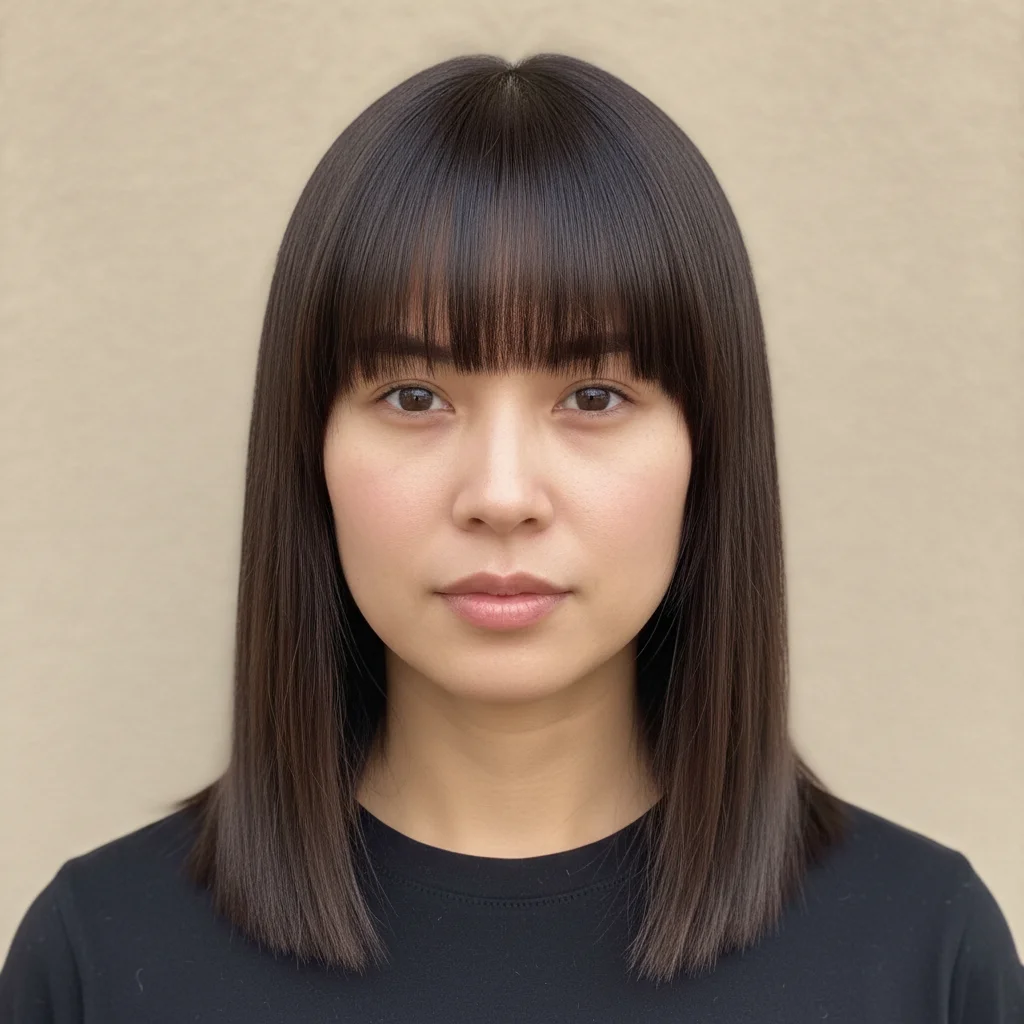
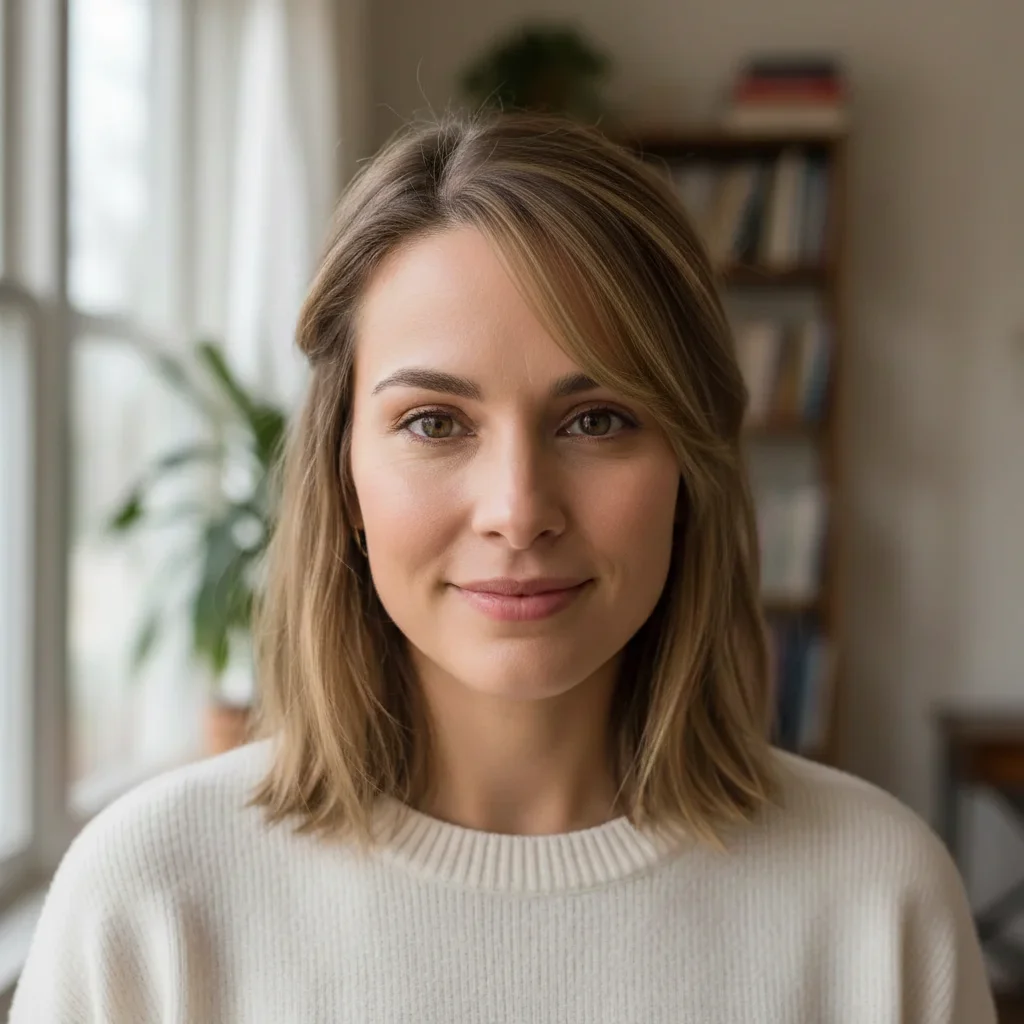
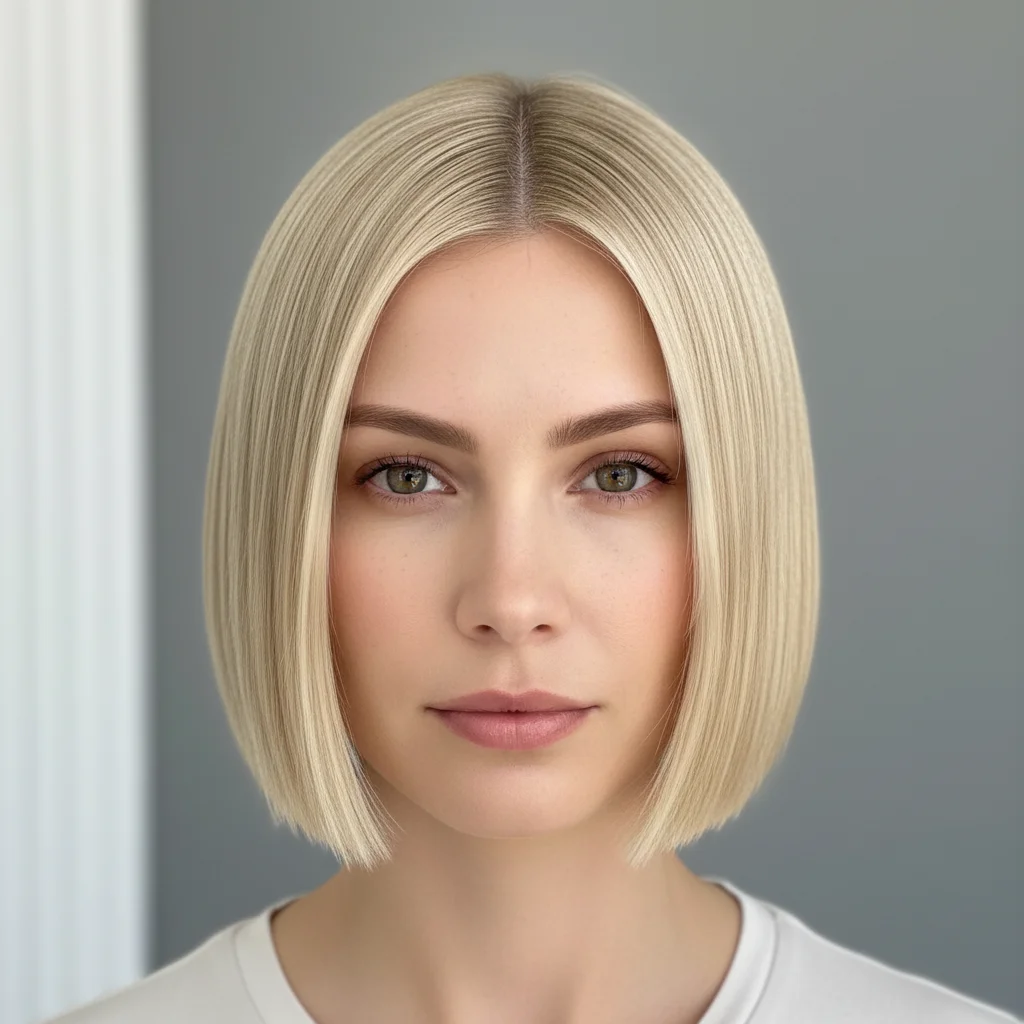
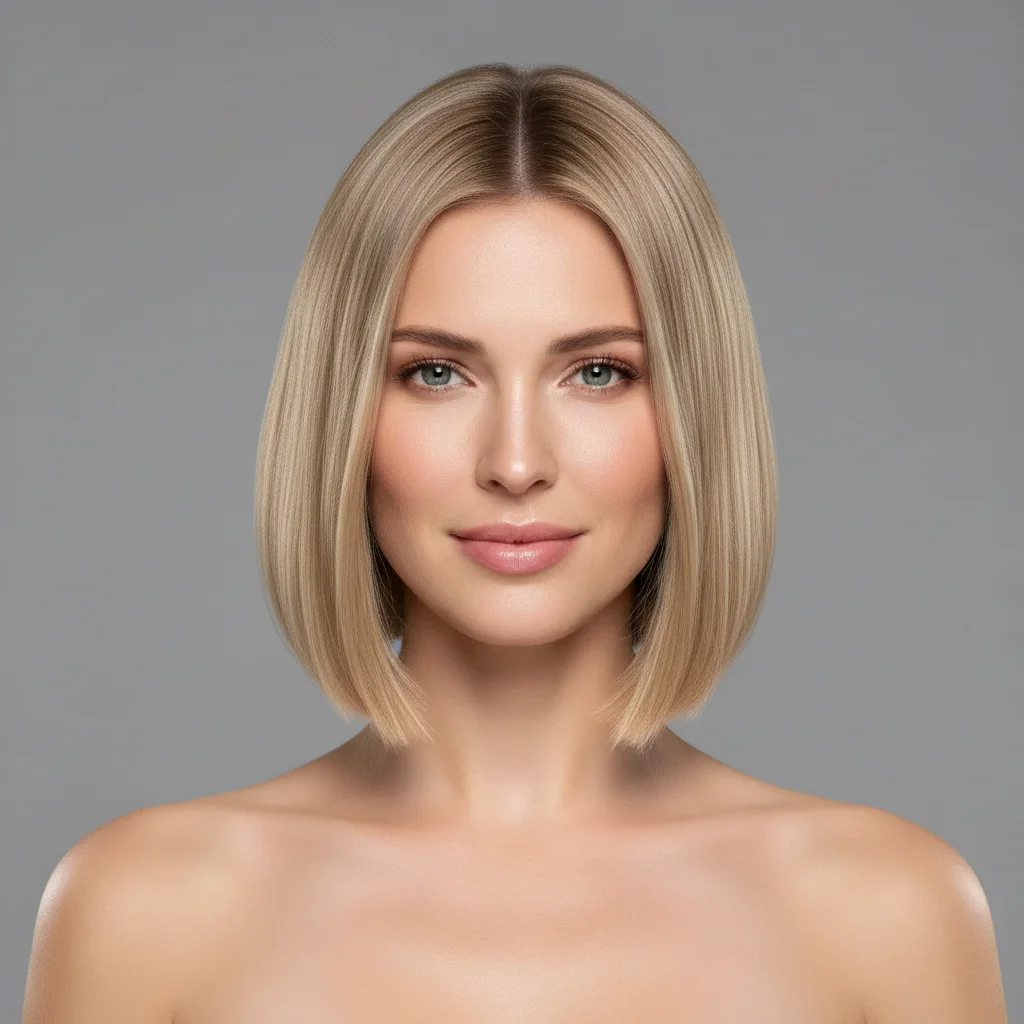
Free • No signup Add Haircut · Free

AI Haircut Preview from Reference Photo

← Browse all body & person tools

Last updated

See exactly how any haircut from a reference photo looks on your portrait — no commitment, no appointment needed first.
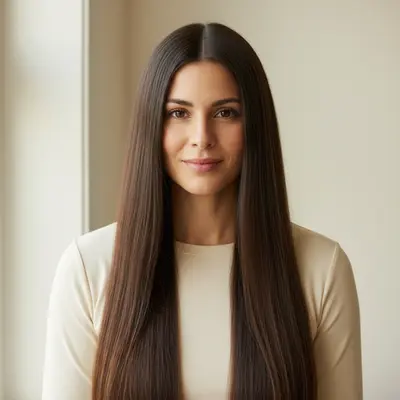
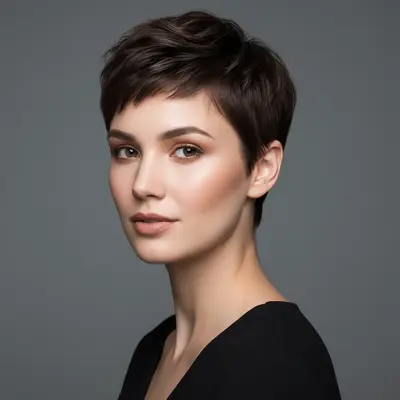
01Photo 1
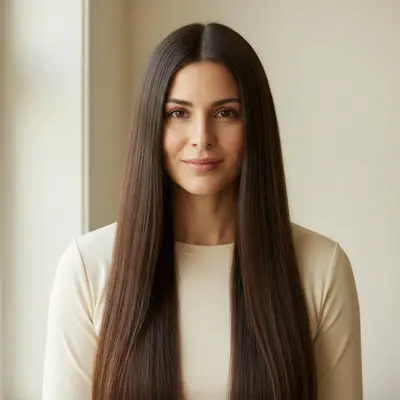
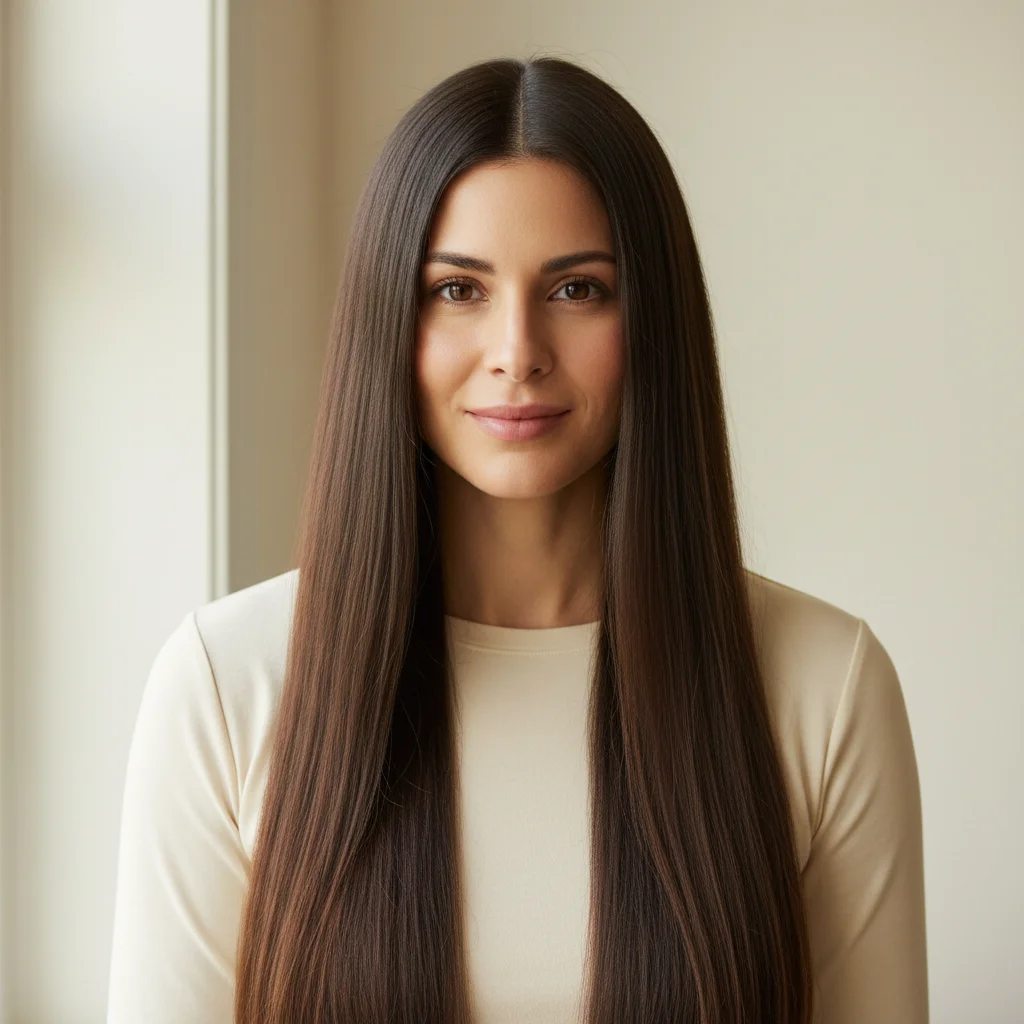
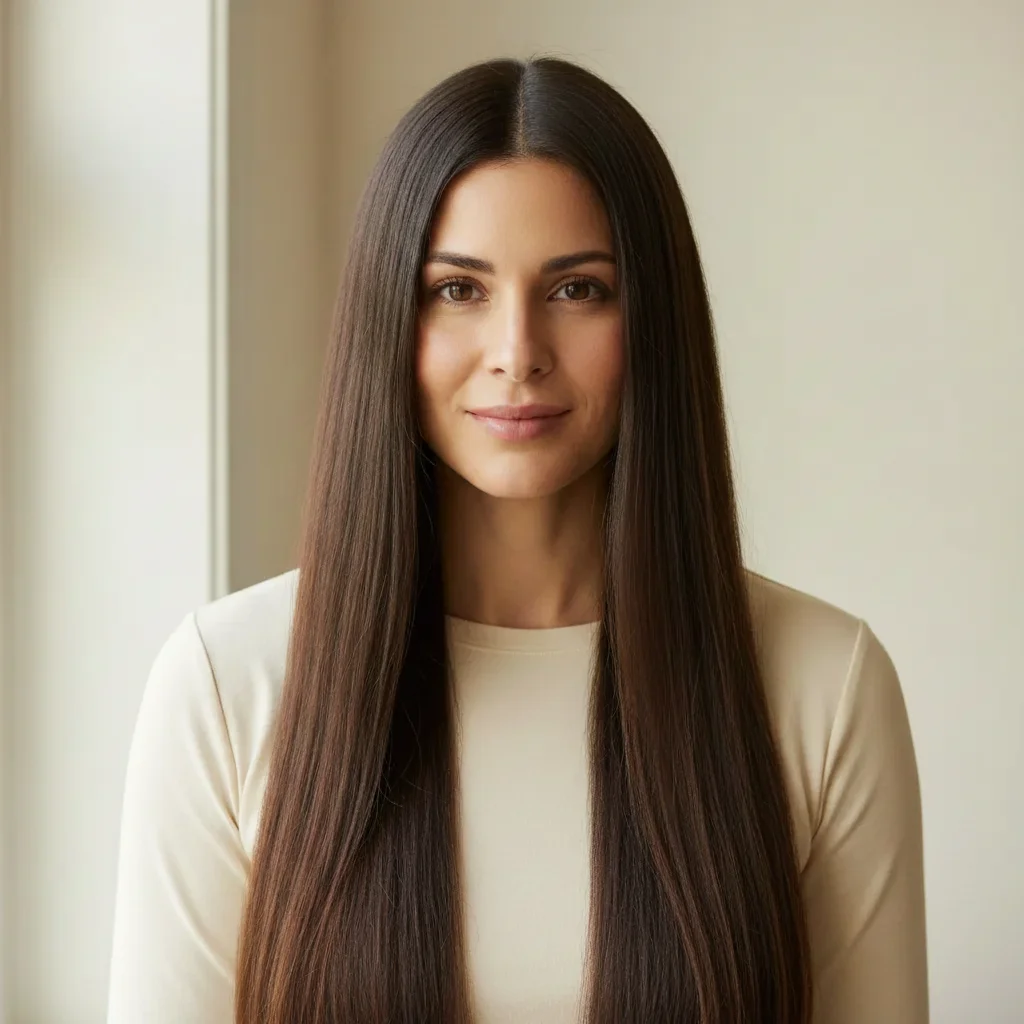
Woman with long dark brown hair
02Photo 2
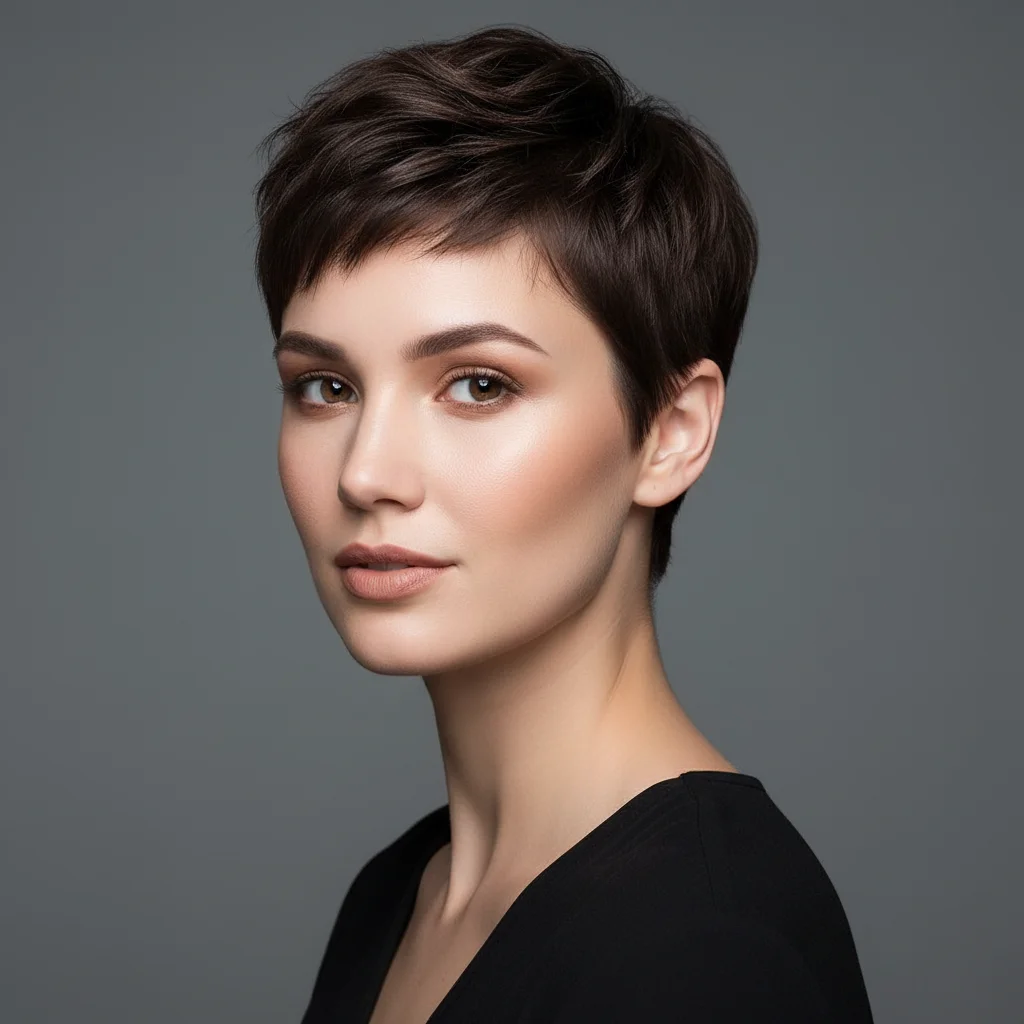
Reference photo showing target pixie cut style
03Result
Same woman with a short pixie cut applied from reference photo

Upload photo to add haircut

"give me the bob haircut from the reference photo on my portrait — same chin-length, blunt cut line, matching my natural blonde hair color"

Release to upload

1 free edit·then from $4.99

Popular use cases:
  • haircut preview before salon
  • try pixie cut before cutting hair
  • see how bob haircut looks on me
  • test bangs before cutting
  • virtual haircut try-on free
  • salon consultation haircut preview
  • AI haircut simulator from reference

1Your photo
+
2Reference
=
Result
Portrait with current longer hair Your photo
Reference photo of target haircut Reference
Portrait with reference haircut applied Result

"Apply this haircut to my photo, matching my natural hair color"

Cost
Free No signup required
Time
Instant results in 15-30 seconds
Works on
Any device - browser, phone, tablet, desktop
Powered by
AI-powered photo editing

How it works

  1. Upload your two photos

    Drop your portrait into EditThisPic, then click '+ Add reference photo' to upload a photo of the haircut you want to preview. Your portrait should show your current hair clearly. The reference can be from Pinterest, Instagram, a stylist's portfolio, or any photo showing the cut you want. JPG, PNG, WebP up to 7MB each.

    Expect: Bob, lob, pixie preview: 25–35 seconds. Layered cuts with complex detail: 35–50 seconds.
  2. Describe the haircut you want to apply

    Tell the AI what to do: 'apply the pixie cut from the reference photo to my portrait, matching my natural blonde hair color and keeping the side styling from the reference' or 'give me the bob haircut from the reference photo, same length and layer structure, with my natural hair color.' Include the cut type, and any specific detail you want preserved.

    Tip: Adding 'matching my natural hair color from my portrait' prevents the AI from adopting the reference person's hair color. This way you're testing just the cut, not the color.

    Copy one of these to get started:

    Preview pixie cut from reference photo apply the pixie cut from the reference photo to my portrait — same length, texture, and side styling — matching my natural dark brown hair color
    Preview bob cut from reference give me the bob haircut from the reference photo on my portrait — same chin-length, blunt cut line, matching my natural blonde hair color
    Add bangs from reference photo add the bangs from the reference photo to my current hairstyle — same fringe length and styling, keeping my existing hair length and my natural hair color
    Preview layered cut from reference apply the layered haircut from the reference photo to my portrait — same layer depth, face-framing pieces, and overall length, matching my natural hair color
    2 more prompts
    Salon consultation: test before booking give me a realistic preview of the haircut from the reference photo — I want to see if it suits my face shape before I book the appointment, keeping my natural hair color
    Short cropped cut from reference apply the short cropped haircut from the reference photo to my portrait — same nape length, top length, and texture, matching my natural auburn hair color
  3. Check cut shape, length, and proportions

    Compare the result against the reference photo. Check that the overall length matches, the layers or cut shape matches, and the proportions look right on your face. The cut should look proportionally natural — not a geometric copy from the reference person's face pasted onto yours.

  4. Refine length or specific sections with markers

    If the length is slightly off, or one section of the cut doesn't match the reference, tap a marker on that area and add 'adjust the hair length here to match the reference cut exactly.' Particularly useful for fixing the nape length or bangs.

    Tip: For short cuts where nape length matters a lot (like pixie cuts), place a marker at the nape specifically for targeted length correction.

See it in action

Woman with long dark brown hair
Main Photo
Reference photo showing target pixie cut style
Reference
Same woman with a short pixie cut applied from reference photo
Result

Long to pixie cut preview

Long dark hair — reference showed a short pixie cut with textured top. AI applied the dramatic length change, matched the dark color, and captured the pixie's texture and side styling from the reference.

Prompt: apply the pixie cut from the reference photo to my portrait — same short length, textured top, and side styling — matching my natural dark brown hair color
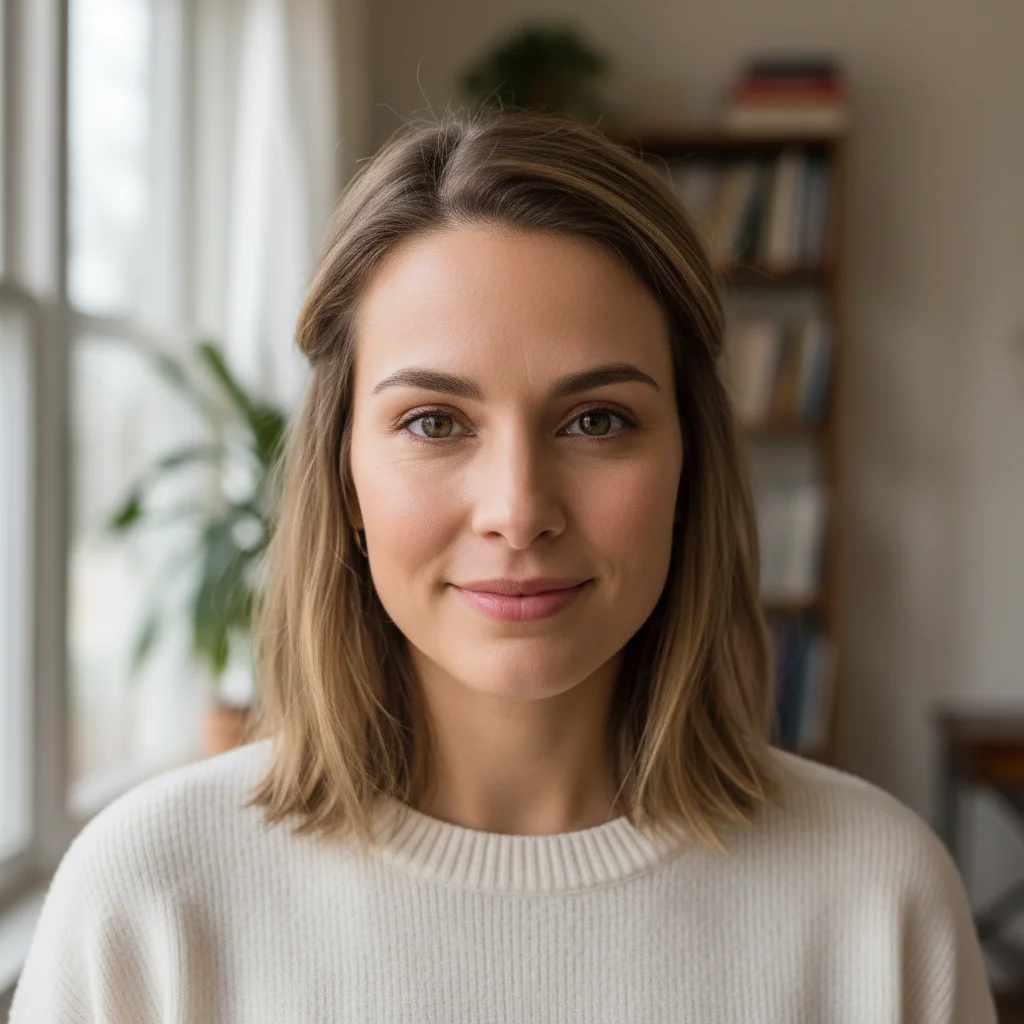
Woman with light brown medium-length hair and no bangs
Main Photo
Reference image for AI Haircut Preview from Reference Photo
Reference
Same woman with side-swept bangs added from reference photo
Result

Adding bangs to a no-fringe style

Medium-length hair with no fringe — reference showed side-swept bangs. AI added the bangs from the reference while preserving the existing hair length and color.

Prompt: add the side-swept bangs from the reference photo to my hair. match the fringe length and sweep direction, but keep my existing hair length and my natural light brown hair color.
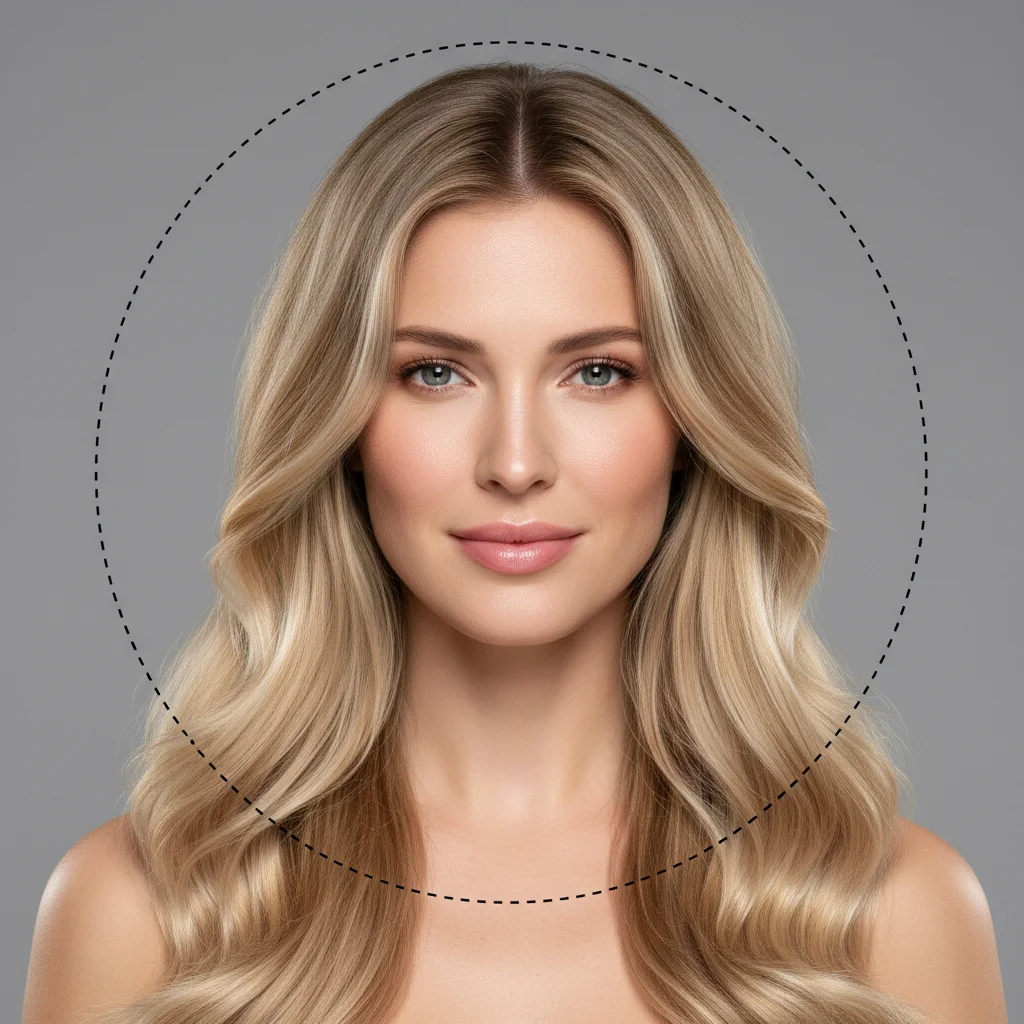
Woman with long wavy blonde hair
Main Photo
Reference image for AI Haircut Preview from Reference Photo
Reference
Same woman with a sleek chin-length bob applied from reference
Result

Straight bob haircut preview

Long wavy hair — reference showed a sleek chin-length blunt bob. AI applied the dramatic length reduction and the smooth texture from the reference while preserving the natural hair color.

Prompt: Apply the sleek chin-length bob from the reference photo to my portrait. I want the same blunt cut ends and smooth finish, matching my natural blonde hair color.

Detailed Guides by Scenario

📷

Previewing a Dramatic Cut Before Committing

Thinking about going from long hair to a pixie cut, or from wavy layers to a sleek bob? Test the dramatic change first.

Common Scenarios

  • Long hair to pixie cut preview before the appointment
  • Wavy long hair to sleek lob visualization
  • Adding a fringe or bangs to a current no-fringe cut
  • Going from one-length to heavily layered cut

Best Practices

  • For very dramatic cuts (long to short), try 2–3 reference photos at different lengths to see a range
  • Front-facing portraits work best for assessing face framing
  • Save the AI preview to show your stylist as the exact reference
📷

Comparing Multiple Haircut Options

Can't decide between a bob, a lob, and keeping your length? Run all three from different reference photos.

Common Scenarios

  • Bob vs lob length comparison on the same portrait
  • With bangs vs without bangs test
  • Layered cut vs blunt cut comparison
  • Two different stylist portfolios compared

Best Practices

  • Use the same portrait for all comparisons so the face and lighting are consistent
  • Save each result and view them side-by-side before deciding
  • Try reference photos from different angles (front, three-quarter) for the most complete preview

If something looks off

Haircut looks longer or shorter than the reference

Why: The AI estimated length relative to face proportions rather than matching the reference precisely.

Try: adjust the hair length to exactly match the reference photo — [chin-length / ear-length / nape-length], matching the cut line of the reference

Tip: Use body landmarks as length anchors: 'chin-length', 'jaw-length', 'ear-length', 'nape-length' — more reliable than 'short' or 'medium'

Hair color changed when only the cut should have changed

Why: The AI adopted color from the reference instead of keeping your natural hair color.

Try: apply only the haircut shape from the reference — keep my exact hair color from my portrait, do not change the color

Tip: Be explicit: 'keep my hair color, only change the cut' to make sure the AI understands the reference is only for shape

Cut shape doesn't match the reference closely

Why: The AI may have blended the cut style with your existing hair shape rather than copying it precisely.

Try: apply the reference haircut more precisely — match the exact cut length, layer structure, and silhouette as shown in the reference photo

Tip: Adding 'match the exact silhouette' signals to the AI that accuracy to the reference is the priority

Bangs or fringe doesn't look right

Why: Fringe placement is sensitive to hairline position and forehead height.

Try: refine the fringe/bangs to better match the reference — adjust the thickness, length, and how it falls on the forehead

Tip: Tap a marker directly on the fringe area and regenerate with a specific fringe description for the most accurate result

AI changed wrong area or edited the background

Why: Without a marker, the AI may not have isolated the hair region correctly.

Try: Tap a marker on your hair in the portrait, then regenerate with the same prompt to focus the edit on the haircut area only

Tip: For haircut previews, place the marker on top of your head to anchor the edit to the hair

Cut looks artificial or the edges look pasted on

Why: The hairline or cut edges didn't blend naturally with the photo.

Try: refine the hairline and cut edges to look natural and realistic, seamlessly integrated with the skin and background

Tip: Adding 'seamlessly integrated with the skin' tells the AI to soften the edge blending at the hairline

Quick answers

Do I need TWO photos — my portrait AND a reference photo of the haircut?

Yes. This tool works best with two photos: your portrait showing your current hair, and a reference photo showing the haircut you want to preview. Upload your portrait first, then click '+ Add reference photo' to add the haircut reference. The AI reads the cut length, shape, and texture from the reference and applies it to your portrait.

Can I preview a dramatic haircut like a pixie cut before committing?

Yes — this is one of the best uses for the tool. Upload your current portrait and a reference photo of the pixie cut you want, and get a realistic preview in 30 seconds. This is much faster than booking a consultation appointment or using physical wigs. You can also run multiple variations (different pixie lengths, with or without bangs) by trying different reference photos.

Can I test just adding bangs without changing the rest of my hair?

Yes. In the prompt, say 'add the bangs from the reference photo, keeping my existing hair length and natural hair color.' This tells the AI to add only the fringe while preserving everything else. Works for side-swept bangs, blunt bangs, curtain bangs, and wispy fringe.

How do I make sure the haircut matches the reference, not just approximate it?

Include 'match the exact cut length and silhouette from the reference photo' in your prompt, and use a clear, well-lit reference where the cut is clearly visible. Front-facing or three-quarter angle references give the most accurate cut shape transfer. If the first result isn't precise enough, regenerate with 'more precisely match the reference haircut' added to your prompt.

Can I use this to prepare for a salon appointment?

Absolutely — that's the most practical use. Generate a preview using your reference photo, then save both the original reference and the AI preview to show your stylist. The AI preview shows your stylist how the cut looks specifically on your face shape and hair texture, which is more useful than just showing the reference inspiration photo.

How much does EditThisPic cost?

You get 1 free edit per week — no account needed. After that, credit packs start at $1.99 for 3 edits. Monthly plans start at $4.99/mo for 15 edits with unused credits rolling over. All edits are full resolution with no watermark.

Preview your haircut before you commit

Upload your portrait and a reference photo. Free, no account required.

1 free edit included·Credit packs from $4.99