Free • No signup Add Ponytail · Free

AI Ponytail Adder

← Browse all add & replace tools

Last updated

Preview a ponytail on your photo using a reference image — great for salon consultations and hairstyle decisions before you commit.
01Photo 1
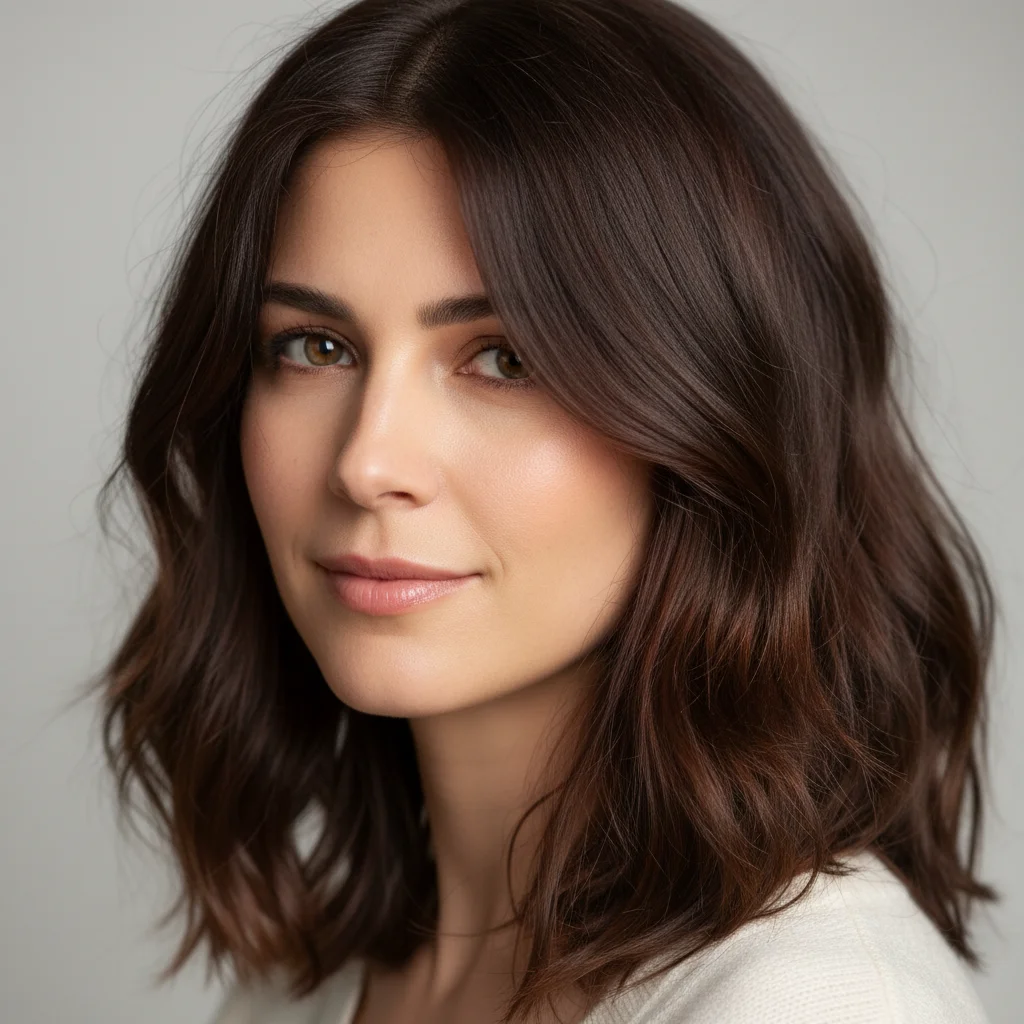
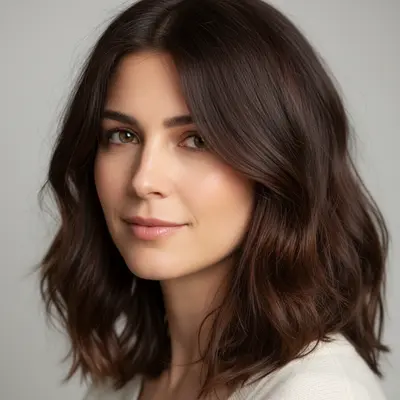
Woman with shoulder-length dark brown hair down
02Photo 2
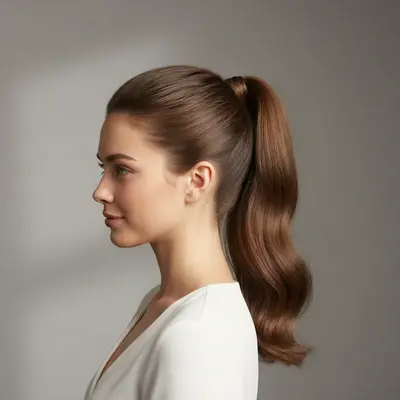
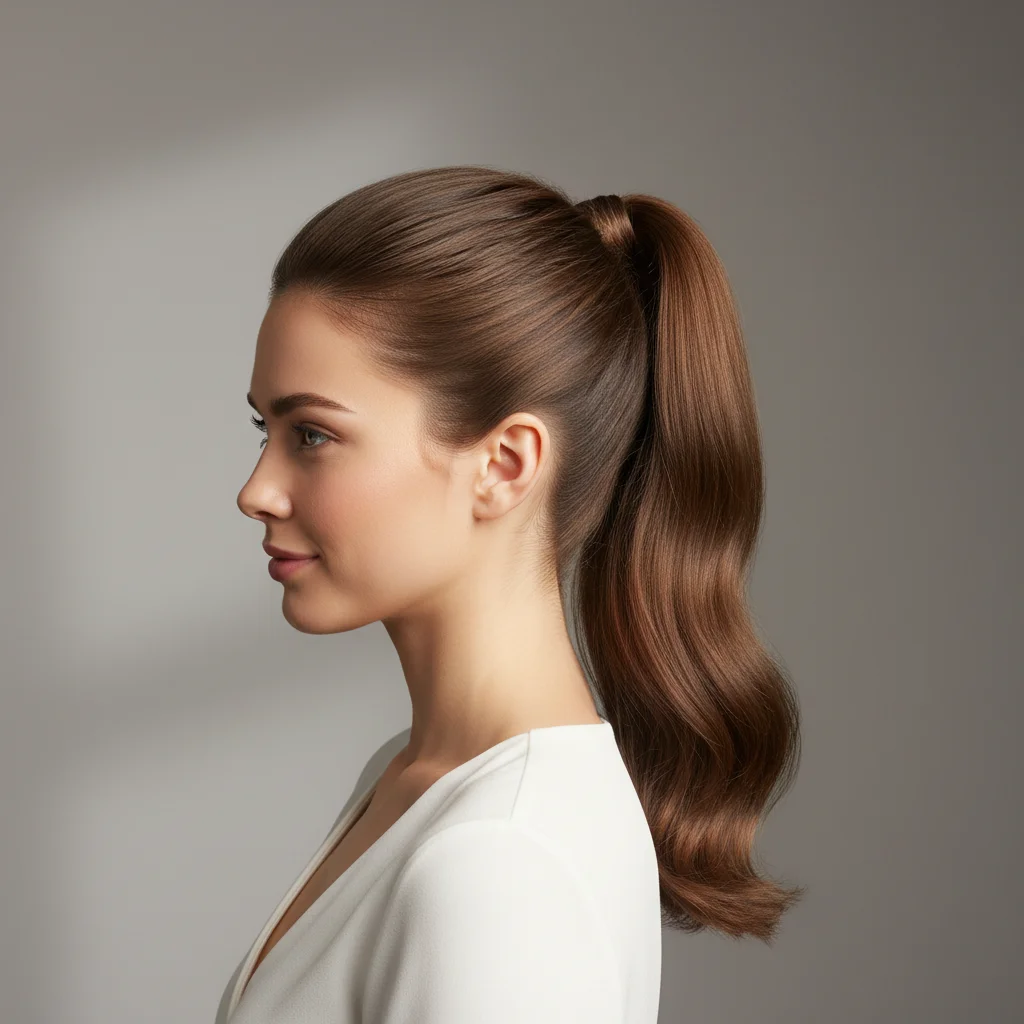
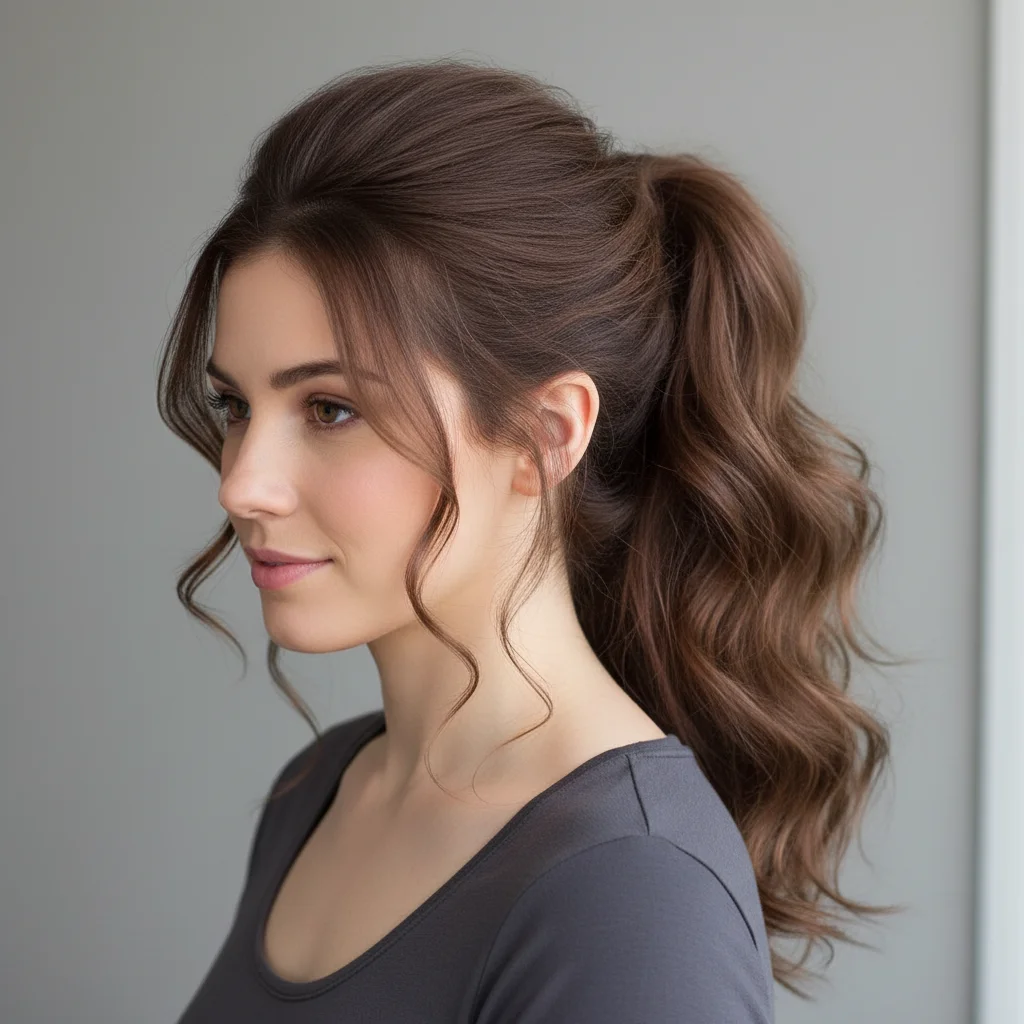
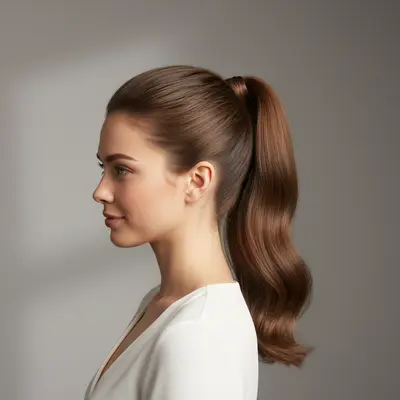
Reference photo of sleek high ponytail style
03Result
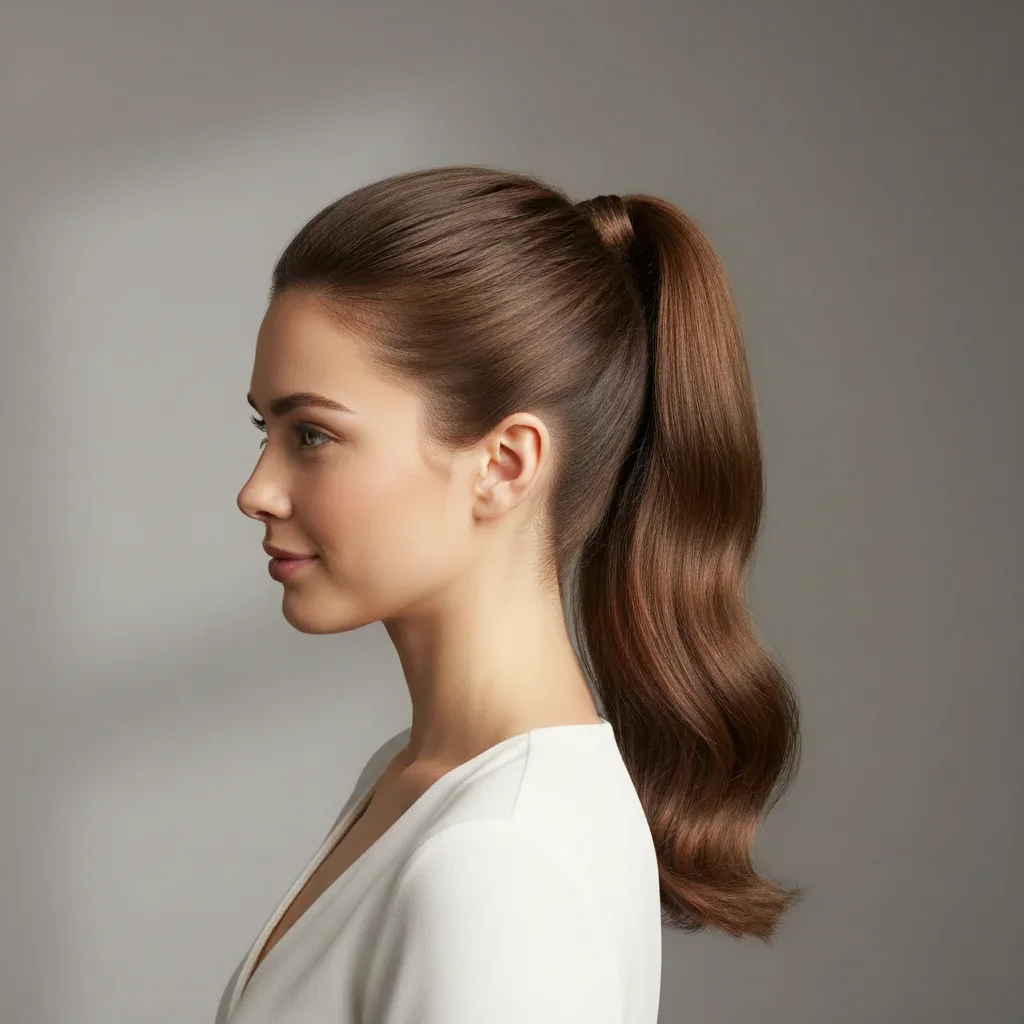
Same woman with sleek high ponytail added

Upload photo to add ponytail

"add a low ponytail at the nape of my neck matching the reference style, smooth and sleek, matching my natural hair color and texture"

Release to upload

1 free edit·then from $4.99

Popular use cases:
  • ponytail preview before salon
  • try ponytail hairstyle on photo
  • high ponytail photo edit
  • low ponytail portrait edit
  • sleek ponytail AI tool
  • virtual hair try-on ponytail
  • salon consultation hair preview

1Your photo
+
2Reference
=
Result
Portrait of person with hair down Your photo
Reference photo showing desired ponytail style Reference
Portrait with ponytail added matching reference style Result

"Add this ponytail style to my hair, matching my hair color"

Cost
Free No signup required
Time
Instant results in 15-30 seconds
Works on
Any device - browser, phone, tablet, desktop
Powered by
AI-powered photo editing

How it works

  1. Upload your two photos

    Drop your portrait photo into EditThisPic, then click '+ Add reference photo' to upload a photo showing the ponytail style you want. The main photo should be a clear portrait where your hair is visible. The reference photo can be from Pinterest, a magazine, or a photo of someone whose ponytail you like. JPG, PNG, WebP up to 7MB each.

    Expect: Simple ponytail additions: 20–30 seconds. Complex styles with detailed texture matching: 30–45 seconds.
  2. Describe the ponytail style

    Tell the AI what to do: 'add this sleek high ponytail to my hair, matching my dark brown color' or 'apply this low ponytail style from the reference photo, keeping the same texture as my natural hair.' Mention the height (high/mid/low), finish (sleek/wavy/messy), and any detail like a center part.

    Tip: For the most natural result, specify whether you want a sleek pulled-back look or a relaxed textured style. Adding 'matching my natural hair color' prevents unexpected color shifts.

    Copy one of these to get started:

    Add sleek high ponytail from reference photo add the sleek high ponytail from the reference photo to my hair, matching my dark brown hair color, pulled back smoothly with no flyaways
    Add low ponytail at nape of neck add a low ponytail at the nape of my neck matching the reference style, smooth and sleek, matching my natural hair color and texture
    Add textured wavy ponytail add the textured wavy ponytail from the reference image, matching my hair color, with soft waves flowing downward and a few face-framing pieces left loose
    Add mid-height voluminous ponytail add a voluminous mid-height ponytail matching the reference photo style, with slight height at the crown, matching my hair color and adding body to the tail
    2 more prompts
    Salon consultation preview give me a realistic preview of this ponytail hairstyle from the reference photo — same height, texture, and tail length, blended naturally with my hair color
    Add ponytail with center part add the ponytail from the reference photo with a clean center part, pulling all hair back smoothly, matching my blonde hair color
  3. Review hair color and hairline blending

    Check that the ponytail color matches your existing hair, the hairline looks natural at the temples and nape, and the overall silhouette matches the reference style. Front hairline and ears are the areas most likely to need a small refinement.

  4. Refine hairline edges with markers if needed

    If the hairline near the temples or nape looks off, tap a marker on that spot and type 'refine the hairline edge here to look more natural.' Most first results look clean, but complex textures may need one pass.

    Tip: Markers work best at the hairline edges — that's where AI compositing is most visible. Place the marker right at the transition zone.

See it in action

Woman with shoulder-length dark brown hair down
Main Photo
Reference photo of sleek high ponytail style
Reference
Same woman with sleek high ponytail added
Result

Sleek high ponytail salon preview

Portrait with shoulder-length hair — reference photo of a sleek high ponytail. AI pulled the hair back, matched the dark color, and created a natural hairline transition at the temples.

Prompt: add the sleek high ponytail from the reference photo to my hair, matching my dark brown hair color, smooth and polished with no flyaways
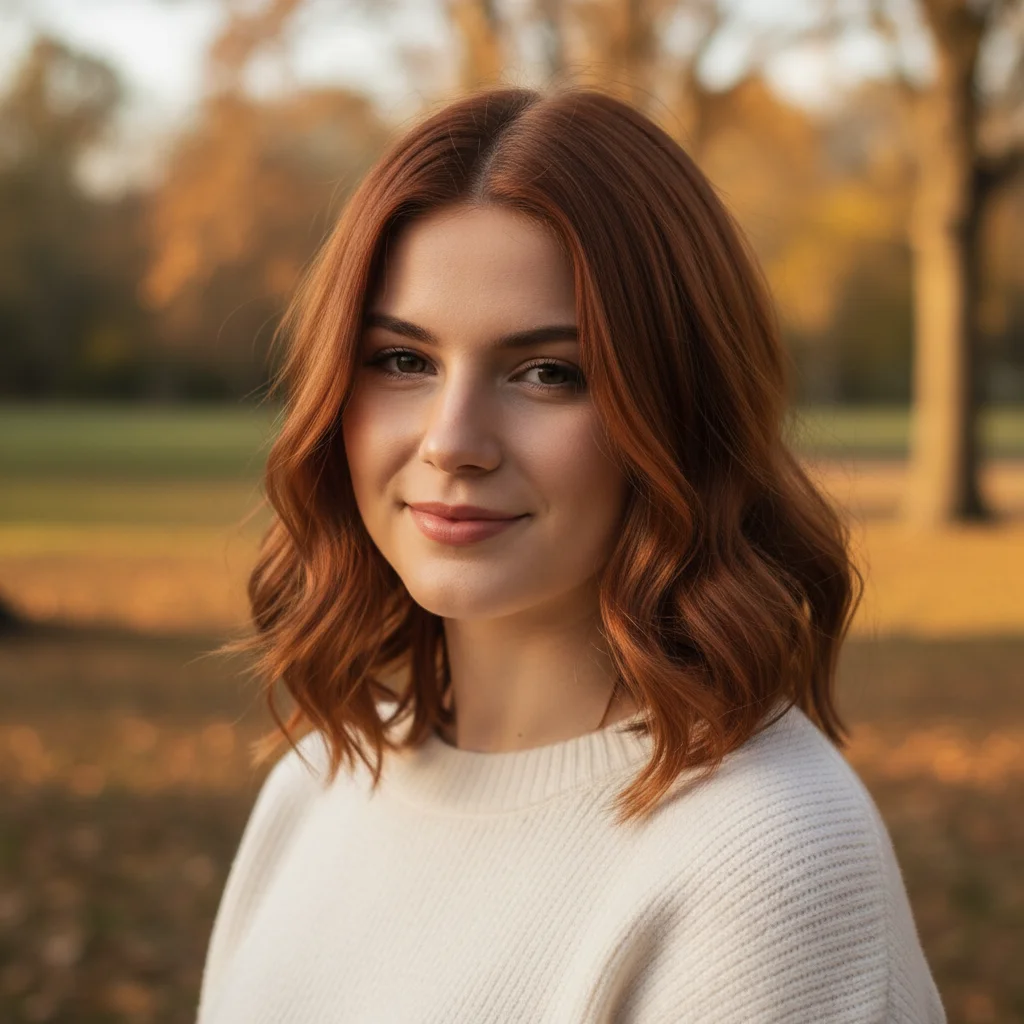
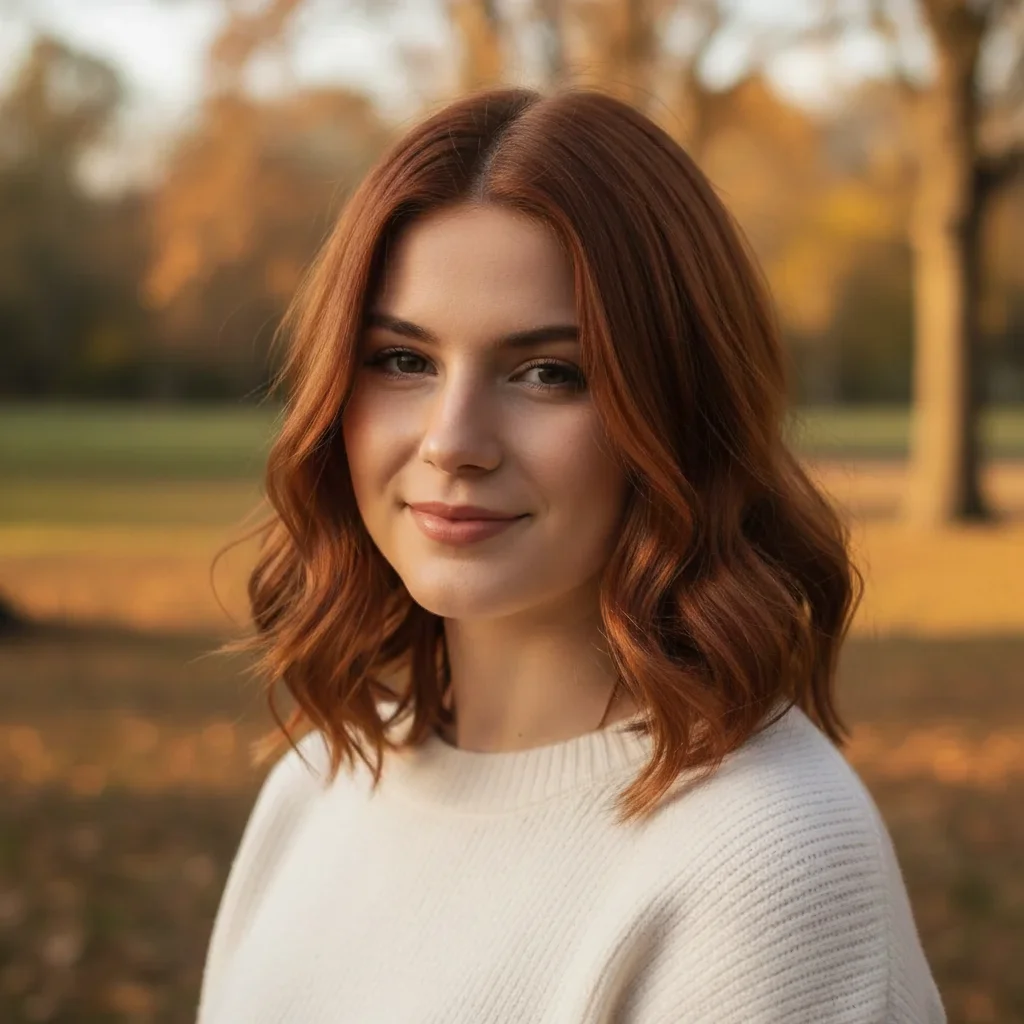
Woman with auburn hair down in casual portrait
Before
->
Same woman with a relaxed low ponytail added at nape
After

Relaxed low ponytail at nape

Casual portrait — AI added a low ponytail at the nape matching the reference loosely-tied style, with a few face-framing strands left in place.

Prompt: add the low relaxed ponytail from the reference photo at the nape of my neck, matching my auburn hair color, with a few loose pieces framing the face
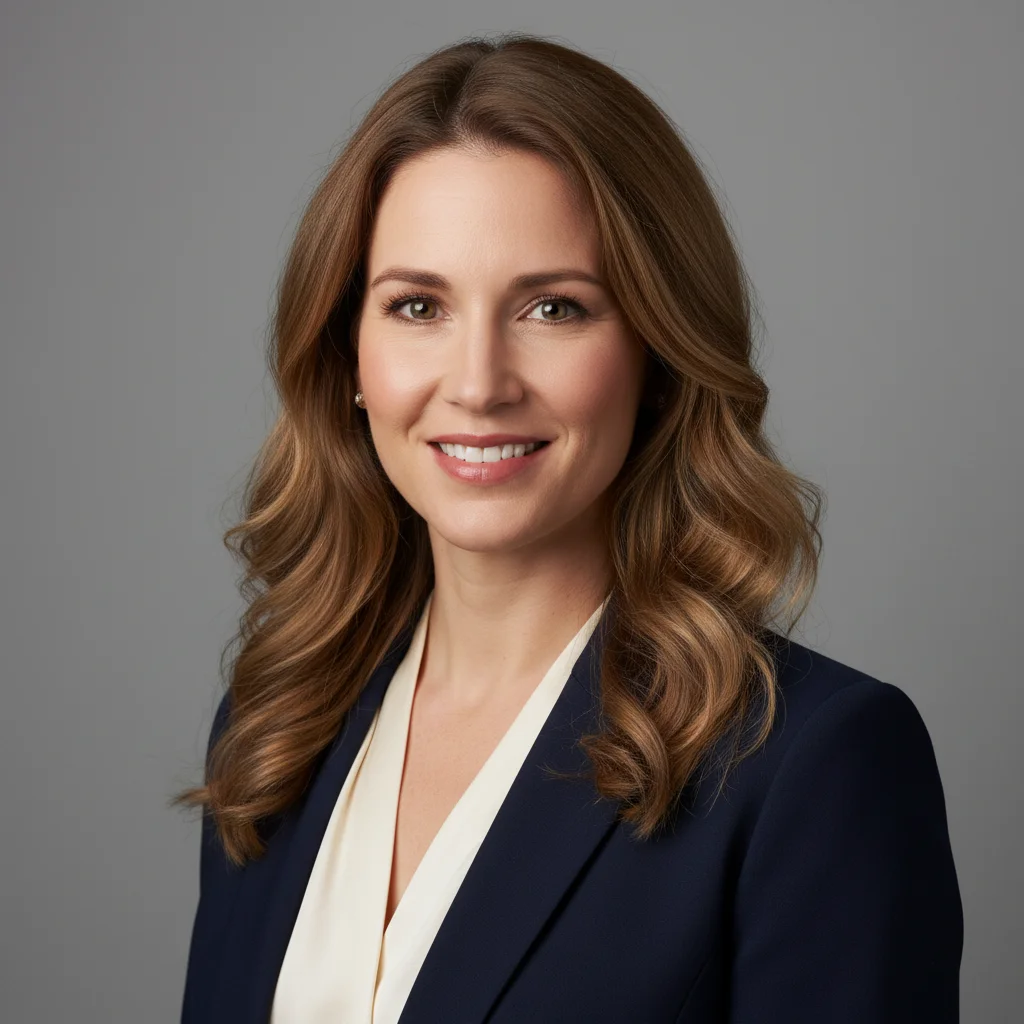
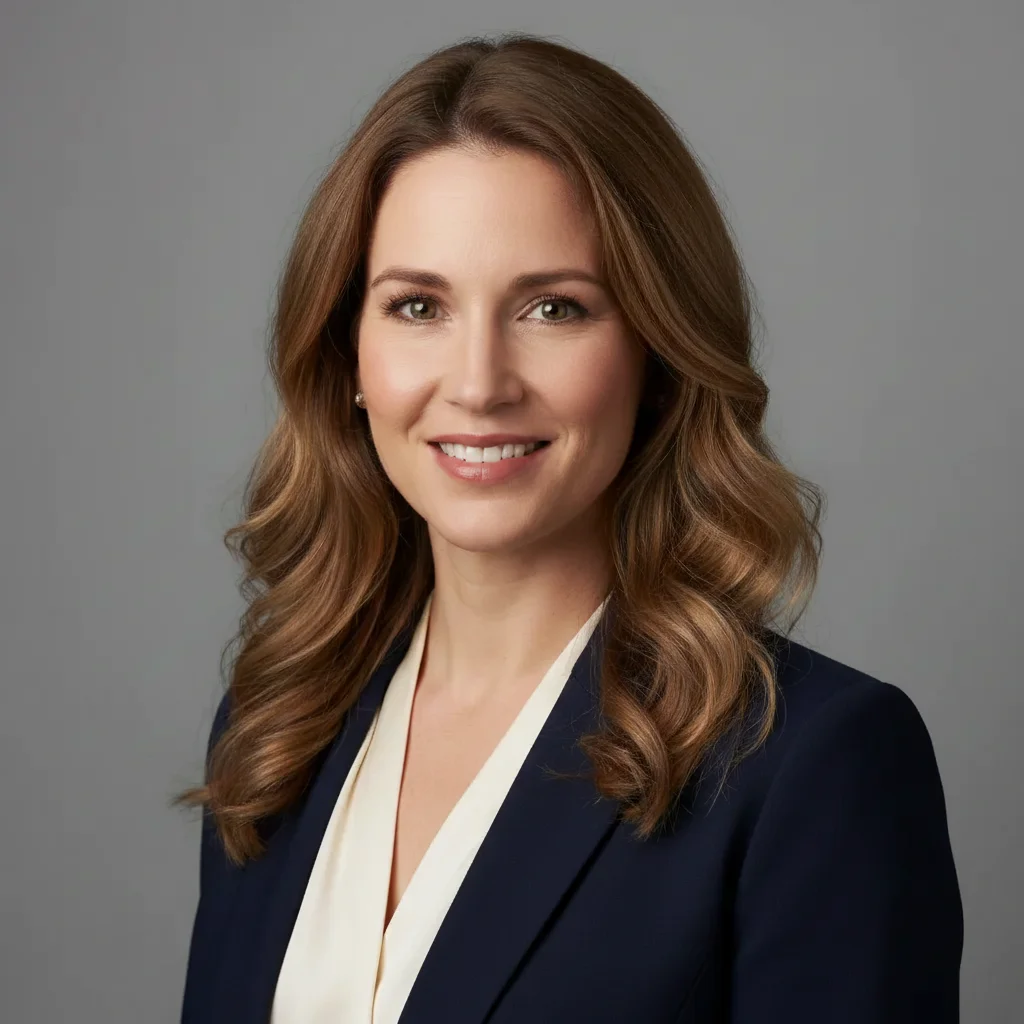
Professional headshot with light brown hair down
Main Photo
Reference image for AI Ponytail Adder
Reference
Same headshot with a voluminous mid ponytail added
Result

Voluminous mid-height ponytail

Professional headshot — reference photo showed a voluminous mid-height ponytail with body at the crown. AI matched the reference height and added volume consistent with the hair texture.

Prompt: add the voluminous mid-height ponytail from the reference image to my hair, slight lift at the crown, matching my light brown hair color and adding natural body to the tail

If something looks off

Ponytail color doesn't match my natural hair

Why: The AI estimated hair color from the reference instead of using your actual hair color as the base.

Try: add the ponytail style from the reference photo but match the exact color and shade of my natural hair in the main photo

Tip: Explicitly say 'match my natural hair color from my photo' — this tells the AI to use your portrait as the color source

Hairline at temples looks artificial

Why: The transition from forehead skin to hairline is one of the hardest areas for AI to composite naturally.

Try: refine the hairline edges at the temples to look more natural, blend the transition between forehead and hairline smoothly

Tip: Tap a marker on the temple area and regenerate that specific zone for targeted blending

Ponytail height is wrong (too high or too low)

Why: Without a clear height reference in the prompt, AI may place the ponytail at the wrong position on the head.

Try: reposition the ponytail — place it [higher at the crown / at mid-head / low at the nape], matching the reference image height exactly

Tip: Use clear height markers: 'crown-level', 'mid-head', 'nape of neck' — these are more reliable than just 'high' or 'low'

Hair texture looks too smooth or too flat

Why: The AI defaulted to a sleek finish rather than preserving natural texture from the reference.

Try: add the ponytail with [wavy / textured / natural] texture matching the reference, preserving the natural volume and movement

Tip: Describe the texture explicitly: 'with natural waves', 'sleek and straight', or 'with tousled texture'

AI changed wrong area — edited something besides the hair

Why: The AI couldn't isolate just the hair area from the description alone.

Try: Tap a marker on the hair/head area specifically, then regenerate with the same prompt to focus the edit

Tip: Markers tell the AI 'I mean THIS area specifically.' Place the marker on top of your head in the portrait.

Ears look wrong or are covered incorrectly

Why: The ponytail style in the reference may show ears differently than your main photo.

Try: adjust the ponytail styling around the ears to look natural — [show both ears / tuck hair behind ears] matching the reference

Tip: If ears look odd, adding 'with hair tucked behind both ears' or 'ears visible' gives the AI a clear instruction

Quick answers

Do I need TWO photos for this — my portrait AND a reference ponytail photo?

Yes. This tool works best with two photos: your main portrait photo and a reference photo showing the ponytail style you want to try. Upload your portrait first, then click '+ Add reference photo' to add the ponytail reference. The AI reads the style, height, and texture from the reference and applies it to your photo. You can also describe a ponytail in text only, but a reference photo gives significantly more accurate results.

Can I use this to preview a ponytail before going to the salon?

Yes — this is exactly what the tool is designed for. Find a photo of the ponytail style you want (Pinterest, Instagram, or a magazine screenshot), upload it as the reference, and generate a preview on your own photo. Show the result to your stylist as a reference. It works for high ponytails, low ponytails, voluminous styles, sleek styles, and everything in between.

What kind of reference photo works best for adding a ponytail?

Use a clear photo where the ponytail is the main focus — ideally showing the full style from the front or three-quarter angle. Profile shots work well too because they show the ponytail height and tail clearly. The reference photo doesn't need to match your hair color — the AI will match your actual hair color from your portrait.

Will the ponytail match my natural hair color?

Yes, when you specify it in the prompt. Say 'add the ponytail style from the reference, matching my natural hair color from my photo' and the AI reads your hair color from the portrait. Without that instruction, the AI might adopt the reference photo's hair color. Always include 'matching my natural hair color' for the most accurate result.

Can I try multiple different ponytail styles on the same photo?

Yes. Try a different reference photo for each style variation — high ponytail, low ponytail, sleek vs. textured. Each generation takes about 30 seconds. You can run multiple attempts in a row and compare them to decide which style to bring to your stylist.

How much does EditThisPic cost?

You get 1 free edit per week — no account needed. After that, credit packs start at $1.99 for 3 edits. Monthly plans start at $4.99/mo for 15 edits with unused credits rolling over. All edits are full resolution with no watermark.

Try your ponytail look now

Upload your portrait and a reference photo. Free, no account required.

1 free edit included·Credit packs from $4.99