Free • No signup Add Sibling · Free

AI Add Person to Siblings Photo

← Browse all body & person tools

Last updated

Add a missing sibling to any photo using a reference image — AI preserves their likeness and blends them naturally into the scene alongside their brothers and sisters.

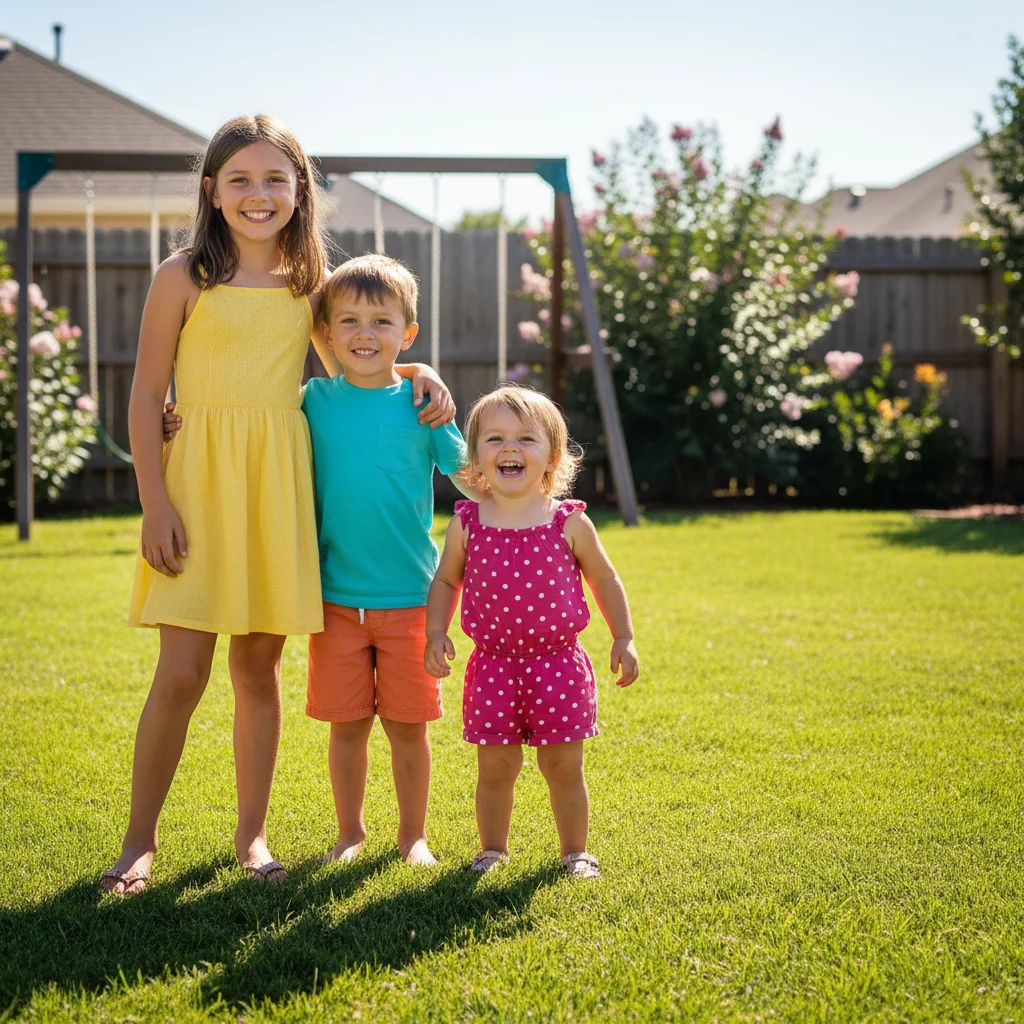
01Photo 1
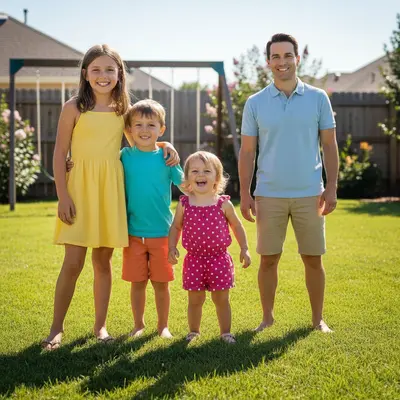
Three siblings outdoors with a gap at the right for a fourth
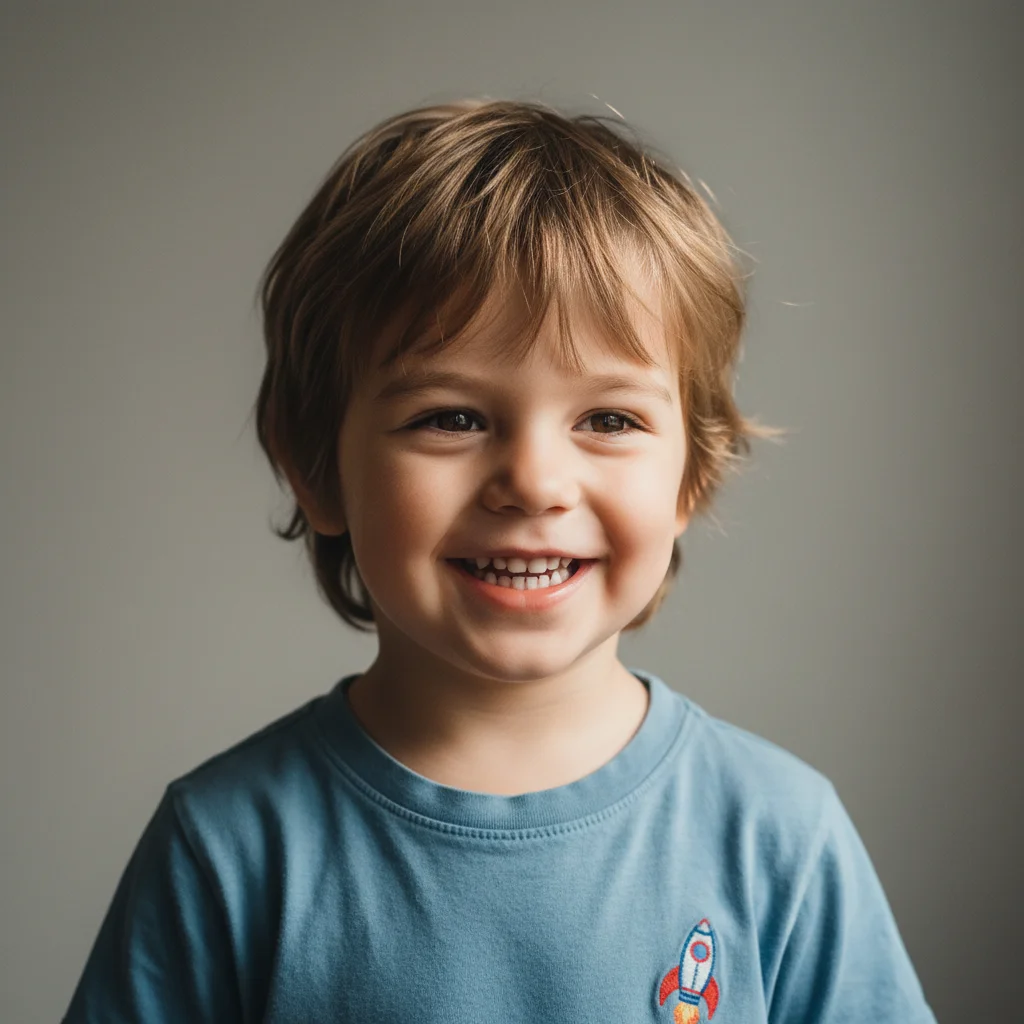
02Photo 2
Portrait of the sibling to add
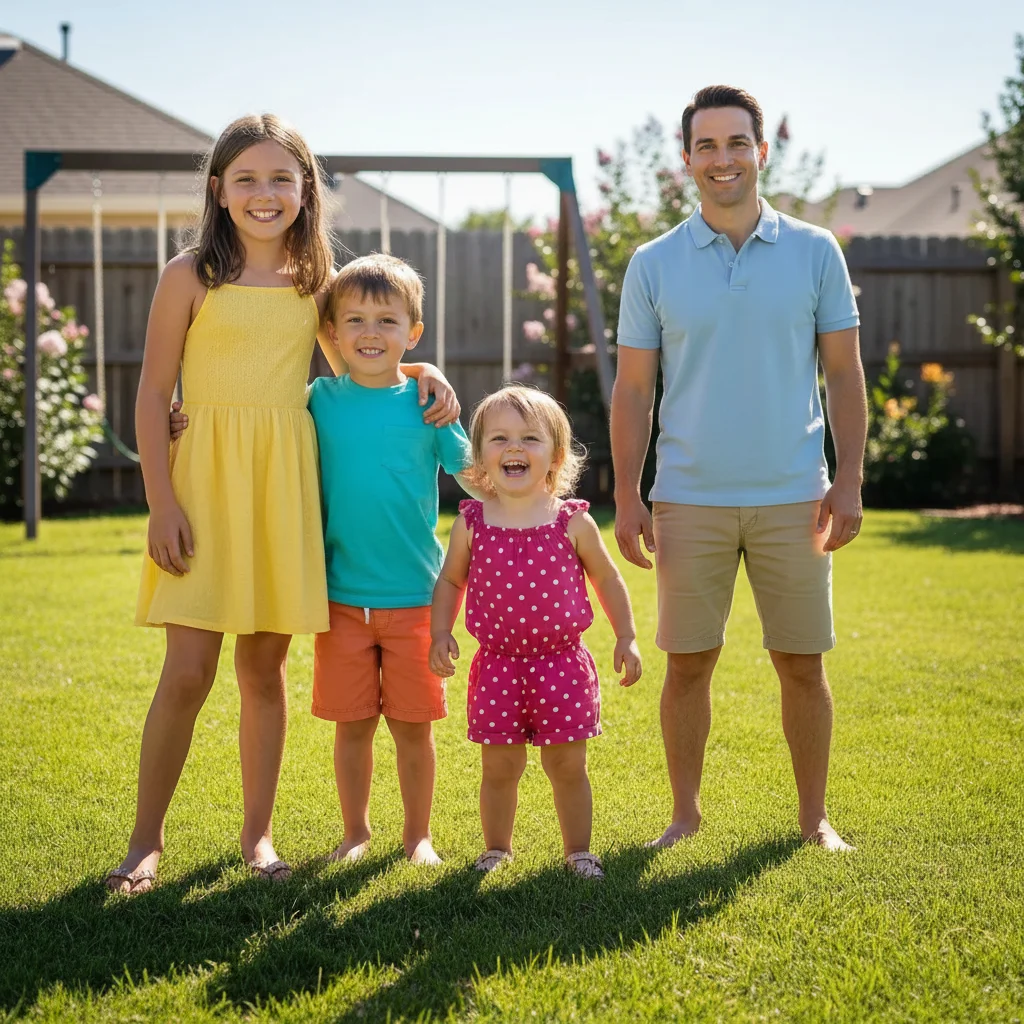
03Result
Four siblings complete together outdoors

Upload photo to add sibling

"add this person standing with a gentle, natural expression alongside their siblings, soft lighting to match the indoor scene, naturally blended"

Release to upload

1 free edit·then from $4.99

Popular use cases:
  • add sibling to photo
  • add brother to siblings picture
  • add sister to photo
  • complete siblings photo
  • add missing sibling
  • add deceased sibling to photo
  • sibling memorial photo
  • include all siblings in picture

1Your photo
+
2Reference
=
Result
Siblings photo with a gap where someone is missing Your siblings photo
Photo of the sibling to add Reference photo
Complete siblings photo with all members together Result

"Add this person standing next to their siblings on the right"

Cost
Free No signup required
Time
Instant results in 15-30 seconds
Works on
Any device - browser, phone, tablet, desktop
Powered by
AI-powered photo editing

How it works

  1. Upload your two photos

    Drop your siblings photo into EditThisPic. Then click '+ Add reference photo' below the prompt to upload a clear photo of the sibling you want to include. Both are needed: the main siblings photo AND a reference image of the person. JPG, PNG, WebP up to 7MB each.

    Expect: Adding one sibling takes 30-45 seconds. Photos with some open space at the edge of the group work best.
  2. Attach the reference photo of the sibling

    Click '+ Add reference photo' and upload a clear photo of the sibling to add. This is the key step — the AI uses it to composite the real person into the siblings photo, preserving their likeness. For a sibling who has passed, use a photo where they look happy and natural; this creates a meaningful record of all the siblings together.

    Tip: A photo from a similar age or era to the siblings photo gives the most natural result — especially important for childhood or older siblings photos.

    Copy one of these to get started:

    Add sibling to photo at the edge of the group add this person standing on the right side next to their sibling, scale to match the others, naturally blended with matching outdoor lighting
    Add sibling who passed away to siblings photo add this person standing with a gentle, natural expression alongside their siblings, soft lighting to match the indoor scene, naturally blended
    Add younger sibling to photo add this younger sibling standing in front of the others, scale appropriate for their age, matching the casual outdoor lighting, happy expression
    Add oldest sibling to photo add this person standing tall at the right end of the sibling group, confident casual stance matching the others, consistent with the warm indoor lighting
    2 more prompts
    Add half-sibling or step-sibling to photo add this person standing naturally among the group, matching the casual attire and the even outdoor lighting, blended as if they were always part of the photo
    Add sibling who lives far away to holiday photo add this person standing next to their sibling on the left, wearing festive casual attire matching the holiday scene, warm indoor Christmas lighting
  3. Describe their place among their siblings

    Tell the AI where they belong: 'add this person standing on the right next to the older brother, matching the casual outdoor lighting.' If they have a typical position in sibling photos (eldest in the back, youngest in front), describe it.

    Tip: Reference a sibling already in the photo for scale: 'same height as the woman next to her' or 'slightly taller than the boy on the left.'
  4. Review until it feels complete

    Check that the sibling's scale matches the others, their lighting is consistent, and the edges blend naturally. For memorial or deeply personal photos, take your time — it's okay to refine a few times until it feels right.

See it in action

Three siblings outdoors with a gap at the right for a fourth
Main Photo
Portrait of the sibling to add
Reference
Four siblings complete together outdoors
Result

Older sibling added to outdoor siblings photo

Three siblings standing outdoors with a clear gap on the right — AI added the older sibling from a reference photo, matching the casual summer clothing and bright outdoor lighting.

Prompt: Add this person from the reference photo to the right end of the group, standing next to their brother. Make sure their casual summer clothing matches the others and that there's a natural shadow on the grass from the bright afternoon outdoor lighting.
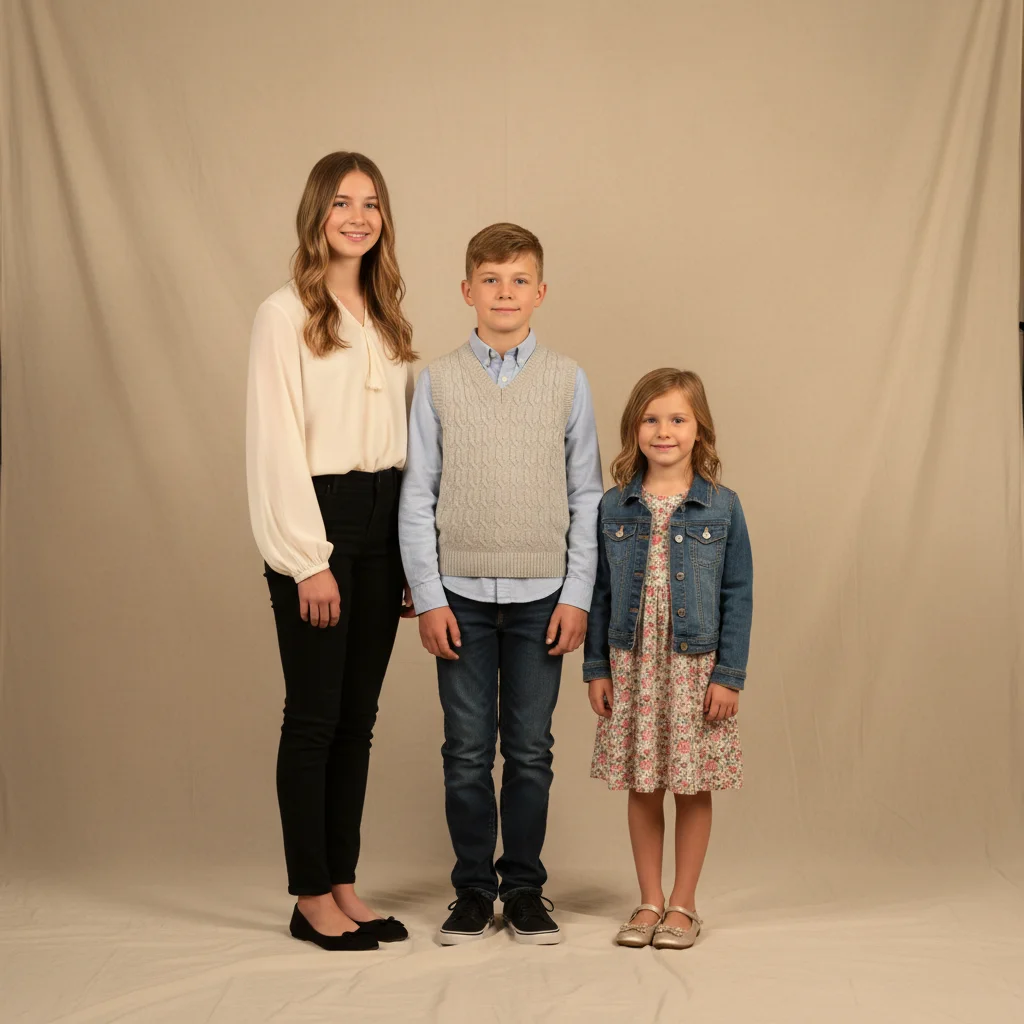
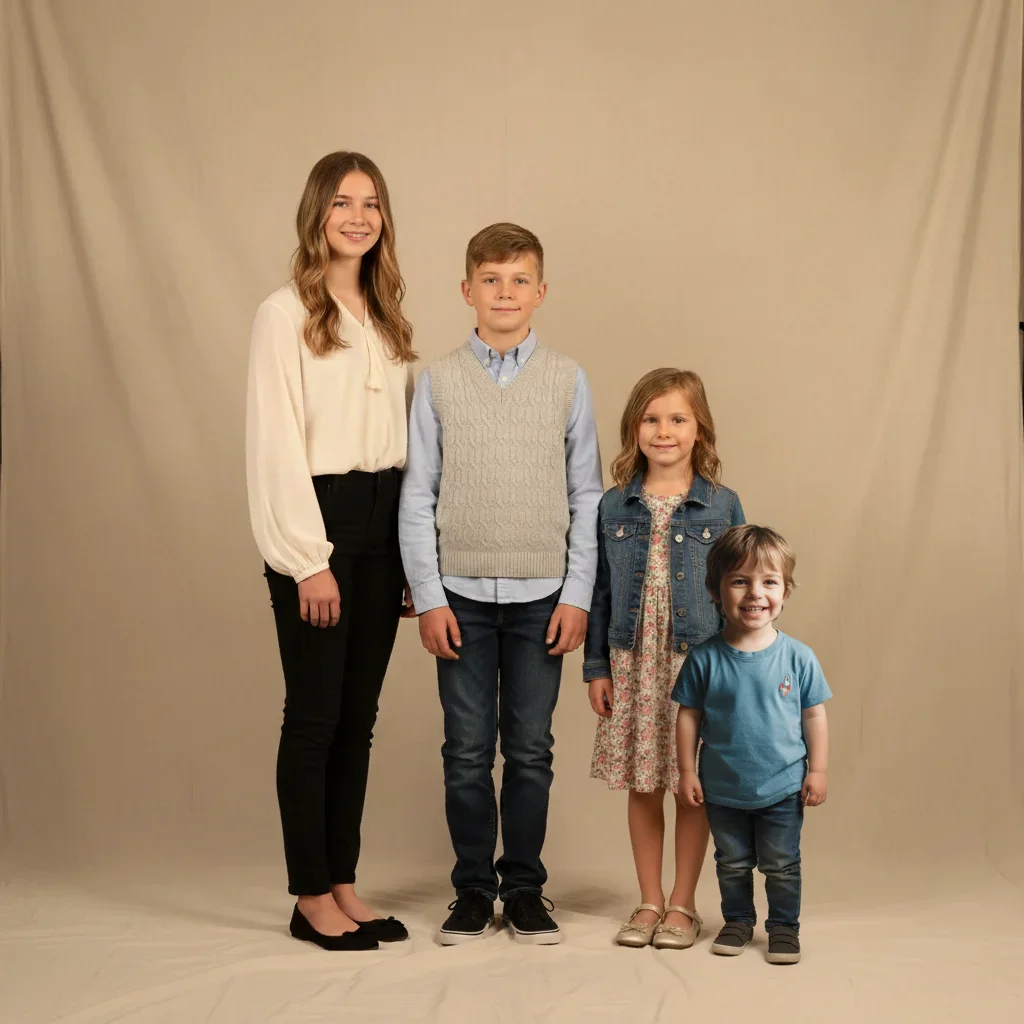
Three older siblings portrait with space in front for youngest
Main Photo
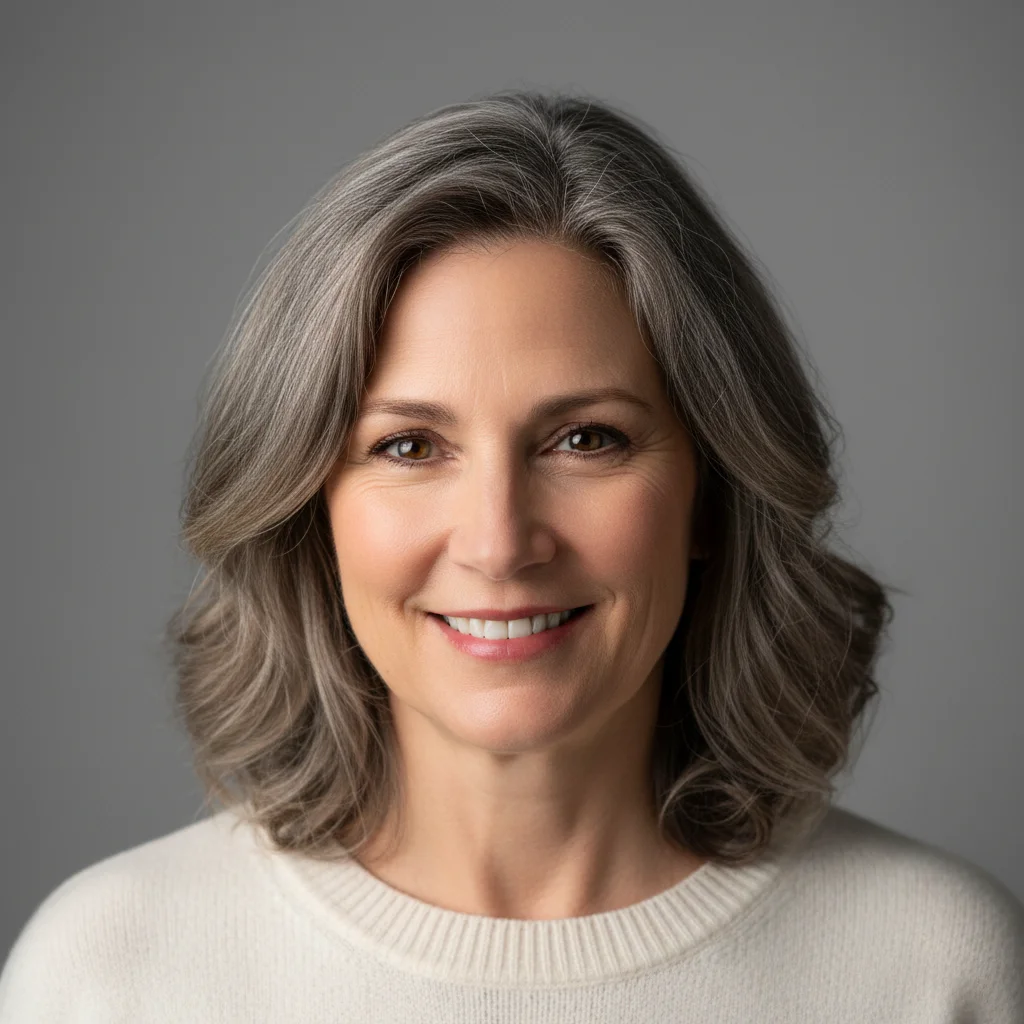
Reference image for AI Add Person to Siblings Photo
Reference
Complete sibling portrait with youngest in front
Result

Youngest sibling added in front of older siblings

Siblings portrait with three older kids — AI placed the youngest sibling in the front based on a reference photo, matching the indoor studio lighting.

Prompt: Add the young child from the reference photo in front of the three older siblings. Have them either seated or standing, but shorter than the others. Match the lighting and style of the main photo.
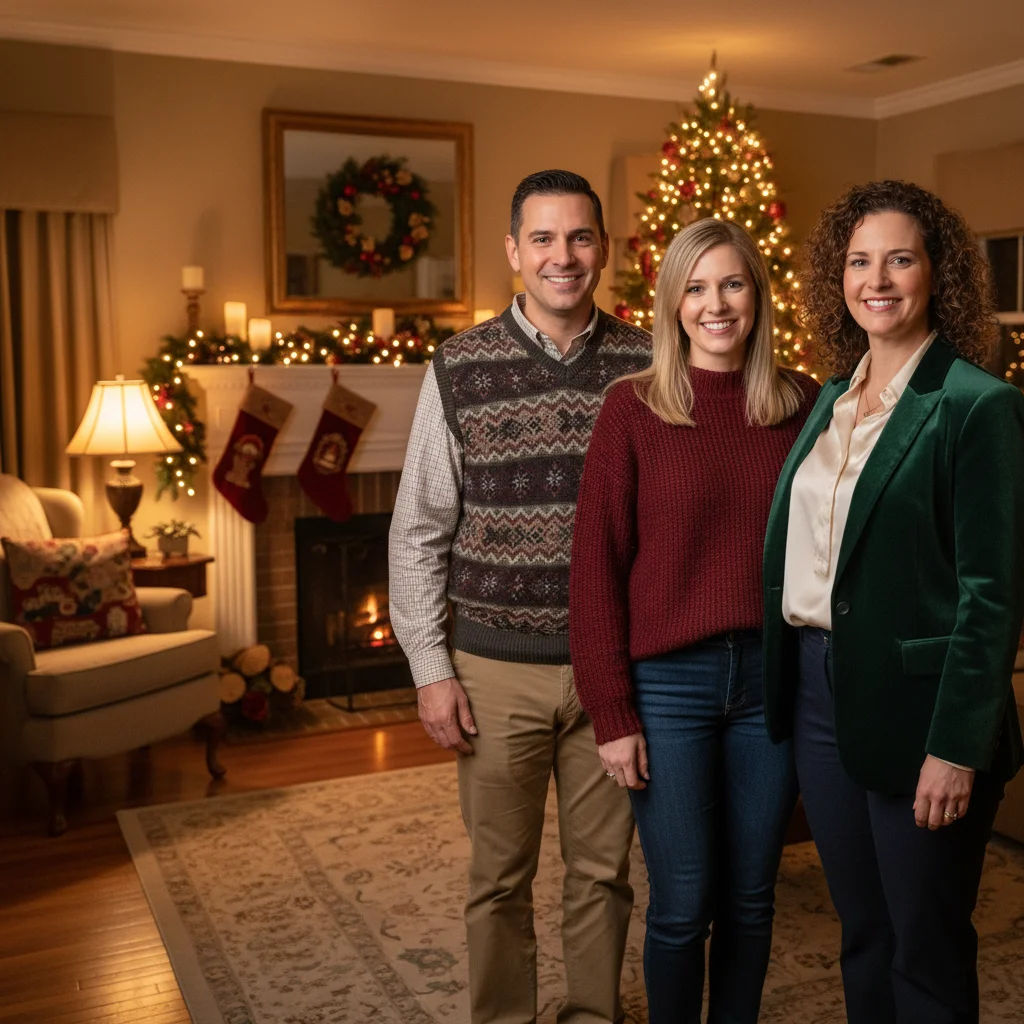
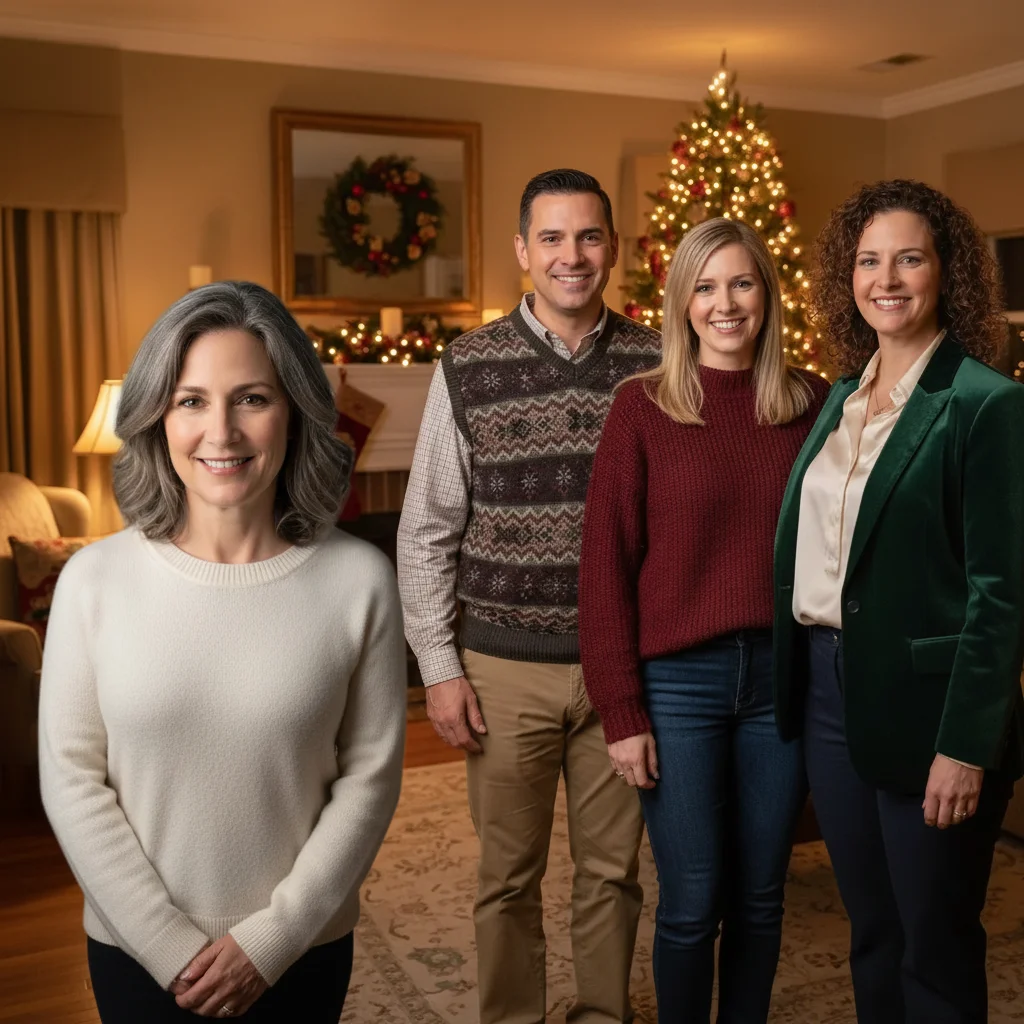
Three adult siblings at a holiday gathering with space on the left
Main Photo
Reference image for AI Add Person to Siblings Photo
Reference
Complete sibling group with fourth person added on the left
Result

Sibling remembered in family photo

Siblings photo at a holiday gathering — AI added a sibling who had passed, placing them alongside their brothers and sisters, matching the warm indoor lighting.

Prompt: add this person standing gently alongside their siblings on the left side, with a warm, peaceful expression, soft warm indoor holiday lighting, naturally blended

If something looks off

Added sibling doesn't look like the reference

Why: The reference photo was too small, low-resolution, or the face wasn't clearly visible.

Try: Re-upload using a clearer reference photo where the sibling's face is large and well-lit

Tip: For older or vintage reference photos, explain the age at which you want them shown: 'add this person as they look in this reference photo' vs 'add a younger version'

Sibling appears the wrong size relative to the others

Why: The AI misjudged scale — common when siblings vary significantly in height.

Try: add this person at the correct scale, approximately [taller/shorter/same height] as [the sibling on the right], feet on the same ground level

Tip: Reference a specific sibling for scale comparison: 'about the same height as the woman next to her'

Lighting or shadow direction doesn't match

Why: Reference photo had different lighting direction from the main siblings photo.

Try: add this person with lighting from the [left/right/above] to match the other siblings, consistent shadow direction on the ground

Tip: Look at which side of the existing siblings' faces is brighter — describe that as the light source direction

Memorial photo doesn't feel emotionally right

Why: Expression or placement doesn't convey the warmth of being with siblings.

Try: add this person with a warm, relaxed expression natural to being with family, gently blended alongside their siblings

Tip: Try positioning them naturally beside a sibling they were close to — it often feels more authentic. It's completely okay to refine several times.

Clothing doesn't match the siblings

Why: The reference clothing is too different from the scene's style.

Try: add this person wearing [casual/formal/festive] clothing matching the style of their siblings in the photo

Tip: For coordinated family photos (matching colors, formal attire), describe the coordination: 'wearing a light blue shirt matching the others'

Quick answers

Do I need TWO photos for this?

Yes. You need two photos: (1) the siblings photo where you want to add someone, and (2) a reference photo of the sibling you want to include. Upload the siblings photo as the main photo, then click '+ Add reference photo' to attach the reference image. Without the reference photo, the AI generates a generic person instead of the actual sibling.

How do I add a sibling to a photo for free?

Upload the siblings photo to EditThisPic, click '+ Add reference photo' to attach a clear photo of the sibling to add, then describe where to place them: 'add this person standing next to their siblings on the right, matching the casual outdoor lighting.' The AI composites them naturally in about 30 seconds. Free to try, no signup, no watermark.

Can I add a sibling who has passed away to a siblings photo?

Yes. Many people find it meaningful to have a complete siblings portrait that includes everyone. Upload the siblings photo, add a clear reference photo of your sibling who has passed, and describe where to place them: 'add this person standing gently alongside their siblings, with a warm, peaceful expression.' The AI preserves their likeness while matching the scene. Take your time — it's okay to refine until it feels right.

Can I add a sibling who lives far away?

Yes. Upload the siblings photo, add a reference photo of the sibling who couldn't be there, and describe their placement. If you have a reference photo of them in similar attire from around the same time, the result will look most natural. Otherwise, describe the clothing they should wear in your prompt.

What reference photo works best for a sibling?

A clear, well-lit portrait where the sibling's face and body are clearly visible. Front-facing or three-quarter angle works best. For older reference photos, the era and age will be reflected in the result — if you want them at a different age, describe it in your prompt. The background of the reference photo doesn't matter.

Does this work for half-siblings or step-siblings?

Yes. Just upload the main siblings photo and a reference photo of the person to add. Describe their placement and any attire to match. The AI doesn't distinguish between biological, half, or step-siblings — it composites the reference person naturally into the scene.

How much does EditThisPic cost?

You get 1 free edit per week — no account needed. After that, credit packs start at $1.99 for 3 edits. Monthly plans start at $4.99/mo for 15 edits with unused credits rolling over. All edits are full resolution with no watermark.

Ready to bring all your siblings together?

Upload two photos. Free, no signup required.

1 free edit included·Credit packs from $4.99