Free • No signup Apply Film look · Free

AI Film Look Filter

Just describe the film aesthetic you want - AI handles the analog emulation.
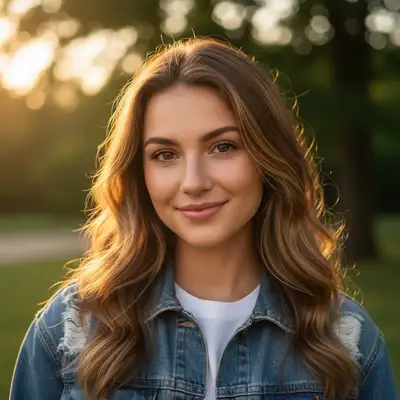
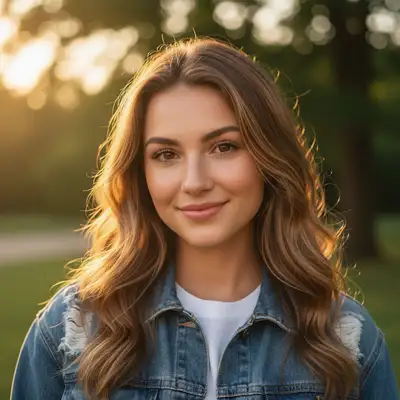
Digital portrait before film look
Before
Portrait with Kodak Portra 400 film aesthetic
After

Apply Film Look to Photos Free

Upload photo to apply film look

Free • Results in 30 seconds • No signup

Release to upload

FreeNo signupNo watermark
Popular use cases:
  • portrait photography
  • street photography
  • travel photography
  • wedding photography
  • Instagram film aesthetic
  • analog photography fans

Cost
Free No signup required
Time
Instant results in 15-30 seconds
Works on
Any device - browser, phone, tablet, desktop
Powered by
AI-powered photo editing
Scenario Prompt Time
Kodak Portra warm portrait apply Kodak Portra 400 with warm creamy tones and subtle grain 15s
Fuji Superia vibrant apply Fujifilm Superia 400 with saturated colors and cool tones 15s
Kodak Gold nostalgic apply Kodak Gold 200 with warm yellow cast and high contrast 15s

How it works

  1. Upload your photo

    Upload any photo for color work. Images with varied tones give the AI more to work with for film look adjustments. JPG, PNG, WebP up to 7MB.

    Expect: Simple film looks: 15-30 seconds. Specific film stock emulation: may need one refinement.
  2. Describe the film aesthetic

    Type your instruction: 'apply a Kodak Portra 400 film look' or 'make this look like it was shot on 35mm film with warm tones and grain.' Be specific about film stock, color palette, and grain intensity. No marking needed—the AI applies the effect to the entire image.

    Tip: Reference specific film stocks: 'Kodak Gold 200', 'Fuji Superia 400', 'Cinestill 800T' for authentic looks

    Copy one of these to get started:

    Kodak Portra warm portrait film apply a Kodak Portra 400 film look with warm creamy tones, natural skin colors, and subtle film grain
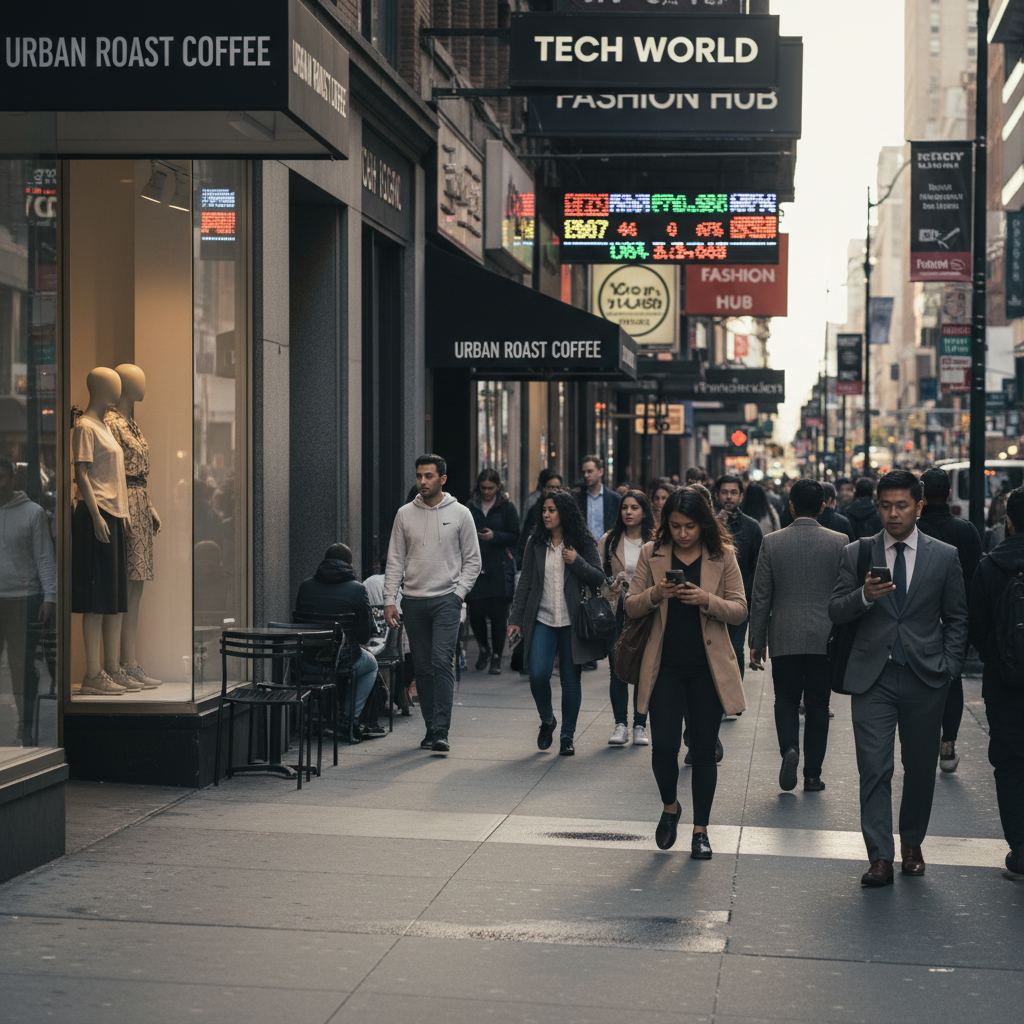
    Fuji Superia vibrant colors apply a Fujifilm Superia 400 look with slightly saturated colors, cool blue tones, and fine grain texture
    Kodak Gold sunny nostalgic apply Kodak Gold 200 film aesthetic with warm yellow cast, high contrast, and visible grain
    Black and white film apply Kodak Tri-X 400 black and white film look with rich contrast, deep blacks, and visible grain structure
    2 more prompts
    Cinestill 800T tungsten night apply Cinestill 800T film look with warm tungsten glow, halation around lights, and smooth grain
    Lomography color shift apply lomography film aesthetic with cross-processed colors, heavy vignetting, and coarse grain
  3. Generate and review

    Click Generate and watch your digital photo transform. Check the color cast, grain texture, and tonal curves at full zoom. The result should feel analog, not overly processed.

  4. Refine with markers if needed

    If certain areas need different color treatment, tap markers and regenerate with adjustments like 'warmer tones in the highlights' or 'more grain in the shadows.' This is optional—most film looks work without markers.

    Tip: Markers are for selective adjustments, not required. Try without them first.
Try it free

Apply Film Look to Photos Free

Upload photo to apply film look

Free • Results in 30 seconds • No signup

Release to upload

Free • No signup

"Finally got that authentic film look I've been chasing. Just described 'Fujifilm 400H' and it nailed the colors and grain perfectly." @analogfan

See it in action

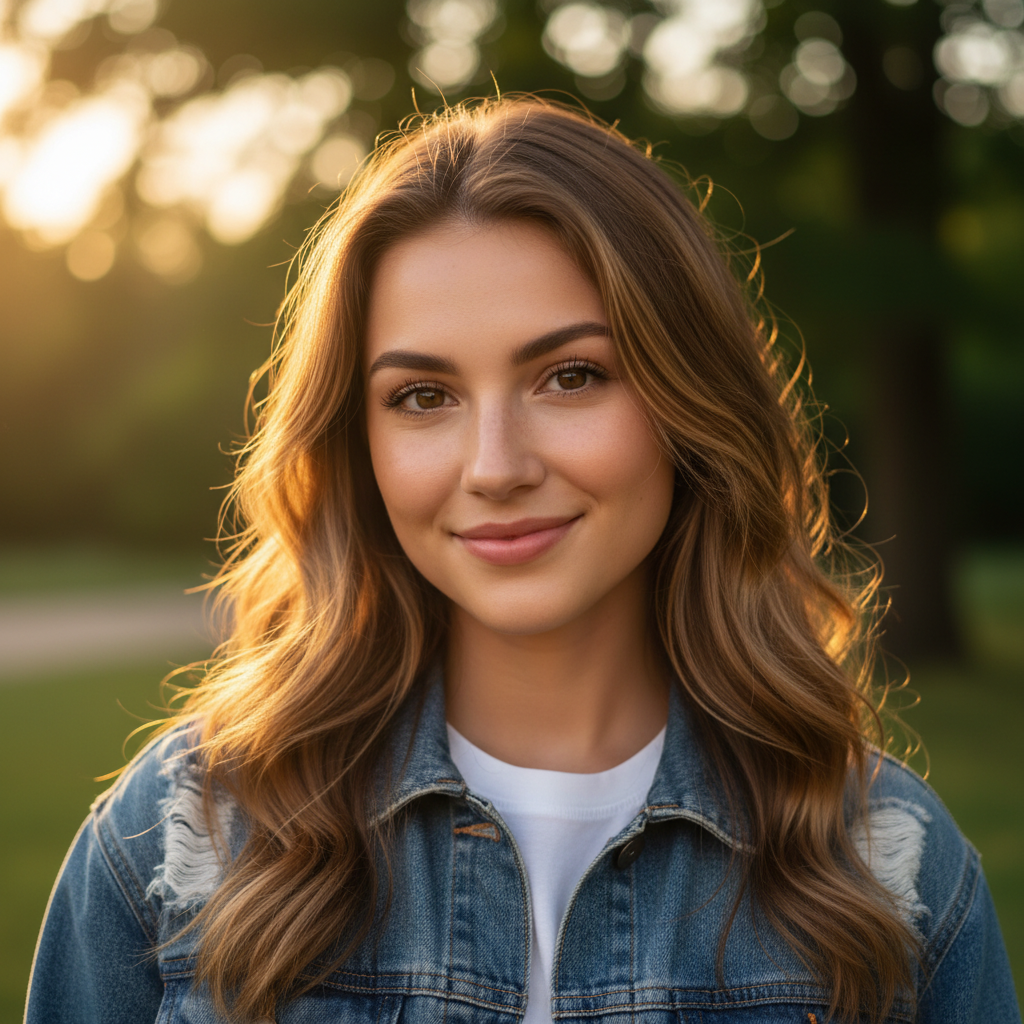
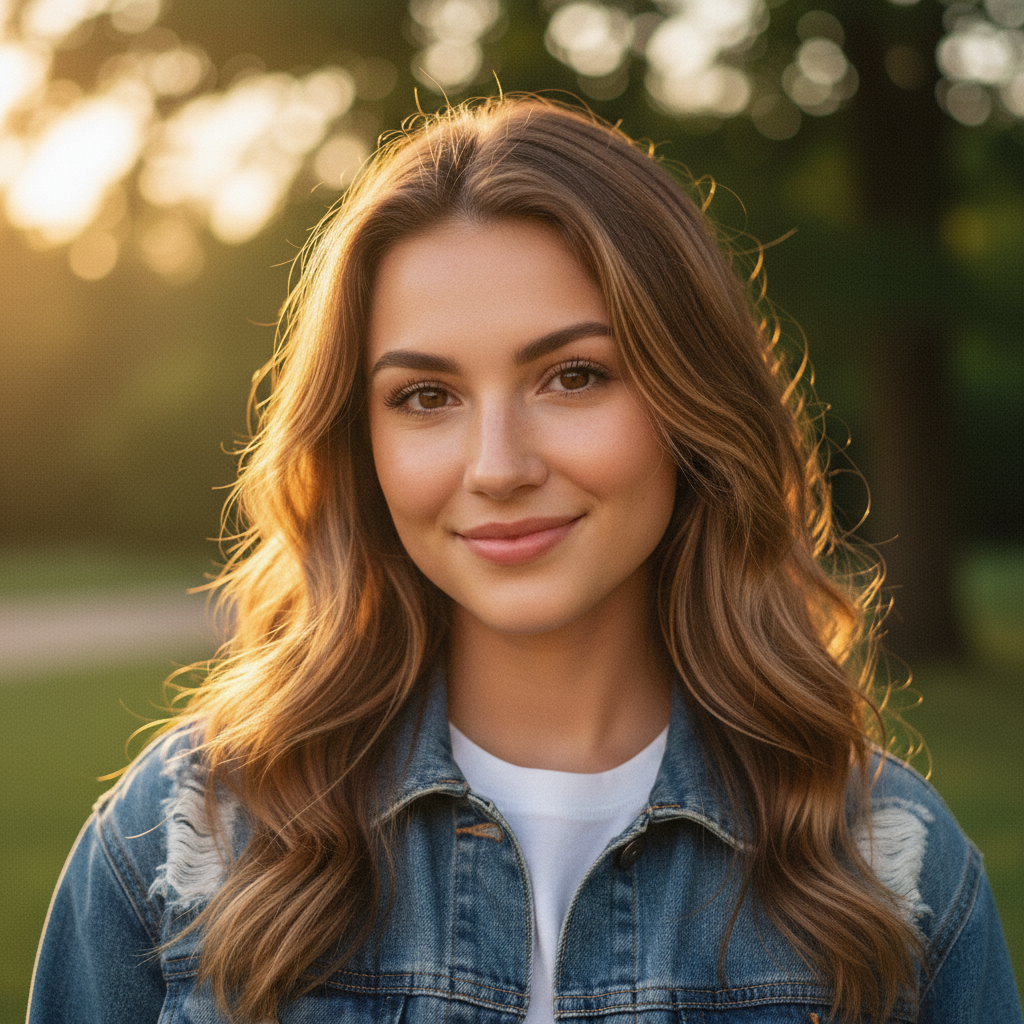
Digital portrait before film look
Before
->
Portrait with Kodak Portra 400 film aesthetic
After

Portrait with Kodak Portra Look

Applied Kodak Portra 400 film aesthetic to a digital portrait for warm, professional film tones.

Prompt: apply a Kodak Portra 400 film look with warm creamy tones, natural skin colors, and subtle film grain
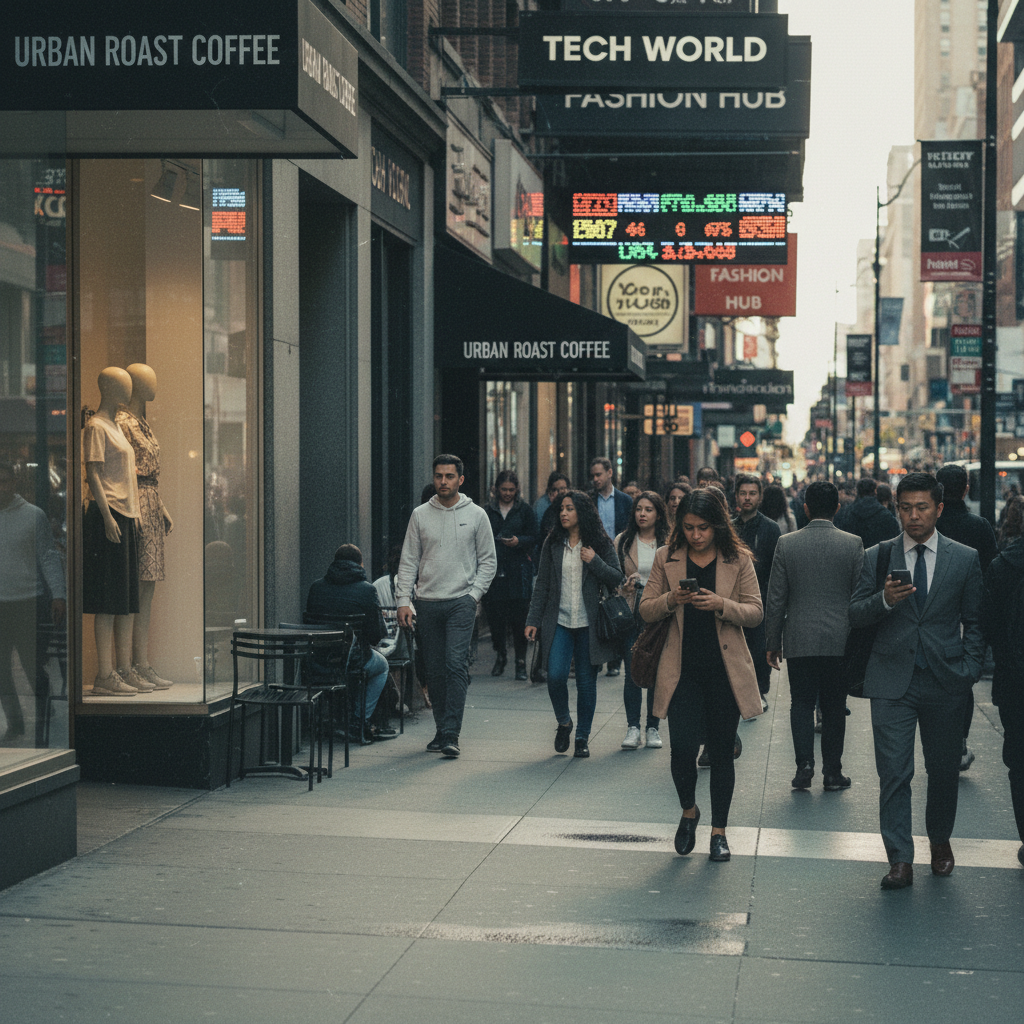
Digital street photo before film look
Before
->
Street photo with Kodak Gold 200 film aesthetic
After

Street Photo with Kodak Gold Look

Transformed a digital street photo into nostalgic Kodak Gold 200 aesthetic with warm tones.

Prompt: apply Kodak Gold 200 film aesthetic with warm yellow cast, high contrast, and visible grain

Detailed Guides by Scenario

📷

Design Visualization

Preview film look changes on your actual photo before committing — make confident design decisions backed by visuals.

Common Scenarios

  • Simulating film look on a room, outfit, or space to evaluate the look
  • Creating client-ready mockups that visualize film look in their specific context
  • Comparing multiple film look options side by side using the same source photo

Best Practices

  • Upload a clear, well-lit photo from the angle you'd naturally view the subject
  • Be specific about the film look — color, material, size, and placement all matter
  • Generate 2-3 variations to have meaningful options to compare
📷

Professional Proposals

Win client approval with realistic film look previews that show exactly what the finished result will look like.

Common Scenarios

  • Building a presentation deck with film look visualizations for a client pitch
  • Showing stakeholders film look options before ordering materials or starting work
  • Creating before-and-after comparisons of film look for a project proposal

Best Practices

  • Use the client's own photos for the most persuasive previews
  • Label each option clearly (Option A, B, C) for easy discussion
  • Note that film look previews are approximations — set expectations about final results
📷

Personal Decision-Making

Try before you buy — preview film look on your own photos to make smarter purchasing and lifestyle decisions.

Common Scenarios

  • Previewing film look before making an expensive purchase
  • Testing how film look looks in your actual space or on your actual person
  • Sharing film look previews with family or friends to get opinions before deciding

Best Practices

  • Upload a photo of the actual space/item/person — generic stock images won't help you decide
  • Try the most different options first (bold vs. subtle) to narrow down your film look preference
  • Save each preview so you can flip between them when comparing

If something looks off

Grain looks too strong or noisy

Why: The AI may have applied grain too aggressively based on your prompt or film stock choice.

Try: Regenerate with 'apply [film stock] with subtle grain' or 'fine grain texture, not too visible'

Tip: Add 'subtle' or 'fine' before 'grain' to reduce intensity

Colors don't match the film stock I requested

Why: Film emulation requires specific color science that varies by stock and lighting conditions.

Try: Try being more specific: 'Kodak Portra 400 in natural daylight with warm peachy skin tones' instead of just 'Portra look'

Tip: Mention the lighting scenario - film stocks behave differently in different light

Image looks too flat or lost contrast

Why: Some film stocks have softer contrast curves than digital cameras.

Try: Regenerate with 'apply [film stock] but maintain contrast' or 'add slightly more contrast to the film look'

Tip: Film can be subtle - if you want more punch, request 'with boosted contrast'

AI changed the wrong area or something I didn't want changed

Why: The AI couldn't determine exactly which area you meant from description alone.

Try: Tap a marker on the specific area you want to adjust differently, then regenerate with the same prompt

Tip: Markers tell the AI 'apply the filter differently HERE.' Use them for selective adjustments.

Quick answers

Do I need to mark anything to apply a film look?

No! Just describe the film aesthetic you want: 'apply Kodak Portra 400 film look' or 'make this look like 35mm film.' The AI applies the effect to the entire image including grain, color shifts, and tonal curves. Only use markers if you want certain areas adjusted differently.

How do I get authentic film colors, not just grain?

Reference specific film stocks in your prompt. Each stock has unique color science: Kodak Portra for warm skin tones, Fuji Superia for cool blues, Kodak Gold for warm yellow cast. The AI knows these characteristics and applies the full emulation, not just adding grain.

Can I specify which film stock I want to emulate?

Yes! Mention the exact stock: 'Kodak Portra 400', 'Fujifilm Superia 400', 'Kodak Gold 200', 'Cinestill 800T', 'Kodak Tri-X 400'. The AI understands these and replicates their specific color palettes, contrast curves, and grain structures.

What's the difference between film look and vintage filter?

Film look emulates specific analog film stocks with accurate color science, grain structure, and tonal curves. Vintage filters just add generic old-photo effects like fading and warmth. Film look is about replicating authentic film photography, not just making something look old.

Is EditThisPic's AI film look applyer really free?

Yes — you get 1 free edit per week, no account needed. For unlimited edits, plans start at $3.99/month.

Can I apply film look on my phone?

Yes. EditThisPic works in any mobile browser — iPhone, Android, tablet. No app download needed.

What photo formats does the AI film look applyer support?

JPG, PNG, WebP, and HEIC. Upload any common photo format and EditThisPic handles the rest.

How long does it take to apply film look?

Usually 15-30 seconds. Upload your photo, describe what you want, and the AI delivers the result.

Ready to add authentic film look to your photos?

Free to try. No signup required.