AI Cinematic Filter
← Browse all creative effectsLast updated
Just describe the cinematic look you want - no complex adjustments needed.


Upload photo to apply cinematic look
"apply a dark cinematic grade with desaturated colors, crushed blacks, and cool blue tones"
Free to try · no sign-up · photos are never shared
Release to upload
<30stypical edit
1 freeedit weekly
Photo on your phone?
Scan to open this editor there — free edit works on your phone too.
How it works
See it in action


Portrait with Teal and Orange Grade
Applied classic Hollywood cinematic color grading to a casual portrait photo.
Prompt:
apply a cinematic color grade with teal shadows and warm orange highlights, like a Hollywood blockbuster
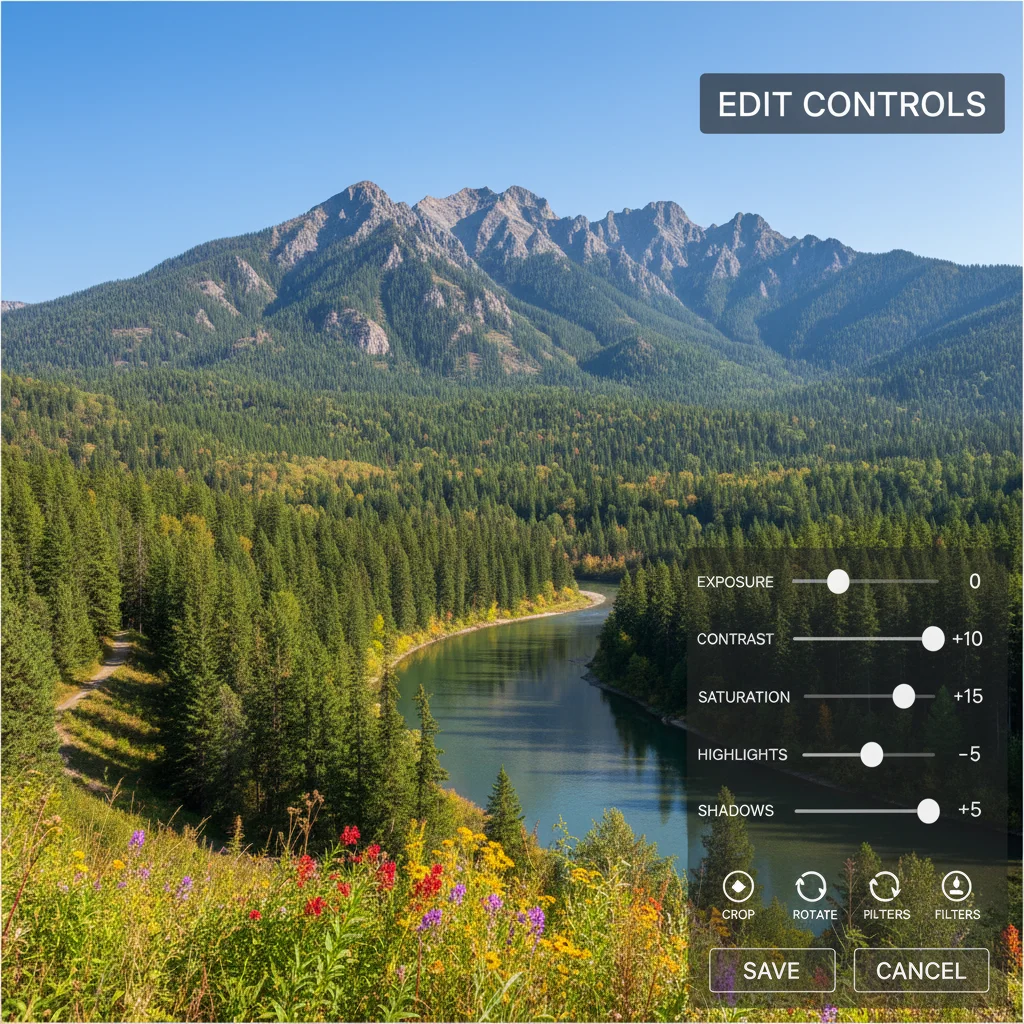
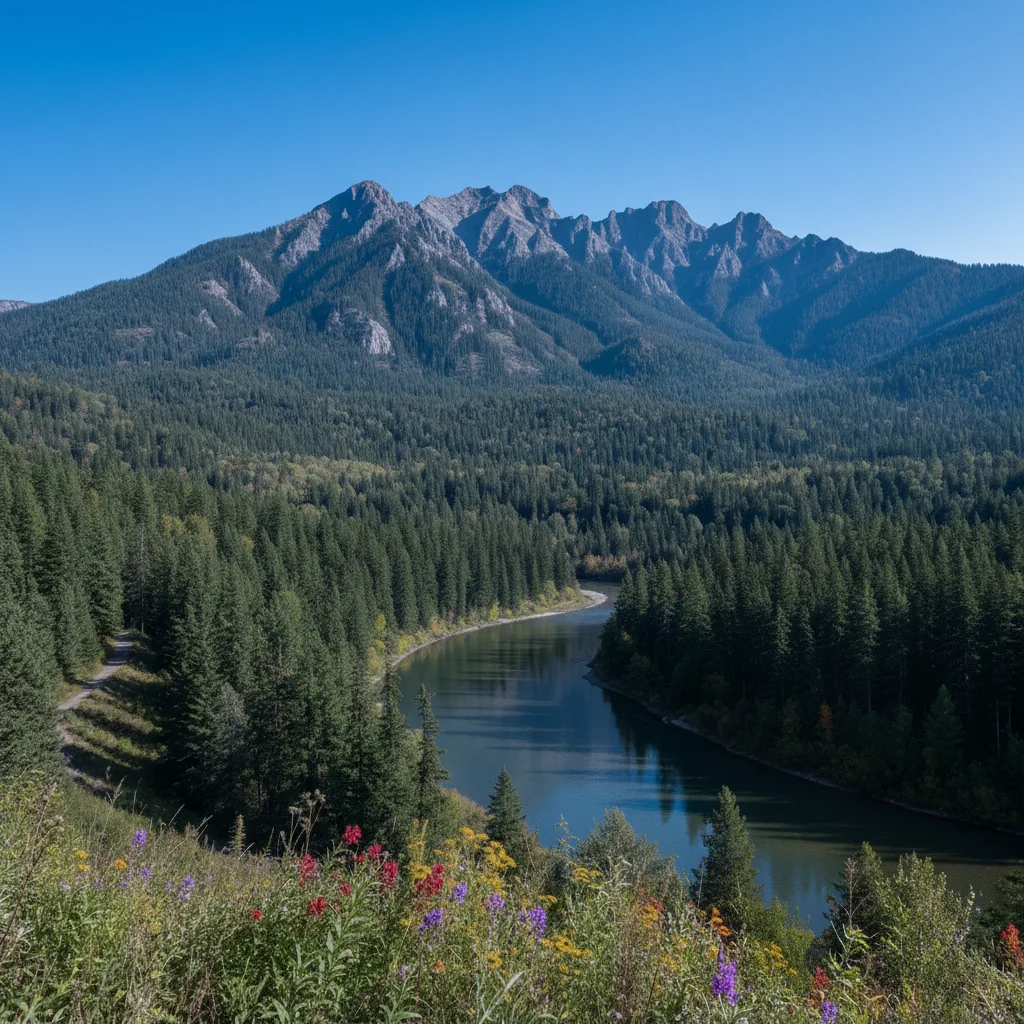
Landscape with Moody Blue Grade
Transformed a daytime landscape into a dramatic moody scene with cool tones.
Prompt:
apply a dark cinematic grade with desaturated colors, crushed blacks, and cool blue tones
Quick answers
Popular use cases
Ready to apply cinematic grading to your photos?
Free to try. No signup required.