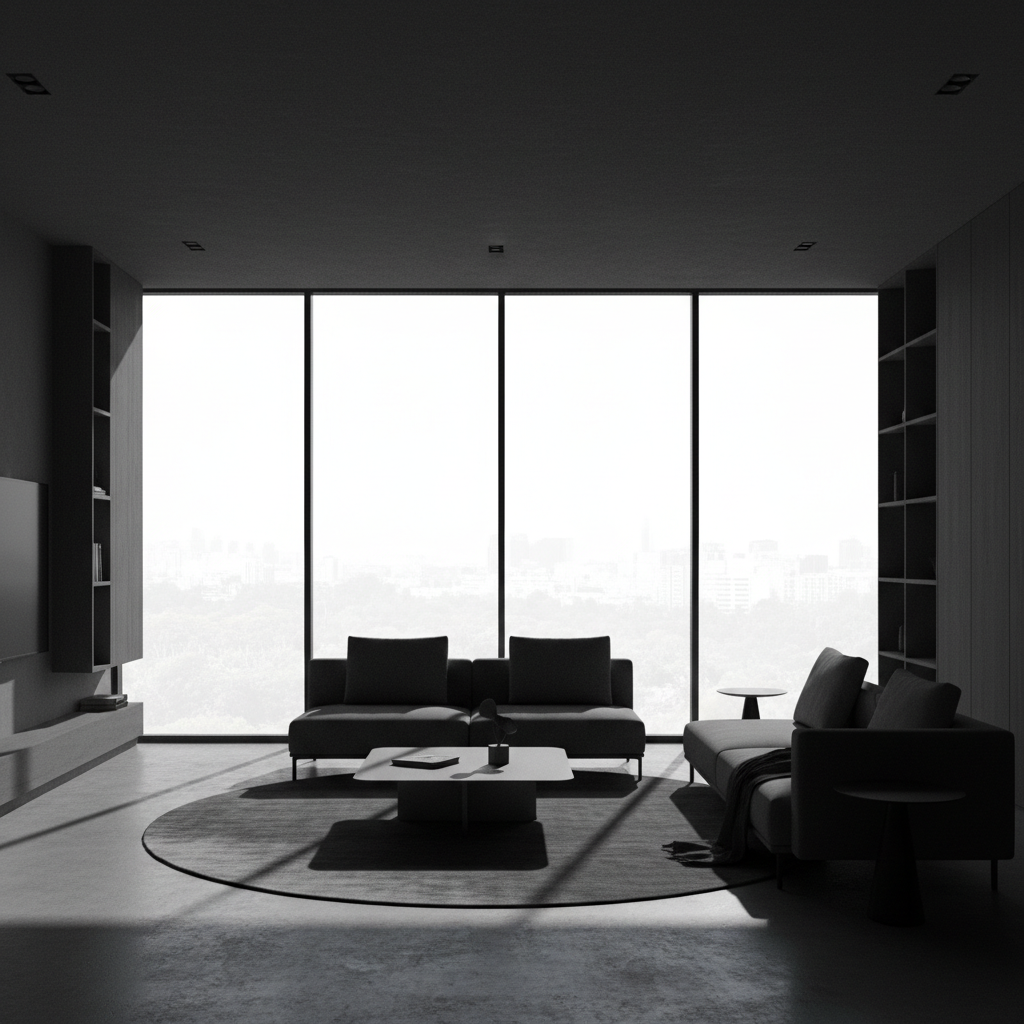
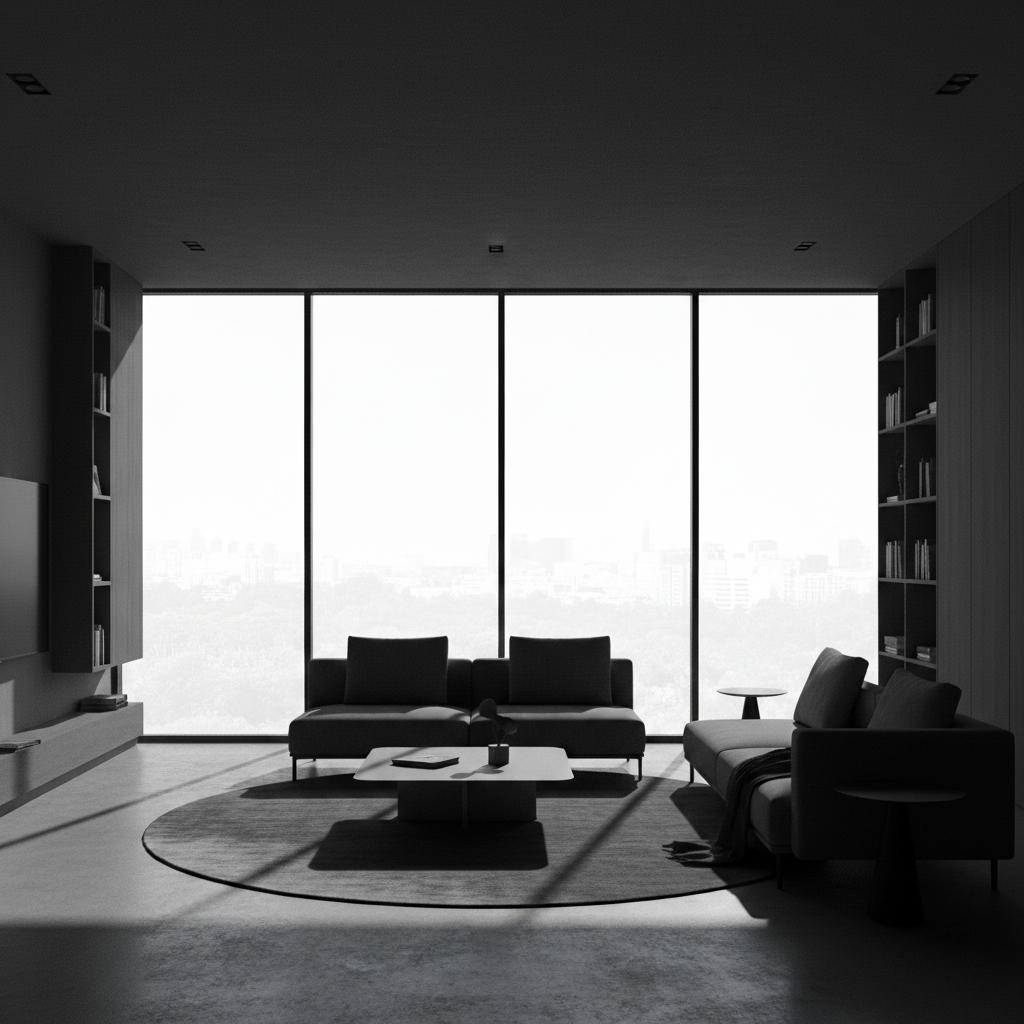
Do I need to mark areas before applying HDR?
No! For most HDR effects, just describe what you want: 'apply HDR effect' or 'make it look HDR with dramatic detail.' The AI applies tone-mapping globally.
How do I make a photo look HDR for free?
Upload your photo to EditThisPic and type 'apply HDR effect' or 'make it look HDR with dramatic sky and shadow detail.' The AI will enhance dynamic range and bring out detail in 15-20 seconds. Completely free to try, no signup required. The free edit is a preview — purchased downloads are clean, full quality.
What is HDR tone-mapping?
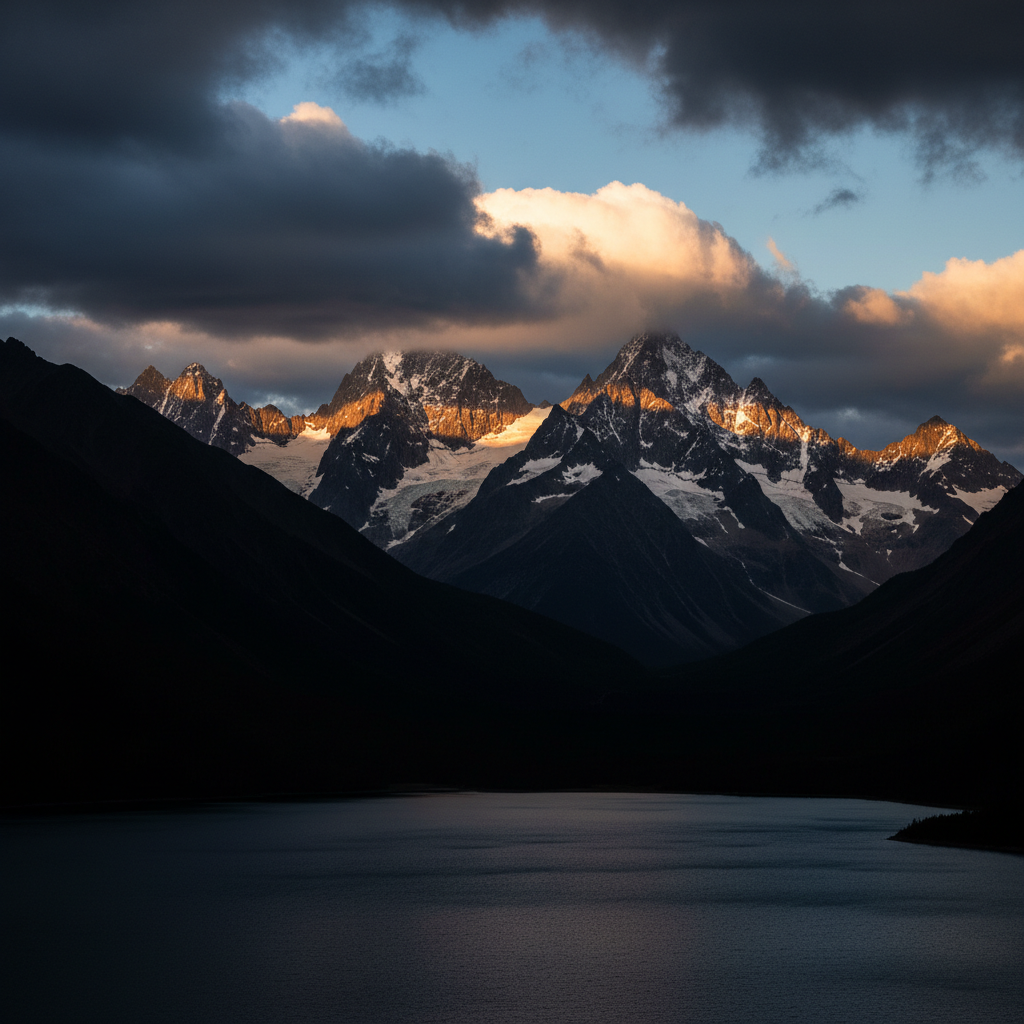
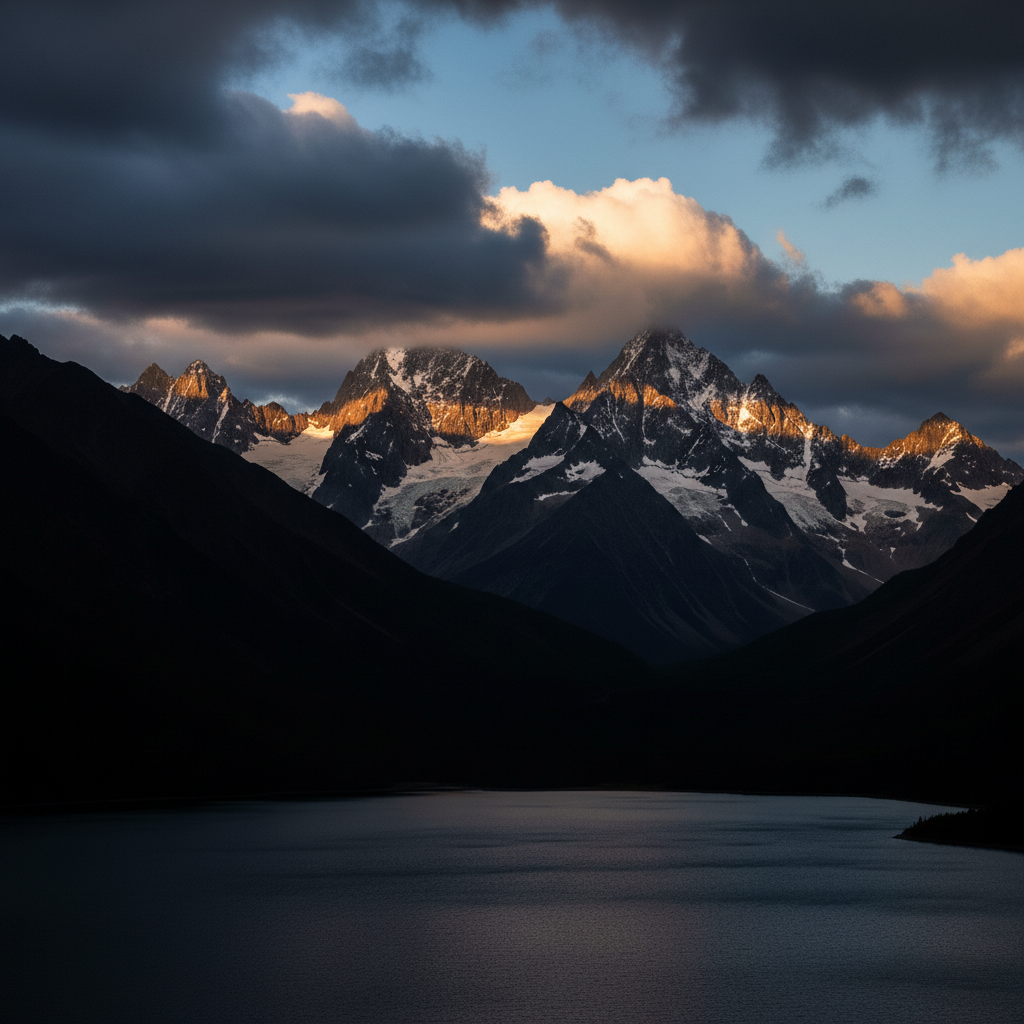
HDR (High Dynamic Range) tone-mapping enhances the range of light and dark in a photo, bringing out detail in both shadows and highlights. It creates images where you can see texture in dark areas and detail in bright skies—something a normal photo often can't capture in a single shot.
Will my photo look over-processed with HDR?
It depends on the intensity you request. Use 'natural HDR' or 'subtle HDR' for realistic enhancement. Use 'dramatic HDR' or 'extreme HDR' for the stylized, intense look. The AI adjusts based on your description, so you control the intensity.
Is EditThisPic's AI HDR effect applyer really free?
Yes — you get 1 free edit per week, no account needed. Credit packs start at $4.99 for 10 edits.
Can I apply HDR effect on my phone?
Yes. EditThisPic works in any mobile browser — iPhone, Android, tablet. No app download needed.
What photo formats does the AI HDR effect applyer support?
JPG, PNG, WebP, and HEIC. Upload any common photo format and EditThisPic handles the rest.
How long does it take to apply HDR effect?
Usually 15-30 seconds. Upload your photo, describe what you want, and the AI delivers the result.
How much does EditThisPic cost?
You get 1 free edit per week — no account needed. After that, one-time credit packs start at $4.99 for 10 edits, valid 12 months, no subscription. Power users who edit daily can pick Studio Membership, a monthly workspace at $49.99/mo for 300 edits. Purchased downloads are clean with no watermark.