Free • No signup Apply Color splash · Free

AI Color Splash Maker

Just describe which color to keep - AI handles the black and white conversion.

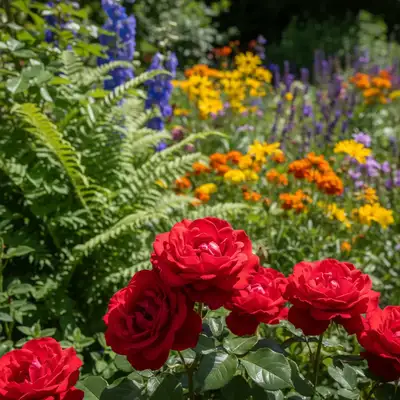
Full color garden with red roses and mixed flowers
Before
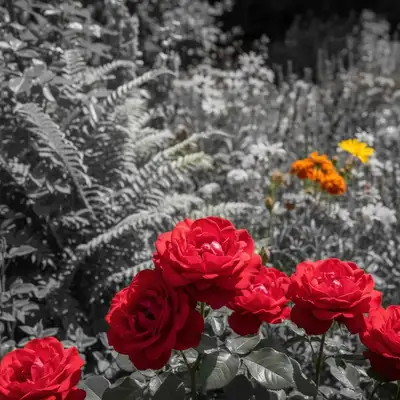
Black and white garden with only red roses in color
After

AI Color Splash Maker

Drop your photo here

or click to browse

Release to upload

Free • No signup

Advertisement
Popular use cases:
  • Instagram photos
  • Product photography
  • Wedding photos
  • Portfolio work
  • Social media content
  • Flower photography
  • Automotive photography

Cost
Free No signup required
Time
Instant results in 15-30 seconds
Works on
Any device - browser, phone, tablet, desktop
Powered by
AI-powered photo editing
Scenario Prompt Time
Single flower make photo black and white except for the red rose 15s
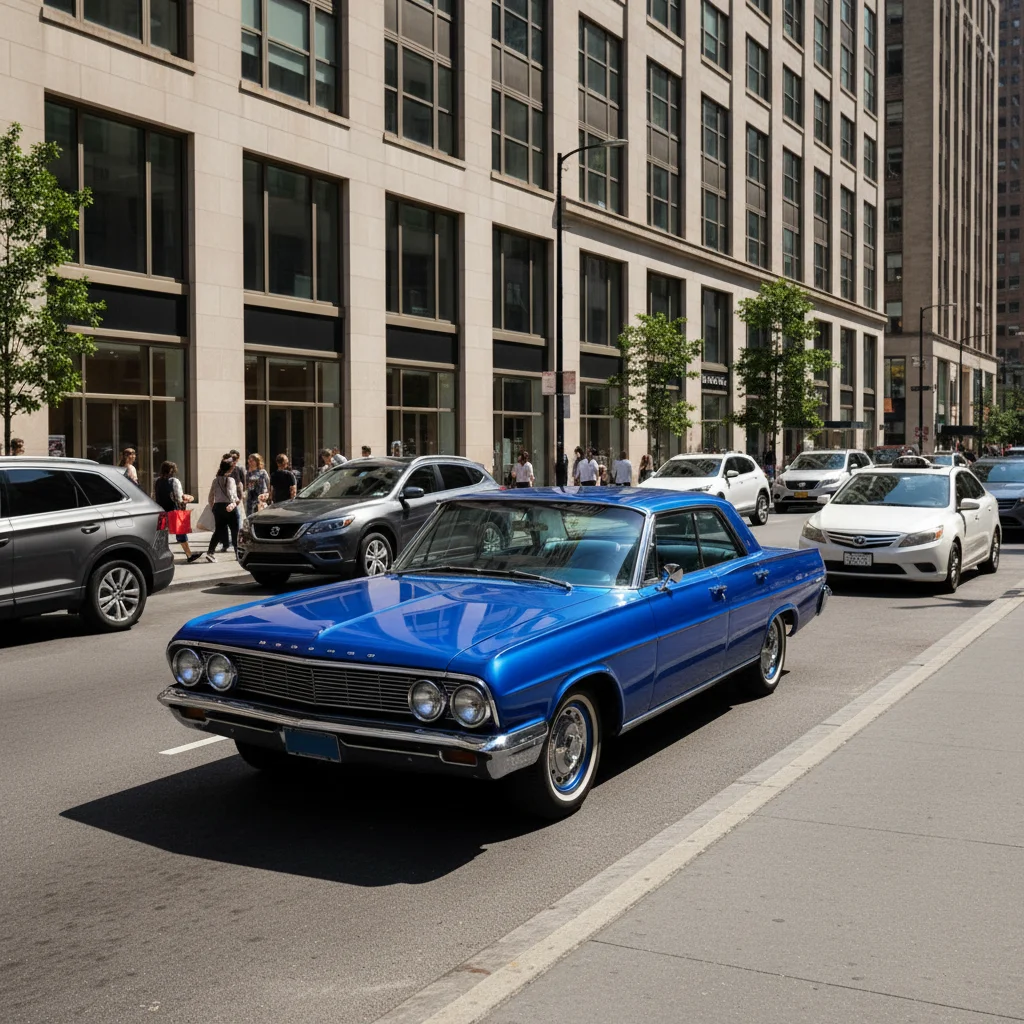
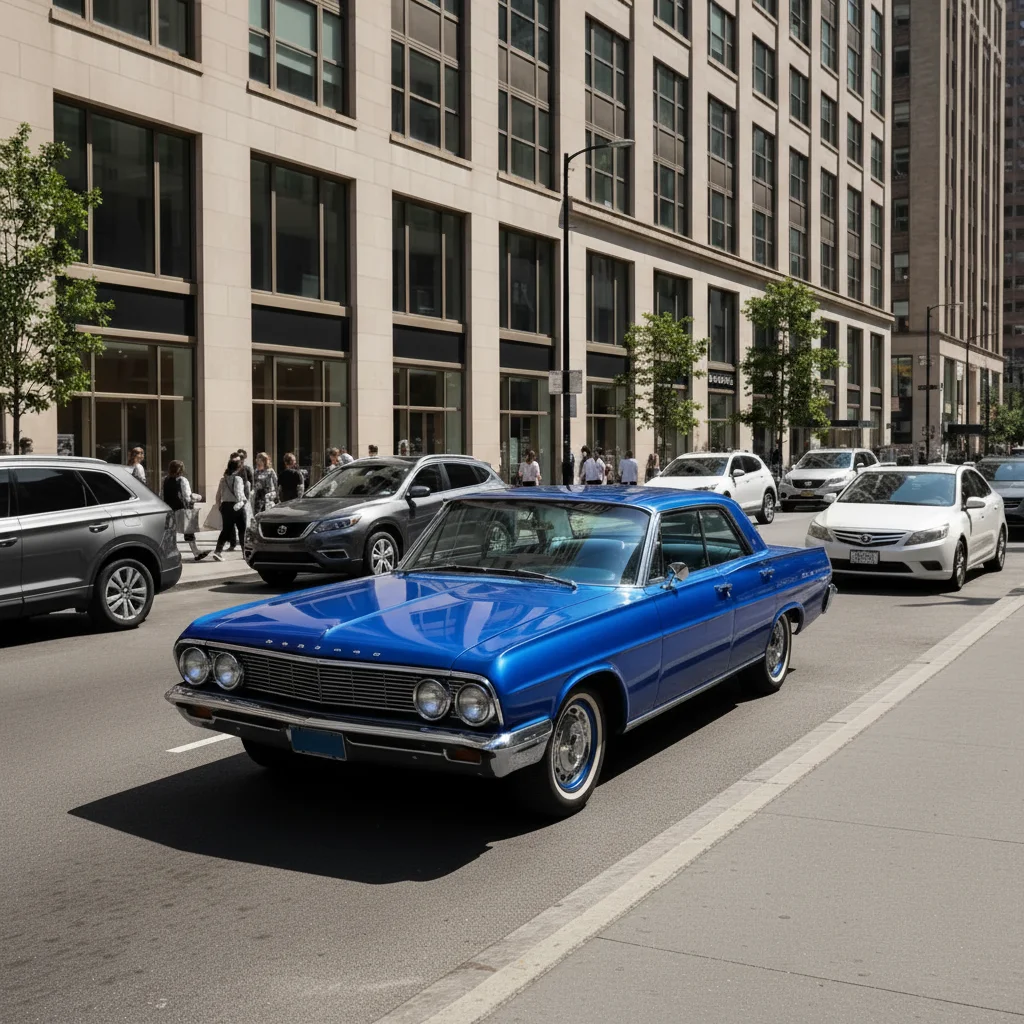
Vehicle convert to grayscale but keep the blue car in color 20s
Accessory make photo black and white except the yellow umbrella 20s
Portrait eyes make portrait black and white except for blue eyes 25s

How it works

  1. Upload your photo

    Drop your image into EditThisPic. JPG, PNG, WebP up to 7MB. Color splash works best on photos with distinct color elements you want to highlight.

    Expect: Simple color isolation: 15-30 seconds. Complex scenes with multiple similar colors: may need 2-3 refinements.
  2. Describe what you want

    Type your instruction: 'make photo black and white except for the red roses' or 'convert to grayscale but keep the blue car in color.' Be specific about which color element to preserve. No marking needed—the AI understands color descriptions and objects.

    Tip: Mention the object AND its color for best results: 'keep the yellow umbrella' works better than just 'keep yellow'

    Copy one of these to get started:

    Single flower in bouquet make photo black and white except for the red rose in the center
    Colorful vehicle or object convert to grayscale but keep the blue vintage car in full color
    Clothing or accessory pop make entire photo black and white except the yellow umbrella the person is holding
    Food photography convert photo to black and white but leave the orange slices in color
    3 more prompts
    Eyes in portrait make portrait black and white except for the person's blue eyes
    Multiple same-color objects convert to grayscale but keep all the red balloons in color
    Landscape focal point make landscape black and white except for the golden sunset sky
  3. Generate and review

    Click Generate and watch the AI convert your photo to black and white while preserving your chosen color. Zoom in to check that color boundaries are clean and the grayscale conversion looks natural.

  4. Refine with markers if needed

    If the AI preserved too much or too little color, tap markers on areas that need adjustment and regenerate. This is optional—most color splash edits work without markers.

    Tip: Markers are for precision refinement, not a required step. Try without them first.
Try it free

AI Color Splash Maker

Drop your photo here

or click to browse

Release to upload

Free • No signup

"Made my flower photos pop instantly. Just told it to keep the yellow petals and it nailed the color splash perfectly." @SarahPhotos

See it in action

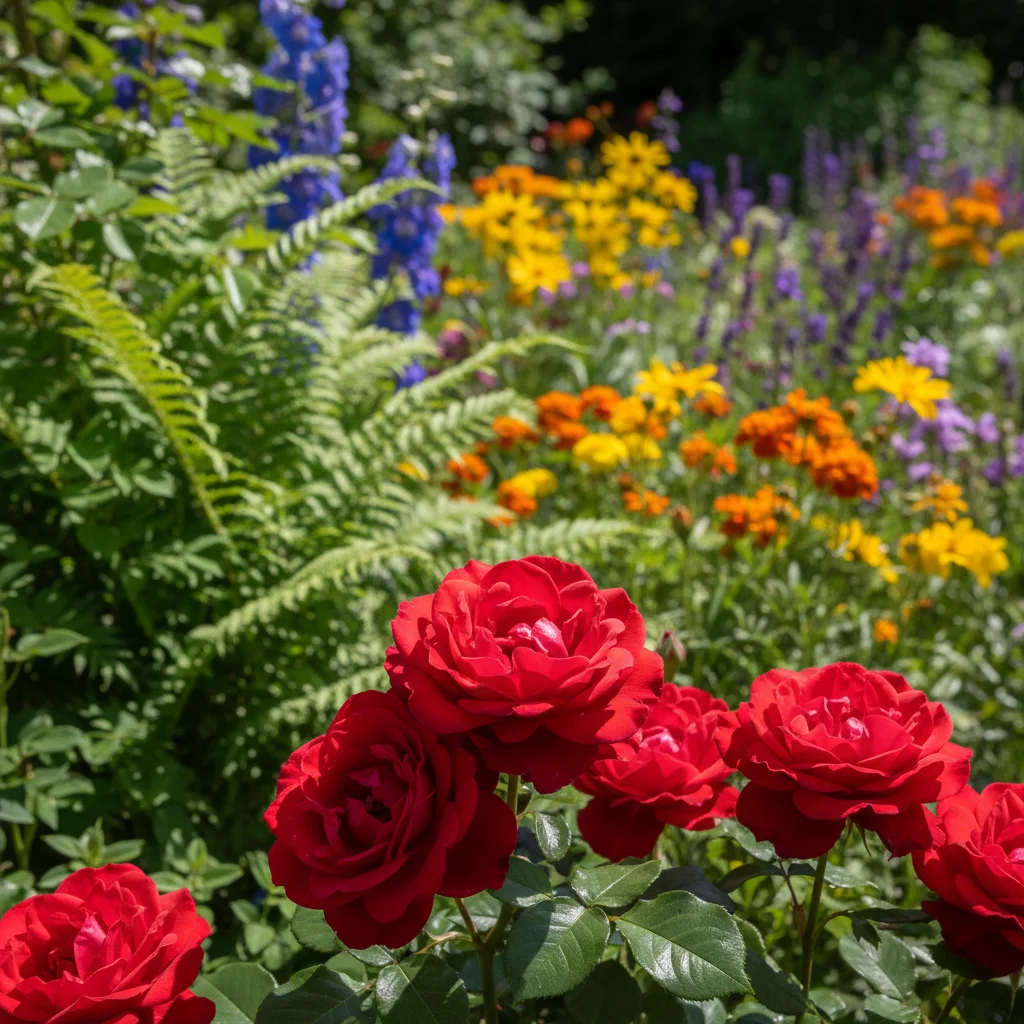
Full color garden with red roses and mixed flowers
Before
->
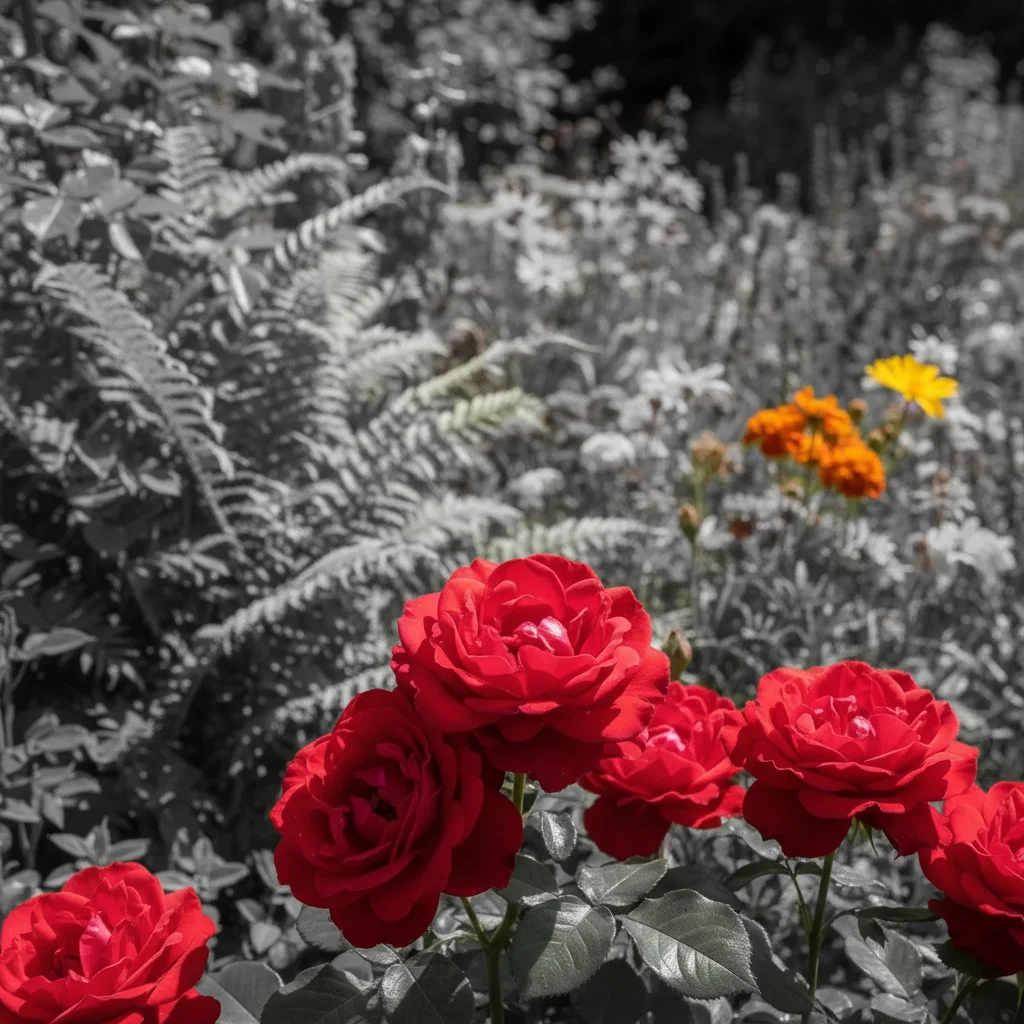
Black and white garden with only red roses in color
After

Red rose color splash

Converted garden photo to black and white while preserving only the red roses, creating dramatic contrast.

Prompt: make photo black and white except for the red roses
Street scene with blue vintage car among other vehicles
Before
->
Grayscale street with only the blue car in color
After

Blue car isolated

Turned street scene to grayscale while keeping only the vintage blue car in full color.

Prompt: convert to grayscale but keep the blue vintage car in full color
Person with yellow umbrella on rainy street
Before
->
Black and white rainy scene with only yellow umbrella in color
After

Yellow umbrella pop

Made rainy day portrait black and white except for the bright yellow umbrella.

Prompt: make photo black and white except the yellow umbrella
Advertisement

If something looks off

AI kept too many colors or the wrong color elements

Why: The AI couldn't determine exactly which color element you meant, especially if multiple objects share similar hues.

Try: Tap markers on the specific colored areas you want to keep, then regenerate with the same prompt

Tip: Markers tell the AI 'I mean THIS specific element.' Use them when description alone is ambiguous.

Color boundaries look rough or have halos

Why: Complex edges like hair or fine details can be challenging for automatic color isolation, especially with similar adjacent colors.

Try: Add markers along the rough edges and describe: 'clean up the color boundaries around the [object]'

Tip: For hair or fur, mention it explicitly: 'keep red dress but not the person's hair'

Grayscale areas look flat or lose detail

Why: Aggressive black and white conversion can sometimes reduce contrast in the desaturated areas.

Try: Add to your prompt: 'with high contrast black and white conversion' to preserve detail

Tip: The AI can adjust grayscale contrast separately from the color isolation

Similar colors bleed together

Why: When you want to keep red but there's orange nearby, the AI might preserve both since they're adjacent on the color spectrum.

Try: Be very specific about the hue: 'keep only the bright crimson red roses, not the orange flowers'

Tip: Use specific color names like 'crimson', 'navy blue', or 'lemon yellow' for precision

Colored area is too small or hard to see

Why: The color you're preserving might not provide enough visual contrast against the grayscale background.

Try: Try a different color element with stronger visual contrast, or add 'boost the saturation of the [color] element'

Tip: Color splash works best when the preserved color is vibrant and distinct

Quick answers

Do I need to mark the area before describing?

No! For most color splash edits, just describe what you want: 'make photo black and white except for the red roses' or 'keep the blue car in color.' The AI understands these concepts. Only use markers when you need precision—like specifying which of several similar-colored objects to preserve, or refining edges after your first attempt.

How do I create a color splash effect for free?

Upload your photo to EditThisPic and type 'make photo black and white except for [color] [object]'. The AI will convert everything to grayscale while preserving your chosen color element. No Photoshop or manual selection required. Free to try with no signup or watermark.

Can I keep multiple colors instead of just one?

Yes! Describe multiple elements: 'make photo black and white except for the red roses and blue sky' or 'keep all warm colors like red, orange, and yellow in color.' The AI can preserve multiple color ranges in a single edit.

What's the best free AI tool for color splash photos?

EditThisPic offers free color splash effects with AI that understands natural language. Just describe which colors to preserve—no manual masking or layers required. Works on any device, no installation needed.

Does color splash work on portraits and people?

Yes! Color splash is popular for portraits. Common uses: keep eye color, preserve clothing color, or highlight accessories like a red scarf. The AI can isolate specific elements even in complex portraits with skin tones and multiple colors.

Ready to create stunning color splash photos?

Free to try. No signup required.

Try it free