AI Highlight Recovery
← Browse all creative effectsLast updated
Just describe the blown areas and AI recovers lost detail.


Upload photo to recover blown highlights
"restore detail in the bright overexposed window, recover what's visible outside"
Free to try · no sign-up · photos are never shared
Release to upload
<30stypical edit
1 freeedit weekly
Photo on your phone?
Scan to open this editor there — free edit works on your phone too.
How it works
See it in action


Washed-Out Sky Recovered
Landscape photo with completely blown white sky. AI reconstructed blue sky with visible cloud texture.
Prompt:
recover blown highlights in the sky and restore blue color with visible cloud detail


Overexposed Window Detail Restored
Interior room photo where bright window was pure white. Recovery revealed the outside view through the window.

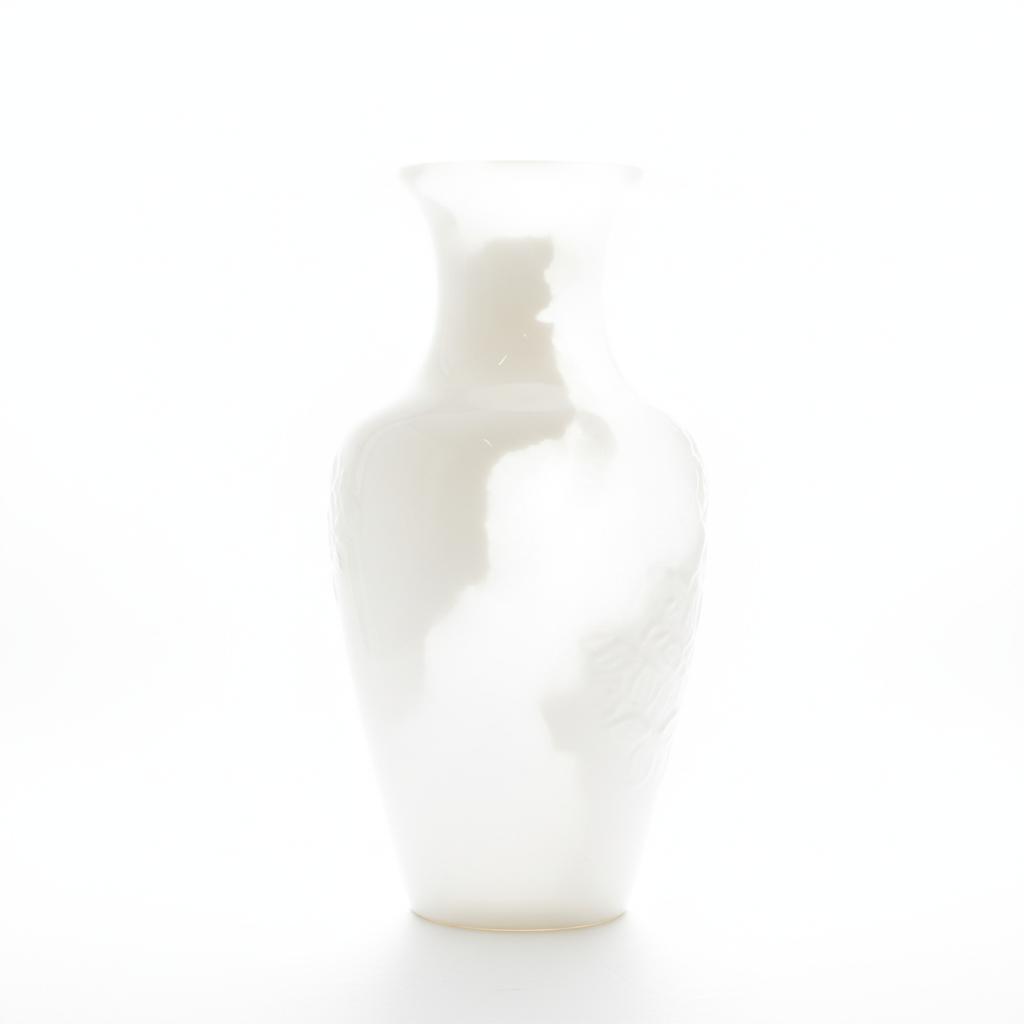
Bright Reflection Detail Recovered
Product photo with harsh blown reflection on glossy surface. AI reduced the blow-out while maintaining the shiny appearance.
Quick answers
Popular use cases
Ready to edit your photos?
Free to try. No signup required.