Free • No signup Enhance MLS listing photo · Free

AI MLS Photo Editor

Upload any listing photo and describe what needs fixing. AI enhances MLS photos to professional standard in seconds.

Dark underexposed living room with window glare and heavy shadows
Before
Same room brightened to professional listing standard with even natural lighting
After

AI MLS Photo Editor

Drop your photo here

or click to browse

Release to upload

Free • No signup

Popular use cases:
  • MLS photo editing
  • real estate listing photo enhancement
  • listing photo improvement
  • real estate photo editor online
  • AI listing photo fixer
  • property photo enhancement
  • real estate photo retouching
  • MLS image editing tool

Cost
Free No signup required
Time
Instant results in 15-30 seconds
Works on
Any device - browser, phone, tablet, desktop
Powered by
AI-powered photo editing
Scenario Prompt Time
Dark interior fix brighten to professional real estate listing standard 20s
Sky replacement replace gray sky with clear blue sky, keep house unchanged 25s
Object removal remove the [object] and fill with matching background 25s

How it works

  1. Upload your listing photo

    Drop any real estate photo into EditThisPic — exteriors, interiors, kitchens, bathrooms, or aerials. JPG, PNG, WebP up to 7MB. Works best with photos taken in good lighting, but handles problem shots too.

    Expect: Single-issue fixes (brighten, sky swap, object removal): 20-25 seconds. Complex multi-area edits: 30-40 seconds and may need 2 passes.
  2. Describe what needs fixing

    Type what you need: 'brighten this room and make it look naturally lit,' 'replace the overcast sky with blue sky and clouds,' or 'remove the trash bins near the front door.' Be specific about the issue and the result you want. No marking needed for most common listing photo fixes.

    Tip: One edit per prompt works better than asking for multiple fixes at once. Brighten the room first, then swap the sky in a second prompt for cleaner results.

    Copy one of these to get started:

    Brighten dark interior rooms brighten this room to professional real estate listing standard — evenly lit, natural colors, no dark shadows or underexposed corners
    Replace overcast sky in exterior shot replace the dull gray sky with a clear blue sky with some white clouds, keeping the house and landscaping unchanged
    Remove distracting objects from exterior remove the trash bins near the garage door and fill the area with matching driveway and lawn as it would naturally appear
    Enhance curb appeal enhance the curb appeal of this exterior — make the lawn greener, brighten the exterior paint color, and make the overall property look more inviting
    3 more prompts
    Virtual stage empty room for MLS add modern neutral furniture to this empty room — a sectional sofa, coffee table, and floor lamp — for a real estate listing photo
    Fix yellow indoor lighting correct the yellow artificial lighting in this room to look like natural white daylight, making walls and surfaces appear their true colors
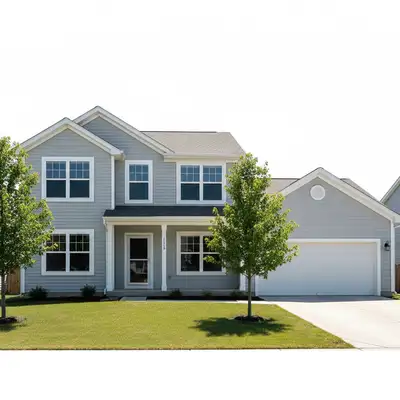
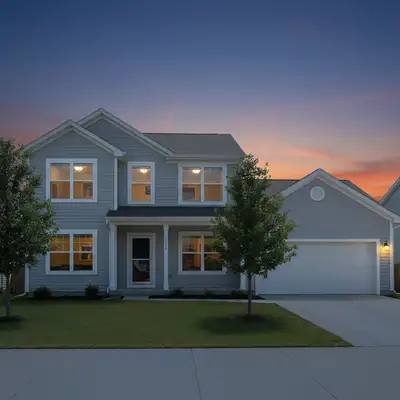
    Twilight conversion convert this daytime exterior photo to a twilight shot with warm interior lights on, a deep blue dusk sky, and dramatic lighting appeal
  3. Review the enhanced photo

    Check that the edit looks natural and not over-processed. Verify colors are accurate, edits are realistic, and the photo meets MLS photo standards for your market. Use the before/after slider to compare.

  4. Use markers for precision if needed

    If the AI edited the wrong part of the photo, tap markers on the specific area and regenerate. Useful when removing a specific object near similar elements, or brightening one dark corner without affecting the rest of the room.

    Tip: Markers are especially useful for object removal — tap on the exact item you want gone, then describe 'remove this and fill with matching background.'
Try it free

AI MLS Photo Editor

Drop your photo here

or click to browse

Release to upload

Free • No signup

"Fixed all 24 photos from a listing shoot in one afternoon — brightened interiors, swapped skies, removed two cars from the driveway. Saved $300 in editing fees." @RealEstatePhotosByTerry

See it in action

Dark underexposed living room with window glare and heavy shadows
Before
->
Same room brightened to professional listing standard with even natural lighting
After

Dark living room corrected for MLS

A dim interior listing photo brightened to professional standard for MLS submission.

Prompt: brighten this room to professional real estate listing standard — evenly lit, natural colors, no dark shadows or underexposed corners
House exterior with flat gray overcast sky making the property look gloomy
Before
->
Same house exterior with clear blue sky transforming the curb appeal
After

Overcast sky replaced on exterior

A gray overcast sky swapped for blue sky to transform the curb appeal of a listing photo.

Prompt: replace the dull gray overcast sky with a clear blue sky with light white clouds, keeping the house and all landscaping unchanged
House exterior with trash bins and garden hose visible in listing photo
Before
->
Same house exterior with clean driveway and lawn after object removal
After

Yard distractions removed from listing photo

Trash bins and a garden hose removed from a front yard photo to clean up the listing.

Prompt: remove the trash bins near the garage and the garden hose on the lawn, fill in with matching driveway and lawn as they would naturally appear

Detailed Guides by Scenario

📷

Interior Listing Photo Fixes

Fix the most common interior listing photo problems — dark rooms, yellow lighting, empty rooms, and window glare — without re-shooting.

Common Scenarios

  • Brightening dark bedrooms, living rooms, and kitchens from shoots on cloudy days
  • Correcting warm yellow lighting to natural white daylight
  • Virtually staging empty rooms to help buyers visualize living in the space

Best Practices

  • Fix one issue per prompt for cleanest results — brighten first, then correct color
  • Use 'professional real estate listing standard' for consistent interior quality
  • Stage empty rooms before brightening so both edits apply to the staged version
📷

Exterior Listing Photo Fixes

Transform exterior listing photos with sky replacement, curb appeal enhancement, and object removal — turning mediocre shots into standout MLS photos.

Common Scenarios

  • Replacing flat gray overcast skies with blue sky and clouds in exterior shots
  • Removing cars, trash bins, and yard equipment from driveways and lawns
  • Enhancing lawn color and curb appeal to make the property look its best

Best Practices

  • Always specify 'keep the house unchanged' when doing sky replacement
  • Include 'fill with matching background' for any object removal
  • Enhance curb appeal before sky replacement for a fully polished exterior
📷

Twilight and Specialty Edits

Create high-impact listing photos with twilight conversions, HDR-style interior/exterior balancing, and luxury-tier presentation effects.

Common Scenarios

  • Converting daytime exterior photos to twilight for dramatic luxury appeal
  • Balancing bright windows with dark interiors for HDR-style listing photos
  • Adding pool illumination, landscape lighting, or fire features to exterior shots

Best Practices

  • Twilight works best on homes with large windows — interior lights visible from outside add drama
  • For window-to-interior balance, describe the desired exposure for each zone separately
  • Use twilight conversion selectively — one or two photos in a gallery, not all of them

If something looks off

Sky replacement looks fake or has a hard edge

Why: The AI found it difficult to cleanly separate the roofline or tree edges from the original sky.

Try: replace the sky with a natural blue sky, blend the edges where the sky meets the roofline and trees so it looks realistic and seamless

Tip: Adding 'blend edges seamlessly' consistently improves sky replacement quality at rooflines and tree canopies.

Room brightening looks artificial or over-processed

Why: The AI boosted brightness in a way that doesn't match natural lighting physics.

Try: brighten this interior photo to look naturally lit with soft daylight — realistic, not overexposed or artificially bright

Tip: 'Realistic, not overexposed' keeps the AI from going too far. Add 'maintain depth and shadows' to preserve three-dimensional quality.

AI changed the wrong area or something I didn't want changed

Why: Without markers, the AI used context clues to decide what to edit, which doesn't always match your intent.

Try: Tap a marker on the specific area you want to change, then regenerate with the same prompt

Tip: Markers are essential for listing photo editing when you need precision — removing one specific object, brightening one dark corner, or fixing a specific surface.

Object removal left a visible patch or artifact

Why: The background behind the removed object was complex (grass texture, brick pattern) and the AI's fill doesn't match.

Try: remove the object and fill the area with seamlessly matching surrounding surface texture and color

Tip: Simple backgrounds (plain concrete, sky, grass) produce better removal results than complex patterns like stone or brick.

Virtual staging looks out of place in the room

Why: The AI staged with furniture that doesn't match the room's proportions or style.

Try: stage this empty room with neutral modern furniture appropriate for a real estate listing — proportional to the room size, nothing too bold or style-specific

Tip: Adding 'appropriate for a real estate listing' signals the AI to pick universally appealing, neutral furniture rather than bold design statements.

Quick answers

Do I need to mark areas before editing listing photos?

No! For most MLS photo fixes — brightening rooms, replacing skies, removing objects — just describe what you want. 'Replace the gray sky with blue sky' or 'brighten this interior' works without any marking. Only use markers if the AI edits the wrong area or you need very precise targeting.

What types of listing photo edits does this handle?

Brightening dark interiors, sky replacement, object and clutter removal, virtual staging of empty rooms, color correction (fix yellow lighting), lawn enhancement, twilight conversion, perspective correction, and general enhancement. Any description of what you want changed works.

Is there a free MLS photo editor without login?

Yes. EditThisPic is free to try with no account needed. Upload your listing photo, describe the fix, and get the result in 30 seconds. One free edit per week, credit packs from $1.99 for editing multiple photos.

Can I edit multiple listing photos from the same property?

Yes. Upload each photo separately and apply the appropriate fix to each. For consistent results across a listing, use the same phrasing in each prompt — 'professional real estate listing standard' applied to every interior produces a cohesive gallery.

Are AI-enhanced listing photos allowed on the MLS?

Standards vary by MLS board, but AI photo enhancement (brightness, color, clutter removal) is widely accepted. Virtual staging must be disclosed — most MLS systems require labeling staged photos as 'virtually staged.' Always confirm your local board's rules before uploading AI-edited photos.

Can I edit MLS photos on my phone?

Yes. EditThisPic works in any mobile browser — iPhone, Android, tablet. Upload photos directly from your camera roll and edit on the go. No app download needed.

Ready to enhance your listing photos?

Free to try. No signup required.

Try it free