Free • No signup Transform Photo style · Free

Transform Photo to 3D Render Style

← Browse all creative effects

Last updated

Transform any photo into a 3D digital render — smooth CGI surfaces, crisp lighting, and a polished digital character look.
Casual portrait of a man in red polo against grey background
Before
Same portrait transformed into a realistic 3D CGI render with smooth surfaces and studio lighting
After

Upload photo to transform photo style

"convert this photo into a cinematic 3D game character render with dramatic rim lighting, sharp facial geometry, and a dark atmospheric background"

Release to upload

FreeNo signupNo watermark

1 free edit·then from $1.99

Popular use cases:
  • 3D render photo effect
  • CGI photo style
  • photo to 3D render
  • digital render photo converter
  • 3D character from photo free

Cost
Free No signup required
Time
Instant results in 15-30 seconds
Works on
Any device - browser, phone, tablet, desktop
Powered by
AI-powered photo editing
Scenario Prompt Time
Realistic CGI portrait transform into realistic 3D CGI render with smooth skin, subsurface scattering, three-point studio lighting 30s
Game character convert into cinematic 3D game character render with dramatic rim lighting and dark atmospheric background 35s
Product render transform into 3D product render style with studio lighting, white background, sharp shadows 25s

How it works

  1. Upload your photo

    Drop any portrait, product photo, or scene into EditThisPic. JPG, PNG, or WebP up to 7MB. Clear portraits with good lighting transform most dramatically — the 3D render effect is most visible on faces and clearly-defined objects.

    Expect: Simple portraits: 20-30 seconds. Complex scenes or group photos: 35-50 seconds.
  2. Describe the 3D render aesthetic

    Type your instruction: 'transform this into a 3D digital render style with smooth surfaces and cinematic studio lighting' or 'make this look like a high-quality CGI character with subsurface skin rendering and dramatic key lighting.' Specify the render style — realistic CGI, stylized 3D cartoon, or cinematic game character. No marking needed.

    Tip: Add lighting style to your prompt for more precise results: 'soft box studio lighting' creates a clean product-render look; 'dramatic rim lighting with dark background' creates a cinematic game character feel.

    Copy one of these to get started:

    Realistic CGI portrait transform this into a realistic 3D CGI render with smooth skin surfaces, subsurface scattering, and three-point studio lighting
    Cinematic game character convert this photo into a cinematic 3D game character render with dramatic rim lighting, sharp facial geometry, and a dark atmospheric background
    Stylized 3D animation character transform this into a stylized 3D animation character render with slightly exaggerated features, bright studio lighting, and a clean gradient background
    Product 3D render transform this into a 3D product render style with clean studio lighting, white background, sharp shadows, and polished surface material
    3 more prompts
    Futuristic sci-fi character convert this into a 3D sci-fi character render with metallic and composite material surfaces, cool blue rim lighting, and a dark futuristic background
    Soft cartoon 3D style transform this into a soft 3D cartoon render style with rounded smooth features, warm pastel lighting, simple clean shadows, and a soft bokeh background
    Architectural visualization style transform this outdoor scene into an architectural visualization render with sharp daylight, clean surfaces, ambient occlusion shadows, and photorealistic material quality
  3. Review the 3D transformation

    Check the characteristic 3D render markers — smooth surface quality without photographic grain, clearly defined light sources and their shadows, a sense of clean geometry, and consistent render shading. The skin on portraits should look polished but dimensionally correct.

  4. Refine if needed

    If the lighting direction, surface smoothness, or specific area needs adjustment, tap a marker on that zone and regenerate with more detailed render instructions. Most transformations succeed without this step.

    Tip: For portraits: specifying light source direction ('three-point studio lighting' or 'single rim light from the left') gives the render a more intentional look.
Try it free

Upload photo to transform photo style

"transform this into a stylized 3D animation character render with slightly exaggerated features, bright studio lighting, and a clean gradient background"

Release to upload

Free • No signup

See it in action

Casual portrait of a man in red polo against grey background
Before
->
Same portrait transformed into a realistic 3D CGI render with smooth surfaces and studio lighting
After

Portrait to realistic CGI character

A standard photo transformed into a polished 3D CGI portrait with professional render quality.

Prompt: transform this into a realistic 3D CGI render with smooth skin surfaces, subsurface scattering, and three-point studio lighting
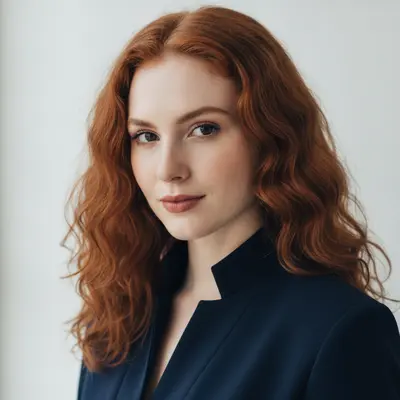
Portrait of a woman with copper hair in navy jacket on white background
Before
->
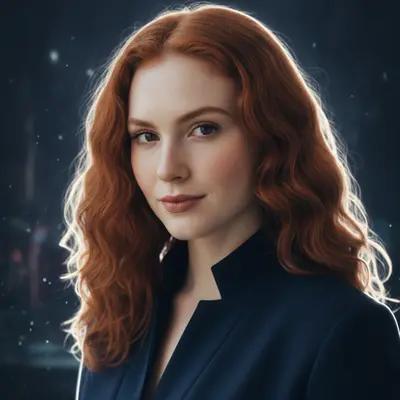
Same portrait transformed into a cinematic game character render with dramatic rim lighting and dark atmospheric background
After

Photo to cinematic game character

A casual portrait converted into a dramatic cinematic game character render.

Prompt: convert this photo into a cinematic 3D game character render with dramatic rim lighting, sharp facial geometry, and a dark atmospheric background
Yellow coffee mug on wooden table against white background
Before
->
Same mug transformed into a polished 3D product render with studio lighting and clean shadows
After

Product photo to 3D render

An everyday object given a clean professional 3D product render quality.

Prompt: transform this into a 3D product render style with clean studio lighting, white background, sharp shadows, and polished surface material

If something looks off

The result looks more like a painting than a 3D render

Why: The AI may have interpreted the style request as artistic rather than CGI-technical.

Try: transform this into a 3D computer-generated render specifically — smooth digital surfaces, clean hard-edged shadows from defined light sources, CGI rendering quality, NOT a painted or illustrated look

Tip: Using 'CGI' and 'computer-generated' in the prompt anchors the AI to the technical render aesthetic.

AI changed the wrong area or something I didn't want changed

Why: The AI couldn't determine exactly which area you meant from description alone.

Try: Tap a marker on the specific area you want to change, then regenerate with the same prompt

Tip: Markers tell the AI 'I mean THIS one specifically.' Use them when description alone is ambiguous.

Skin looks too plasticky or waxy

Why: Without subsurface scattering instruction, the AI may apply a flat plastic-like surface to faces.

Try: transform this into 3D render style with realistic skin — subsurface scattering on the face, soft translucent skin quality, not a plastic or mannequin look

Tip: Specifically mentioning 'subsurface scattering' tells the AI to use organic skin material rather than a plastic shader.

The lighting looks flat or even

Why: Without specific lighting direction, the AI defaults to even ambient lighting.

Try: add dramatic directional lighting to this 3D render — three-point studio setup with a bright key light from the upper left and a soft fill light from the right

Tip: Naming the specific light setup gives the render a more professional cinematic quality.

Features are distorted or facial proportions look wrong

Why: Heavy stylization in 3D space can sometimes alter facial geometry unexpectedly.

Try: transform into 3D render style while preserving the original facial proportions and features — stylize the surface and lighting only without changing the face structure

Tip: Adding 'preserve facial proportions' explicitly protects the likeness during the CGI transformation.

Quick answers

Do I need to mark areas before applying the 3D render style?

No — just describe the render aesthetic you want and upload your photo. The AI handles the full stylistic transformation. Use markers only if you want to protect a specific area or concentrate the render treatment on a particular zone.

How do I get a 3D render look for my photo for free?

EditThisPic applies 3D render style transformation for free with no account needed. Upload your photo, describe the CGI lighting and surface style you want, and download the result — no signup or watermark.

Can I specify the lighting style in the render?

Yes — name it in your prompt. 'Three-point studio lighting,' 'single dramatic rim light,' 'soft natural window light,' and 'cinematic low-key lighting' all produce different render looks. Specific lighting direction gives much more controlled results.

What's the difference between realistic CGI and stylized 3D?

Realistic CGI aims to be indistinguishable from photography — smooth, physically accurate lighting and materials. Stylized 3D (like animated film character style) uses slightly simplified geometry with clean bright lighting and is clearly illustrated but polished. Specify which look you want in your prompt.

Can I use this for product photos?

Yes — product photos can be transformed into a 3D product render aesthetic with studio lighting, clean white background, and polished material surfaces. Specify 'product render style with studio lighting and white background' for the cleanest e-commerce CGI look.

How much does EditThisPic cost?

You get 1 free edit per week — no account needed. After that, credit packs start at $1.99 for 3 edits. Monthly plans start at $4.99/mo for 15 edits with unused credits rolling over. All edits are full resolution with no watermark.

Ready to transform your photo to 3D render style?

Free to try. No signup required.

1 free edit included·Credit packs from $1.99