Free • No signup Place Product · Free

AI Product on Model Generator

← Browse all creative effects

Last updated

Upload your model photo + any product photo. AI places the exact product on the model — hat, bag, sunglasses, watch, scarf — product details 100% preserved.


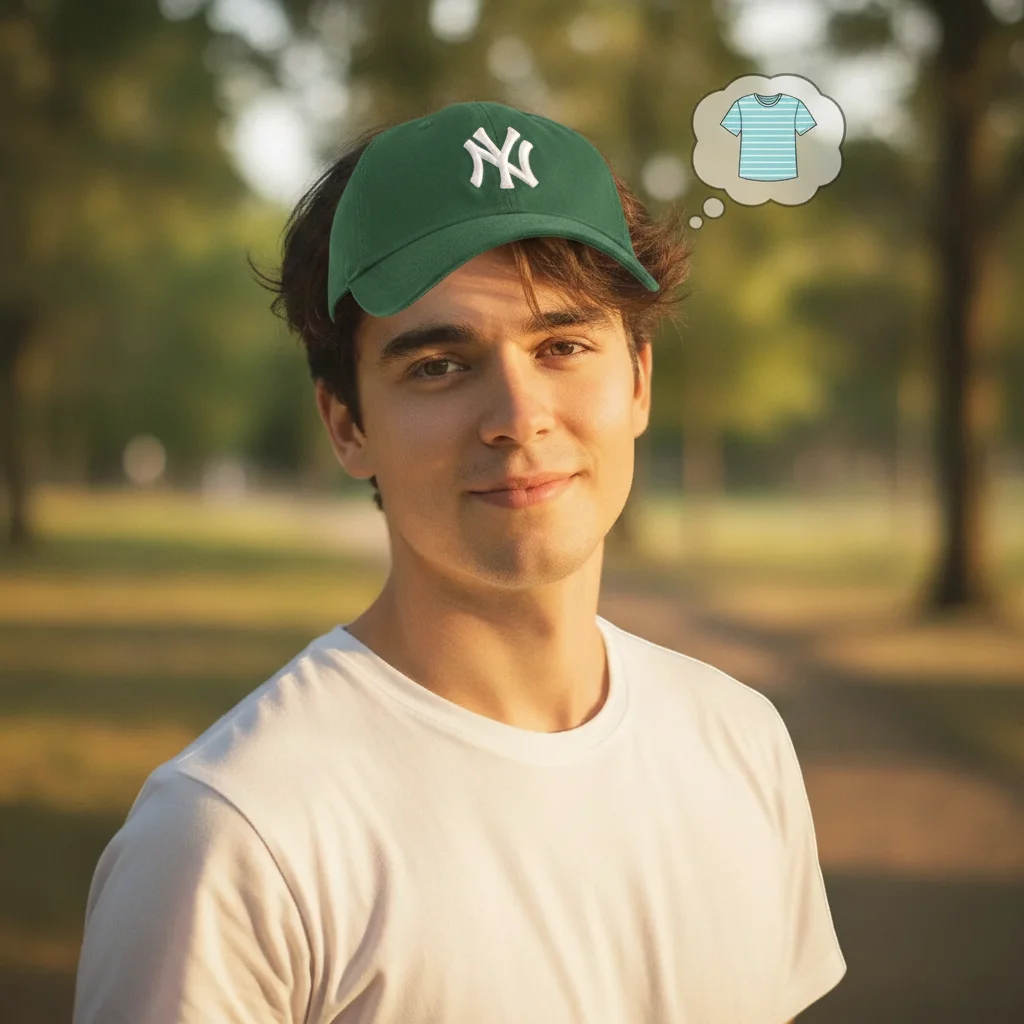
Man in white t-shirt outdoors, bareheaded, natural daylight Same man wearing a forest green baseball cap with embroidered logo, lighting preserved

Upload photo to place product

"Place this exact handbag on the model using the reference image. The bag should hang from the model's right shoulder with the strap visible. Keep the bag design 100% identical to the reference — same hardware, stitching, color, and logo placement. Add a natural shadow under the bag where it rests against the body. Match the existing lighting."

Release to upload

50,000+photos edited
<30stypical edit
1 freeedit weekly

1 free edit·then from $4.99

How it works

  1. Upload your model photo

    Drop a clean model photo into EditThisPic. The placement area should be clearly visible — if placing a hat, the head should be fully visible; if placing a bag, the body should show where the bag would sit. Choose a photo with neutral or simple background for the cleanest composite. JPG, PNG, or WebP up to 7MB.

    Expect: Clean studio photos with clear placement area: 20-30 seconds. Lifestyle shots with complex backgrounds may need one refinement pass if the product edges don't blend cleanly with the background.
  2. Add your product photo as a reference image

    Click '+ Add reference image' and upload a clear photo of your product. A product shot on white background or flat-lay works best. This reference is critical — it's what the AI reads to replicate your exact product. Without a reference, the AI will generate a generic product in the described category. With a clear reference, it replicates your specific SKU.

    Tip: Use a front-facing product shot that clearly shows all distinguishing features — logo, color, shape, texture. For 3D products (bags, hats), use a photo that shows the product at a similar angle to how it will appear on the model.

    Copy one of these to get started:

    Hat or cap on model — e-commerce listing Place this exact hat on the model's head using the reference image. Keep the hat 100% identical to the reference — same color, logo, brim shape, and crown height. The hat should sit naturally on the head at the same tilt as a casually worn cap. Match the lighting direction already in the model photo.
    Handbag or purse on model Place this exact handbag on the model using the reference image. The bag should hang from the model's right shoulder with the strap visible. Keep the bag design 100% identical to the reference — same hardware, stitching, color, and logo placement. Add a natural shadow under the bag where it rests against the body. Match the existing lighting.
    Sunglasses on model face Place these exact sunglasses on the model's face using the reference image. Keep the frame shape, lens color, and all design details identical to the reference. The glasses should sit naturally on the nose bridge with temple arms hooked over the ears. Match the lens reflections to the lighting already in the model photo.
    Watch on model wrist Place this exact watch on the model's left wrist using the reference image. Keep every dial detail, case shape, strap color, and brand marking identical to the reference. The watch face should be visible and facing the camera. Add highlights on the watch crystal that match the lighting direction in the model photo.
    4 more prompts
    Scarf on model — styling placement Place the scarf from the reference image around the model's neck in a loose wrap style. Keep the fabric pattern and color 100% identical to the reference. The scarf should drape naturally with visible folds and the pattern should wrap continuously without repetition seams. Match the soft outdoor lighting already in the photo.
    Backpack on model — full product visibility Place this exact backpack on the model's back using the reference image. Both shoulder straps should be visible and worn properly. Keep the backpack design 100% identical to the reference — same pockets, zippers, logo, and color. The pack should have natural weight and sag consistent with a loaded bag. Match the lighting.
    Beanie or winter hat Place the beanie from the reference image on the model's head. The beanie should be pulled down to just above the eyebrows, covering the top of the ears slightly. Keep the color, ribbing texture, and any logo or pom-pom identical to the reference. Match the outdoor winter light in the model photo.
    Product held in hand — display or lifestyle shot Place the product from the reference image in the model's right hand, held naturally at chest height as if presenting it. Keep the product 100% identical to the reference. The model's fingers should wrap around the product in a natural grip. Match the existing warm studio lighting.
  3. Describe placement, position, and lighting

    Type your instruction with three components: what to place ('place this exact product'), where to place it ('on the model's head', 'over the shoulder', 'on the left wrist'), and how it should look ('match the lighting, add natural shadow'). The more specific you are about position, the more accurate the placement.

  4. Refine with markers if position needs adjustment

    If the product lands in the wrong position or at the wrong angle, tap a marker on the exact spot where the product should be centered and regenerate. For products that need to follow the model's contours (sunglasses on a face, watch on a wrist), markers pinpoint the anchor point precisely. Most placements are accurate on the first pass.

    Tip: Markers are optional. Use them when a product needs to anchor to a specific point — the crown of a hat, the bridge of the nose for sunglasses, or the left wrist for a watch. Try without them first.

See it in action

Man in white t-shirt outdoors, bareheaded, natural daylight
Before
->
Same man wearing a forest green baseball cap with embroidered logo, lighting preserved
After

Baseball cap — Shopify headwear listing

A headwear brand needed on-model photos for a new cap colorway but didn't have time to book the model again. One prompt placed the exact cap — logo, color, brim curve — accurately on an existing model frame.

Prompt: Place this exact baseball cap on the model's head using the reference image. Keep the cap identical to the reference: curved brim, embroidered logo placement, and the forest green color. Worn with a natural forward tilt. Match the warm outdoor lighting already in the photo.
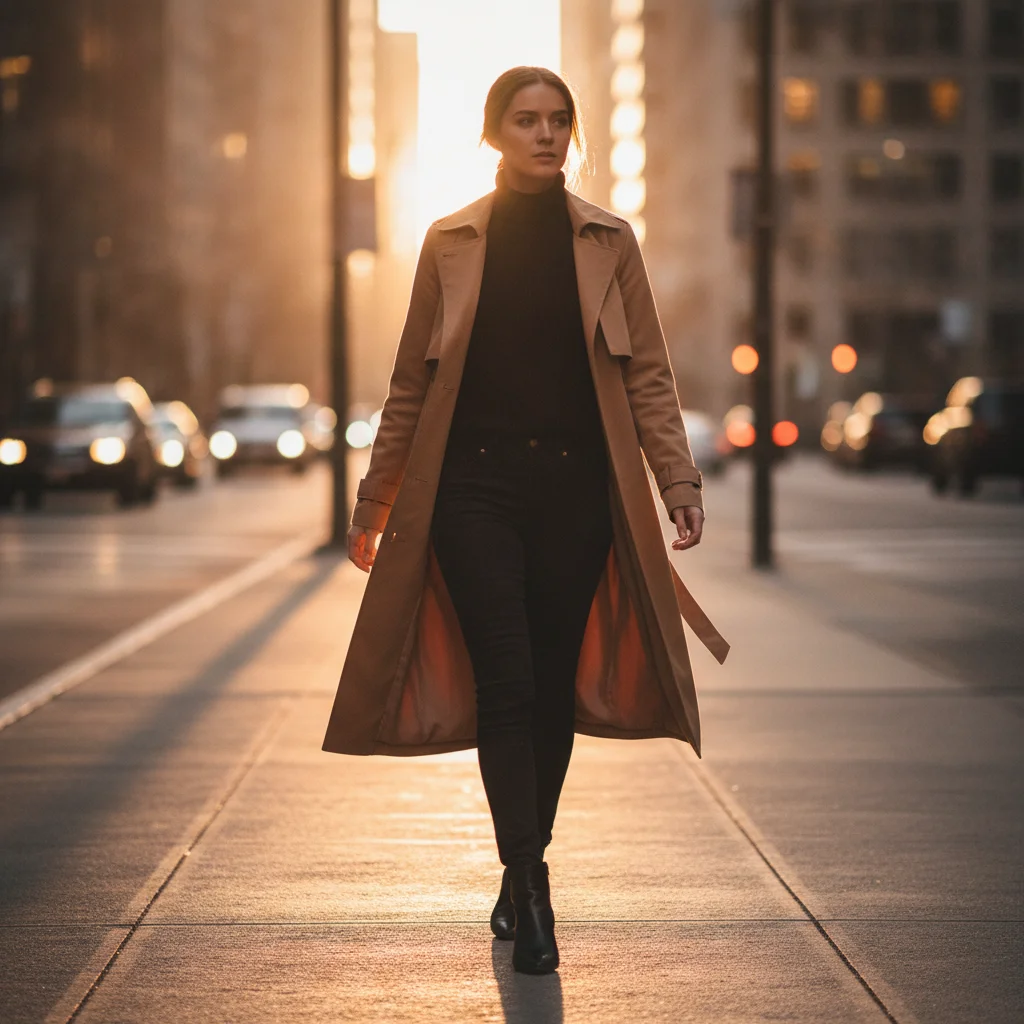
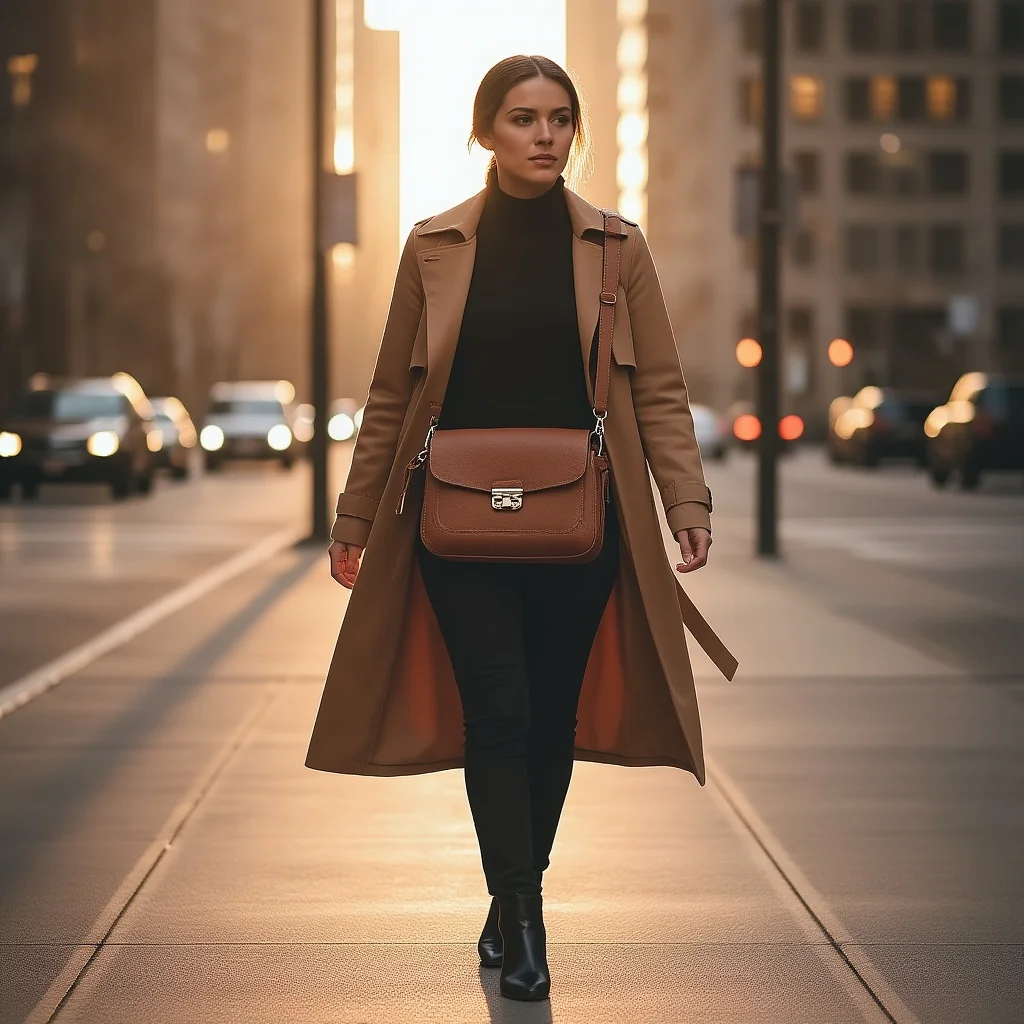
Woman in camel trench coat walking, golden-hour light, no bag
Before
->
Same woman with leather crossbody bag over right shoulder, golden-hour light preserved
After

Leather crossbody bag — lifestyle model composite

A DTC accessories brand had model lifestyle photos from a shoot but needed to generate listing images for a new leather bag that arrived after the shoot. The existing lifestyle photo had the right mood and was used as the base.

Prompt: Place this exact leather crossbody bag on the model using the reference image. The bag hangs at the hip from a crossbody strap going over the right shoulder. Keep all leather texture, hardware, zipper, and stitching details identical to the reference. The bag should have natural weight — slight downward pull on the strap. Match the warm golden-hour light already in the photo.
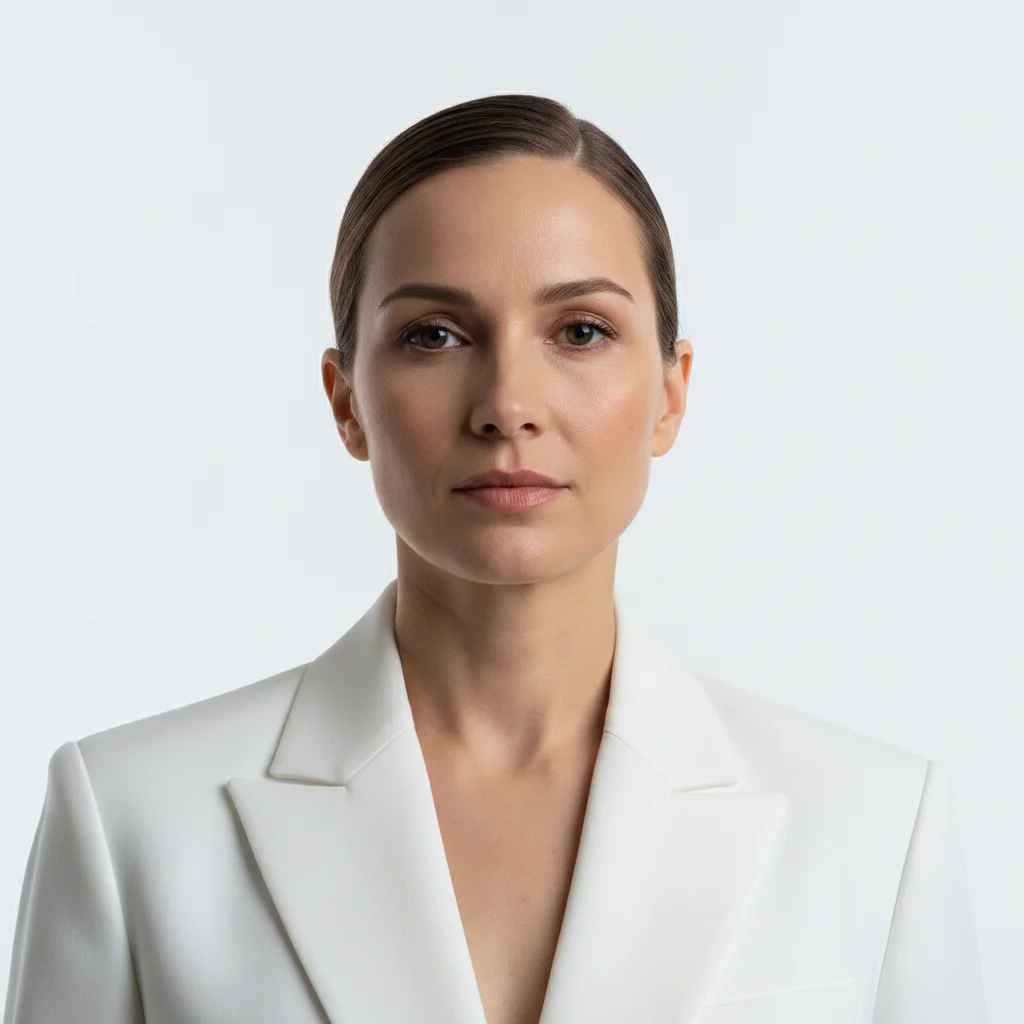
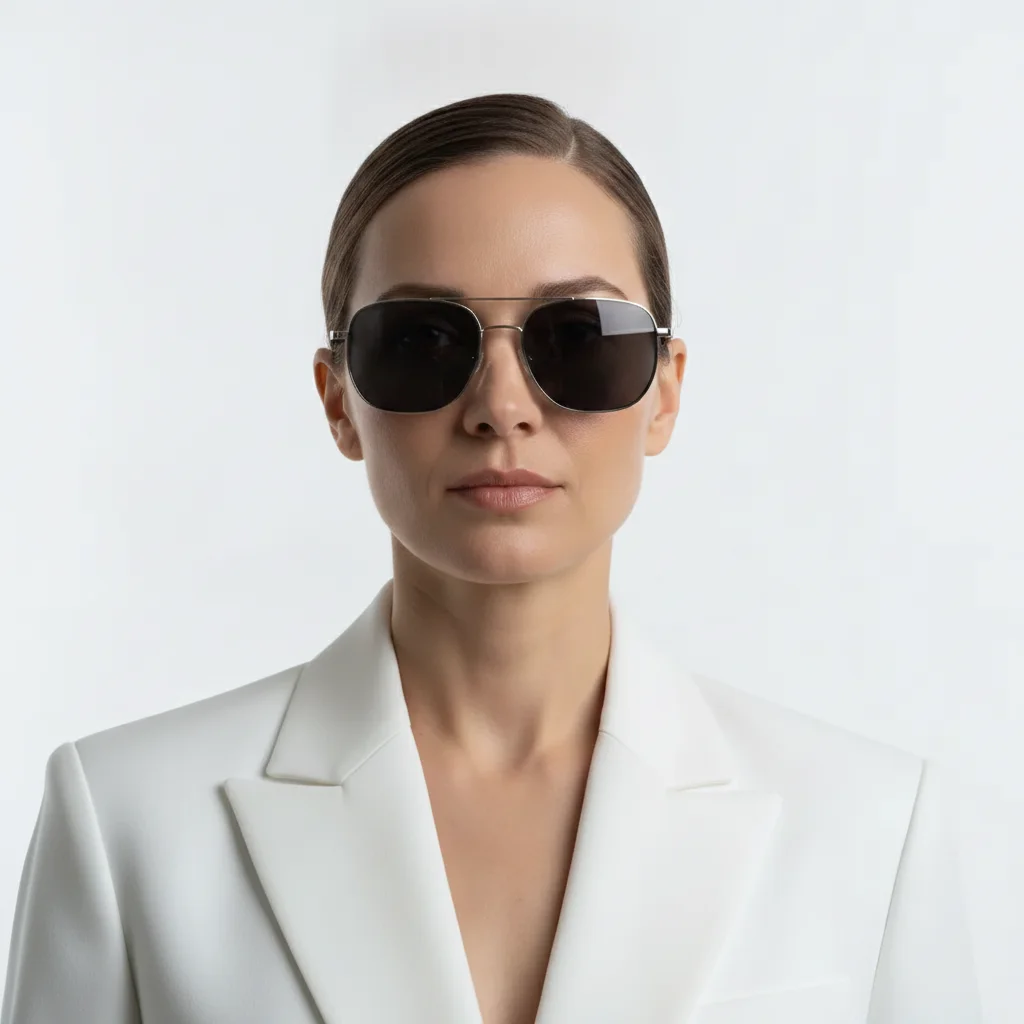
Model in white blazer against white background, no sunglasses, cool studio light
Before
->
Same model wearing exact sunglasses from reference, lens reflections matching studio light
After

Sunglasses — eyewear catalog composite

An eyewear brand needed consistent catalog photos across 12 frame styles. Using one standard model portrait, they generated all 12 styles — each with accurate lens color, frame shape, and reflections matching the studio lighting.

Prompt: Place these exact sunglasses on the model's face using the reference image. Keep the frame shape, color, and lens tint identical to the reference. The glasses sit on the nose bridge with both temple arms hooked over the ears. Add lens reflections matching the cool white studio light — the reflections should appear on the upper outer corner of each lens.

Quick answers

Do I need to mark the placement area before adding the product?

No. Upload your model photo, add your product photo as a reference image, and describe placement: 'Place this exact product on the model's head using the reference image. Match the lighting.' The AI locates the placement area without marking. Use markers only for precision positioning — like an exact wrist position for a watch or the nose bridge for sunglasses.

How do I upload my product photo as a reference for accurate placement?

After uploading your model photo, click '+ Add reference image' and upload a clear product photo. A product shot on white background showing the front face of the product works best. This reference image is what the AI reads to replicate your exact product rather than generating a generic item in the same category. Use the highest-resolution product photo you have.

What types of products can I place on a model with this tool?

Any wearable or handheld product: hats (caps, beanies, fedoras), bags (handbags, backpacks, crossbody), sunglasses and eyewear, watches and bracelets, scarves, ties, belts, gloves, and any held product (phone, bottle, book). For jewelry specifically, see the AI Necklace Placement Tool and AI Earring Placement Tool for dedicated jewelry workflows.

How do I place a product on a model for a Shopify or Etsy listing for free?

Upload your model photo to EditThisPic, click '+ Add reference image' and upload your product photo, then type: 'Place this exact product on the model using the reference image. Keep it 100% identical. Match the lighting.' Free, no account required, no watermark. Results in 30 seconds — no studio, no model booking needed.

Will the AI keep my specific product design identical, or will it hallucinate a different product?

With the right prompt and a clear reference image, the AI replicates your exact product. Include 'Keep the product 100% identical to the reference — same color, shape, logo, and texture. Do not modify any design element.' Without this instruction, the AI may generate a similar-looking product rather than your specific SKU. High-resolution reference photos improve product fidelity significantly.

Is there a free AI product-on-model tool that doesn't require signup?

Yes. EditThisPic places products on model photos for free — no account, no login, no watermark on results. Upload your model photo plus your product reference image, describe the placement, and download. Works in any browser on desktop or mobile.

How much does EditThisPic cost?

You get 1 free edit per week — no account needed. After that, credit packs start at $1.99 for 3 edits. Monthly plans start at $4.99/mo for 20 edits with unused credits rolling over. All edits are full resolution with no watermark.

Ready to place your product on a model?

Free to try. No signup required. No watermark.

1 free edit included·Credit packs from $4.99