Pricing Fix Red eye · Free

AI Red Eye Fixer

← Browse all creative effects

Last updated

Type the eye color and the AI removes red eye instantly — no selection tools, no manual recoloring.
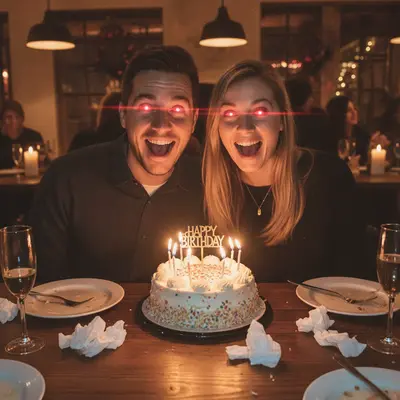
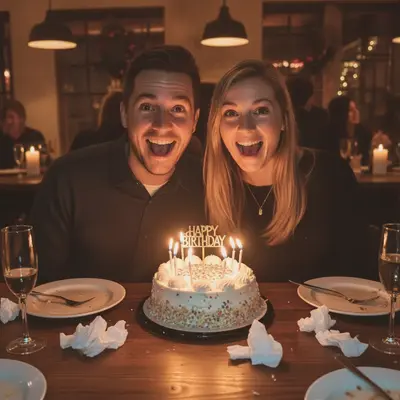
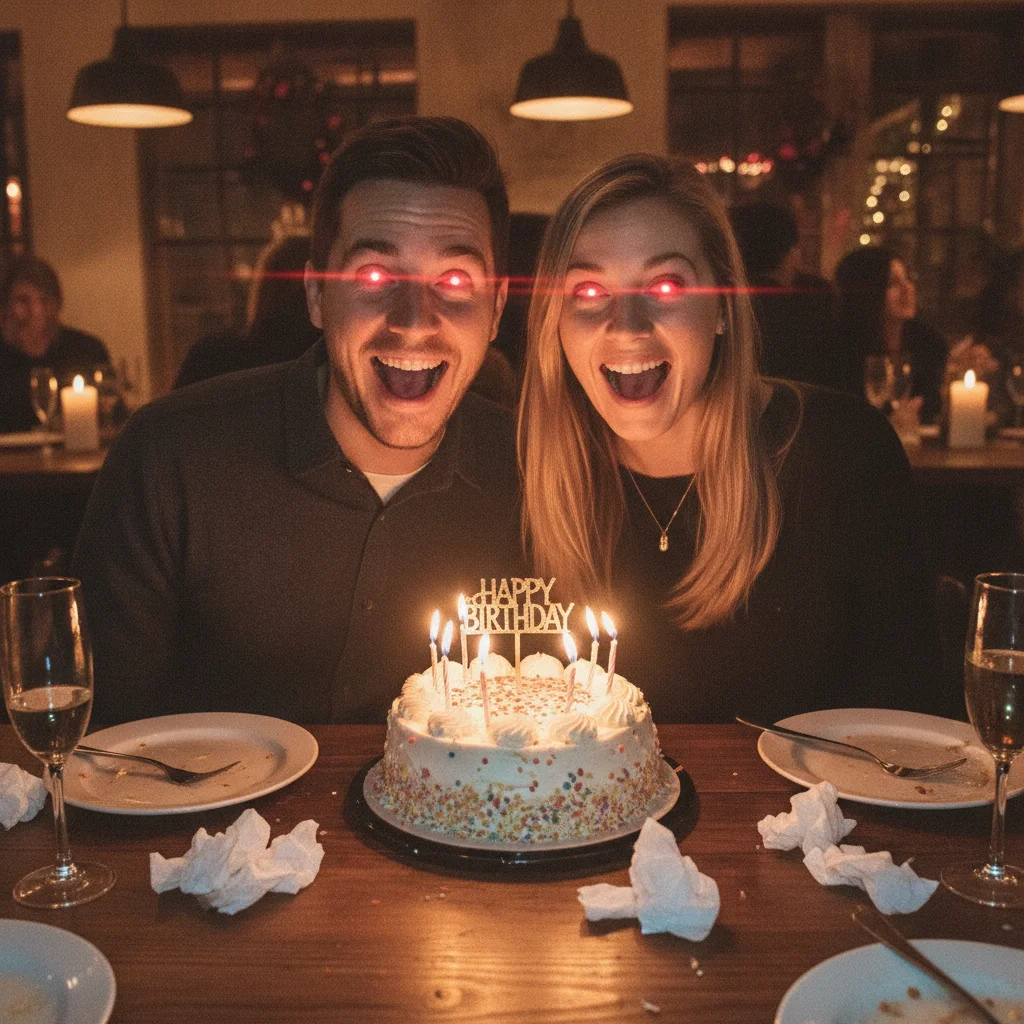
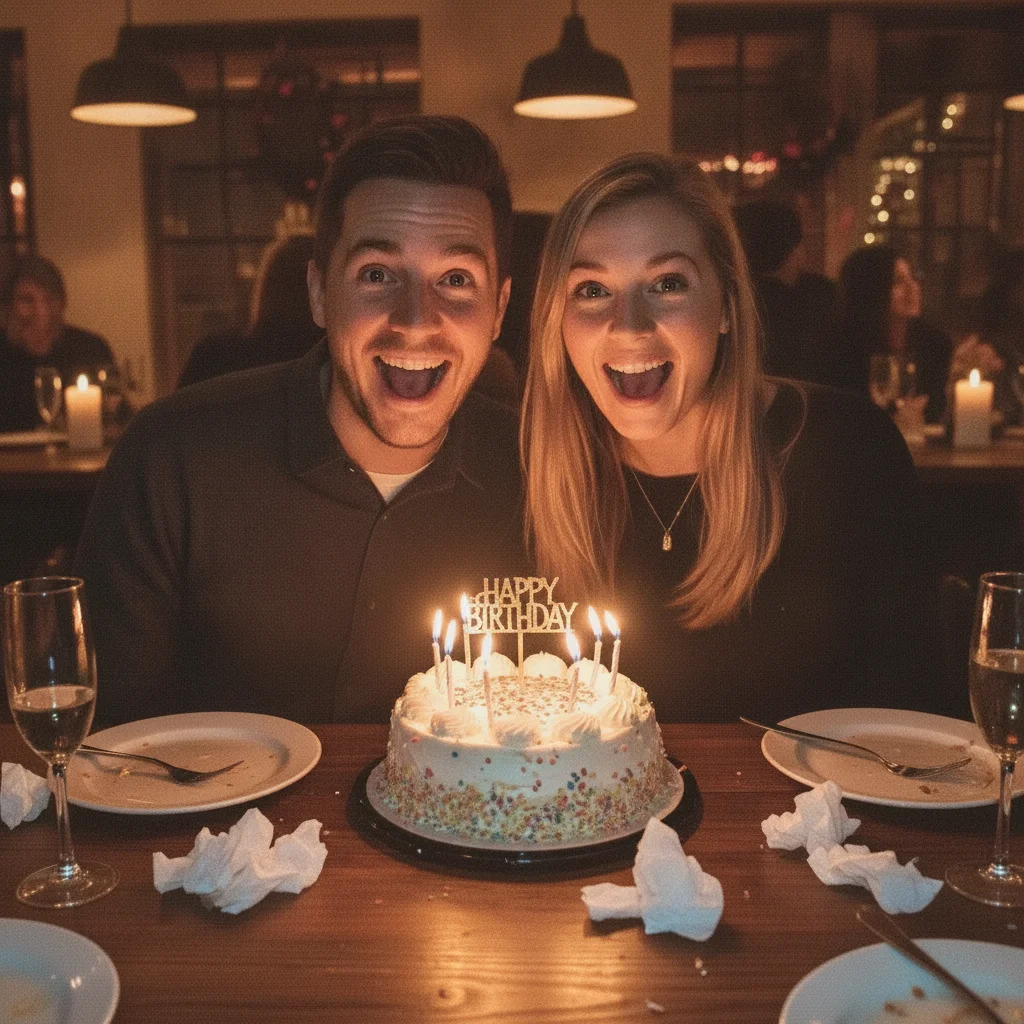
Two people at a birthday party with bright red glowing eyes from flash Same photo with both people's eyes corrected to natural brown, party atmosphere unchanged

Upload photo to fix red eye

"remove the red eye and restore natural blue-grey irises with realistic iris texture, keep the pupil dark and natural"

Free to try · no sign-up · photos are never shared

Release to upload

<30stypical edit
1 freeedit weekly
Photo on your phone? Scan to open this editor there — free edit works on your phone too.

1 free edit every week·packs from $4.99

How it works

  1. Upload the flash photo with red eye

    Use the original unedited photo. Even heavily glowing red eyes are straightforward for the AI to correct. Indoor low-light flash photos, nighttime shots, and direct flash portraits are all handled well. JPG, PNG, or WebP up to 7MB.

    Expect: Red eye from direct camera flash corrects in one pass — it's one of the simplest photo fixes. Subtle orange or yellow pet-eye from different lighting angles may need a second pass with the specific color named.
  2. Describe the correction and name the eye color

    Type: 'remove the red eye and restore natural [brown/blue/green/hazel] irises.' Naming the eye color is the single most important detail — without it, the AI defaults to a neutral dark brown. No marking needed — the red glow makes the eye location obvious to the AI.

    Tip: If you don't know the exact eye color, 'remove the red eye and restore natural-looking irises matching the person's complexion' usually produces a plausible result.

    Copy one of these to get started:

    Standard flash red eye — brown eyes remove the red eye and restore natural dark brown irises, keep the rest of the photo completely unchanged
    Red eye — blue or light eyes remove the red eye and restore natural blue-grey irises with realistic iris texture, keep the pupil dark and natural
    Fix red eye on multiple people in a group photo remove the red eye from all people in the photo and restore natural irises — brown for the two people on the left, blue for the person on the right
    Pet red eye (green or yellow glow) remove the green glowing eyes from the dog and restore natural dark brown irises matching a real dog's eye color, keep the rest of the photo unchanged
    2 more prompts
    Subtle correction — don't over-darken reduce the red tint in the eyes and restore a natural hazel color — do not make the irises fully dark, keep them light and natural-looking
    Old print or scanned photo with red eye remove the red eye from this old photograph and restore natural brown irises, keep the vintage film grain and color tones of the rest of the photo unchanged
  3. Check the iris color and natural pupil shape

    Zoom to 100% on both eyes. Verify: the iris color matches what you specified, the pupil is dark (not still tinted), and the iris texture looks natural — not flat or plastic. Both eyes should match each other.

  4. Refine one eye with a marker if it still looks off

    If one eye still has a residual red tint or looks different from the other, tap a marker on that eye and regenerate: 'correct this eye — remove any remaining red tint and match the [color] iris of the other eye.' This targets the remaining issue without touching the corrected eye.

    Tip: Residual red tint in one eye after the first pass is the most common refinement scenario. A single marker fixes it in seconds.

See it in action

Two people at a birthday party with bright red glowing eyes from flash
Before
->
Same photo with both people's eyes corrected to natural brown, party atmosphere unchanged
After

Indoor birthday party — bright red eye removed

Flash photo from a birthday dinner with strong direct-flash red eye on both subjects. One prompt corrected both eyes while leaving the warm party atmosphere unchanged.

Prompt: remove the red eye from both people and restore natural brown irises, keep the rest of the photo completely unchanged
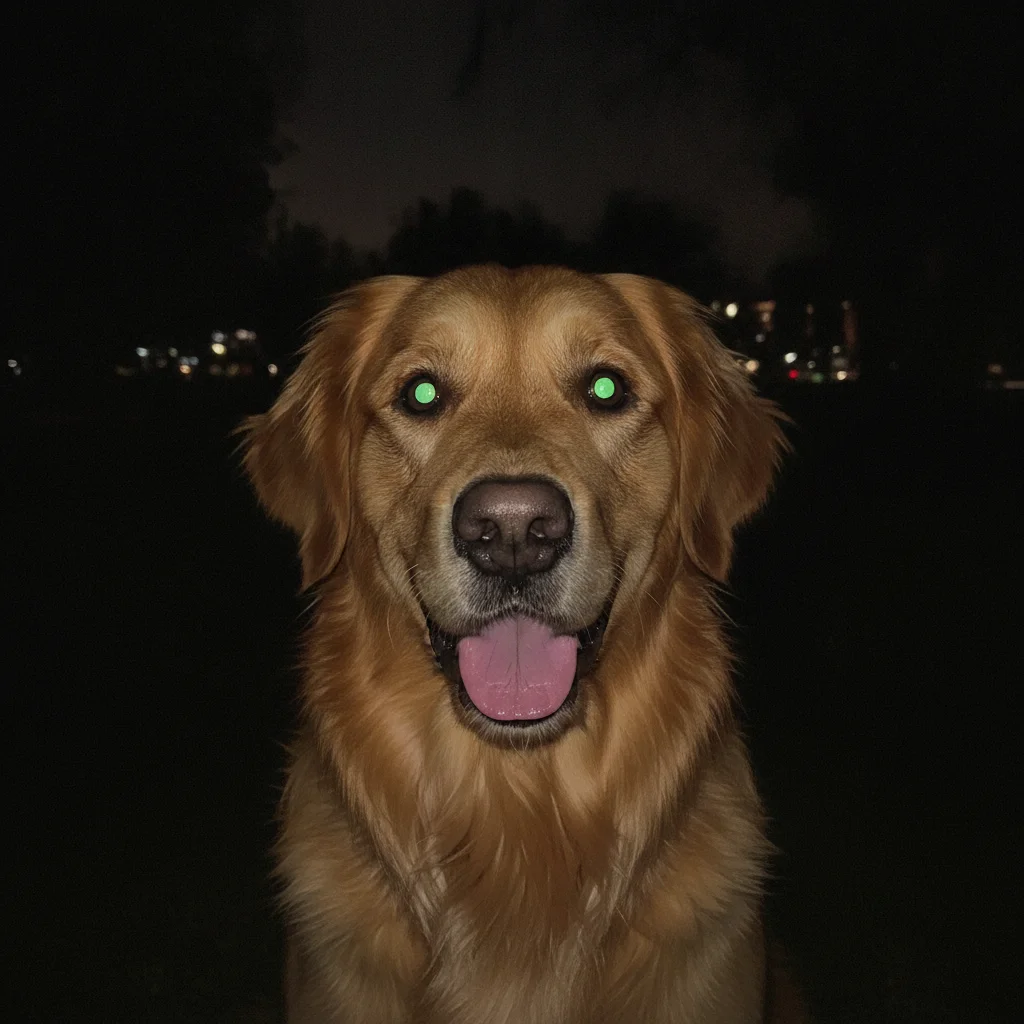
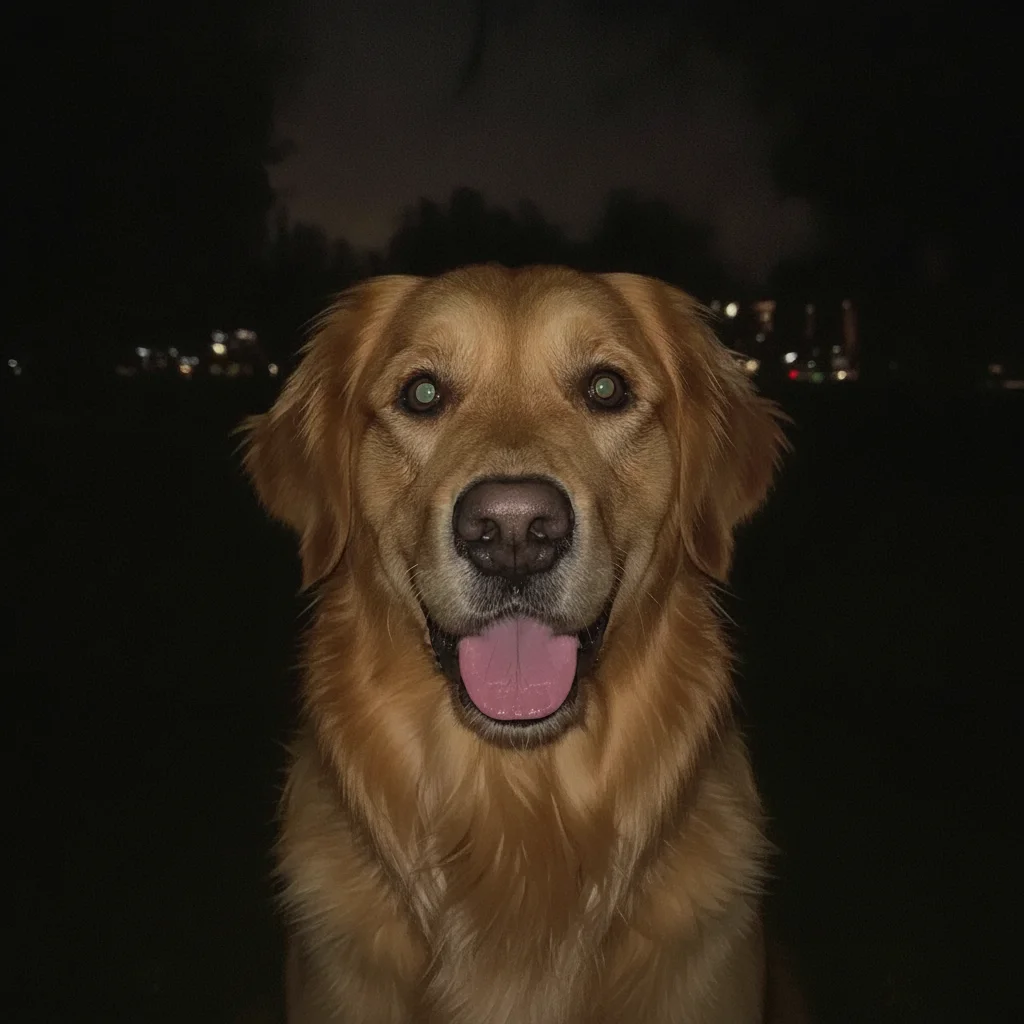
Golden retriever with bright green glowing eyes from camera flash at night
Before
->
Same dog with natural dark brown eyes, fur and background unchanged
After

Pet photo — green tapetum glow corrected

Dog portrait at night where the flash created a bright green tapetum glow. One prompt removed the glow and restored natural dark brown dog eyes without touching the fur or background.

Prompt: remove the green glowing eyes from the dog and restore natural dark brown irises matching a real dog's eye color, keep the rest of the photo unchanged
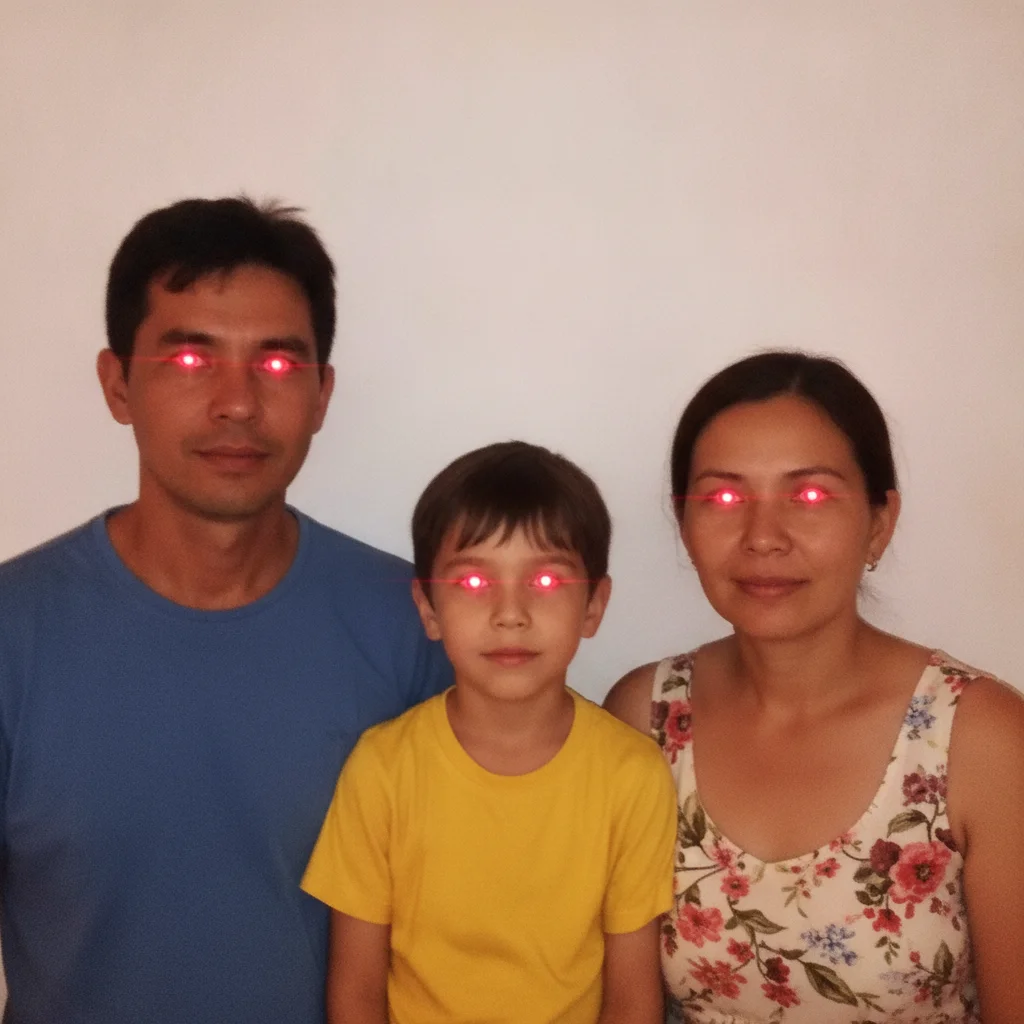
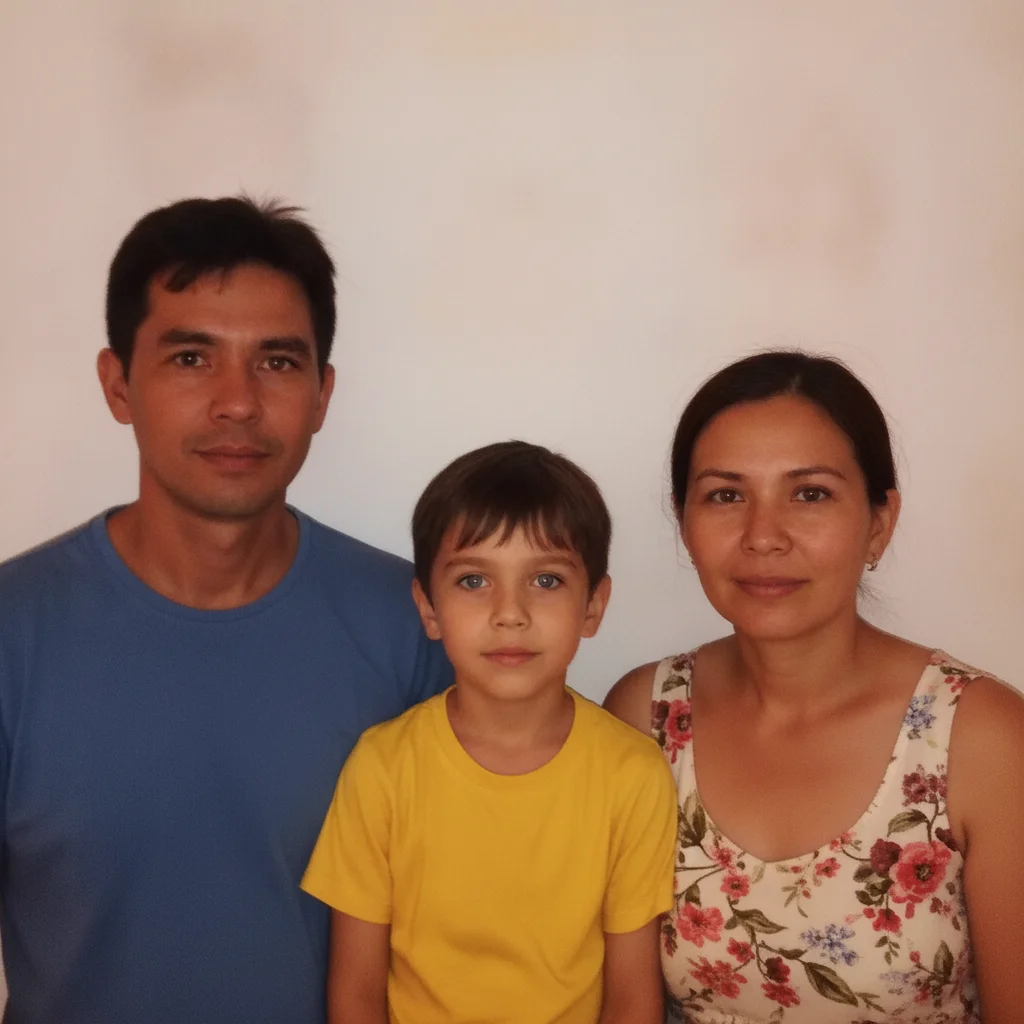
Family group photo with all three members showing red eye from camera flash
Before
->
Same family photo with all three people's eyes corrected to natural colors
After

Family group photo — red eye on three people

Indoor flash group photo where all three family members had varying degrees of red eye. One prompt fixed all three in a single pass by specifying each person's eye color.

Prompt: remove the red eye from all three people and restore natural irises — brown for the two adults, blue for the child on the right — keep everything else exactly as it is

Quick answers

Do I need to mark the red eyes before describing what I want fixed?

No. Just type 'remove the red eye and restore natural brown irises.' The AI identifies red eye automatically — the bright red glow makes the location obvious without markers. Only use a marker if one eye still has residual tint after the first pass.

Is there a free red eye remover that doesn't require an account?

Yes. EditThisPic removes red eye for free with no account, no login. Upload your flash photo, type the eye color you want restored, and download the corrected result in about 20 seconds. Works on any browser, desktop or mobile. The free edit is a preview — purchased downloads are clean, full quality.

How do I remove red eye from a photo for free?

Go to EditThisPic, upload your photo, and type 'remove the red eye and restore natural [brown/blue/green] irises.' The AI corrects the flash glow in under 20 seconds. No account required. The free edit is a preview — purchased downloads are clean, full quality.

Does it work on pet red eye (green or yellow glow)?

Yes. Pet flash glow — often green or yellow from the tapetum — responds the same way. Type 'remove the green glowing eyes from the dog/cat and restore natural dark brown/amber irises.' Name the target color and the species for the best match.

Can I fix red eye on multiple people in one photo?

Yes. Describe each person's correction in one prompt: 'remove the red eye from all three people — brown eyes for the adults, blue eyes for the child.' Specifying each person's eye color by position produces better per-person accuracy than a generic 'fix everyone's red eye.'

Why do my eyes look too dark after red eye removal?

The AI defaulted to a safe dark correction when you didn't specify the eye color. Re-run with the actual color: 'restore natural hazel/blue/green irises — not dark, keep them light and natural.' Light-eyed subjects need this explicit constraint to avoid over-darkening.

How much does EditThisPic cost?

You get 1 free edit per week — no account needed. After that, one-time credit packs start at $4.99 for 10 edits, valid 12 months, no subscription. Power users who edit daily can pick Studio Membership, a monthly workspace at $49.99/mo for 300 edits. Purchased downloads are clean with no watermark.

Ready to remove red eye from your photos?

Free to try. No signup required.

1 free edit included·Credit packs from $4.99