Free • No signup Edit Team photos · Free

AI Team Photo Editor

Make any team photo look professionally shot. Unify backgrounds and lighting instantly.
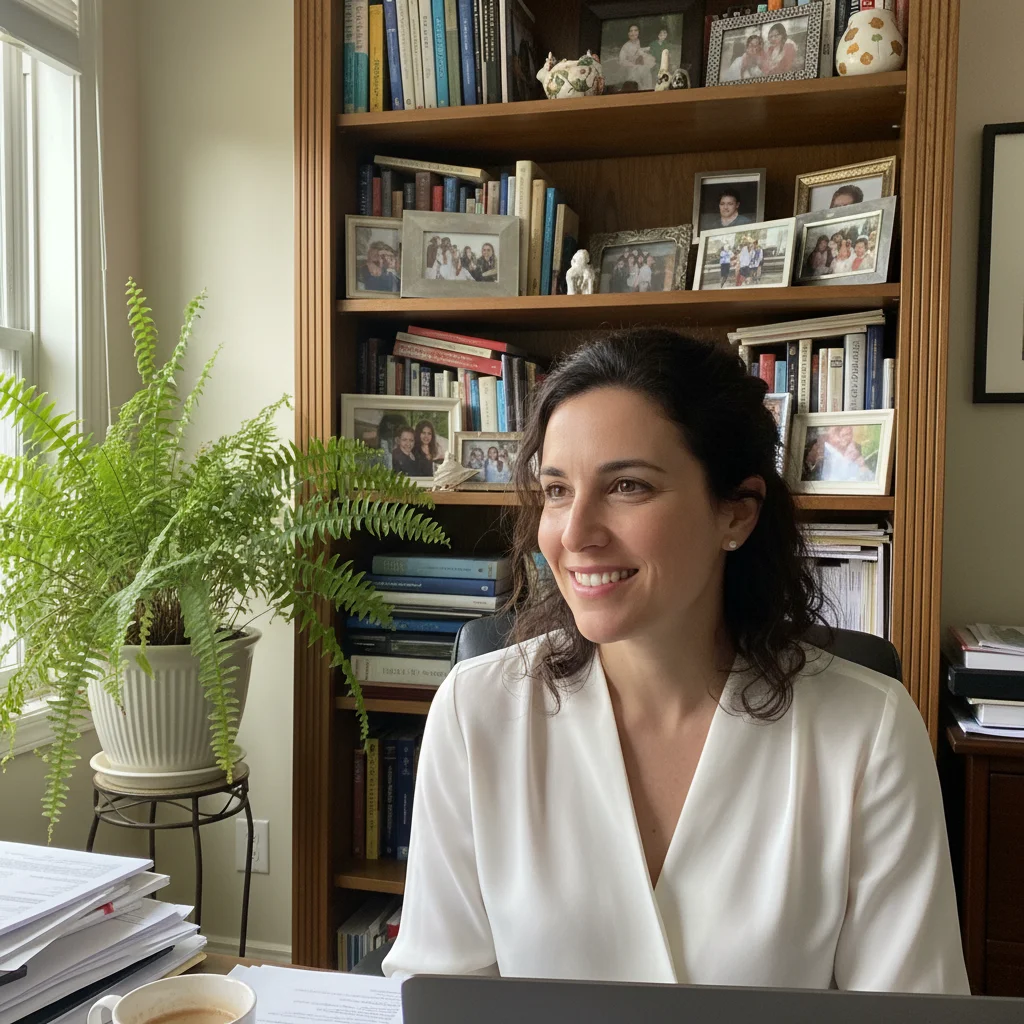
Man in navy blazer in cluttered office with whiteboard behind
Before
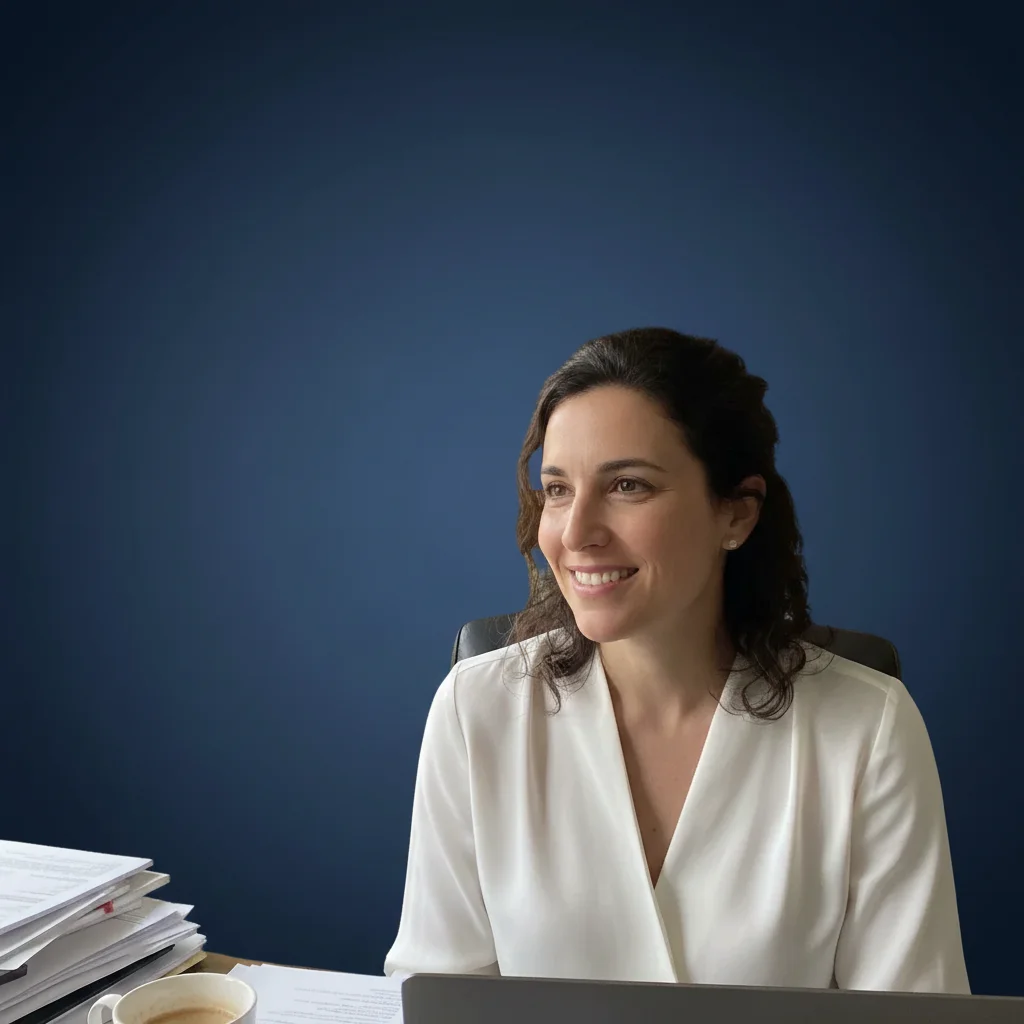
Same man with clean white studio background and even lighting
After

AI Team Photo Editor

Drop your photo here

or click to browse

Release to upload

Free • No signup

Advertisement
Popular use cases:
  • team page photos
  • company about page
  • staff headshots
  • group photo editing
  • corporate team portraits
  • startup team photos
  • consistent headshots
  • team directory photos

Cost
Free No signup required
Time
Instant results in 15-30 seconds
Works on
Any device - browser, phone, tablet, desktop
Powered by
AI-powered photo editing
Scenario Prompt Time
Background replacement replace background with clean white studio backdrop 30s
Full team photo polish make this look professionally shot with even lighting and clean background 40s
Group lighting fix balance the lighting across all faces, remove harsh shadows 45s

How it works

  1. Upload your team photo

    Drop your image into EditThisPic. JPG, PNG, WebP up to 7MB. Works with group team photos and individual headshots that need to match. Process each team member's photo separately for best results when creating a consistent team page.

    Expect: Individual team headshot: 30-40 seconds. Group photo with multiple adjustments: 45-60 seconds and may need refinements.
  2. Describe the team photo edit

    Type your instruction: 'replace the background with a clean white studio backdrop and unify the lighting' or 'make this team photo look professionally shot with consistent warm lighting.' Be specific about background color, lighting style, and any styling changes. No marking needed—the AI understands what 'background' and 'lighting' mean in group contexts.

    Tip: For consistent team pages, use the exact same prompt for every team member's photo. This produces matching backgrounds, lighting, and style across all portraits.

    Copy one of these to get started:

    Unified team page background replace the background with a clean solid white studio backdrop, keep the person exactly as-is, even professional lighting
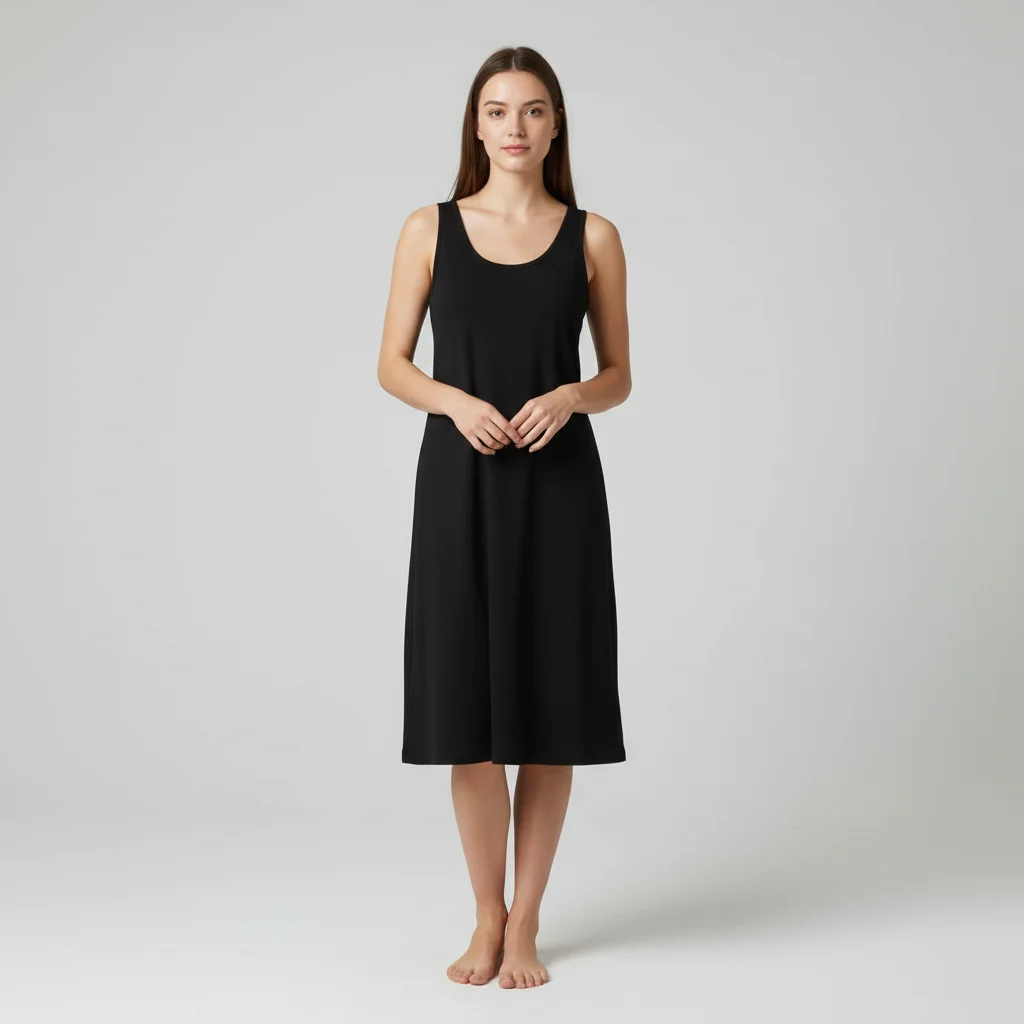
    Corporate team photo polish make this team photo look professionally shot with even studio lighting, clean neutral background, and natural skin tones on all faces
    Startup about page style replace the background with a soft light gradient, add warm natural lighting, keep a modern casual-professional feel
    Fix inconsistent lighting in group shot balance the lighting across all faces in this group photo so everyone is evenly lit, remove harsh shadows
    3 more prompts
    Conference room to studio backdrop replace the office conference room background with a professional dark grey studio backdrop, maintain current lighting on faces
    Outdoor team photo cleanup clean up this outdoor team photo - remove distracting background elements, even out the sunlight on all faces, make it look polished
    Color-matched team portraits adjust this portrait to have the same color temperature, brightness, and contrast as the rest of our team photos - neutral white background, cool-toned even lighting
  3. Review the edit

    Check that the background is consistent, lighting looks natural on all faces, and skin tones are preserved. For group shots, verify that all people look properly integrated with the new background and that proportions are maintained.

  4. Refine with markers if needed

    If specific areas like the edges between people, individual faces, or background transitions need adjustment, tap markers on those spots and regenerate. Most team photo edits produce clean results on the first try.

    Tip: Markers are for precision refinement only. Try without them first—you usually won't need them.
Try it free

AI Team Photo Editor

Drop your photo here

or click to browse

Release to upload

Free • No signup

"Our team of 12 took headshots at different times with different backgrounds. Uploaded each one and described a consistent studio look. Now our About page looks like we hired a professional photographer." @DesignLead_Sophie

See it in action

Man in navy blazer in cluttered office with whiteboard behind
Before
->
Same man with clean white studio background and even lighting
After

Mismatched office headshot to unified team portrait

An individual headshot taken in a messy office converted to a clean, consistent team page portrait matching the company standard.

Prompt: replace the background with a clean solid white studio backdrop, keep the person exactly as-is, even professional lighting
Group of 4 people in dimly lit restaurant with uneven lighting
Before
->
Same group with even professional lighting and clean neutral background
After

Casual group photo to polished team shot

A casual group photo taken at a team event polished into a professional-looking team portrait.

Prompt: make this team photo look professionally shot with even studio lighting, clean neutral background, and natural skin tones on all faces
Advertisement

If something looks off

AI changed the wrong area or something I didn't want changed

Why: The AI couldn't determine exactly which area you meant from description alone. This commonly happens in group photos where multiple elements overlap.

Try: Tap a marker on the specific area you want to change, then regenerate with the same prompt

Tip: Markers tell the AI 'I mean THIS area specifically.' Use them when description alone is ambiguous in group shots.

One person's face looks different while others look fine

Why: Faces at different angles or distances from the camera get processed inconsistently by the AI.

Try: Tap a marker on the affected person's face and regenerate: fix the lighting and tone on this person to match the rest of the group

Tip: For group photos, process in stages—fix the overall background first, then target individual faces that need attention.

Edges between people and new background look rough

Why: Hair, overlapping bodies, and arms between people create complex edges that are harder to cleanly separate from the background.

Try: Tap markers on the rough edges between people and background, then regenerate: clean up the edges where people meet the background

Tip: Photos where team members have small gaps between them produce cleaner background replacements.

Colors and lighting don't match across the team page

Why: Different source photos had different lighting conditions, white balance, and color profiles, so the AI outputs vary.

Try: adjust this photo to match a neutral color temperature of 5500K, even flat lighting, and the same brightness level as the other team photos

Tip: Process all team photos in one session using the identical prompt to maximize consistency.

People in the back of the group look blurry or distorted

Why: Smaller faces in the background of group photos have less detail for the AI to work with, leading to artifacts.

Try: enhance the sharpness and detail on the faces in the back row while keeping the front row unchanged

Tip: For large group shots, the AI works better on photos where everyone's face is roughly the same size.

Quick answers

Do I need to mark each person before editing the team photo?

No! Just describe what you want: 'replace the background with white' or 'unify the lighting across all faces.' The AI handles the entire group at once. Only use markers if you need to target a specific person—like fixing one face that came out differently from the rest.

How do I make consistent team page photos from different individual shots?

Upload each team member's photo separately and use the exact same prompt for all: 'replace the background with clean white studio backdrop and even professional lighting.' This produces matching results. Process all photos in one session for the most consistent output. Free to try, no account needed.

Is there a free team photo editor that doesn't require login?

Yes, EditThisPic edits team photos with no account or login required. Upload group shots or individual portraits, describe the changes you want, and download polished results. No watermarks. Process as many team member photos as you need.

What's the best free AI tool for creating matching team headshots?

EditThisPic creates consistent team headshots from any mix of individual photos. Unlike hiring a photographer to reshoot everyone, upload existing photos and describe a unified style. The AI matches backgrounds, lighting, and color temperature. Free to use, no account needed.

Ready to polish your team photos?

Free to try. No signup required.

Try it free