Free • No signup Fix Tilted horizon · Free

AI Tilted Horizon Fixer

← Browse all creative effects

Last updated

Describe the correction and the AI levels the horizon — no cropping, no black corners, no manual rotation.
Beach photo with the ocean horizon clearly tilted down to the right Same beach photo with perfectly level horizon and sky corner filled naturally

Upload photo to fix tilted horizon

"straighten the tilted horizon line so the landscape is level, fill any corner areas with matching sky and terrain, preserve the colors and lighting exactly"

Release to upload

1 free edit·then from $4.99

Popular use cases:
  • landscape photography
  • travel photography
  • seascape photography
  • architecture photography
  • social media photos
  • print preparation

Cost
Free No signup required
Time
Instant results in 15-30 seconds
Works on
Any device - browser, phone, tablet, desktop
Powered by
AI-powered photo editing
Scenario Prompt Time
Seascape / beach horizon level the tilted horizon, fill corner gaps with matching sky and ocean 20s
Landscape photo straighten the horizon, fill corners with matching sky and terrain 20s
Architecture photo make the building vertical and horizontal lines level, fill corners naturally 25s

How it works

  1. Upload the photo with the tilted horizon

    Use the original unedited photo. Landscapes, seascapes, architectural shots, and wide-angle scenes all work well. Even heavily tilted photos (5° or more) correct cleanly. JPG, PNG, or WebP up to 7MB.

    Expect: Slight to moderate tilts (1-5°) correct perfectly in one pass with no visible seams. Heavy tilts (more than 5°) may produce slightly visible fill areas at the corners — the AI generates matching content to fill them, which looks natural in most scenes.
  2. Describe the correction — level the horizon and fill corners

    Type: 'level the tilted horizon so it is perfectly horizontal, fill any corner gaps naturally with matching sky and water.' The second instruction ('fill corner gaps') is important — without it, the AI may leave black corners after rotating. No marking needed.

    Tip: Describe what should fill the corners: 'fill with sky,' 'fill with ocean,' or 'fill with matching background.' For complex scenes, this produces cleaner fill than a generic 'fill naturally' instruction.

    Copy one of these to get started:

    Seascape or beach — level the ocean horizon level the tilted horizon so the ocean surface is perfectly horizontal, fill any corner gaps with matching sky and ocean, keep all other content unchanged
    Landscape or mountain scene straighten the tilted horizon line so the landscape is level, fill any corner areas with matching sky and terrain, preserve the colors and lighting exactly
    Architecture photo — level building verticals straighten the photo so the building is perfectly vertical and the horizontal lines are level — correct the tilt without distorting the architecture, fill any corners naturally
    Urban street scene — straighten for social media level the tilted horizon in this street photo so all horizontal surfaces (road, pavement, rooflines) are parallel to the frame edges, fill any corner gaps with matching background
    2 more prompts
    Portrait with a tilted background line straighten the tilted background horizon line behind the subject without changing the subject — correct the tilt and fill any corners naturally, keep the person unchanged
    Precise correction — specific degree or direction rotate the photo clockwise by a small amount to level the horizon which is tilted downward to the right, fill any resulting corner gaps with matching sky and background
  3. Check the horizon line and corner fill quality

    Use a straight edge or the edge of your screen to verify the horizon is truly level. Then zoom to the corners — the fill content should blend seamlessly with the surrounding sky, water, or ground. A sharp seam at the crop edge means the fill didn't blend completely.

  4. Refine a corner with a marker if the fill looks wrong

    If one corner fill looks off — a patch of sky that doesn't match the gradient, or a horizon continuation that's slightly wrong — tap a marker on that corner and regenerate: 'fix the corner fill here so it blends naturally with the surrounding [sky/water/ground].'

    Tip: Corner fills on simple, uniform backgrounds (clear sky, calm water, flat ground) are nearly invisible. Fills on complex backgrounds (busy treelines, architectural detail) are harder and may need a second pass.

See it in action

Beach photo with the ocean horizon clearly tilted down to the right
Before
->
Same beach photo with perfectly level horizon and sky corner filled naturally
After

Beach vacation photo — tilted ocean horizon leveled

Classic vacation shot where the handheld camera tilted slightly to the right. The ocean looked like it was draining out of the frame. One prompt leveled it and filled the sky corner seamlessly.

Prompt: level the tilted horizon so the ocean surface is perfectly horizontal, fill any corner gaps with matching sky and ocean, keep all other content unchanged
Mountain landscape with the horizon visibly tilted down to the left
Before
->
Same landscape with a perfectly level horizon, corner fills blend with sky and terrain
After

Mountain landscape — horizon straightened for print

Wide landscape shot of mountain ranges where the camera tilted left. The correction leveled the scene and filled the sky and terrain corners with matching content.

Prompt: straighten the tilted horizon line so the landscape is level, fill any corner areas with matching sky and terrain, preserve the colors and lighting exactly
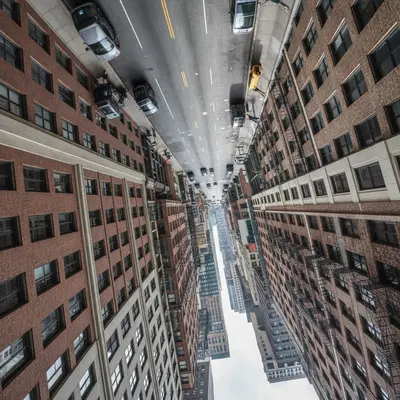
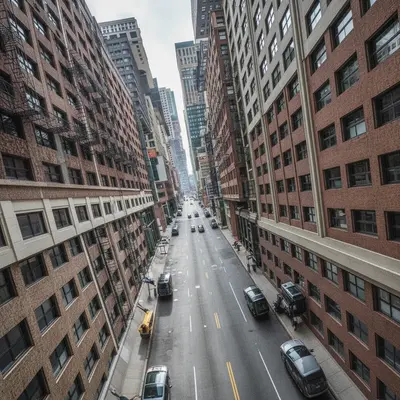
Urban street scene with road and buildings all tilted to the right
Before
->
Same city scene with horizontal surfaces leveled and corners filled with matching content
After

Urban street photo — straightened for social media post

City street scene shot while walking, leaving the road and buildings tilted. A prompt corrected the horizontal surfaces and filled the resulting corners with matching pavement and sky.

Prompt: level the tilted horizon in this street photo so all horizontal surfaces are parallel to the frame edges, fill any corner gaps with matching background

If something looks off

AI changed wrong area — altered the content instead of rotating the frame

Why: The AI may have interpreted the leveling instruction as an object edit rather than a geometric rotation — for example, adjusting horizon elements in the scene rather than rotating the whole composition.

Try: rotate the entire photo frame to level the horizon — this is a geometric rotation of the whole image, not an edit to any specific content within it

Tip: 'Rotate the entire photo frame' is the phrase that triggers a full-image geometric correction rather than a content edit. Use it when the AI tries to edit the horizon line itself rather than leveling the photo.

Black corners visible after leveling — fill didn't generate

Why: The correction prompt didn't include a fill instruction. The AI rotated the frame but left the exposed corners as black (or transparent) rather than generating fill content.

Try: fill the empty corner areas with matching background content — sky in the top corner, water/ground in the bottom corner, blending seamlessly with the adjacent content

Tip: Always include 'fill corner gaps with matching [sky/water/terrain]' in your initial prompt. It's much faster than a second pass to fix corners after the fact.

Corner fill content doesn't match the surrounding area — visible seam

Why: Complex or detailed backgrounds (busy treelines, architectural details, crowds) are harder for the AI to fill seamlessly than uniform backgrounds (sky, ocean, plain ground).

Try: fix the corner fill area so it blends seamlessly with the [sky gradient/water color/surrounding pattern] — no visible seam or mismatched content

Tip: Tap a marker directly on the problematic corner and regenerate with the specific background element it should match. This constrains the fill generation to just that corner.

Horizon looks level but the content looks slightly stretched or distorted

Why: Large rotation corrections (more than 5°) can introduce slight perspective distortion, particularly at the frame edges, because rotation alone doesn't fully correct lens tilt.

Try: correct any stretching or distortion from the rotation so straight lines look straight and proportions look natural throughout the photo

Tip: For photos with heavy tilt and straight architectural lines, check the verticals after correction. 'Straight lines should look straight' is the most effective correction phrase for rotation-induced distortion.

Quick answers

Do I need to mark the horizon line before describing the correction?

No. Just type 'level the tilted horizon so it is perfectly horizontal, fill any corner gaps naturally.' The AI identifies the horizon automatically. No marking needed — even in complex scenes with multiple horizontal reference lines.

Is there a free tool to fix a tilted horizon without signing up?

Yes. EditThisPic fixes tilted horizons for free with no account, no login, and no watermark. Upload your photo, describe the level correction and corner fill, and download in about 20 seconds.

How do I fix a tilted horizon in a photo for free?

Go to EditThisPic, upload your photo, and type 'level the tilted horizon so it is perfectly horizontal, fill any corner gaps with matching sky and background.' The AI corrects the tilt in about 20 seconds. No account required.

Will fixing the horizon leave black corners or crop my photo?

Not if you include 'fill corner gaps naturally' in your prompt. The AI rotates the frame and generates matching background content to fill any exposed corners — sky fills the top corners, water or ground fills the bottom. For uniform backgrounds like sky or ocean, the fills are nearly invisible.

Can I fix a tilted horizon without cropping any of the scene?

Yes. That's the main advantage of AI-based horizon correction over traditional rotation tools — instead of cropping to hide the corners, the AI fills them with matching content, so the full composition is preserved. Include 'fill corner gaps naturally' to activate this.

Does this work for architecture photos where the building is crooked?

Yes. For architecture, use: 'straighten the photo so the building is perfectly vertical and horizontal lines are level, correct the tilt without distorting the architecture.' Both 'perfectly vertical' and 'horizontal lines are level' are important — buildings have reference lines in both directions.

How much does EditThisPic cost?

You get 1 free edit per week — no account needed. After that, credit packs start at $1.99 for 3 edits. Monthly plans start at $4.99/mo for 15 edits with unused credits rolling over. All edits are full resolution with no watermark.

Ready to level that crooked horizon?

Free to try. No signup required.

1 free edit included·Credit packs from $4.99