Free • No signup Open Editor

Change Eye Color from Photo

Just type 'change the eye color to green' and watch it happen.

Type 'change the eye color to bright green' and EditThisPic transforms the eyes in 10-20 seconds. The AI knows what eyes are—no selection or marking needed. For photos with multiple people, tap a marker near the person whose eyes you want changed. Free, no signup required.

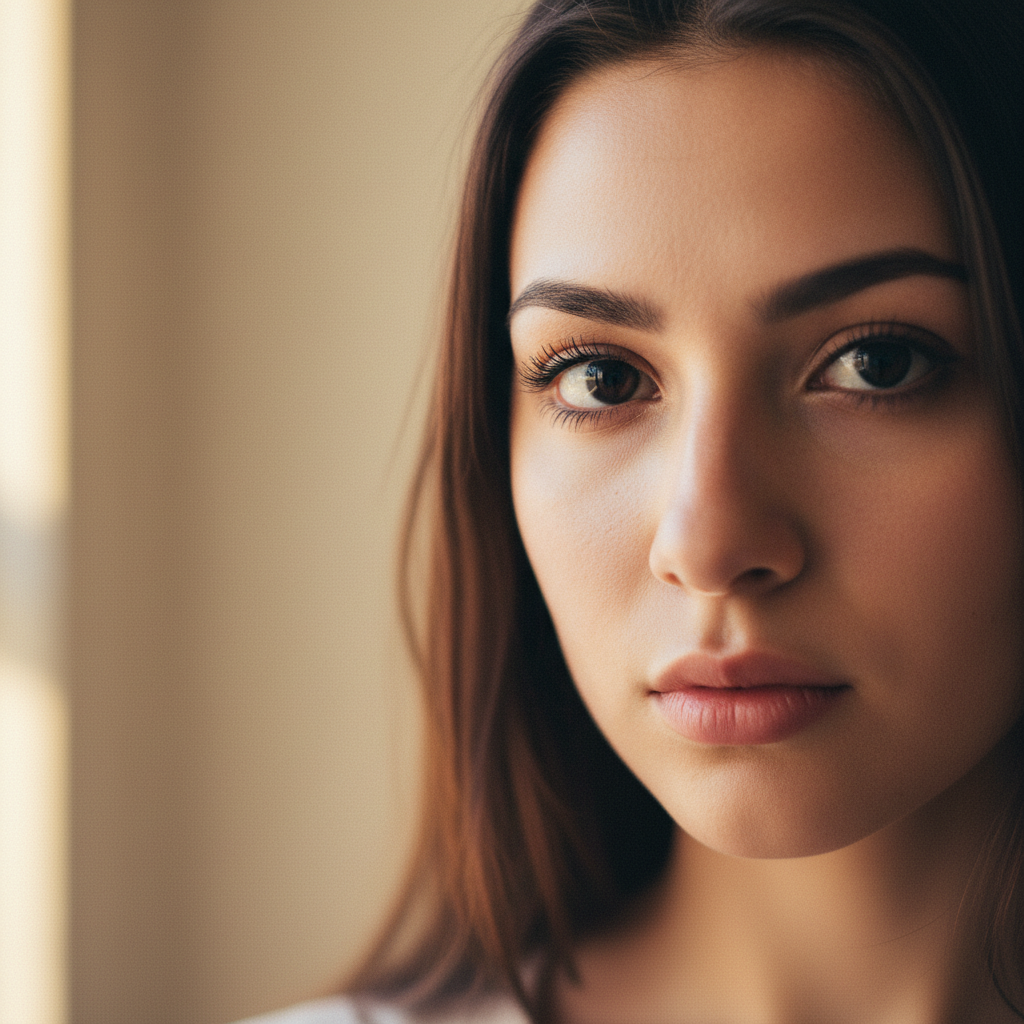
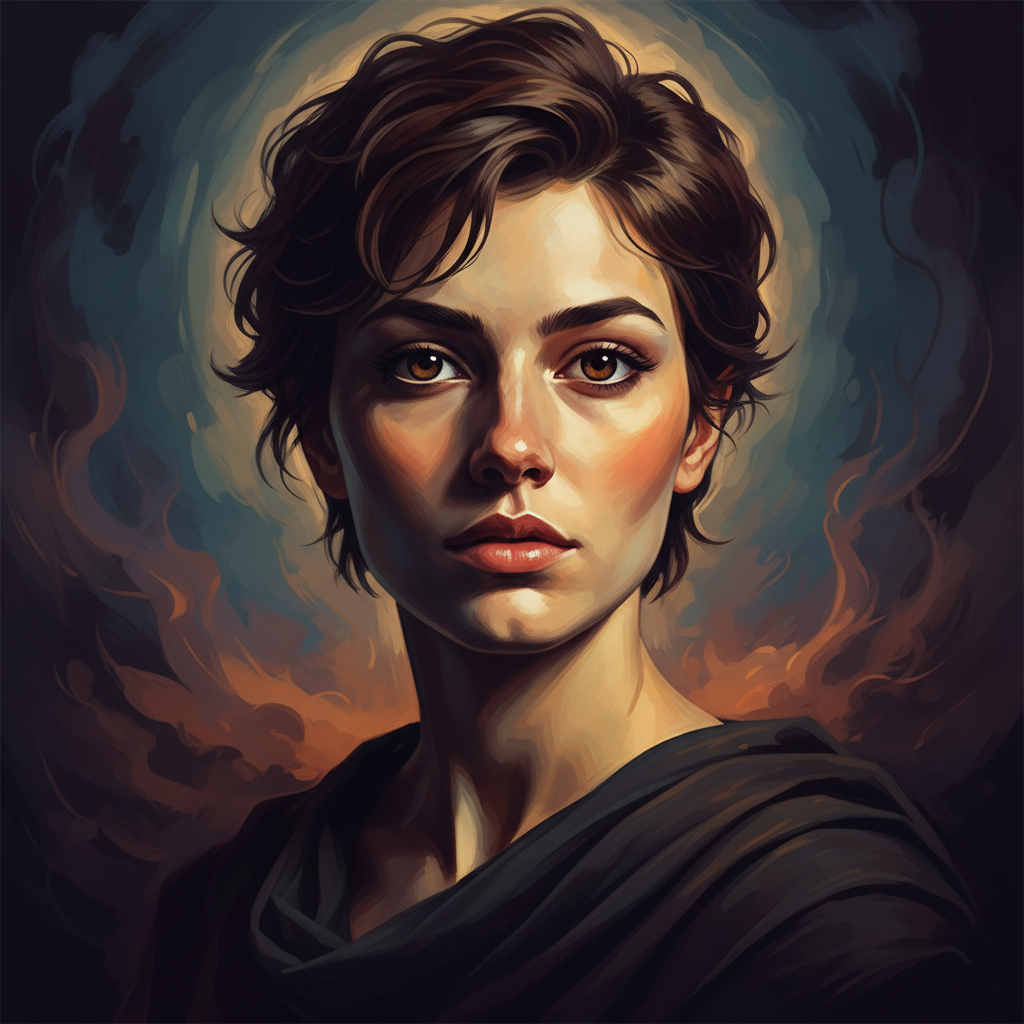
Close-up portrait with natural brown eyes
Before
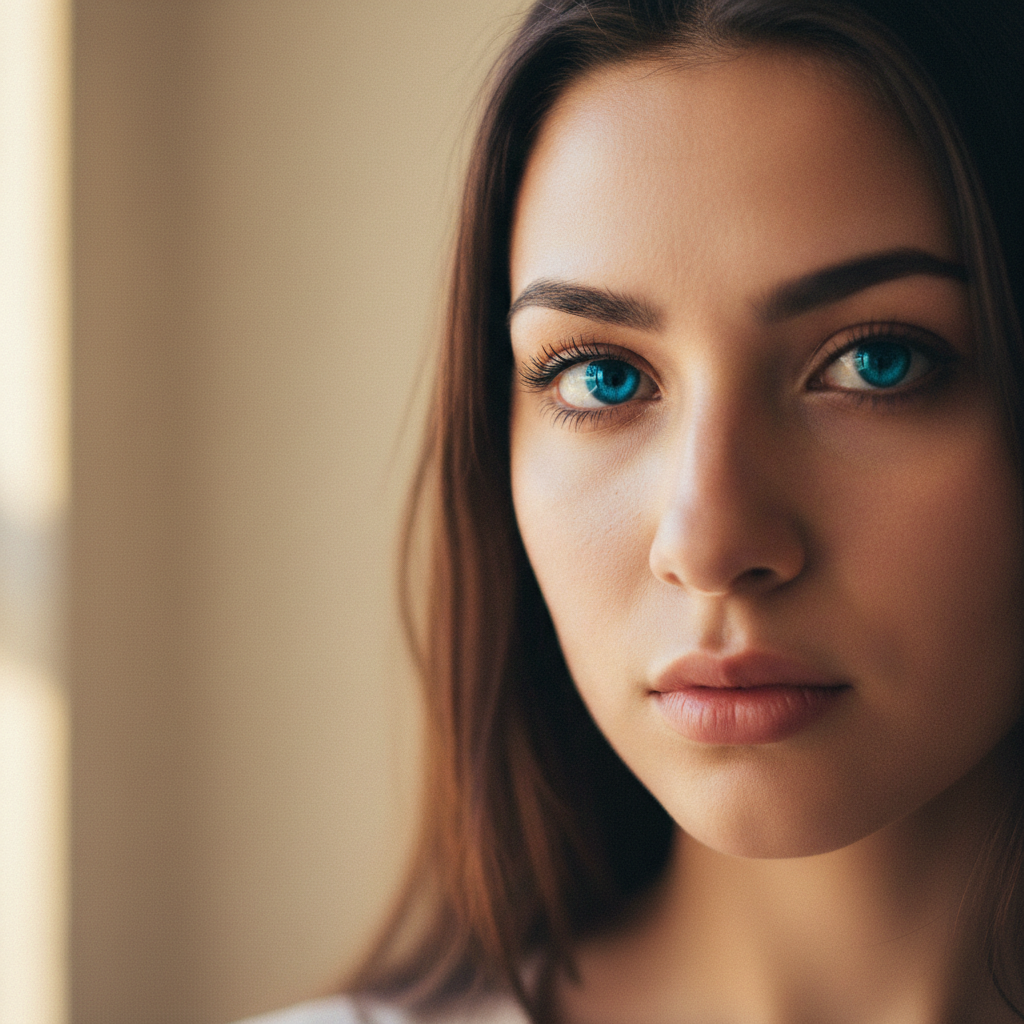
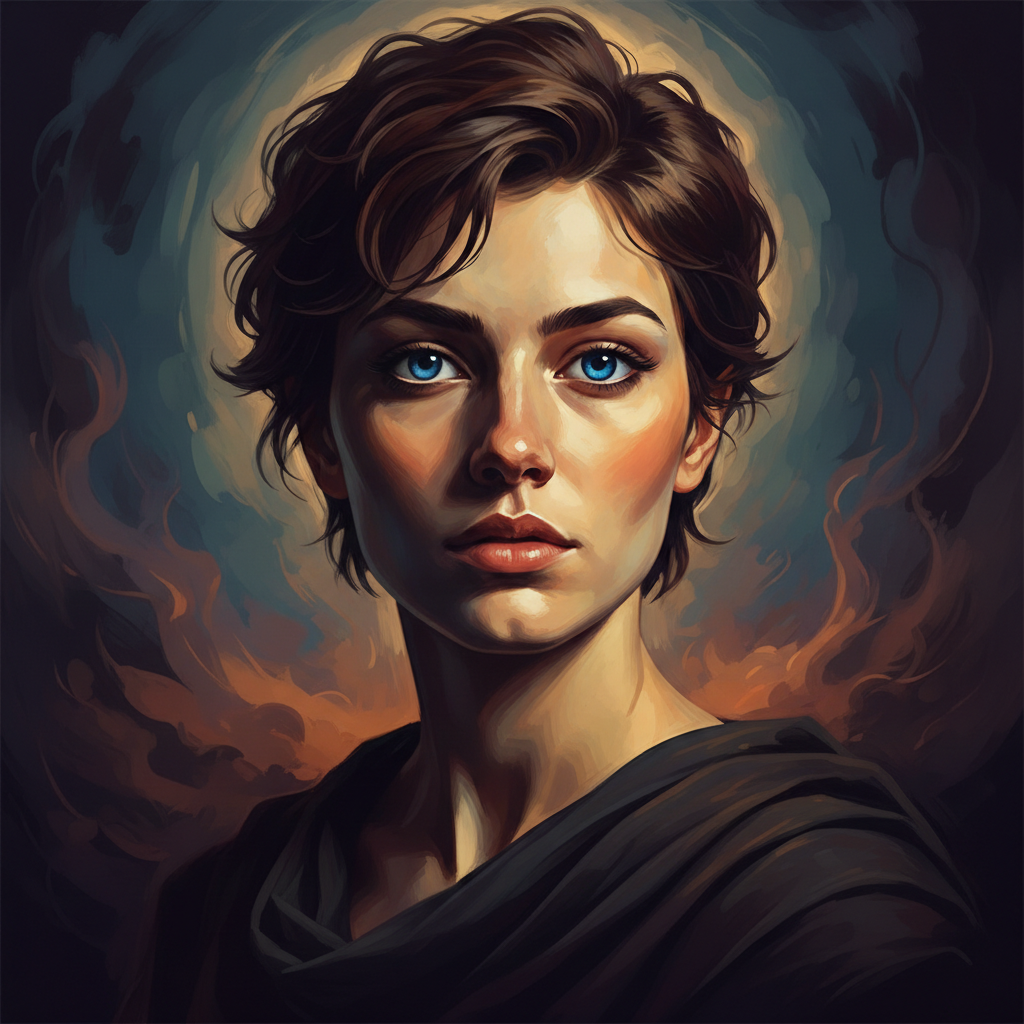
Same portrait with bright blue eyes
After

How it works

1

Upload your photo

Drop your portrait into EditThisPic. JPG, PNG, WebP up to 7MB. Close-up portraits with clearly visible eyes work best—the AI needs to see the iris detail.

⏱ Single person portraits: 10-20 seconds. Group photos with marker: may need 1-2 refinements.
2

Describe the eye color you want

Type exactly what you need: 'change the eye color to bright blue' or 'make the eyes vivid green.' The AI knows what eyes are and where they're located. No marking needed for single-person photos.

💡 Be specific about the shade: 'deep ocean blue' or 'light hazel with gold flecks' gives better results than just 'blue' or 'hazel.'

Copy one of these to get started:

Natural color change change the eye color to deep ocean blue, keeping natural iris texture
Subtle enhancement change the eye color to warm honey brown with golden highlights
Fantasy or cosplay look change the eye color to glowing violet purple, intense and vivid
Heterochromia effect change the left eye to ice blue and the right eye to emerald green
2 more prompts
Specific person in group change the eye color to steel gray for the person I marked
Cat or animal eyes change the eye color to bright amber gold, keeping the vertical pupil shape
3

Generate and review

Tap generate and check both eyes at full zoom. Look for natural color distribution across the iris and consistent color in both eyes. Check that pupils remain black and whites of eyes are unaffected.

4

Use markers for multiple people

For group photos or when the AI changes the wrong person's eyes, tap a marker near the face of the person you want to modify. This tells the AI exactly whose eyes to change.

💡 Markers help with 'which person' not 'where are the eyes.' The AI already knows eye anatomy.
Try it free
"I needed blue eyes for my cosplay photos. Typed one sentence and got exactly what I wanted in seconds." @CosplayerMika

See it in action

Close-up portrait with natural brown eyes
Before
Same portrait with bright blue eyes
After

Brown to bright blue

Natural brown eyes transformed to vivid blue for a striking portrait effect. One prompt, no selection needed.

Prompt: change the eye color to bright sky blue, keeping natural iris texture and depth
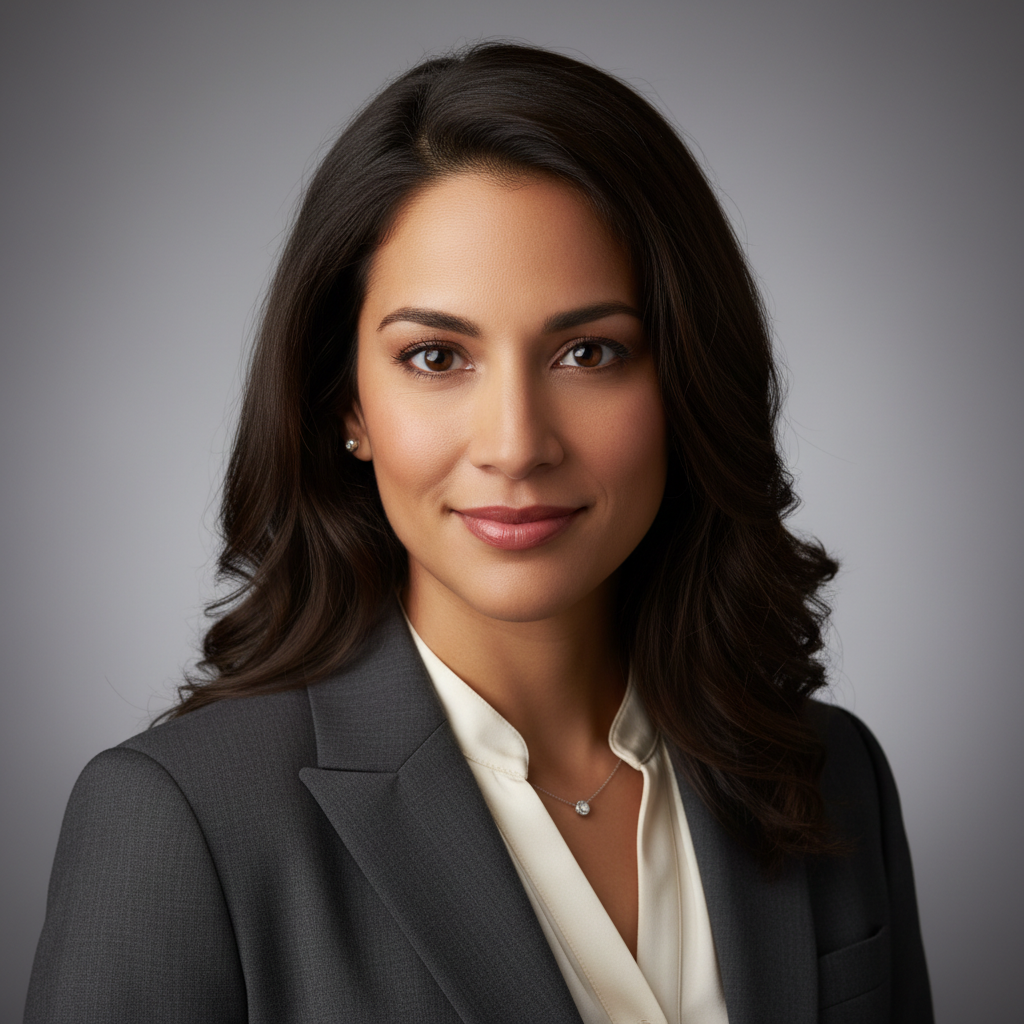
Cosplayer portrait with natural hazel eyes
Before
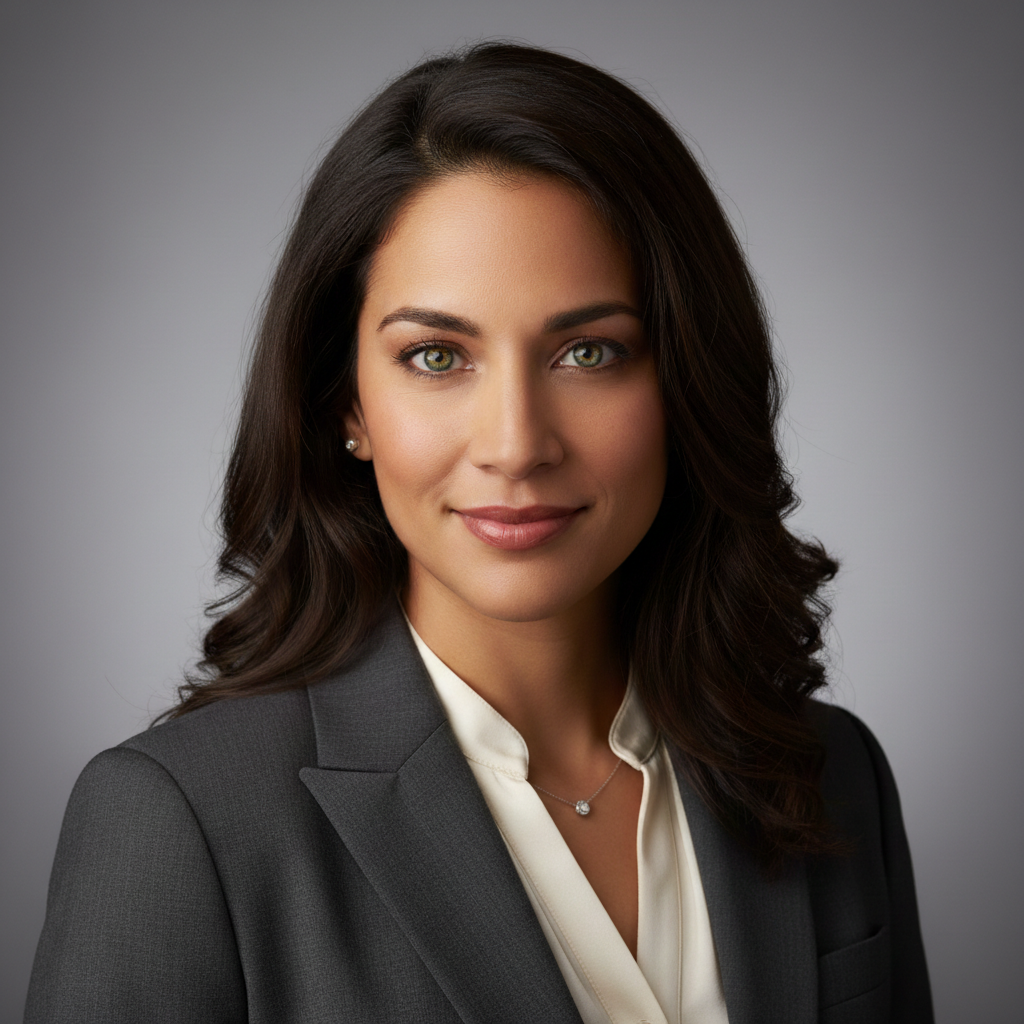
Same cosplayer with glowing violet purple eyes
After

Natural to fantasy purple

Created fantasy character look with intense violet eyes for cosplay photo editing.

Prompt: change the eye color to glowing violet purple, supernatural and vivid

If something looks off

AI changed the wrong person's eyes in a group photo

Why: With multiple faces visible, the AI doesn't know which person you meant. It needs guidance on who to modify.

Try: Tap a marker near the face of the person whose eyes you want changed, then regenerate with the same prompt

💡 Place the marker on or near the correct person's cheek or forehead—the AI will understand 'change eyes of this person.'

Eyes look flat or unnatural after the color change

Why: The AI replaced the entire iris uniformly instead of preserving the natural texture and depth variations.

Try: change the eye color to [your color], keeping natural iris texture, depth, and light reflections

💡 Adding 'light reflections' keeps the catchlights that make eyes look alive.

Only one eye changed or eyes are different shades

Why: Lighting differences between eyes or partial face visibility caused inconsistent processing.

Try: change both eyes to matching [your color], same shade and saturation in each eye

💡 If one eye is in shadow, the AI may interpret it as a different color. Be explicit about matching.

The whites of the eyes or skin around eyes also changed color

Why: The AI interpreted 'eye color' too broadly and affected surrounding areas.

Try: change only the iris color to [your color], keep the whites of the eyes and surrounding skin unchanged

💡 Specifying 'iris color' is more precise than 'eye color' when you need surgical accuracy.

Quick answers

Do I need to mark the eyes before describing?

No! Just describe what you want: 'change the eye color to green.' The AI knows what eyes are and where they're located. Markers are only useful for group photos where you need to specify WHOSE eyes to change—not for locating the eyes themselves.

Can I create fantasy or unnatural eye colors?

Yes. Type 'change the eye color to glowing red' or 'make the eyes silver metallic.' The AI handles supernatural colors for cosplay, character portraits, and creative edits. Add words like 'glowing,' 'vivid,' or 'supernatural' for more intense effects.

Will the eye color look natural or obviously edited?

Results look natural when you ask for realistic colors and preserve texture. Type 'change the eye color to deep blue, keeping natural iris texture and depth' for photorealistic results. Fantasy colors will intentionally look more dramatic.

Can I give someone heterochromia (two different eye colors)?

Yes. Type 'change the left eye to blue and the right eye to green' or specify each eye separately. The AI understands left and right from the viewer's perspective and will apply different colors to each eye.

Ready to change your eye color?

Free to try. No signup required.

Try it free