Remove Red Eyes from Photo
Fix flash photography red-eye with a simple text description.
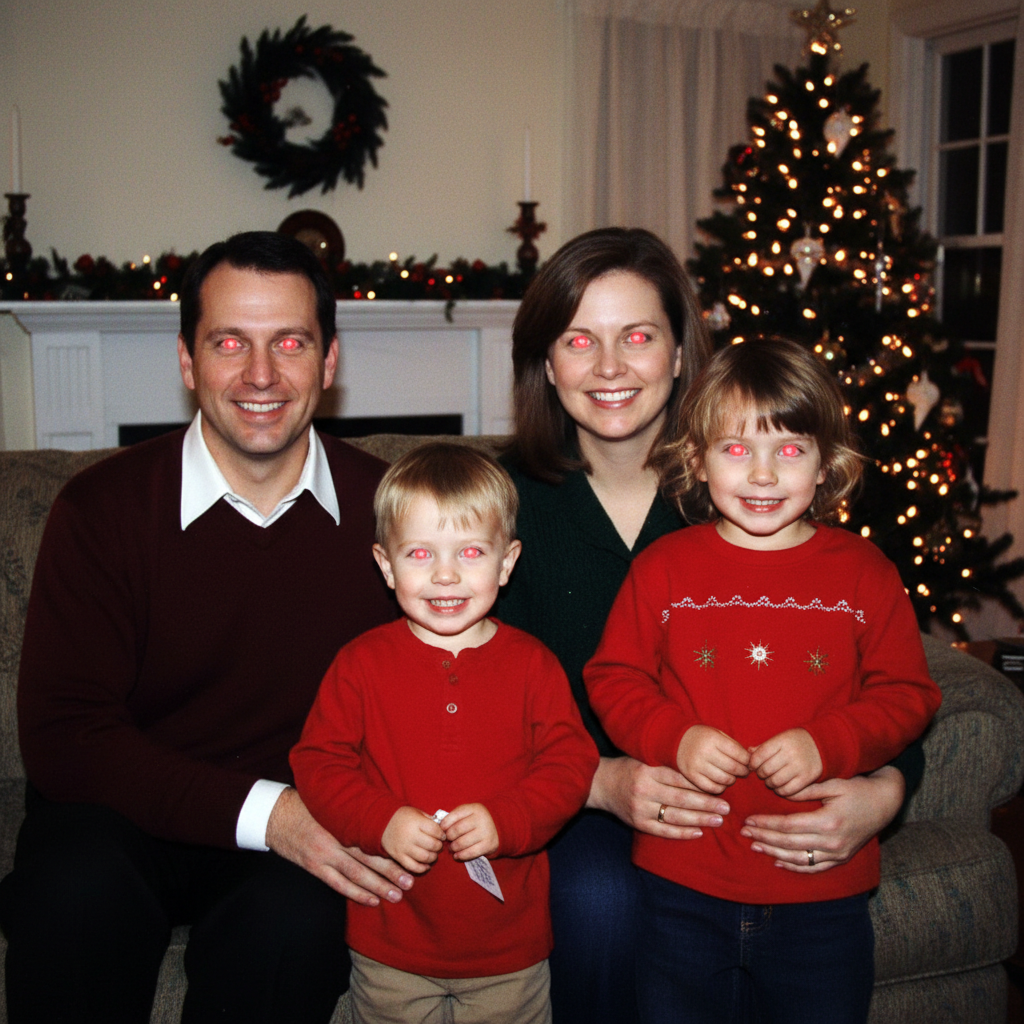
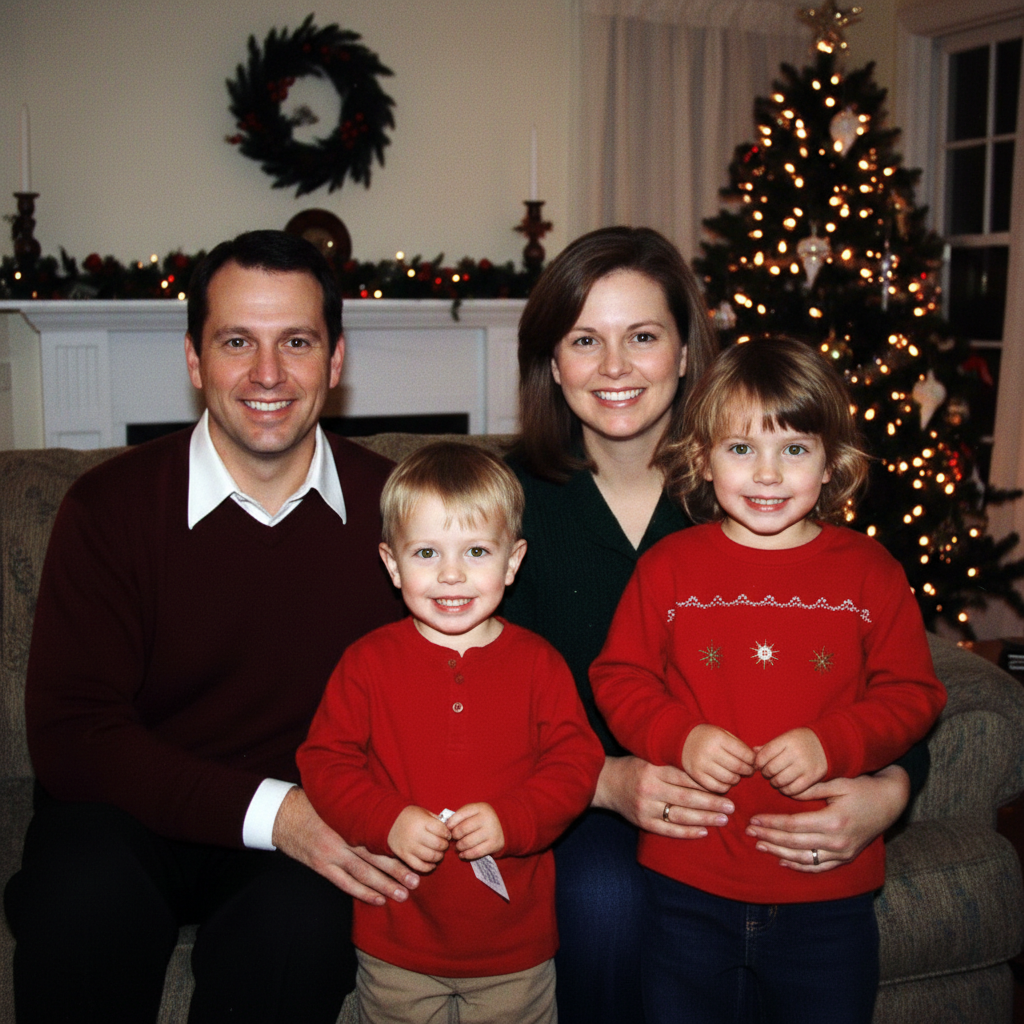
Type 'remove the red-eye effect and restore natural eye color' and EditThisPic's AI fixes red eyes in 10-20 seconds. No manual clicking on each eye needed. Just describe what you want. Works on portraits, group photos, and party shots taken with flash. The AI detects red-eye automatically and restores natural-looking pupils. Free to try, no account needed.
How it works
Upload your photo
Drop your flash photo into EditThisPic. JPG, PNG, WebP up to 7MB. Works on any photo with red-eye from camera flash, including group shots with multiple people affected.
Describe what you want
Type your instruction: 'remove the red-eye effect and restore natural eye color' or 'fix the red eyes from flash.' The AI understands red-eye as a common photo problem. No marking needed - red-eye is detected automatically.
Copy one of these to get started:
remove the red-eye effect and restore natural eye color
fix all the red eyes in this group photo, restore natural-looking pupils
remove the red-eye and restore the natural brown eye color
correct the pink/orange eye reflection from flash and restore normal dark pupils
2 more prompts
fix the red-eye in the left eye only, the right eye looks normal
remove the glowing eye reflection from the pet's eyes and restore natural eye appearance
Generate and review
Check the eyes at full zoom. Verify the red glow is completely gone, pupils look natural black or dark, and the iris color looks realistic. Both eyes should match in color and appearance.
Refine with markers if needed
If some red remains or one eye needs more work, tap markers on that specific eye and regenerate. This is optional - most red-eye corrections work on the first attempt.
"All my holiday photos had red-eye from the camera flash. Fixed them all in minutes - eyes look completely natural now!" @mom_photographer_amy
See it in action
Holiday party portrait
Flash photo at a party created classic red-eye. AI restored natural brown pupils.
remove the red-eye effect and restore natural eye color
Family group photo fix
Multiple family members had red-eye from flash. AI fixed all of them in one pass.
fix all the red eyes in this group photo, restore natural-looking pupils
Child's birthday photo
Birthday party photo with severe red-eye. AI restored the child's natural blue eyes.
remove the red-eye and restore the natural blue eye color
If something looks off
Some red color still visible in the eye after correction
Why: The red-eye may have been very intense or extended beyond the pupil area.
Tap markers on the remaining red area and try: 'completely remove all red from the eye area'
💡 Zoom in closely to check the pupil edges for any remaining red tint.
Eye color looks unnatural or wrong after fix
Why: The AI guessed an eye color that doesn't match the person's natural color.
remove the red-eye and restore [actual color: brown/blue/green/hazel] eye color
💡 Specify the person's actual eye color if you know it for more accurate results.
AI changed the wrong area or something I didn't want changed
Why: The AI couldn't determine exactly which area you meant from description alone. This happens with ambiguous requests.
Tap a marker on the specific eye you want to change, then regenerate with the same prompt
💡 Markers tell the AI 'I mean THIS one specifically.' Use them when description alone is ambiguous.
Pupils look too dark or like black holes
Why: The AI over-corrected, removing too much color and creating unnaturally dark pupils.
fix the red-eye with natural-looking dark pupils, maintain some depth and shine
💡 Healthy eyes have a bit of reflected light - mention 'maintain shine' for realistic results.
One eye fixed but not the other
Why: If red-eye severity differed between eyes, the AI may have only detected the more obvious one.
Tap a marker on the unfixed eye and regenerate: 'fix the red-eye in this eye too'
💡 Check both eyes at full zoom - subtle red-eye can be easy to miss.
Quick answers
Do I need to mark the red eyes before describing?
No! Just describe what you want: 'remove the red-eye effect' or 'fix the red eyes.' The AI detects red-eye automatically - it's a well-known pattern. Only use markers if one specific eye needs attention or if red remains after the first attempt.
Will the fixed eyes look natural?
Yes! The AI replaces the red glow with natural-looking dark pupils while preserving the iris color and eye shine. For best results, mention the person's actual eye color in your prompt if you know it.
Can I fix red-eye in group photos with multiple people?
Yes! Use 'fix all the red eyes in this photo' and the AI will correct everyone's eyes in one pass. For large groups, you may need to run it twice to catch everyone.
What about pet eye glow (usually green or yellow)?
Pet eyes often reflect green, yellow, or white from flash instead of red. Use 'remove the glowing eye reflection from the pet' and describe the color you see. The AI will restore natural-looking animal eyes.
Why do flash photos cause red-eye?
Red-eye happens when camera flash reflects off blood vessels in the retina. It's more common in low light (when pupils are dilated) and with flash mounted close to the lens. EditThisPic fixes this classic photography problem instantly.
Ready to fix those red eyes?
Free to try. No signup required.