Free β€’ No signup Fix Family photo Β· Free

Almost Perfect Family Photo

Everyone looks great except one tiny thing. Fix blinking eyes, messy hair, crooked collars, or background distractions in 20 seconds.

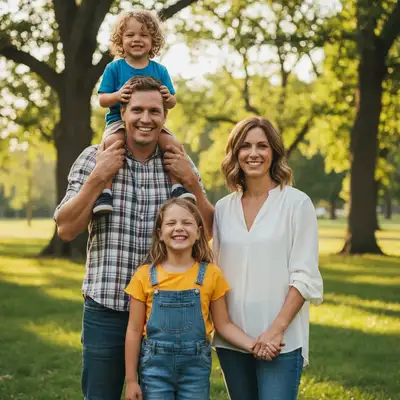
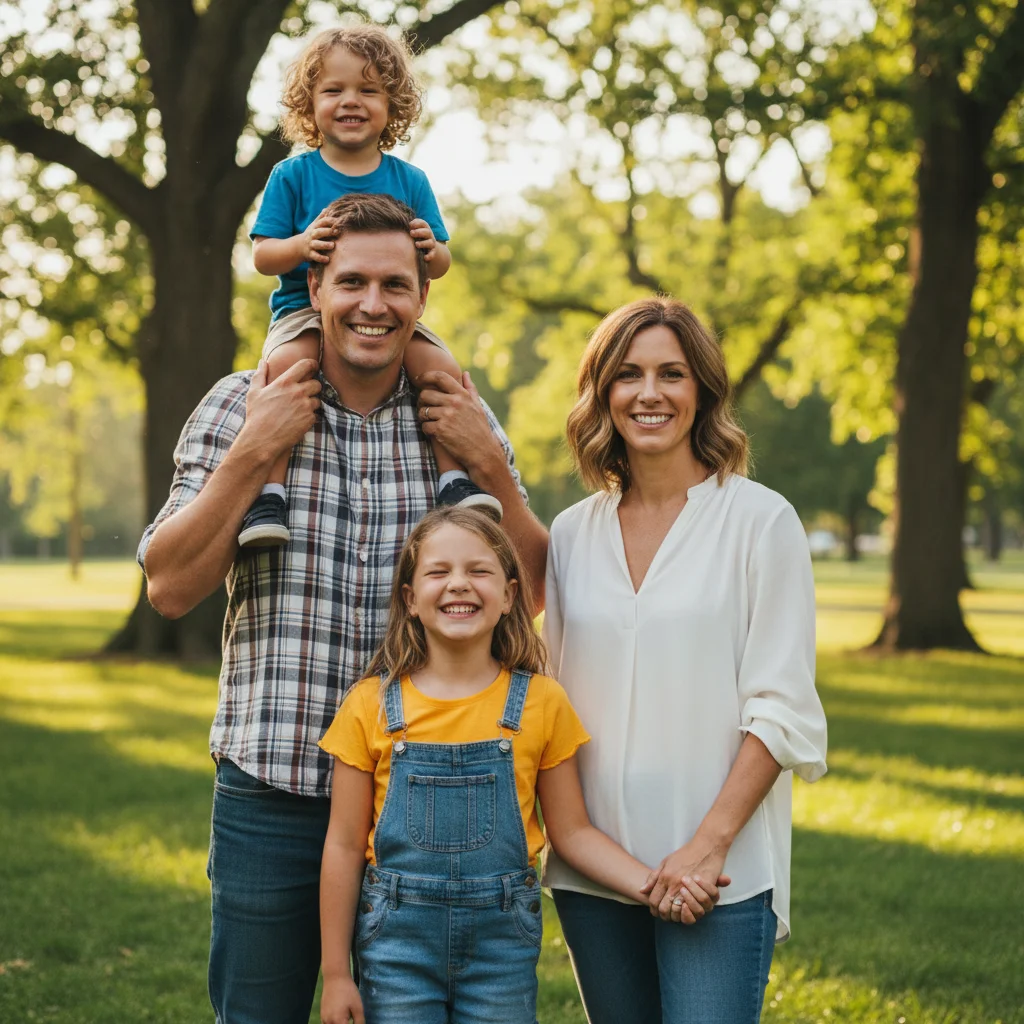
Family photo with daughter's eyes closed on the left
Before
β†’
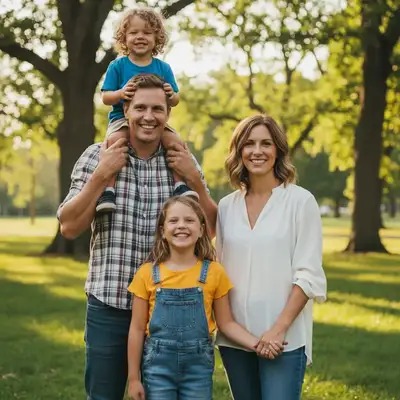
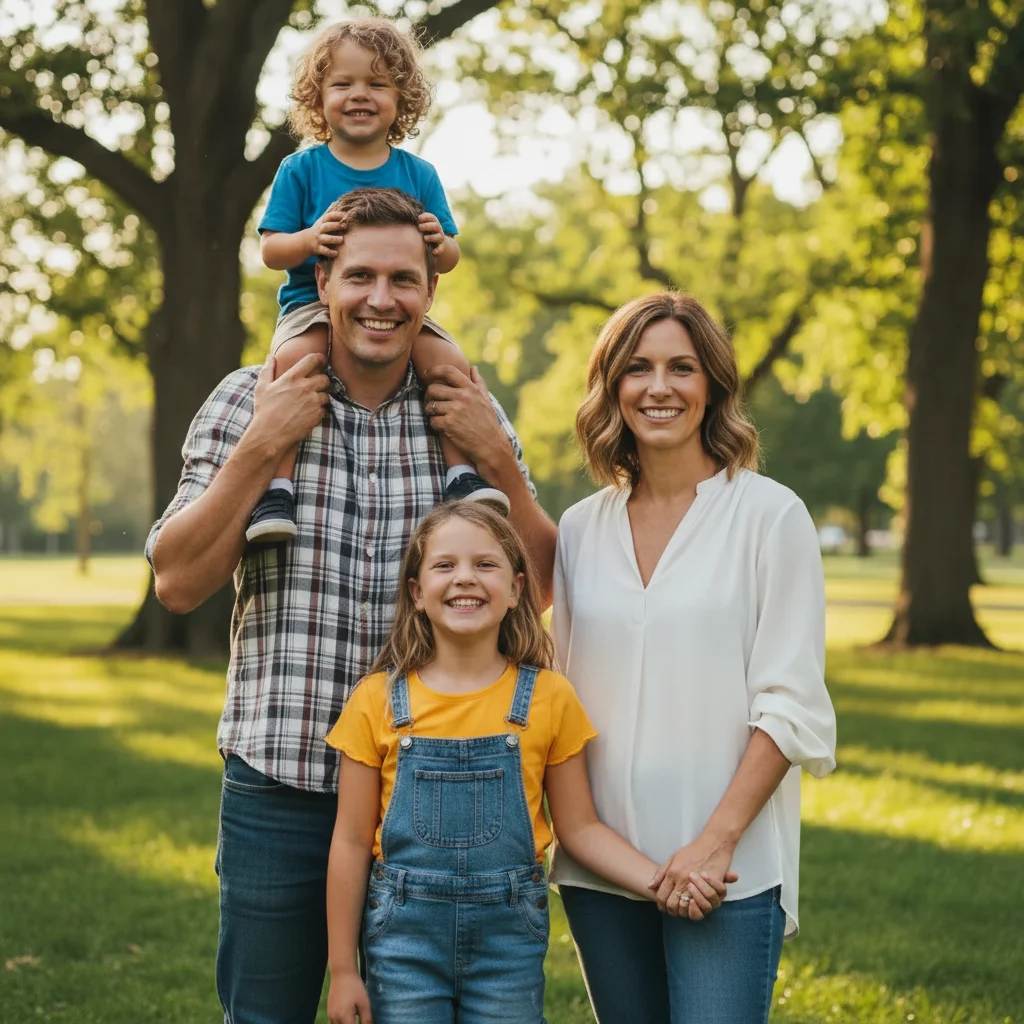
Same photo with daughter's eyes now open
After

Fix Almost Perfect Family Photos

Upload photo to fix family photo

Free β€’ Results in 30 seconds β€’ No signup

Release to upload

FreeNo signupNo watermark
Popular use cases:
  • family photos
  • holiday cards
  • school pictures
  • portrait photography
  • group photos
  • wedding photos
  • professional portraits

Cost
Free No signup required
Time
Instant results in 15-30 seconds
Works on
Any device - browser, phone, tablet, desktop
Powered by
AI-powered photo editing
Scenario Prompt Time
Blinking eyes fix the blinking eyes on [person description] 20s
Red eye remove the red eye on [person] 15s
Background item remove the [object] in the background 20s
Messy hair fix the stray hairs across [person]'s face 25s

How it works

  1. Upload your almost-perfect photo

    Drop your family photo into EditThisPic. JPG, PNG, WebP up to 7MB. Works best with clear photos where the issue is visible.

    Expect: Simple fixes (blinking eyes, stray hair): 15-20 seconds. Multiple fixes: may need separate edits.
  2. Describe what needs fixing

    Type exactly what's wrong: 'fix the blinking eyes on the person on the left' or 'remove the trash can in the background' or 'straighten his collar.' Be specific about who or what needs fixing. The AI understands faces, positions, and objects.

    Tip: Use position words: 'the kid on the right,' 'the woman in the middle,' 'the person wearing blue.' This helps the AI target the right face.

    Copy one of these to get started:

    One person blinking fix the blinking eyes on the person on the left
    Red eye on baby remove the red eye on the baby in the center
    Messy hair across face fix the stray hairs across her face and smooth them
    Crooked clothing straighten his collar and make it look neat
    4 more prompts
    Background trash or distraction remove the trash can visible in the background
    Multiple people with closed eyes open the eyes on the woman on the right
    Weird facial expression make him smile naturally instead of the awkward expression
    Shadow on face lighten the shadow on her face and make it more even
  3. Review the fix

    Check the edited area. For eye fixes, zoom in to verify they look natural. For background fixes, check for clean removal. Look for any artifacts or unnatural blending.

  4. Make additional fixes if needed

    Found another issue? Upload the fixed version and describe the next problem. Most family photo fixes need 1-3 separate edits to get everything perfect.

    Tip: Fix one thing at a time. Trying to fix multiple people's eyes in one prompt usually doesn't work as well as separate edits.
Try it free ↓

Fix Almost Perfect Family Photos

Upload photo to fix family photo

Free β€’ Results in 30 seconds β€’ No signup

Release to upload

Free β€’ No signup

"Finally got everyone smiling and then noticed my daughter's eyes were closed. Fixed it in one try. This saved our holiday card." @mom_of_three

See it in action

Family photo with daughter's eyes closed on the left
Before
->
Same photo with daughter's eyes now open
After

Fixed blinking eyes on daughter

Perfect pose, perfect smiles, except one daughter's eyes were closed. Fixed in one try.

Prompt: fix the blinking eyes on the girl on the left
Family photo with trash can in background
Before
->
Clean family photo with trash can removed
After

Removed background trash can

Great family shot ruined by a bright blue trash can visible behind them.

Prompt: remove the trash can visible in the background

Detailed Guides by Scenario

πŸ“·

Photo Rescue & Restoration

Revive old, damaged, or poorly-shot photos with AI family photo β€” bring new life to images you thought were unsalvageable.

Common Scenarios

  • Applying family photo to old family photos that have degraded over time
  • Fixing a once-in-a-lifetime shot (wedding, graduation) that suffers from poor quality
  • Using family photo on scanned prints to get crisp digital versions

Best Practices

  • Scan old photos at the highest DPI your scanner supports before uploading for best results
  • Describe the specific issue β€” 'this photo is too dark and blurry' gives better family photo than a generic prompt
  • For severely damaged photos, work in stages: fix the biggest issue first, then refine
πŸ“·

Professional & Business Use

Ensure photos for websites, presentations, and marketing meet professional standards with family photo.

Common Scenarios

  • Using family photo on employee photos for a company website that need to look polished
  • Applying family photo to event photos before sharing in a client presentation
  • Improving product images with family photo for an online store or catalog

Best Practices

  • Process all images in a batch with the same enhancement settings for visual consistency
  • For web use, balance enhancement quality with file size β€” overly large images slow page loads
  • Always compare before and after to make sure family photo looks natural, not over-processed
πŸ“·

Social Media & Personal Sharing

Make your personal photos look their best before sharing with friends, family, or followers using family photo.

Common Scenarios

  • Quickly applying family photo to vacation photos before posting on social media
  • Using family photo on a selfie that has great composition but poor lighting
  • Batch-fixing a phone gallery of photos with family photo before creating an album to share

Best Practices

  • Start with the photo you'd most like to share β€” fix that one first and use the same approach on the rest
  • For selfies, subtle enhancement always beats heavy processing β€” keep it natural
  • If the photo was shot in low light, mention it in the prompt so the AI tailors family photo accordingly

If something looks off

Fixed eyes look unnatural or wrong color

Why: The AI guessed the eye color or direction incorrectly. It doesn't have other photos of that person to reference.

Try: try: 'make the eyes brown' or 'adjust the eye color to match her other eye'

Tip: Eye fixes work best when the person is looking straight at the camera. Side glances are harder.

AI fixed the wrong person's eyes

Why: Your description was ambiguous when there are multiple people. 'The kid on the left' could mean their left or your left.

Try: Be more specific: 'the girl wearing the yellow shirt' or tap a marker on their face

Tip: Use clothing color or age when position words aren't clear enough.

Background removal left a blur or smudge

Why: The AI filled the space but couldn't perfectly reconstruct what was behind the object. Complex backgrounds are harder.

Try: regenerate the background area and blend it naturally

Tip: Simple backgrounds (grass, sky, walls) fill more cleanly than busy patterns.

Collar or clothing fix changed skin tone

Why: The AI modified too much area trying to fix the clothing. It bled into adjacent skin.

Try: restore the skin tone around the collar to the original

Tip: Clothing fixes work best on plain backgrounds where the edge is clear.

Hair fix looks painted or fake

Why: Hair is complex texture. The AI sometimes smooths it too much when removing stray hairs.

Try: add natural hair texture back to the smoothed area

Tip: Sometimes it's better to leave minor hair issues than get an overly-smooth fix.

Multiple fixes needed but credits running low

Why: Each fix is a separate edit. Complex family photos may need 2-4 edits to perfect.

Try: Prioritize: fix the most obvious issues first (closed eyes, red eye, major distractions)

Tip: Free tier gives 1 edit/week. For multi-fix photos, consider upgrading or using pay-as-you-go.

Quick answers

Can I fix multiple people's eyes in one edit?

Technically yes, but it works better to fix one person at a time. Try 'fix the eyes on the girl on the left' first, download that, then upload it again and fix the next person. Multiple simultaneous face edits often don't work as well.

Will the fixed eyes look natural?

Usually yes. The AI uses context from the rest of the photo to generate realistic open eyes. Works best when the person is looking straight at the camera. Side glances or unusual angles may need a second try. Eye color is inferred from other facial features.

What if everyone is blinking in the photo?

You can still fix them one at a time. Start with the most prominent person, fix their eyes, download, then fix the next person's eyes in a new edit. It's tedious but works. Consider retaking the photo if more than 2-3 people are blinking.

Can I fix someone's smile or expression?

It's possible but harder than fixing closed eyes. Works best when the person is already almost smiling and you just need subtle adjustments. Completely changing a neutral face to a smile often looks unnatural.

What about red eye from flash?

Red eye removal works great. Say 'remove the red eye on the baby' or 'fix red eye on the person on the right.' Be specific about which person if there are multiple with red eye.

How do I fix background issues without affecting people?

Just describe the background object: 'remove the trash can' or 'delete the power lines in the sky.' The AI won't touch the people unless you specifically mention them.

Can I remove a person from the family photo?

Yes, but that's a different task. See the 'Remove Person from Photo' page for that. This page is about fixing small issues with people you want to keep.

Is EditThisPic's AI family photo fixer really free?

Yes β€” you get 1 free edit per week, no account needed. For unlimited edits, plans start at $3.99/month.

Ready to fix your almost-perfect photo?

Free to try. No signup required.