Free • No signup Open Editor

Change Skin Tone from Photo

Add a natural tan or warm up pale lighting—just describe the look you want.

Type 'warm up the skin tones to a natural sun-kissed tan' or 'even out the skin tone across the face.' EditThisPic adjusts skin tones in 15-30 seconds without manual selection. Perfect for fixing pale indoor lighting or adding a subtle vacation glow. Works on portraits and group photos. Free, no signup needed.

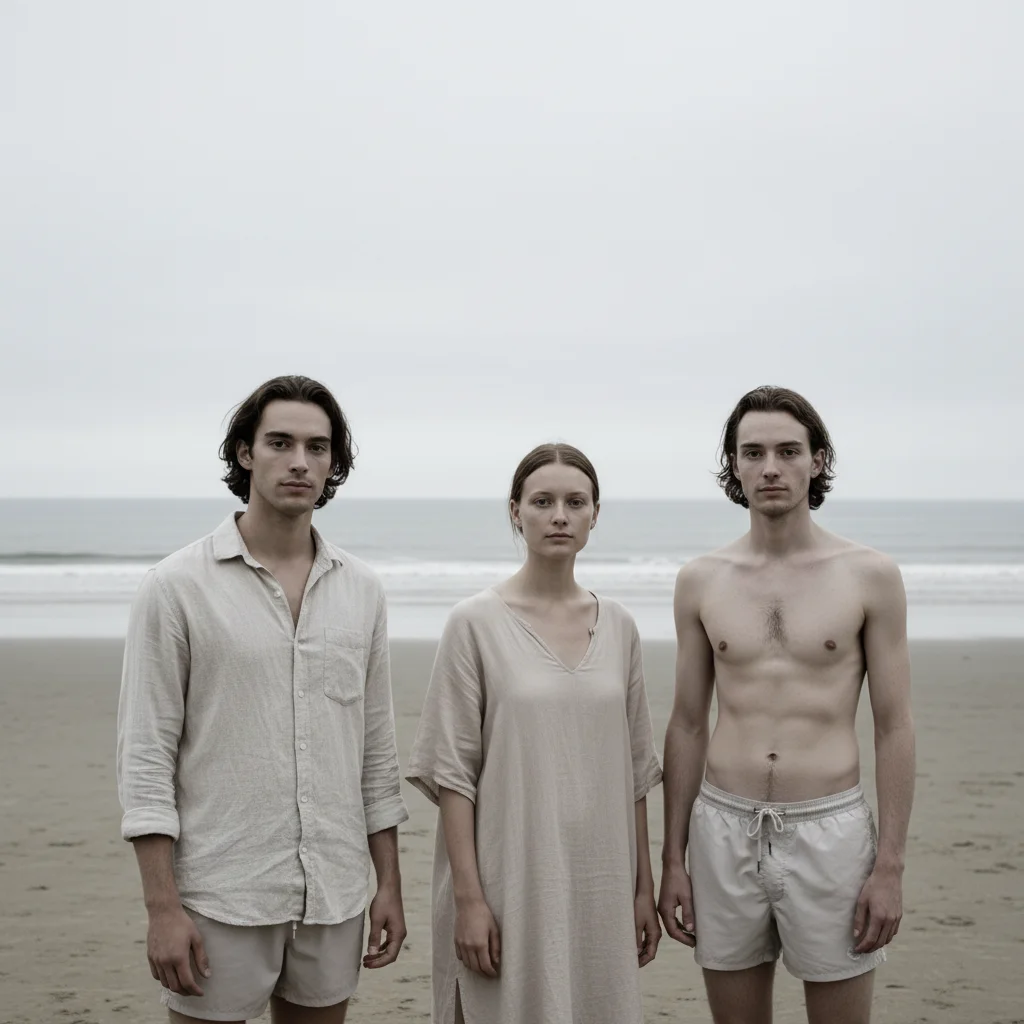
Family at beach looking pale from overcast lighting
Before
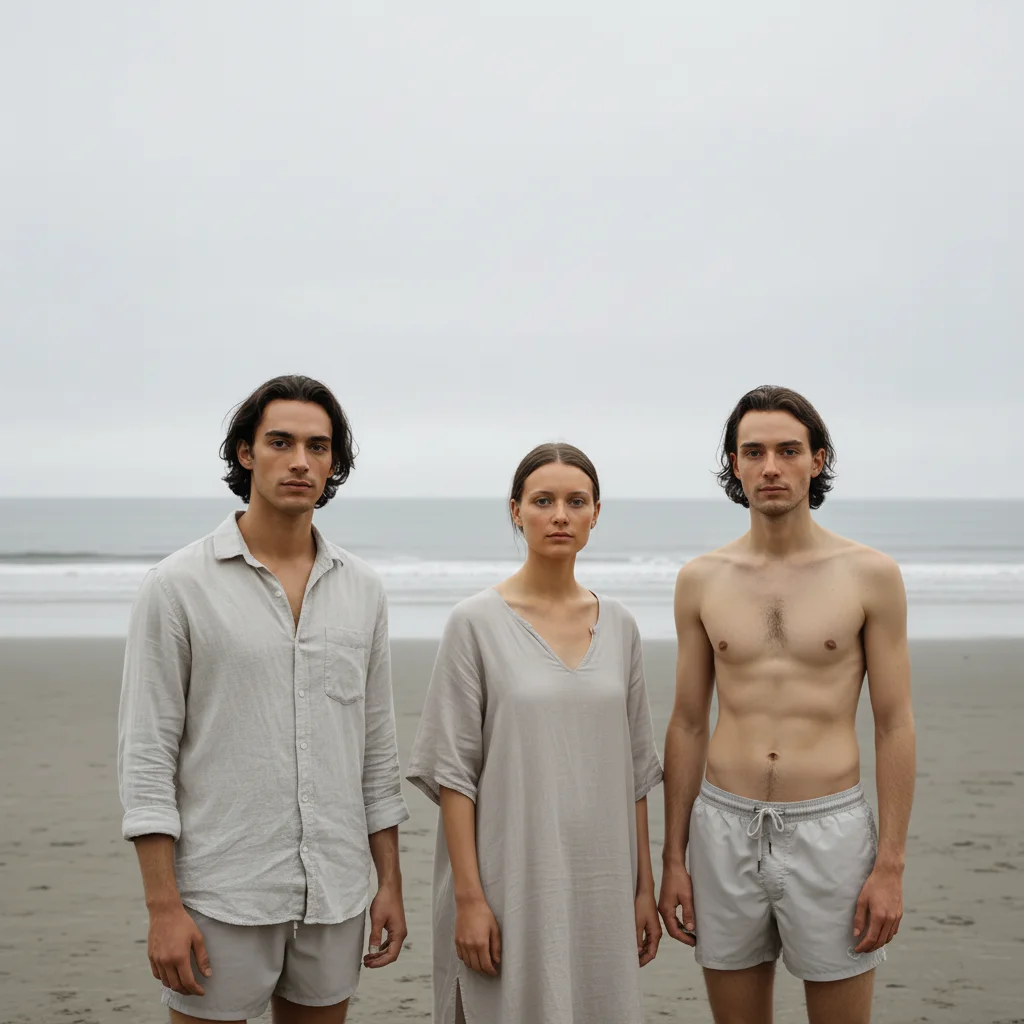
Same family with natural warm sun-kissed skin tones
After

How it works

1

Upload your photo

Drop your image into EditThisPic. JPG, PNG, and WebP up to 7MB work well. Higher resolution helps the AI handle subtle skin tone gradients naturally.

⏱ Simple tone adjustments: 15-30 seconds. Complex lighting fixes: may need 2-3 refinements over 1-2 minutes.
2

Describe the skin tone you want

Type what you need: 'add a natural warm tan to the skin' or 'correct the pale blue cast from fluorescent lighting.' Be specific about warmth and intensity. No marking required—the AI identifies skin automatically.

💡 Use natural references like 'sun-kissed' or 'beach day glow' rather than technical color terms for more realistic results.

Copy one of these to get started:

Adding natural tan from vacation add a natural sun-kissed tan to the skin, warm golden undertones like a day at the beach
Fixing pale indoor lighting warm up the skin tones to remove the pale cast from indoor lighting, restore natural healthy color
Evening out uneven tan even out the skin tone across all visible skin, blend the tan lines for consistent natural color
Correcting blue fluorescent cast remove the cool blue cast from the skin and restore warm natural undertones, healthy complexion
3 more prompts
Subtle warmth for portrait add subtle warmth to the skin tones, gentle golden glow without changing the overall look
Matching skin tone across group balance the skin tones across everyone in the photo so lighting looks consistent on all faces
Reducing redness or sunburn look reduce the red tones in the skin to a natural warm color, less sunburned appearance
3

Generate and review

Tap generate and check the result at full zoom. Look for natural transitions at jawline, neck, and hairline. The tone should look consistent across all visible skin without harsh edges.

💡 Compare hands, face, and neck—these areas often have different lighting in the original and should now look balanced.
4

Refine with markers if needed

If certain areas need more or less adjustment, tap markers on those spots and regenerate. Useful for evening out tan lines or adjusting specific areas like under-eyes or forehead.

💡 Markers help when you want different intensity on face versus arms, or need to exclude lips and eyes from the adjustment.
Try it free
"My vacation photos looked washed out from the overcast sky. One prompt gave everyone a natural warm glow that matched how we actually looked." @TravelMomJen

See it in action

Family at beach looking pale from overcast lighting
Before
Same family with natural warm sun-kissed skin tones
After

Vacation photo warmth boost

Overcast beach day made everyone look washed out. One prompt restored the warm glow we remembered from the trip.

Prompt: add a natural warm tan to all the skin tones, sun-kissed beach day glow with golden undertones
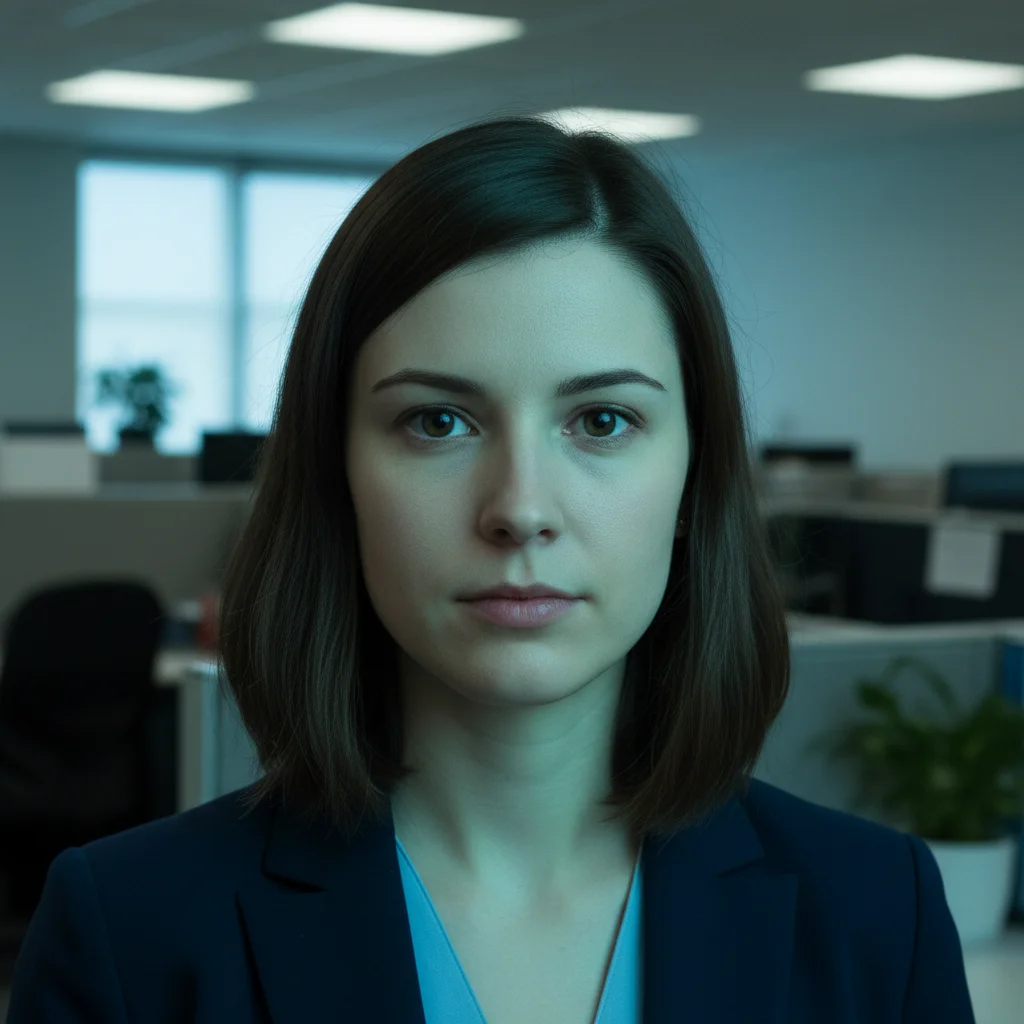
Headshot with blue-green cast from office lighting
Before
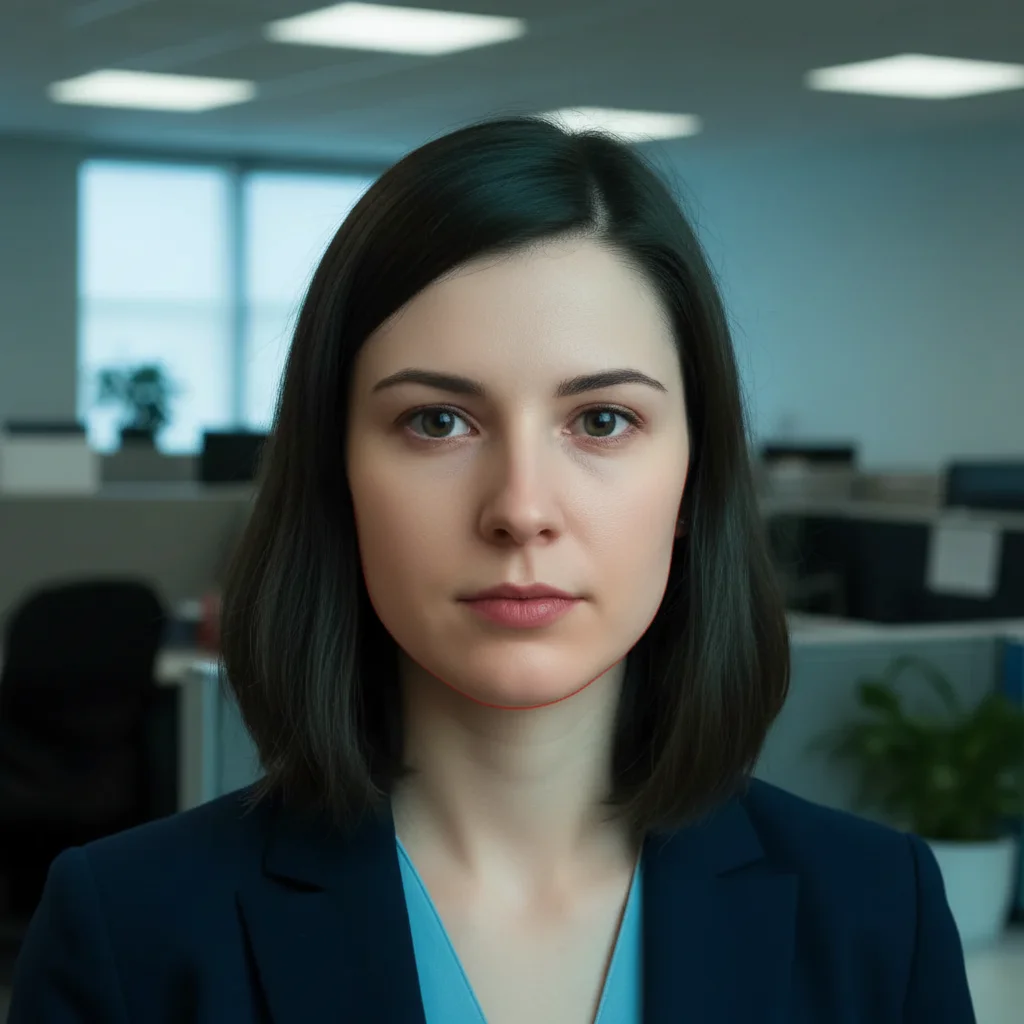
Same headshot with natural healthy skin tones
After

Office fluorescent lighting fix

Professional headshot taken under harsh office lights. Corrected the unflattering blue-green cast to natural skin color.

Prompt: remove the cool fluorescent lighting cast from the skin, restore natural warm healthy skin tones
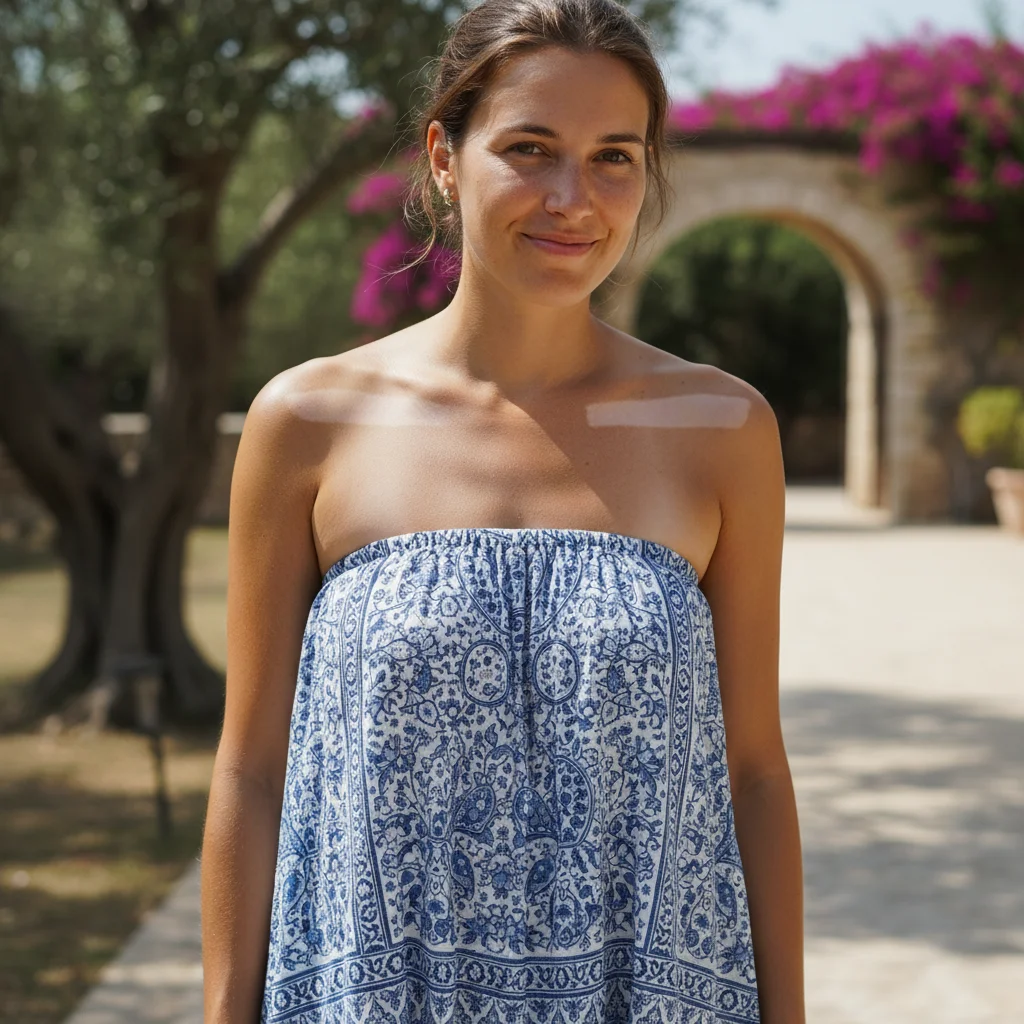
Woman in strapless dress with visible tan lines on shoulders
Before
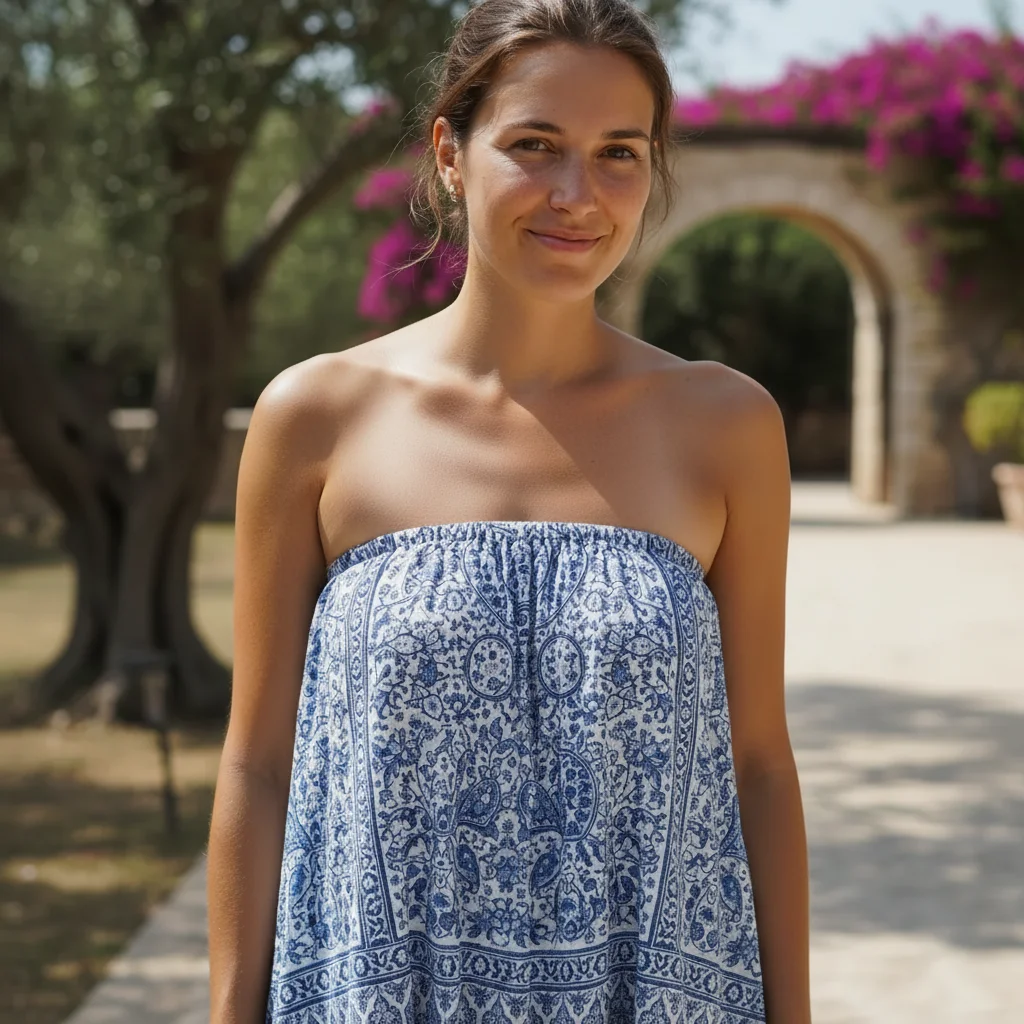
Same photo with even consistent skin tone across shoulders
After

Uneven tan correction

Swimsuit tan lines visible in a strapless dress photo. Evened out the tone for a polished look.

Prompt: even out the skin tone to remove visible tan lines, blend for consistent natural color across shoulders and chest

If something looks off

AI changed the wrong area or affected clothing/background

Why: The AI couldn't distinguish skin from similarly-colored areas. This happens with nude-tone clothing or warm-colored backgrounds.

Try: Tap markers on the skin areas only, then regenerate with 'adjust skin tone only, not clothing or background'

💡 Markers tell the AI exactly which areas are skin when colors are ambiguous.

Skin tone looks unnatural or orange

Why: The adjustment was too strong. Overly warm tones can look artificial, especially on fair skin.

Try: add subtle natural warmth to the skin, gentle golden undertones without looking orange

💡 Use modifiers like 'subtle' and 'natural' to prevent overcorrection. Less is often more with skin tones.

Face and body don't match after adjustment

Why: Different areas had different original lighting, and the AI adjusted them separately. Neck and hands often end up different from face.

Try: match the skin tone across face, neck, and hands for consistent natural color throughout

💡 Explicitly mention all body parts in your prompt when you need them to match.

Lips or eyes changed color unexpectedly

Why: The AI included these areas in the skin tone adjustment. Lips especially can shift to unnatural colors.

Try: adjust skin tone while preserving natural lip and eye color, only change the skin itself

💡 If lips still shift, tap markers to exclude them and regenerate.

Adjustment looks blotchy or uneven

Why: The original photo had complex lighting patterns that the AI tried to flatten. Shadows and highlights need to remain for natural depth.

Try: warm up skin tones while preserving natural shadows and highlights, maintain three-dimensional appearance

💡 Keep mentions of 'preserving shadows' to maintain facial contours and depth.

Tan looks painted on rather than natural

Why: The AI applied color without considering skin texture and natural variation. Real tans have subtle gradients.

Try: add natural gradual tan with subtle color variation, like real sun exposure over time

💡 References to 'gradual' and 'natural variation' help create believable results.

Quick answers

Do I need to mark the skin before describing?

No! Just describe what you want: 'add a natural tan' or 'warm up the skin tones.' The AI recognizes skin automatically. Markers are only needed if you want to adjust specific areas differently, like evening out just the shoulders, or if the AI accidentally changes clothing that's a similar color to skin.

Will this work on group photos with multiple people?

Yes. Type something like 'warm up the skin tones on everyone in the photo' and the AI applies the adjustment to all visible people. If you need different adjustments for different people, you can tap markers on specific individuals and adjust them separately in multiple passes.

How do I avoid making the result look fake?

Use natural, subtle language in your prompts. 'Add subtle warmth' works better than 'make skin tan.' Reference real-world scenarios like 'sun-kissed' or 'healthy glow' rather than specific color values. If results look overdone, regenerate with 'very subtle' or 'gentle' added to your prompt.

Can I fix just part of the skin, like removing redness from nose?

Yes. Tap a marker on the specific area like the nose or cheeks, then type 'reduce redness in the marked area to match surrounding skin.' Markers let you target specific spots without affecting the rest of the face.

What's the best way to fix photos taken under fluorescent lights?

Type 'remove the cool blue-green cast from fluorescent lighting and restore natural warm skin tones.' This targets the specific color shift that office and store lighting creates. For severe cases, add 'restore healthy natural complexion' to emphasize warmth.

Ready to adjust your skin tones?

Free to try. No signup required.

Try it free