Fix Lighting from Photo
Just type what you want. 'Fix the lighting' or 'correct the exposure' usually just works.
Type 'fix the lighting' or 'correct the exposure and lighting' and EditThisPic's AI rescues your photo in 15-30 seconds. No sliders, no histograms. Works on backlit subjects, harsh shadows, and uneven lighting. Just describe what's wrong—the AI understands and fixes it. Free, no signup needed.
How it works
Upload your photo
Drop your image into EditThisPic. JPG, PNG, and WebP up to 7MB work best. The AI can recover surprising detail from underexposed shadows, so don't discard dark photos yet.
Describe the lighting problem
Type what you need: 'fix the lighting on the face' or 'correct the exposure and lighting, reduce harsh shadows.' Be specific about the issue—backlit, too dark, harsh shadows. The AI understands these concepts without you marking anything.
Copy one of these to get started:
fix the lighting on the backlit subject, brighten the face while keeping the background exposure natural
correct the exposure and lighting, soften the harsh shadows under eyes and nose while keeping natural contrast
fix the lighting so all faces have even exposure, balance the left side with the right side
brighten the entire photo and correct the exposure, bring out detail in the shadows while keeping highlights from blowing out
3 more prompts
fix the lighting to show the person's face clearly, reduce the window brightness and lift the foreground shadows
correct the exposure and lighting, fill in the dark shadows under the eyes and chin from overhead sun, keep skin tones natural
fix the lighting to balance the warm indoor light with the cool daylight from windows, make the overall color temperature consistent
Generate and review
Tap generate and check the result. Look at shadow areas, skin tones, and whether the overall mood still feels natural. Good lighting correction should look like it was shot that way, not obviously edited.
Refine with markers if needed
If the AI adjusted the wrong area or left some shadows untouched, tap markers on those specific spots and regenerate. This is optional—most lighting fixes work without markers.
"Shot my family reunion against a bright window. One prompt brought everyone's faces back from silhouettes." @SunsetPhotographer
See it in action
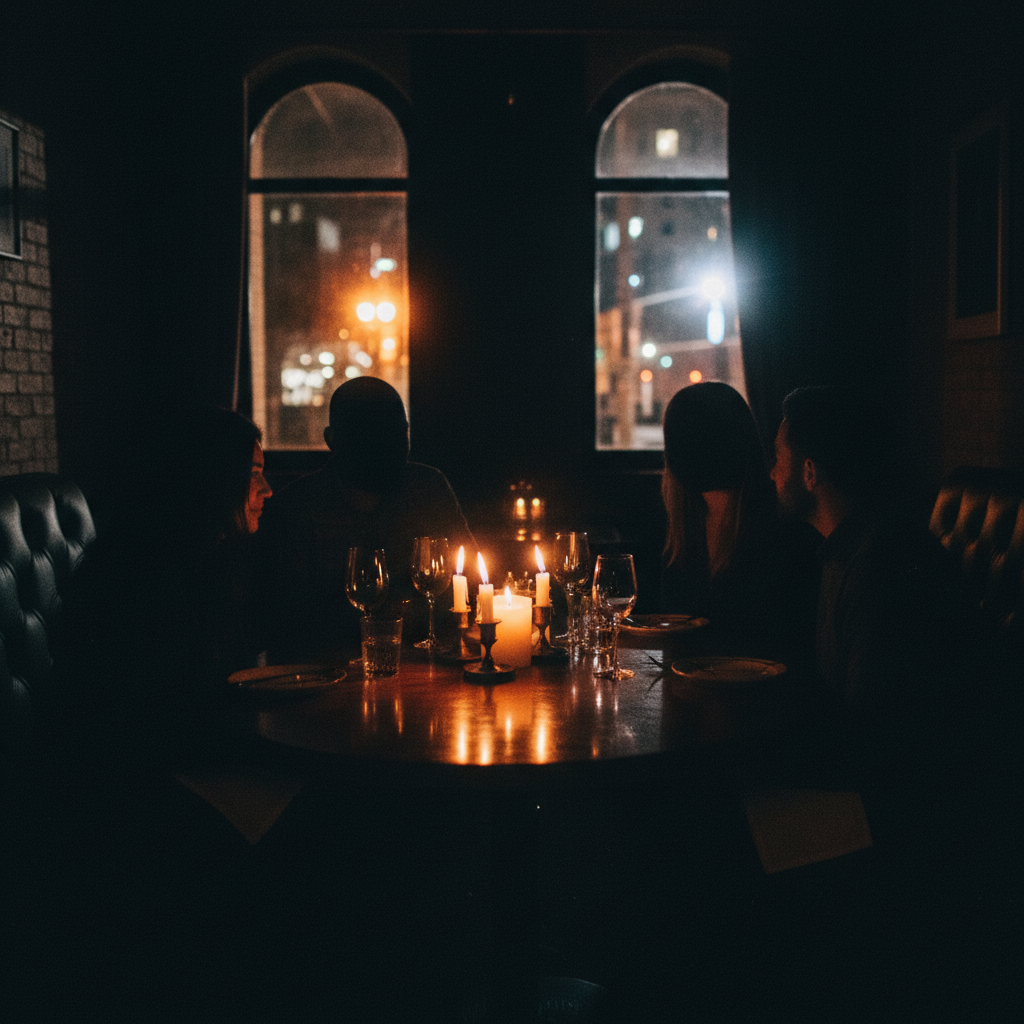
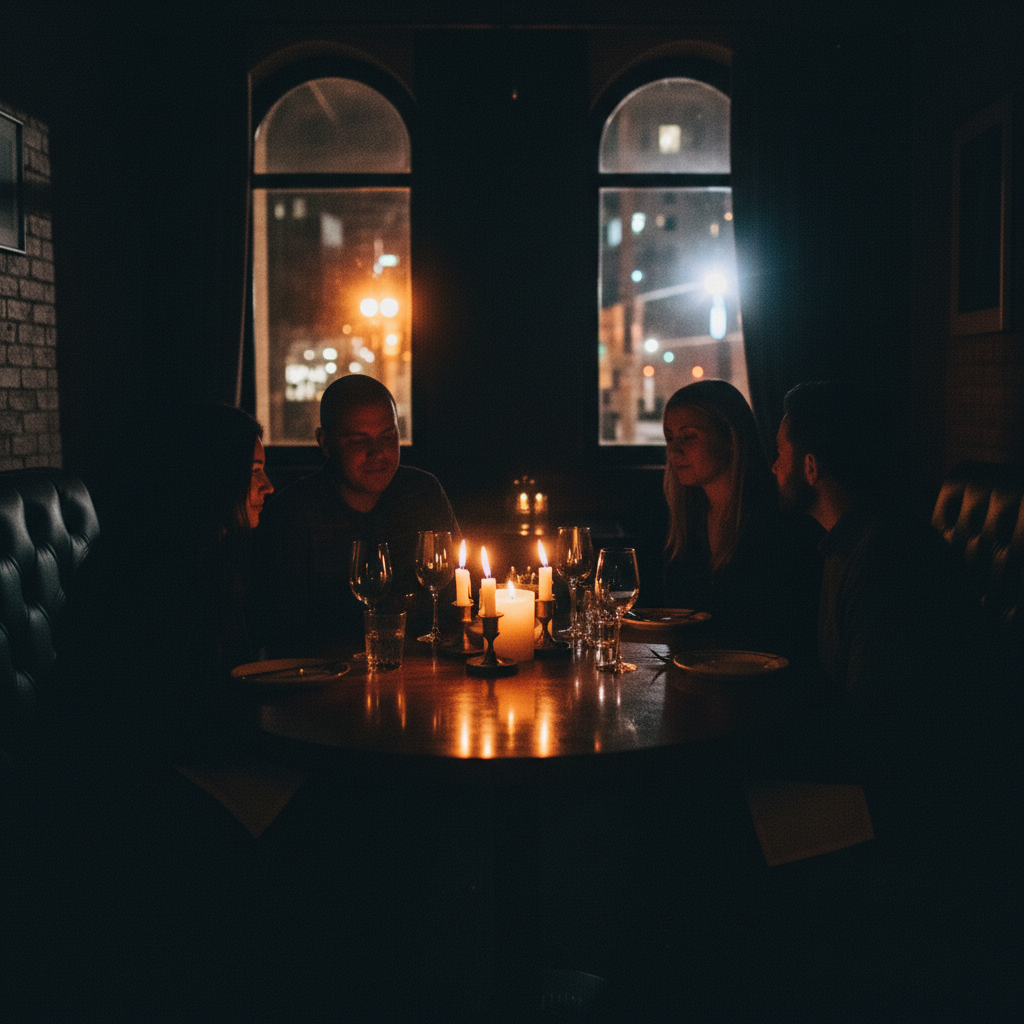
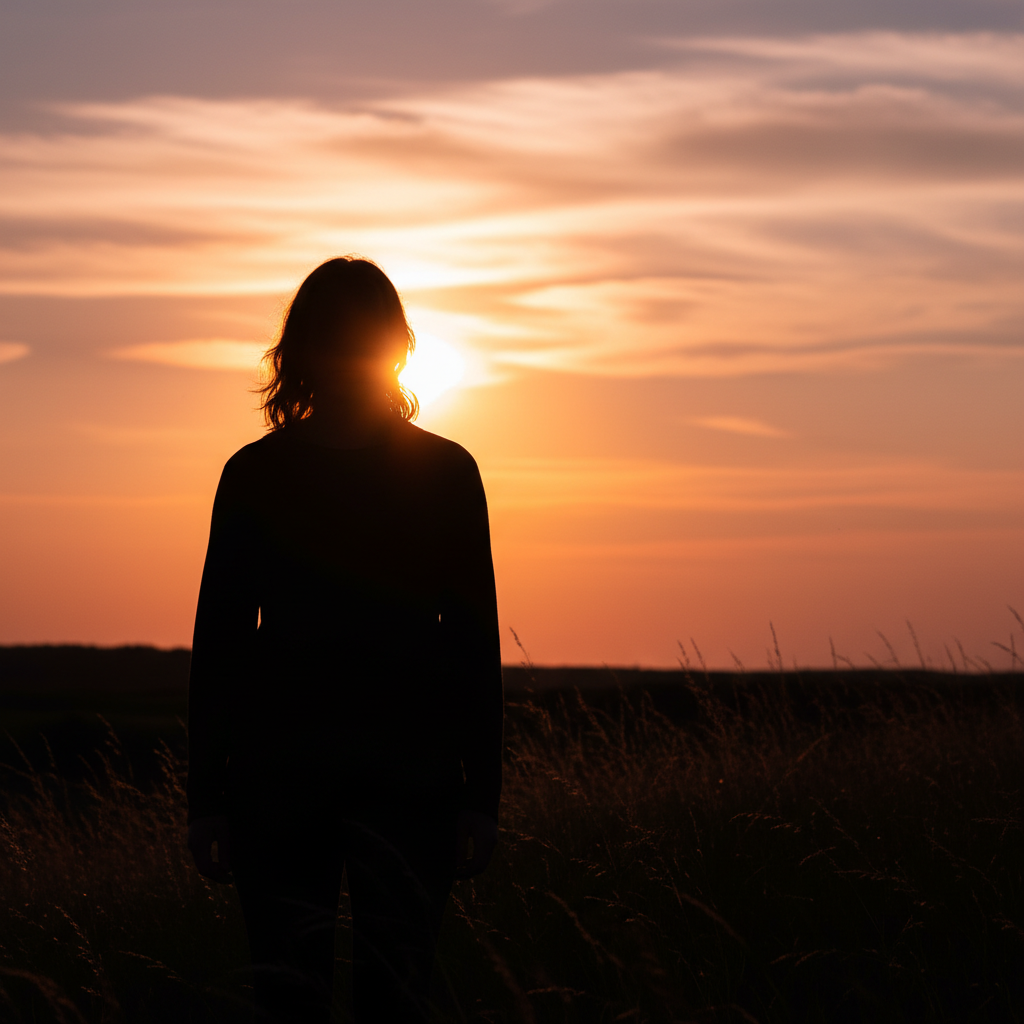
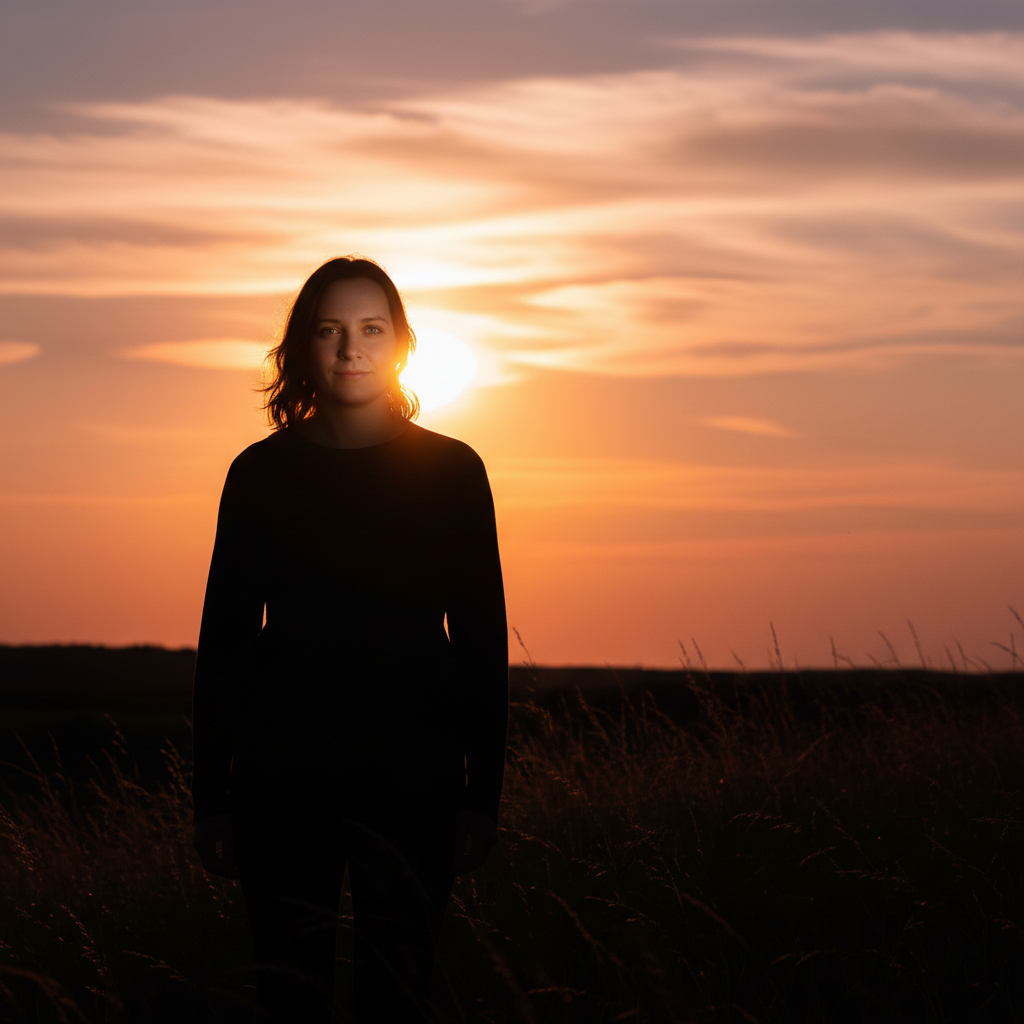
Backlit portrait rescue
Subject photographed against bright window. Face was nearly a silhouette. One prompt recovered full facial detail.
fix the lighting on the backlit subject, brighten the face and show facial details while keeping the window light natural
Harsh shadow correction
Outdoor portrait at noon with deep shadows under eyes and nose. The AI softened shadows while maintaining natural depth.
correct the exposure and lighting, soften the harsh shadows under eyes and nose from the overhead sun while keeping natural skin tones
Uneven group lighting
Family photo where one side was in shade, other in sun. The AI balanced exposure across all faces.
fix the lighting so all faces have even exposure, brighten the left side in shadow to match the right side in sunlight
If something looks off
AI changed the wrong area or something I didn't want changed
Why: The AI interpreted 'lighting' too broadly and adjusted areas you wanted to keep. Global lighting terms affect the entire photo.
Tap a marker on the specific area you want to fix, then regenerate with 'fix the lighting here only'
💡 Markers tell the AI 'I mean THIS area specifically.' Use them when you want selective correction.
Result looks flat and unnatural, lost all the shadows
Why: The AI removed too much contrast. Some shadow is natural and adds depth—completely shadowless faces look artificial.
fix the lighting subtly, reduce harsh shadows but keep natural depth and dimension in the face
💡 Words like 'subtle' and 'natural' help prevent over-correction. Good lighting still has some shadow.
Skin tones look wrong after correction
Why: Aggressive exposure lifting can shift color balance. This is especially common when correcting photos with mixed light sources.
correct the exposure and lighting while maintaining natural skin tones, keep the warmth in the skin
💡 If skin looks too orange or too pale, add 'with accurate skin tones' to your prompt.
Background got too bright when fixing foreground
Why: The AI brightened everything uniformly. Backlit scenes need different treatment for subject versus background.
fix the lighting on the foreground subject only, keep the background at its current brightness
💡 Specifying 'foreground' or 'subject' tells the AI to leave the background alone.
Some shadows still too dark after correction
Why: The AI was conservative to avoid over-processing. Very dark shadows sometimes need multiple passes or targeted approach.
brighten the shadows more aggressively, bring out detail in the darkest areas
💡 If specific shadows persist, tap markers on those areas and regenerate for targeted brightening.
Photo looks over-processed or HDR-like
Why: The AI applied too much local tone mapping. This creates the artificial 'HDR look' that many people dislike.
fix the lighting naturally, avoid HDR look, keep the photo looking like a normal photograph
💡 Explicitly saying 'avoid HDR look' helps prevent the over-processed appearance.
Quick answers
Do I need to mark the dark areas before describing?
No! Just describe what you want: 'fix the lighting' or 'correct the exposure and lighting.' The AI understands concepts like 'backlit,' 'shadows,' and 'underexposed' without you having to select anything. Only use markers when you need precision—like fixing one face in a group while leaving others unchanged.
Can the AI really recover detail from very dark shadows?
Yes, often surprisingly well. Modern photos contain more shadow detail than what's visible on screen. Type 'brighten the shadows and bring out the hidden detail' and the AI will recover what's there. Results depend on how dark the original is—pitch black areas with no data can't be recovered, but most underexposed photos have usable information.
How do I fix lighting without making the photo look fake?
Add words like 'natural,' 'subtle,' or 'keep some shadow for depth' to your prompt. Good lighting correction should be invisible—the photo should look like it was shot in better light, not obviously edited. Avoid asking to 'remove all shadows' as that creates a flat, artificial look.
What's the difference between fixing lighting and fixing exposure?
Exposure refers to overall brightness. Lighting includes exposure plus shadow/highlight balance, contrast, and how light falls across the scene. For simple too-dark or too-bright photos, either term works. For issues like harsh shadows or backlit subjects, 'fix the lighting' gives better results because it addresses the distribution of light, not just overall brightness.
Can I fix mixed lighting from different color temperatures?
Yes. Type 'fix the lighting and balance the color temperature, make the warm indoor light and cool window light consistent.' The AI understands that mixed lighting creates color casts and will work to neutralize them while keeping skin tones natural.
Ready to fix your lighting?
Free to try. No signup required.