Free β€’ No signup Add Fake engagement ring to photo Β· Free

Fake Engagement Ring Photo Prank

Upload a photo of your hand, let the AI drop a sparkly diamond ring on your finger, then text your family group chat "I said yes!" and brace yourself.

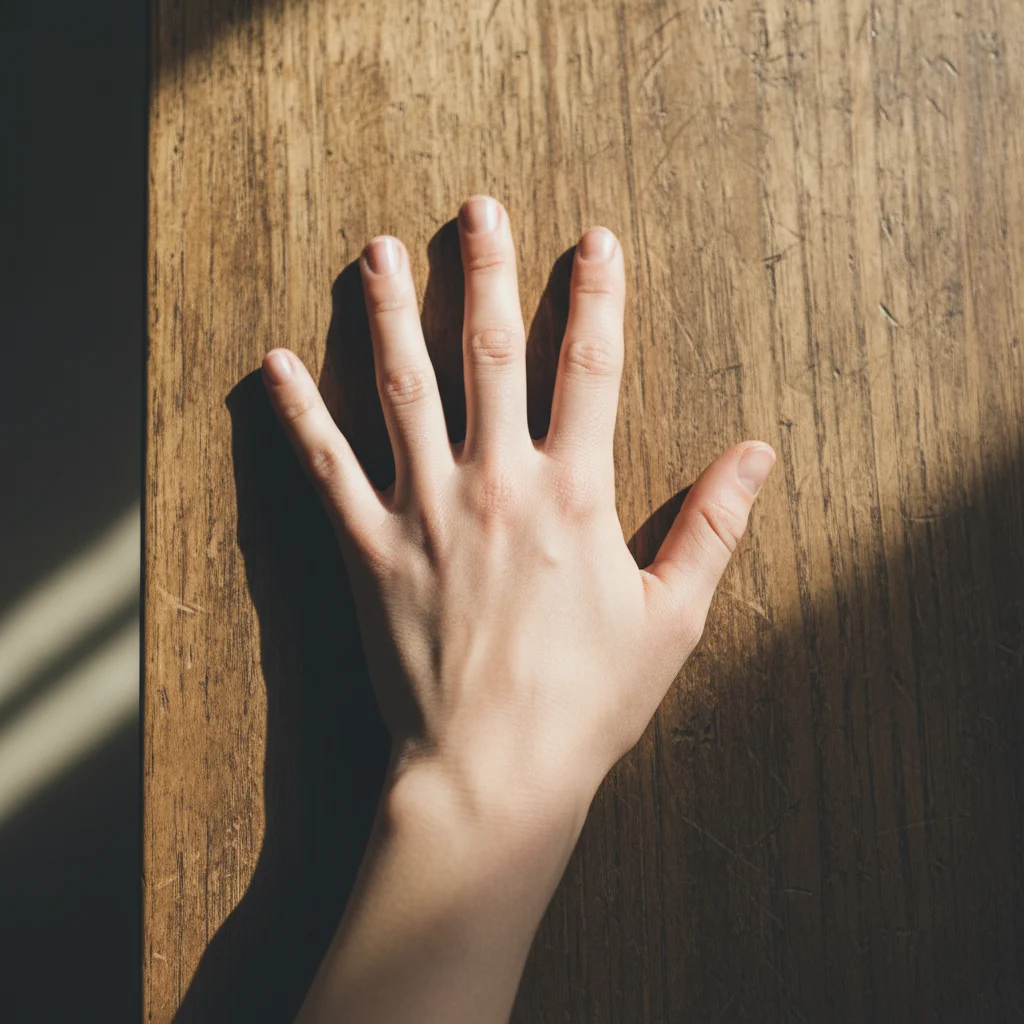
Woman's bare left hand resting on a wooden table, no rings
Before
β†’
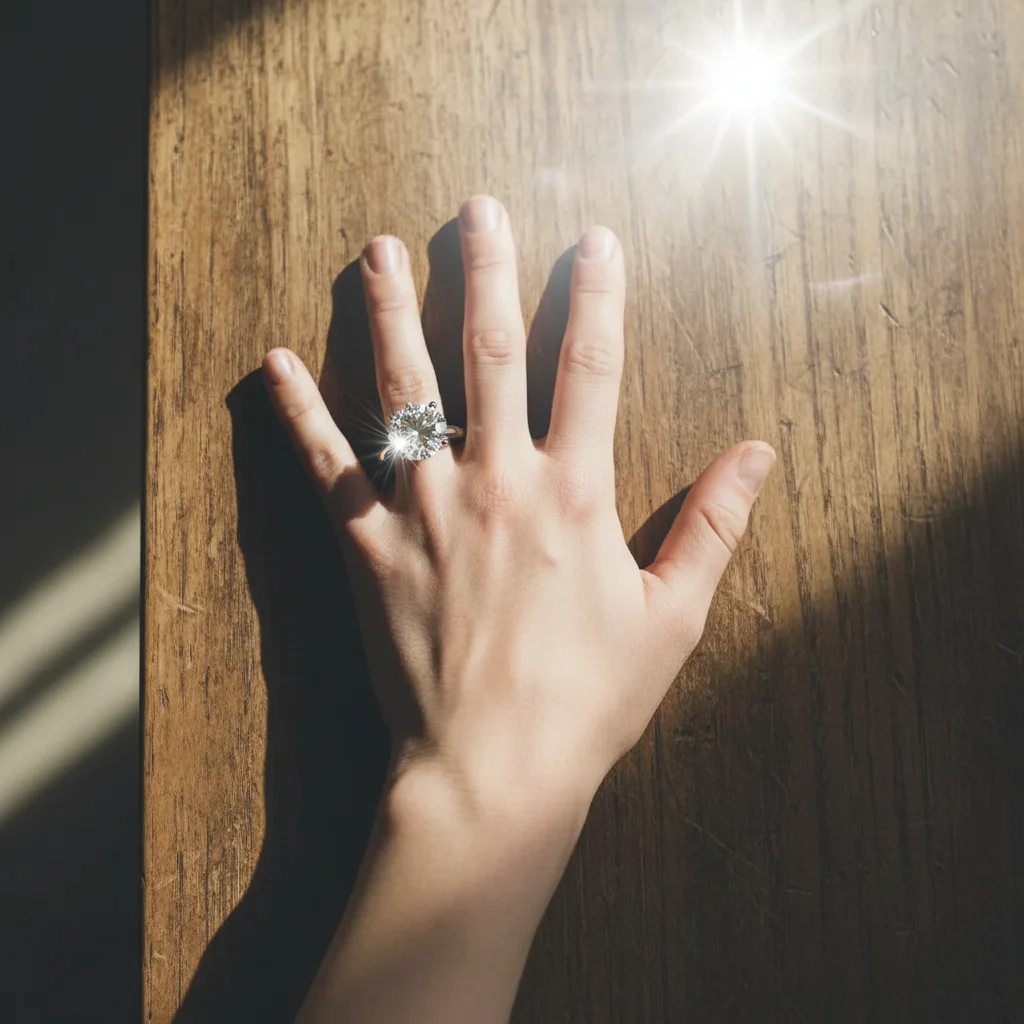
Same hand with a large sparkling diamond solitaire engagement ring on the ring finger
After

Fake Engagement Ring Photo Prank

Upload photo to add fake engagement ring

Free β€’ Results in 30 seconds β€’ No signup

Release to upload

FreeNo signupNo watermark

1 free edit·then from $1.99

Popular use cases:
  • fake engagement photo
  • april fools prank ideas
  • family group chat pranks
  • engagement ring photo editor
  • funny photo edits
  • I said yes prank
  • proposal prank photo
  • AI prank photo generator

Cost
Free No signup required
Time
Instant results in 15-30 seconds
Works on
Any device - browser, phone, tablet, desktop
Powered by
AI-powered photo editing
Scenario Prompt Time
Classic solitaire large round diamond solitaire, platinum band, left ring finger, photorealistic 15s
Rose gold halo oval diamond halo ring, rose gold band, left ring finger, realistic lighting 15s
Enormous rock comically large princess-cut diamond, yellow gold band, left ring finger, very sparkly 15s
Stacked set engagement ring and matching wedding band stacked, white gold, left ring finger 30s

How it works

  1. Upload your hand photo

    Upload a clear photo of your left hand β€” ideally with the ring finger visible and a neutral background. A photo taken from above works best. The cleaner the shot, the more convincing the ring will look.

    Expect: The upload takes a second. You'll see your photo appear in the editor right away.
  2. Describe the ring you want

    Type what you want the AI to add. Be specific: mention the ring style, stone size, and metal color. The more vivid your description, the more realistic the result.

    Tip: Specify "left ring finger" explicitly so the AI places it in the right spot. Adding "photorealistic" to your prompt pushes the result toward something that could actually fool someone.

    Copy one of these to get started:

    Classic diamond solitaire Add a large round-cut diamond solitaire engagement ring on the ring finger of my left hand, platinum band, photorealistic, sparkly in natural light
    Over-the-top rock Add an enormous princess-cut diamond engagement ring on my left ring finger, yellow gold band, the stone should look almost comically large and very sparkly
    Vintage halo ring Add a vintage-style oval diamond engagement ring with a halo of smaller diamonds, rose gold band, on my left ring finger, realistic lighting
    Subtle and convincing Add a simple platinum band with a small but perfectly cut round diamond on my left ring finger, understated and classy, looks like a real photo
    4 more prompts
    Three-stone ring Add a three-stone diamond engagement ring on the left ring finger, large center stone flanked by two smaller stones, white gold band, photorealistic
    Emerald cut statement ring Add a long emerald-cut diamond engagement ring with a thin gold band on my left ring finger, elegant and clearly expensive-looking, natural indoor lighting
    Colored gemstone twist Add a sapphire and diamond engagement ring on my left ring finger, oval blue sapphire center stone surrounded by small diamonds, silver band
    Matching set Add a diamond engagement ring and a matching thin wedding band stacked on my left ring finger, both white gold, looks like they were purchased as a set
  3. Send it

    Download your edited photo and send it straight to the family group chat with "I said yes!" or "Guess what happened last night..." Watch the congratulations and panicked phone calls pile up.

Try it free ↓

Fake Engagement Ring Photo Prank

Upload photo to add fake engagement ring

Free β€’ Results in 30 seconds β€’ No signup

Release to upload

Free β€’ No signup

See it in action

Woman's bare left hand resting on a wooden table, no rings
Before
->
Same hand with a large sparkling diamond solitaire engagement ring on the ring finger
After

The "I said yes" classic

A simple hand photo with a large diamond solitaire added to the ring finger. Convincing enough to send to a family group chat without a second look.

Prompt: Add a large round-cut diamond solitaire engagement ring on the ring finger of my left hand, platinum band, photorealistic, sparkly in natural light
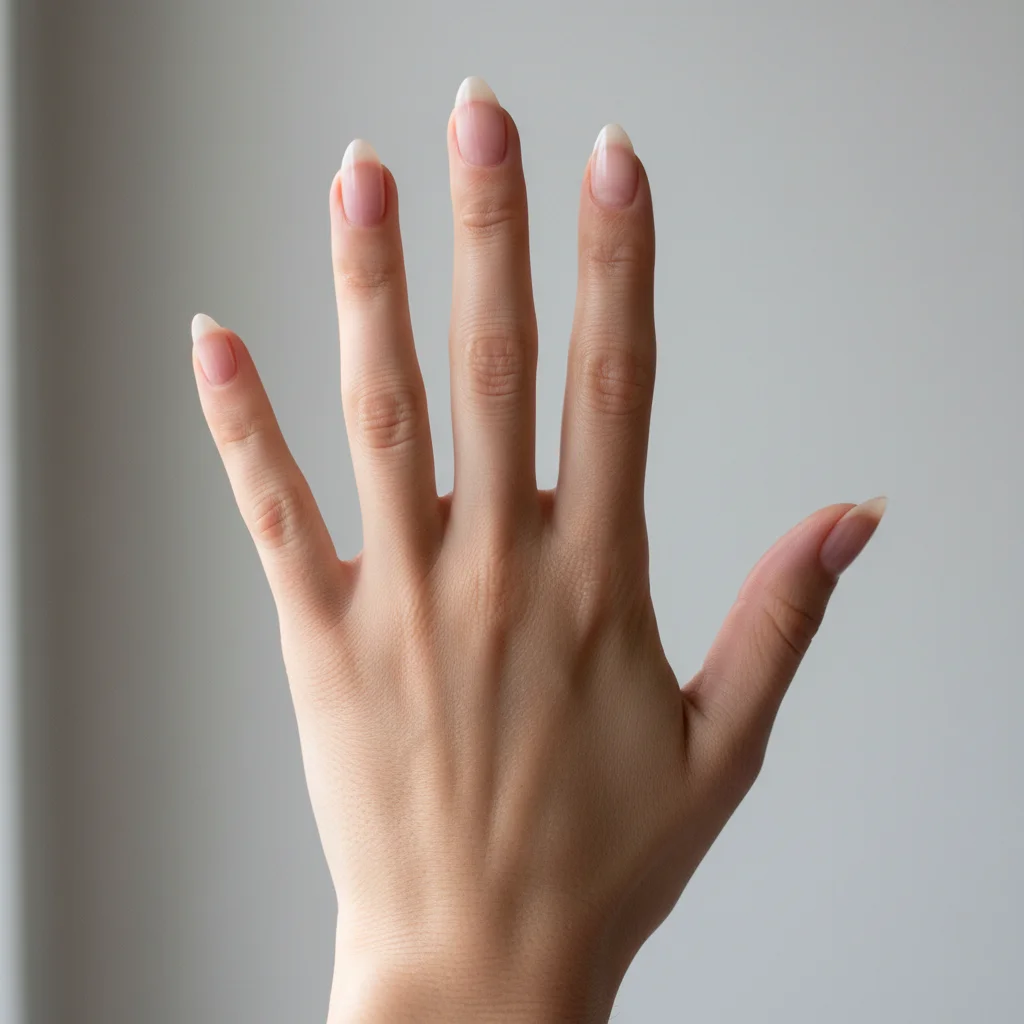
Woman's bare left hand held up against a light background, no rings
Before
->
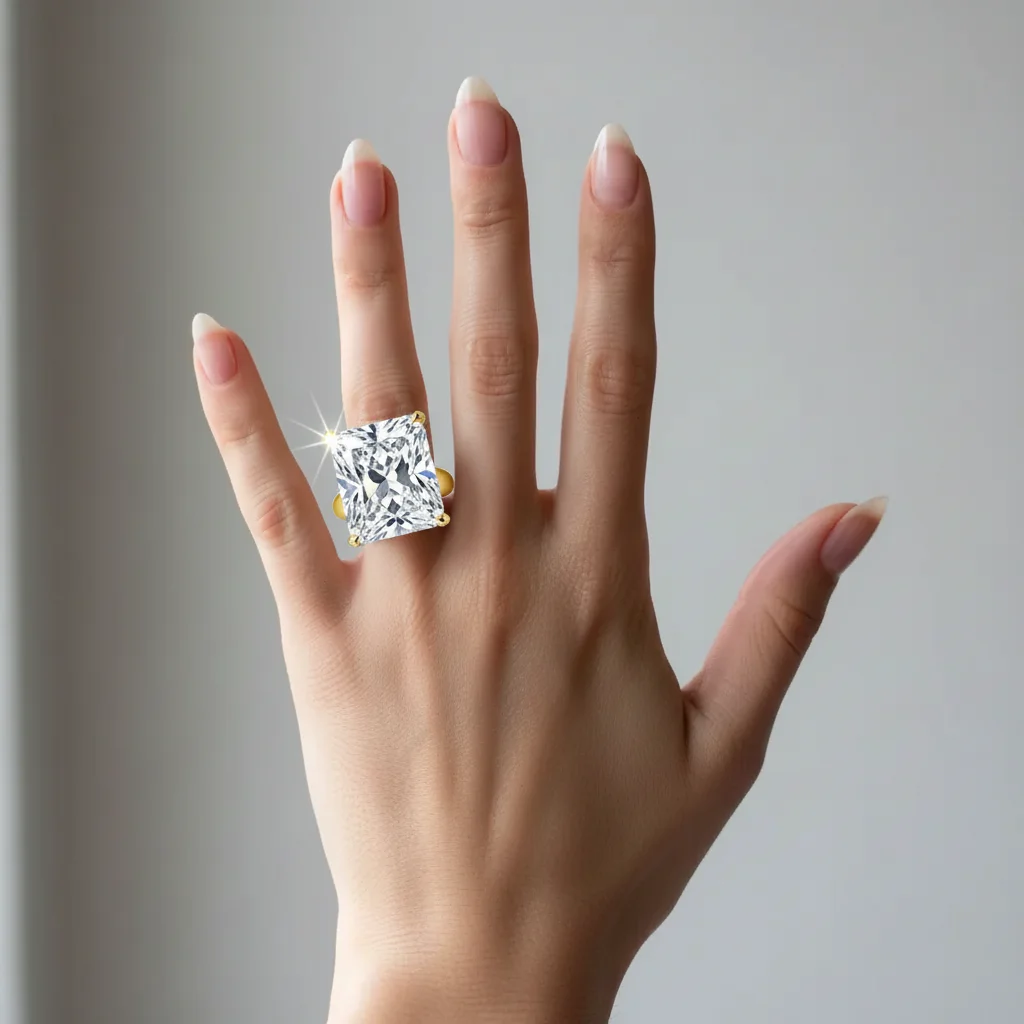
Same hand with an oversized princess-cut diamond ring on the ring finger
After

The enormous rock variant

An oversized princess-cut diamond ring added to make the announcement look especially dramatic. Good for selling the prank to skeptical family members who need to see receipts.

Prompt: Add an enormous princess-cut diamond engagement ring on my left ring finger, yellow gold band, the stone should look almost comically large and very sparkly

If something looks off

The ring appeared on the wrong finger

Why: The AI placed the ring on whichever finger was most prominent in the frame, not necessarily the ring finger.

Try: Add a diamond engagement ring specifically on the ring finger of the left hand β€” the fourth finger from the thumb

Tip: Extend your left hand with the ring finger clearly separated from the others before taking the photo β€” this makes the target finger unambiguous.

The ring looks obviously fake or cartoon-like

Why: A vague prompt lets the AI default to a generic or stylized ring that doesn't match the photo's lighting and texture.

Try: Add a photorealistic platinum solitaire diamond ring on my left ring finger, match the lighting in the photo, realistic metal reflections and diamond sparkle

Tip: Always include the word "photorealistic" and reference the lighting in the scene. If the photo has warm indoor light, say so.

The ring is too small to see clearly

Why: If the prompt doesn't specify size, the AI sometimes generates a subtle ring that blends in.

Try: Add a large, prominent diamond solitaire ring on the ring finger, the stone should be clearly visible and sparkly

Tip: Use words like "large," "prominent," or "clearly visible stone" to make sure the ring reads in the photo without zooming in.

The ring is floating or not sitting flush on the finger

Why: Complex hand angles can confuse the AI's spatial understanding of where the finger surface is.

Try: Add a diamond ring sitting flush on the ring finger, band wrapping naturally around the finger, no gaps between the ring and skin

Tip: Use a hand photo taken from directly above with a flat, even angle β€” it gives the AI the clearest surface to work with.

The result looks good but the reflection or shadow is off

Why: Diamond reflections and metal shadows depend on lighting direction, which the AI estimates from the image context.

Try: Adjust the ring so the diamond sparkle and metal reflections match the light source coming from the left side of the photo

Tip: Take the original hand photo near a window so the lighting direction is clear and consistent β€” this gives the AI better context for placing realistic reflections.

Quick answers

Do I need to mark the finger before describing what I want?

No. Just describe what you want and the AI will find the ring finger on its own. You only need to use a marker if your photo is ambiguous β€” for example if both hands are in frame and you want to be specific about which one gets the ring.

Is this free?

Yes. EditThisPic gives you 1 free edit per week with no account needed. If you want to try a few different ring styles before landing on the most convincing one, you can get more edits starting from $1.99.

Will this look realistic enough to fool my family?

For a group chat photo, yes β€” the AI generates photorealistic rings with proper reflections and lighting that hold up at phone-screen size. Close-up inspection on a large screen may reveal the edit, but for the "I said yes!!" text message format, it's very convincing.

What kind of hand photo works best?

A clean, close-up shot of your left hand from above, with your ring finger extended and a relatively simple background. Natural light gives the AI the most to work with for realistic reflections and shadows. Avoid photos where the ring finger is hidden or overlapping with other fingers.

Can I choose the ring style β€” solitaire, halo, vintage?

Yes, describe whatever style you want in your prompt. The AI can generate solitaires, halo rings, three-stone rings, emerald cuts, vintage styles, and any metal color (platinum, yellow gold, rose gold, white gold). The more specific your description, the better the result.

Do I need to create an account or download an app?

No account and no app needed. Upload your photo, type your prompt, and download the result. Everything runs in the browser.

Is my photo stored or shared anywhere?

EditThisPic processes your photo to generate the edit and does not store or share your original image. Your hand is safe from becoming anyone else's fake engagement announcement.

Can I add a ring to someone else's hand photo for the prank?

Yes. The tool works on any hand photo you upload β€” your own or someone else's. Some people use this to create a fake engagement photo of a sibling or friend to send to their shared family chat.

How much does EditThisPic cost?

You get 1 free edit per week β€” no account needed. After that, credit packs start at $1.99 for 3 edits. Monthly plans start at $4.99/mo for 15 edits with unused credits rolling over. All edits are full resolution with no watermark.

Ready to add a ring to your photo?

Free to try. No signup required.

1 free edit included·Credit packs from $1.99