Free • No signup Open Editor

Fix Color from Photo

Just type 'fix the colors' and watch the orange tint disappear instantly.

Type 'fix the colors' or 'correct the color cast' and EditThisPic's AI neutralizes unwanted tints in 10-20 seconds. No sliders, no manual white balance. Works on yellow indoor lighting, orange tungsten cast, and blue shadows. Free to try, no account needed.

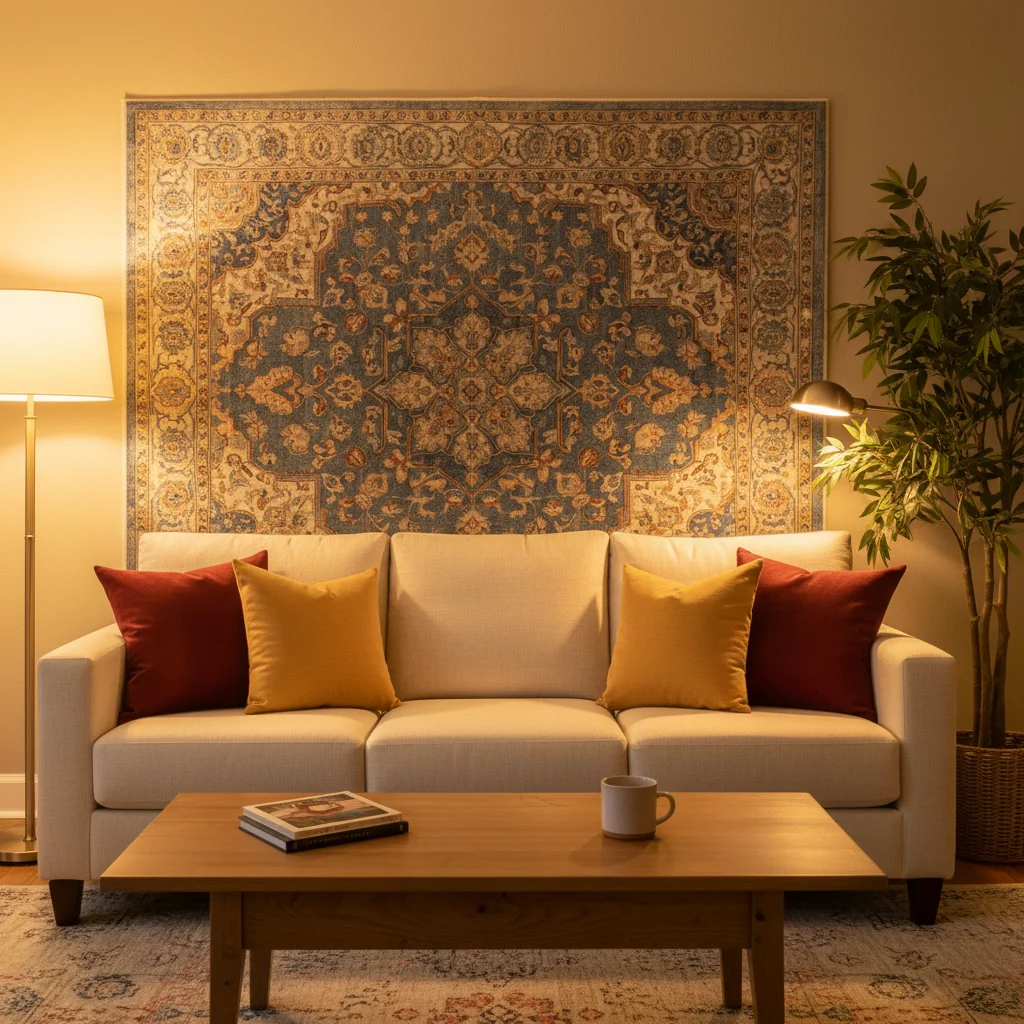
Living room with strong yellow-orange color cast from indoor lighting
Before
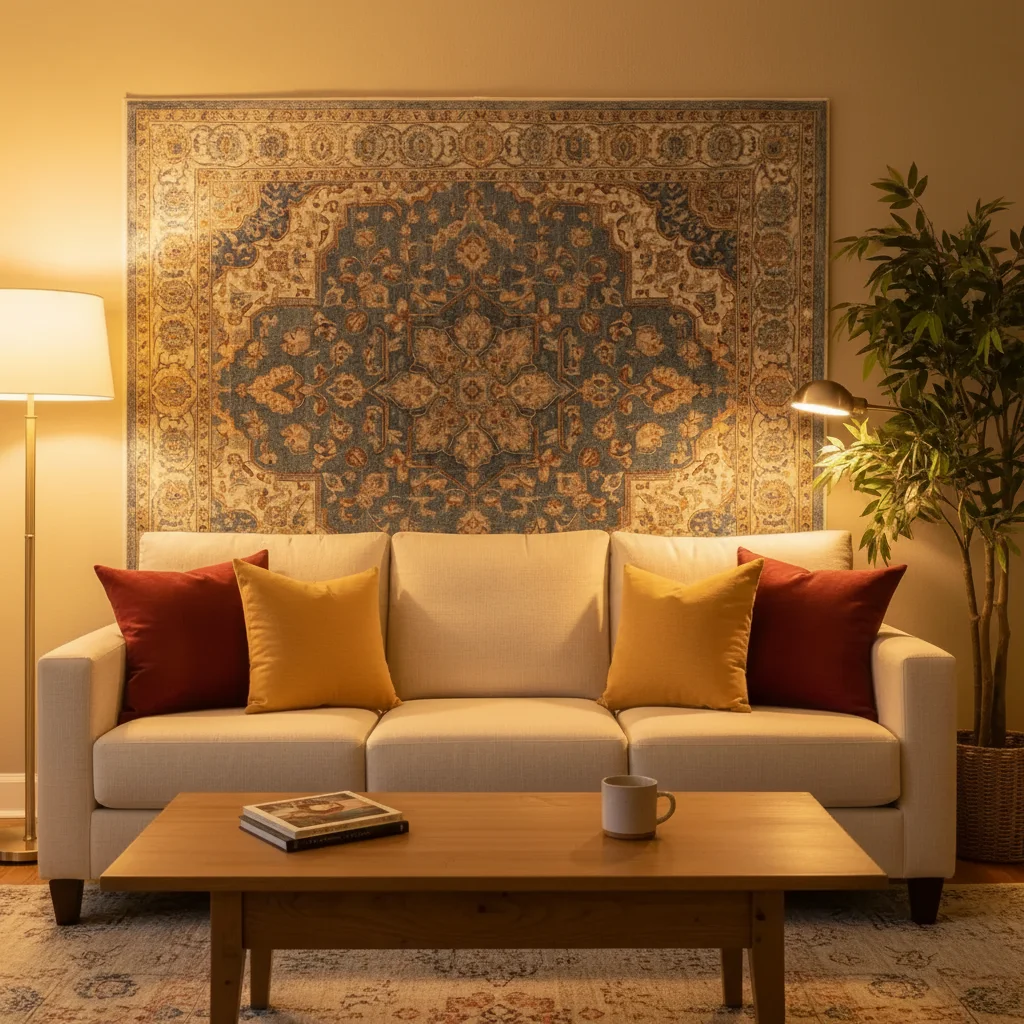
Same living room with natural, balanced colors
After

How it works

1

Upload your photo

Drop your image into EditThisPic. JPG, PNG, and WebP up to 7MB work best. Photos with obvious color casts—yellow indoor shots, blue shadows, or green fluorescent tint—work particularly well.

⏱ Simple color correction: 10-20 seconds. Mixed lighting scenarios: may need 1-2 refinements.
2

Describe what you want

Type your instruction: 'fix the colors' or 'correct the color cast' for general fixes. For specific issues, try 'remove the yellow tint' or 'fix the blue shadows.' No marking needed—the AI analyzes the entire image.

💡 Mention the specific color problem if you see it: 'remove yellow cast' is more precise than 'fix colors' and gives better results.

Copy one of these to get started:

General color cast from any source fix the colors and correct any color cast to achieve natural white balance
Indoor photos with yellow/orange tungsten tint remove the yellow-orange color cast from indoor lighting, restore natural skin tones
Blue shadows from outdoor shade or overcast correct the blue color cast in the shadows, make shadows neutral gray
Mixed lighting (window + indoor lamps) balance the color temperature across the entire image, unify the lighting to look natural
2 more prompts
Fluorescent green tint in office photos remove the green tint from fluorescent lighting, restore natural colors
Oversaturated or undersaturated colors fix the color saturation to look natural, not too vivid and not too dull
3

Generate and review

Tap generate and check skin tones, white objects, and neutral grays. These areas reveal whether the color correction worked properly. Compare with your memory of the actual scene.

4

Refine with markers if needed

If certain areas need different correction—like fixing shadows while keeping warm highlights—tap markers on those specific zones and describe what that area needs.

💡 Markers help when your photo has mixed lighting, like daylight from a window and tungsten from lamps in the same shot.
Try it free
"My living room photos always looked orange. Now I just type 'fix the color cast' and they look like they were taken in daylight." @HomeDecorJenna

See it in action

Living room with strong yellow-orange color cast from indoor lighting
Before
Same living room with natural, balanced colors
After

Indoor tungsten lighting fixed

Living room photo taken under warm lamp light. The entire image had an orange cast making everything look unnatural.

Prompt: fix the colors and remove the yellow-orange cast from indoor lighting
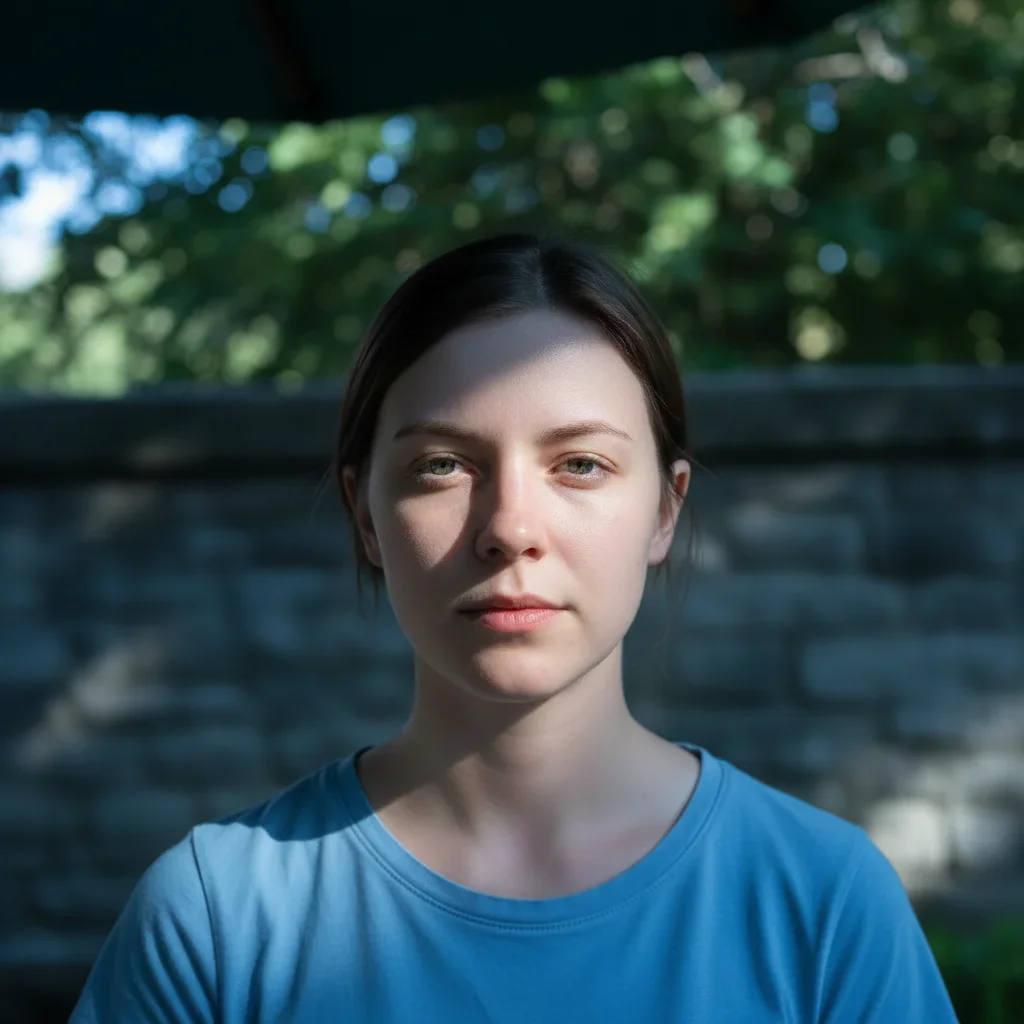
Portrait with blue color cast in shaded areas
Before
Same portrait with neutral shadows and natural skin tones
After

Blue shadow correction

Portrait taken in open shade with blue color cast in the shadows, making the subject look cold and unnatural.

Prompt: correct the blue color cast in the shadows, restore natural skin tones

If something looks off

AI changed the wrong area or something I didn't want changed

Why: The AI applied color correction globally when you only wanted specific areas fixed. This happens with mixed lighting scenes.

Try: Tap a marker on the specific area you want to correct, then type 'fix the color cast in this area only'

💡 Markers tell the AI 'I mean THIS area specifically.' Use them when you want to preserve warm tones in one area while fixing another.

Colors look overcorrected or too cold

Why: The AI may have neutralized too aggressively, removing intentional warmth from the scene.

Try: fix the color cast but keep some warmth, don't make it too cold or clinical

💡 Sometimes a slight warm tint looks better than perfectly neutral. Tell the AI if you want to preserve some warmth.

Skin tones look unnatural after correction

Why: The AI corrected overall color balance but didn't prioritize natural skin tones.

Try: correct the color cast while maintaining natural healthy skin tones as the priority

💡 Always check faces first after color correction—skin tones are where bad white balance is most noticeable.

Some areas still have a color cast

Why: Mixed lighting in the scene means different areas need different corrections. A single global fix can't handle both.

Try: Tap markers on the still-affected areas and regenerate with 'fix the remaining color cast in the marked areas'

💡 For mixed lighting, you may need to fix different zones separately—windows vs. lamp-lit areas, for example.

Quick answers

Do I need to mark anything before fixing colors?

No! Just type 'fix the colors' or 'correct the color cast' and the AI analyzes the entire image automatically. Markers are only useful when you have mixed lighting and want to fix specific areas differently—like correcting blue shadows while keeping warm highlights.

What causes the yellow/orange tint in my indoor photos?

Tungsten and incandescent light bulbs emit warm-toned light that cameras record as yellow or orange when white balance is set incorrectly. Your eyes adapt to this light, but the camera captures it literally. Type 'remove the yellow-orange cast from indoor lighting' to fix it.

Why do my shade photos have a blue tint?

In shade or overcast conditions, the light comes primarily from the blue sky rather than direct sunlight. This creates a blue color cast, especially in shadow areas. Fix it by typing 'correct the blue color cast in the shadows.'

Can I fix old photos with faded or shifted colors?

Yes. For aged photos with color shift, try 'restore natural colors and fix the color fading.' The AI can often recover colors that have shifted over time, though severely damaged photos may need multiple passes.

Ready to fix your colors?

Free to try. No signup required.

Try it free