Free • No signup Fix Color · Free

AI Color Corrector

Just describe the color issue and AI fixes it automatically.
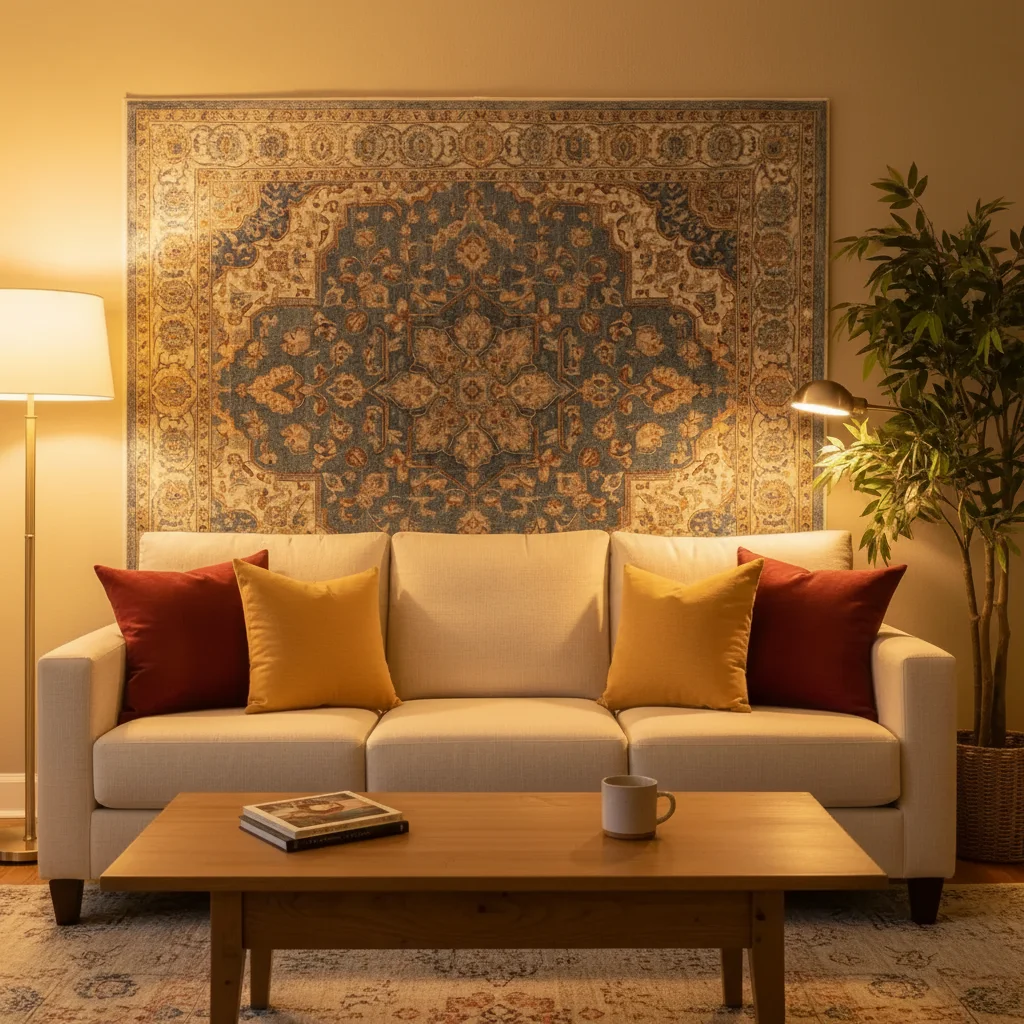
Indoor photo with heavy yellow tungsten lighting cast
Before
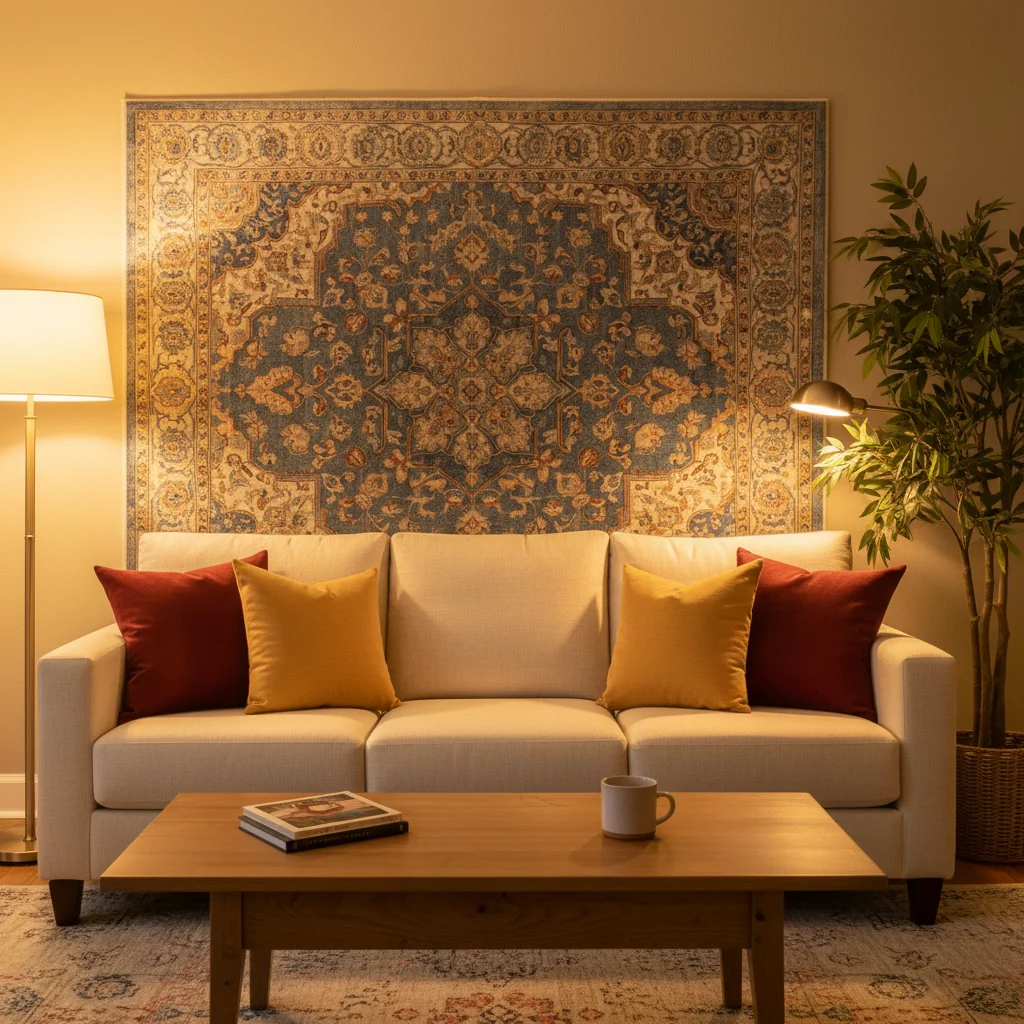
Same photo with corrected daylight color balance
After

Fix Color in Photos

Drop your photo here

or click to browse

Release to upload

Free • No signup

Advertisement
Popular use cases:
  • Indoor photography correction
  • Real estate listings
  • Product photography
  • Portrait retouching
  • Social media photos
  • Professional headshots
  • Vintage photo restoration
  • Event photography

Cost
Free No signup required
Time
Instant results in 15-30 seconds
Works on
Any device - browser, phone, tablet, desktop
Powered by
AI-powered photo editing
Scenario Prompt Time
Yellow indoor lighting fix yellow tungsten lighting cast and restore natural daylight color balance 15s
Blue outdoor shade remove blue color cast from outdoor shade and warm up to natural skin tones 15s
Green fluorescent tint remove green fluorescent lighting tint and balance to neutral daylight 20s
Faded vintage colors restore faded colors and increase color saturation to look vibrant and natural 20s

How it works

  1. Upload your photo

    Drop your image into EditThisPic. JPG, PNG, WebP up to 7MB. Works best with photos that have obvious color casts or lighting issues.

    Expect: Simple color fixes: 15-30 seconds. Complex mixed lighting: may need 2-3 refinements.
  2. Describe the color problem

    Type what needs fixing: 'remove yellow indoor lighting cast' or 'correct blue outdoor shade tint to look warmer.' Be specific about what color is wrong and what it should look like. No marking needed—the AI analyzes the entire image's color balance.

    Tip: Mention the lighting condition if it helps: 'shot under tungsten bulbs, need daylight balanced' or 'outdoor shade, too blue, need natural skin tones'

    Copy one of these to get started:

    Yellow indoor lighting fix yellow tungsten lighting cast and restore natural daylight color balance
    Blue outdoor shade remove blue color cast from outdoor shade and warm up to natural skin tones
    Faded vintage colors restore faded colors and increase color saturation to look vibrant and natural
    Green fluorescent tint remove green fluorescent lighting tint and balance to neutral daylight
    3 more prompts
    Mixed lighting correction correct mixed tungsten and daylight to unified natural color balance
    Oversaturated colors reduce oversaturation and restore natural realistic color tones
    White balance fix fix incorrect white balance and adjust to neutral daylight color temperature
  3. Generate and review

    AI analyzes white balance, removes color casts, and adjusts tones. Check faces and neutral areas (whites, grays) at full zoom to verify the correction looks natural.

  4. Refine with markers if needed

    If certain areas need different correction (like a face that's still too warm while the rest looks good), tap markers on those specific zones and describe the adjustment needed.

    Tip: Color correction works globally by default. Use markers only when different parts of the image need different white balance adjustments.
Try it free

Fix Color in Photos

Drop your photo here

or click to browse

Release to upload

Free • No signup

"Finally a color corrector that understands 'fix the yellow lighting' without needing me to adjust HSL sliders." @photographer_pro

See it in action

Indoor photo with heavy yellow tungsten lighting cast
Before
->
Same photo with corrected daylight color balance
After

Indoor tungsten lighting corrected

Removed heavy yellow cast from indoor photo taken under old incandescent bulbs. Skin tones and whites now look natural.

Prompt: fix yellow tungsten lighting cast and restore natural daylight color balance
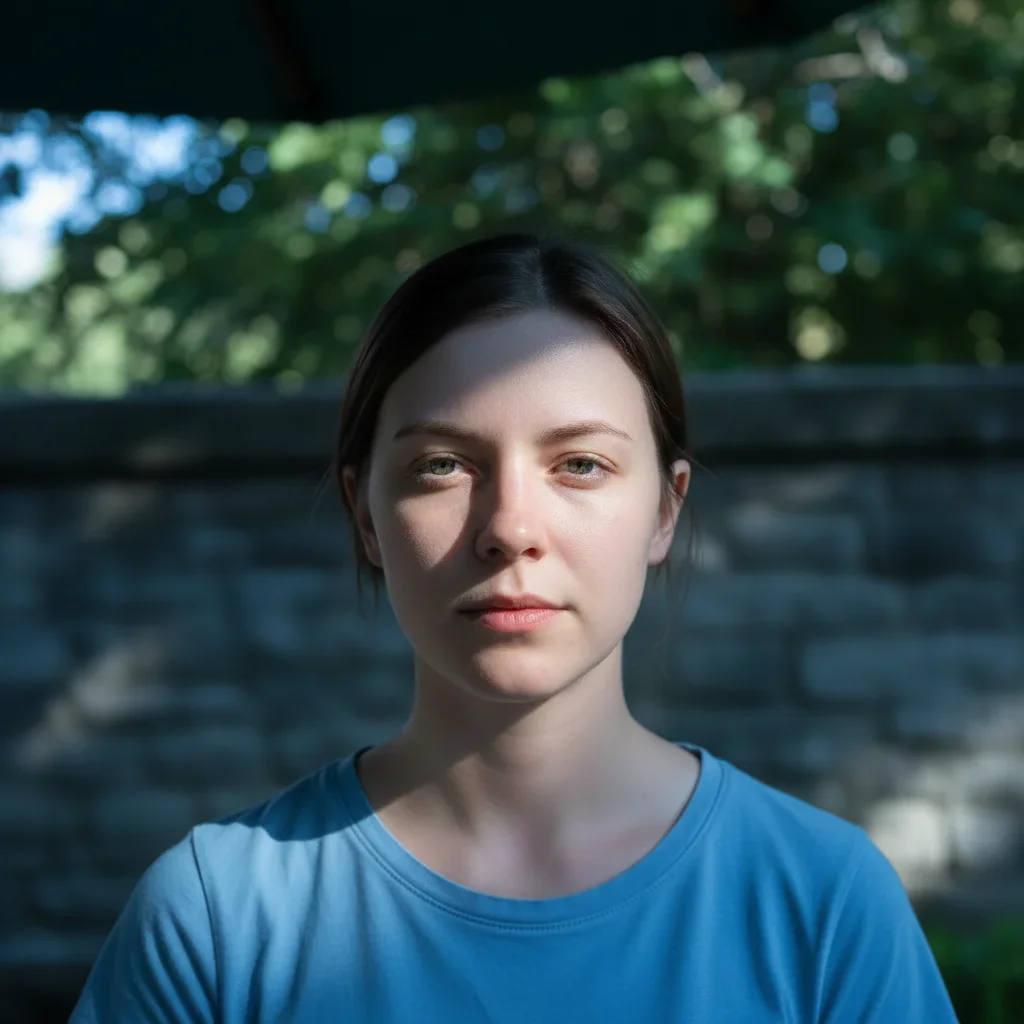
Outdoor portrait with blue shade color cast
Before
->
Portrait with corrected warm natural skin tones
After

Outdoor shade blue tint removed

Portrait taken in outdoor shade had blue color cast making skin look cold. Corrected to warm natural tones.

Prompt: remove blue color cast from outdoor shade and warm up to natural skin tones
Office photo with green fluorescent lighting tint
Before
->
Office photo with neutral corrected color balance
After

Fluorescent green tint fixed

Office photo under fluorescent tubes had sickly green cast. Corrected to neutral daylight balance.

Prompt: remove green fluorescent lighting tint and balance to neutral daylight
Advertisement

If something looks off

AI changed the wrong area or adjusted colors I didn't want changed

Why: Color correction applies globally by default. The AI couldn't determine you wanted selective correction from description alone.

Try: Tap markers on the specific areas that need color adjustment, then regenerate with 'fix color only in marked areas'

Tip: Use markers when you need selective color correction—like fixing skin tones while leaving a colorful background unchanged.

Colors look overcorrected or unnatural

Why: The AI may have overcorrected if your description was too extreme or the original cast was mild.

Try: Try a gentler prompt: 'slightly reduce yellow cast' instead of 'completely remove yellow.' Be specific about 'natural' or 'realistic' tones.

Tip: Start with subtle corrections. You can always regenerate with a stronger prompt if the first attempt is too mild.

Skin tones look wrong after correction

Why: The AI may have adjusted the entire image uniformly when skin tones needed different treatment than the background.

Try: Mark faces specifically and use: 'correct skin tones to natural warm beige while leaving background colors unchanged'

Tip: Skin tones are sensitive. When correcting photos with people, mention 'natural skin tones' explicitly in your prompt.

Only part of the image was corrected

Why: The prompt may have been ambiguous about which areas to correct, or the AI interpreted it as selective correction.

Try: Use 'correct color balance for the entire photo' or 'fix white balance globally across the whole image' to ensure full-image correction

Tip: Say 'entire photo' or 'whole image' when you want global correction. Without it, the AI might apply selective adjustments.

Whites still look tinted after correction

Why: Strong color casts can be tricky. The AI may need a reference point to know what 'white' should look like.

Try: Mark something that should be pure white (paper, shirt, wall) and use: 'make the marked area pure white and adjust the rest accordingly'

Tip: Giving the AI a white reference point helps it calibrate the correct color balance for the entire image.

Mixed lighting still looks inconsistent

Why: Photos with multiple light sources (tungsten + daylight) are complex. One correction can't fix both perfectly.

Try: Try two passes: first 'warm up the blue window light areas,' review, then 'cool down the yellow lamp areas' separately

Tip: For mixed lighting, correct in stages. Fix the dominant cast first, then adjust remaining problem areas.

Quick answers

Do I need to mark areas before describing color fixes?

No! For most color corrections, just describe the problem: 'fix yellow indoor lighting' or 'remove blue shade cast.' The AI adjusts the entire image automatically. Only use markers when you need selective correction—like fixing skin tones while leaving a colorful background unchanged.

How do I fix color in photos taken under indoor lighting?

Upload your photo and type 'fix yellow tungsten lighting cast and restore natural daylight color balance' or 'remove warm indoor lighting tint.' The AI will automatically adjust white balance to remove the yellow-orange cast common in indoor photos. Works in 15-30 seconds with no manual adjustments needed.

Is there a free color corrector that doesn't require signup?

Yes. EditThisPic is completely free to try with no account required. Upload your photo, describe the color problem, and get professional color correction in seconds. No software downloads, no subscriptions, no watermarks on your corrected images.

What's the best free AI tool for fixing photo color balance?

EditThisPic uses AI to understand natural language descriptions like 'fix yellow lighting' or 'remove blue outdoor tint' and automatically adjusts white balance, removes color casts, and restores natural tones. Unlike traditional editors that require manual slider adjustments, you just describe what's wrong and the AI fixes it.

Can I fix color in old faded photos?

Yes. Use prompts like 'restore faded colors and increase saturation to look vibrant and natural' or 'bring back original color intensity from faded vintage photo.' The AI will analyze the image and restore color vibrancy while keeping tones realistic.

Ready to fix color in your photos?

Free to try. No signup required.

Try it free