Free • No signup Fix Pixelation · Free

Fix Pixelated Image

← Browse all fix & repair tools

Last updated

Upload a pixelated image and describe where the blocks or compression artifacts are. The AI reconstructs smooth edges and recovers detail lost to JPEG compression, over-upscaling, or messaging app quality reduction. Works on faces, backgrounds, and text-heavy images. Free, no account needed.
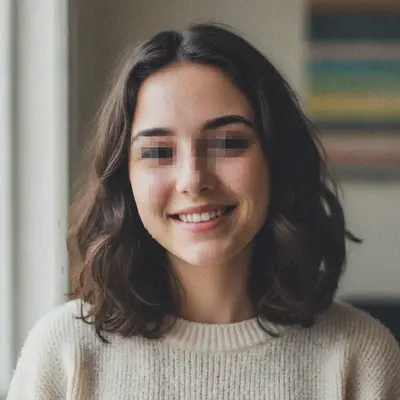

Portrait with heavy JPEG compression block artifacts covering the face Same portrait with compression artifacts removed and detail restored

Upload photo to fix pixelation

"The face in this photo is pixelated with visible JPEG blocks — smooth out the blocks and restore the facial features"

Release to upload

50,000+photos edited
<30stypical edit
1 freeedit weekly

1 free edit·then from $4.99

How it works

  1. Upload the pixelated image

    Upload the image with pixelation or compression artifacts. JPG, PNG, and WebP up to 7MB are accepted. The AI works on the actual pixel data — save as PNG before uploading if possible to avoid re-compressing an already degraded JPEG.

    Expect: Simple artifact removal: 25-35 seconds. Heavily degraded images with both pixelation and blur: 45-60 seconds.
  2. Describe the pixelation

    Tell the AI what kind of pixelation you see: 'Fix the JPEG compression blocks throughout the image' or 'the face is pixelated with visible square blocks — smooth it out and restore the features.' No marking or selection required — describe what you see and where it is.

    Tip: Name the type: 'JPEG blocks', 'mosaic pixels', 'compression squares', or 'blocky artifacts' each tell the AI what kind of degradation to target.

    Copy one of these to get started:

    Heavy JPEG blocks across the whole image Fix the pixelation and sharpen the whole image — remove all the JPEG compression block artifacts and restore clean edges
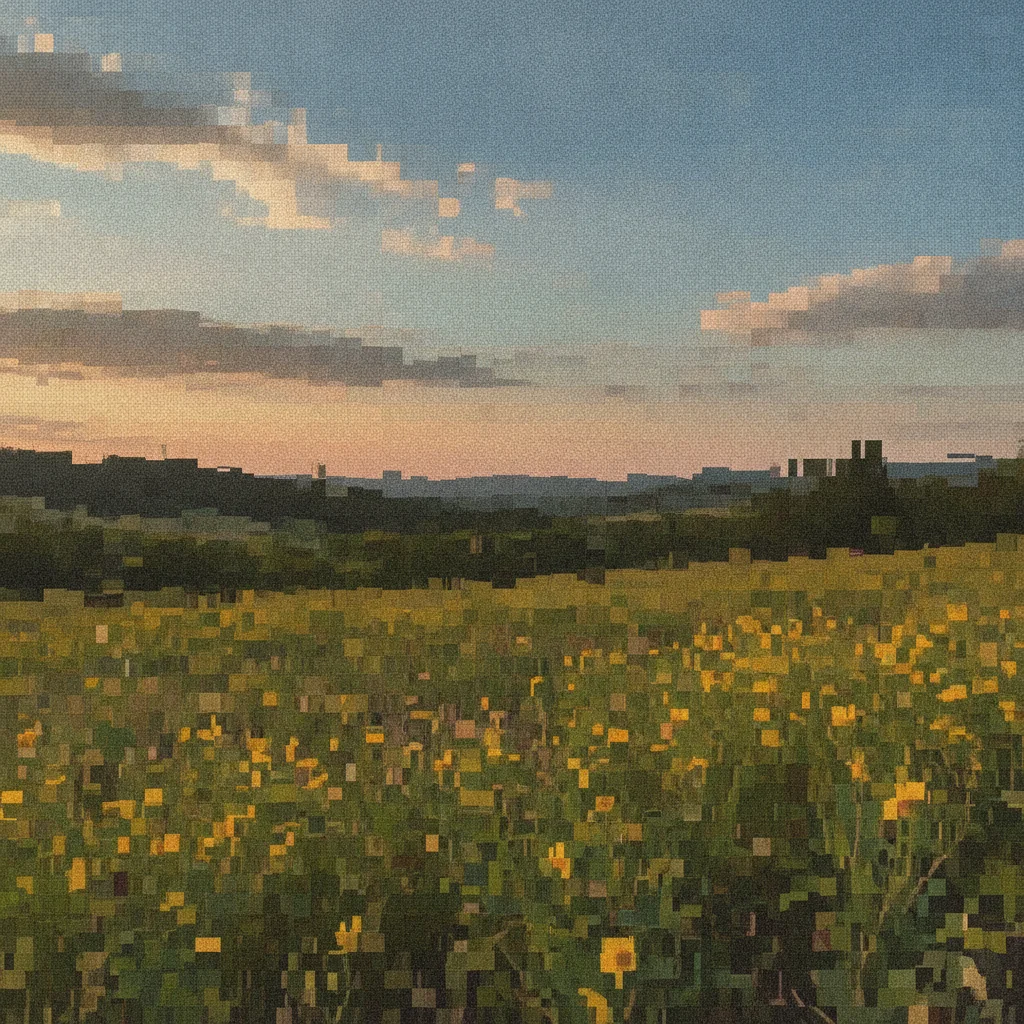
    Pixelated face in photo The face in this photo is pixelated with visible JPEG blocks — smooth out the blocks and restore the facial features
    WhatsApp or messaging app compression This image was compressed by a messaging app and has mosaic pixelation — remove the compression artifacts and recover the original quality
    Over-upscaled blurry-pixel image This image was enlarged too much and the pixels are visible as large fuzzy blocks — sharpen the details and make it look like a higher-resolution photo
    3 more prompts
    Screenshot with pixel artifacts Remove the JPEG artifacts and pixel blocks from this screenshot, sharpen the text and edges so they look clean
    Background pixelated but subject OK The background of this image has strong JPEG blocks and pixelation — fix the background artifacts while keeping the subject in the foreground unchanged
    Pixelation plus blur combined Fix both the pixelation blocks and the blur in this image — remove the compression artifacts and sharpen the overall image detail
  3. Review edge sharpness

    Check the result specifically where the pixelation was worst. Zoom into faces, text, and hard edges — these areas are most visible to the eye. Use the before/after slider to compare.

  4. Sharpen if detail is still soft

    If the blocks are gone but the image still looks soft, add a sharpening pass: 'The blocks are gone but the image is still soft — sharpen the edges and restore the fine detail.' Markers are optional for protecting specific areas like smooth skin from over-sharpening.

    Tip: For portraits: after removing pixelation, a follow-up 'sharpen the hair and eye detail without affecting skin texture' often gives the most realistic result.

See it in action

Portrait with heavy JPEG compression block artifacts covering the face
Before
->
Same portrait with compression artifacts removed and detail restored
After

Heavy JPEG compression blocks removed

A portrait saved with extreme JPEG compression — visible block artifacts covering the face and background, restored to a clean result.

Prompt: Fix the pixelation and sharpen the whole image — remove all the JPEG compression block artifacts and restore clean edges
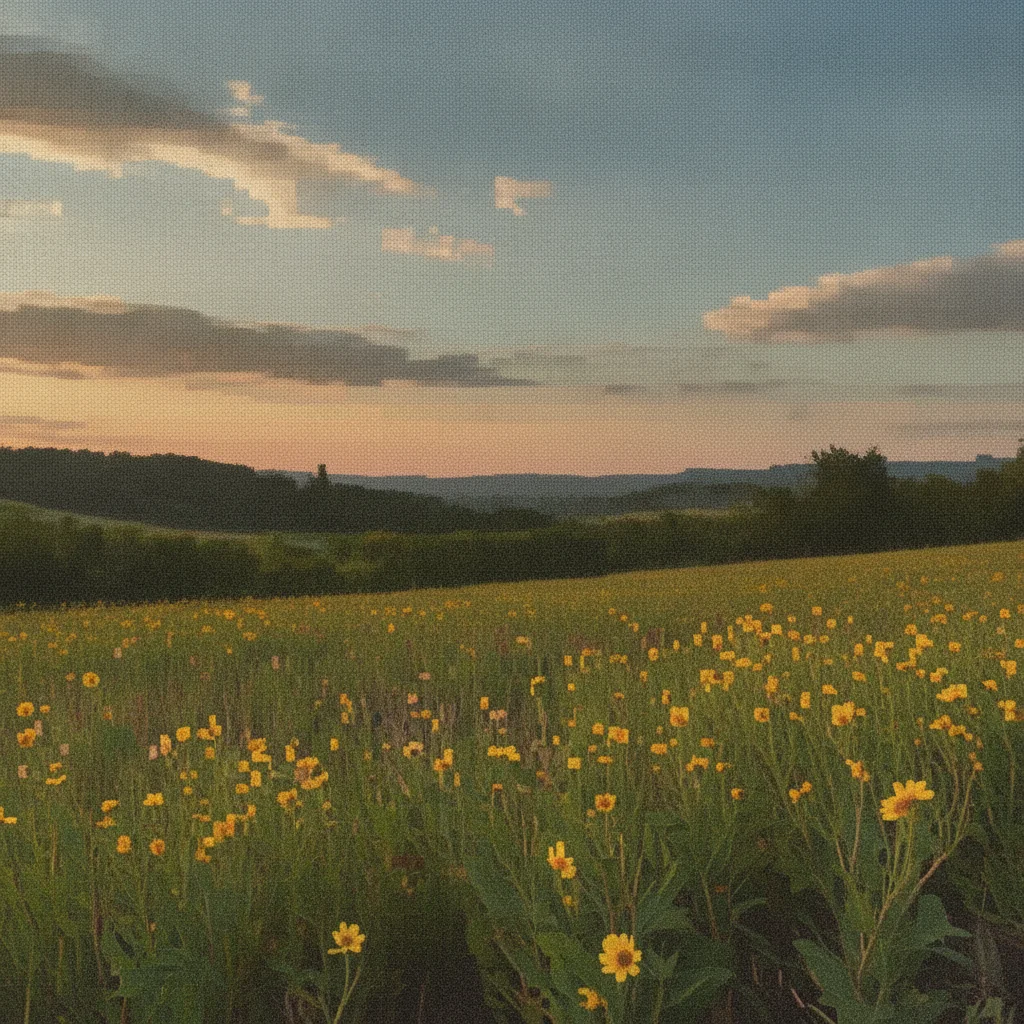
Outdoor photo with WhatsApp compression mosaic artifacts in sky and background
Before
->
Same photo with compression artifacts removed and sky and foliage restored
After

WhatsApp-compressed image recovered

A photo sent over WhatsApp with strong compression mosaic artifacts — the AI removed the artifacts and recovered the lost sharpness.

Prompt: This image was compressed by a messaging app and has mosaic pixelation — remove the compression artifacts and recover the original quality
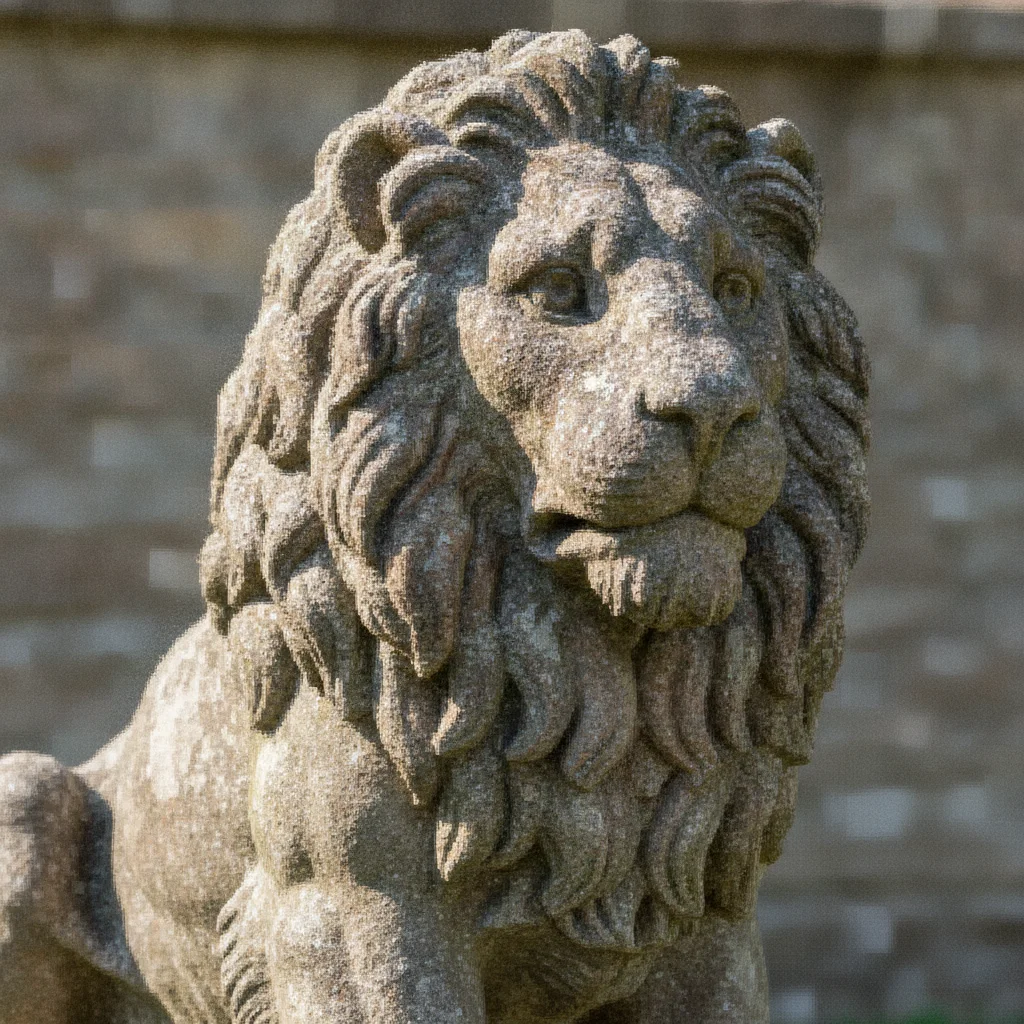
Photo over-upscaled with visible large pixel blocks and jagged edges
Before
->
Same photo with natural-looking detail reconstructed and edges sharpened
After

Over-upscaled image re-sharpened

A small image that was enlarged to a larger size — the over-upscaling created large fuzzy pixel blocks. AI reconstructed natural-looking detail.

Prompt: This image was enlarged too much and the pixels are visible as large fuzzy blocks — sharpen the details and make it look like a higher-resolution photo

Quick answers

Do I need to mark the pixelated areas before describing the fix?

No. Describe the type and location of the pixelation in plain language: 'JPEG blocks on the face', 'compression artifacts throughout the background', or 'the whole image has mosaic pixelation.' EditThisPic's AI identifies the affected areas from your description. Markers are optional and only useful if you need to protect a specific clean area.

What causes pixelation in images?

Pixelation has several causes: heavy JPEG compression (saves file size at the cost of quality), over-upscaling a small image to a larger size, messaging apps like WhatsApp that recompress photos when sending, screenshots saved as low-quality JPEG, and downloading images at low resolution. The fix approach is the same for all types — describe what you see and the AI handles the correction.

Can AI fully fix severe pixelation?

AI can remove the visible block artifacts and reconstruct plausible detail, but cannot recover information that was lost to compression. Results look significantly better and are typically print-ready for casual use. For professionally critical use, start from the highest-quality original available and use this tool to clean up compression from secondary copies.

Is fixing pixelated images free?

Yes. You get one free fix per week with no account required and no watermark on the result. For multiple images or repeat fixes, one-time credit packs start at $1.99.

Why does my image look smooth but blurry after pixelation removal?

Artifact removal smooths the blocky areas, which can leave the image looking soft. Follow up with a sharpening prompt: 'The blocks are gone but the image is soft — sharpen the edges and fine detail.' This two-pass approach (remove artifacts, then sharpen) gives the best results on heavily compressed images.

How much does EditThisPic cost?

You get 1 free edit per week — no account needed. After that, credit packs start at $1.99 for 3 edits. Monthly plans start at $4.99/mo for 20 edits with unused credits rolling over. All edits are full resolution with no watermark.

Ready to fix your pixelated image?

Free to try. No signup required.

1 free edit included·Credit packs from $4.99