Free β€’ No signup Fix Photos for mom Β· Free

Mother's Day Photo Editor

Give mom the perfect photo gift - memories she'll treasure forever

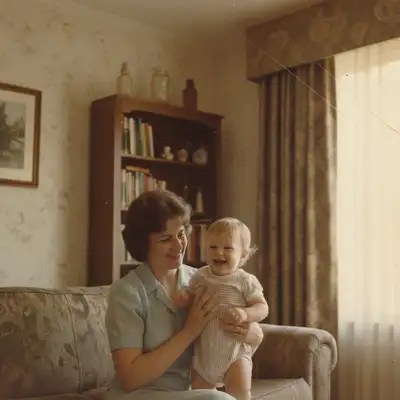
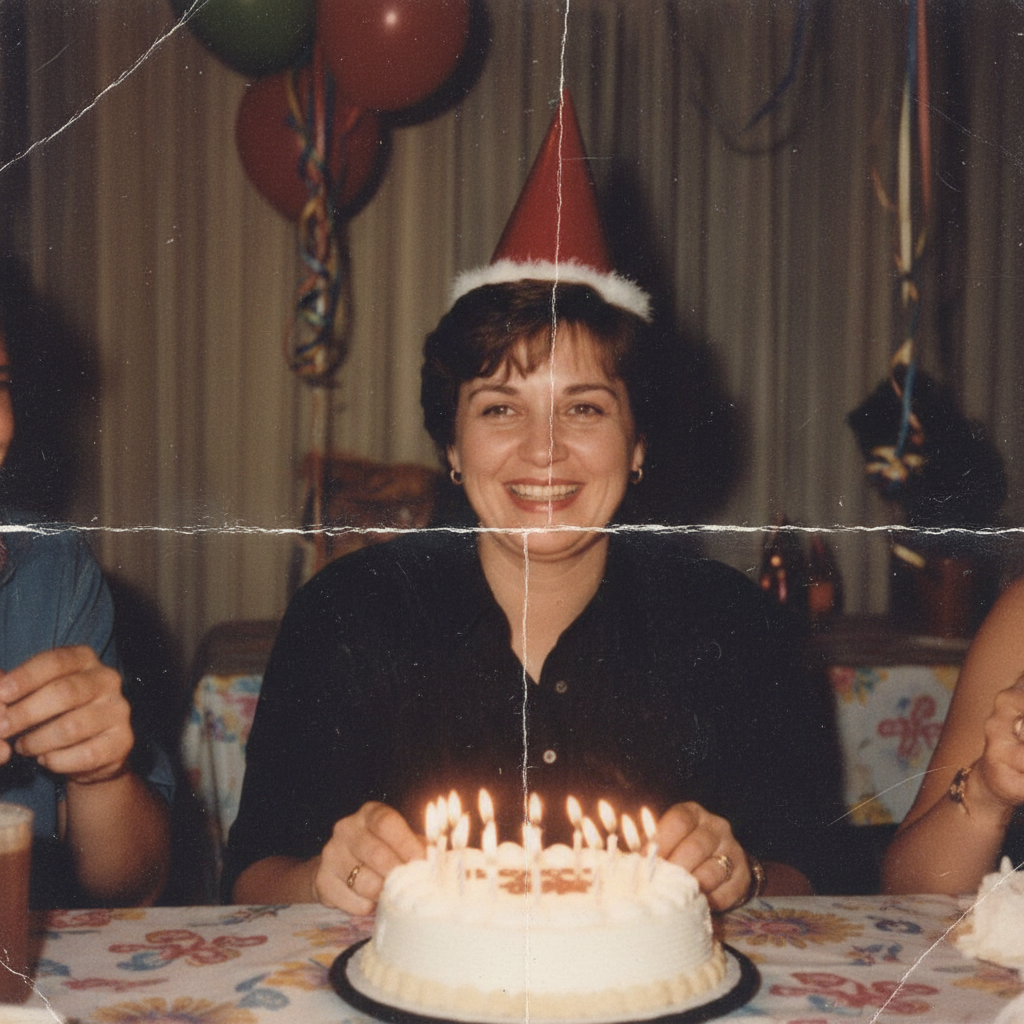
Faded 1980s family photo with yellowing and color damage
Before
β†’
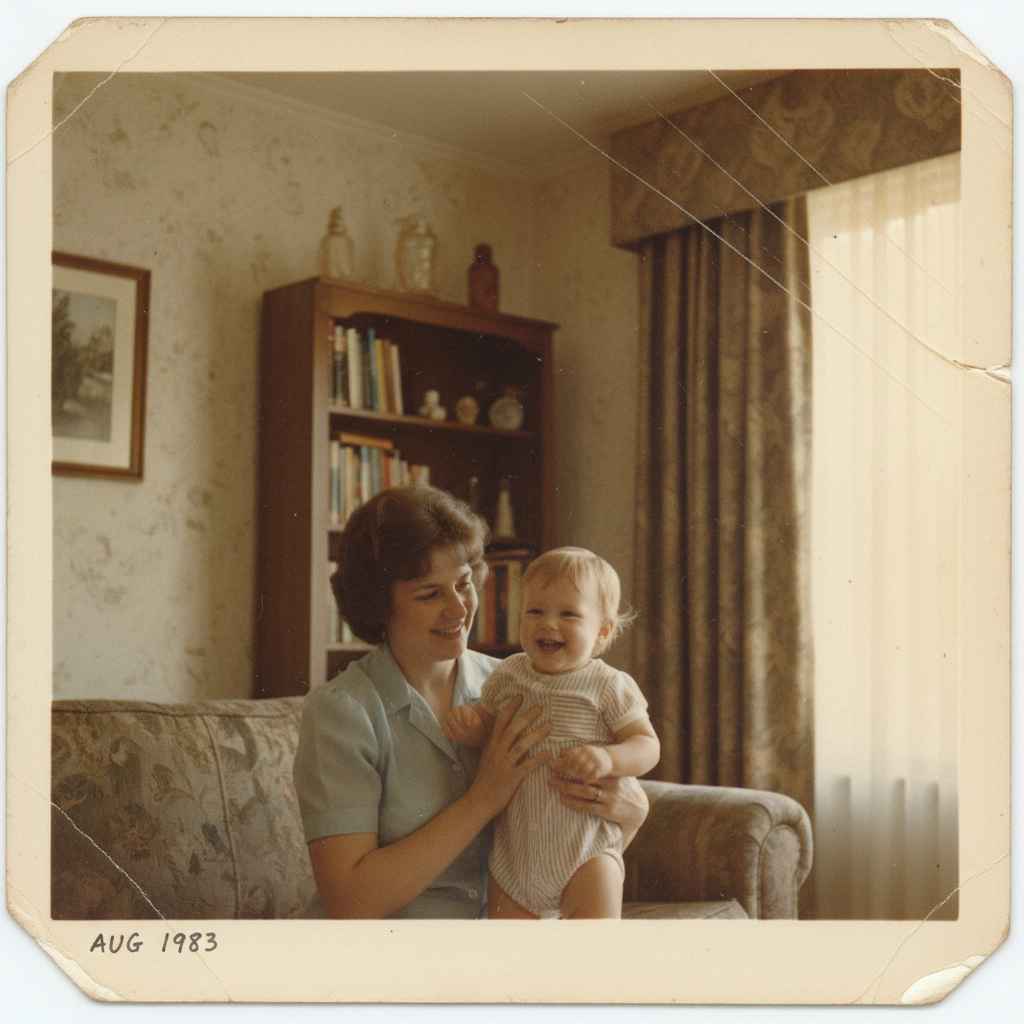
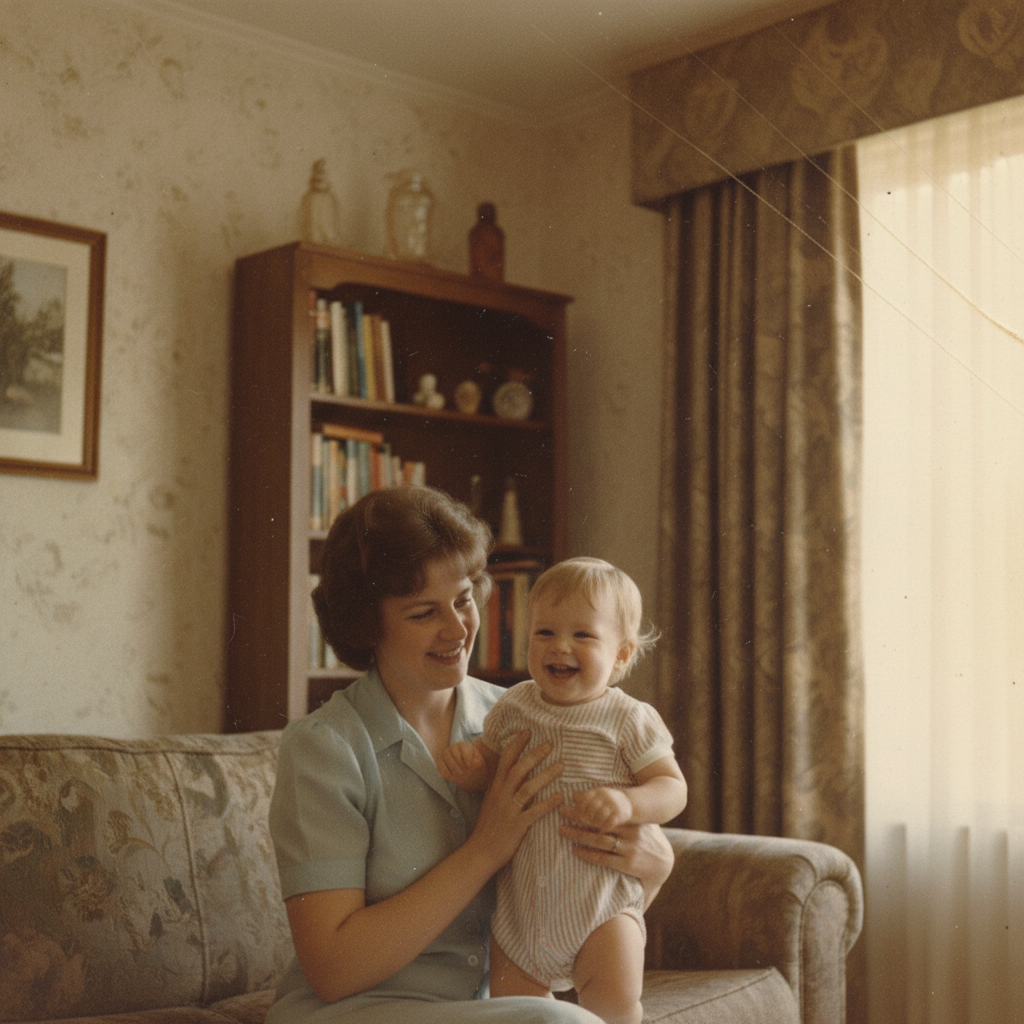
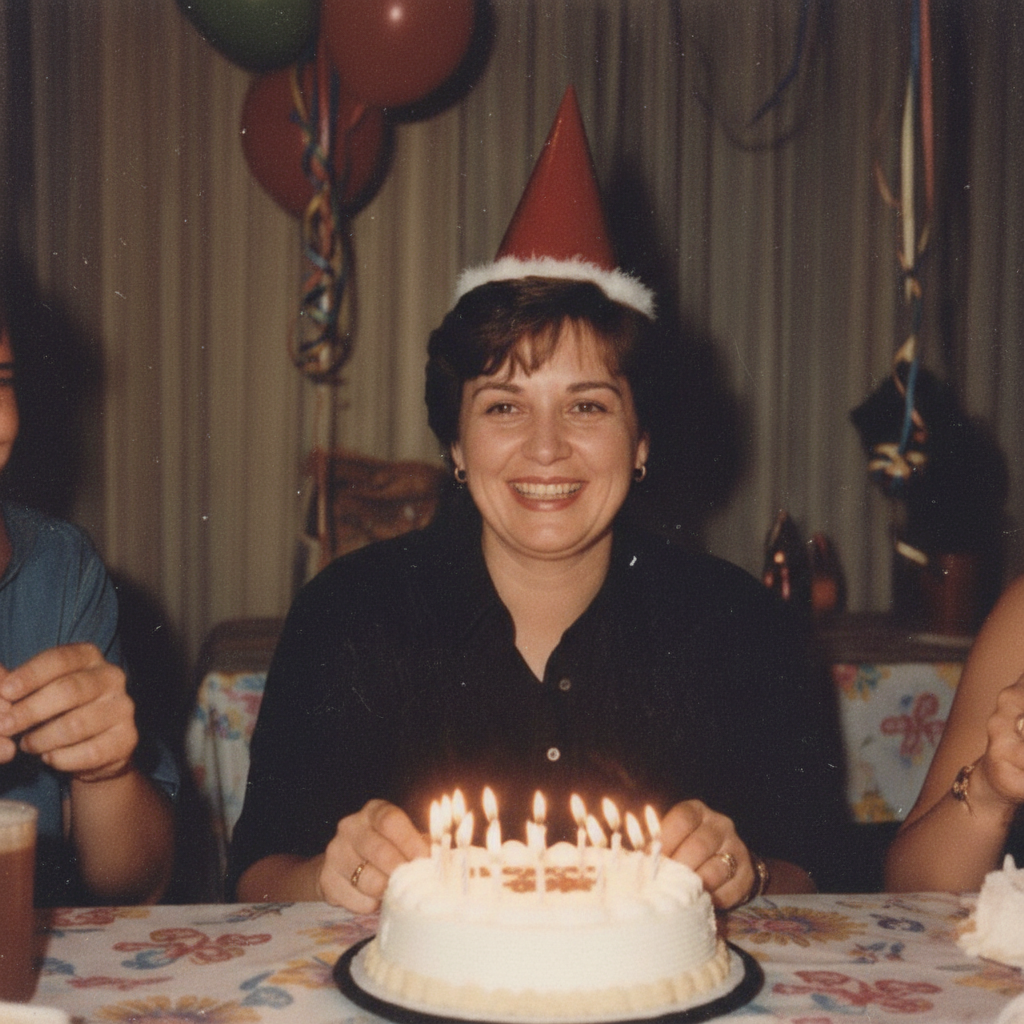
Same family photo restored with vivid colors and damage repaired
After

Mothers Day Photos

Upload photo to fix photos for mom

Free β€’ Results in 30 seconds β€’ No signup

Release to upload

FreeNo signupNo watermark

1 free edit·then from $1.99

Popular use cases:
  • mothers day photo gift
  • photo gift for mom
  • fix old photos of mom
  • restore grandma photos
  • family photo editing
  • mother daughter photos
  • multigenerational family photos
  • photo gifts for mothers day

Cost
Free No signup required
Time
Instant results in 15-30 seconds
Works on
Any device - browser, phone, tablet, desktop
Powered by
AI-powered photo editing
Scenario Prompt Time
Restore old photo restore this old photo, fix the fading 25s
Remove person remove the person on the left 25s
Fix lighting brighten faces and fix the shadows 15s

How it works

  1. Upload your photo

    Drop any photo into EditThisPic - old prints you've scanned, recent family photos, or pictures that need fixing. JPG, PNG, WebP up to 7MB.

    Expect: Simple fixes like lighting: 15-20 seconds. Restoration and person removal: 25-30 seconds.
  2. Describe what you want

    Type what you need: 'restore this old faded photo' or 'remove the stranger in the background.' The AI understands family photo issues like fading, scratches, color damage, and unwanted people.

    Tip: Be specific: 'fix the color fading and remove the scratches' works better than just 'fix this photo'

    Copy one of these to get started:

    Old photo of mom is faded and damaged restore this old photo, fix the fading and color damage
    Remove unwanted person from family photo remove the person on the right side, keep the rest of the family
    Grandmother's photo has scratches and tears repair the scratches and tears, restore the damaged areas
    Mom wasn't in the group photo she took add a woman matching the family's appearance on the left side of the group
    4 more prompts
    Restaurant brunch photo has bad lighting fix the dark shadows and brighten everyone's faces
    Create multi-generation photo composite blend this photo naturally with the background, matching the lighting
    Remove background for custom gift product remove the background completely, keep only the people
    Enhance photo quality for large print enhance the quality and sharpness for printing on a large canvas
  3. Download your gift-ready photo

    Review your restored or edited photo and download in high resolution. Perfect for printing on mugs, framing, canvas prints, or photo books. Make adjustments if needed.

  4. Use markers for precision

    For specific areas or stubborn issues, tap markers on those spots and describe what to fix. Great for removing a particular person or fixing damage in one area.

    Tip: Tap the person you want removed, then type 'remove this person' for precise results
Try it free ↓

Mothers Day Photos

Upload photo to fix photos for mom

Free β€’ Results in 30 seconds β€’ No signup

Release to upload

Free β€’ No signup

See it in action

Faded 1980s family photo with yellowing and color damage
Before
->
Same family photo restored with vivid colors and damage repaired
After

Restored Faded Family Photo

1980s family photo with mom restored from faded, yellowed print to vibrant color.

Prompt: restore this old photo, fix the fading and color damage
Family brunch photo with unwanted person on the left
Before
->
Same photo with person removed, showing only mom and kids
After

Removed Unwanted Person from Family Photo

Ex-spouse removed from Mother's Day brunch photo, keeping the family intact.

Prompt: remove the person on the left, keep mom and the kids
Damaged 1960s photo of grandmother with scratches and tears
Before
->
Same photo restored with all damage repaired
After

Repaired Grandmother's Vintage Photo

1960s photo of grandmother restored from severely damaged scan with tears and scratches.

Prompt: repair the scratches and tears, restore the damaged areas

Detailed Guides by Scenario

πŸ“·

Photo Rescue & Restoration

Revive old, damaged, or poorly-shot photos with AI photos for mom β€” bring new life to images you thought were unsalvageable.

Common Scenarios

  • Applying photos for mom to old family photos that have degraded over time
  • Fixing a once-in-a-lifetime shot (wedding, graduation) that suffers from poor quality
  • Using photos for mom on scanned prints to get crisp digital versions

Best Practices

  • Scan old photos at the highest DPI your scanner supports before uploading for best results
  • Describe the specific issue β€” 'this photo is too dark and blurry' gives better photos for mom than a generic prompt
  • For severely damaged photos, work in stages: fix the biggest issue first, then refine
πŸ“·

Professional & Business Use

Ensure photos for websites, presentations, and marketing meet professional standards with photos for mom.

Common Scenarios

  • Using photos for mom on employee photos for a company website that need to look polished
  • Applying photos for mom to event photos before sharing in a client presentation
  • Improving product images with photos for mom for an online store or catalog

Best Practices

  • Process all images in a batch with the same enhancement settings for visual consistency
  • For web use, balance enhancement quality with file size β€” overly large images slow page loads
  • Always compare before and after to make sure photos for mom looks natural, not over-processed
πŸ“·

Social Media & Personal Sharing

Make your personal photos look their best before sharing with friends, family, or followers using photos for mom.

Common Scenarios

  • Quickly applying photos for mom to vacation photos before posting on social media
  • Using photos for mom on a selfie that has great composition but poor lighting
  • Batch-fixing a phone gallery of photos with photos for mom before creating an album to share

Best Practices

  • Start with the photo you'd most like to share β€” fix that one first and use the same approach on the rest
  • For selfies, subtle enhancement always beats heavy processing β€” keep it natural
  • If the photo was shot in low light, mention it in the prompt so the AI tailors photos for mom accordingly

If something looks off

Restored photo looks artificially smooth

Why: The AI may over-correct skin texture when repairing damage

Try: Try 'restore the photo but keep natural skin texture'

Tip: Adding 'keep it natural' to your prompt helps preserve authentic appearance

Wrong person was removed from the group photo

Why: Without markers, the AI guesses which person you meant

Try: Use markers to tap on the specific person, then 'remove this person'

Tip: For family photos, always use markers to specify exactly who to remove

Background removal left rough edges around hair

Why: Fine hair details can be tricky to separate cleanly

Try: Try 'clean up the edges around the hair' after the initial removal

Tip: Solid colored backgrounds in the original make cleaner cutouts

Color restoration looks unnatural

Why: The AI may not know the original colors from a black-and-white or faded photo

Try: Try 'restore with natural, realistic colors' or specify colors you remember

Tip: If you know hair was brown or dress was blue, mention it in your prompt

Quick answers

Can I fix old faded photos of my mom for a Mother's Day gift?

Yes! EditThisPic can restore faded, yellowed, and damaged photos from any era. Just upload a scan of the old photo and describe what needs fixing: 'restore this old photo, fix the fading and color damage.' The AI repairs fading, color casts, scratches, and even minor tears. Perfect for framing or printing on gifts.

How do I remove someone from a family photo with mom?

Upload the photo, use markers to tap the person you want removed, then type 'remove this person.' The AI will fill in the background naturally. This works great for removing ex-partners, photobombers, or anyone who shouldn't be in your Mother's Day gift photo.

Can I restore my grandmother's damaged vintage photos?

Absolutely! The AI can repair scratches, tears, water damage, and creases in vintage photos. Upload a scan of the photo and describe the damage: 'repair the scratches and restore the torn corner.' It works on black-and-white and color photos from any decade.

Is there a free photo editor for Mother's Day gifts without watermarks?

Yes! EditThisPic is free to try with no signup required. You can restore old photos, remove people, fix lighting, and prepare images for printing without any watermarks on your edited photos.

Can I prepare photos for custom gifts like mugs and canvases?

Yes! You can remove backgrounds for custom products, enhance quality for large prints, and fix any issues that would show up when printed. Try 'remove the background completely' for transparent cutouts or 'enhance quality for large print' for canvas-ready images.

How do I fix dark indoor photos from Mother's Day brunch?

Restaurant and indoor photos often have lighting problems. Just describe what you see: 'fix the dark shadows and brighten everyone's faces' or 'balance the warm restaurant lighting.' The AI understands mixed indoor lighting conditions.

Is EditThisPic's AI photos for mom fixer really free?

Yes β€” you get 1 free edit per week, no account needed. For unlimited edits, plans start at $3.99/month.

What photo formats does the AI photos for mom fixer support?

JPG, PNG, WebP, and HEIC. Upload any common photo format and EditThisPic handles the rest.

How much does EditThisPic cost?

You get 1 free edit per week β€” no account needed. After that, credit packs start at $1.99 for 3 edits. Monthly plans start at $4.99/mo for 15 edits with unused credits rolling over. All edits are full resolution with no watermark.
Create the perfect photo gift for Mom

Free to try. No signup required. Restored photos ready in seconds.

1 free edit included·Credit packs from $1.99