Free • No signup Optimize Twitch overlay photo · Free

Optimize Photo for Twitch

Optimize your photo for any platform in one click.
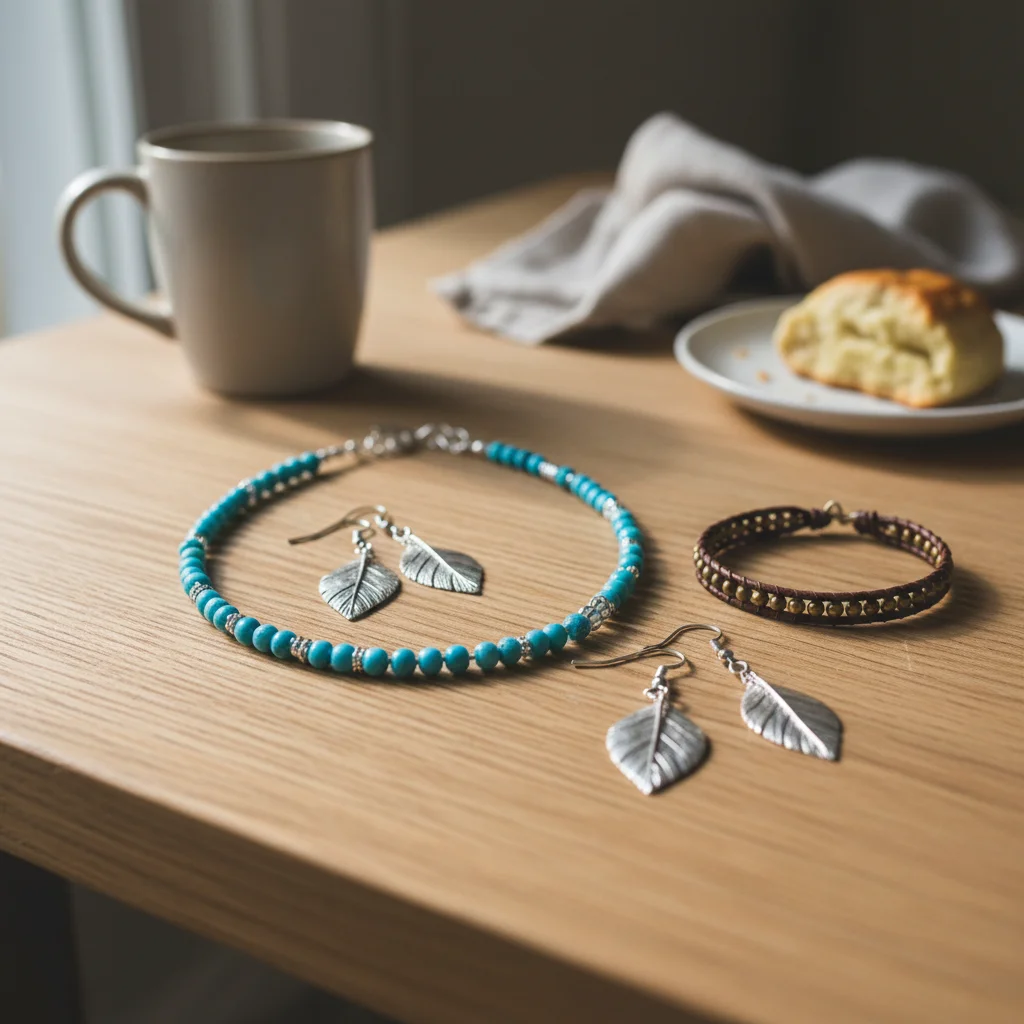
Regular photo
Before
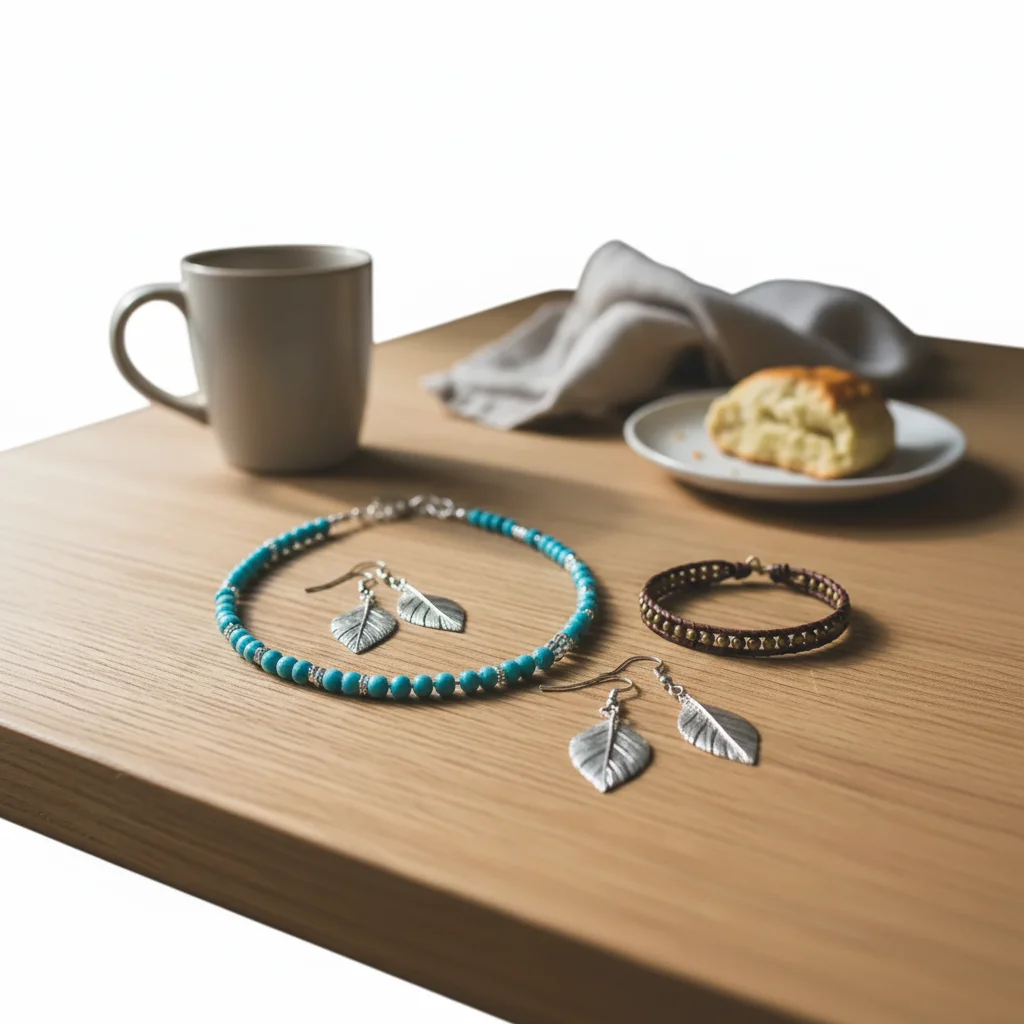
Twitch panel graphic
After

Optimize Photo for Twitch Overlay

Drop your photo here

or click to browse

Release to upload

Free • No signup

Popular use cases:
  • optimize Twitch overlay photo
  • AI Twitch overlay photo editor
  • photo Twitch overlay photo tool
  • free Twitch overlay photo editing

Cost
Free No signup required
Time
Instant results in 15-30 seconds
Works on
Any device - browser, phone, tablet, desktop
Powered by
AI-powered photo editing

How it works

  1. Upload your photo

    Upload a clear photo showing the area you want to edit. Good lighting and sharp focus help the AI deliver better twitch overlay photo results. JPG, PNG, WebP up to 7MB.

    Expect: Most edits complete in 20-45 seconds. Complex changes may need 1-2 refinements.
  2. Describe your edit

    Type what you want: 'Optimize this photo for Twitch streaming panels and overlay use.' Be specific about details for best results. The AI understands natural language — no technical skills needed.

    Tip: Check the platform's current size requirements — they change frequently.

    Copy one of these to get started:

    Panel Image Optimize this photo for a Twitch panel with clean edges and high contrast
    Profile Photo Create a vibrant, recognizable Twitch profile photo with gaming aesthetic
    Webcam Cutout Remove background from this photo for a clean webcam-style cutout overlay
    Banner Create a wide Twitch banner from this photo with dynamic composition
    4 more prompts
    Alert Image Optimize this photo for a Twitch stream alert image with high visibility
    Professional quality result optimize Twitch overlay photo with professional quality, clean composition, and balanced lighting
    E-commerce or marketplace listing optimize Twitch overlay photo for an online listing — bright, clean, professional look. Straighten the composition, fix the white balance, and make the subject pop against the background
    Eye-catching creative version optimize Twitch overlay photo with vibrant colors and striking visual impact for social media
  3. Review the result

    Use the before/after slider to compare results. Check that the twitch overlay photo edit blends naturally with surrounding areas — look for consistent lighting, color matching, and clean edges throughout.

  4. Refine if needed

    If any areas need fine-tuning, tap markers on those specific spots and describe what to fix. The AI can adjust individual regions without redoing the entire edit — useful for perfecting twitch overlay photo details in tricky areas.

    Tip: Markers are optional. Try without them first — the AI usually gets it right.
Try it free

Optimize Photo for Twitch Overlay

Drop your photo here

or click to browse

Release to upload

Free • No signup

"Created matching Twitch panels from my photos. Stream looks way more professional now!" @TwitchStreamer

See it in action

Regular photo
Before
->
Twitch panel graphic
After

Photo to Panel

Photo optimized for Twitch panel graphics.
Prompt: Optimize for Twitch panel with clean edges
Photo with background
Before
->
Clean cutout for stream overlay
After

Background Remove for Overlay

Background removed for stream overlay cutout.

Prompt: Remove background for webcam-style cutout

Detailed Guides by Scenario

📷

Web & Performance Optimization

Optimize Twitch overlay photo for fast page loads without sacrificing visual quality — crucial for SEO and user experience.

Common Scenarios

  • Optimizing Twitch overlay photo for a website that needs to score 90+ on PageSpeed
  • Preparing Twitch overlay photo for email campaigns where file size affects deliverability
  • Batch-optimizing Twitch overlay photo for a large content library migration

Best Practices

  • Target WebP format for web delivery — it provides the best quality-to-size ratio
  • Keep the visual quality at 80-85% — below that, compression artifacts become noticeable
  • Resize images to the maximum display dimensions they'll actually be shown at
📷

Social Media & Platform-Specific

Optimize Twitch overlay photo for specific social media platforms — each has different ideal dimensions, formats, and compression requirements.

Common Scenarios

  • Resizing and optimizing Twitch overlay photo for Instagram's feed, stories, and reels formats
  • Preparing Twitch overlay photo for multiple platforms simultaneously (IG, FB, LinkedIn, TikTok)
  • Optimizing Twitch overlay photo for Pinterest's preferred tall-image format

Best Practices

  • Each platform has different ideal aspect ratios: 1:1 (IG feed), 9:16 (stories/reels), 2:3 (Pinterest)
  • Platforms re-compress uploaded images — uploading at slightly higher quality compensates for this
  • Text on images should be large enough to read on mobile screens

If something looks off

AI changed the wrong area

Why: The AI couldn't determine exactly which area you meant from the description alone.

Try: Tap a marker on the specific area you want to edit, then regenerate with the same prompt

Tip: Markers tell the AI exactly where to focus. Use them when description alone is ambiguous.

Result looks unnatural or blurry

Why: The AI may need more specific guidance about the look you want.

Try: Optimize this photo for Twitch streaming panels and overlay use, ensure natural lighting and sharp details that match the rest of the photo

Tip: Adding 'natural' and 'realistic' to your prompt helps the AI prioritize believability.

Image dimensions wrong for the platform

Why: The AI generated a standard aspect ratio instead of the platform-specific requirements.

Try: Specify the exact dimensions: '1080x1080 square for Instagram' or '1200x628 for Facebook'

Tip: Check the platform's current size requirements — they change frequently.

Compression artifacts visible after optimization

Why: The image was compressed too aggressively to meet file size requirements.

Try: Try 'optimize for the platform while maintaining high visual quality and sharp details'

Tip: Export at the exact platform dimensions to avoid quality loss from double-resizing.

Text or logo got distorted during resize

Why: Non-uniform scaling stretched or squished text and graphic elements.

Try: Add 'preserve text and logo proportions when resizing — no stretching or distortion'

Tip: If your image has text, mention it specifically so the AI preserves its proportions.

Quick answers

What sizes do Twitch graphics need?

Profile: 256x256, Banner: 1200x480, Panels: 320px wide. The AI can optimize for any of these.

Is it free?

Yes. Free Twitch photo optimization with no signup.

Can it remove backgrounds for overlays?

Yes. Background removal creates clean cutouts for stream overlays.

Will it match my stream brand?

Describe your color scheme and style in the prompt to match your brand.

Good for stream alerts?

Yes. Create eye-catching alert images from your photos.

Does it work for YouTube Gaming too?

Yes. The same optimizations work for YouTube, Kick, and other streaming platforms.

Can I optimize twitch overlay photo on my phone?

Yes. EditThisPic works in any mobile browser -- iPhone, Android, tablet. No app download needed.

What photo formats does the optimize photo for twitch tool support?

JPG, PNG, WebP, and HEIC. Upload any common photo format and EditThisPic handles the rest.

Ready to optimize your photos?

Free to try. No signup required.

Try it free