Free • No signup Resize Photo · Free

Resize Photo

Just type the size you need. AI handles aspect ratio and quality automatically.

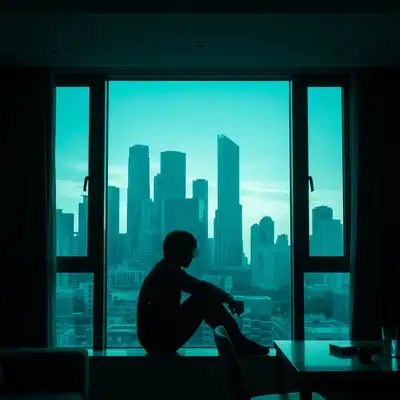
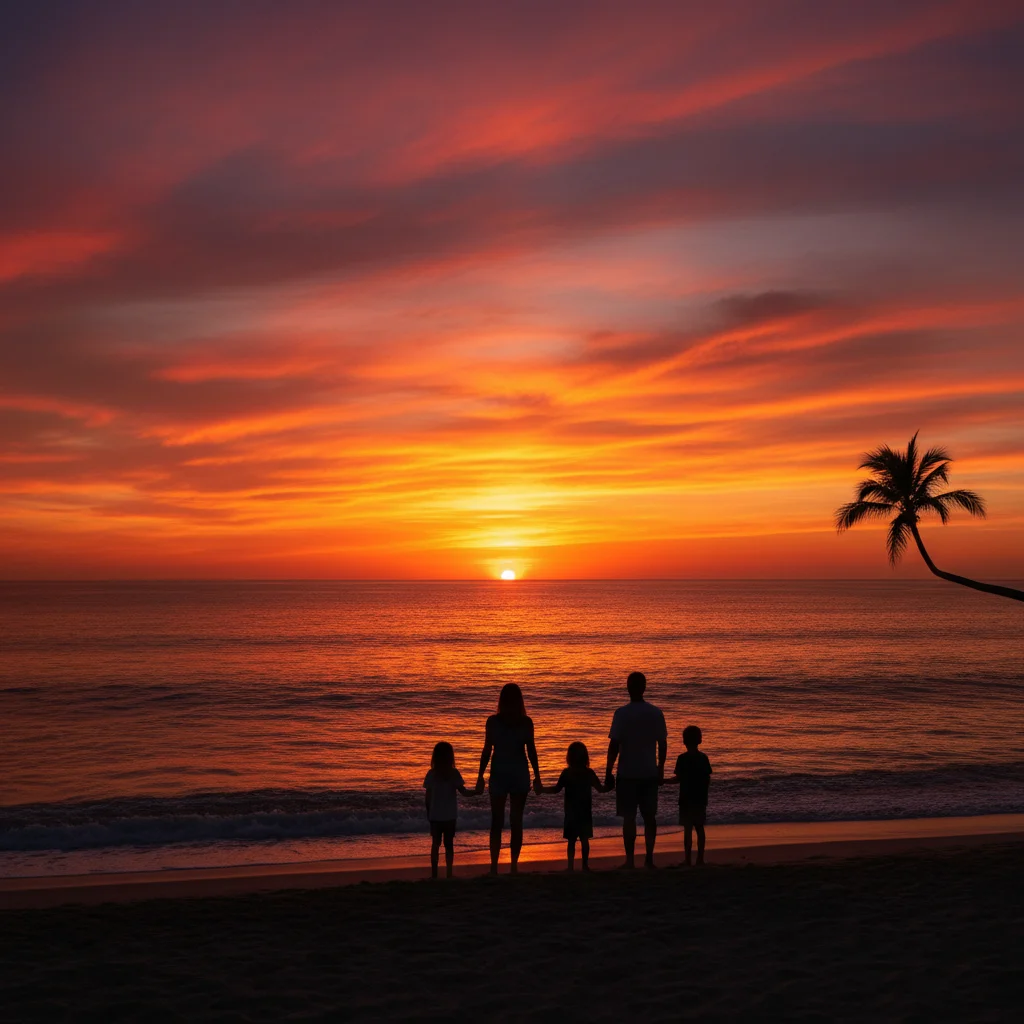
Large high-resolution photo before resizing
Before
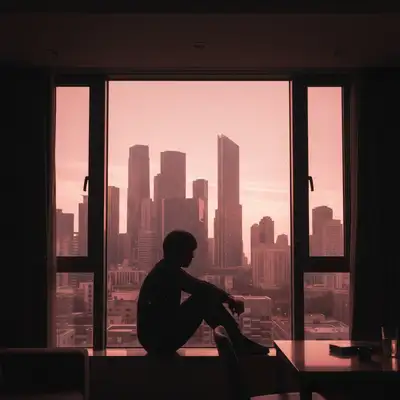
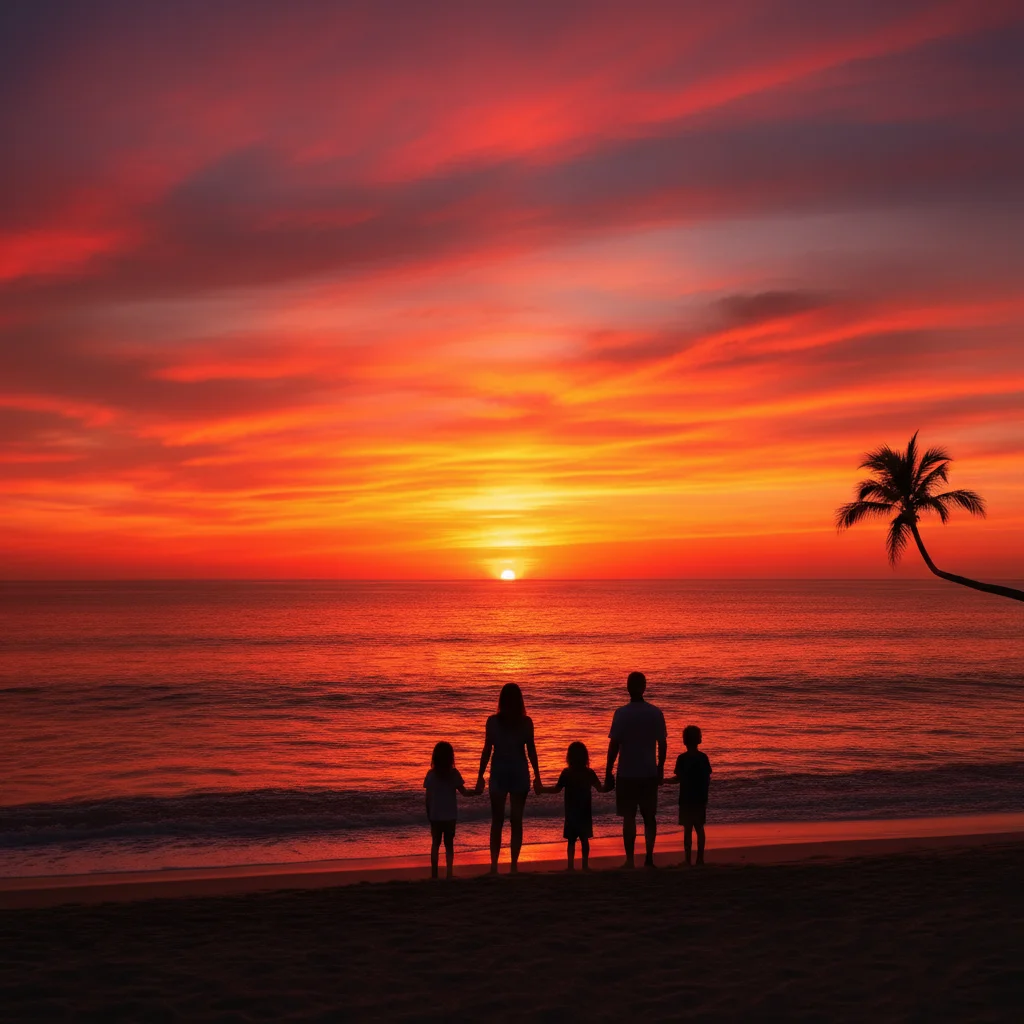
Photo resized to 1080x1080 for Instagram
After

Resize Photo Free (2026)

Drop your photo here

or click to browse

Release to upload

Free • No signup

Advertisement
Popular use cases:
  • Social media posts
  • Email attachments
  • Website images
  • Print preparation
  • Profile pictures
  • Thumbnail creation
  • E-commerce listings
  • Presentation slides

Cost
Free No signup required
Time
Instant results in 15-30 seconds
Works on
Any device - browser, phone, tablet, desktop
Powered by
AI-powered photo editing
Scenario Prompt Time
Instagram post resize to 1080x1080 pixels for Instagram 15s
Email optimization resize smaller for email, keep under 500KB 15s
Print quality resize to 8x10 inches at 300 DPI for print 20s
AI upscale upscale to 2x the current size while keeping it sharp 20s

How it works

  1. Upload your photo

    Drop your image into EditThisPic. JPG, PNG, WebP up to 7MB. Any resolution works — the AI can both upscale and downscale while maintaining quality.

    Expect: Simple resize: 15-20 seconds. Resize with quality enhancement: 20-30 seconds.
  2. Describe the size you need

    Type your instruction: 'resize to 1080x1080 pixels' or 'make this smaller for email without losing quality.' You can specify exact pixels, a platform name, or just describe the use case.

    Tip: Don't know exact dimensions? Just say the platform: 'resize for LinkedIn banner' or 'resize for Instagram post.' The AI knows standard dimensions for major platforms.

    Copy one of these to get started:

    Resize for Instagram post resize this photo to 1080x1080 pixels for Instagram
    Make photo smaller for email resize this photo to be smaller for email — keep it under 500KB while looking good
    Resize for print resize this photo to 8x10 inches at 300 DPI for high quality printing
    Resize for website resize this photo to 1200 pixels wide for my website, optimize for fast loading
    4 more prompts
    Upscale small photo make this photo larger — upscale to 2x the current size while keeping it sharp
    Resize for Facebook cover resize to 820x312 pixels for a Facebook cover photo
    Resize for LinkedIn banner resize to 1584x396 pixels for a LinkedIn background banner
    Batch-friendly thumbnail resize to 400x400 thumbnail size while keeping the subject visible
  3. Generate and review

    AI resizes the image to your specifications. Check that the composition still looks good and important details haven't been lost. If downscaling significantly, verify text and small details are still legible.

  4. Download your resized photo

    Save the resized version. The AI optimizes file size while maintaining visual quality appropriate for your intended use.

Try it free

Resize Photo Free (2026)

Drop your photo here

or click to browse

Release to upload

Free • No signup

"I always struggled with getting the right dimensions for different social platforms. Now I just say 'resize for Instagram' and it handles everything." @ContentCreator_Sam

See it in action

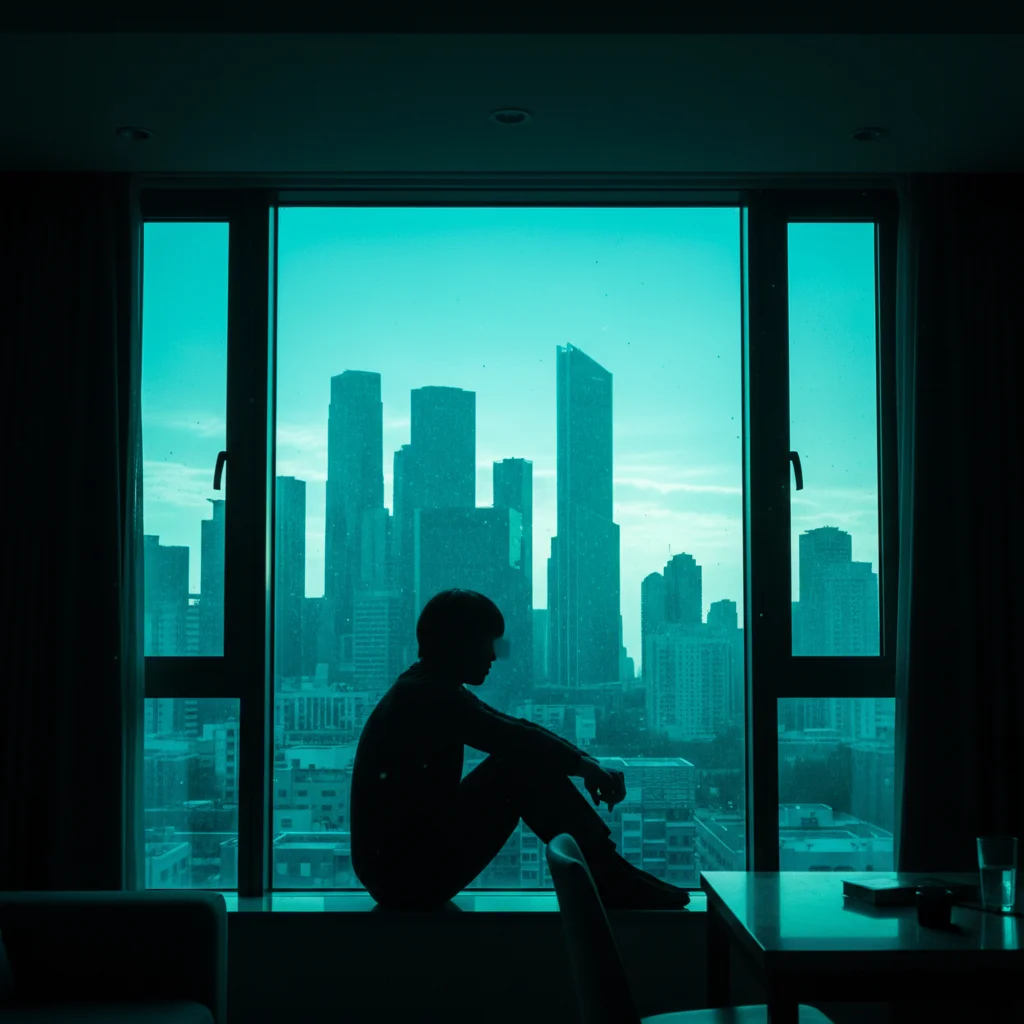
Large high-resolution photo before resizing
Before
->
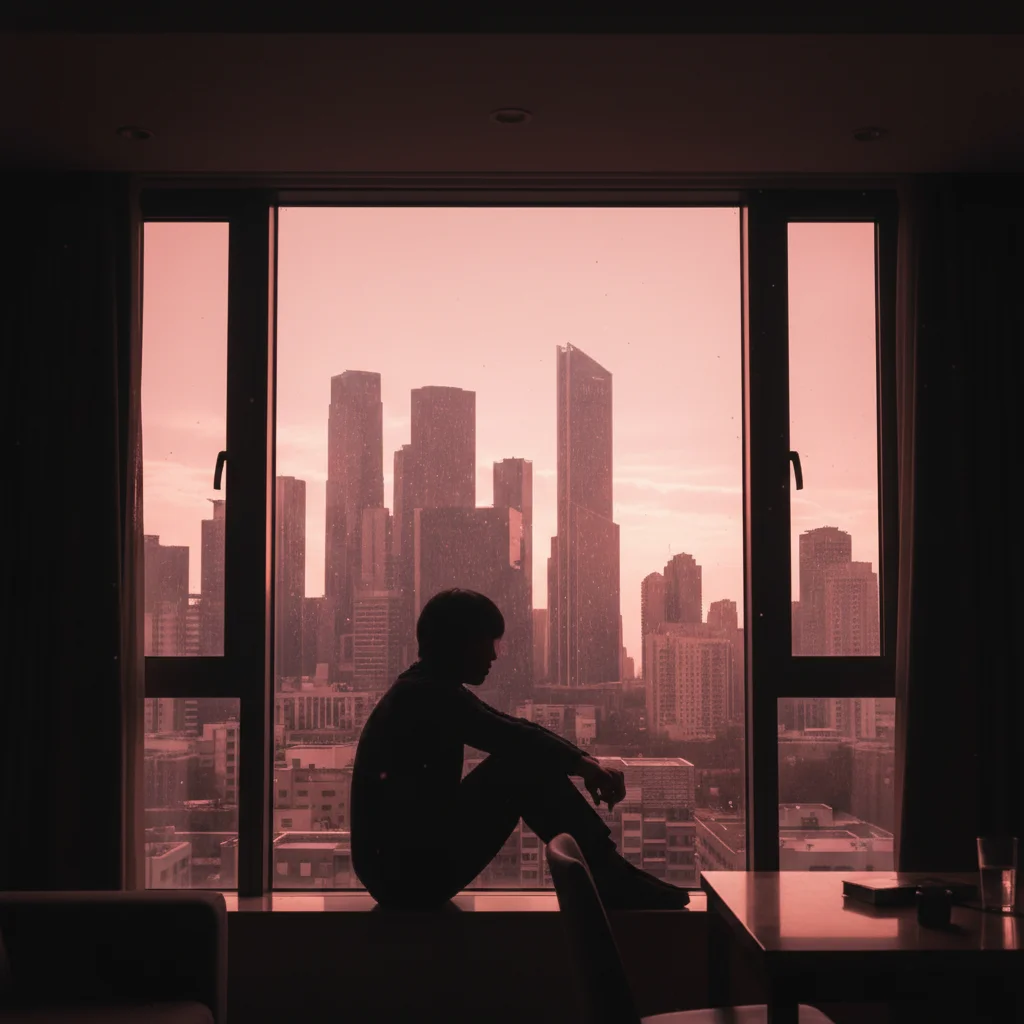
Photo resized to 1080x1080 for Instagram
After

Photo resized for Instagram

A large camera photo was resized to perfect 1080x1080 Instagram dimensions while maintaining sharpness and color accuracy.

Prompt: resize this photo to 1080x1080 pixels for Instagram
Small pixelated photo not suitable for printing
Before
->
Photo upscaled to print-quality resolution
After

Small photo upscaled for print

A small web image was upscaled with AI enhancement to be suitable for high-quality printing at 8x10 inches.

Prompt: make this photo larger — upscale to print quality at 8x10 inches
Large camera photo too big for email
Before
->
Photo optimized for email at reduced file size
After

Photo optimized for email

A 5MB camera photo was resized and optimized down to under 500KB for email sharing without visible quality loss.

Prompt: resize this photo to be smaller for email — keep it under 500KB while looking good
Advertisement

If something looks off

Photo looks blurry after resizing

Why: Significant upscaling can introduce softness. Downscaling too aggressively can lose fine detail.

Try: Add 'and sharpen the result' to your resize prompt, or do a second pass: 'sharpen the details after resizing'

Tip: For upscaling, 2x is the sweet spot. Beyond 3x, even AI upscaling struggles to maintain sharpness.

Aspect ratio changed and subject looks stretched

Why: Resizing to a different aspect ratio without cropping forces stretching or distortion.

Try: Say 'resize to 1080x1080 by cropping to fit, don't stretch' — this crops instead of distorting

Tip: Always specify whether you want crop-to-fit or stretch-to-fit when changing aspect ratios.

File size is still too large after resizing

Why: The AI may have prioritized quality over file size compression.

Try: Be explicit: 'resize to maximum 800 pixels wide AND compress to under 200KB'

Tip: For email or web, specifying both pixel dimensions and target file size gives the best results.

Text in the photo became unreadable

Why: Small text doesn't survive aggressive downscaling. The details get lost below a certain pixel threshold.

Try: Try a less aggressive resize: 'resize to 1200px wide instead of 600px, keep text readable'

Tip: If your photo contains important text, keep the resize modest — below 50% reduction — or the text becomes illegible.

Colors look different after resizing

Why: Color profile changes can happen during resizing, especially when switching from print to web color spaces.

Try: Add: 'resize and preserve the original colors exactly, use sRGB color profile'

Tip: For web use, sRGB is the standard color profile. For print, Adobe RGB or CMYK may be needed.

Quick answers

How do I resize a photo without losing quality?

Upload to EditThisPic and type your target size. The AI uses smart algorithms to maintain sharpness and detail during resizing. For downscaling, quality is perfectly preserved. For upscaling, AI enhancement fills in detail up to about 2-3x enlargement.

Can I resize a photo for free?

Yes! Upload your photo to EditThisPic, type the dimensions you need, and download the result. Free to try, no signup required, no watermarks on the output.

What dimensions should I use for social media?

Instagram post: 1080x1080 (square) or 1080x1350 (portrait). Instagram Story: 1080x1920. Facebook post: 1200x630. Twitter/X: 1200x675. LinkedIn post: 1200x627. YouTube thumbnail: 1280x720. Just mention the platform and the AI applies the right size.

Can I make a small photo bigger?

Yes, AI upscaling can enlarge photos while adding detail. Results are best at 2x enlargement, good at 3x, and start degrading beyond that. For very small images, try 'upscale to 2x and enhance sharpness.'

Does resizing change the file format?

By default, the output matches your input format. If you need a specific format, mention it: 'resize to 1080x1080 and save as PNG' or 'resize and convert to JPG for smaller file size.'

How is this different from cropping?

Resizing changes the overall dimensions of your entire photo — everything stays in frame but gets bigger or smaller. Cropping cuts away parts of the photo to improve framing. Often you'll want both: crop for composition, then resize for dimensions.

Ready to resize your photos?

Free to try. No signup required.

Try it free