Remove Lens Flare from Photo
Eliminate sun spots, light streaks, and glare artifacts in seconds.
Type 'remove the lens flare and restore the sky behind it' and EditThisPic's AI eliminates sun spots, light streaks, and glare artifacts in 15-30 seconds. No selection tools or manual masking required. Just describe what you want gone. The AI reconstructs the scene behind the flare naturally. Free to try, no account needed.
How it works
Upload your photo
Drop your image into EditThisPic. JPG, PNG, WebP up to 7MB. Photos with sun flare, light streaks, or bright artifacts work best when the flare is clearly visible against the background.
Describe what you want
Type your instruction: 'remove the lens flare and restore the sky behind it' or 'eliminate the sun spots and show the clean scene.' Be specific about what should replace the flare. The AI knows what lens flare looks like and will reconstruct what's behind it.
Copy one of these to get started:
remove the lens flare and restore the natural sky behind it
remove all the lens flare streaks and light artifacts from the image
remove the lens flare from the face and restore the natural skin tone
remove the bright lens flare spot and bring back the original colors
3 more prompts
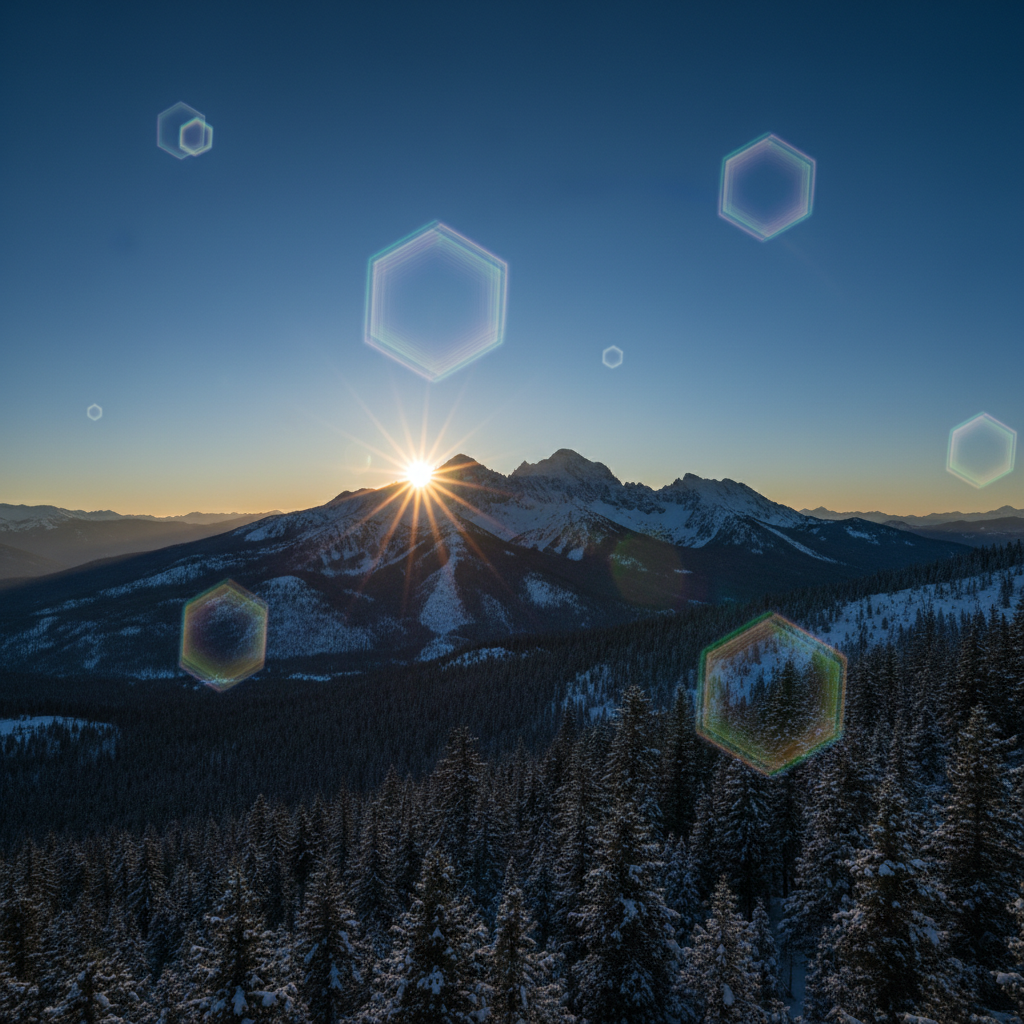
remove the hexagonal lens flare artifacts and clean up the sky
remove the hazy lens flare and restore the full contrast and color saturation
remove the lens flare on the car and show the original paint color
Generate and review
Check the result at full zoom. Verify that all flare spots are gone and the restored area blends naturally with surrounding pixels. Look for any color inconsistencies where the flare was removed.
Refine with markers if needed
If the AI missed some flare spots or changed the wrong area, tap markers on those specific locations and regenerate. This is optional for most lens flare removals since the AI typically identifies flare artifacts accurately.
"Saved my sunset photos! The AI removed the harsh sun streaks and kept the sky looking natural." @travel_with_cam
See it in action
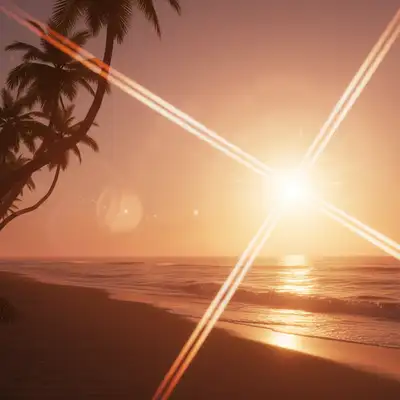
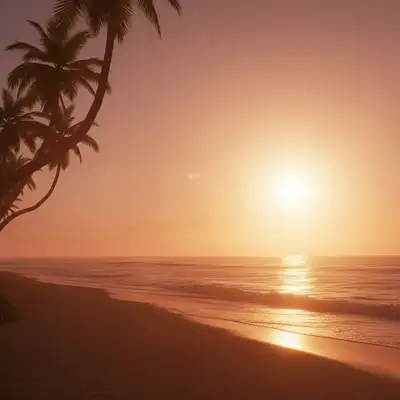
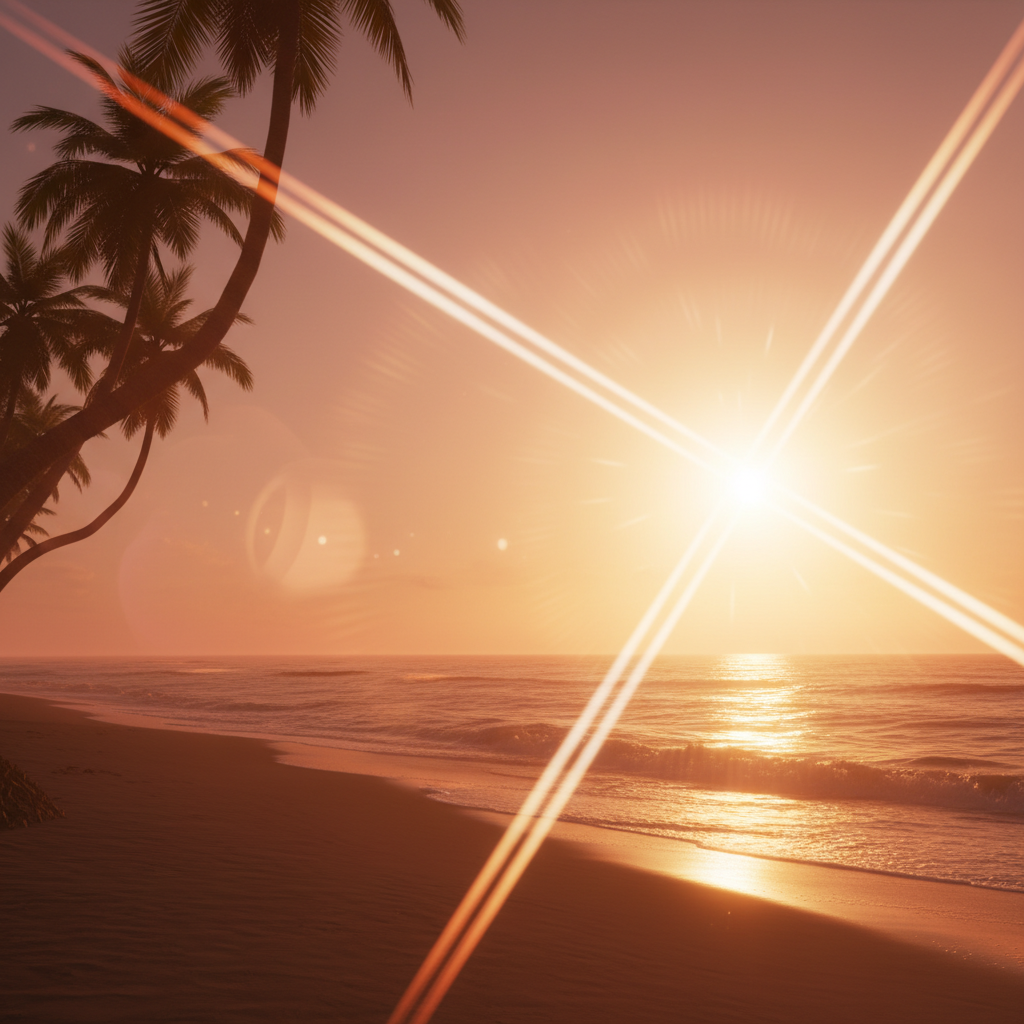
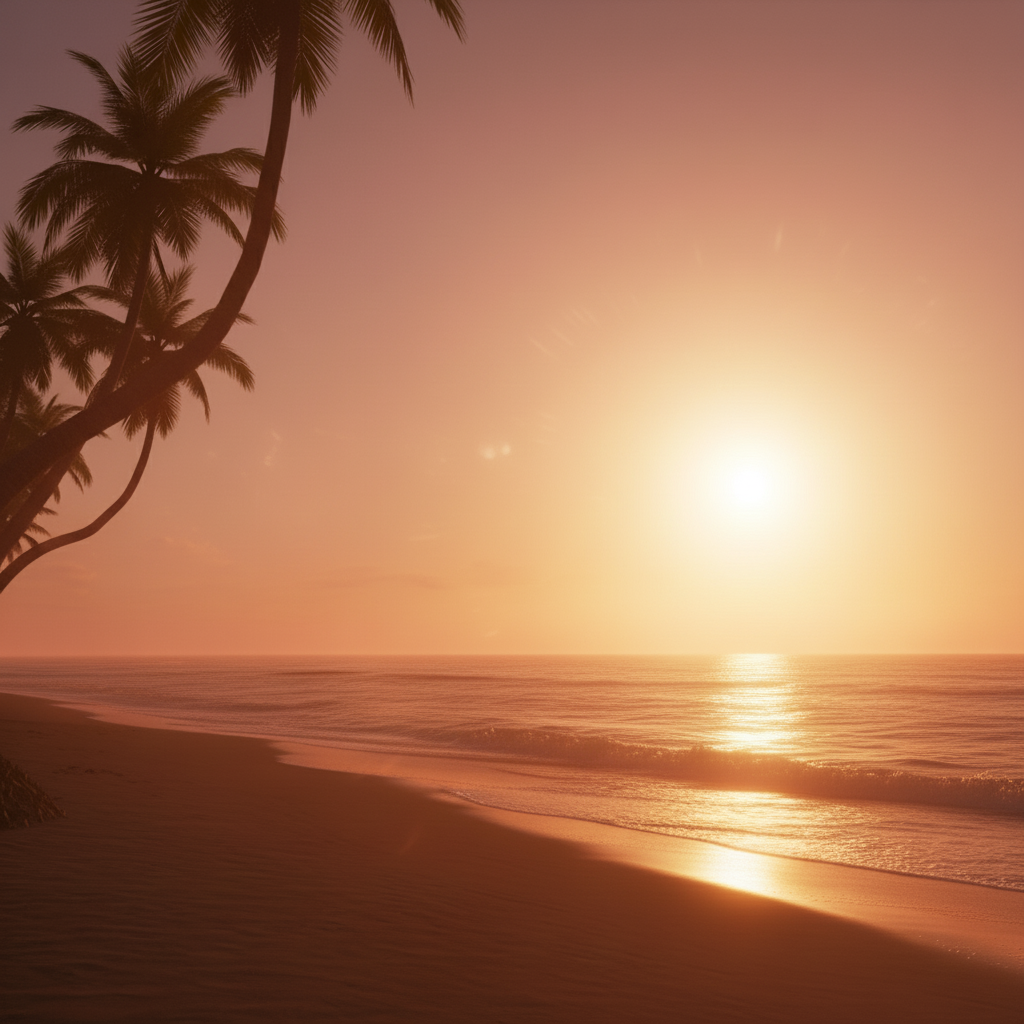
Sunset beach photo saved
Golden hour shot ruined by harsh sun streaks. One prompt removed the flare while preserving the warm sunset colors.
remove the lens flare streaks and restore the natural sunset sky
Portrait with sun spot removed
Outdoor portrait where lens flare created a bright spot on the subject's cheek. AI restored natural skin texture.
remove the lens flare from the face and restore the natural skin
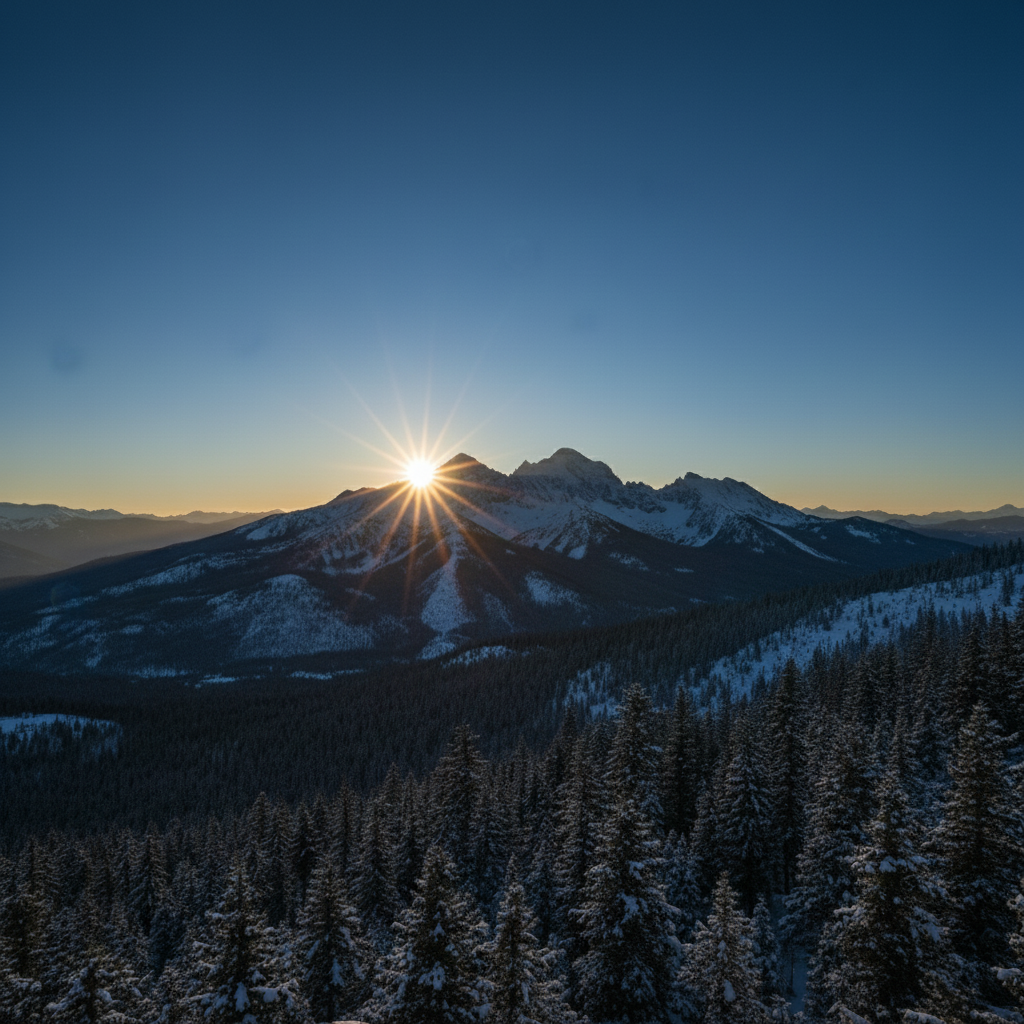
Mountain landscape cleaned up
Hiking photo with multiple hexagonal flare artifacts scattered across the frame. All removed in one pass.
remove all the lens flare artifacts and restore the mountain scene
If something looks off
Flare removed but area looks blurry or smudged
Why: The AI reconstructed the area but couldn't match the surrounding detail level. This happens when the flare covered complex textures.
remove the lens flare and restore the sharp detail of the sky/trees/building
💡 Mention the specific texture behind the flare (clouds, leaves, bricks) for better reconstruction.
AI removed part of the sun itself, not just the flare
Why: The AI couldn't distinguish between intentional sun and unwanted flare artifacts. Both are bright light sources.
remove only the lens flare streaks and artifacts, keep the sun in the image
💡 Be explicit about keeping the sun: 'keep the sun, remove only the flare around it.'
Color looks different where flare was removed
Why: The flare was affecting color perception in that area. The AI's reconstruction may not match the intended color.
remove the lens flare and match the color to the surrounding area
💡 Reference a nearby similar area: 'match the blue of the sky on the left side.'
Only some of the flare spots were removed
Why: Subtle flare artifacts may not be recognized as lens flare by the AI, especially faint rainbow edges.
remove all lens flare including the faint colored edges and light halos
💡 Describe the missed artifacts specifically: 'remove the purple fringing' or 'eliminate the green spot.'
AI changed the wrong area or something I didn't want changed
Why: The AI couldn't determine exactly which area you meant from description alone. This happens with ambiguous requests.
Tap a marker on the specific lens flare you want to remove, then regenerate with the same prompt
💡 Markers tell the AI 'I mean THIS one specifically.' Use them when description alone is ambiguous.
Quick answers
Do I need to mark the lens flare before describing?
No! Just describe what you want: 'remove the lens flare and restore the sky.' The AI recognizes lens flare patterns - bright spots, streaks, hexagonal artifacts, rainbow edges. Only use markers if you want to target specific flare spots while leaving others, or if the AI misses subtle artifacts.
Will removing lens flare damage the rest of my photo?
No. The AI only modifies the areas affected by lens flare. Surrounding details, colors, and textures remain untouched. The reconstruction blends seamlessly with the original image.
Can I remove lens flare from a photo where the sun is visible?
Yes. Specify that you want to keep the sun: 'remove the lens flare streaks but keep the sun visible.' The AI will target only the flare artifacts while preserving the actual light source.
What types of lens flare can be removed?
All types: bright circular spots, diagonal streaks, hexagonal artifacts, rainbow fringing, hazy washed-out areas, and ghosting. The AI recognizes these as camera artifacts and reconstructs what should be behind them.
Why does my photo have lens flare in the first place?
Lens flare happens when bright light (usually the sun) hits your camera lens at an angle. The light bounces between lens elements, creating spots, streaks, and halos. It's a physics issue with the camera, not something you did wrong.
Ready to remove lens flare from your photo?
Free to try. No signup required.