Free • No signup Open Editor

Remove Vehicle from Photo

Erase any vehicle from photos in seconds - cars, trucks, bikes, and more.

Type 'remove the vehicle from the scene and show the clean background' and EditThisPic's AI erases cars, trucks, motorcycles, or any vehicle in 20-40 seconds. Works on street photography, real estate listings, and travel shots. The AI reconstructs pavement, landscaping, or whatever was behind the vehicle. No selection tools needed. Free to try, no account required.

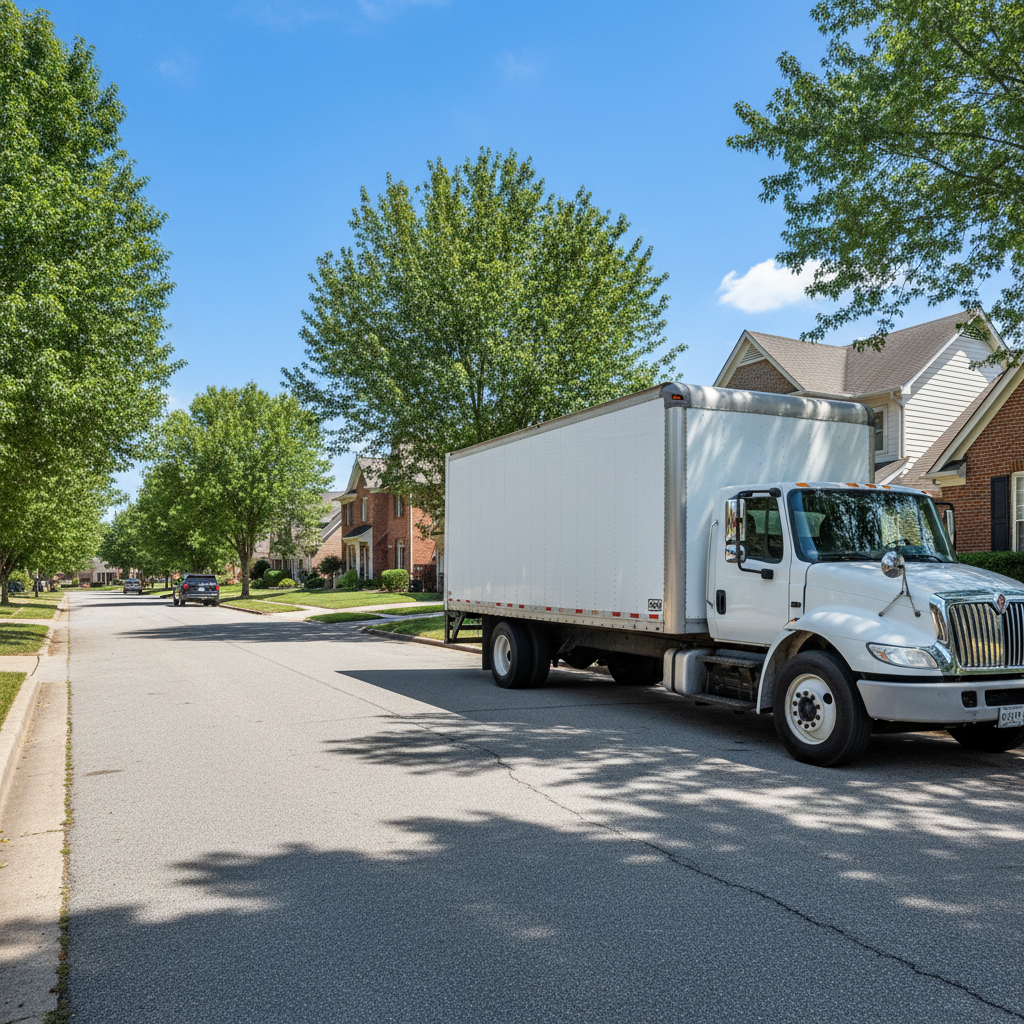
Street scene with large white delivery truck
Before
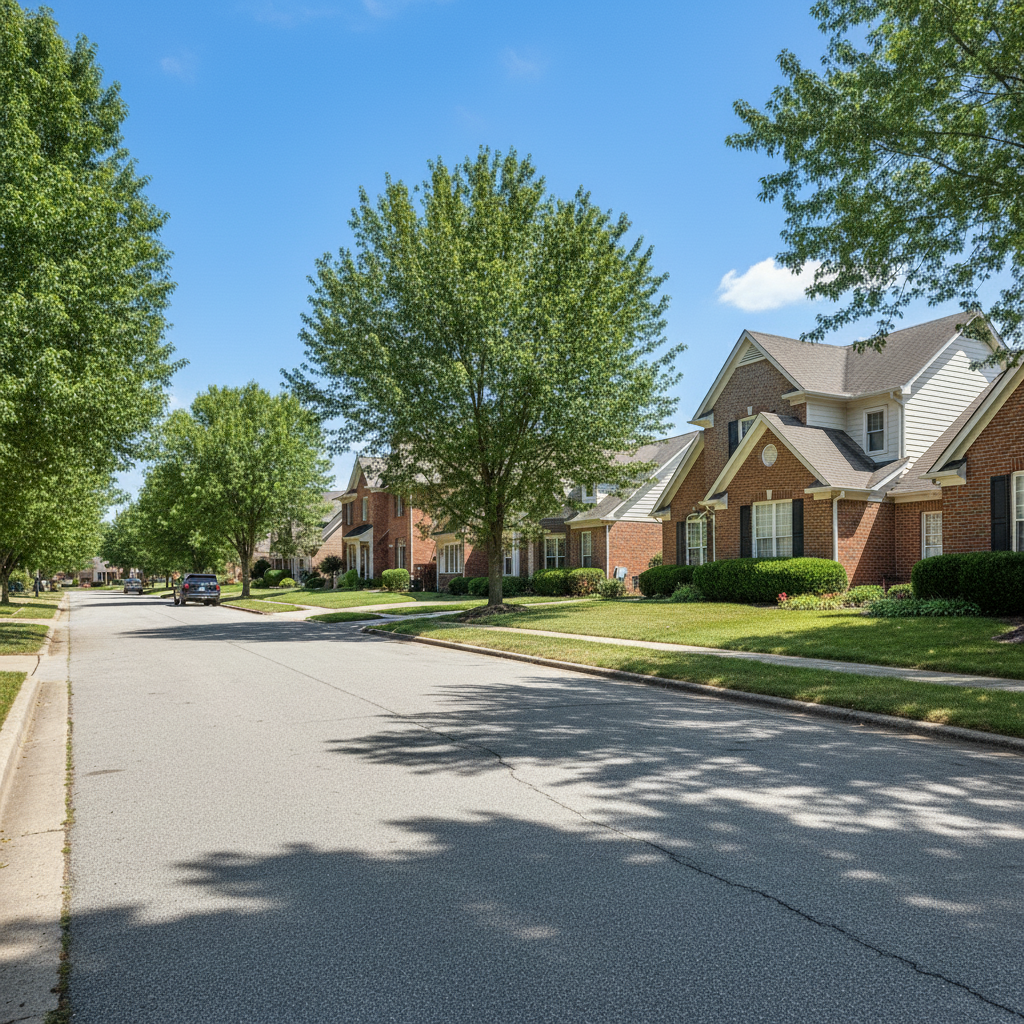
Clean street scene with truck removed
After

How it works

1

Upload your photo

Drop your image into EditThisPic. JPG, PNG, WebP up to 7MB. Works with any photo containing unwanted vehicles - street scenes, property listings, travel photos, or event shots with cars, trucks, motorcycles, or buses.

⏱ Single vehicle: 20-30 seconds. Multiple vehicles or large trucks: may need 2-3 refinements for best results.
2

Describe which vehicle to remove

Type your instruction: 'remove the vehicle and show the clean street' or 'remove the truck parked in front of the house.' Be specific about location, color, or type when multiple vehicles are present. The AI understands 'vehicle,' 'car,' 'truck,' 'motorcycle,' and other common terms. No marking needed.

💡 Describe what should replace the vehicle: 'remove the SUV and fill with matching asphalt road'

Copy one of these to get started:

Generic vehicle removal remove the vehicle from the photo and fill the area with matching background
Real estate with parked cars remove the parked vehicles from the driveway and show clean pavement
Large truck or van remove the large truck and reconstruct the street and buildings behind it
Motorcycle or bike remove the motorcycle parked on the sidewalk and show clean walkway
3 more prompts
Multiple vehicles remove all vehicles from the street scene and show an empty road
Specific vehicle by color remove the white van on the right side of the frame, keep everything else
Tourist photo cleanup remove the tour bus blocking the view and show the full landmark
3

Review and verify

Check that the vehicle is completely gone and the filled area looks natural. Zoom in to verify shadows are removed and pavement textures match. Look for any remaining reflections or tire marks that need cleanup.

4

Refine with markers if needed

If vehicle shadows remain, road lines look broken, or the fill doesn't quite match, tap markers on those specific problem spots and request another pass. Large vehicles like trucks or RVs may need additional refinement for seamless results.

💡 Use markers when you want to remove only certain vehicles from a scene with many parked cars.
Try it free
"Had a delivery truck blocking my perfect house shot. Gone in seconds with just one prompt. This tool is incredible for my listings!" @propertyshots_mike

See it in action

Street scene with large white delivery truck
Before
Clean street scene with truck removed
After

Delivery truck removed from street scene

A large delivery truck parked on a residential street blocked the perfect neighborhood photo. AI removed it and reconstructed the road naturally.

Prompt: remove the large truck and reconstruct the street behind it naturally
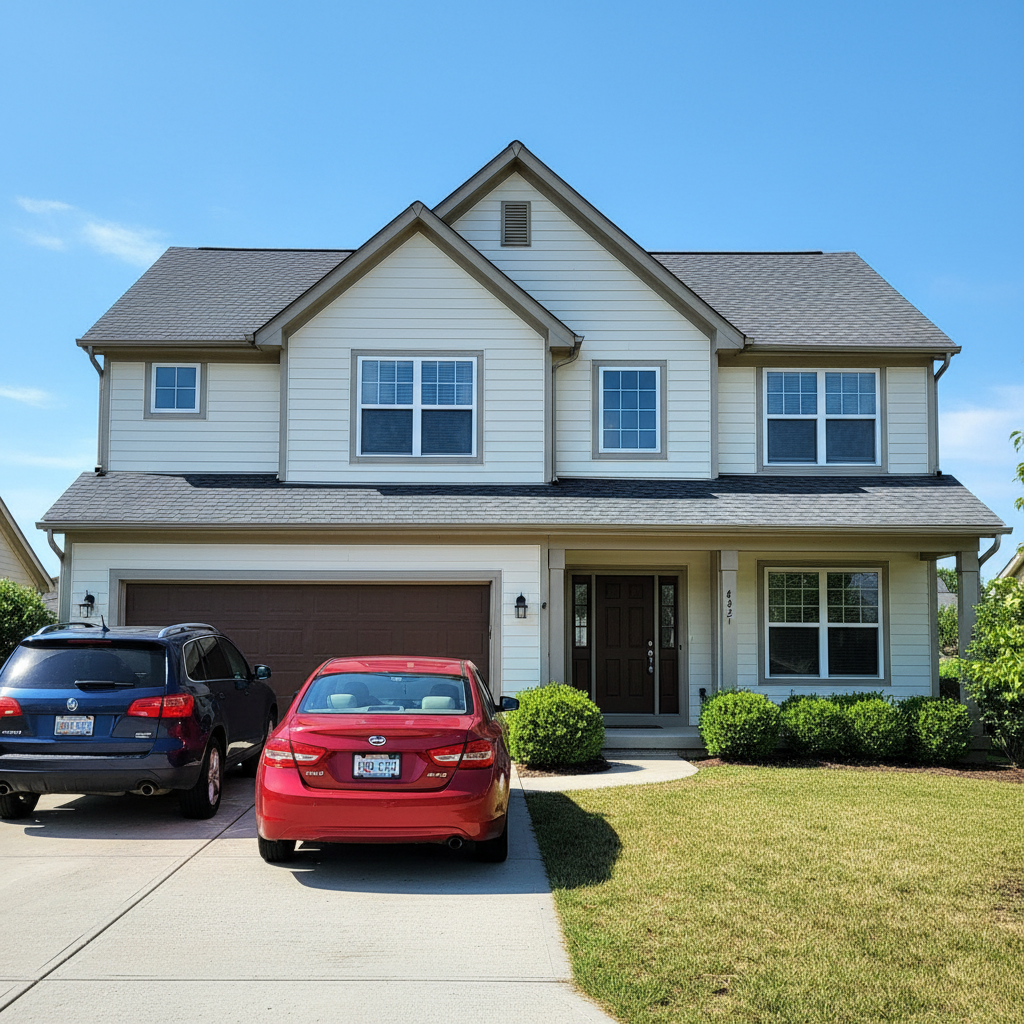
House with red and blue cars in driveway
Before
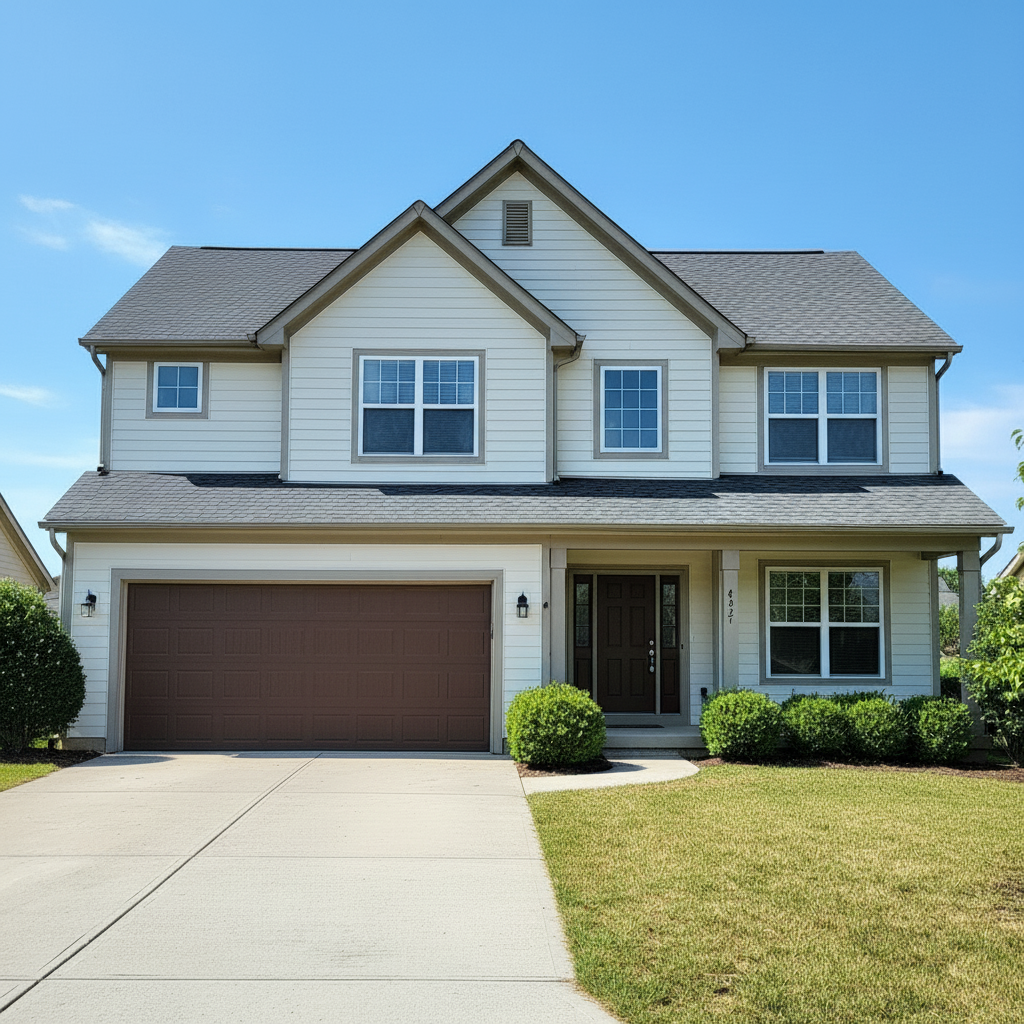
House with clean empty driveway
After

Real estate listing with cars in driveway

Property showing had multiple cars parked in the driveway, ruining the curb appeal. One prompt cleared them all for a clean listing photo.

Prompt: remove all vehicles from the driveway and show clean concrete
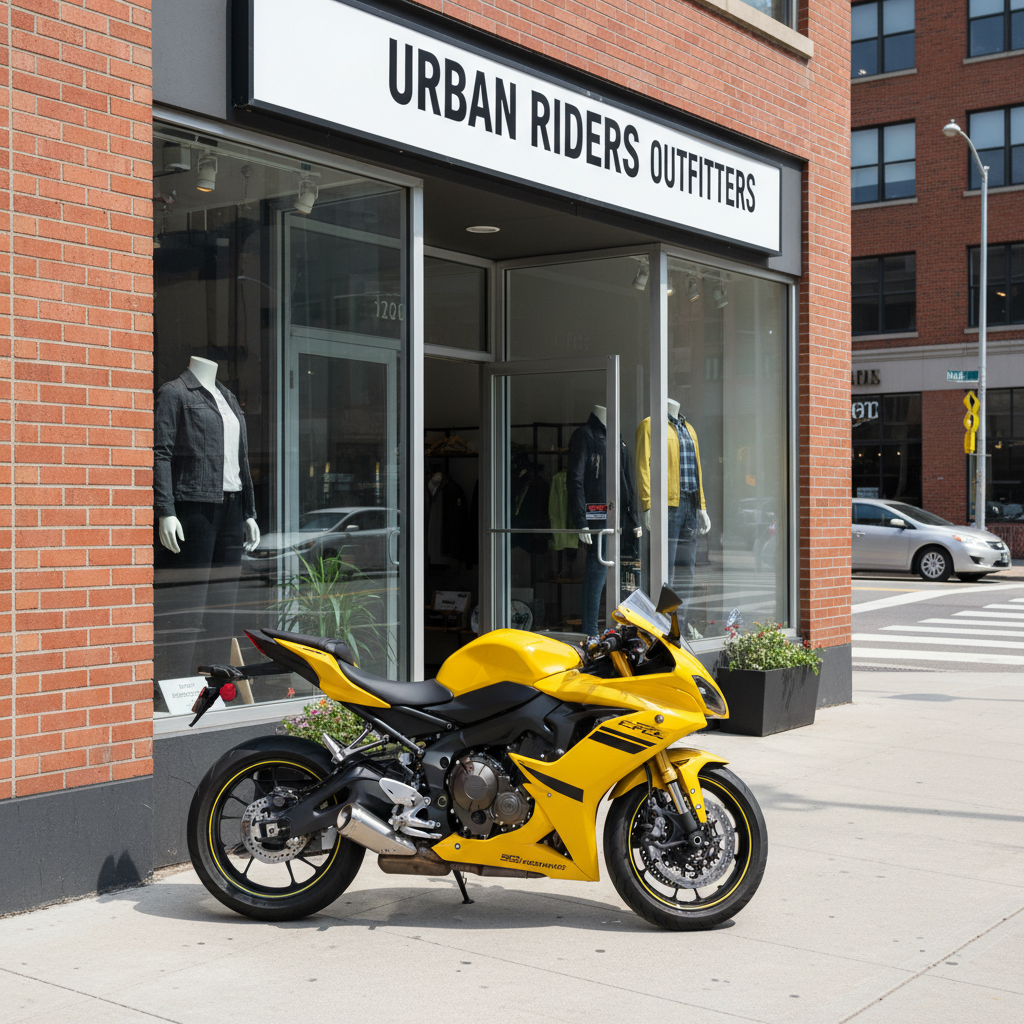
Storefront with yellow motorcycle on sidewalk
Before
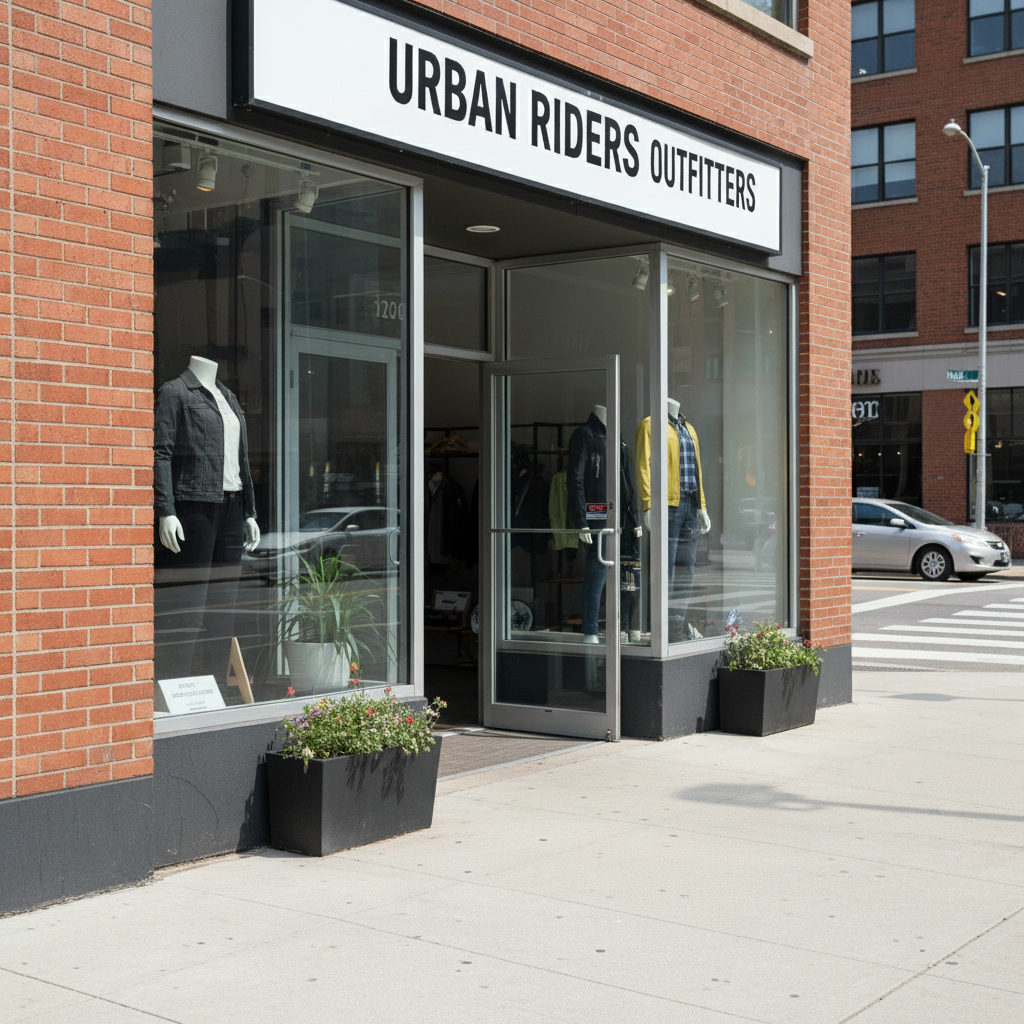
Clean storefront with motorcycle removed
After

Motorcycle removed from sidewalk shot

A parked motorcycle spoiled a clean storefront photo for a business listing. AI removed it and restored the sidewalk seamlessly.

Prompt: remove the motorcycle from the sidewalk and show clean walkway

If something looks off

AI changed the wrong area or removed something I wanted to keep

Why: The AI couldn't determine exactly which vehicle you meant from description alone. This happens when multiple vehicles are present.

Try: Tap a marker on the specific vehicle you want removed, then regenerate with the same prompt

💡 Markers tell the AI 'I mean THIS one specifically.' Use them when description alone is ambiguous.

Vehicle shadow still visible after removal

Why: The AI focused on the vehicle body but didn't eliminate the shadow it was casting on the ground.

Try: remove the remaining vehicle shadow and blend with surrounding pavement

💡 Include 'and its shadow' in your initial prompt for cleaner first results.

Filled area has different texture or color

Why: The AI-generated fill doesn't perfectly match the existing pavement, grass, or background surface.

Try: blend the filled area to match the surrounding surface color and texture exactly

💡 Specify the surface in your prompt: 'fill with matching gray asphalt' or 'continue the brick pattern'.

Partial vehicle remains - wheels or bumper visible

Why: Large vehicles can leave remnants, especially around complex parts like wheels, mirrors, or reflections.

Try: Tap markers on remaining vehicle parts and remove them completely

💡 A second pass focusing on edges usually finishes the job cleanly.

Road lines or parking stripes look wrong

Why: The AI had to reconstruct road markings that were hidden under the vehicle, and the pattern doesn't match.

Try: fix the road lines to continue naturally through the removed area

💡 For parking lots, try 'continue the parking space lines in the same pattern'.

Large truck or bus left artifacts

Why: Oversized vehicles require more AI reconstruction. The larger the area, the more complex the fill.

Try: clean up remaining artifacts and match the background texture more closely

💡 Large vehicles may need 2-3 refinement passes. Be patient for professional results.

Quick answers

Do I need to mark the vehicle before describing?

No! Just describe which vehicle to remove: 'remove the truck on the left' or 'remove the motorcycle parked in front.' The AI understands vehicle types and positions. Only use markers when you have many similar vehicles and need to specify exactly which ones to remove.

What types of vehicles can I remove?

Any vehicle works - cars, trucks, SUVs, vans, motorcycles, scooters, bicycles, buses, RVs, and even boats or trailers in outdoor scenes. Just describe the vehicle type or use 'vehicle' as a general term.

Will the background look natural after removal?

Yes, the AI fills the space with matching pavement, road, landscaping, or building. For best results, describe what should appear: 'show clean asphalt' or 'continue the grass lawn.' Complex patterns may need a refinement pass.

Can I remove just some vehicles and keep others?

Absolutely. Describe specifically which to remove: 'remove only the red car, keep the blue one.' If the AI gets confused, use markers to tap only the vehicles you want removed.

Does it work on large trucks or buses?

Yes, but large vehicles may need 2-3 refinement passes because the AI has to reconstruct more background. Be specific about what's behind the vehicle: 'remove the bus and show the building facade behind it.'

Ready to remove that unwanted vehicle?

Free to try. No signup required.

Try it free