Free • No signup Remove Vehicle · Free

AI Vehicle Remover

Remove cars and vehicles from photos with just a description.
House photo with red car in driveway
Before
Clean house photo with car removed from driveway
After

AI Vehicle Remover

Drop your photo here

or click to browse

Release to upload

Free • No signup

Advertisement
Popular use cases:
  • real estate photography
  • property listing photos
  • street photography
  • landscape photography
  • travel photos
  • urban photography
  • architectural photography

Cost
Free No signup required
Time
Instant results in 15-30 seconds
Works on
Any device - browser, phone, tablet, desktop
Powered by
AI-powered photo editing
Scenario Prompt Time
Driveway cleanup remove the car in the driveway and extend the pavement naturally 15s
Street parking remove all parked cars from the street and restore the road 25s
By color/type remove the red truck on the left side of the frame 15s
Landscape cleanup remove the car blocking the scenic view and restore the landscape 20s

How it works

  1. Upload your photo

    Drop your image into EditThisPic. Works with JPG, PNG, WebP up to 7MB. Best results with photos where vehicles are on streets, driveways, or parking areas with visible backgrounds.

    Expect: Simple edits (one vehicle on plain driveway): 15-30 seconds. Complex scenes (multiple vehicles, detailed backgrounds): may need 2-3 refinements.
  2. Describe what you want

    Type your instruction: 'remove the car in the driveway' or 'remove all vehicles from the street.' Be specific about which vehicle by referring to color, type, or position. No marking needed—the AI understands descriptions like 'the red truck' or 'car on the right.'

    Tip: Mention vehicle color and position: 'remove the white car in the driveway on the left' works better than just 'remove car.'

    Copy one of these to get started:

    Real estate driveway shot remove the car in the driveway and extend the pavement naturally
    Street parking cleanup remove all parked cars from the street and restore the road
    Specific vehicle by color remove the red truck on the left side of the frame
    Landscape photo cleanup remove the car blocking the scenic view and restore the landscape
    3 more prompts
    Parking lot vehicle remove the white van in the parking lot and fill with empty asphalt
    Multiple vehicles on street remove the two cars parked on the right side of the street
    Vehicle with shadow remove the black car including its shadow on the driveway
  3. Review and download

    The AI removes the vehicle and reconstructs the pavement, grass, or background. Check the ground surface and edges at full zoom. If the result looks good, download your clean photo—no watermark.

  4. Refine with markers if needed

    If the AI removed the wrong vehicle or you have multiple similar cars, tap a marker on the specific vehicle you want removed and regenerate. This is optional—most single vehicle removals work without markers.

    Tip: Markers help when multiple similar vehicles are present. Try without them first.
Try it free

AI Vehicle Remover

Drop your photo here

or click to browse

Release to upload

Free • No signup

"Perfect for my real estate listings. Removed the client's car from the driveway shot in seconds. Looks completely natural!" @realestateagent

See it in action

House photo with red car in driveway
Before
->
Clean house photo with car removed from driveway
After

Real estate photo cleaned up

Property listing had the owner's car in the driveway. One prompt removed it cleanly, showing the full driveway and making the home the focus.
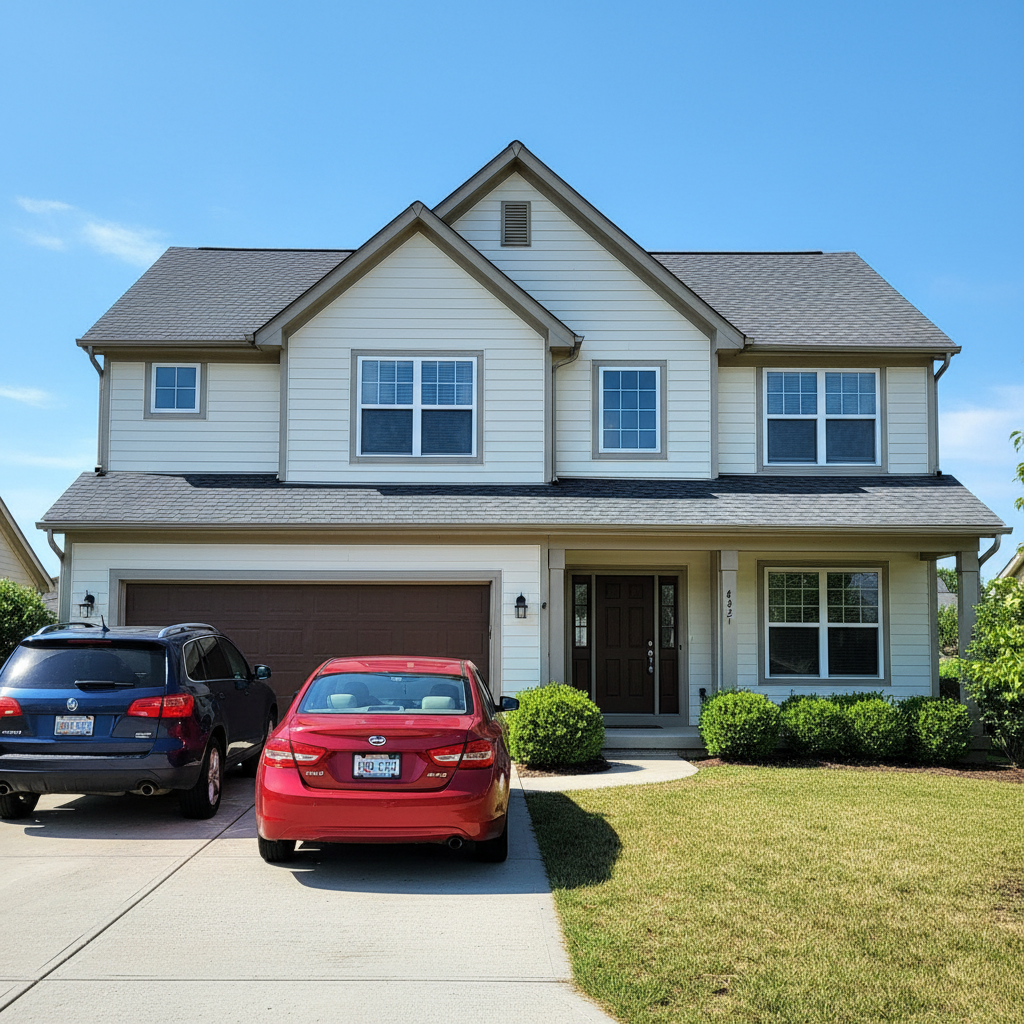
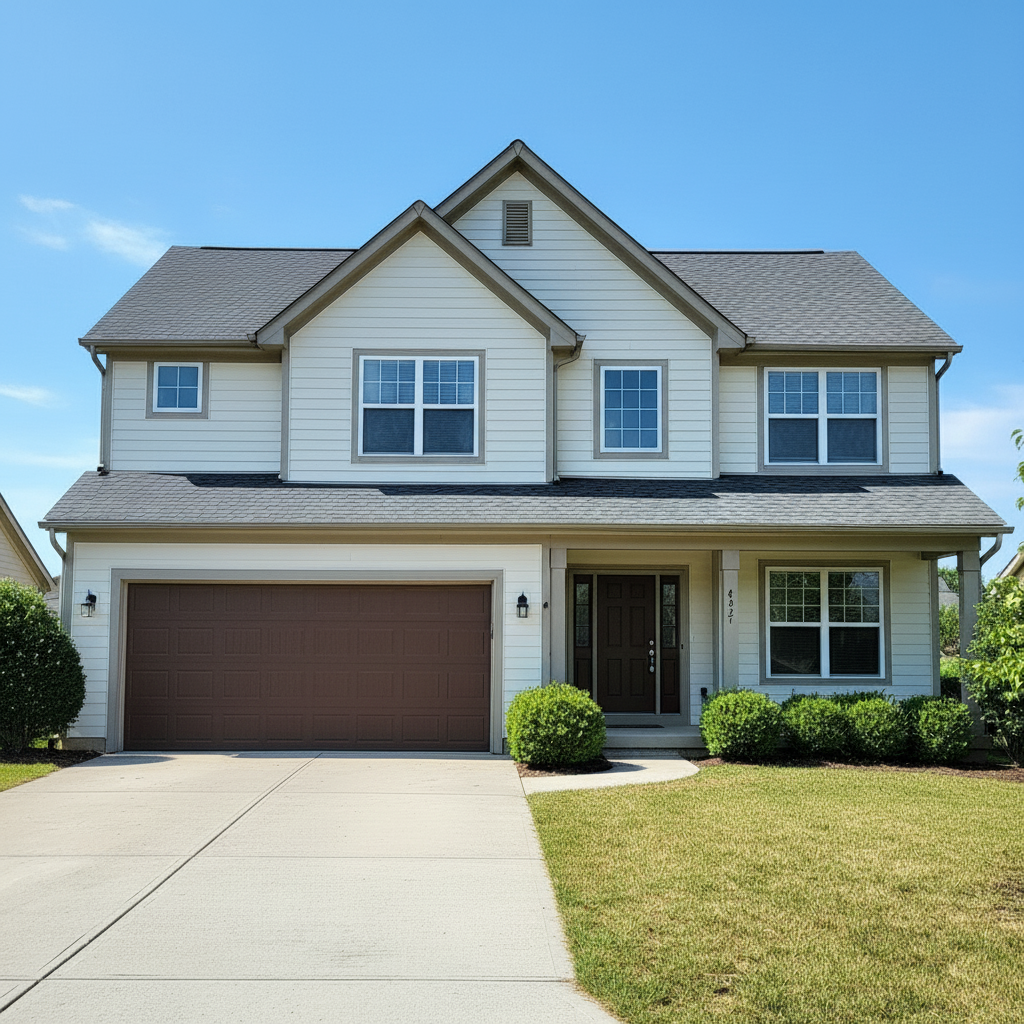
Prompt: remove the car in the driveway and extend the pavement naturally
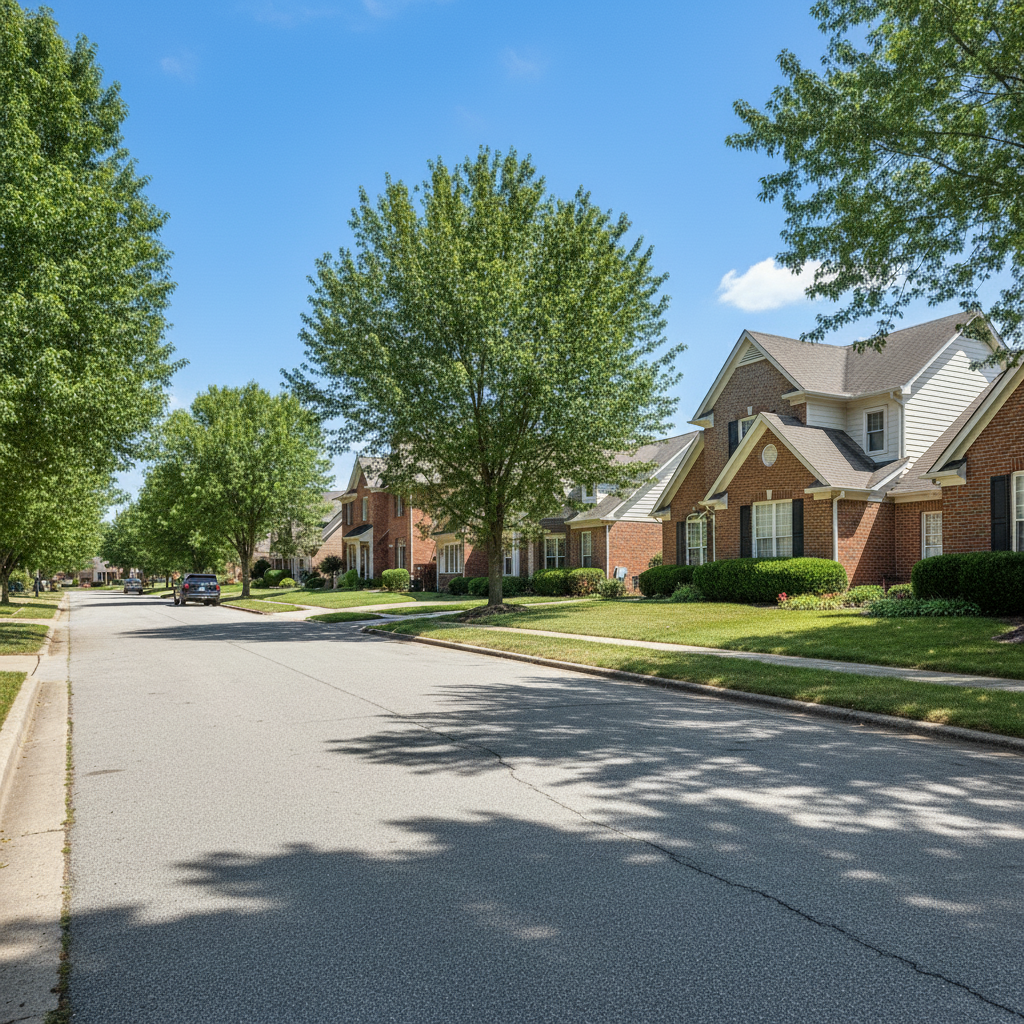
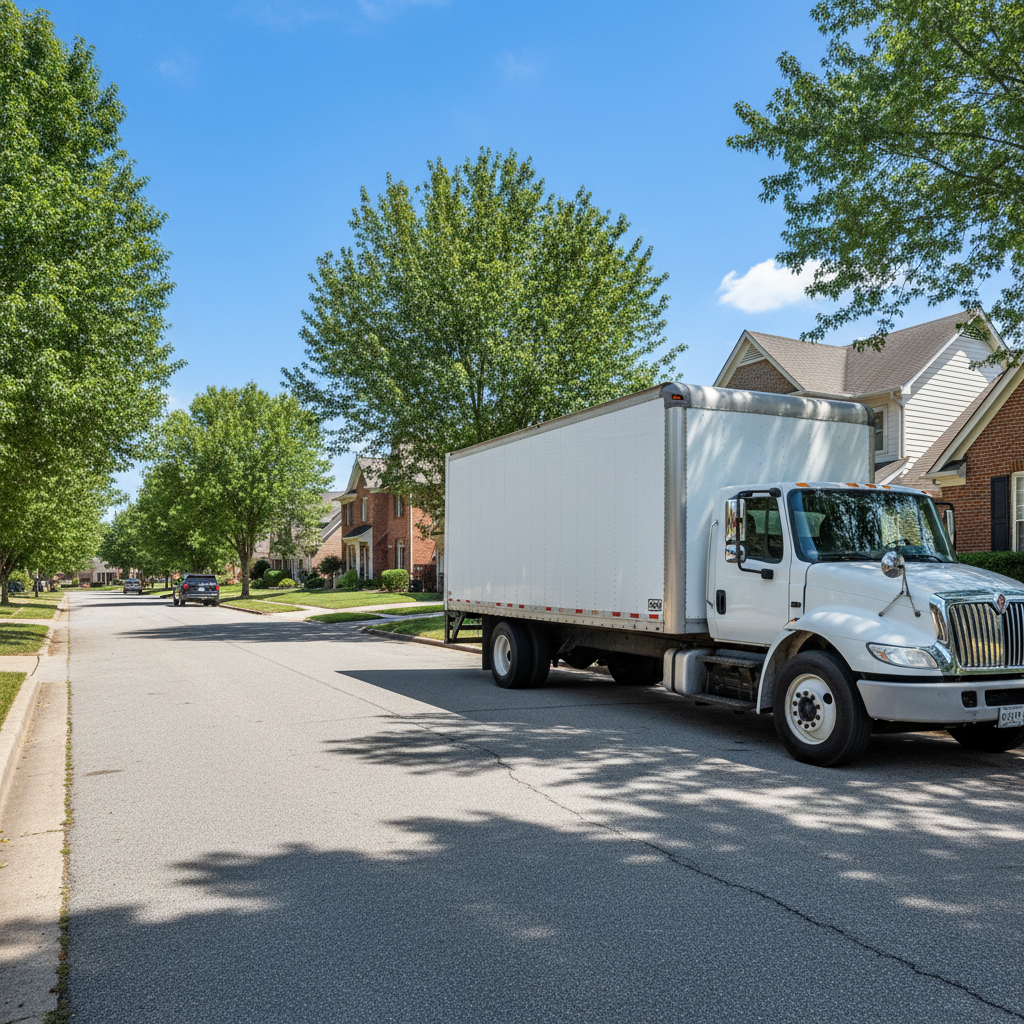
Street with parked cars
Before
->
Clean street with cars removed
After

Street scene decluttered

Urban photography had parked cars blocking the view of the historic buildings. Removed all vehicles to showcase the architecture.
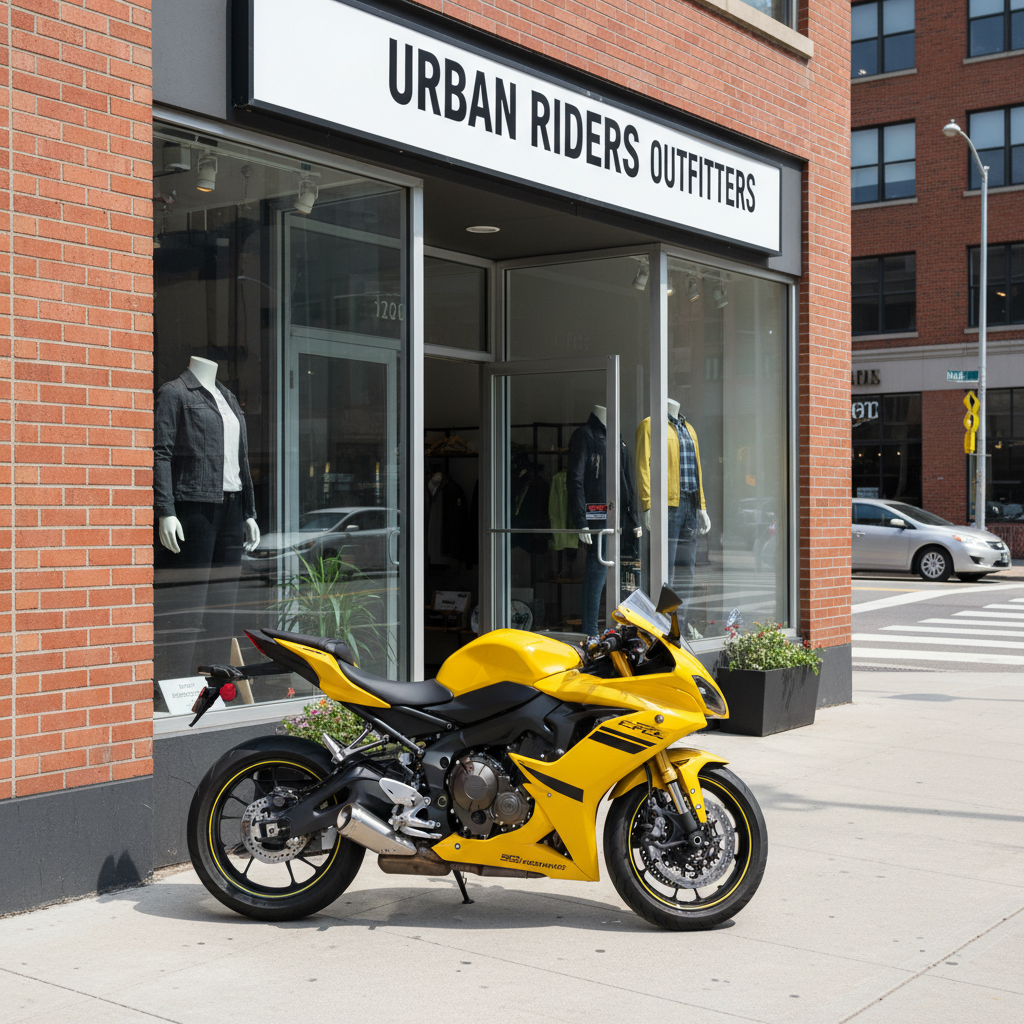
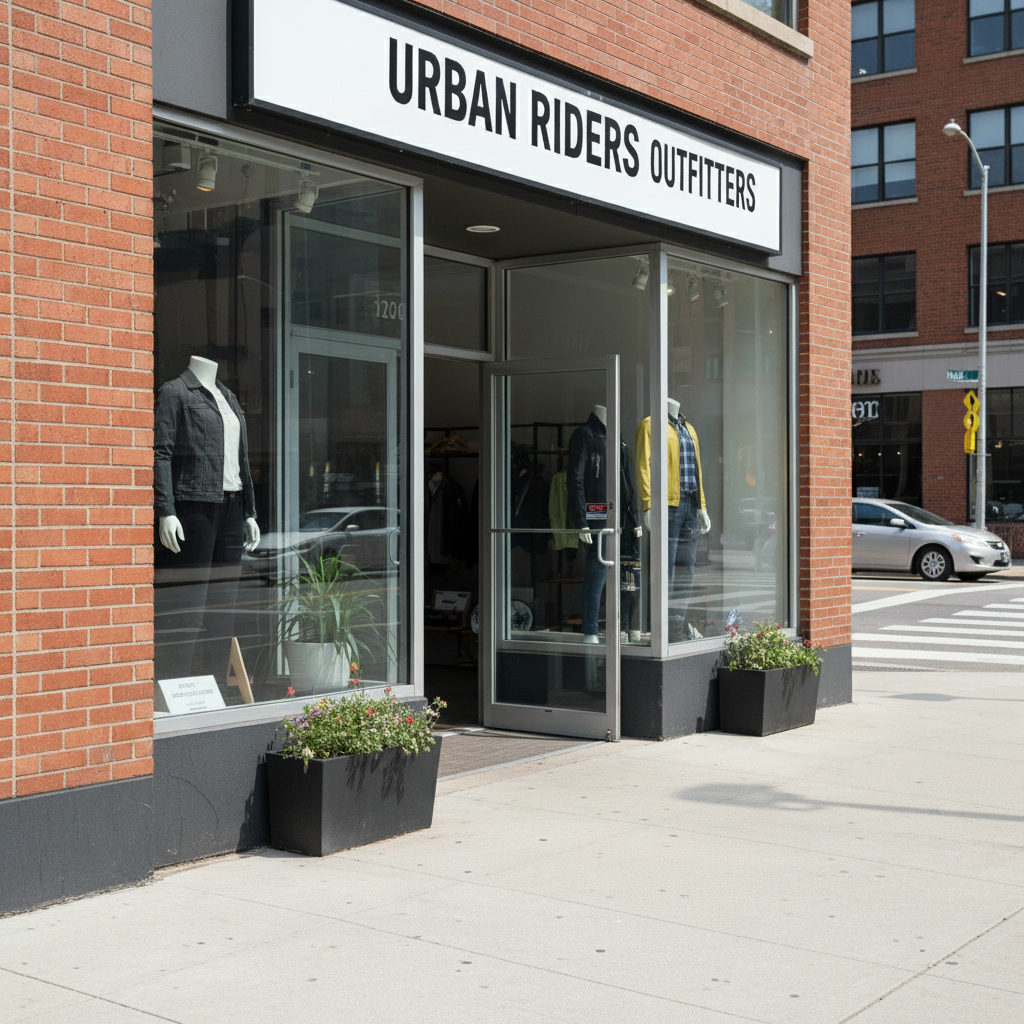
Prompt: remove all parked cars from the street and restore the road
Mountain landscape with truck in foreground
Before
->
Clean landscape with truck removed
After

Landscape photo opened up

Mountain vista photo had a truck parked in the foreground. Removal revealed the full landscape view we wanted.

Prompt: remove the car blocking the scenic view and restore the landscape
Advertisement

If something looks off

AI removed the wrong vehicle or removed building/background instead

Why: The AI couldn't determine exactly which vehicle you meant from description alone. This happens when multiple vehicles are similar or the instruction was ambiguous.

Try: Tap a marker on the specific vehicle you want removed, then regenerate with the same prompt. The marker tells the AI 'remove THIS vehicle specifically.'

Tip: Markers are essential when you have multiple similar vehicles. Use color + position in your description.

Pavement or road looks unnatural after vehicle removal

Why: The AI had to reconstruct the ground surface. Complex patterns (brick pavers, road markings, textured concrete) are harder to extend than simple asphalt or plain driveways.

Try: Try: 'remove the car and fill with smooth [pavement type]' or use a photo where the vehicle is on a simpler surface.

Tip: Photos with vehicles on plain concrete, asphalt, or grass work best.

Vehicle shadow remains visible after removal

Why: The AI removed the vehicle but didn't detect the shadow as part of the removal target.

Try: Add to your prompt: 'remove the car including its shadow' or do a second edit targeting just the shadow: 'remove the shadow on the ground.'

Tip: Always mention shadows explicitly in sunny photos where shadows are prominent.

Driveway or street looks shorter/incomplete after removal

Why: The AI removed the vehicle but didn't extend the background far enough to fill the space naturally.

Try: Use: 'remove the car and extend the driveway/street to fill the space' or 'remove vehicle and restore full pavement.'

Tip: Explicitly asking AI to 'extend' or 'restore' the surface helps with large vehicles.

Multiple vehicles - not all removed

Why: Batch removal of many vehicles can be inconsistent if they're in different positions or the description wasn't specific enough.

Try: Remove vehicles one at a time with separate edits: 'remove the car on the left,' then 'remove the truck on the right.' Or use markers to specify each one.

Tip: Individual removal gives more control than 'remove all vehicles' for complex scenes.

Background building or landscape partially removed with vehicle

Why: The AI included too much of the surrounding area in the removal, especially when the vehicle overlaps with background elements.

Try: Be more specific: 'remove only the vehicle, keep the building behind it' or use markers to precisely define the vehicle area.

Tip: When vehicles are close to important background elements, markers prevent accidental removal.

Quick answers

Do I need to mark the vehicle before describing?

No! For most edits, just describe which vehicle to remove: 'remove the car in the driveway' or 'remove the red truck on the left.' The AI understands these descriptions. Only use markers when you have multiple similar vehicles and need to specify exactly which one.

How do I remove vehicles from photos for free?

Upload your photo to EditThisPic, type which vehicle to remove (like 'remove the car in the driveway'), and the AI handles it in 15-30 seconds. Free to try with no signup or watermark. You get one free edit per day, or unlimited edits with a subscription.

Can I remove multiple vehicles from one photo?

Yes. You can either describe 'remove all cars from the street' for a batch removal, or remove them one at a time with separate edits for more control. Individual removal works best when vehicles are in different positions or have complex backgrounds.

What's the best free AI tool for removing vehicles from real estate photos?

EditThisPic offers free AI vehicle removal with no signup or watermark. Unlike other tools that require manual selection, EditThisPic works with simple text descriptions. Perfect for real estate agents who need to remove cars from driveway shots and street parking from listing photos.

Will the driveway or street look natural after removing vehicles?

Yes, when vehicles are on simple surfaces (plain concrete, asphalt, grass). The AI analyzes surrounding areas and extends the pavement or ground naturally. Complex surfaces (detailed brick patterns, intricate road markings) may look slightly reconstructed. Best results when the vehicle is on a uniform surface.

Ready to remove vehicles from your photos?

Free to try. No signup required.

Try it free