Free • No signup Fix Double exposure ghosting · Free

Best angle but double exposure?

Perfect moment ruined by camera glitch creating ghost images? AI removes double exposure instantly.
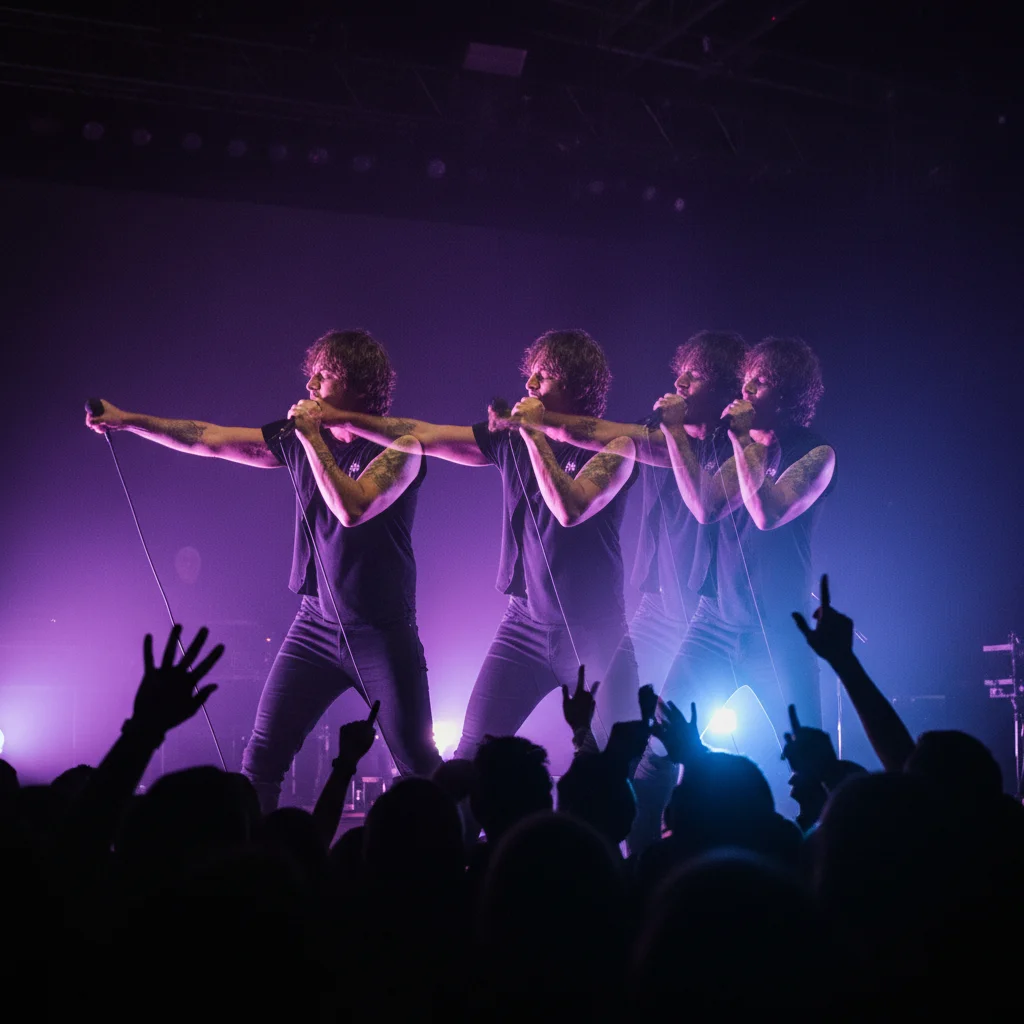
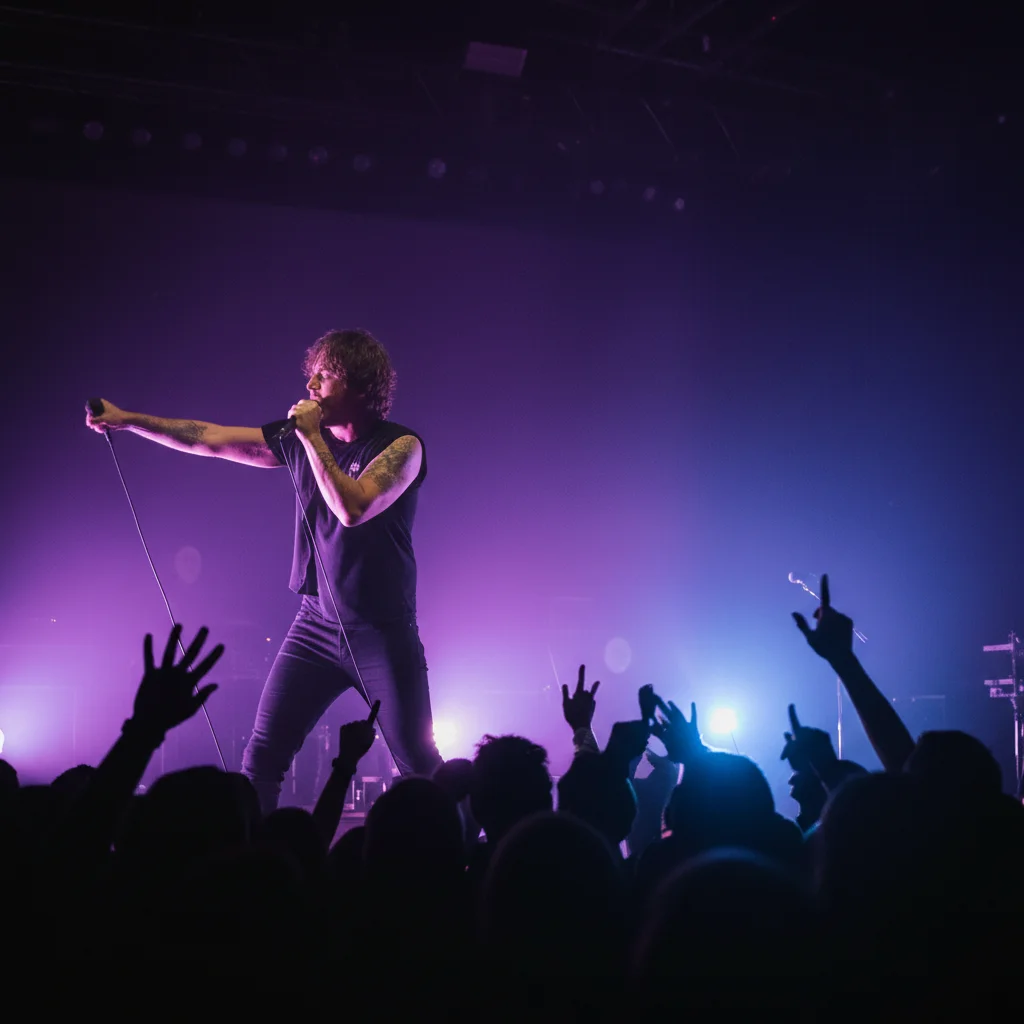
Concert photo with transparent ghost duplicate of performer
Before
Same concert photo with ghost removed, single clear image
After

Best Angle But Double Exposure? Fix Camera | EditThisPic

Drop your photo here

or click to browse

Release to upload

Free • No signup

Advertisement
Popular use cases:
  • Fix double exposure
  • Remove ghosting from photo
  • Camera glitch fix
  • HDR processing error
  • Burst mode artifact
  • Remove ghost image
  • Fix camera shake ghosting

Cost
Free No signup required
Time
Instant results in 15-30 seconds
Works on
Any device - browser, phone, tablet, desktop
Powered by
AI-powered photo editing
Scenario Prompt Time
Accidental double exposure remove double exposure effect, make single clear image 28s
Ghosting or transparent duplicate fix ghosting, remove transparent duplicate layers 30s
HDR or burst mode error remove overlapping images, keep sharpest single shot 35s
Camera shake ghost trail fix camera shake ghosting, sharpen to single image 25s

How it works

  1. Upload your photo

    Drop your image into EditThisPic. JPG, PNG, WebP up to 7MB. Works on any photo with double exposure, ghosting, or overlapping images from camera glitches, burst mode errors, or HDR processing issues.

    Expect: Simple ghosting removal: 25-35 seconds. Complex overlapping images or severe artifacts: 45-60 seconds.
  2. Describe what you want

    Type 'remove the double exposure effect' or 'fix the ghosting and make the image sharp and clear.' The AI identifies the ghost/duplicate layer, removes it, and preserves the main sharp image. You don't need to mark anything—the AI understands 'ghosting' and 'double exposure.'

    Tip: If you know which layer is the good one, specify: 'keep the sharp foreground image, remove the blurry ghost layer behind it.'

    Copy one of these to get started:

    Camera created unwanted double image remove the double exposure effect and make it a single clear image
    Ghosting or transparent duplicate visible fix the ghosting and remove all transparent duplicate layers
    Burst mode or HDR processing error remove the overlapping images, keep only the sharpest single shot
    Motion blur creating ghost trail remove the motion blur ghost trail, keep the clear subject
    3 more prompts
    Camera shake artifact with duplicate edges fix camera shake ghosting, sharpen to single clean image
    Know which layer is correct keep the sharp foreground image, remove the blurry ghost layer in background
    Multiple ghost copies visible remove all ghost duplicates and artifacts, create one clear sharp image
  3. Review the result

    Check that all ghost images are gone and only the clear, sharp main image remains. Zoom in on edges and faces to verify there's no residual ghosting, transparency, or blurry duplicates.

  4. Refine if needed (optional)

    If some ghosting remains or the wrong layer was kept, try 'remove all remaining ghost images, keep only the sharpest layer' or tap a marker on the ghost area and say 'remove this ghost/duplicate.'

    Tip: For complex multi-layer exposures, specify which to keep: 'keep the person in focus, remove the blurry transparent duplicate.'
Try it free

Best Angle But Double Exposure? Fix Camera | EditThisPic

Drop your photo here

or click to browse

Release to upload

Free • No signup

"Perfect shot at a concert but my phone camera glitched and created this weird ghost double image. This fixed it completely—looks like it never happened." @ConcertGoer

See it in action

Concert photo with transparent ghost duplicate of performer
Before
->
Same concert photo with ghost removed, single clear image
After

Concert photo with phone camera glitch ghosting

Perfect moment at a concert but phone camera glitched and created a transparent ghost duplicate of the performer. AI removed the ghost layer and kept the sharp main image.
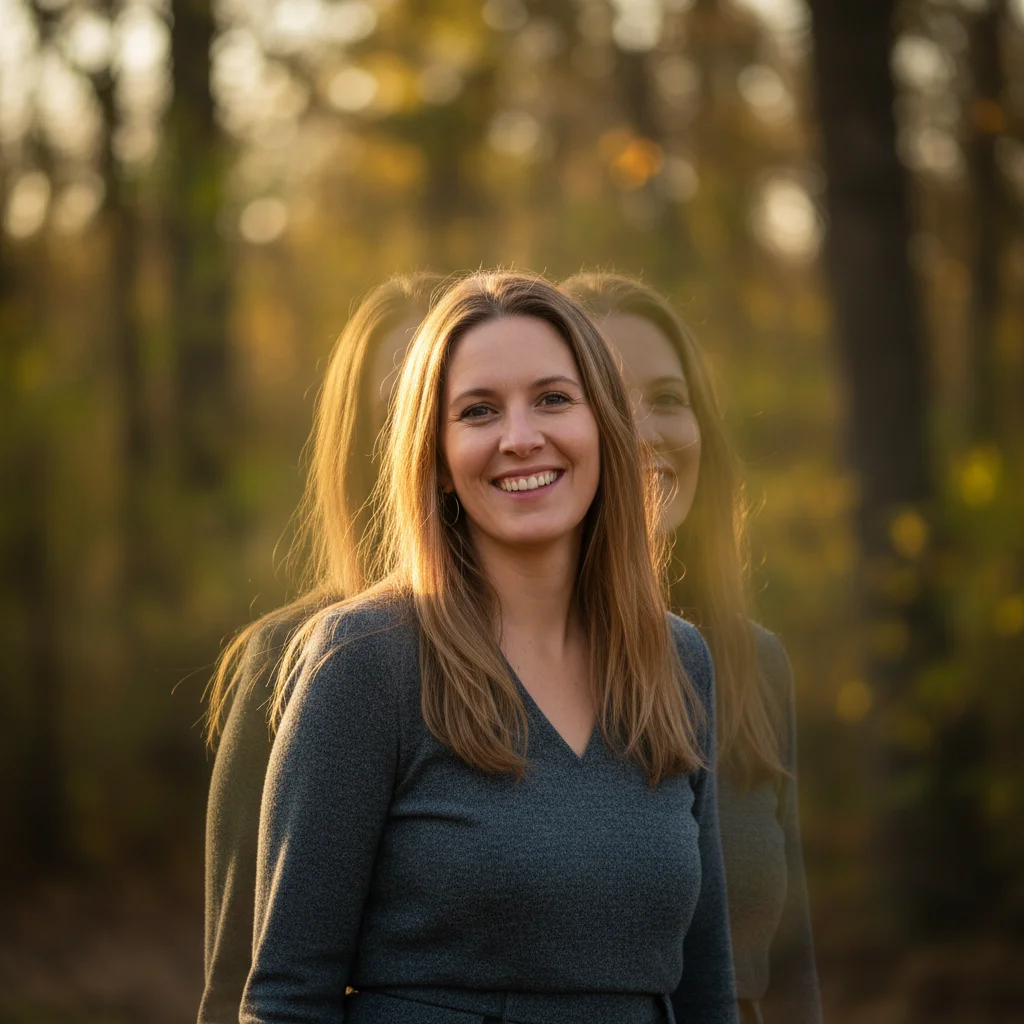

Prompt: remove the double exposure effect and make it a single clear image
Portrait with ghosting halo around subject from HDR error
Before
->
Same portrait with ghosting removed, clean sharp edges
After

Portrait with HDR processing error creating ghosting

Beautiful outdoor portrait but HDR processing created unwanted ghosting around the subject. One prompt removed all ghost artifacts and preserved the sharp main image.

Prompt: fix the ghosting and remove all transparent duplicate layers
Advertisement

If something looks off

AI removed the wrong layer—kept the ghost instead of the sharp image

Why: The AI couldn't determine which layer was the intended main image vs the unwanted ghost.

Try: keep the sharpest/clearest layer, remove the blurry transparent ghost duplicate

Tip: Be explicit about which is the 'good' layer: 'keep the sharp one' or 'keep the layer in focus.'

Some ghosting or transparency still visible

Why: The AI removed most but not all of the ghost layer, leaving subtle artifacts or edges.

Try: remove all remaining ghosting and transparency, make it completely solid and clear

Tip: 'All remaining' signals you want complete removal, not partial reduction.

Image became blurry or lost sharpness after ghost removal

Why: The AI merged layers in a way that reduced overall sharpness, or removed edges thinking they were ghost artifacts.

Try: remove ghosting but keep the image sharp and well-defined, don't blur edges

Tip: Add 'keep sharp' or 'maintain clarity' to prevent unwanted softening during correction.

Colors or exposure changed after removing ghost layer

Why: Double exposure often affects brightness and color. Removing one layer can shift the overall tone.

Try: remove ghost layer but maintain the original colors and brightness

Tip: If color/exposure shifted, add 'keep original lighting and color' to your prompt.

AI didn't recognize or fix the ghosting at all

Why: The ghosting may be subtle or the AI didn't interpret 'double exposure' as a problem to fix.

Try: tap marker on the ghost duplicate area, then 'remove this transparent layer completely'

Tip: When verbal description fails, markers show exactly what you want removed.

Quick answers

Do I need to mark the ghost layer before describing it?

No. Just type 'remove the double exposure' or 'fix the ghosting' and the AI identifies and removes ghost layers automatically. Markers are only needed if the AI can't tell which layer is the ghost vs the main image, or if stubborn artifacts remain.

What causes double exposure or ghosting in photos?

Common causes include camera glitches during capture, HDR processing errors merging multiple exposures incorrectly, burst mode frames accidentally layered, camera shake during long exposure, or software bugs in photo apps. The AI can fix most of these issues.

Can this fix severe ghosting with multiple overlapping images?

Yes, in most cases. For complex multi-layer ghosting, you may need to be specific: 'remove all ghost duplicates, keep only the sharpest single image.' Very severe cases may need Smart mode (4 credits) for better layer separation.

Will this make my photo blurry or lose quality?

It shouldn't, when done correctly. The AI aims to preserve the sharpest layer and remove only the ghost/duplicate. Add 'keep the image sharp' to ensure clarity is maintained during correction.

What if I actually want double exposure as an artistic effect?

This tool is for fixing unwanted camera glitches, not removing intentional artistic double exposures. If your double exposure was deliberate, don't use this fix. But if it was accidental and you want a single clear image, this is exactly what you need.

Ready to fix your camera glitch and save the shot?

Free to try. No signup required.

Try it free