Improve Photo Quality
Just describe what needs improvement. The AI analyzes and fixes quality issues automatically.
Type 'improve this photo quality' and EditThisPic's AI analyzes your image to fix whatever degrades it--poor lighting, softness, dull colors, noise, or low resolution--in 15-30 seconds. No technical knowledge required. The AI identifies quality problems and applies intelligent corrections automatically. Works on smartphone snapshots, old scans, and compressed images. Free, no signup needed.
How it works
Upload your photo
Drop any image into EditThisPic. JPG, PNG, and WebP up to 7MB work. The AI handles whatever quality issues your image has--whether it's a compressed screenshot, an old scan, or a smartphone photo taken in poor conditions.
Describe what you want
Type 'improve this photo quality' and let the AI work. That's genuinely all most photos need. The AI analyzes lighting, sharpness, color accuracy, noise levels, and contrast, then applies corrections where they're needed. No sliders, no settings, no marking required.
Copy one of these to get started:
improve this photo quality, enhance sharpness, colors, and overall clarity
improve quality of this phone photo, add sharpness and make colors more vibrant
improve photo quality by reducing noise while keeping detail sharp and natural
improve quality of this dark photo, brighten shadows and reveal hidden detail
3 more prompts
improve quality of this old scanned photo, restore sharpness and color accuracy while reducing artifacts
improve quality by removing compression artifacts and restoring lost detail
improve photo quality for this portrait, enhance sharpness and skin tones while keeping the look natural
Generate and review
Compare before and after at full zoom. Check that details are sharper, colors look natural, shadows show visible information, and noise is reduced without plastic smoothness. The AI aims for improvements that look natural, not over-processed.
Refine with markers if needed
If the AI improved some areas but not others, tap markers on the spots that still need work and regenerate. This focuses attention on specific regions. Most quality improvements work without markers, but they help for targeted fixes.
"My phone photos always looked just okay. Typed 'improve quality' and suddenly they look like they came from an expensive camera." @PhotoAmateur_Sarah
See it in action
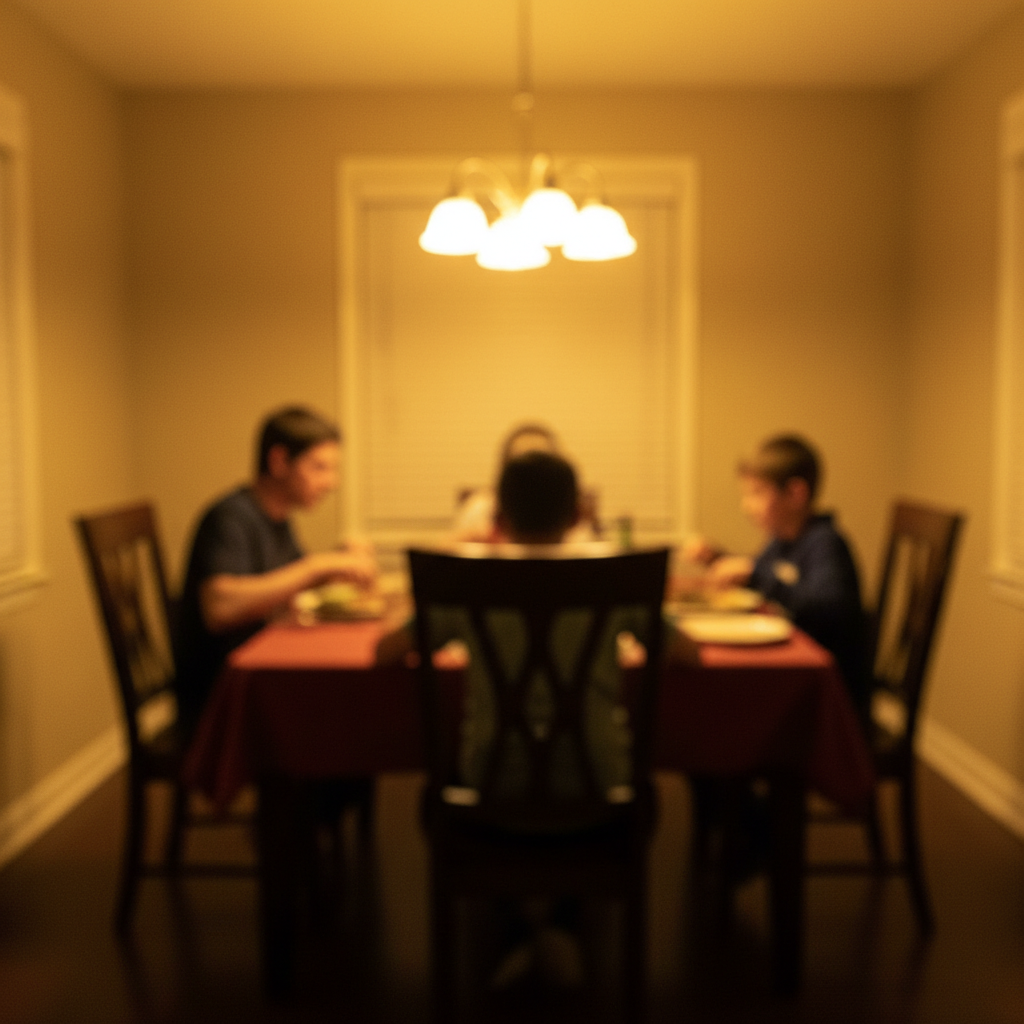
Smartphone snapshot transformed
Quick phone photo taken in challenging indoor lighting. The AI balanced exposure, sharpened details, and corrected the yellow color cast.
improve this photo quality, enhance sharpness, colors, and overall clarity
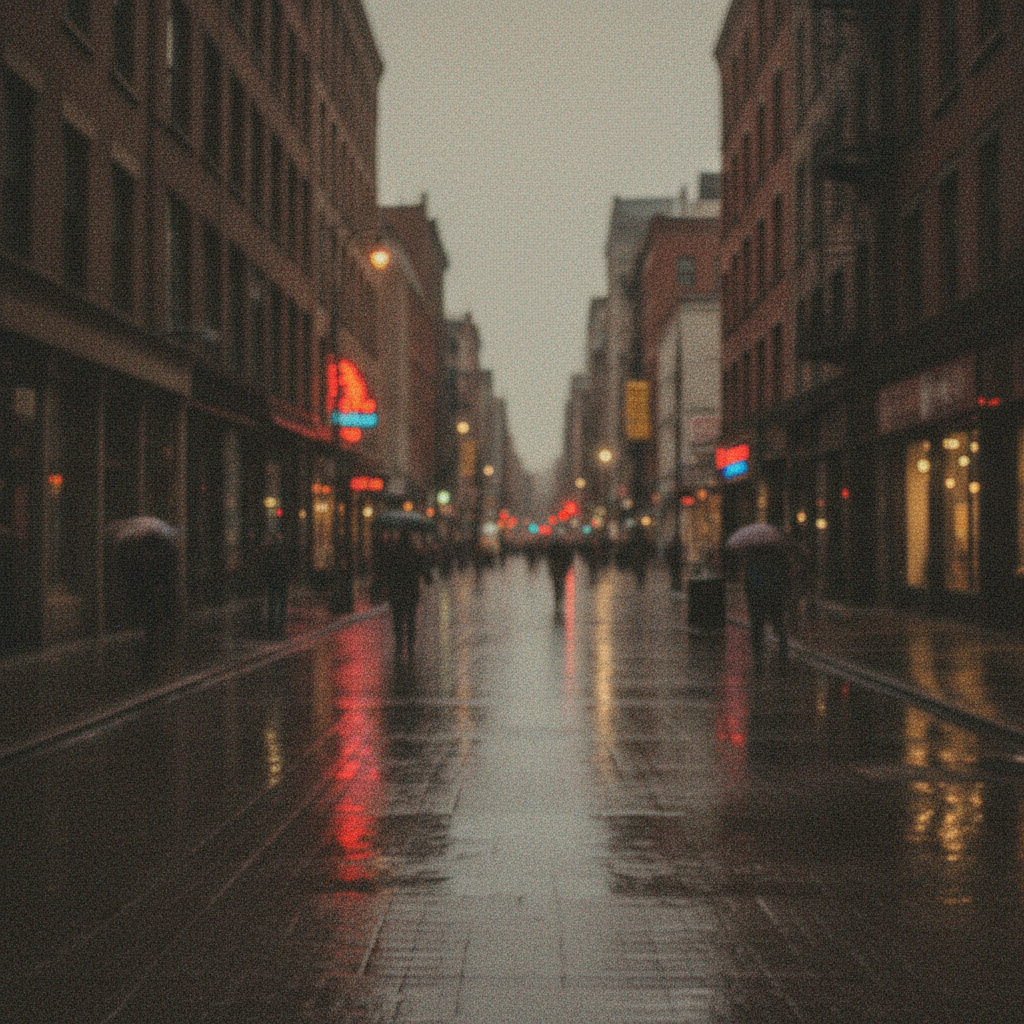
Noisy low-light photo rescued
Evening photo with heavy noise from high ISO. The AI removed the grain while preserving edge detail and natural texture.
improve photo quality by reducing noise while keeping detail sharp and natural
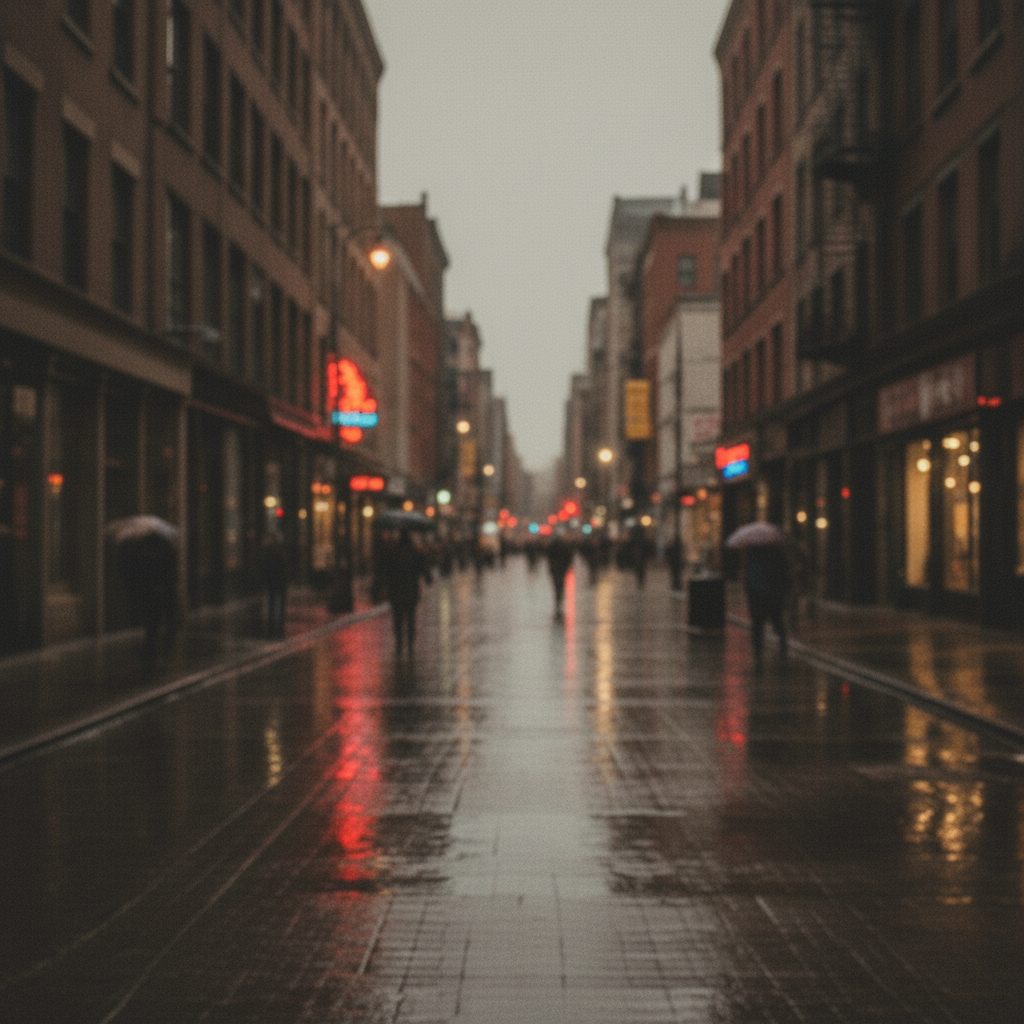
Compressed social media image restored
Image saved through multiple messaging apps had lost clarity. One prompt brought back sharpness and removed blocky compression artifacts.
improve quality by removing compression artifacts and restoring lost detail
If something looks off
Quality improvement looks artificial or over-processed
Why: The AI may have applied too aggressive enhancement, making the image look synthetic. Some photos need subtle treatment.
improve photo quality subtly and naturally, avoid over-sharpening or oversaturation
💡 Adding 'naturally' or 'subtly' tells the AI to enhance without the HDR or filter look.
AI changed the wrong area or something I wanted to keep
Why: General quality improvement affects the entire image. The AI couldn't know you wanted to preserve certain areas.
Tap a marker on the area you want to preserve unchanged, then regenerate with 'improve quality but keep the marked area as-is'
💡 Markers tell the AI 'leave THIS alone.' Use them when you want selective quality improvement.
Noise reduction made the image look too smooth or plastic
Why: Aggressive noise removal can eliminate natural texture along with the grain, especially on faces and detailed surfaces.
improve quality with gentle noise reduction that preserves natural texture and fine detail
💡 Request 'gentle' or 'light' noise reduction if your first result lost too much texture.
Colors look over-saturated after improvement
Why: The AI may interpret 'improve' as 'make more vibrant' which can push colors too far, especially reds and greens.
improve photo quality while keeping colors realistic and natural, avoid oversaturation
💡 Always check skin tones and sky colors first--they show oversaturation most obviously.
Sharpening created visible halos around edges
Why: Sharpening works by increasing contrast at edges. Too much creates light or dark lines around high-contrast areas.
improve quality with subtle sharpening, avoid halos and over-sharpening artifacts
💡 If you see bright lines around dark objects, the sharpening went too far. Request 'subtle' or 'natural' sharpening.
Quality improvement didn't change much
Why: The AI errs on the side of subtlety for images that already have decent quality. Some photos need more aggressive treatment.
improve photo quality more aggressively with stronger sharpening, better colors, and enhanced clarity
💡 Using 'aggressively' or 'strongly' signals the AI to push further with the improvements.
Quick answers
Do I need to mark problem areas before improving quality?
No--just describe what you want. 'Improve this photo quality' works for the entire image automatically. The AI identifies quality issues like softness, noise, color problems, and poor lighting without you having to point them out. Only use markers when you want to improve specific areas differently from the rest.
What quality problems can this fix?
The AI handles most common quality issues: softness and lack of sharpness, visible noise and grain from low-light shooting, color casts and white balance problems, underexposure and dark shadows, compression artifacts from messaging apps, and overall flatness or dullness. It analyzes your specific image and applies whatever corrections are needed.
Will this work on very low resolution images?
The AI can improve quality on low-res images, but there are limits. It cannot invent detail that doesn't exist. For very small images, you may get better results using the upscale tool first to increase resolution, then improving quality on the larger version.
How is this different from phone camera auto-enhance?
Phone auto-enhance applies preset adjustments based on general photo categories. EditThisPic's AI analyzes your specific image pixel by pixel and applies custom corrections based on what that particular photo needs. A dark photo gets brightness recovery; a noisy photo gets noise reduction; a soft photo gets sharpening--all tailored to your image.
Can I improve quality on old printed photos I've scanned?
Yes--scanned photos often benefit significantly from quality improvement. The AI can correct color fading, reduce dust and scratch appearance, improve sharpness lost during scanning, and enhance contrast. Try 'improve quality of this scanned photo, restore sharpness and color accuracy' for best results.
Ready to improve your photo quality?
Free to try. No signup required.