Free • No signup Fix Backlit silhouette · Free

Fix Backlit Silhouette Photo

Reveal the details hiding in dark silhouettes against bright backgrounds.
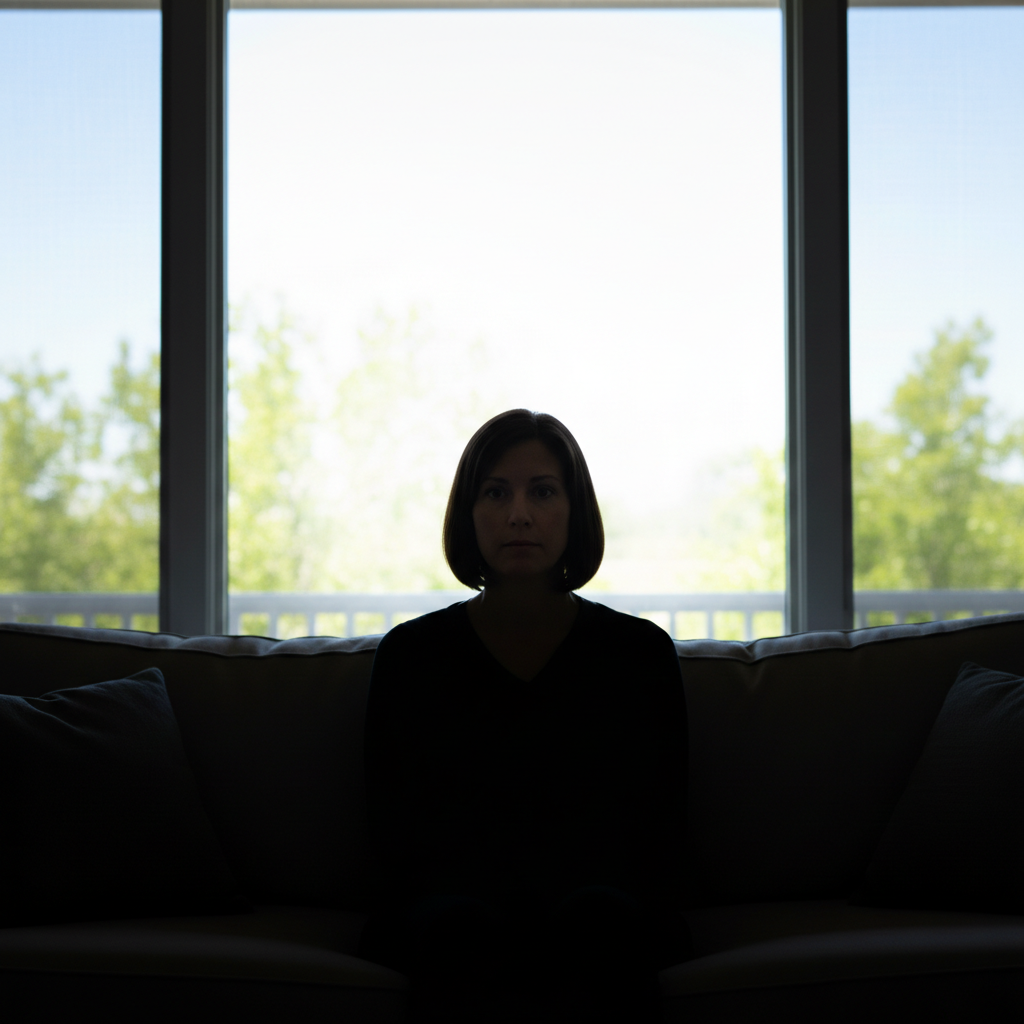
Woman silhouetted against bright window with no visible facial details
Before
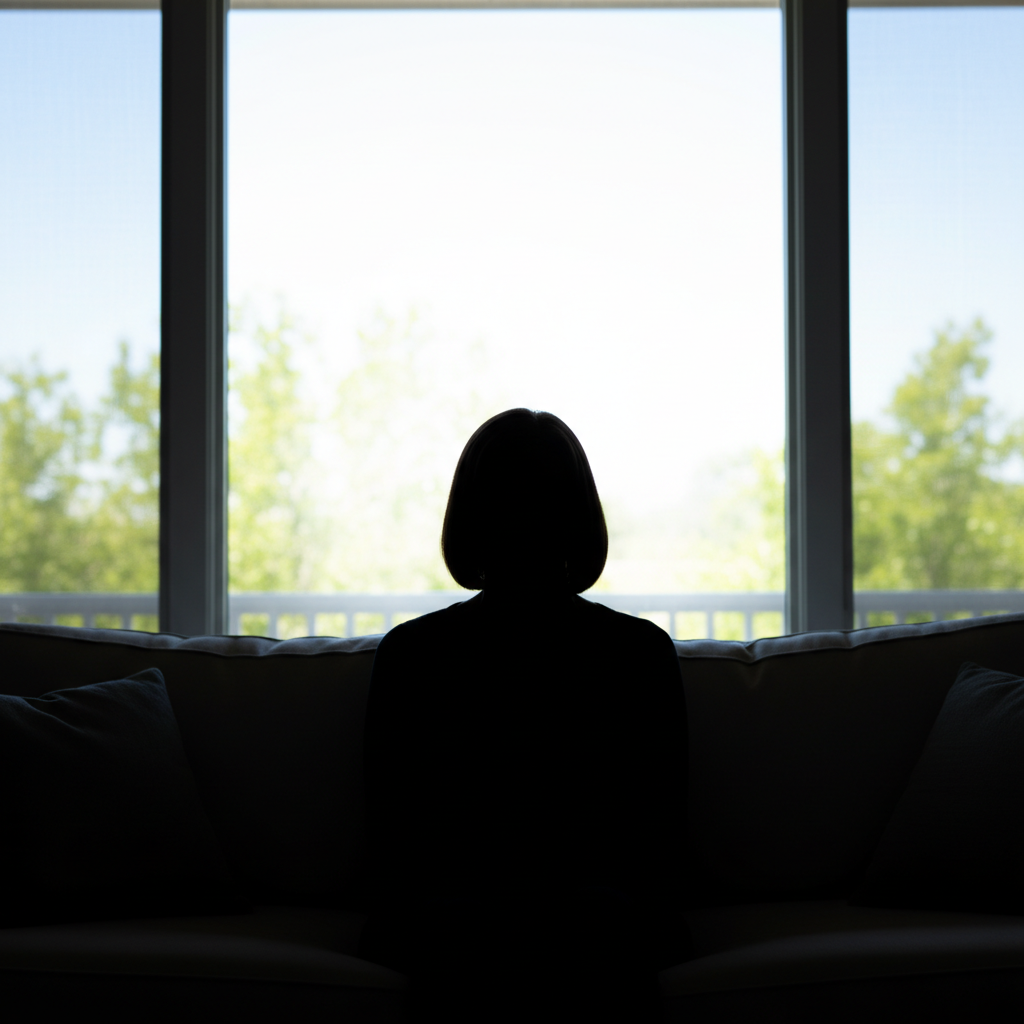
Same woman with visible face and features, window view preserved
After

Fix Backlit Silhouette Photo

Drop your photo here

or click to browse

Release to upload

Free • No signup

Advertisement
Popular use cases:
  • sunset photography
  • window portraits
  • beach photos
  • travel photography
  • outdoor portraits
  • real estate photos
  • wedding photography
  • concert photography

Cost
Free No signup required
Time
Instant results in 15-30 seconds
Works on
Any device - browser, phone, tablet, desktop
Powered by
AI-powered photo editing
Scenario Prompt Time
General backlight fix brighten the subject and reveal the details while keeping the background natural 15s
Window portrait fix the backlit window photo so I can see the person's face clearly 20s
Sunset portrait brighten the person while preserving the sunset colors 25s

How it works

  1. Upload your backlit photo

    Drag your silhouette photo into EditThisPic. JPG, PNG, WebP up to 7MB. The AI works best on photos where you can see the subject's outline but their front is too dark because light is coming from behind them.

    Expect: Simple backlight fixes: 15-30 seconds. Extreme silhouettes: may need 2-3 refinements.
  2. Describe what you want

    Type your instruction: 'brighten the subject and reveal the details while keeping the background natural' or 'fix the backlit photo so I can see the person's face.' Be specific about what you want to see. No marking needed—the AI distinguishes your dark subject from the bright background automatically.

    Tip: Say 'keep the background natural' to prevent the AI from blowing out or darkening the sky/window while fixing the subject.

    Copy one of these to get started:

    General backlit photo fix brighten the subject and reveal the details while keeping the background natural
    Window silhouette portrait fix the backlit window photo so I can see the person's face clearly, keep the window view intact
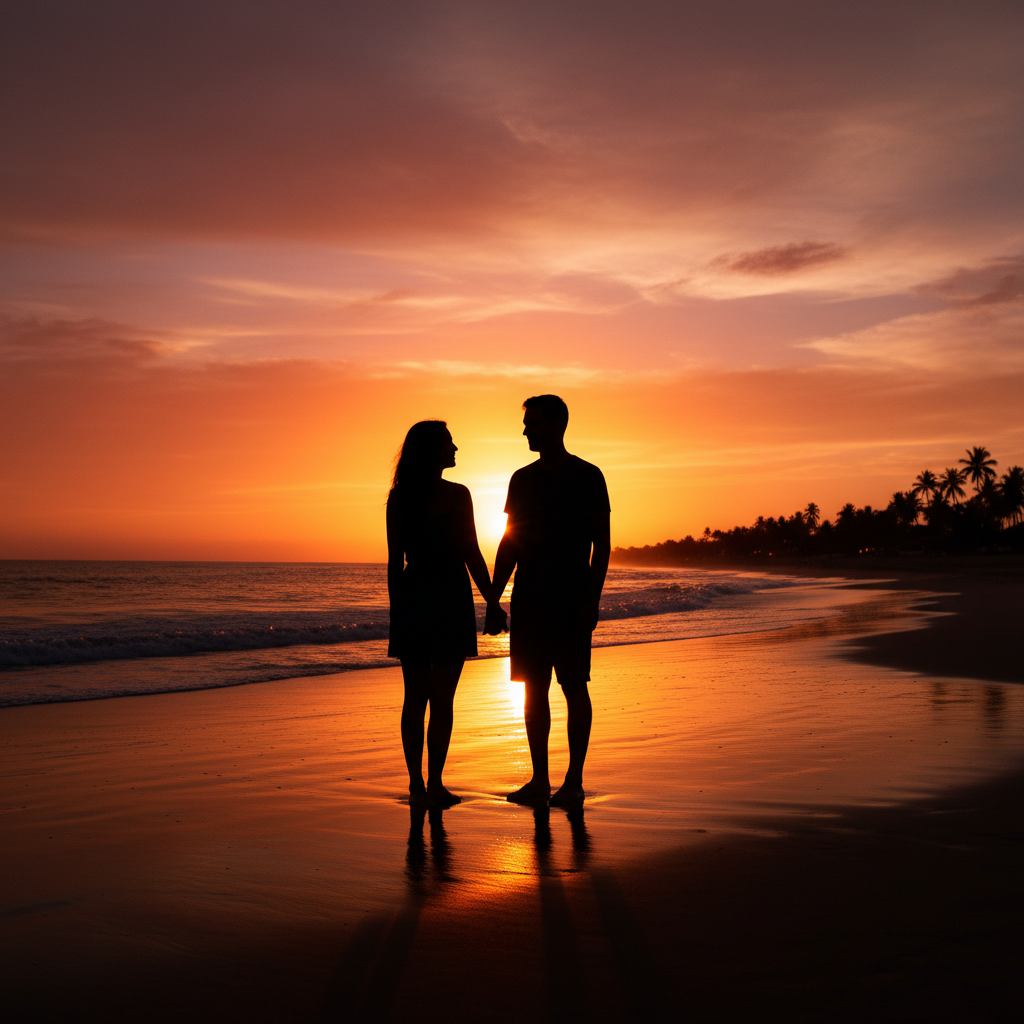
    Sunset or sunrise portrait brighten the person's face and body while preserving the sunset colors in the background
    Beach or outdoor backlight fix the silhouette and reveal the person naturally, keep the bright sky looking realistic
    3 more prompts
    Group photo against bright background brighten all the people in the group so their faces are visible, don't darken the background
    Product or object backlit reveal the details of the product in the foreground while keeping the bright background
    Extreme dark silhouette recover as much detail as possible from this dark silhouette, brighten significantly while looking natural
  3. Generate and review

    Check the brightened result at full zoom. Look for revealed facial features, clothing details, and natural skin tones. Verify the background still looks good—neither blown out nor unnaturally dark.

  4. Refine with markers if needed

    If some areas are still too dark or the AI affected the background when you wanted only the subject changed, tap markers on those specific spots and regenerate. This is optional—most backlight fixes work without markers.

    Tip: Use markers to point at the subject specifically if the AI is struggling to separate them from a complex background.
Try it free

Fix Backlit Silhouette Photo

Drop your photo here

or click to browse

Release to upload

Free • No signup

"My sunset beach photos always made everyone look like shadow people. Now I can actually see their faces!" @travel_sarah22

See it in action

Woman silhouetted against bright window with no visible facial details
Before
->
Same woman with visible face and features, window view preserved
After

Window portrait brought to life

A portrait taken against a bright window turned the subject into a dark silhouette. One command revealed their face while keeping the window view intact.

Prompt: fix the backlit window photo so I can see the person's face clearly, keep the window view intact
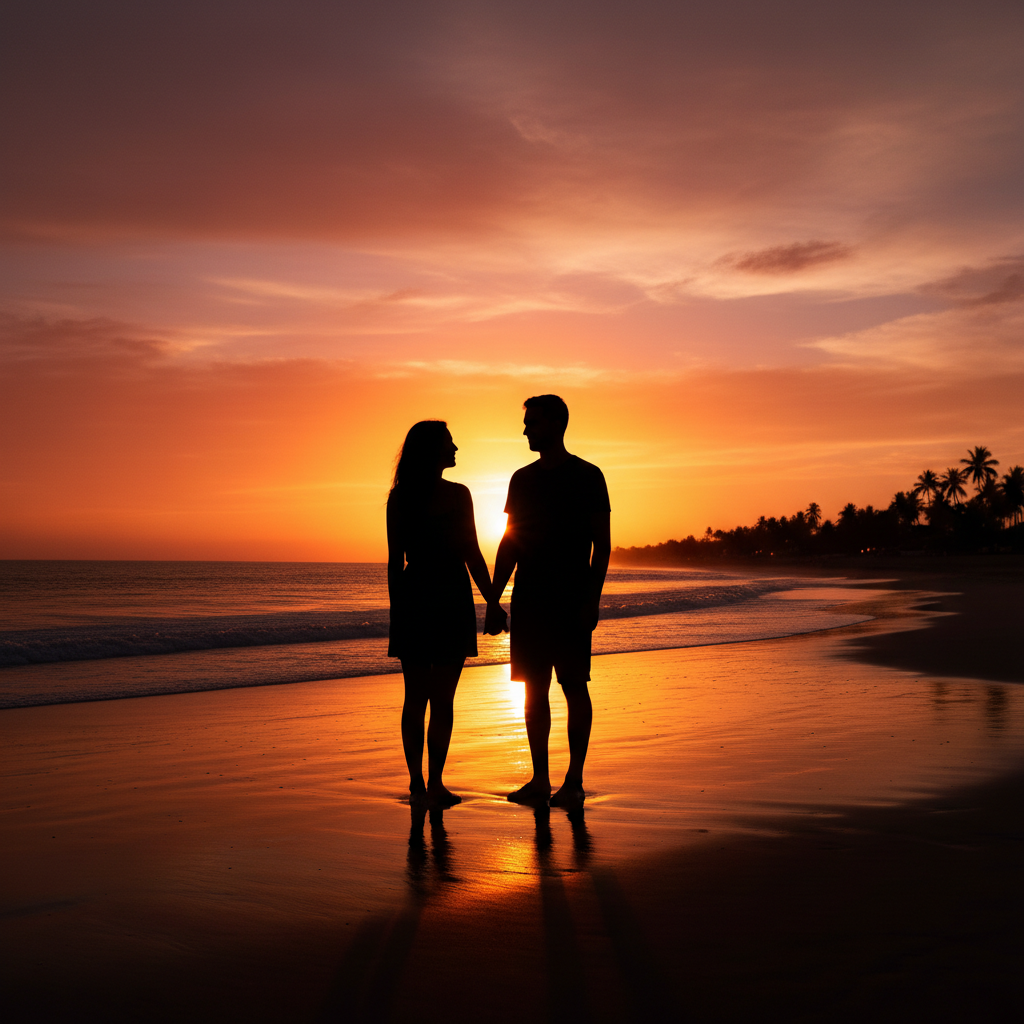
Couple as dark silhouettes against colorful beach sunset
Before
->
Couple with visible faces and the sunset colors preserved
After

Sunset beach portrait rescued

A romantic beach sunset photo made the couple appear as dark shapes against the colorful sky. The AI revealed their faces while preserving the beautiful sunset.

Prompt: brighten the person's face and body while preserving the sunset colors in the background

Businessman silhouetted against bright office windows
Before
->
Professional headshot with visible face and natural window lighting
After

Office meeting room photo fixed

A professional headshot taken in a conference room with windows behind resulted in a dark face. The AI balanced the lighting to reveal the subject professionally.

Prompt: brighten the subject and reveal the details while keeping the background natural
Advertisement

If something looks off

Background became too dark or lost its color

Why: The AI may have darkened the background to balance with the brightened subject, losing the sky or window view.

Try: brighten only the dark subject, do not change the bright background at all

Tip: Emphasizing 'only the subject' or 'don't touch the background' helps preserve it.

Subject still too dark after fixing

Why: The original silhouette may have been so dark that the AI's first pass wasn't aggressive enough.

Try: brighten the subject significantly more, I need to see all the facial details clearly

Tip: Try multiple passes: fix once, then run again on the result for cumulative brightening.

Brightened subject looks washed out or unnatural

Why: Over-brightening can remove contrast and make the subject look flat or fake.

Try: brighten the subject naturally while keeping good contrast and realistic colors

Tip: Adding 'naturally' or 'realistically' prevents over-processing.

AI changed the wrong area or something I didn't want changed

Why: The AI couldn't determine exactly which area you meant from description alone. This happens with ambiguous requests.

Try: Tap a marker on the specific area you want to brighten, then regenerate with the same prompt

Tip: Markers tell the AI 'I mean THIS area specifically.' Use them when description alone is ambiguous.

Edges around subject look strange or haloed

Why: The transition between brightened subject and bright background can create visible artifacts.

Try: brighten the subject with smooth natural edges, no halo effect

Tip: Mentioning 'smooth edges' or 'no halo' helps the AI blend the adjustment naturally.

Only parts of the subject got brightened

Why: Complex poses or clothing may confuse the AI about what constitutes 'the subject.'

Try: brighten the entire person from head to toe, including their clothes and visible skin

Tip: Be explicit about wanting the whole person brightened, not just the face.

Quick answers

Do I need to mark the dark subject before describing?

No! Just describe what you want: 'brighten the subject and reveal the details.' The AI understands that the dark shape in front of the bright background is your subject. Only use markers if the AI is struggling to separate the subject from a complex or confusing background.

How do I fix a backlit photo for free without signing up?

Upload your silhouette photo to EditThisPic, type 'brighten the subject while keeping the background natural,' and download the result. No account needed, no watermarks added. The AI automatically identifies the dark foreground subject and brightens it while preserving the bright background.

Can AI recover details from a completely black silhouette?

Partially. If there's any detail hiding in the shadows, AI can often reveal it. Completely pure black areas may be reconstructed based on context, but extreme silhouettes may not fully recover. The AI usually improves the photo significantly even if perfect recovery isn't possible.

What's the best free tool for fixing backlit photos?

EditThisPic works well because you describe what you want instead of manually adjusting shadows and highlights. Unlike sliders that brighten everything equally, AI understands 'subject' versus 'background' and adjusts them independently for a natural result.

Will fixing backlighting ruin my sunset or window view?

Not if you mention it in your prompt. Say 'keep the sunset colors' or 'preserve the window view' and the AI will brighten the subject without damaging the background. The AI tries to balance both by default, but explicit instructions help.

Ready to reveal your silhouette?

Free to try. No signup required.

Try it free