Try Free

AI Photo Editor for Memorial Photos

Honor their memory with photos that capture who they truly were.

FreeNo signupNo watermarkPrivate - photos not stored
Upload any photo and type what you need: 'restore this faded old photo' or 'remove the background for a memorial portrait.' EditThisPic's AI handles restoration, colorization, and enhancement in 20-40 seconds with dignity and care. Works on photos from any era. Completely private - your photos are not stored. Free to use, no account needed.
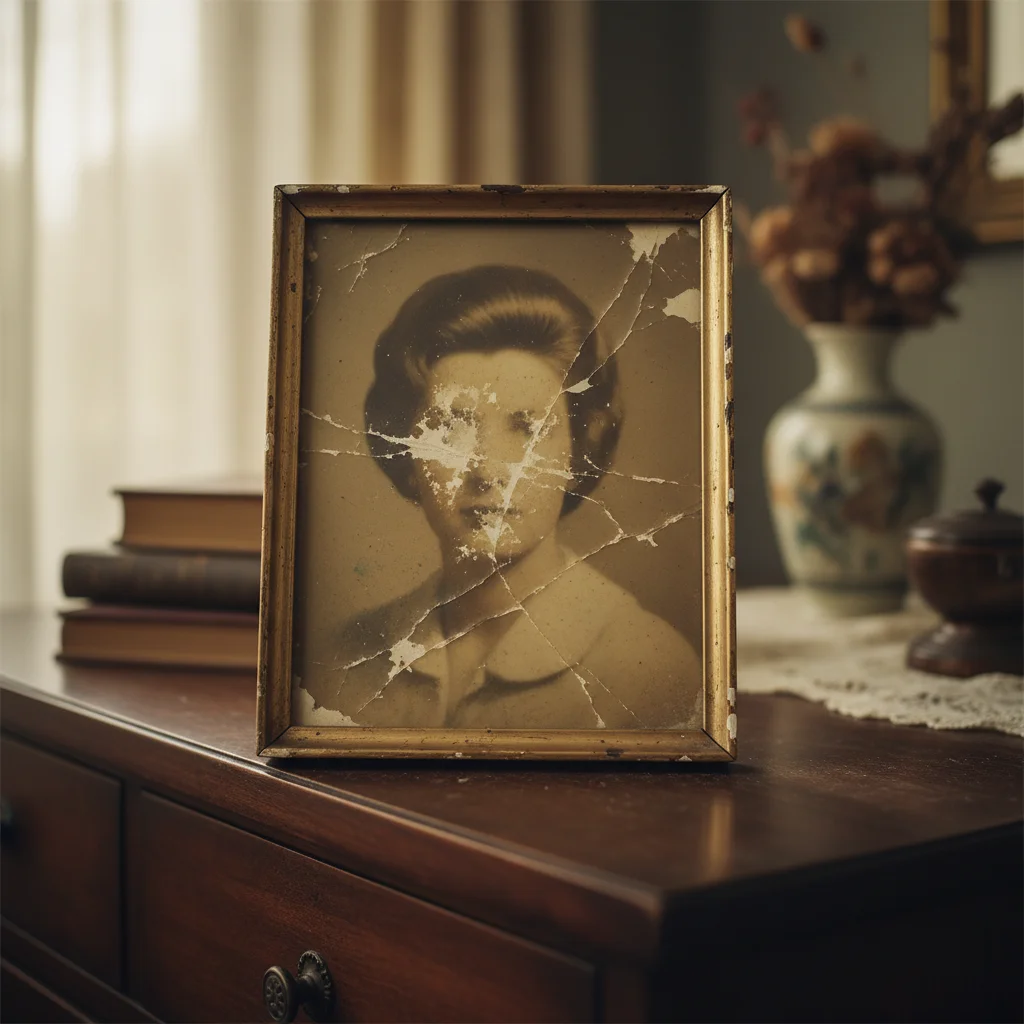
Faded 1960s portrait with scratches and diminished details
Before
->
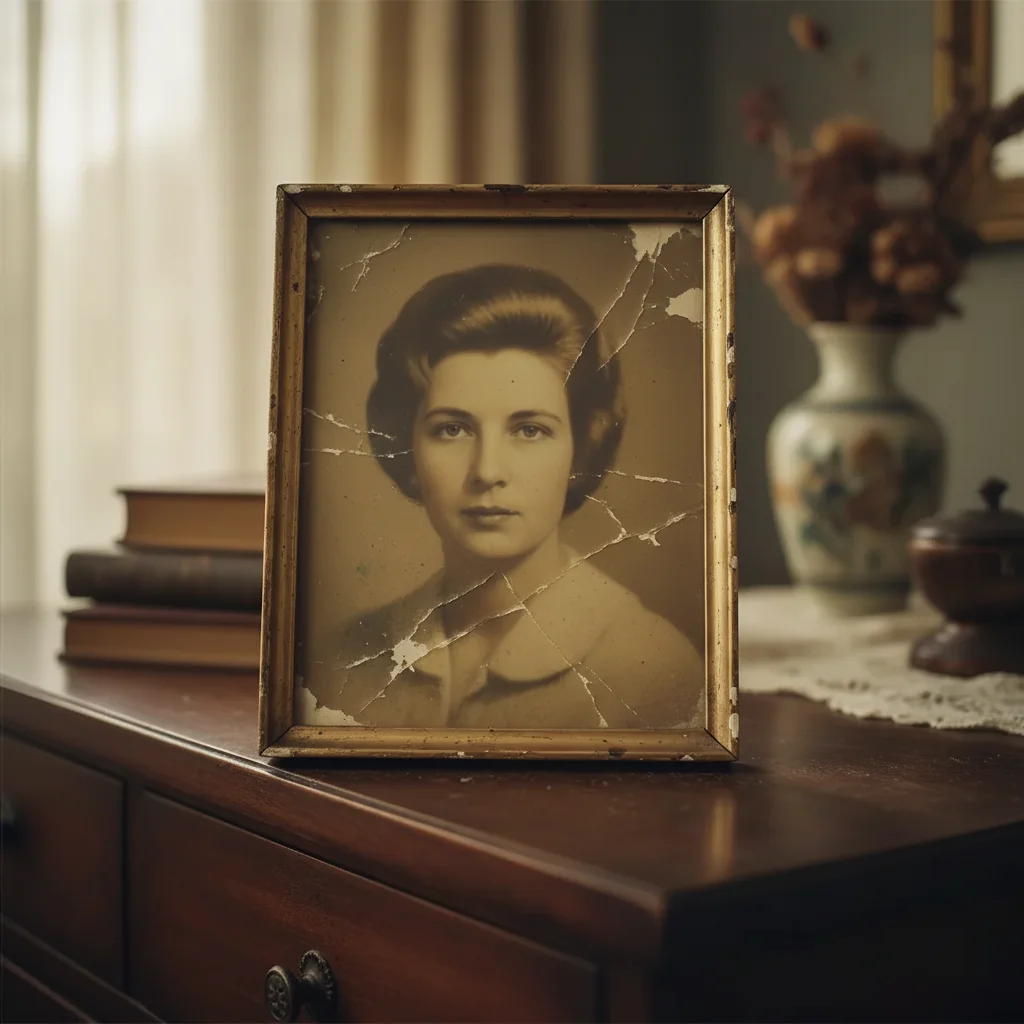
Restored portrait with clear face suitable for memorial display
After
"We had two days to prepare photos for my father's memorial. EditThisPic restored his 1965 military portrait beautifully. Our family was grateful beyond words." @MemorialPlanning_Sarah

Built for Families During Difficult Times

Only photo available is old, faded, or damaged
Need to prepare photos quickly for a funeral service
Best photo has distracting background or other people
Old black and white photos need color for display
Photo is from hospital or difficult context
Professional restoration services are expensive and slow

When preparing for a memorial, you shouldn't have to worry about photo quality or wait days for professional editing. EditThisPic lets you restore treasured photos yourself, immediately, with the care and respect your loved one deserves. Your photos stay private - we don't store or share them.

92% of families want to display photos at memorial services - National Funeral Directors Association 2024

Tools for Memorial Photo Preparation

Step-by-Step Guide

1

Upload the photo you want to prepare

Drop the photo into EditThisPic. Works with scanned prints, digital photos, or photos of photos. JPG, PNG, WebP up to 7MB. For old prints, scan at 300-600 DPI if possible for best restoration results.

Enhancement: 20-30 seconds. Full restoration of damaged photos: may need 2-4 refinements.
2

Describe what you need

Type exactly what you want: 'restore this old photo for memorial display' or 'remove the background and keep just my father' or 'colorize this black and white photo naturally.' No marking needed - the AI understands restoration terminology.

Include 'preserving their likeness' in restoration prompts to keep the result authentic.
3

Review with care

Examine the result thoughtfully. Check that faces look natural and true to how you remember your loved one. Verify important details are preserved. Take your time - this matters.

4

Refine if needed

If something needs adjustment, tap markers on specific areas and regenerate. You might need a few passes for heavily damaged photos. Most photos work beautifully on the first try.

If restoration feels like it's changing who they were, try: 'restore gently while keeping the original character.'

Copy-Paste Prompts for Memorial Photos

Restore old faded photo
restore this old photo for memorial display, fix fading and damage, make the face clear while preserving their likeness

'Preserving their likeness' guides AI to maintain authenticity, not over-process

Create memorial portrait
remove the background, create a soft neutral backdrop suitable for memorial portrait display

Neutral backgrounds focus attention on your loved one for memorial displays

Colorize black and white photo
add natural, realistic color to this black and white photo, use period-appropriate tones

'Period-appropriate' helps AI use colors authentic to when photo was taken

Enhance for large print
enhance this photo for large memorial print display with clear face and natural colors

Mentioning 'large print' helps AI optimize for that viewing size

Show 4 more prompts
Isolate from group photo
keep only my loved one in this photo, remove everyone else, fill the background naturally

Describe which person to keep by position or clothing if multiple people present

Remove hospital context
remove the medical equipment and hospital background, place against a peaceful neutral backdrop

Many families prefer photos outside of difficult contexts

Restore military portrait
restore this military portrait with dignity, repair damage, enhance uniform and face details

Military portraits deserve restoration that honors their original purpose

Prepare for slideshow
enhance this photo for digital memorial slideshow with improved clarity and natural colors

Slideshow photos need good contrast and clarity for various screen sizes

Edit Type Prompt Time
Restore old photo restore for memorial display, preserve likeness 30s
Create portrait remove background, neutral backdrop 20s
Colorize add natural, period-appropriate color 35s
Enhance for print enhance for large display, clear face 25s

Real Examples

Faded 1960s portrait with scratches and diminished details
Before
->
Restored portrait with clear face suitable for memorial display
After

Vintage portrait restored for service

A treasured 1960s portrait with significant fading and scratches was restored to display quality while preserving his natural appearance.

Prompt: restore this old photo for memorial display, fix fading and damage, make the face clear while preserving their likeness
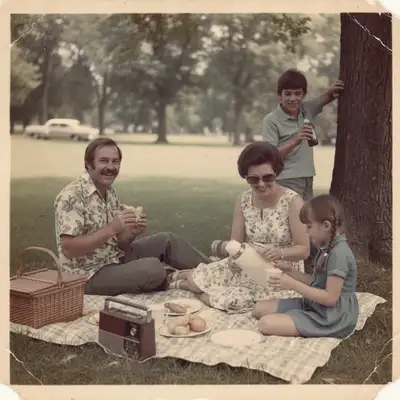
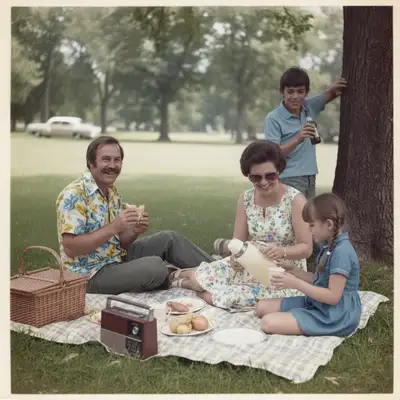
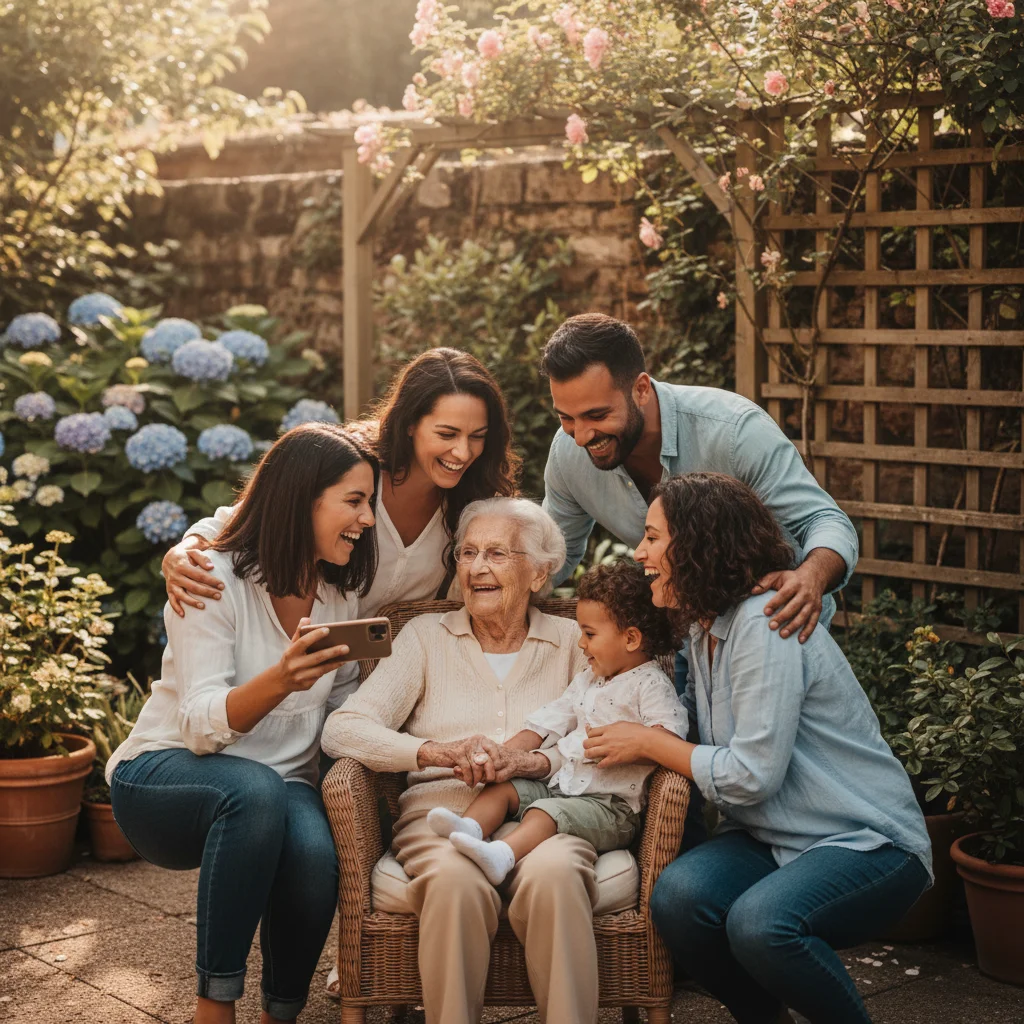
Family gathering photo with grandmother among relatives
Before
->
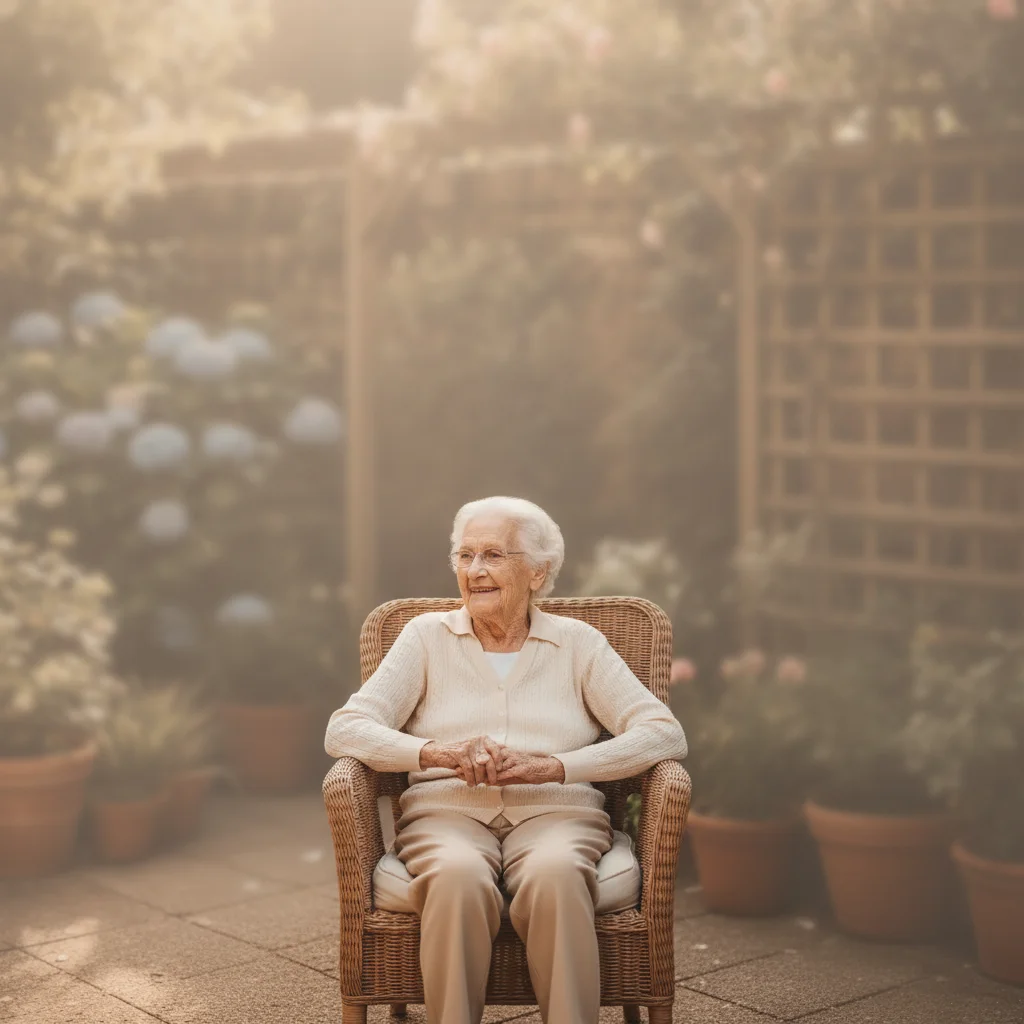
Beautiful memorial portrait of grandmother with soft neutral background
After

Memorial portrait from group photo

A casual family photo was transformed into a focused memorial portrait by removing the background and other people.

Prompt: keep only my grandmother, remove everyone else, create a soft neutral background for memorial display
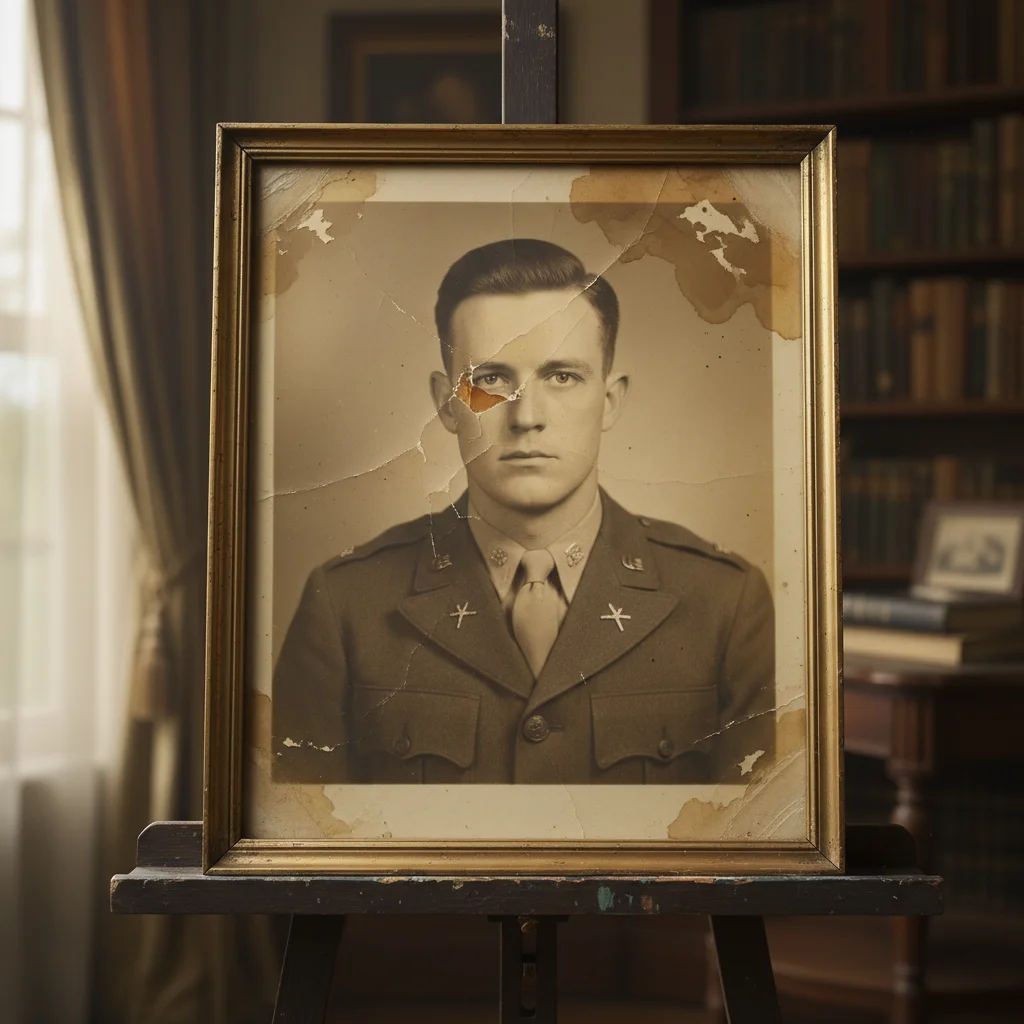
Water-damaged WWII era military portrait
Before
->
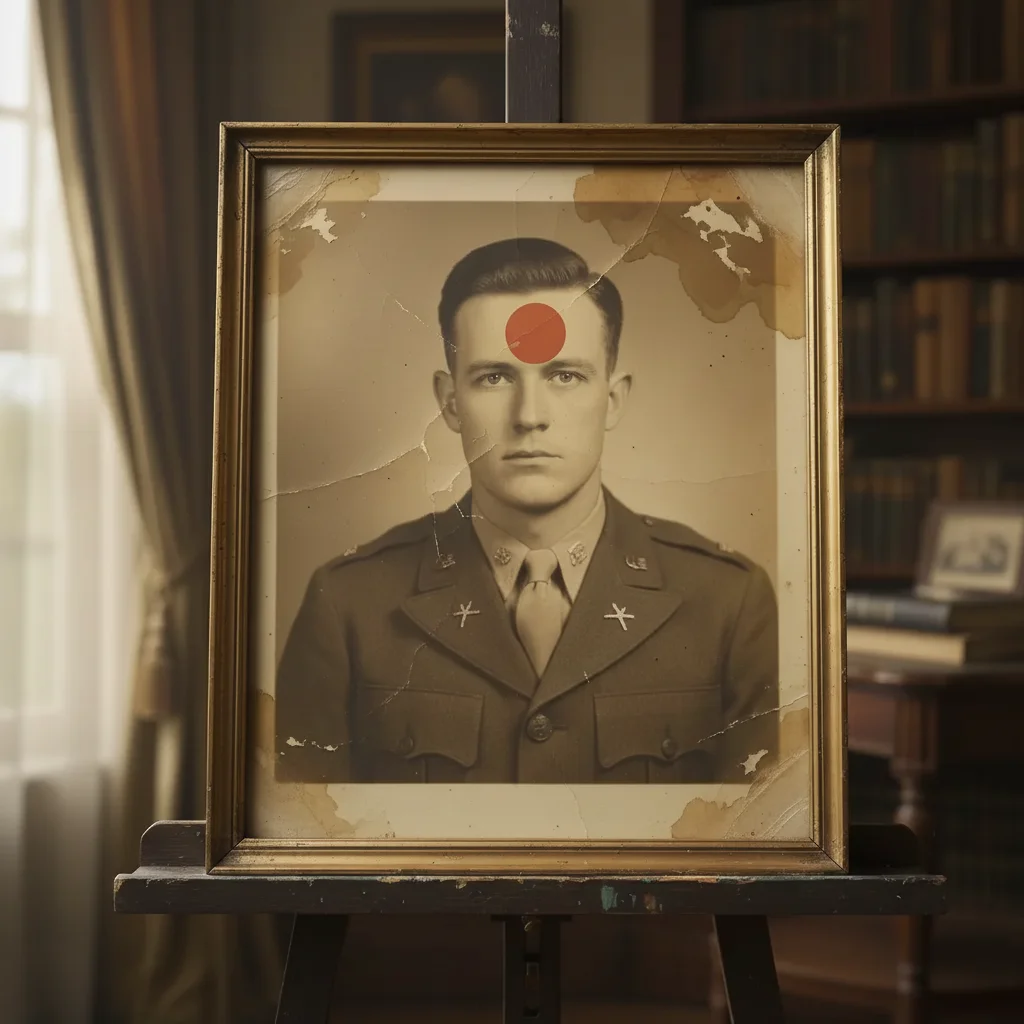
Restored military portrait honoring his service
After

Military photo from WWII restored

A veteran's military portrait from the 1940s with water damage was carefully restored to honor his service.

Prompt: restore this military portrait with dignity, repair water damage, enhance uniform and face details

When Things Go Wrong

Restored face doesn't look quite like I remember them

Why: When original photos are heavily damaged, the AI must infer missing details. These may not match your memories.

Try: restore more gently with minimal changes to facial features, preserve the original character even if some damage remains

Sometimes a slightly imperfect restoration that's authentic is better than a perfect one that doesn't feel like them.

Colors look unnatural after colorization

Why: The AI may overcorrect or use modern color tones inappropriate for the era.

Try: colorize with natural, period-appropriate colors from the 1950s, avoid modern color saturation

Specify the decade for more authentic colorization results.

Photo looks over-processed

Why: Aggressive enhancement can make photos look unnatural, losing their authentic character.

Try: enhance gently while preserving the original photo's natural texture and character, avoid over-smoothing

Less is often more. Subtle enhancement honors them better than dramatic processing.

Background removal left rough edges

Why: Complex edges like hair require precision that may need refinement.

Try: Tap markers on rough edges, then: refine these edges naturally, add a soft glow transition

A slight soft glow around edges can look more elegant than a hard cutout for memorial portraits.

Frequently Asked Questions

Are my photos kept private?

Yes. EditThisPic processes photos privately. Your images are not stored after processing, not used for training, and not shared. During this difficult time, your privacy and your loved one's dignity are completely respected.

Can you restore very old or severely damaged photos?

Yes. The AI can work with photos from any era, including severely faded, scratched, or water-damaged prints. Very old photos may need multiple refinement passes. For best results with physical prints, scan at 300-600 DPI. If restoration changes who they were, try a gentler approach.

Do I need to mark areas before editing?

No. Just describe what you need: 'restore this old photo' or 'remove the background.' The AI understands these concepts. Only use markers when you need precision on specific areas or when the first result needs refinement.

Can funeral homes use this?

Yes. Funeral homes can use EditThisPic to help families prepare memorial photos. There's no watermark, no signup required, and results are immediately downloadable. The same simple process works for each photo.

How do I prepare photos for large print display?

Upload the highest resolution version available. Use prompts like 'enhance for large print display with clear face and natural colors.' For best results, scan physical prints at 300-600 DPI rather than photographing them. The AI can enhance clarity, but starting quality affects results.

Can I isolate one person from a group photo?

Yes. Use 'keep only [person description] and remove everyone else, fill the background naturally.' Describe who to keep by position (on the left), clothing (in the blue dress), or relationship (my mother). The AI reconstructs what was behind others.

Honor their memory with the photos they deserve

Free to use. Private. No watermarks.

Start Editing