Free โ€ข No signup Add Landscaping ยท Free

Add Landscaping to Photo with AI

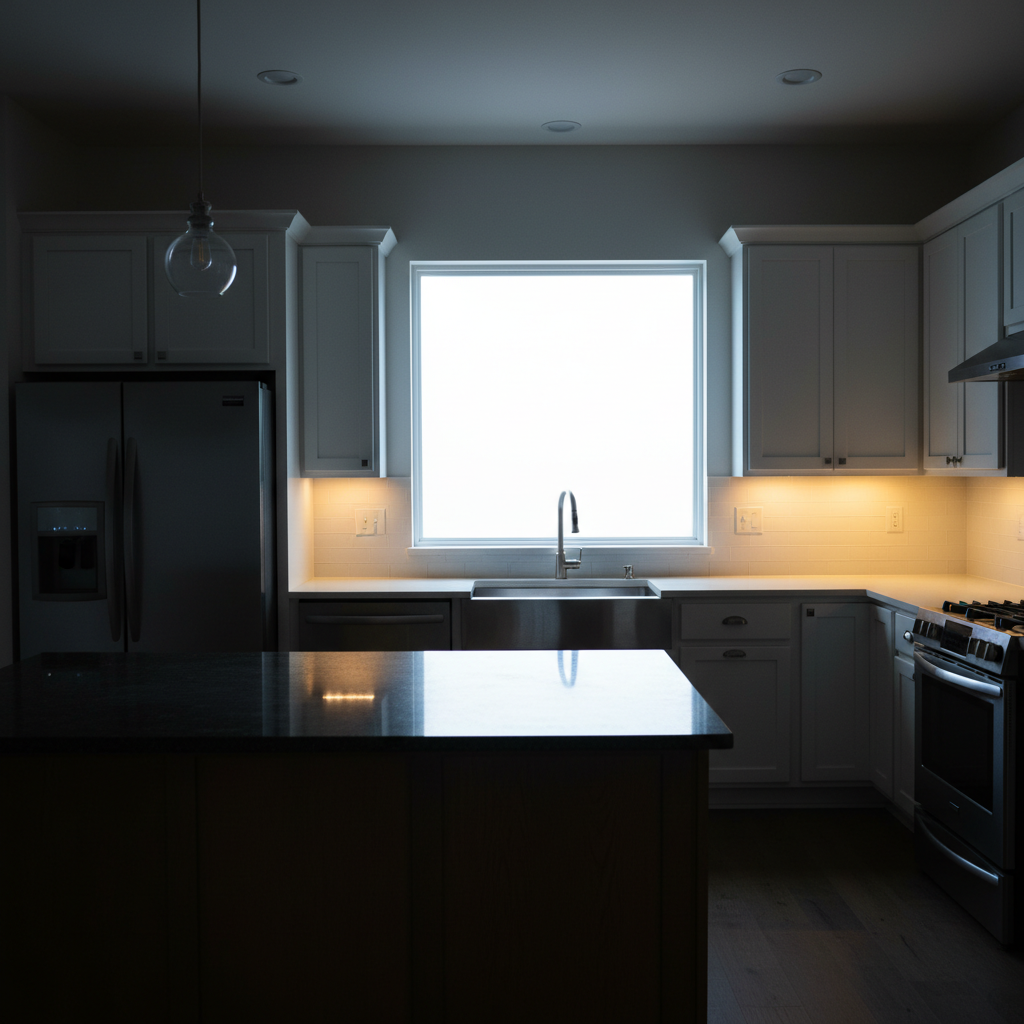
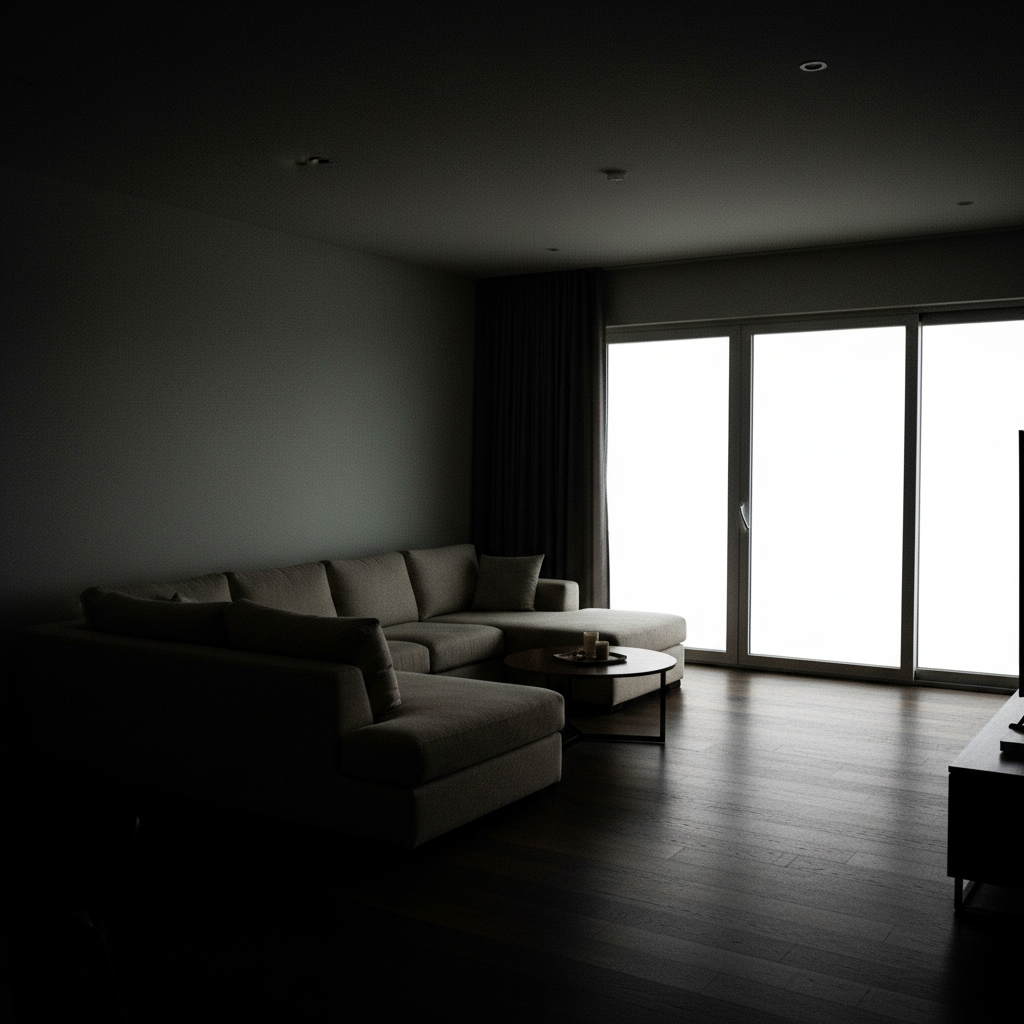
Before
Before
โ†’
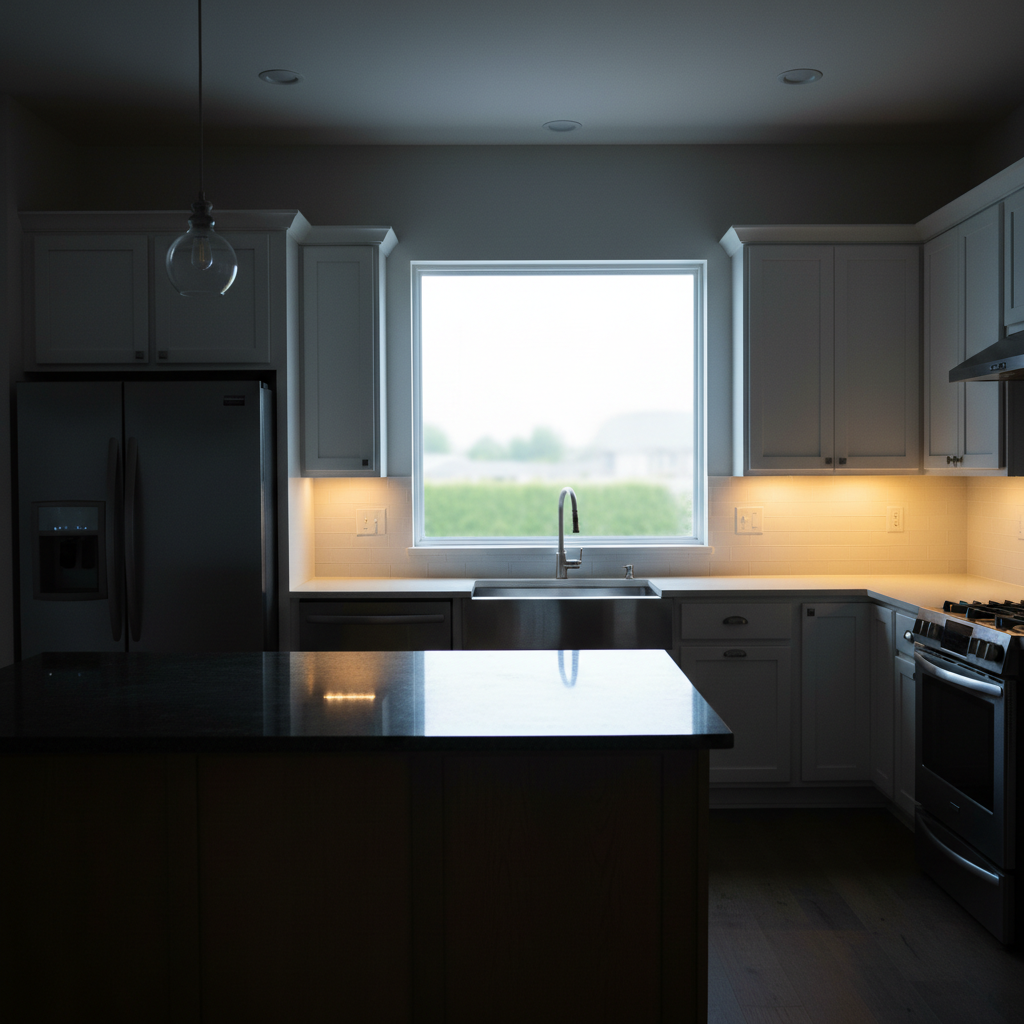
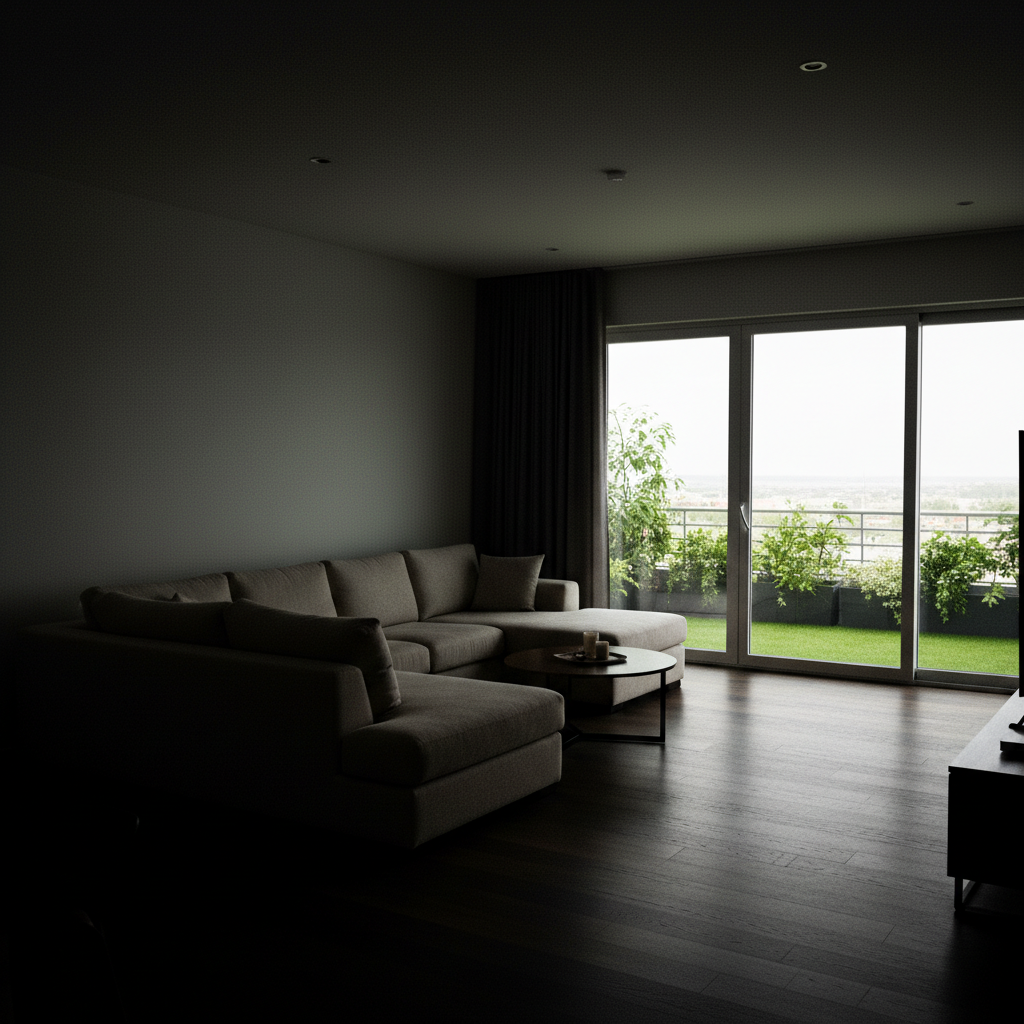
After
After

AI Add Landscaping to Photo

Drop your photo here

or click to browse

Release to upload

Free โ€ข No signup

Advertisement

Cost
Free No signup required
Time
Instant results in 15-30 seconds
Works on
Any device - browser, phone, tablet, desktop
Powered by
AI-powered photo editing

How it works

  1. Upload Your Yard Photo

    Upload a photo of your front yard, backyard, or any outdoor space you want to landscape. Clear, well-lit photos showing the ground areas work best. The AI will add realistic plants and hardscaping without requiring any marking.

    Expect: Simple add: 20-30 seconds. Complex add: 30-45 seconds and may need refinements.
  2. Describe Your Landscape Vision

    Tell the AI exactly what landscaping to add: types of plants (shrubs, flowers, trees), locations (along foundation, in front corner, near driveway), hardscaping (mulch, rocks, pavers), and style (formal, natural, modern). Be specific about plant sizes, colors, and placement.

    Copy one of these to get started:

    Add boxwood shrubs along the house Add boxwood shrubs along the house foundation with red mulch bed
    Add colorful flower bed with purple Add colorful flower bed with purple coneflowers and yellow black-eyed susans in the front corner
    Add small flowering dogwood tree in Add small flowering dogwood tree in the front yard with hostas underneath
    Add evergreen shrubs on both sides Add evergreen shrubs on both sides of the front door with river rock bed
    4 more prompts
    Add mixed perennial border along the Add mixed perennial border along the fence with daylilies, salvia, and ornamental grasses in brown mulch
    Add Japanese maple tree in the Add Japanese maple tree in the left corner with stepping stones and moss garden underneath
    Add modern landscape with ornamental ... Add modern landscape with ornamental grasses, lavender, and white rock ground cover along driveway
    Add shade garden under existing trees Add shade garden under existing trees with ferns, hostas, and astilbe in natural mulch
  3. Review the Design

    Check that plants are placed where you intended and look proportional to your space. The AI creates realistic plant sizing, shadows, and integration with existing features. Refine your description to adjust plant selections or layout.

  4. Experiment with Styles

    Try different landscaping approaches. Compare formal foundation plantings vs. cottage garden style, or evergreens vs. flowering shrubs. Generate multiple versions to see what works best for your home's architecture.

  5. Download Your Design

    Save your landscaping visualization in high resolution for planning or contractor discussions. No watermark. Use the renders to communicate your vision to landscapers or as a DIY planting guide.

Try it free โ†“

AI Add Landscaping to Photo

Drop your photo here

or click to browse

Release to upload

Free โ€ข No signup

See it in action

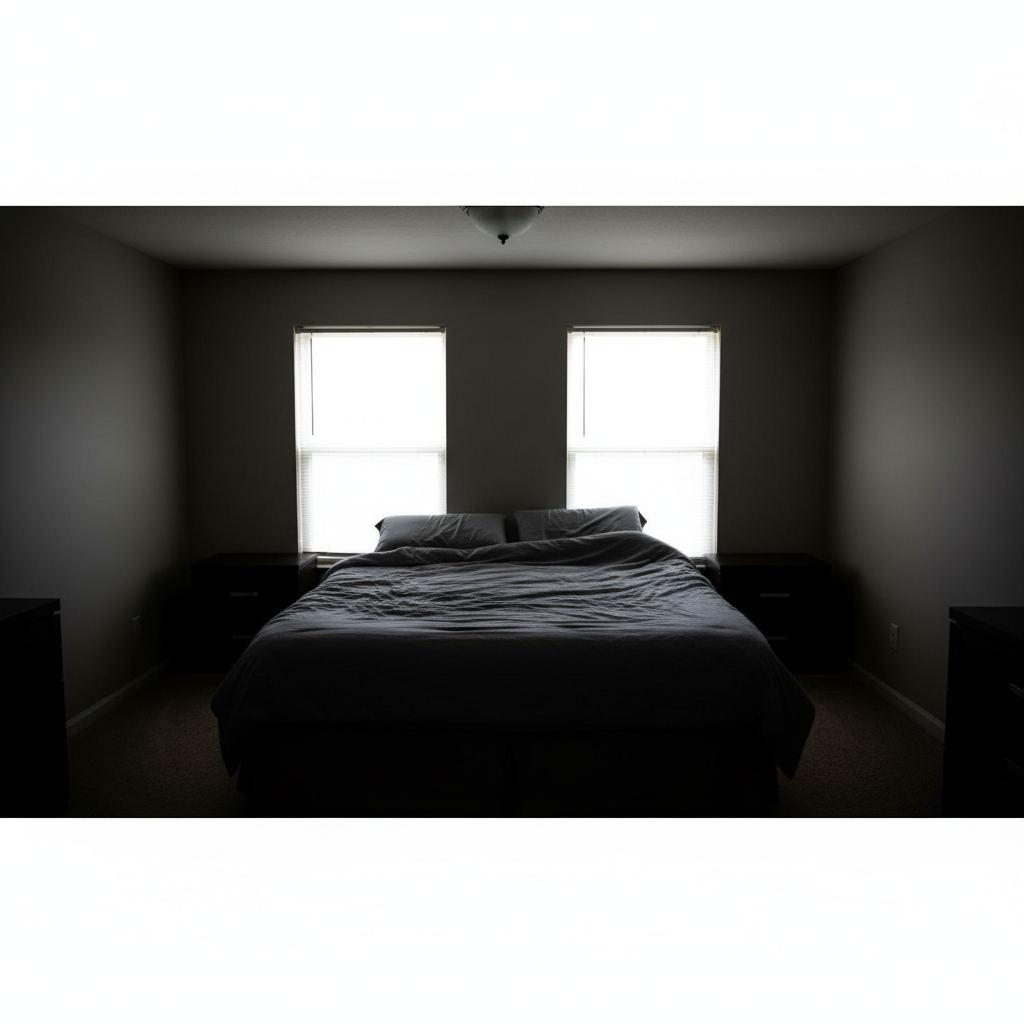
Before
Before
->
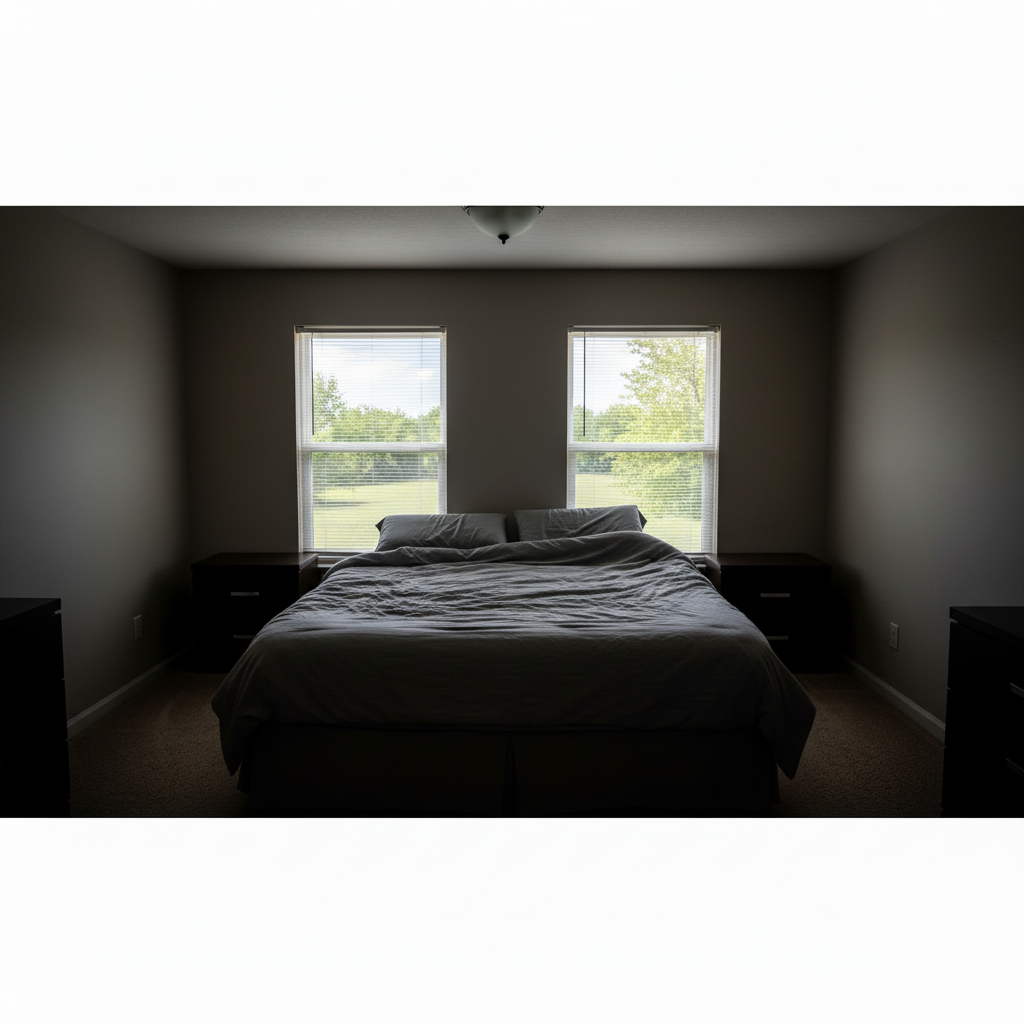
After
After

Prompt:
Before
Before
->
After
After

Prompt:
Before
Before
->
After
After

Prompt:

Prompt:
Advertisement

If something looks off

AI changed the wrong area or something I didn't want changed

Why: The AI couldn't determine exactly which area you meant from description alone.

Try: Tap a marker on the specific area you want to change, then regenerate with the same prompt

Tip: Markers tell the AI 'I mean THIS one specifically.' Use them when description alone is ambiguous.

Quick answers

Do I need to mark where plants should go?

No, you never need to mark or outline areas. Just describe plant locations using landmarks: 'add boxwoods along the foundation,' 'place a tree in the front left corner,' or 'create a flower bed along the walkway.' The AI understands spatial descriptions and places plants automatically with proper spacing and proportions.

What types of landscaping can I add?

You can add trees (shade, ornamental, evergreen), shrubs (foundation plants, hedges, flowering), perennials and annuals (flower beds, borders), ground covers, ornamental grasses, hardscaping (mulch, rocks, edging), and complete landscape designs. Specify plant types, sizes, colors, and locations for accurate results.

How do I get plants in the right sizes?

Include size descriptions: 'small boxwoods 2 feet tall,' 'medium shrubs 4 feet high,' 'mature 20-foot shade tree,' or 'low ground cover plants 6 inches tall.' You can also reference nearby objects: 'shrubs reaching the window sills' or 'tree taller than the roofline.' The AI scales plants to match your descriptions.

Can I add entire landscape designs, not just individual plants?

Yes, describe complete designs: 'add full foundation planting with evergreen shrubs, colorful perennials, and mulch beds,' or 'create cottage garden with mixed flowers, small tree, and stone path in the side yard.' The AI can generate coordinated landscape plans with multiple plant types, hardscaping, and cohesive design styles.

Will this work for sun vs. shade gardens?

The AI shows visual results regardless of light conditions, but you should consider your actual sun exposure when choosing plants. Mention it in descriptions: 'add shade garden with hostas and ferns under the trees' or 'add sun-loving perennials like coneflowers and black-eyed susans in the front bed.' This helps visualize appropriate plant choices.

How accurate is this for real planting plans?

The visualizations are excellent for exploring design ideas and communicating with landscapers. However, real planting requires considering your climate zone, soil conditions, sun exposure, mature plant sizes, and maintenance needs. Use these renders as a starting point, then consult with local nurseries or landscape professionals for plant selection suitable to your specific conditions.
Ready to start editing?

Free to try. No signup required.

Try it free โ†’