Free • No signup Add Dimples · Free

AI Dimple Adder

Describe where you want dimples and AI adds them with natural depth.
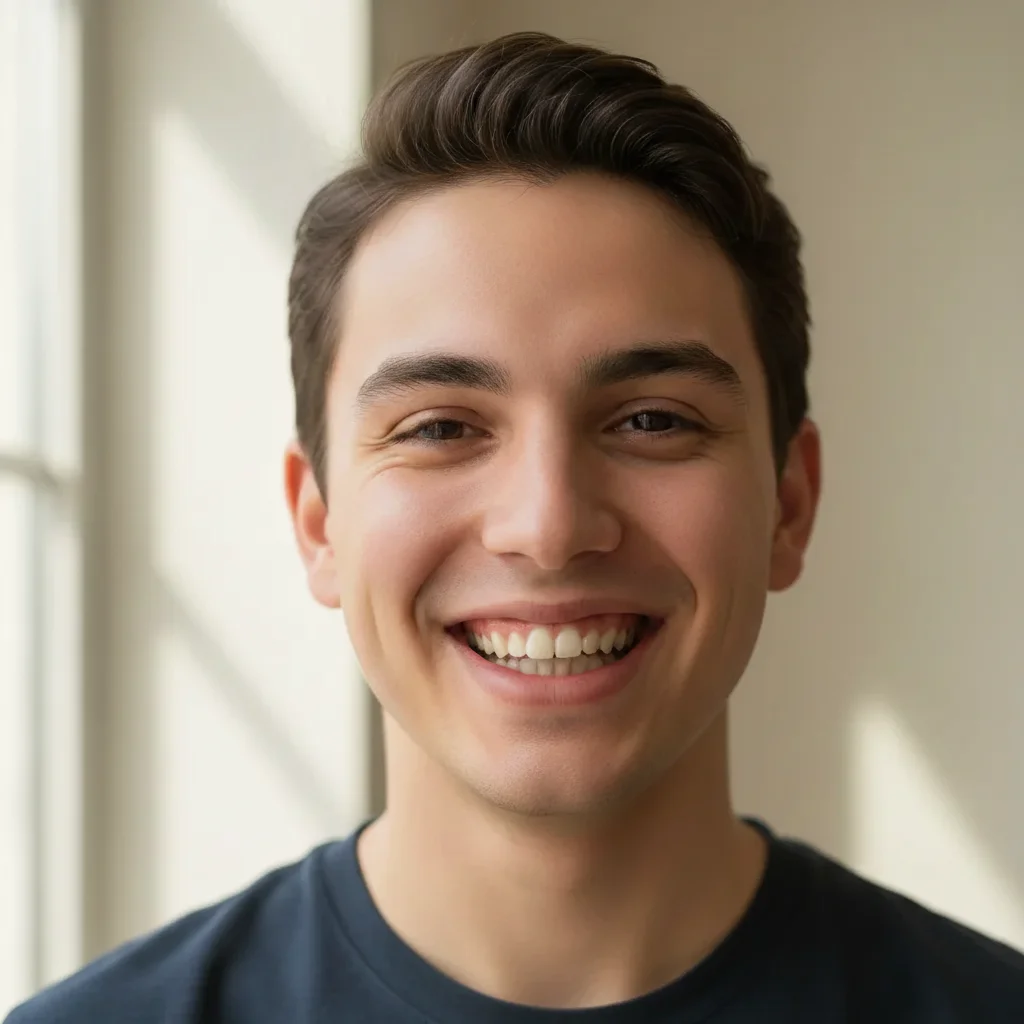
Smiling portrait without dimples
Before
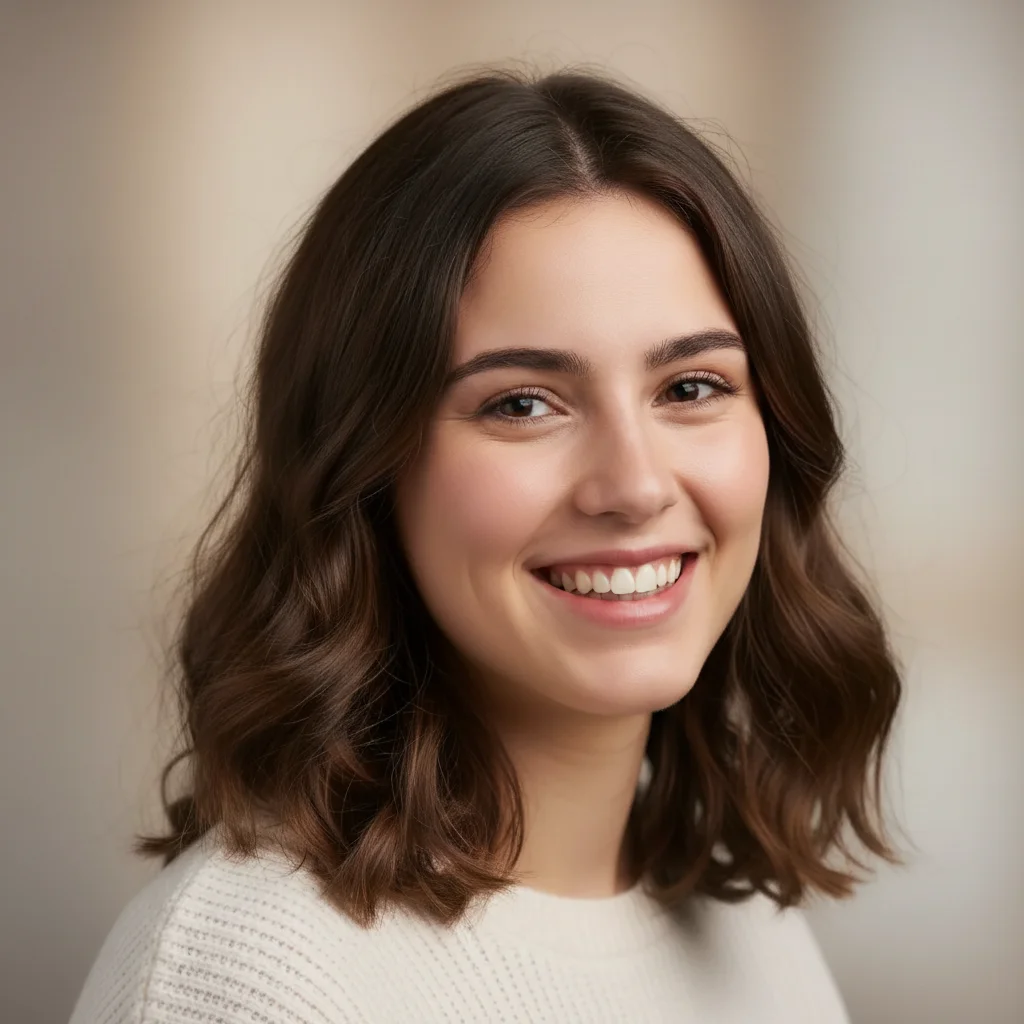
Smiling portrait with natural dimples on both cheeks
After

Add Dimples to Photo

Drop your photo here

or click to browse

Release to upload

Free • No signup

Advertisement
Popular use cases:
  • portrait photography
  • social media selfies
  • creative editing
  • beauty enhancement
  • virtual makeover

Cost
Free No signup required
Time
Instant results in 15-30 seconds
Works on
Any device - browser, phone, tablet, desktop
Powered by
AI-powered photo editing
Scenario Prompt Time
Both cheeks, natural add natural dimples to both cheeks when smiling, medium depth 25s
Single cheek add a subtle dimple on the left cheek only 20s
Prominent dimples add deep, prominent dimples to both cheeks that show clearly when smiling 30s

How it works

  1. Upload your photo

    Drop your portrait into EditThisPic. Works best with smiling photos showing the cheeks clearly. JPG, PNG, WebP up to 7MB.

    Expect: Simple dimple additions: 20-30 seconds. Natural-depth dimples usually work on the first try.
  2. Describe what you want

    Type your instruction: 'add natural dimples to both cheeks when smiling' or 'add a dimple on the left cheek only.' Be specific about placement and depth. No marking needed—the AI understands facial anatomy and natural dimple placement.

    Tip: Specify 'subtle' or 'prominent' dimples to control depth and visibility

    Copy one of these to get started:

    Classic bilateral dimples add natural dimples to both cheeks when smiling, medium depth
    Single cheek dimple add a subtle dimple on the left cheek only
    Prominent smile dimples add deep, prominent dimples to both cheeks that show clearly when smiling
    Subtle natural dimples add very subtle dimples to both cheeks, barely noticeable
    3 more prompts
    Chin dimple (cleft) add a natural chin dimple (cleft) in the center of the chin
    Dimples with natural shadowing add natural dimples to both cheeks with realistic shadow and muscle contour
    High cheekbone dimples add dimples positioned high on the cheekbones when smiling
  3. Generate and review

    Click Generate and watch AI add dimples with natural shadowing and muscle contours. Check depth, placement, and symmetry at full zoom. Dimples should look like natural facial features.

  4. Refine with markers if needed

    If dimple placement needs adjustment or you want them in very specific spots, tap markers on those exact locations and regenerate. This is optional—most edits work without markers.

    Tip: Markers are for precision refinement, not required. Try without them first.
Try it free

Add Dimples to Photo

Drop your photo here

or click to browse

Release to upload

Free • No signup

"Always wanted dimples! AI added them perfectly with the right shadow and natural depth. Looks totally real." @sarah_m

See it in action

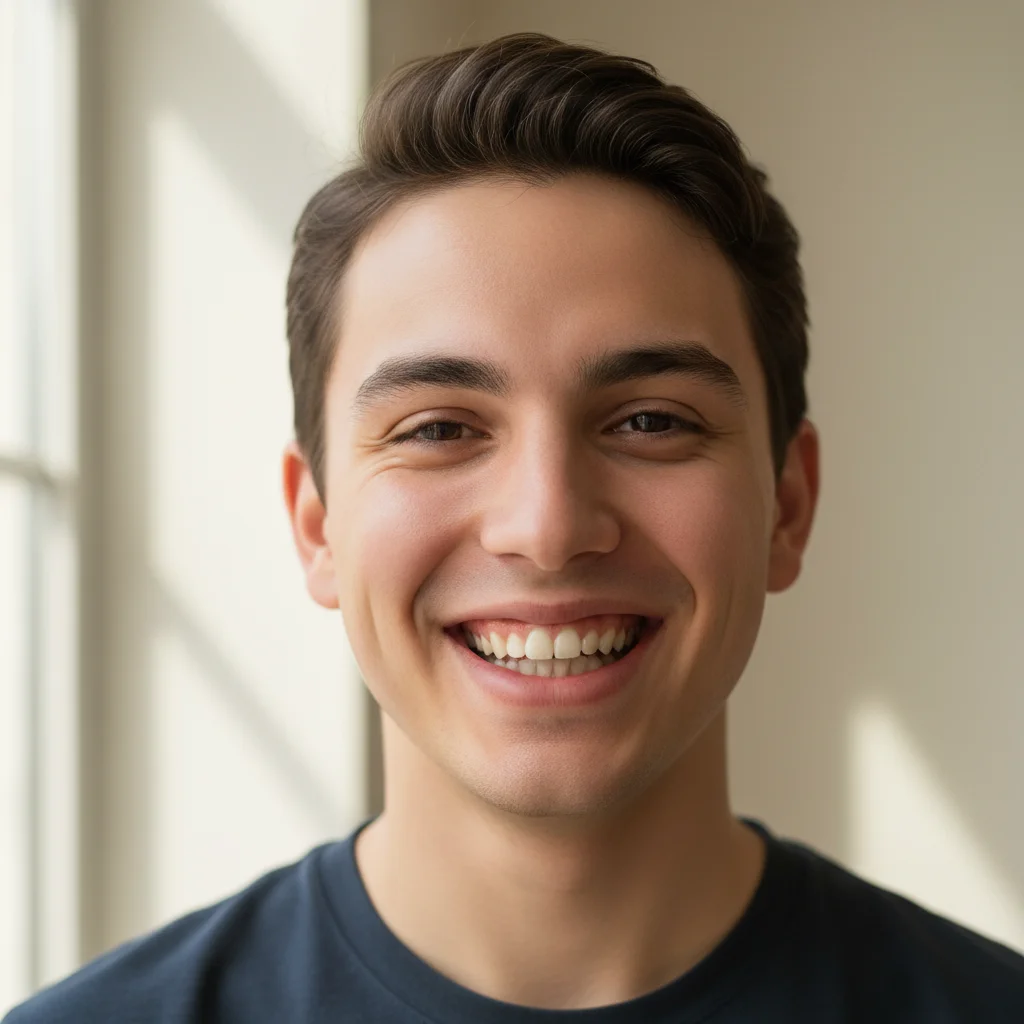
Smiling portrait without dimples
Before
->
Smiling portrait with natural dimples on both cheeks
After

Natural bilateral smile dimples

Added medium-depth dimples to both cheeks with natural shadowing and muscle contours.
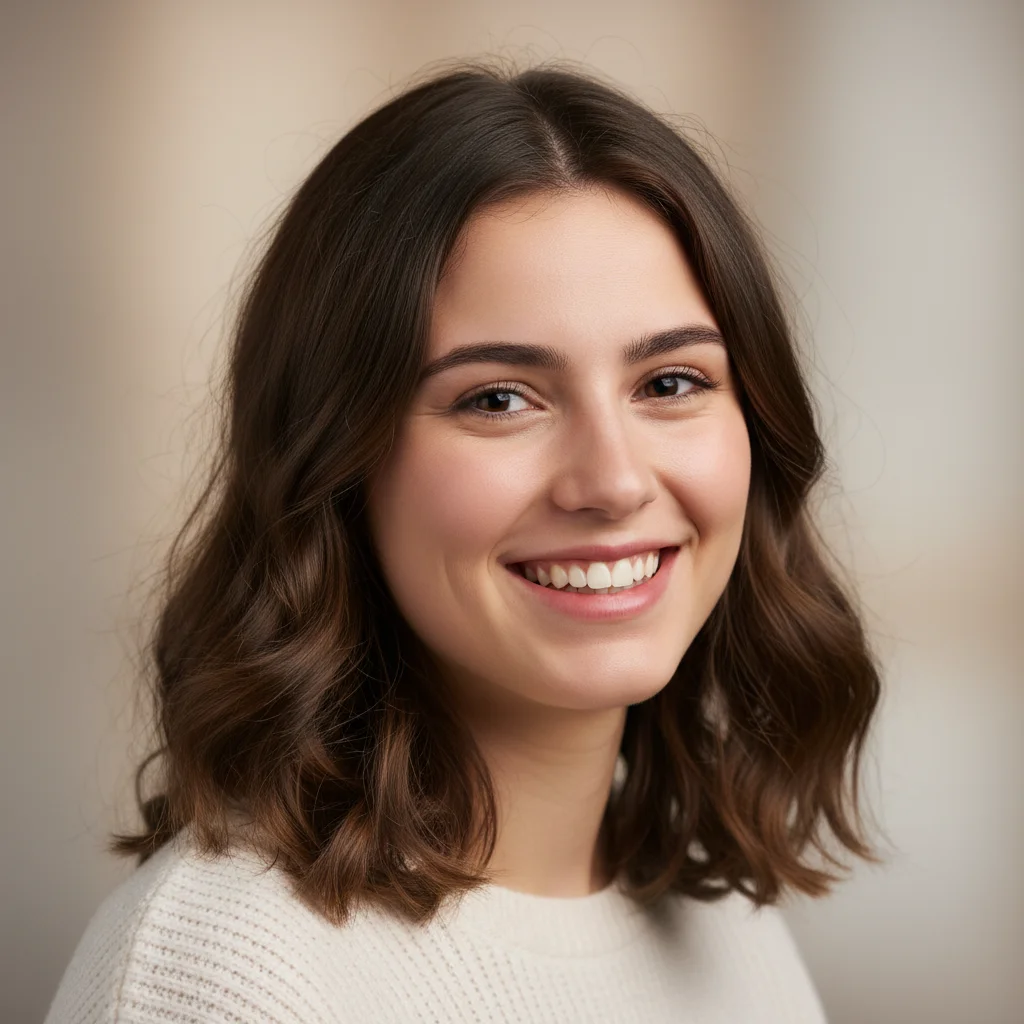
Prompt: add natural dimples to both cheeks when smiling, medium depth
Smiling portrait without dimples
Before
->
Portrait with natural dimple on left cheek
After

Single cheek dimple

Added a subtle dimple on the left cheek only for an asymmetric, unique look.

Prompt: add a subtle dimple on the left cheek only
Portrait with wide smile and flat cheeks
Before
->
Portrait with deep prominent dimples
After

Prominent deep dimples

Added deep, clearly visible dimples for a distinctive smile.

Prompt: add deep, prominent dimples to both cheeks that show clearly when smiling
Advertisement

If something looks off

AI changed the wrong area or added dimples in unexpected places

Why: The AI couldn't determine exactly where you wanted dimples from description alone. This happens with ambiguous requests.

Try: Tap markers on the exact spots where you want dimples, then regenerate with the same prompt

Tip: Markers tell the AI 'I mean THIS spot specifically.' Use them when description alone is ambiguous.

Dimples look too deep or too shallow

Why: AI interpreted 'natural' depth differently than you expected.

Try: Add depth descriptors: 'add subtle dimples' or 'add deep prominent dimples'
Dimples look fake or like indentations

Why: Missing natural shadow and muscle contour that real dimples have.

Try: Add 'with realistic shadow and muscle contour' to your prompt
Dimples are not symmetric

Why: Natural dimples are often slightly asymmetric, or the photo angle affects placement.

Try: Try 'add perfectly symmetric dimples' or use markers to place them exactly

Tip: Slight asymmetry often looks more natural

Dimples don't show up on non-smiling photo

Why: Real dimples only appear when cheek muscles contract during smiling.

Try: Dimples work best on smiling photos. For neutral expressions, try 'add subtle dimple indentations'
Face shape changed or cheeks look different

Why: AI modified more of the face than intended.

Try: Be more specific: 'add small dimples only, don't change face shape or cheeks'

Quick answers

Do I need to mark the cheek areas before describing where I want dimples?

No! Just describe where you want dimples: 'add dimples to both cheeks' or 'add a dimple on the left cheek.' The AI understands facial anatomy and natural dimple placement. Only use markers when you need precision—like placing dimples in very specific spots or refining after your first attempt.

How do I add realistic dimples to a photo for free?

Upload your smiling photo to EditThisPic and type 'add natural dimples to both cheeks when smiling.' The AI adds realistic dimples with proper depth and shadowing in 20-30 seconds. Completely free, no signup required.

Will the dimples look natural or obviously fake?

The AI analyzes facial muscle structure, lighting, and natural dimple anatomy to create realistic indentations with proper shadows. On smiling photos with good lighting, results are virtually indistinguishable from real dimples.

Can I add dimples to a photo where I'm not smiling?

Dimples work best on smiling photos because that's when real dimples naturally appear. On neutral expressions, you can try 'add subtle dimple indentations' but they may look less natural since facial muscles aren't contracted.

What's the best dimple placement for natural-looking results?

The AI defaults to natural placement (outer corner of the mouth, slightly above). For best results, use 'add natural dimples' and let the AI choose anatomically correct positioning.

Ready to add dimples to your photo?

Free to try. No signup required.

Try it free