Free • No signup Convert Glitch art · Free

AI Glitch Art Maker

Transform photos into glitch art with AI - just describe the effect you want.
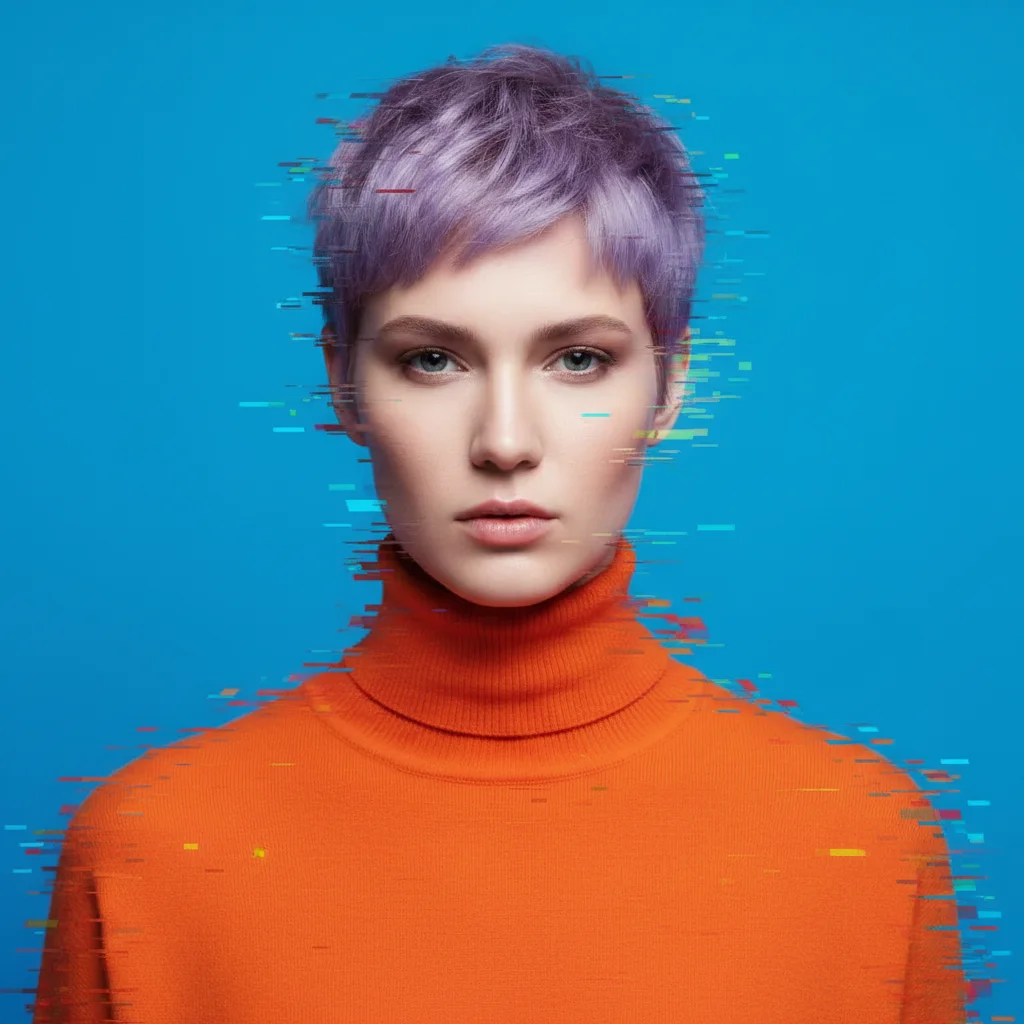
Portrait before glitch art conversion
Before
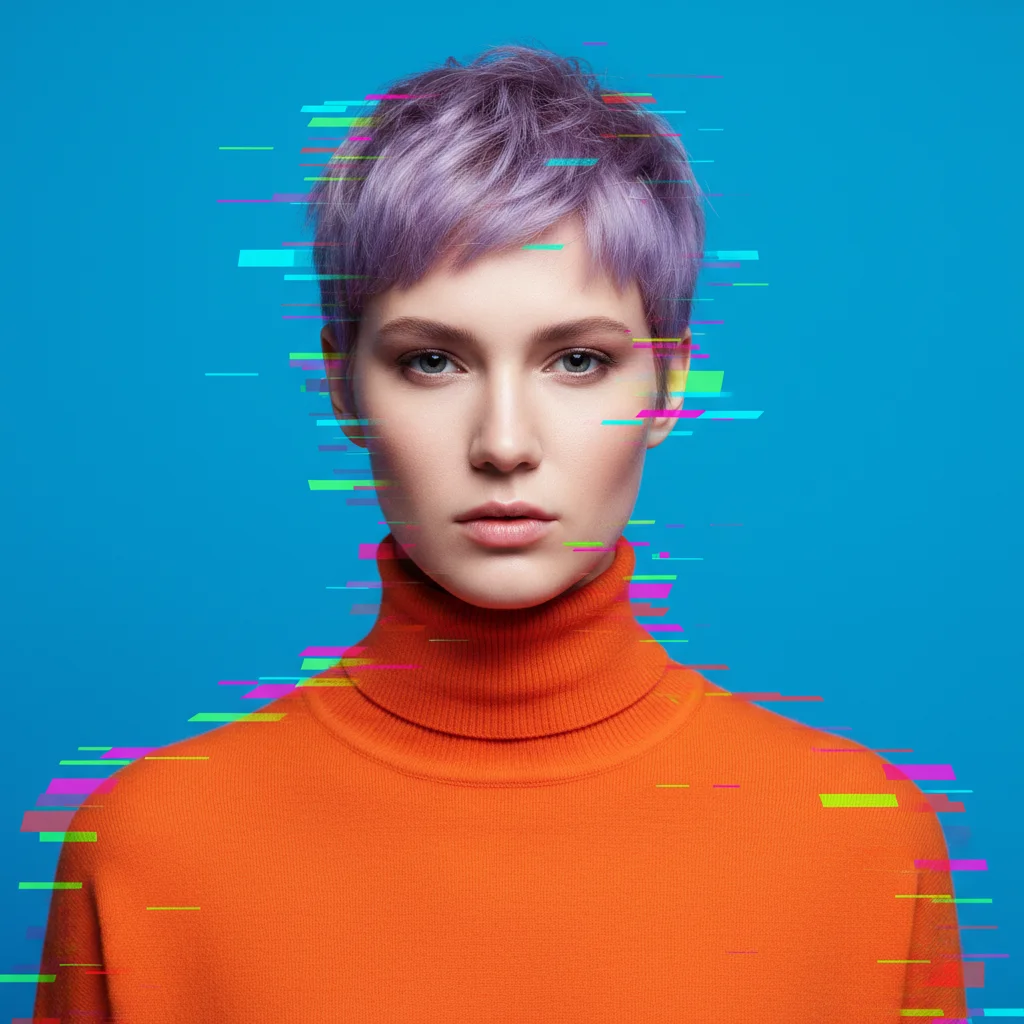
Portrait converted to glitch art with RGB separation
After

Convert Photo to Glitch Art

Drop your photo here

or click to browse

Release to upload

Free • No signup

Advertisement
Popular use cases:
  • album cover art
  • music posters
  • social media content
  • digital art portfolios
  • graphic design projects
  • retro aesthetics
  • vaporwave art
  • cyberpunk visuals

Cost
Free No signup required
Time
Instant results in 15-30 seconds
Works on
Any device - browser, phone, tablet, desktop
Powered by
AI-powered photo editing
Scenario Prompt Time
RGB glitch convert to glitch art with RGB color channel separation, horizontal pixel displacement, and digital distortion artifacts 20s
VHS effect apply VHS-style glitch art with horizontal scan lines, color bleeding, tracking errors, and analog video distortion 20s
Pixel sorting apply pixel sorting glitch art with vertical column distortion, color streaking, and sorted RGB values 25s
Data corruption convert to digital glitch art with data corruption, pixelated blocks, color banding, and JPEG compression artifacts 20s

How it works

  1. Upload your photo

    Drop your image into EditThisPic. JPG, PNG, WebP up to 7MB. Works best with bold graphics, portraits, or urban photography that will look striking with digital distortion.

    Expect: Simple glitch effects: 15-30 seconds. Complex multi-layer distortions: may need 2-3 refinements.
  2. Describe what you want

    Type your instruction: 'convert to glitch art with RGB color shift and horizontal pixel displacement' or 'apply VHS-style digital corruption with scan lines.' Be specific about glitch type, color shifts, and intensity. No marking needed—the AI understands glitch art aesthetics.

    Tip: Specify the era or style: 'VHS tracking errors', 'digital data corruption', 'Y2K aesthetic', or '80s broadcast glitch' for more targeted results.

    Copy one of these to get started:

    Classic RGB glitch convert to glitch art with RGB color channel separation, horizontal pixel displacement, and digital distortion artifacts
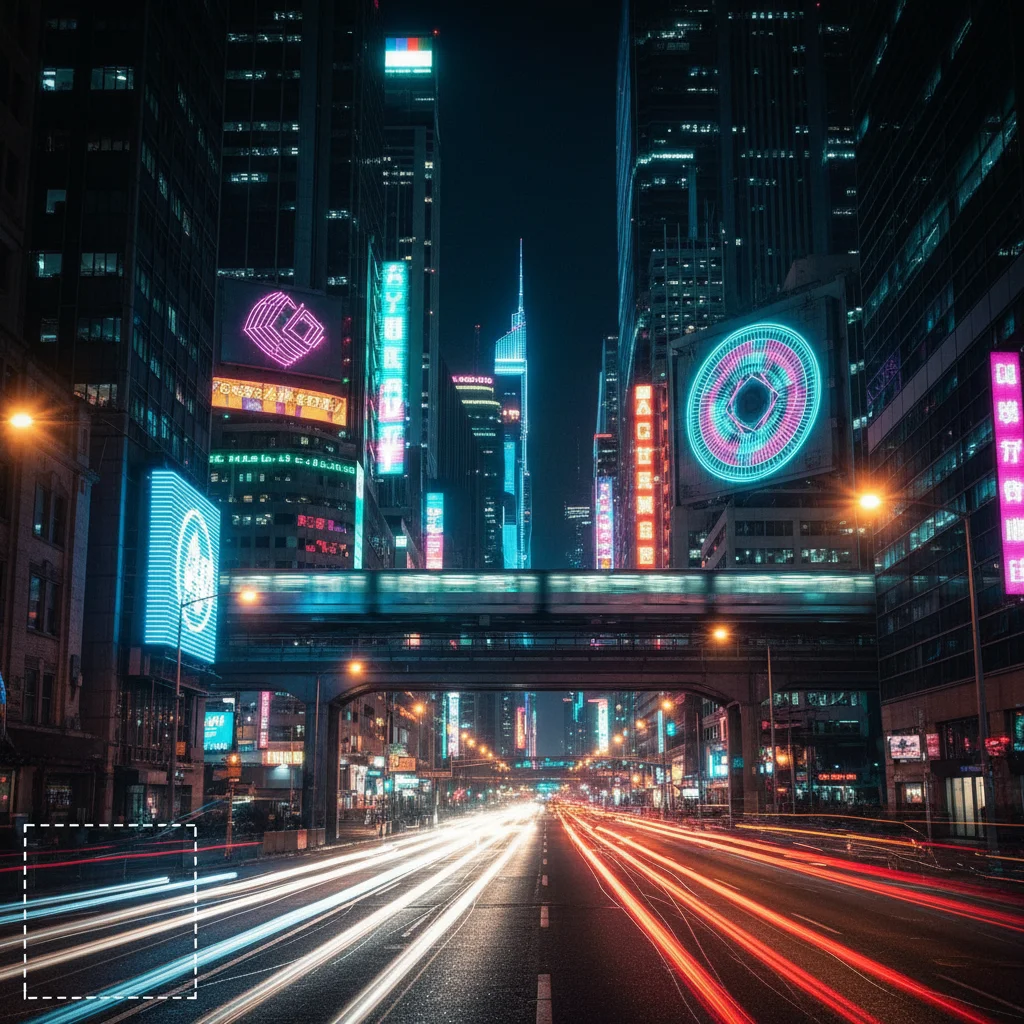
    VHS tracking errors apply VHS-style glitch art with horizontal scan lines, color bleeding, tracking errors, and analog video distortion
    Data corruption aesthetic convert to digital glitch art with data corruption, pixelated blocks, color banding, and JPEG compression artifacts
    Pixel sorting effect apply pixel sorting glitch art with vertical column distortion, color streaking, and sorted RGB values
    3 more prompts
    Y2K aesthetic glitch convert to Y2K glitch art with neon color shifts, chrome reflections, digital noise, and early 2000s web aesthetic
    Chromatic aberration apply chromatic aberration glitch with red and cyan fringing, color displacement at edges, and optical distortion
    Broadcast signal glitch convert to broadcast glitch art with TV signal interference, horizontal sync errors, color bars, and static noise
  3. Generate and review

    Watch your photo transform into glitch art. Check that color shifts, pixel distortions, and digital artifacts match your vision. Zoom in to verify details like scan lines or RGB separation are applied correctly.

  4. Refine with markers if needed

    If you want glitch effects concentrated in specific areas, tap markers on those spots and regenerate. This is optional—most glitch art works without markers.

    Tip: Markers are for precision refinement, not required. Try without them first.
Try it free

Convert Photo to Glitch Art

Drop your photo here

or click to browse

Release to upload

Free • No signup

"This glitch art tool is incredible. Just typed what I wanted and got perfect digital distortion effects instantly." @glitchartist

See it in action

Portrait before glitch art conversion
Before
->
Portrait converted to glitch art with RGB separation
After

RGB Channel Separation Portrait

Converted a portrait into glitch art with offset RGB channels creating that signature digital distortion look.

Prompt: convert to glitch art with RGB color channel separation, horizontal pixel displacement, and digital distortion artifacts
City scene before VHS glitch effect
Before
->
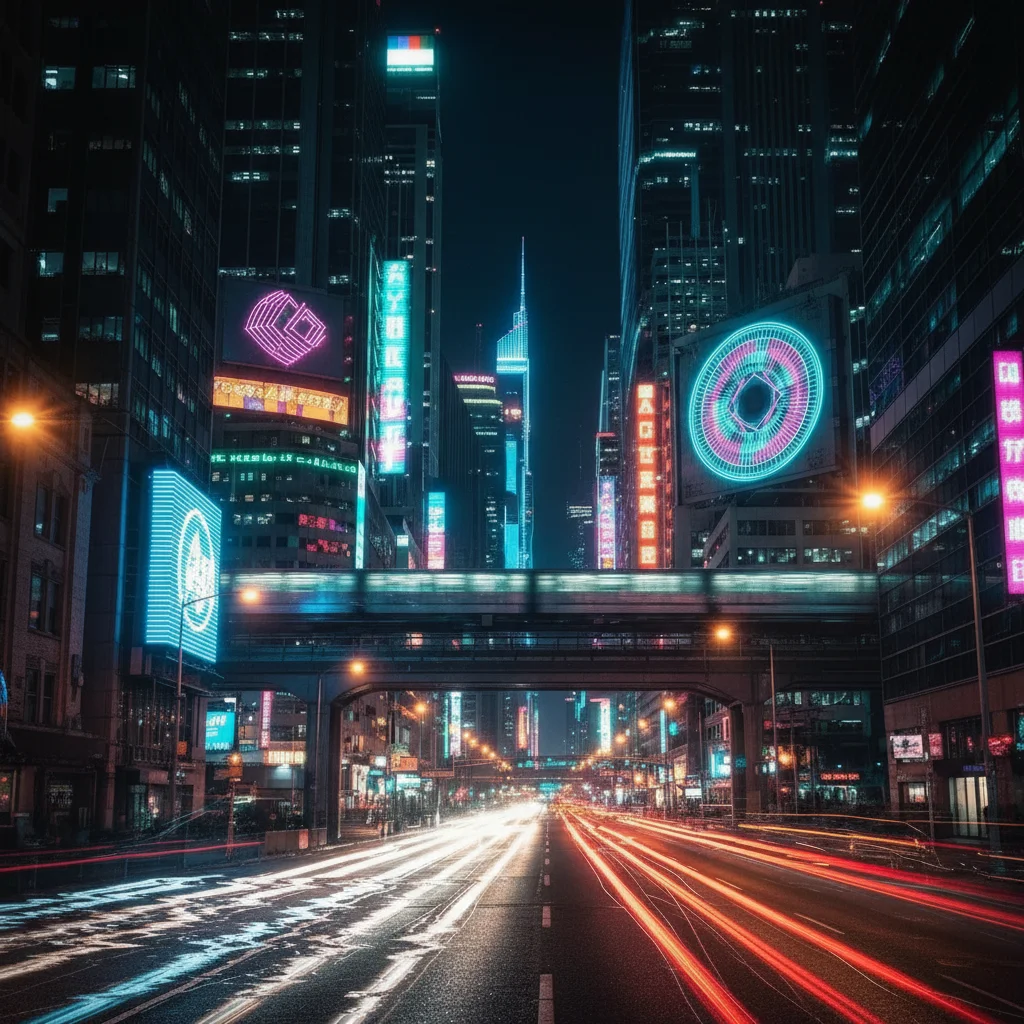
City scene with VHS glitch art applied
After

VHS Urban Scene

Transformed a city street photo with nostalgic VHS tracking errors and analog video distortion.

Prompt: apply VHS-style glitch art with horizontal scan lines, color bleeding, tracking errors, and analog video distortion
Landscape before pixel sorting
Before
->
Landscape with pixel sorting glitch effect
After

Pixel Sorted Landscape

Created dramatic vertical streaking effect on a landscape photo using pixel sorting algorithm.

Prompt: apply pixel sorting glitch art with vertical column distortion, color streaking, and sorted RGB values
Advertisement

If something looks off

AI changed the wrong area or applied glitch effect everywhere

Why: The AI couldn't determine exactly which area you meant from description alone. This happens with ambiguous requests.

Try: Tap markers on the specific areas where you want glitch effects concentrated, then regenerate with the same prompt

Tip: Markers tell the AI 'apply glitch effects HERE specifically.' Use them when you want localized distortion.

Glitch effect is too subtle or barely visible

Why: Default glitch intensity may be conservative to preserve image legibility.

Try: add 'with extreme intensity' or 'with heavy distortion' to your prompt: 'convert to glitch art with RGB separation with extreme intensity and heavy pixel displacement'
Glitch effect is too extreme and image is unrecognizable

Why: The AI applied maximum distortion based on keywords like 'extreme' or 'heavy'.

Try: Use 'subtle', 'light', or 'moderate' in your prompt: 'convert to glitch art with subtle RGB separation and light pixel displacement'
Colors look wrong or unnatural

Why: Glitch art intentionally distorts colors, but the AI may have misunderstood your desired color scheme.

Try: Specify color palette: 'convert to glitch art with RGB separation using neon pink, cyan, and yellow color shifts'
Result looks like random noise, not glitch art

Why: Too many conflicting effects can create chaos instead of intentional glitch aesthetics.

Try: Focus on one primary effect: 'convert to glitch art with RGB channel separation only' or 'apply pixel sorting glitch only'
Glitch art lacks the retro VHS or digital aesthetic I wanted

Why: The AI needs clear era or technology references to match specific glitch styles.

Try: Specify the source: 'apply VHS tape tracking errors from 1980s analog video' or 'convert to JPEG data corruption from early 2000s web graphics'

Quick answers

Do I need to mark areas before converting to glitch art?

No! Just describe what you want: 'convert to glitch art with RGB separation' or 'apply VHS-style distortion.' The AI understands glitch art aesthetics and applies effects across the image. Only use markers when you want glitch effects concentrated in specific areas—like distorting just the background or just a person's face.

How do I create glitch art for free without Photoshop?

EditThisPic's AI creates glitch art instantly from text descriptions. Upload your photo, type 'convert to glitch art with RGB color shift and pixel distortion', and download your result. Free to try, no account or software installation needed. Works on any device with a web browser.

What types of glitch effects can the AI create?

The AI supports RGB channel separation, VHS tracking errors, pixel sorting, data corruption, chromatic aberration, scan line distortion, color bleeding, digital noise, and more. Specify the effect type in your prompt: 'apply VHS glitch' or 'convert to pixel sorting art' for targeted results.

What photos work best for glitch art conversion?

Bold graphics, portraits, urban scenes, and images with strong colors or high contrast create the most striking glitch art. Landscapes, architecture, and fashion photography also work well. Images with clear subjects stand out better through distortion effects.

Can I control how intense the glitch effect is?

Yes! Add intensity words to your prompt. Use 'subtle', 'light', or 'moderate' for gentle effects: 'apply subtle RGB glitch'. Use 'extreme', 'heavy', or 'intense' for aggressive distortion: 'convert to glitch art with extreme pixel displacement'. Start moderate and adjust.

Ready to convert your photos to glitch art?

Free to try. No signup required.

Try it free