Free • No signup Apply Cyberpunk style · Free

AI Cyberpunk Filter

Transform photos into neon-lit cyberpunk scenes with one description.

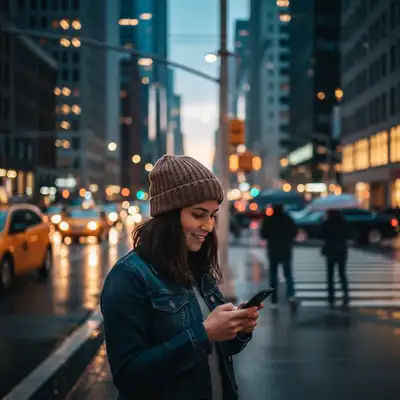
Urban portrait at dusk
Before
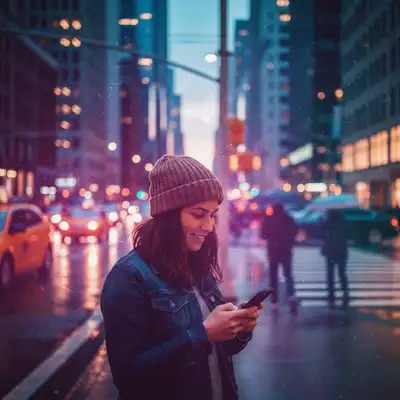
Cyberpunk portrait with magenta and cyan neon lighting
After

Apply Cyberpunk Filter to Photos

Drop your photo here

or click to browse

Release to upload

Free • No signup

Advertisement
Popular use cases:
  • sci-fi photography
  • cyberpunk art
  • futuristic portraits
  • album covers
  • social media posts
  • creative projects

Cost
Free No signup required
Time
Instant results in 15-30 seconds
Works on
Any device - browser, phone, tablet, desktop
Powered by
AI-powered photo editing
Scenario Prompt Time
Classic neon apply cyberpunk filter with bright neon magenta and cyan lights, atmospheric haze, and futuristic color grading 30s
Purple night transform into cyberpunk scene with purple and blue neon glow on wet streets 25s
High contrast apply cyberpunk filter with intense neon pink and teal contrast against dark shadows 30s

How it works

  1. Upload your photo

    Drop your image into EditThisPic. JPG, PNG, WebP up to 7MB. Urban scenes, portraits, and night photos work especially well for cyberpunk transformation. Photos with existing light sources create the most dramatic neon effects.

    Expect: Simple cyberpunk conversions: 20-30 seconds. Complex adjustments with custom neon placement: may need 2-3 refinements for perfect sci-fi atmosphere.
  2. Describe what you want

    Type your instruction: 'apply cyberpunk filter with neon lights and futuristic atmosphere' or 'transform into cyberpunk scene with magenta and cyan glow.' Specify neon colors, lighting intensity, and mood. No marking needed—the AI understands cyberpunk aesthetics.

    Tip: Mention specific neon colors like 'magenta and cyan,' 'purple and blue,' or 'pink and teal' to control the color palette.

    Copy one of these to get started:

    Classic neon cyberpunk apply cyberpunk filter with bright neon magenta and cyan lights, atmospheric haze, and futuristic color grading
    Purple and blue night transform into cyberpunk scene with purple and blue neon glow on wet streets
    High contrast neon apply cyberpunk filter with intense neon pink and teal contrast against dark shadows
    Holographic cyberpunk transform into cyberpunk style with holographic light streaks and digital glitch effects
    2 more prompts
    Rain-soaked dystopia apply cyberpunk filter with neon reflections on wet pavement and atmospheric fog
    Warm neon Tokyo style transform into cyberpunk scene with warm orange and red neon signs like Tokyo streets
  3. Generate and review

    Click Generate and the AI applies cyberpunk styling with neon colors, atmospheric haze, and futuristic color grading. Review the neon intensity and color balance at full zoom to ensure the sci-fi mood matches your vision.

  4. Refine with markers if needed

    If specific areas need more neon glow or different color tones, tap markers on those spots and regenerate with adjusted instructions. This is optional—most cyberpunk filters work without markers.

    Tip: Markers are for precision refinement, not required. Try without them first.
Try it free

Apply Cyberpunk Filter to Photos

Drop your photo here

or click to browse

Release to upload

Free • No signup

"The cyberpunk filter completely transformed my photo. Neon colors and atmosphere are perfect." @scifiphotographer

See it in action

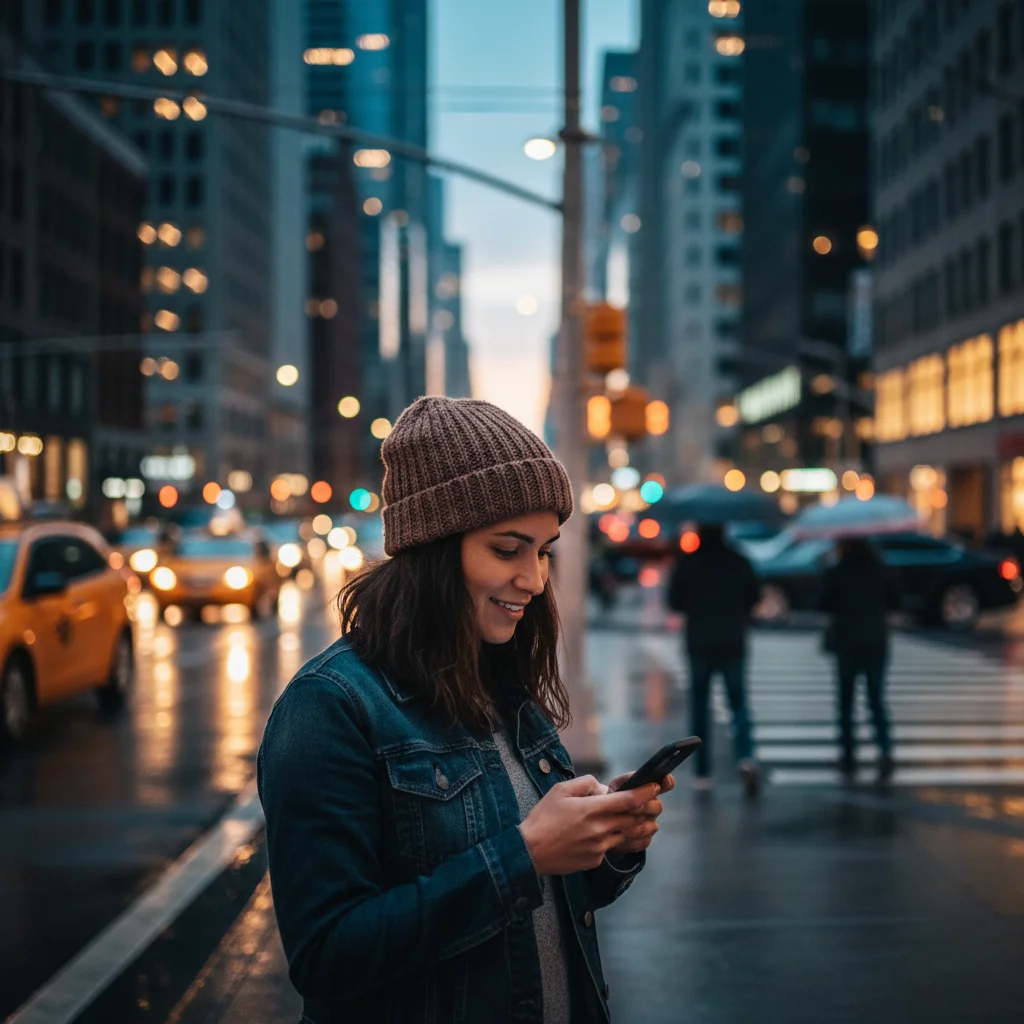
Urban portrait at dusk
Before
->
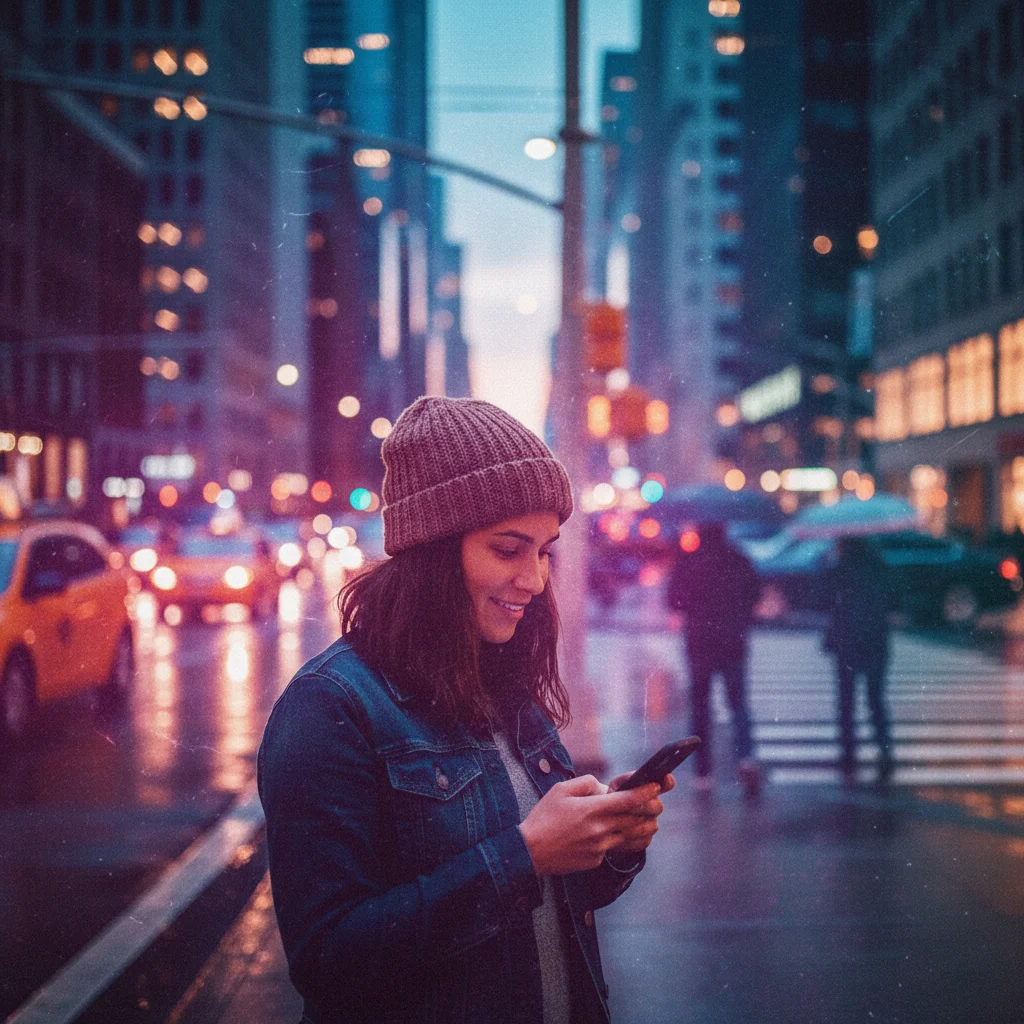
Cyberpunk portrait with magenta and cyan neon lighting
After

Portrait with neon cyberpunk

Transformed portrait into cyberpunk style with magenta and cyan neon lighting.

Prompt: apply cyberpunk filter with bright neon magenta and cyan lights, atmospheric haze, and futuristic color grading
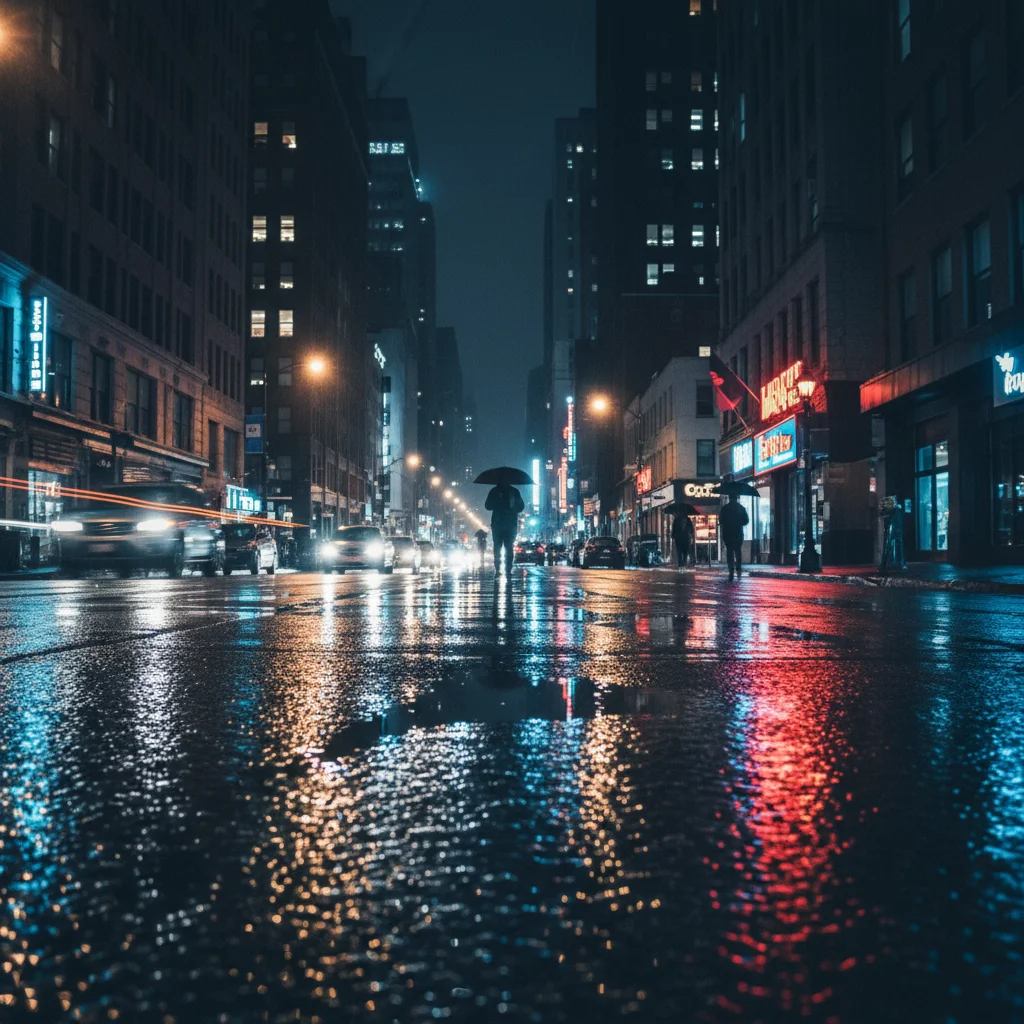
Night street scene with lights
Before
->
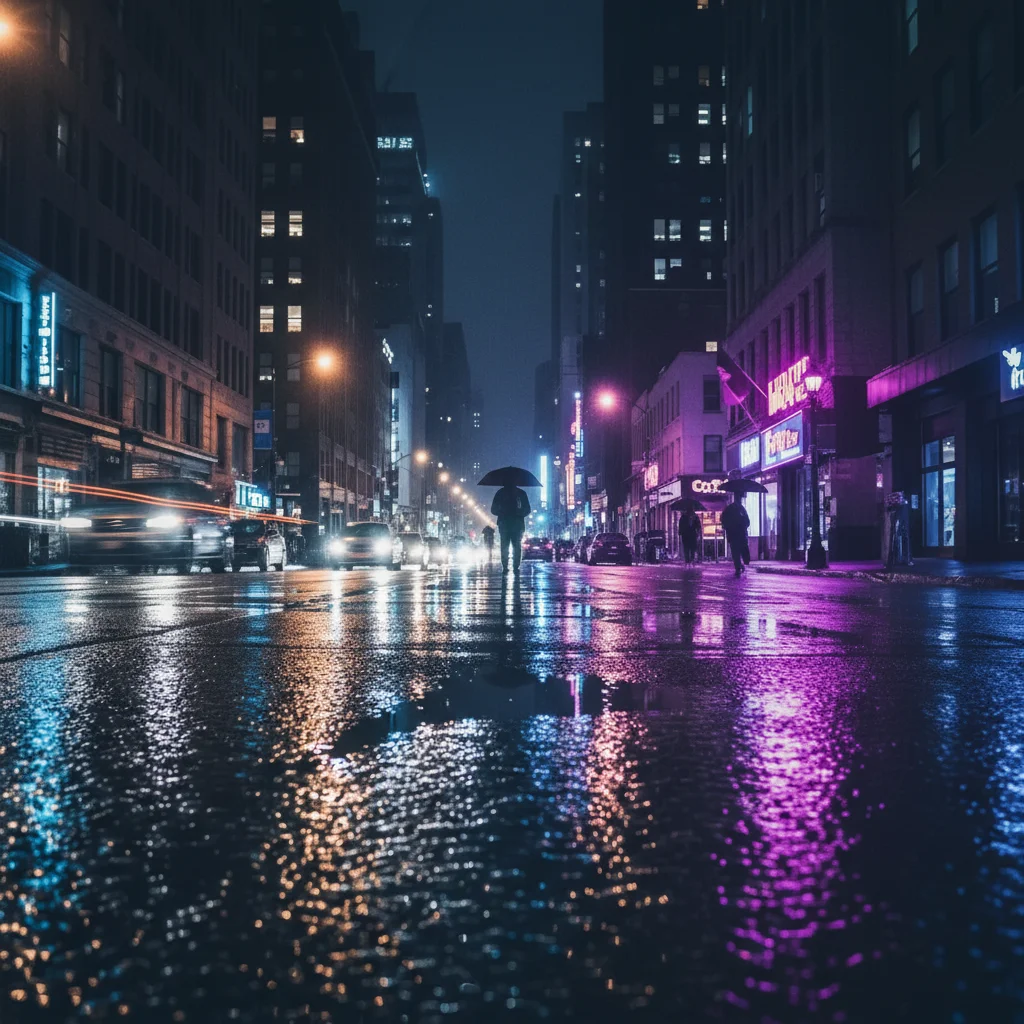
Rain-soaked cyberpunk street with purple and blue neon
After

Street scene with wet neon

Converted street photo into rain-soaked cyberpunk scene with purple and blue neon reflections.

Prompt: transform into cyberpunk scene with purple and blue neon glow on wet streets
Evening cityscape with buildings
Before
->
Futuristic cyberpunk cityscape with holographic effects
After

Cityscape with holographic effects

Created futuristic cyberpunk cityscape with holographic light streaks and digital glitches.

Prompt: transform into cyberpunk style with holographic light streaks and digital glitch effects
Advertisement

If something looks off

AI changed the wrong area or something I didn't want changed

Why: The AI couldn't determine exactly which area you meant from description alone. This happens with ambiguous requests.

Try: Tap a marker on the specific area you want to change, then regenerate with the same prompt

Tip: Markers tell the AI 'I mean THIS one specifically.' Use them when description alone is ambiguous.

Neon colors look unnatural or too saturated

Why: The cyberpunk color grading was applied too intensely without balancing the overall tone.

Try: Request balanced neon: 'apply cyberpunk filter with subtle neon accents and natural color balance'

Tip: Add 'subtle' or 'balanced' to tone down intensity while keeping cyberpunk aesthetic.

Photo looks flat without cyberpunk atmosphere

Why: Insufficient atmospheric effects or missing the moody lighting that defines cyberpunk style.

Try: Add atmosphere: 'apply cyberpunk filter with atmospheric haze, deep shadows, and glowing neon'

Tip: Cyberpunk needs atmosphere. Include 'haze,' 'fog,' or 'atmospheric glow' for authentic mood.

Wrong neon colors or color scheme doesn't match vision

Why: The AI chose default cyberpunk colors instead of the specific palette you wanted.

Try: Specify exact colors: 'apply cyberpunk filter with pink and teal neon' or 'orange and blue glow'

Tip: Name specific neon colors to control the palette: magenta, cyan, purple, pink, teal, orange.

Cyberpunk effect too subtle or barely visible

Why: The transformation was too conservative, not applying enough cyberpunk characteristics.

Try: Request stronger effect: 'apply intense cyberpunk filter with bright neon and heavy color grading'

Tip: Use 'intense,' 'strong,' or 'heavy' to amplify the cyberpunk transformation.

Quick answers

Do I need to mark areas before applying the cyberpunk filter?

No! Just describe what you want: 'apply cyberpunk filter with neon lights' or 'transform into cyberpunk scene with magenta and cyan glow.' The AI understands cyberpunk aesthetics and applies the effect to the entire image. Only use markers when you need precision control over where specific neon colors appear.

How do I apply a cyberpunk filter to my photo for free?

Upload your photo to EditThisPic and type 'apply cyberpunk filter with bright neon magenta and cyan lights.' The AI transforms your image with neon colors, atmospheric haze, and futuristic color grading in 20-40 seconds. Free to use, no account required, no watermark on downloads.

What neon colors work best for cyberpunk photos?

Classic cyberpunk uses magenta and cyan (pink and blue-green) for the iconic Blade Runner look. Purple and blue create moody night scenes. Pink and teal give high-contrast neon-noir vibes. Orange and red create warm Tokyo-style cyberpunk. Specify your preferred neon colors in the prompt for custom palettes.

What types of photos work best for cyberpunk transformation?

Urban scenes, night photography, and portraits in city settings work exceptionally well. Photos with existing light sources (street lights, windows, signs) transform most dramatically as the AI can enhance them into neon. Daytime photos can work but may need stronger transformation to achieve cyberpunk atmosphere.

Can I control the intensity of the cyberpunk effect?

Yes, specify intensity in your prompt. Use 'subtle cyberpunk filter' for light neon accents, 'moderate cyberpunk transformation' for balanced effect, or 'intense cyberpunk filter with heavy color grading' for dramatic sci-fi styling. The AI adjusts neon brightness and atmospheric effects based on your description.

Ready to apply cyberpunk style to your photos?

Free to try. No signup required.

Try it free