Free • No signup Apply Holographic filter · Free

AI Holographic Filter

Just describe the holographic effect you want and AI applies it instantly.
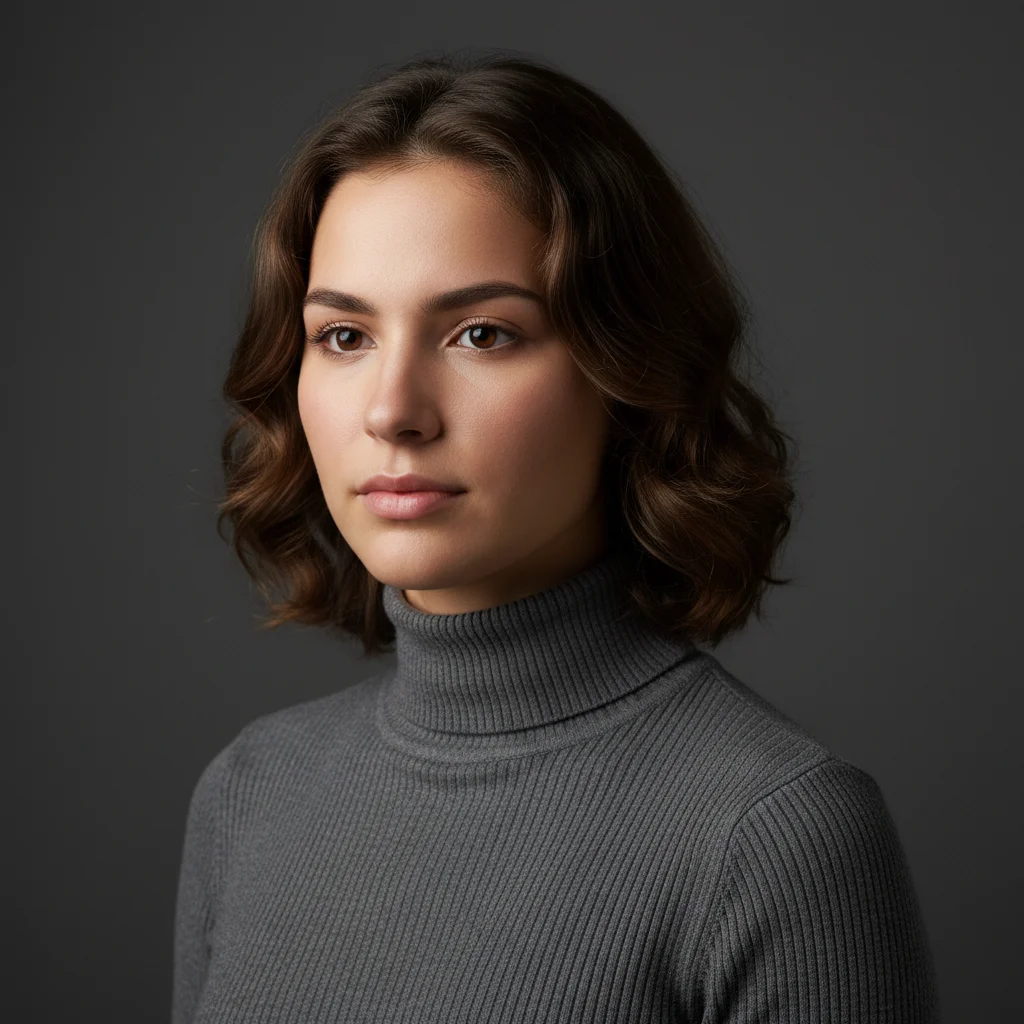
Clean portrait without holographic effects
Before
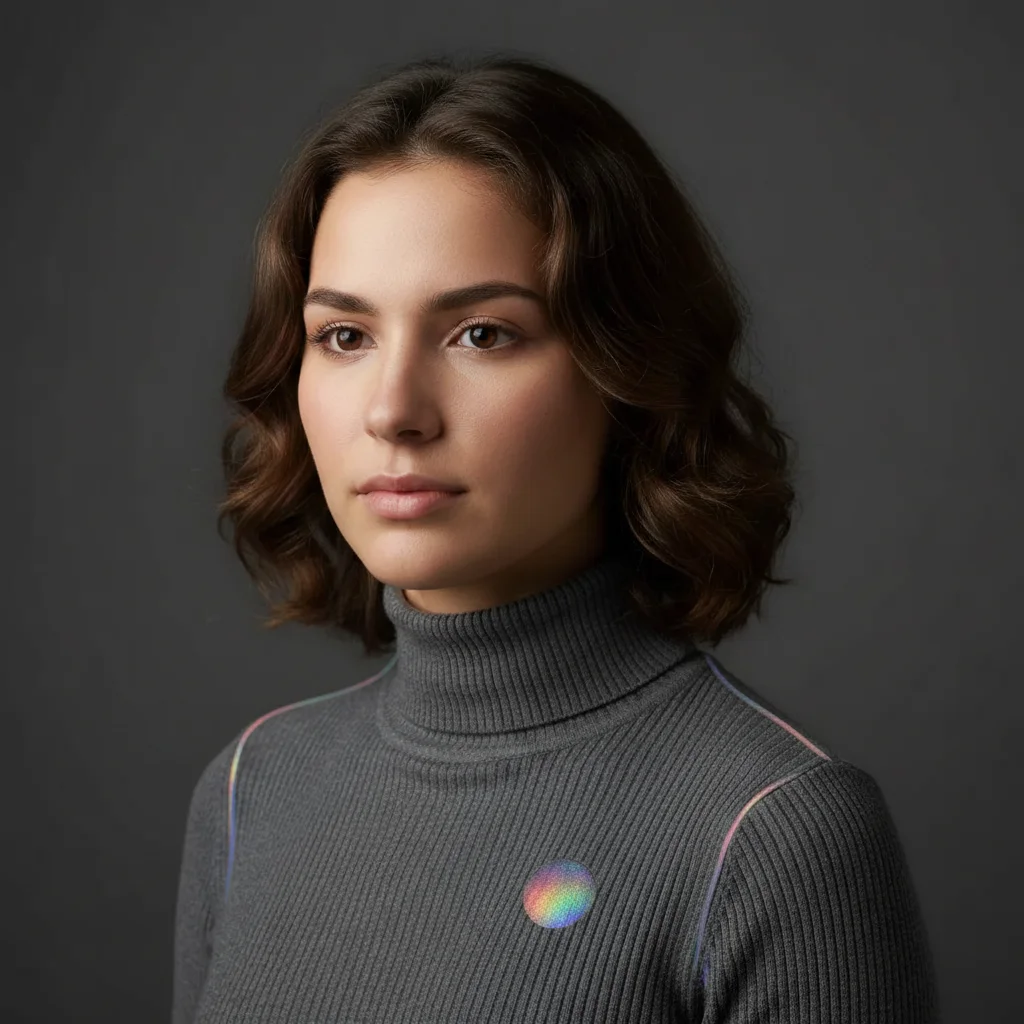
Portrait with subtle holographic rainbow shimmer overlay
After

Apply Holographic Filter to Photo

Drop your photo here

or click to browse

Release to upload

Free • No signup

Advertisement
Popular use cases:
  • Y2K aesthetic
  • product photography
  • social media content
  • album covers
  • digital art
  • futuristic branding

Cost
Free No signup required
Time
Instant results in 15-30 seconds
Works on
Any device - browser, phone, tablet, desktop
Powered by
AI-powered photo editing
Scenario Prompt Time
Subtle shimmer apply subtle holographic rainbow filter with soft iridescent shimmer 20s
Bold metallic apply bold holographic filter with vibrant metallic rainbow reflections 25s
Pink & blue apply holographic filter with pink and blue iridescent tones and metallic shine 25s
Cool-toned apply cool-toned holographic filter with blue, purple, and silver iridescence 25s
Warm & gold apply warm holographic filter with gold, orange, and pink prismatic reflections 25s

How it works

  1. Upload your photo

    Drop your image into EditThisPic. Works with JPG, PNG, WebP up to 7MB. Best results with high-contrast photos or images with dark backgrounds where the holographic effect can shine.

    Expect: Simple holographic overlays: 20-30 seconds. Complex multi-color iridescence with specific placement: may need 2 refinements.
  2. Describe what you want

    Type your instruction: 'apply holographic rainbow filter' or 'add iridescent prismatic effect with pink and blue tones.' Be specific about intensity (subtle shimmer vs. bold metallics) and color preferences. No marking needed—the AI understands 'holographic effect' as an overall filter.

    Tip: Specify color ranges like 'pink and blue holographic' or 'cool-toned iridescence' for more controlled results.

    Copy one of these to get started:

    Subtle rainbow shimmer overlay apply subtle holographic rainbow filter with soft iridescent shimmer
    Bold metallic holographic effect apply bold holographic filter with vibrant metallic rainbow reflections
    Pink and blue iridescence apply holographic filter with pink and blue iridescent tones and metallic shine
    Cool-toned holographic overlay apply cool-toned holographic filter with blue, purple, and silver iridescence
    3 more prompts
    Warm holographic with gold accents apply warm holographic filter with gold, orange, and pink prismatic reflections
    Holographic gradient sweep apply holographic filter with diagonal rainbow gradient sweep from top-left to bottom-right
    Y2K aesthetic holographic apply Y2K style holographic filter with vibrant rainbow metallic shine and pixelated edges
  3. Generate and review

    Click Generate and watch your photo transform with prismatic shimmer. Check the rainbow gradient distribution and metallic intensity. Zoom in to see if the iridescence looks natural or if you want stronger/subtler effects.

  4. Refine with markers if needed

    If you want holographic effects concentrated on specific elements (like only on hair or only on the background), tap markers on those areas and regenerate. This is optional—most holographic filters work as full-image overlays without markers.

    Tip: Markers are for precision refinement, not required. Try without them first.
Try it free

Apply Holographic Filter to Photo

Drop your photo here

or click to browse

Release to upload

Free • No signup

"The holographic effect is stunning! Added that perfect futuristic vibe to my product photos without any complicated editing." @futurevibes

See it in action

Clean portrait without holographic effects
Before
->
Portrait with subtle holographic rainbow shimmer overlay
After

Portrait with Subtle Holographic Shimmer

Added soft iridescent overlay to a portrait for futuristic editorial look.
Prompt: apply subtle holographic rainbow filter with soft iridescent shimmer
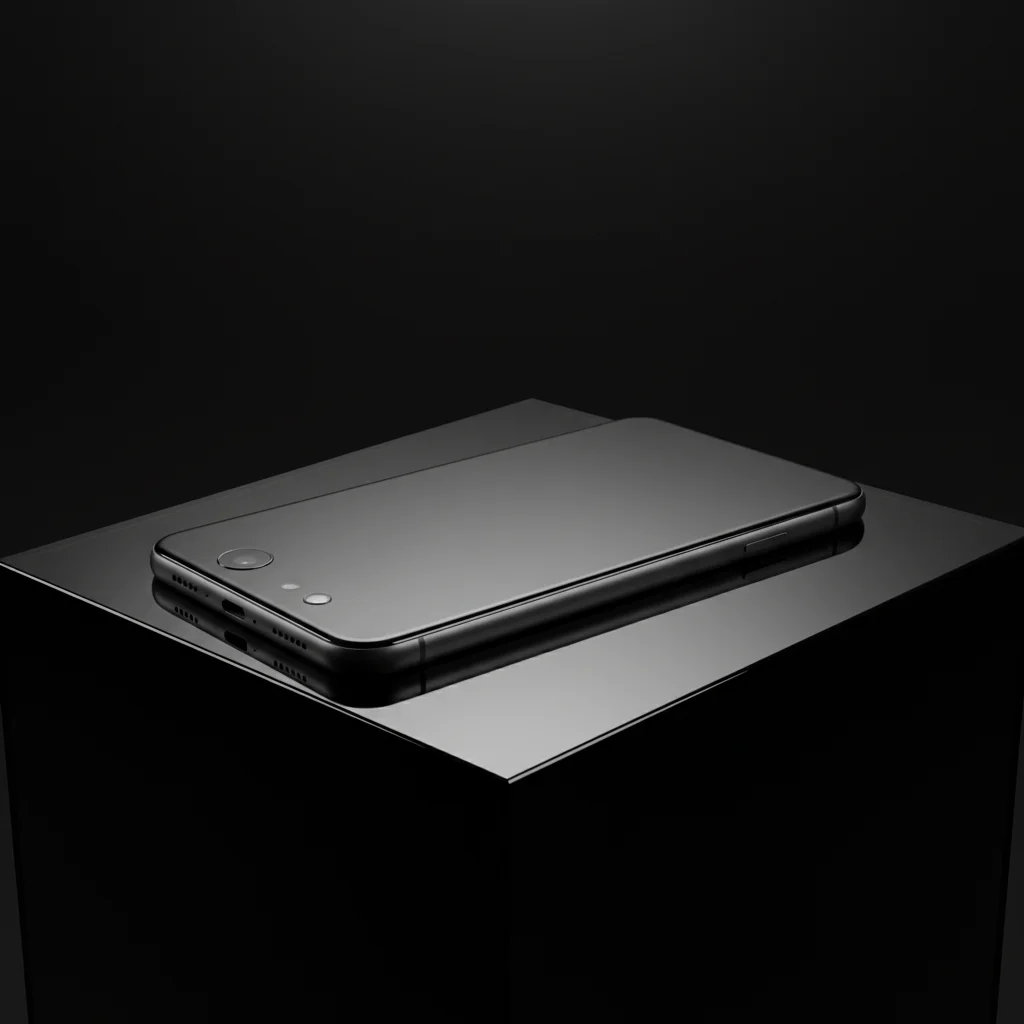
Product photo without holographic effects
Before
->
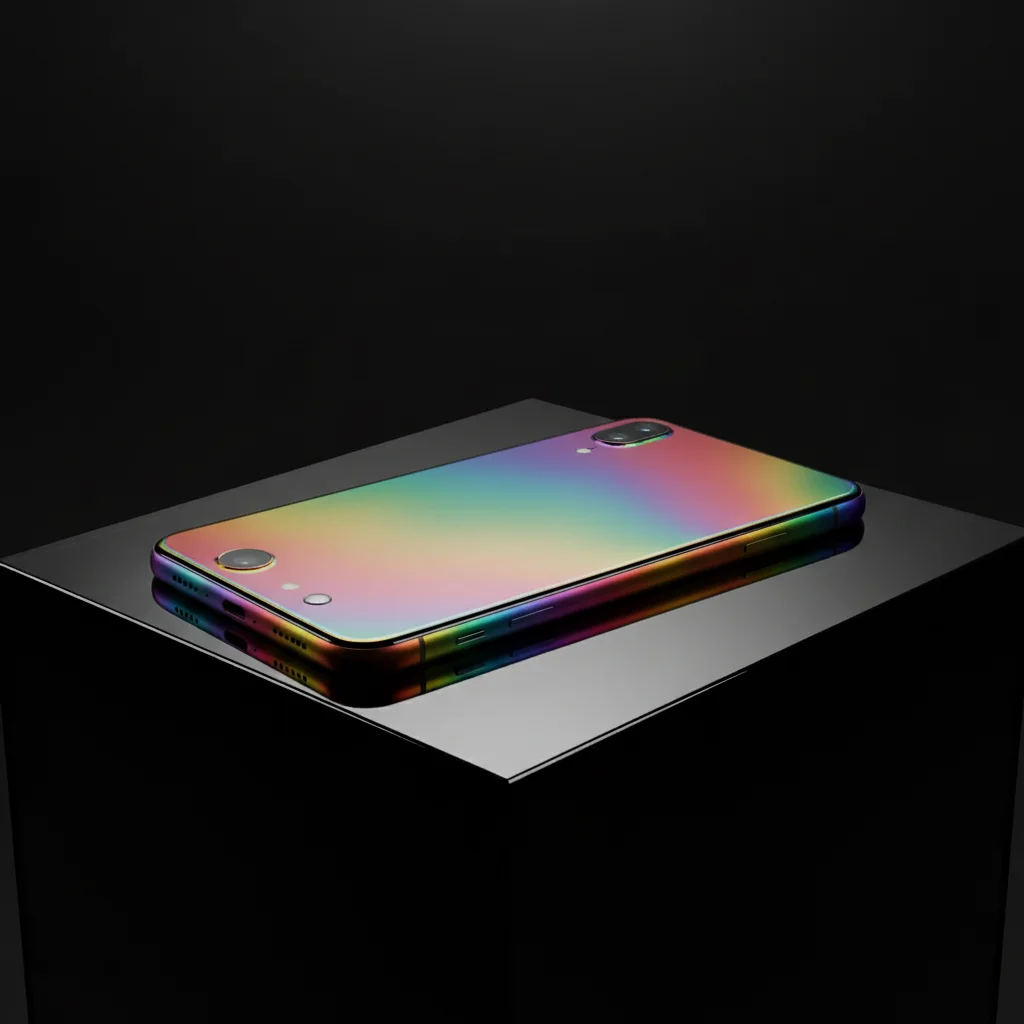
Product photo with bold holographic metallic rainbow effect
After

Product Photo with Bold Metallic Iridescence

Applied vibrant holographic effect to a product shot for eye-catching social media content.

Prompt: apply bold holographic filter with vibrant metallic rainbow reflections
Abstract image without holographic filter
Before
->
Abstract image with cool-toned holographic iridescence
After

Abstract Image with Cool-Toned Holographic

Transformed abstract composition with icy blue and silver iridescence for futuristic vibe.

Prompt: apply cool-toned holographic filter with blue, purple, and silver iridescence
Advertisement

If something looks off

Holographic effect is too subtle or barely visible

Why: Light backgrounds or low-contrast images can make iridescent effects less noticeable.

Try: Try: 'apply bold holographic filter with vibrant rainbow reflections' or use a darker background photo

Tip: Holographic effects show best on dark or high-contrast images—consider adjusting your base photo first

Colors look too intense or oversaturated

Why: Multiple color keywords or 'vibrant' combined with 'bold' can amplify the effect beyond natural iridescence.

Try: Use 'subtle' instead of 'bold' and reduce color descriptors: 'apply subtle holographic filter'

Tip: Start subtle and increase intensity only if needed—real holographic materials have delicate shimmer

Effect looks patchy or inconsistent across the image

Why: Complex textures or multiple subjects can cause AI to apply holographic effects unevenly.

Try: Request uniform application: 'apply smooth holographic overlay evenly across entire image'

Tip: Simpler compositions (portraits on plain backgrounds) get more consistent holographic results

Colors don't match my desired palette

Why: AI defaults to full rainbow spectrum if you don't specify color preferences.

Try: Specify exact colors: 'apply holographic filter with only pink, blue, and purple tones' (no other colors)

Tip: List 2-4 specific colors for controlled palettes that match your brand or aesthetic

AI changed the wrong area or added effects I didn't want

Why: The AI couldn't determine exactly which area you meant from description alone. This happens with ambiguous requests.

Try: Tap a marker on the specific area you want to change, then regenerate with the same prompt

Tip: Markers tell the AI 'I mean THIS area specifically.' Use them when description alone is ambiguous.

Quick answers

Do I need to mark anything before applying the holographic filter?

No! Just describe what you want: 'apply holographic rainbow filter' or 'add iridescent effect.' The AI applies the effect to your whole image. Only use markers if you want holographic shimmer on specific areas only—like just the hair or just the background.

How do I make the holographic effect look natural and not overdone?

Use the word 'subtle' in your prompt and specify softer color ranges. Real holographic materials have delicate shimmer, not neon brightness. Try: 'apply subtle holographic filter with soft pink and blue iridescence.' You can always strengthen it in a second pass if needed.

Is there a free holographic filter tool that doesn't require signup?

Yes. EditThisPic applies holographic effects with AI, completely free with no account needed. Just upload, describe your desired iridescent aesthetic, and download your shimmering photo with no watermark.

What's the best type of photo for holographic effects?

High-contrast images with dark backgrounds work best because they let the rainbow shimmer stand out. Portraits, products on black, or abstract compositions are ideal. Bright white backgrounds can make the iridescence less visible.

Can I control which colors appear in the holographic effect?

Yes. Specify your desired color palette in the prompt: 'apply holographic filter with only blue, purple, and silver tones.' The AI will limit the iridescence to those colors instead of the full rainbow spectrum.

Ready to add holographic effects to your photo?

Free to try. No signup required.

Try it free