Free • No signup Apply Sepia tone · Free

AI Sepia Filter

Add authentic vintage sepia tone to any photo instantly.
Portrait before sepia tone filter
Before
Portrait with classic warm sepia tone
After

AI Sepia Filter

Drop your photo here

or click to browse

Release to upload

Free • No signup

Advertisement
Popular use cases:
  • vintage photos
  • old photograph aesthetic
  • nostalgic images
  • historical recreation
  • antique photo style
  • period photography
  • memorial photos
  • heritage documentation

Cost
Free No signup required
Time
Instant results in 15-30 seconds
Works on
Any device - browser, phone, tablet, desktop
Powered by
AI-powered photo editing
Scenario Prompt Time
Classic sepia tone apply classic sepia tone to this photo with warm brown vintage aesthetic 15s
Subtle sepia tint add subtle sepia tint with gentle warm brown tones while preserving some original colors 15s
Strong vintage sepia apply strong sepia tone with deep rich brown tones like an aged 1920s photograph 15s
Sepia with vignette add sepia tone with warm brown vintage aesthetic and dark edges vignette 15s

How it works

  1. Upload your photo

    Drop your image into EditThisPic. JPG, PNG, WebP up to 7MB. Works on color or black and white photos. Sepia tone transforms any image into warm vintage aesthetic.

    Expect: Simple sepia applications: 15-20 seconds. All sepia filters complete in under 30 seconds.
  2. Describe the sepia style you want

    Type your instruction: 'apply sepia tone to this photo' or 'add vintage sepia effect with warm brown tones.' Be specific about intensity (subtle, classic, strong) and warmth level. No marking needed—the AI applies sepia to the entire image.

    Tip: Sepia tone ranges from subtle warm tint to full vintage brown. Specify 'light sepia' for gentle warmth or 'strong sepia' for authentic old photograph look.

    Copy one of these to get started:

    Classic sepia tone apply classic sepia tone to this photo with warm brown vintage aesthetic
    Subtle sepia tint add subtle sepia tint with gentle warm brown tones while preserving some original colors
    Strong vintage sepia apply strong sepia tone with deep rich brown tones like an aged 1920s photograph
    Sepia with vignette add sepia tone with warm brown vintage aesthetic and dark edges vignette
    2 more prompts
    Cool-toned sepia apply cool sepia tone with muted brown-gray vintage aesthetic
    Sepia with grain add sepia tone with warm brown aesthetic and visible film grain texture
  3. Review the vintage aesthetic

    Check the warm brown tones and vintage character at full size. Verify the sepia intensity and warmth match your desired aesthetic. Sepia should feel naturally aged, not artificially tinted.

Try it free

AI Sepia Filter

Drop your photo here

or click to browse

Release to upload

Free • No signup

"Perfect sepia effect. Makes my modern photos look like authentic vintage photographs from the 1920s." @vintagephoto

See it in action

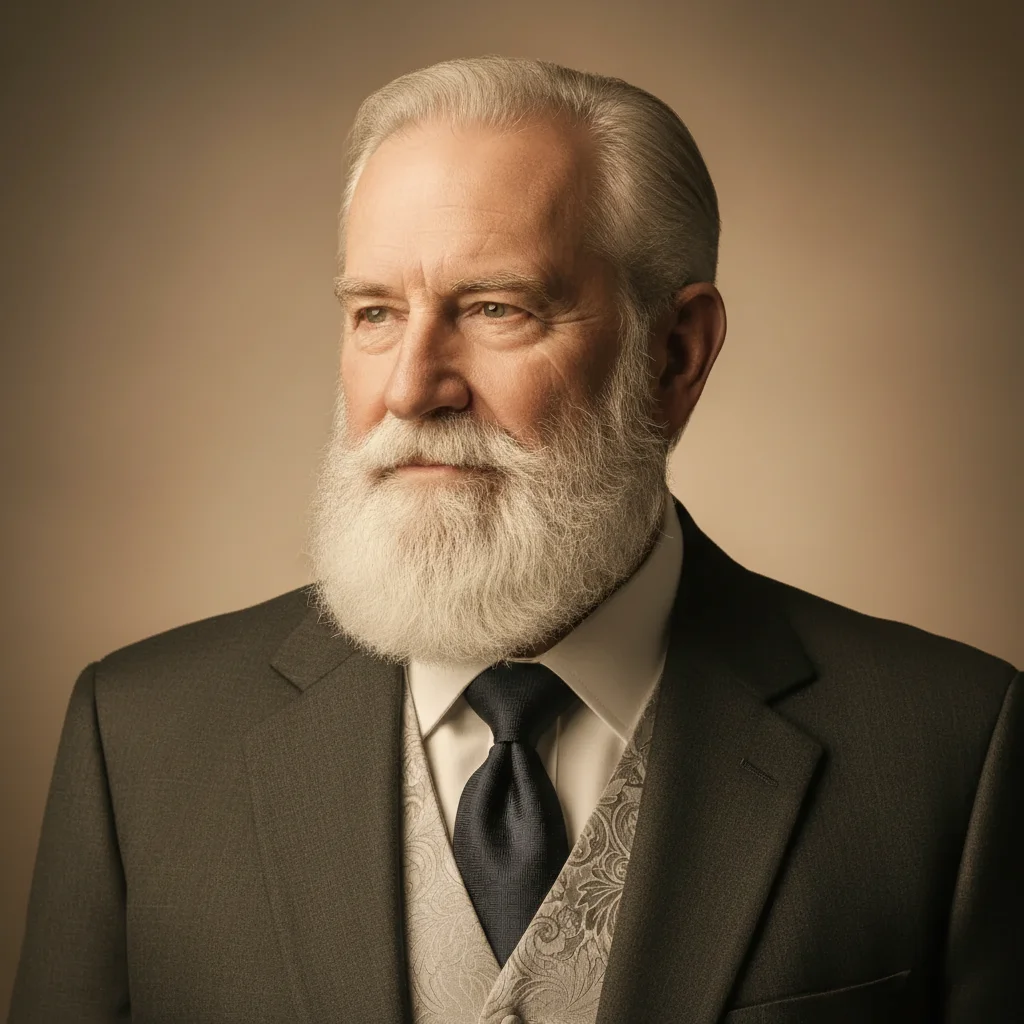
Portrait before sepia tone filter
Before
->
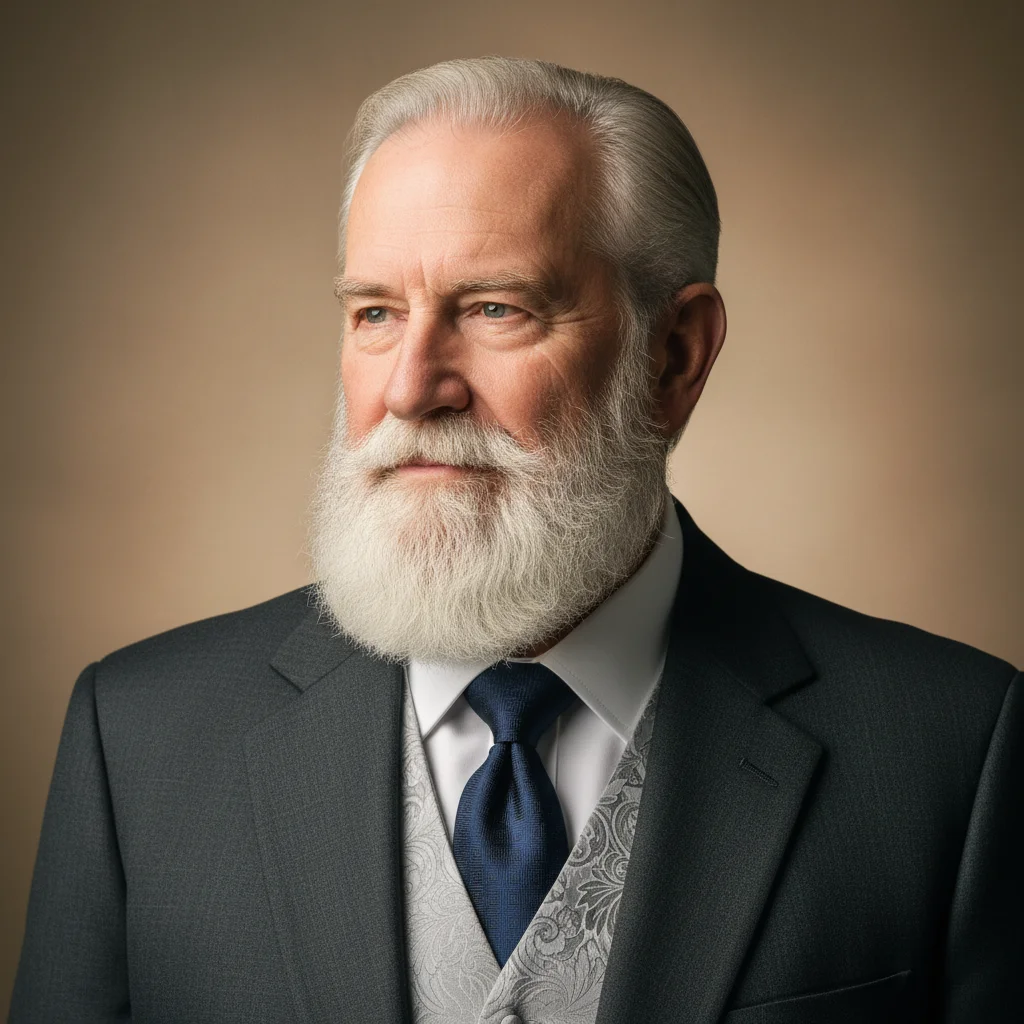
Portrait with classic warm sepia tone
After

Portrait with Classic Sepia

Applied classic sepia tone to a modern portrait, creating authentic vintage photograph aesthetic with warm browns.
Prompt: apply classic sepia tone to this photo with warm brown vintage aesthetic
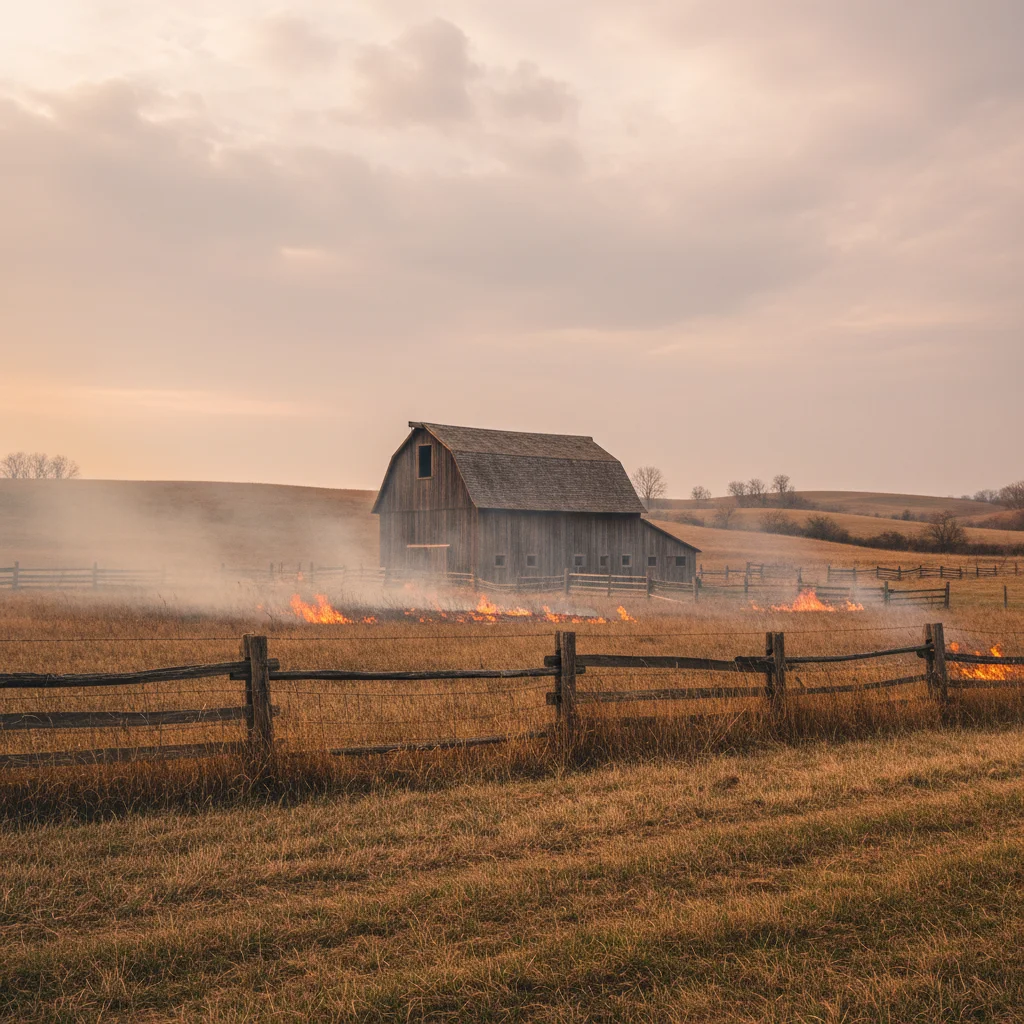
Landscape before sepia tone filter
Before
->
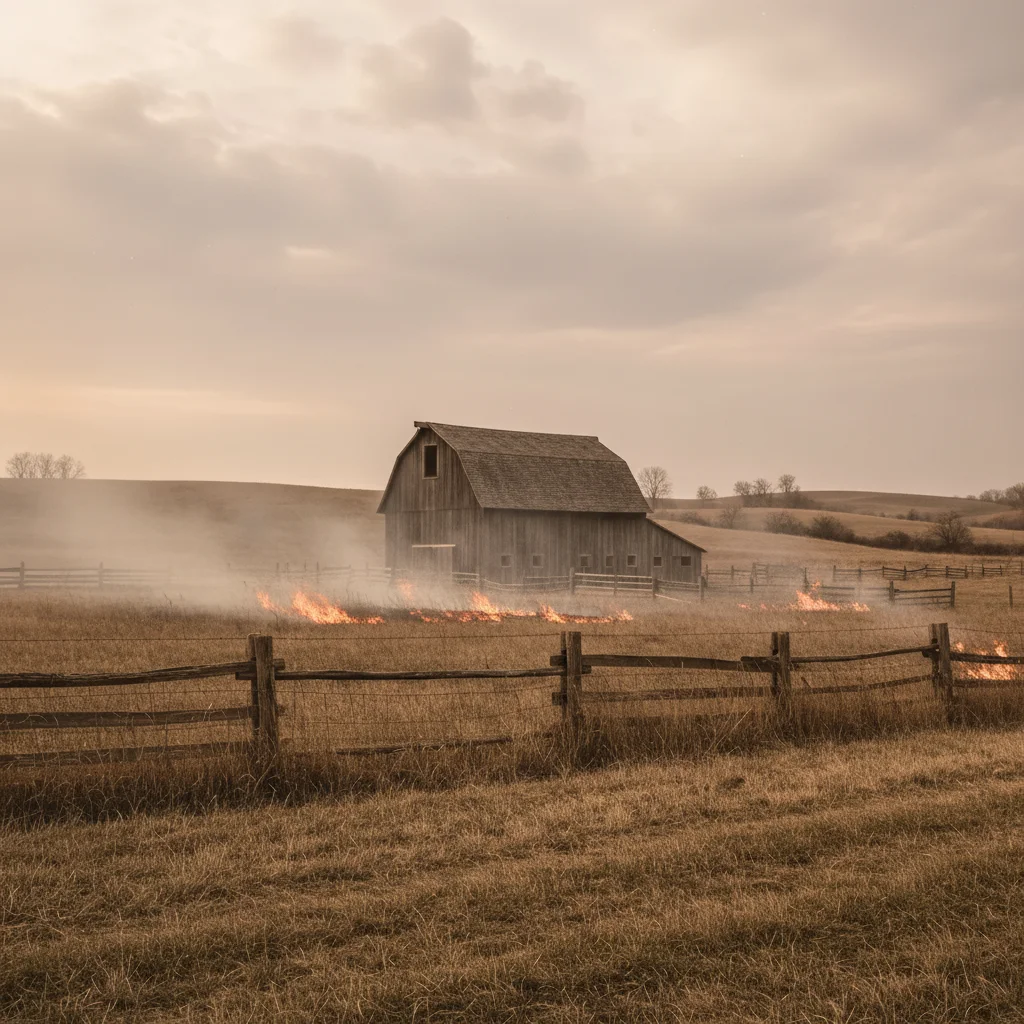
Landscape with strong vintage sepia aesthetic
After

Landscape with Vintage Sepia

Transformed landscape into vintage sepia photograph with deep rich brown tones like 1920s photography.

Prompt: apply strong sepia tone with deep rich brown tones like an aged 1920s photograph
Advertisement

If something looks off

AI changed the wrong area or colors look unnatural

Why: Sepia tone applies globally to the entire image. It's a color grade, not a selective edit.

Try: Sepia works on whole images. If results look off, adjust intensity: 'apply subtle sepia' for gentle effect or 'strong sepia' for full vintage conversion.

Tip: Markers don't help with sepia since it's a global color filter. Instead, specify sepia intensity and warmth level.

Sepia tone is too strong or too orange

Why: The sepia intensity was too high or skewed toward orange-brown instead of neutral warm brown.

Try: Request balanced tone: 'apply classic sepia tone with neutral warm brown' or 'subtle sepia with gentle brown tint.'

Tip: Authentic sepia is warm brown, not orange. Specify 'classic sepia' or 'warm brown' for proper vintage tone.

Sepia tone is barely visible

Why: The sepia effect was applied too subtly, making it look like a slight color cast rather than vintage aesthetic.

Try: Increase intensity: 'apply strong sepia tone with deep brown vintage aesthetic' or 'classic sepia with pronounced warm brown tones.'

Tip: If sepia is too subtle, explicitly request 'strong' or 'pronounced' sepia for visible vintage effect.

Photo looks flat or loses depth after sepia

Why: Sepia conversion reduced contrast or tonal range, making the image appear less dimensional.

Try: Request preserved contrast: 'apply sepia tone while maintaining strong contrast and tonal depth' or add 'with rich shadows.'

Tip: Good sepia preserves contrast. Specify 'maintain contrast' or 'rich tonal range' to keep image depth.

Quick answers

Do I need to mark areas before applying sepia tone?

No! Just describe the filter: 'apply sepia tone to this photo' or 'add vintage sepia effect.' Sepia is a global color grade that applies to the entire image. Markers don't help—instead, specify sepia intensity (subtle, classic, strong) and warmth level.

What is sepia tone and why was it used?

Sepia tone is the warm brown color characteristic of photographs from the late 1800s through mid-1900s. It resulted from a chemical process using sepia pigment (from cuttlefish) that improved photo longevity. Beyond preservation, sepia became valued for its warm, nostalgic aesthetic. Today, sepia tone is applied for vintage styling and emotional warmth, evoking memories and historical atmosphere.

Can I apply sepia to black and white photos or only color?

Sepia works on both color and black and white photos. For color photos, it converts to brown monochrome. For black and white photos, it adds warm brown tones to replace the neutral grays. Both achieve the same vintage sepia aesthetic. Starting with black and white may give slightly cleaner results since there's no color conversion step.

Is there a free sepia filter that doesn't need photo editing software?

Yes. EditThisPic is a free browser-based sepia filter with no signup or software required. Just upload your photo, describe the sepia intensity you want, and download the result. Unlike Photoshop or photo apps, our AI applies authentic sepia tone automatically with proper warm brown color science. First filter application is free with no account needed.

Ready to add sepia tone to your photos?

Free to try. No signup required.

Try it free