Free • No signup Convert Black and white · Free

AI Black and White Converter

Describe the monochrome style you want and AI handles the conversion.
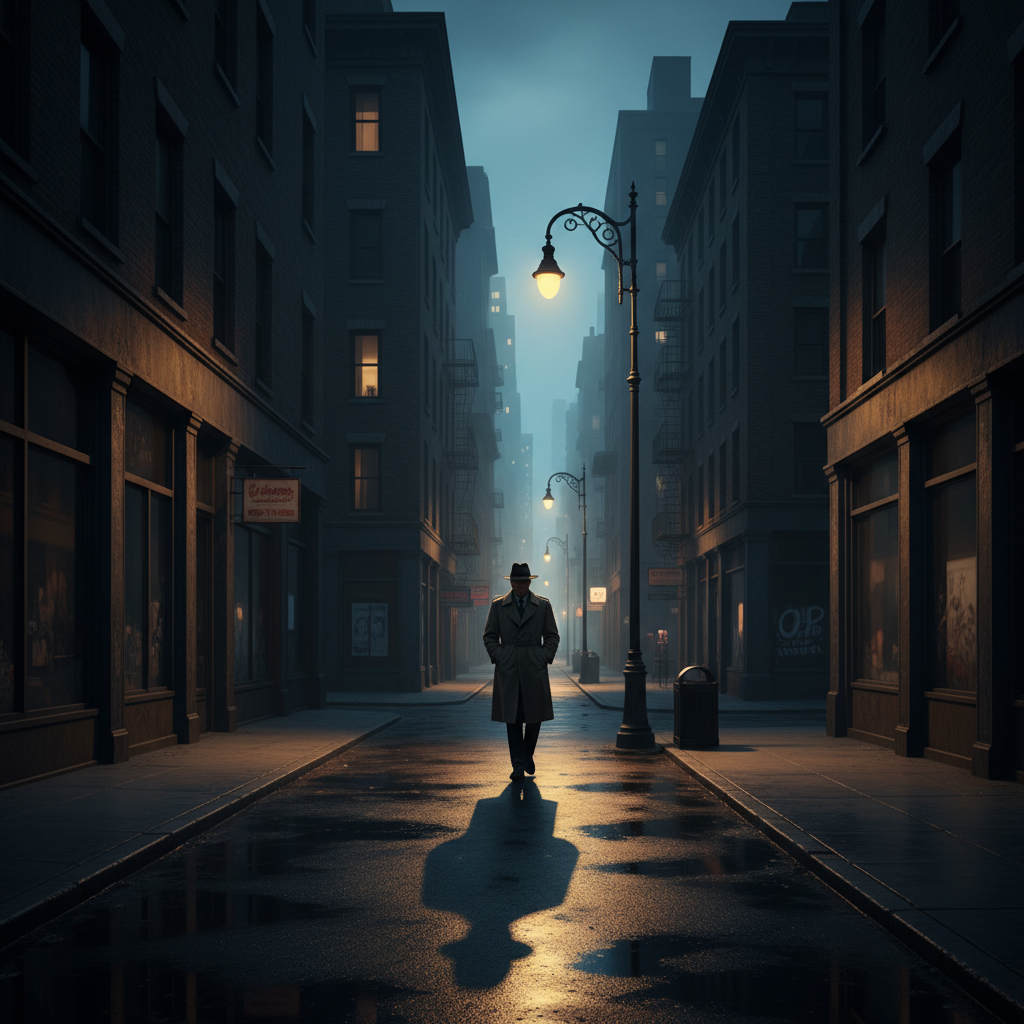
Colorful street photo
Before
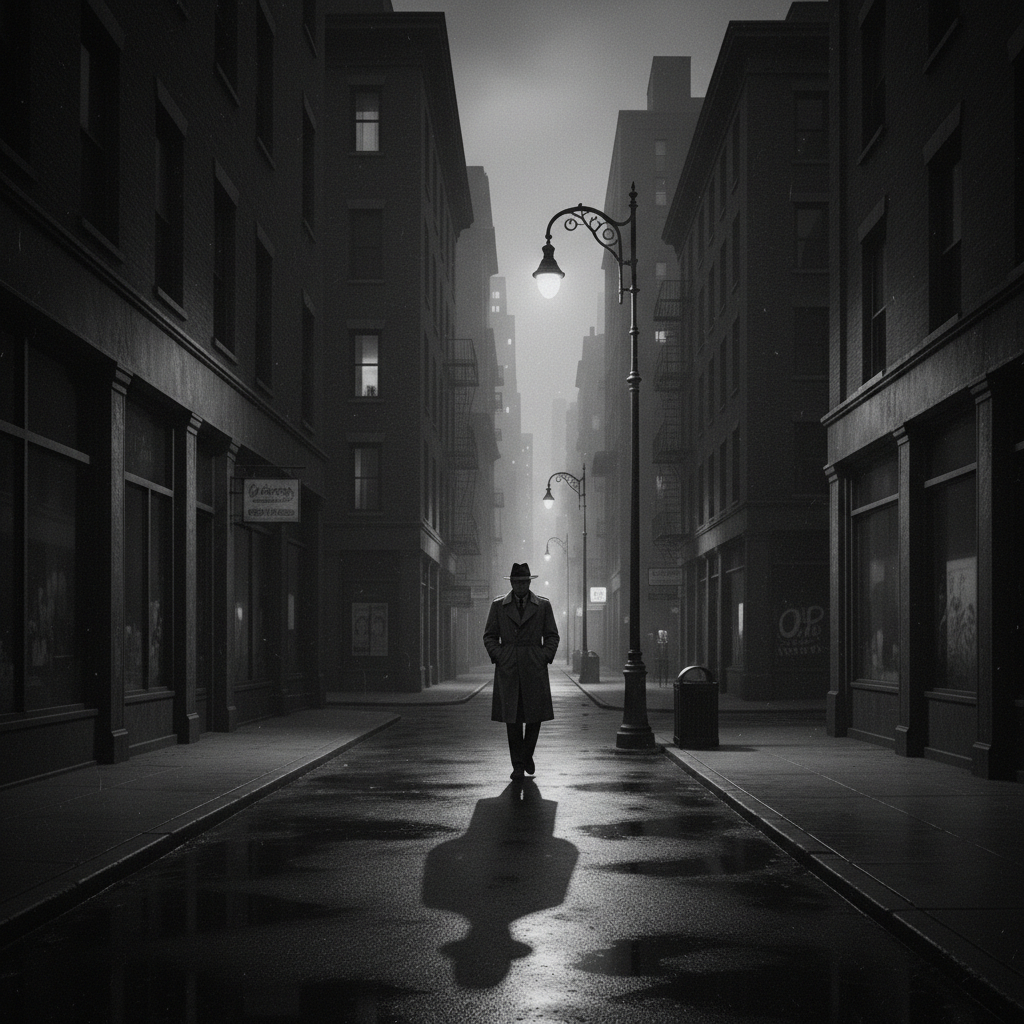
High-contrast black and white street photo
After

Convert to Black and White

Upload photo to convert black and white

Free • Results in 30 seconds • No signup

Release to upload

FreeNo signupNo watermark
Popular use cases:
  • portrait photography
  • street photography
  • landscape monochrome
  • artistic prints
  • documentary photography
  • fine art black and white

Cost
Free No signup required
Time
Instant results in 15-30 seconds
Works on
Any device - browser, phone, tablet, desktop
Powered by
AI-powered photo editing
Scenario Prompt Time
High-contrast dramatic convert to black and white with high contrast, deep blacks, bright highlights, and dramatic shadows 15s
Soft portrait convert to black and white with soft tones, low contrast, and gentle gradations for portrait 15s
Film noir cinematic convert to black and white film noir style with deep shadows and moody atmospheric tones 20s
Ansel Adams landscape convert to black and white with full tonal range, detailed shadows and highlights like Ansel Adams 20s

How it works

  1. Upload your photo

    Drop your color image into EditThisPic. JPG, PNG, WebP up to 7MB work great. Photos with strong color contrast convert to monochrome with excellent tonal separation.

    Expect: Simple conversions: 15-30 seconds. Complex tonal adjustments with specific contrast requirements: may need 2-3 refinements.
  2. Describe the black and white style you want

    Type your instruction: 'convert to black and white with high contrast' or 'make it black and white with soft tones and low contrast for portrait.' Be specific about contrast level (high, medium, low), tonal range (bright, dark, full), and mood (dramatic, soft, cinematic). The AI understands monochrome photography styles.

    Tip: Reference classic styles for better results: 'Ansel Adams high contrast,' 'film noir dramatic,' or 'soft portrait monochrome'

    Copy one of these to get started:

    High-contrast dramatic monochrome convert to black and white with high contrast, deep blacks, bright highlights, and dramatic shadows
    Soft portrait black and white convert to black and white with soft tones, low contrast, and gentle gradations for portrait
    Film noir cinematic style convert to black and white film noir style with deep shadows, high contrast, and moody atmospheric tones
    Classic landscape monochrome convert to black and white with full tonal range, detailed shadows and highlights like Ansel Adams landscape
    2 more prompts
    Gritty documentary style convert to grainy black and white with medium contrast and gritty documentary photography aesthetic
    Pure high-key white convert to high-key black and white with bright tones, minimal shadows, and airy ethereal feel
  3. Generate and review

    Click Generate and watch the monochrome transformation. Check contrast, shadow detail, and highlight preservation at full resolution. The AI analyzes your original colors to create optimal grayscale tones—blues become darker, reds lighter, just like classic B&W film.

  4. Refine with markers if needed

    If specific areas need different contrast (like brightening faces while keeping dark backgrounds), tap markers on those regions and describe the adjustment. This is optional—most conversions work perfectly as full-image transforms.

    Tip: Markers let you control contrast in specific areas: 'brighten the subject' or 'darken the sky.' Try without them first.
Try it free

Convert to Black and White

Upload photo to convert black and white

Free • Results in 30 seconds • No signup

Release to upload

Free • No signup

"Best B&W converter I've used. The contrast and tonal range are exactly what I wanted." @blackandwhitefan

See it in action

Colorful street photo
Before
->
High-contrast black and white street photo
After

Street photo to high-contrast B&W

Vibrant street scene transformed into dramatic monochrome with deep blacks and crisp whites.

Prompt: convert to black and white with high contrast, deep blacks, and bright highlights
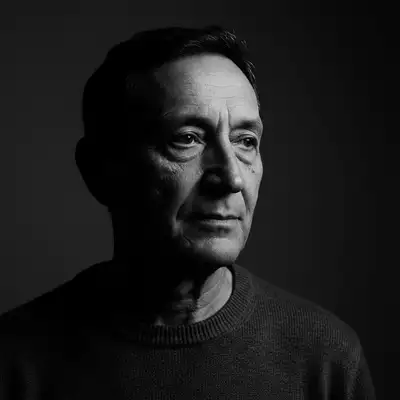
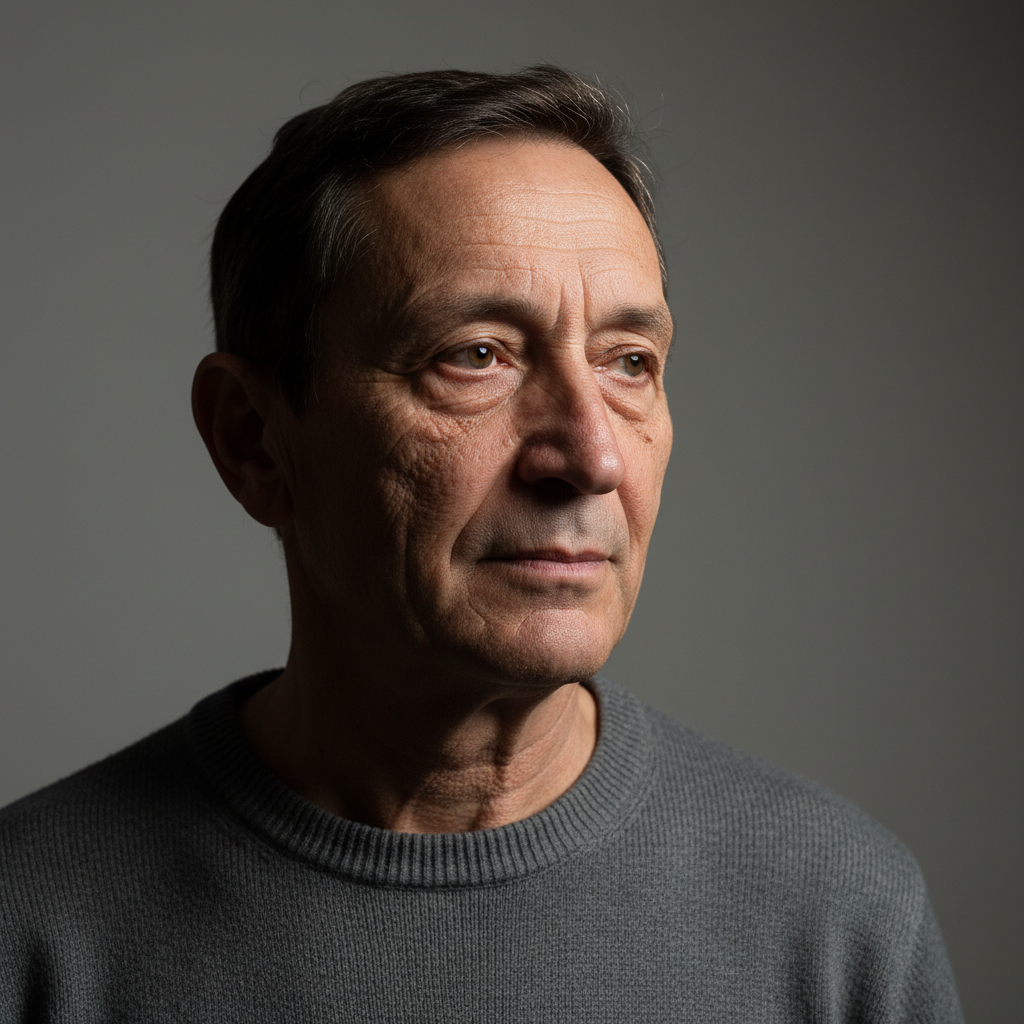
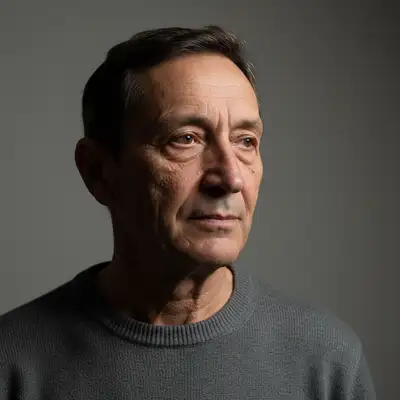
Color portrait photo
Before
->
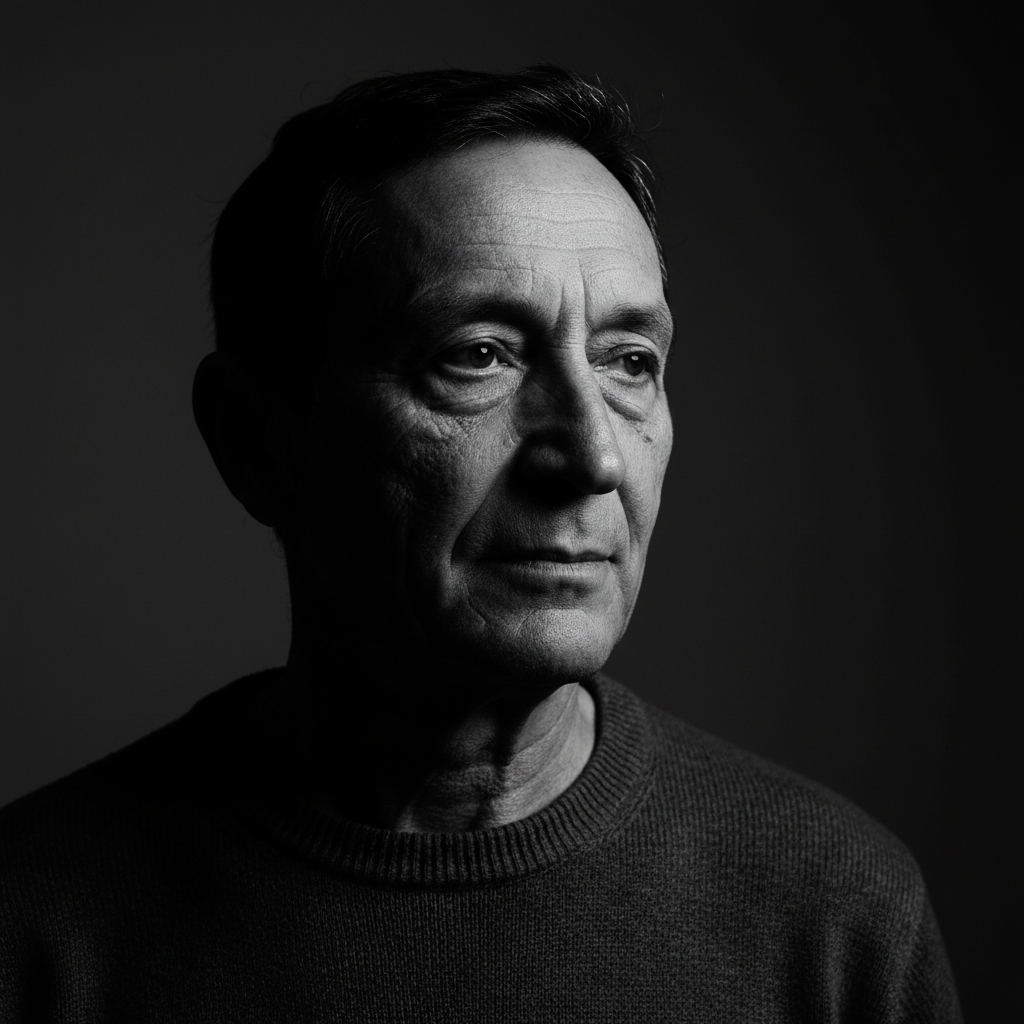
Soft black and white portrait with gentle tones
After

Portrait to soft monochrome

Color portrait converted to flattering black and white with gentle tones and preserved skin detail.

Prompt: convert to black and white with soft tones, low contrast, and gentle gradations for portrait

Detailed Guides by Scenario

📷

Professional Use

Apply 'AI Black and White Converter' to images for professional projects — websites, marketing materials, client deliverables, and presentations.

Common Scenarios

  • Using 'AI Black and White Converter' for client work or commercial photography
  • Applying 'AI Black and White Converter' to product or marketing images for a business
  • Batch-processing multiple images with 'AI Black and White Converter' for a project deadline

Best Practices

  • Use the highest resolution source image available for professional-quality results
  • Be specific in your prompt about the exact 'AI Black and White Converter' effect you need
  • For consistency across multiple images, reuse the same prompt template
📷

Creative & Social Media

Use 'AI Black and White Converter' creatively for social media content, personal projects, and artistic expression.

Common Scenarios

  • Applying 'AI Black and White Converter' to a photo for a unique social media post
  • Using 'AI Black and White Converter' to create artistic variations of a favorite image
  • Experimenting with 'AI Black and White Converter' for a creative project or portfolio piece

Best Practices

  • Experiment freely — AI editing lets you try bold ideas with no risk to the original
  • For social content, pair the visual effect with a caption that references the transformation
  • Try the effect on different types of photos to find what looks most striking
📷

Personal Photos & Memories

Apply 'AI Black and White Converter' to personal photos to fix issues, enhance quality, or create something special from everyday images.

Common Scenarios

  • Using 'AI Black and White Converter' on family photos to improve or personalize them
  • Applying 'AI Black and White Converter' to vacation or event photos before printing or sharing
  • Trying 'AI Black and White Converter' on a selfie or portrait for profile or personal use

Best Practices

  • Always work on a copy — keep the original safe in case you want to try a different approach
  • Natural-looking results are almost always better than dramatic over-processing
  • If it doesn't look right the first time, rephrase your prompt with more specific details

If something looks off

Result is too dark or too bright

Why: Without specific brightness guidance, the AI uses a neutral midtone conversion. Some images need brightness adjustments based on subject matter.

Try: convert to black and white with bright tones and lifted shadows or convert to black and white with deep dark tones

Tip: Use 'bright' or 'dark' to shift overall exposure. 'Lifted shadows' preserves shadow detail.

Flat image with no contrast

Why: Some color photos have limited color contrast, which translates to narrow tonal range in black and white without explicit contrast instruction.

Try: convert to black and white with high contrast, deep blacks, and bright whites

Tip: Always specify contrast level: 'high contrast' for separation, 'low contrast' for subtlety

AI changed the wrong area or made unwanted adjustments

Why: The conversion applies globally. If you need different contrast in different areas (bright subject, dark background), the AI needs selective guidance.

Try: Tap markers on the specific area that needs different treatment, then describe: 'brighten this area' or 'increase contrast here'

Tip: Markers let you control tonal adjustments selectively. Most conversions work great without them.

Important details disappeared in shadows or highlights

Why: High contrast can clip shadow or highlight detail. The AI needs instruction to preserve detail in extreme tones.

Try: convert to black and white with full tonal range preserving shadow and highlight detail

Tip: 'Full tonal range' or 'preserve detail' tells the AI to avoid clipping dark and bright areas

Quick answers

Do I need to mark areas before converting to black and white?

No! Just describe the monochrome style you want: 'convert to high contrast black and white' or 'make it soft monochrome portrait.' The conversion applies to the whole image automatically. Only use markers if you want different contrast or tones in specific areas (like bright subject, dark background).

How is AI black and white conversion different from just desaturating?

Simple desaturation treats all colors equally. AI conversion analyzes your original colors and creates optimal grayscale mapping—blues become darker, reds lighter, yellows bright—just like shooting with black and white film. You also get control over contrast, mood, and specific photography styles.

Is there a free black and white converter that doesn't require login?

Yes. EditThisPic converts color photos to artistic black and white with AI for free, no account needed. Just upload, describe the style (high contrast, soft portrait, film noir), and download. No watermarks.

What's the best free AI tool for black and white conversion?

EditThisPic's AI understands classic monochrome photography styles. Instead of simple desaturation, you describe exactly what you want: Ansel Adams landscapes, film noir drama, soft portraits. The AI creates intelligent grayscale conversions with proper tonal mapping and your specified contrast.

Can I create specific styles like film noir or Ansel Adams landscapes?

Yes. Reference the style in your prompt: 'convert to film noir style with dramatic shadows,' 'Ansel Adams landscape with full tonal range,' or 'soft portrait monochrome.' The AI recognizes these photography styles and applies appropriate contrast, tonal range, and mood.

Can I convert black and white on my phone?

Yes. EditThisPic works in any mobile browser — iPhone, Android, tablet. No app download needed.

What photo formats does the AI black and white converter support?

JPG, PNG, WebP, and HEIC. Upload any common photo format and EditThisPic handles the rest.

How long does it take to convert black and white?

Usually 15-30 seconds. Upload your photo, describe what you want, and the AI delivers the result.

Ready to convert your photos to black and white?

Free to try. No signup required.