Free โ€ข No signup Fix Teeth gap ยท Free

AI Teeth Gap Fixer

Close tooth gaps naturally with AI - just describe what you want fixed
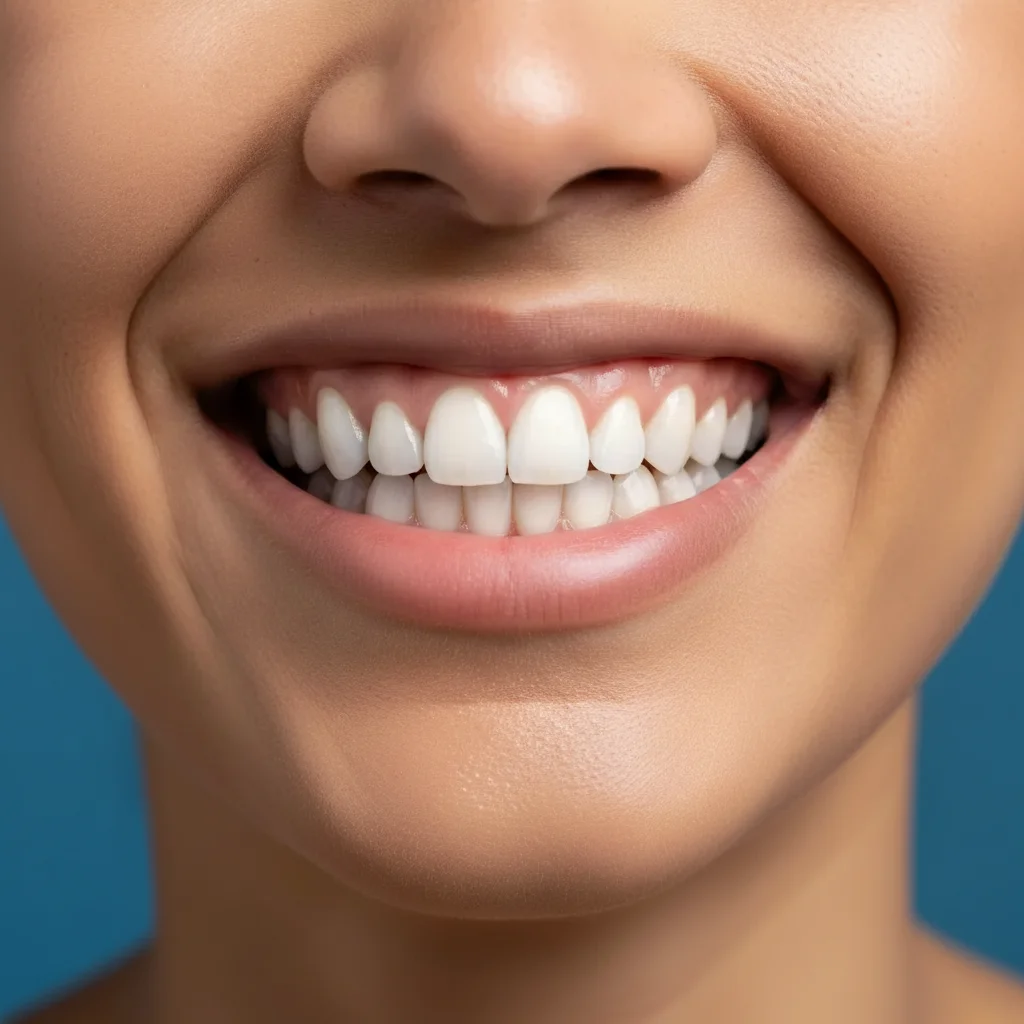
Smiling portrait showing prominent gap between front teeth
Before
โ†’
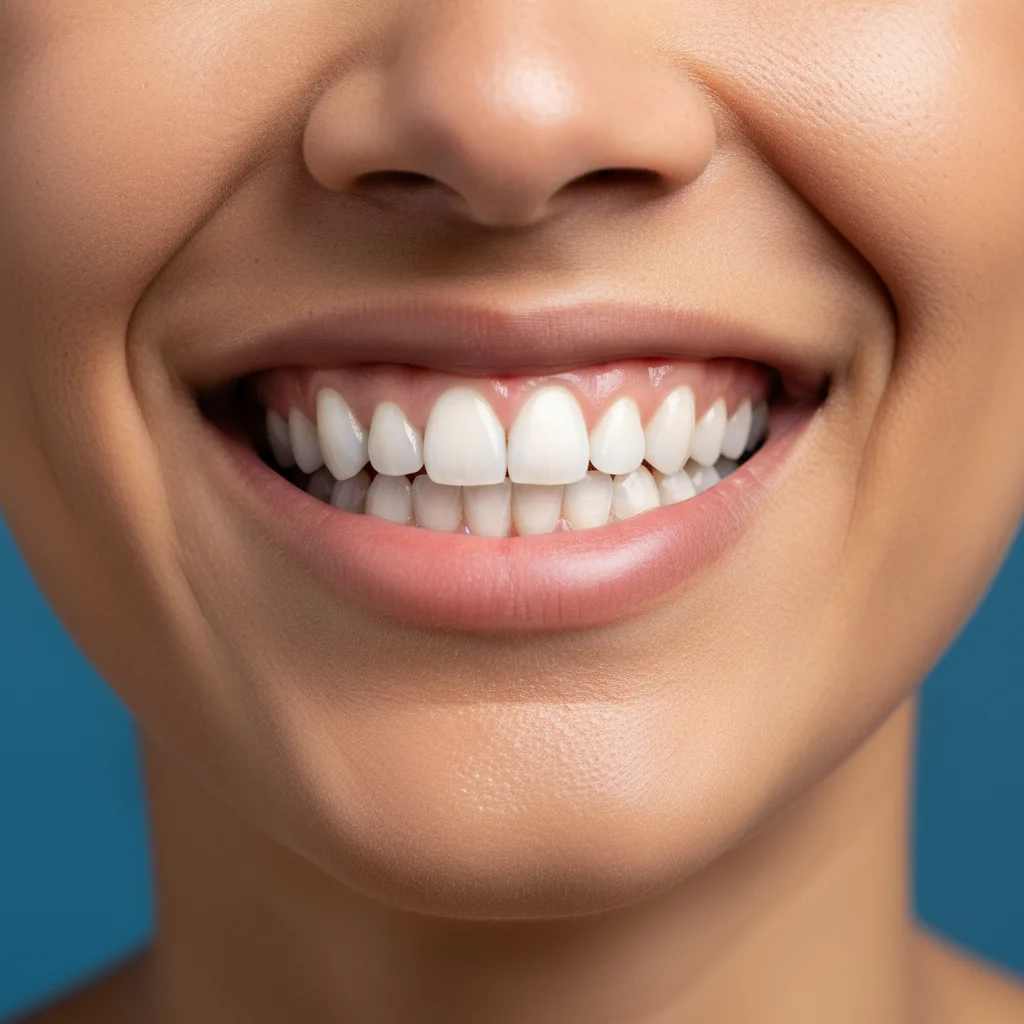
Same portrait with gap naturally closed, teeth touching
After

Fix Teeth Gap in Photo

Drop your photo here

or click to browse

Release to upload

Free โ€ข No signup

Advertisement
Popular use cases:
  • diastema correction
  • dating profile photo
  • professional headshot
  • wedding photo gap removal
  • yearbook photo touch-up
  • social media portrait
  • before veneer consultation

Cost
Free No signup required
Time
Instant results in 15-30 seconds
Works on
Any device - browser, phone, tablet, desktop
Powered by
AI-powered photo editing
Scenario Prompt Time
Front teeth gap (diastema) Close the gap between my two front teeth and make them look natural 15s
Multiple small gaps Close all the small gaps between my front teeth and create even spacing 20s
Side teeth gap Fix the gap between my canine and premolar on the right side 18s
Partial reduction Reduce the gap between my front teeth by half, keeping some character 15s

How it works

  1. Upload your photo

    Choose a clear photo where the teeth gap is visible. Front-facing portraits with good lighting work best. The AI needs to see your smile clearly to make natural adjustments.

    Expect: Takes 2-3 seconds to upload. Works with JPG, PNG, HEIC files up to 10MB.
  2. Describe what you want fixed

    This is the key step. Tell the AI which gap to close using natural language: 'close the gap between my front teeth' or 'fix the spacing between my two front teeth'. The AI understands dental terminology and casual descriptions equally well.

    Tip: Be specific about which gap if you have multiple spaces. The AI can distinguish between front teeth gaps, side gaps, or general spacing issues.

    Copy one of these to get started:

    Front teeth gap (most common) Close the gap between my two front teeth and make them look natural
    Multiple small gaps Close all the small gaps between my front teeth and create even spacing
    Side teeth gap Fix the gap between my canine and premolar on the right side
    Gap after tooth loss Close the space where my missing tooth used to be and blend the remaining teeth together
    3 more prompts
    Subtle gap reduction Reduce the gap between my front teeth by half, keeping some character
    Upper and lower gaps Close the gaps in both my upper and lower front teeth
    Gap with alignment fix Close the gap between my front teeth and straighten them slightly
  3. Review the result

    Check that the gap is closed naturally and your smile still looks authentic. The AI maintains tooth shape, color matching, and natural shadowing. Make sure adjacent teeth weren't affected and the closure looks realistic.

  4. Refine with markers if needed

    If the AI wasn't precise enough with description alone, tap a marker on the exact gap location and regenerate. This tells the AI 'I mean this specific gap' and ensures pinpoint accuracy.

    Tip: Markers are rarely needed for front teeth gaps but helpful for side gaps or if you have multiple spaces.
Try it free โ†“

Fix Teeth Gap in Photo

Drop your photo here

or click to browse

Release to upload

Free โ€ข No signup

"I was skeptical but wow, it closed the gap perfectly and still looks like me. Used it for my dating profile pic!" @SarahDental

See it in action

Smiling portrait showing prominent gap between front teeth
Before
->
Same portrait with gap naturally closed, teeth touching
After

Classic front teeth gap closure

Large diastema closed completely while maintaining natural tooth shape and gum line
Prompt: Close the gap between my two front teeth and make them look natural
Close-up of smile with several small gaps between front teeth
Before
->
Same smile with uniform spacing and no gaps
After

Multiple small gaps corrected

Several minor spaces across front teeth unified into even, natural spacing

Prompt: Close all the small gaps between my front teeth and create even spacing
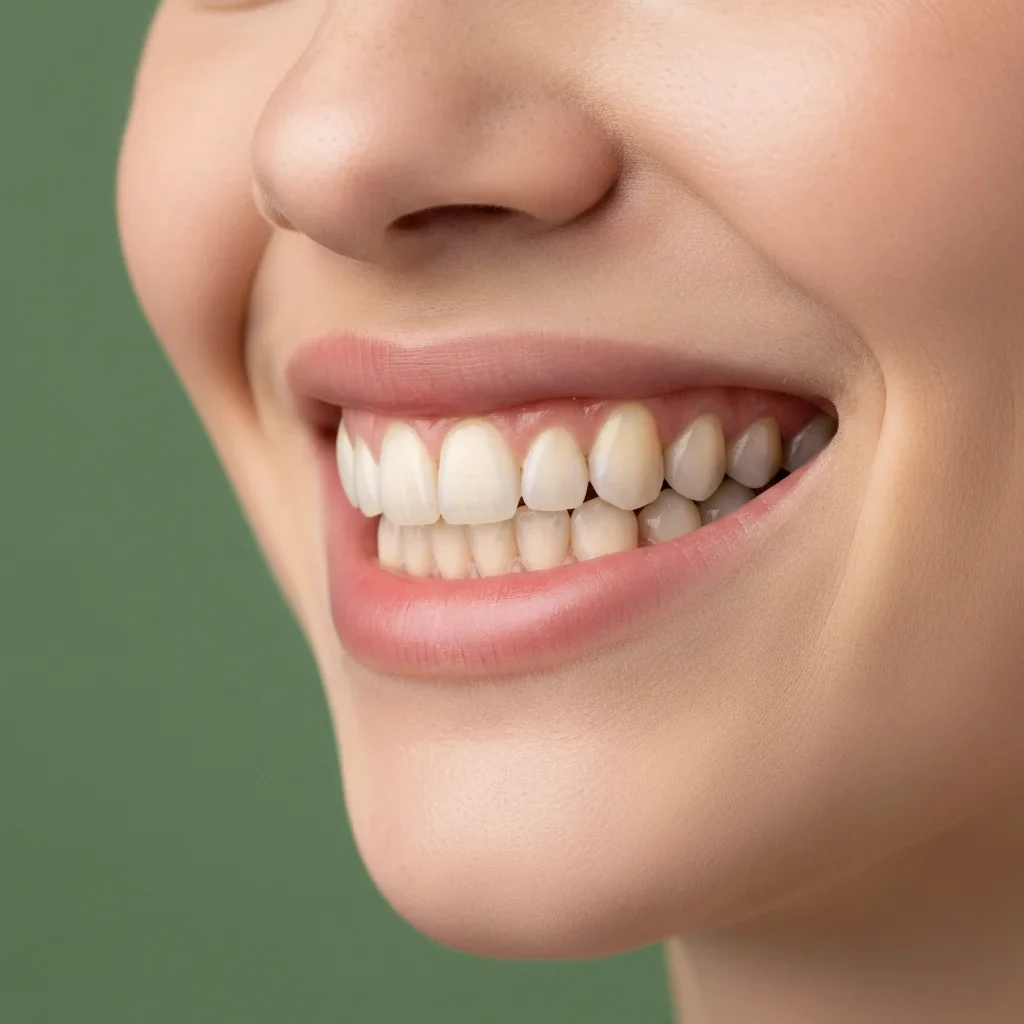
Side smile view with visible gap from missing tooth
Before
->
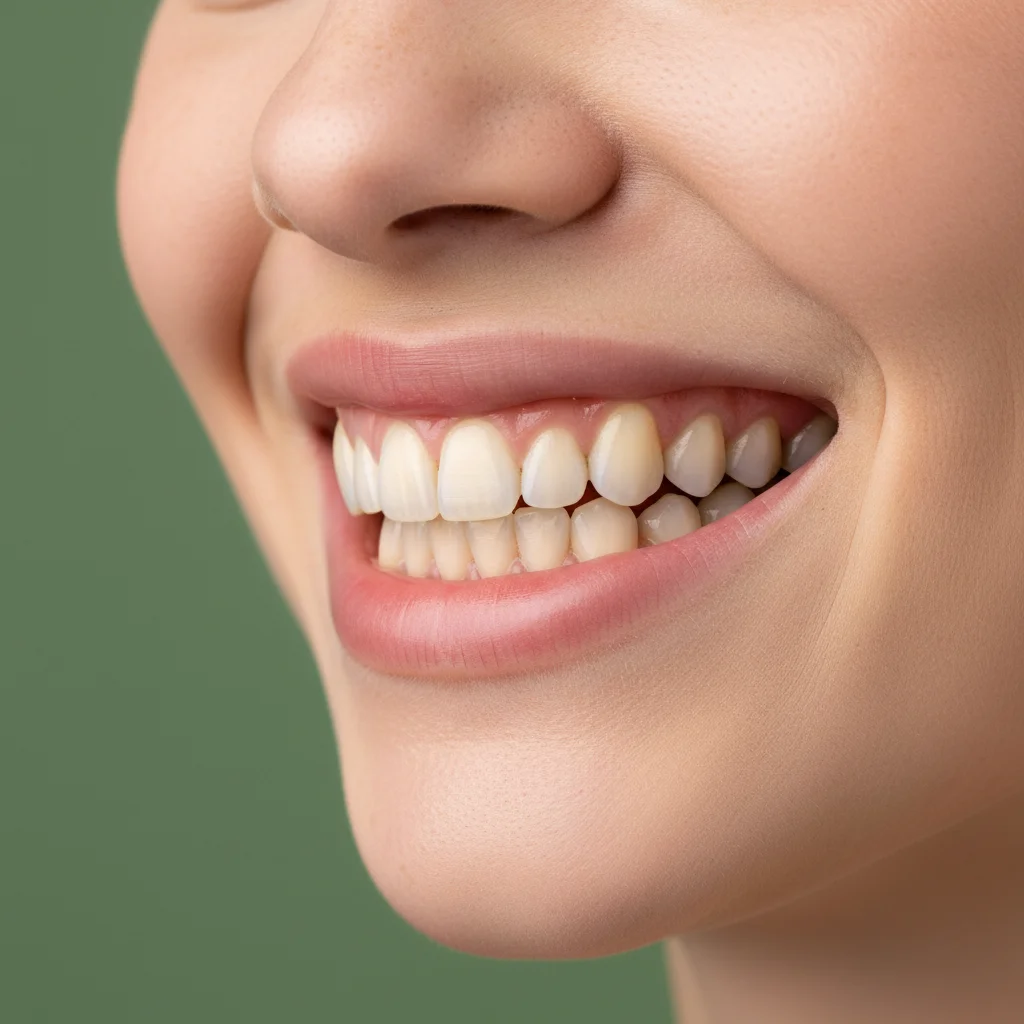
Same angle with gap closed and natural tooth continuity
After

Side gap from missing tooth

Space where premolar was removed, adjacent teeth blended together naturally

Prompt: Close the space where my missing tooth used to be and blend the remaining teeth together
Advertisement

If something looks off

AI changed the wrong area or something I didn't want changed

Why: The AI couldn't determine exactly which gap you meant from description alone, especially if you have multiple spaces.

Try: Tap a marker on the specific gap you want to close, then regenerate with the same prompt

Tip: Markers tell the AI 'I mean THIS gap specifically.' Essential for side teeth or multiple gaps.

The closed gap looks unnatural or teeth seem too wide

Why: The AI overcompensated when closing a large gap, making adjacent teeth appear stretched or bulky.

Try: Try: 'Close the gap between my front teeth but keep the natural tooth width'

Tip: For very large gaps, consider a partial closure first: 'Reduce the gap by 70%' then assess.

Tooth color doesn't match after closing the gap

Why: The AI generated new tooth surface in the gap area but didn't perfectly match the existing tooth color.

Try: Add color matching to your prompt: 'Close the gap and match the tooth color exactly to the surrounding teeth'

Tip: You can fix color separately afterward: 'Make the front teeth more uniform in color'.

Gum line looks weird after gap closure

Why: Large gap closures can affect how the gums appear between teeth, creating an unnatural contour.

Try: Try: 'Close the gap while maintaining a natural gum line between the teeth'

Tip: Sometimes a small marker on the gum area helps the AI preserve natural gum shape.

Only part of the gap was closed

Why: Your description might have been ambiguous, or the AI interpreted 'reduce' instead of 'close completely'.

Try: Be explicit: 'Close the gap between my front teeth completely so they touch'

Tip: Words like 'completely', 'entirely', or 'so they touch' ensure full closure.

Quick answers

Do I need to mark the teeth gap before editing?

No! Just describe which gap you want to fix in natural language. The AI understands prompts like 'close the gap between my front teeth' without any marking. Markers are optional and only needed if you have multiple gaps and want to specify exactly which one.

Is this teeth gap fixer really free?

Yes, completely free with no hidden costs. No account required, no watermark on your edited photos. You can fix gaps in as many photos as you want without paying anything.

Will the gap closure look realistic?

The AI maintains natural tooth anatomy including enamel texture, color matching, proper shadowing, and realistic gum lines. It closes gaps by intelligently adjusting tooth positioning and width rather than just stretching pixels, so results look authentic.

Can I fix multiple gaps at once?

Yes! You can ask the AI to close multiple gaps in one edit. Try prompts like 'close all the gaps between my front teeth' or specify exactly: 'close the gap between my two front teeth and the gap on the left side'.

What if I only want to reduce the gap, not close it completely?

Absolutely possible. Specify the reduction level in your prompt: 'reduce the gap between my front teeth by half' or 'make the gap 50% smaller'. This keeps some character while improving appearance.

Ready to fix your teeth gap?

Free tool. No signup required. Natural results in seconds.

Try it free โ†’