Free • No signup Remove Red eye · Free

AI Red Eye Remover

Just describe the red eye you want fixed. No manual eye selection needed.
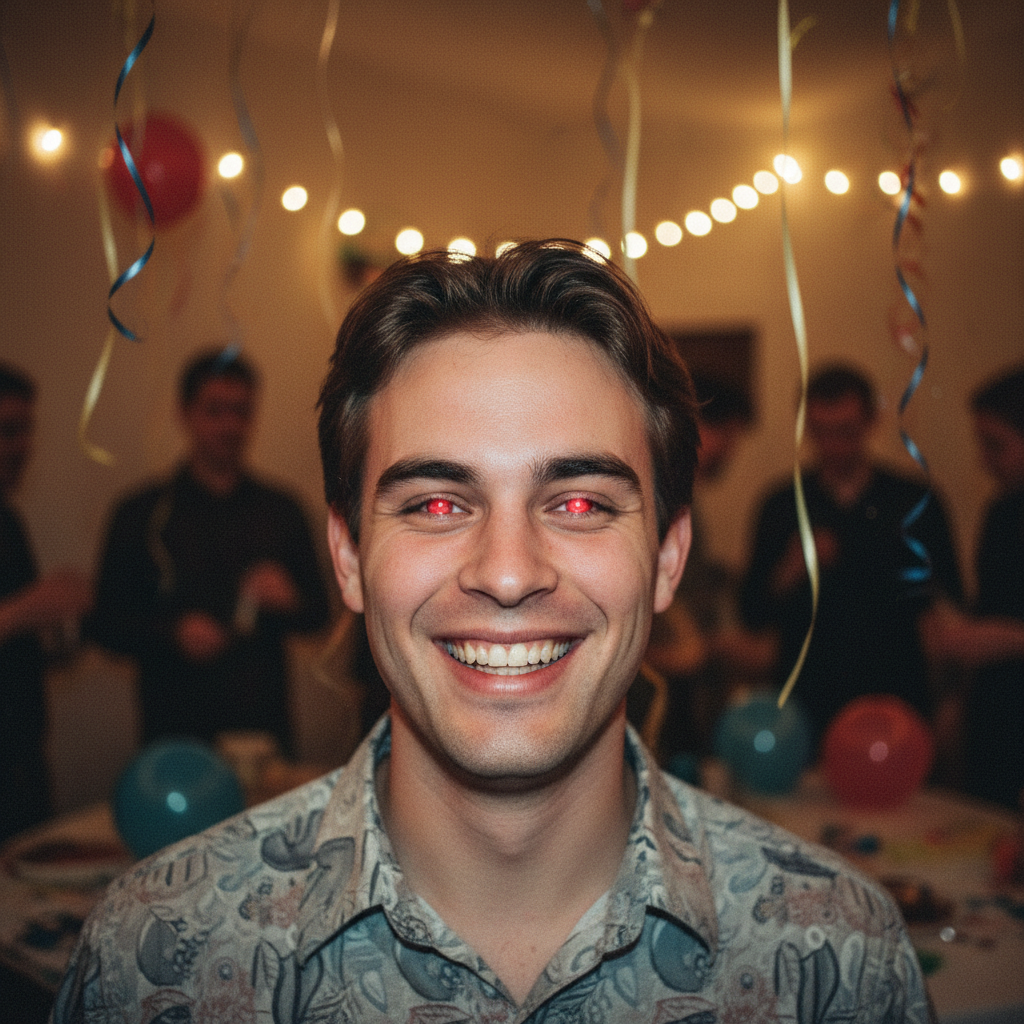
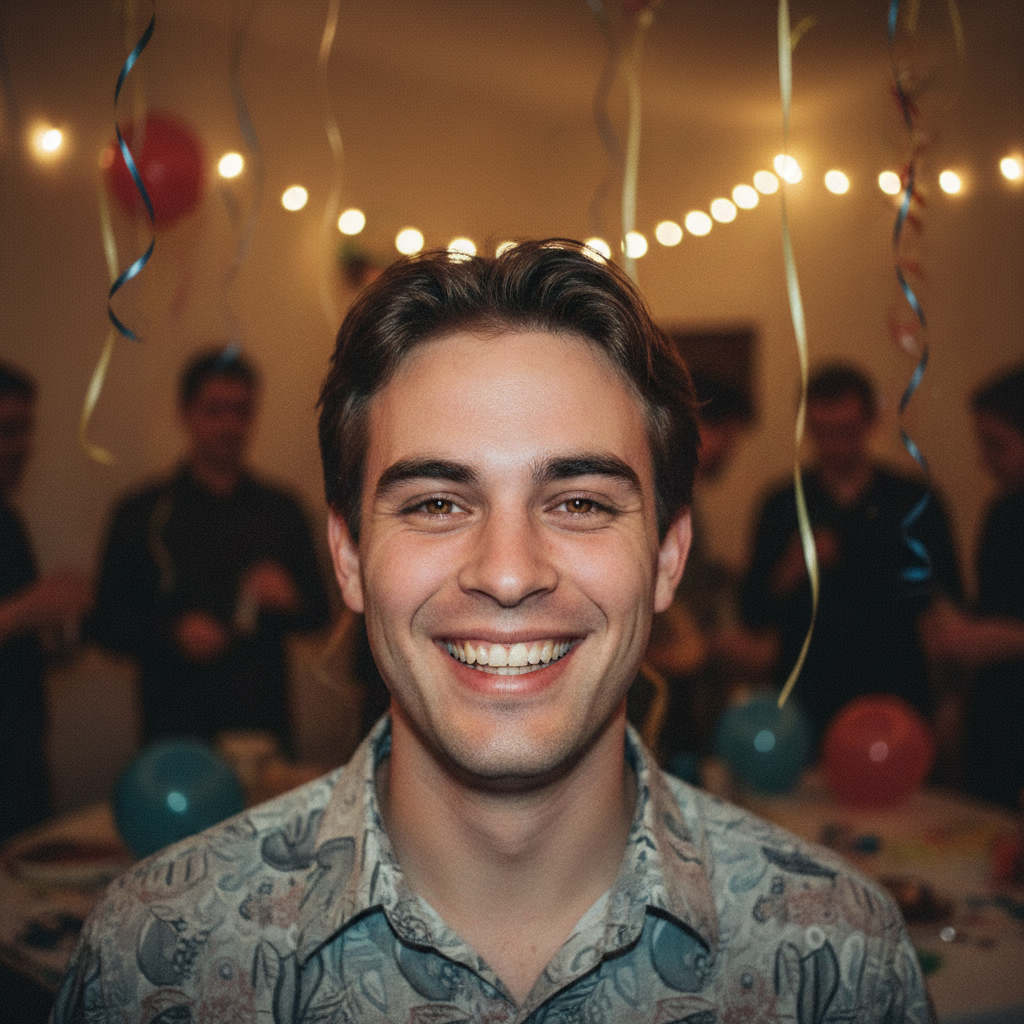
Child birthday photo with bright red eye from flash
Before
Same photo with red eye fixed and natural brown eyes
After

Fix Red Eye in Photos

Drop your photo here

or click to browse

Release to upload

Free • No signup

Advertisement
Popular use cases:
  • family photos
  • birthday party photos
  • wedding photos
  • school portraits
  • children's photos
  • group photos
  • pet photos
  • flash photography

Cost
Free No signup required
Time
Instant results in 15-30 seconds
Works on
Any device - browser, phone, tablet, desktop
Powered by
AI-powered photo editing
Scenario Prompt Time
Basic red eye fix fix the red eye and restore natural eye color 10s
Specific eye color remove red eye and restore natural brown eyes with dark pupils 12s
Group photo fix red eye on all people in the photo, restore natural eye colors 20s
Pet eye glow remove the green eye glow from the cat's eyes and restore natural eye appearance 15s

How it works

  1. Upload your photo

    Drop your flash photo with red eye into EditThisPic. JPG, PNG, WebP up to 7MB. Works on portraits, group photos, and even pet photos with red or green eye glow from flash.

    Expect: Single person close-up: 10-15 seconds. Group photos with multiple people: may take 20-25 seconds to process all eyes.
  2. Describe the red eye fix

    Type 'fix the red eye' or 'remove red eye and restore natural brown eye color.' For group photos, be specific: 'fix red eye on the person on the left.' The AI detects eyes automatically—no manual selection needed.

    Tip: Specify eye color if you know it: 'restore natural blue eyes' or 'fix red eye, eyes should be brown.' This helps the AI choose the most natural-looking correction.

    Copy one of these to get started:

    Basic red eye correction fix the red eye and restore natural eye color
    Red eye with specific eye color remove red eye and restore natural brown eyes with dark pupils
    Group photo red eye fix fix red eye on all people in the photo, restore natural eye colors
    Specific person in group photo fix red eye on the person in the center, restore natural blue eyes
    2 more prompts
    Pet red/green eye glow remove the green eye glow from the cat's eyes and restore natural eye appearance
    Child portrait red eye fix the red eye on the child, restore bright natural blue eyes with sparkle
  3. Generate and review

    Click Generate and wait 10-15 seconds. Zoom to full size to verify the eye color looks natural. Check that the pupil is properly darkened and the iris color matches the person's natural eye color.

  4. Refine if needed

    If eye color doesn't look quite right, try again with a more specific instruction: 'fix red eye, restore dark brown iris with black pupil.' For group photos where some eyes were missed, add 'also fix the person on the right' and regenerate.

    Tip: For group photos with multiple people, the AI processes all visible eyes. If one person's eyes still show red, tap a marker on that person's face and regenerate.
Try it free

Fix Red Eye in Photos

Drop your photo here

or click to browse

Release to upload

Free • No signup

"Fixed my daughter's birthday photos instantly. The red eye was gone and her eyes looked completely natural." @parent_photographer

See it in action

Child birthday photo with bright red eye from flash
Before
->
Same photo with red eye fixed and natural brown eyes
After

Child portrait red eye fixed

Flash caused bright red eye in a birthday photo. One prompt restored natural brown eye color with proper pupil.
Prompt: fix the red eye and restore natural brown eyes
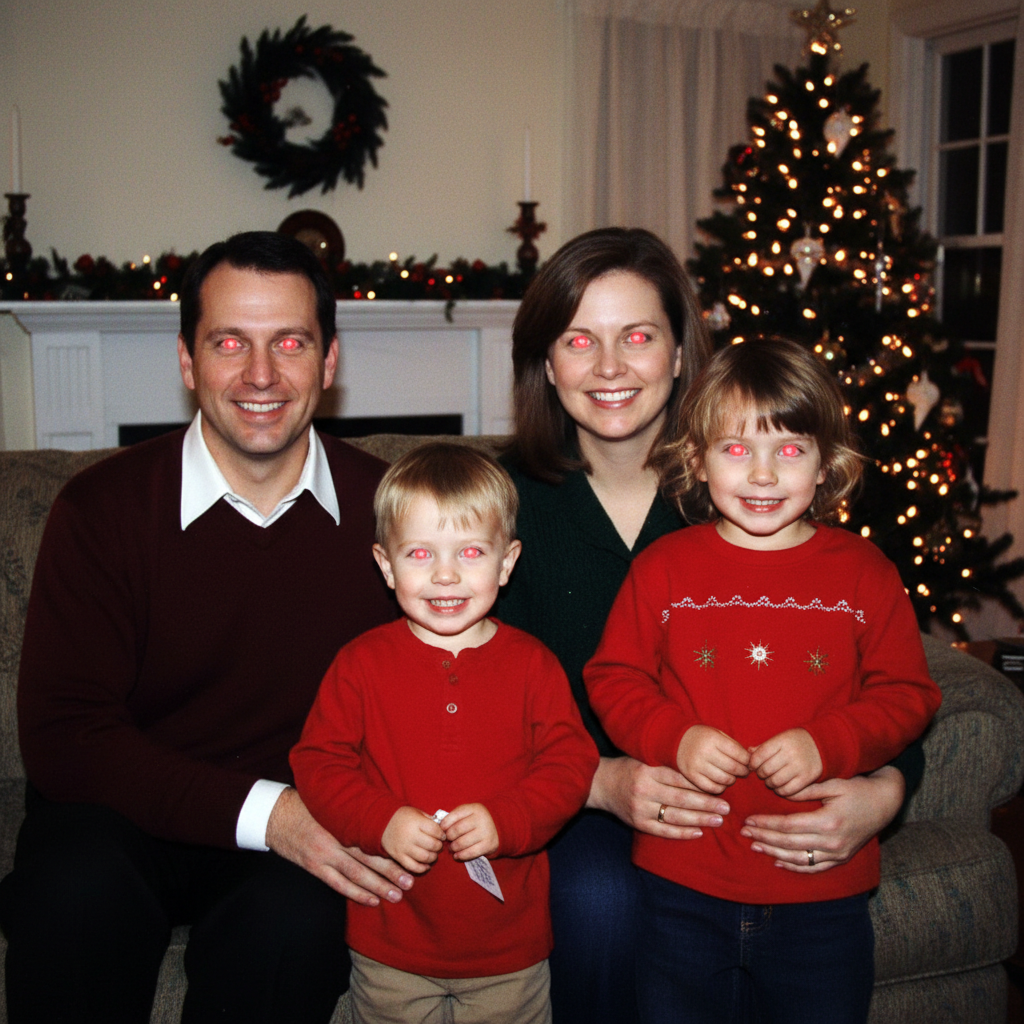
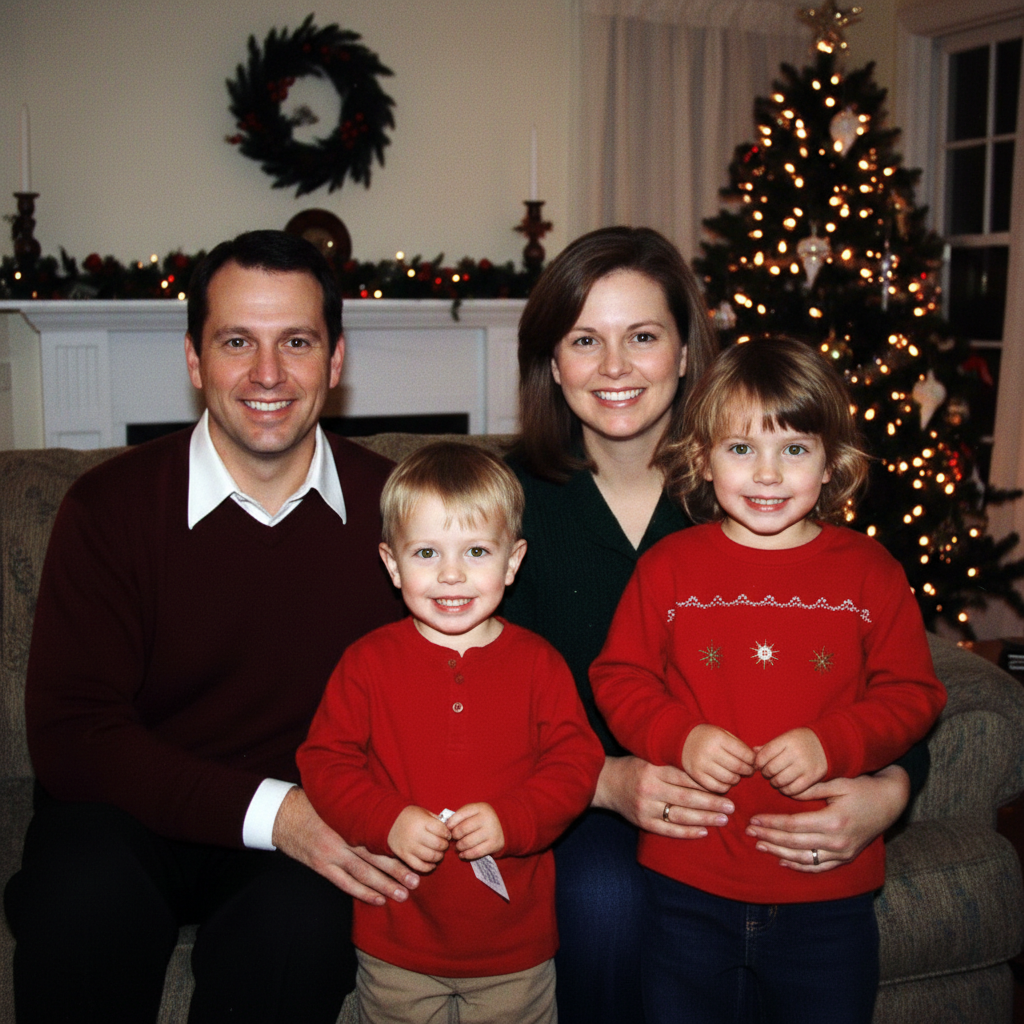
Family group photo with red eye on three people
Before
->
Same family photo with all red eye corrected naturally
After

Group photo red eye correction

Family photo with red eye on three people. AI detected and corrected all eyes automatically.

Prompt: fix red eye on all people in the photo, restore natural eye colors
Advertisement

If something looks off

AI changed the wrong area or altered the whole face instead of just eyes

Why: The AI couldn't detect the eyes clearly, possibly due to low resolution, closed eyes, or the person looking away from camera. It may have interpreted the instruction too broadly.

Try: Tap a marker directly on each red eye, then regenerate with 'fix the red eye at these markers only, don't change anything else'

Tip: Markers help the AI locate exactly which pixels to correct when eyes are small, partially closed, or the photo is lower resolution.

Eye color looks unnatural or too dark after correction

Why: The AI guessed the natural eye color incorrectly, or overcorrected the pupil. Without guidance, it defaults to a generic brown or dark correction.

Try: Specify the natural eye color: 'fix red eye and restore bright blue eyes' or 'restore hazel eyes with lighter brown iris'

Tip: If you know the person's real eye color, include it in your prompt for the most natural-looking result.

Some eyes in a group photo still have red eye after processing

Why: In group photos with many people, especially if faces are small or at angles, the AI may not detect all eyes on the first pass.

Try: Tap markers on the eyes that still show red, then regenerate with 'also fix the red eye at these markers'

Tip: For large groups, process in two steps: first let AI handle the obvious cases, then target specific people who were missed with markers.

Pet's eyes still glow green or yellow

Why: Pet eye glow (tapetum lucidum reflection) is different from human red eye and requires specific instruction about the color you see.

Try: Be specific about the color: 'remove the green glow from the cat's eyes' or 'fix the yellow eye reflection in the dog'

Tip: Pet eye glow varies by species and lighting. Describe what you see: 'green glow', 'yellow reflection', 'white shine'.

Quick answers

Do I need to manually select the eyes before describing?

No! Just type 'fix the red eye' and the AI automatically detects and corrects eyes. The AI recognizes eye positions in portraits and group photos without manual selection. Only use markers if the AI misses specific eyes in a complex group photo or if you want to target one person specifically.

How do I fix red eye in photos for free?

EditThisPic offers free AI red eye removal. Upload your flash photo, type 'fix the red eye', and the AI corrects it in 10-15 seconds. No account needed, no watermark. Works on portraits, group photos, and children's photos with red eye from camera flash.

Can it fix red eye on multiple people in one group photo?

Yes, the AI detects and corrects red eye on all visible people automatically. Use the prompt 'fix red eye on all people in the photo' and it processes each person's eyes. For large groups where some eyes are missed, you can regenerate with markers on specific faces.

What's the best free red eye remover that doesn't require signup?

EditThisPic's AI Red Eye Remover is completely free with no signup required. Just describe the fix you need and the AI handles eye detection and color correction automatically. It works on single portraits, group photos, and even pet photos with eye glow from flash.

Does it work on pet photos with green or yellow eye glow?

Yes! Pet eye glow (caused by the tapetum lucidum reflecting flash) appears green, yellow, or white instead of red. Describe what you see: 'remove the green glow from the cat's eyes' or 'fix the yellow reflection in the dog.' The AI adapts the correction to the specific glow color.

Will the corrected eyes look natural or obviously edited?

The AI restores natural-looking pupils and iris color based on the surrounding eye features. For best results, specify the person's real eye color: 'restore natural blue eyes' or 'fix red eye, eyes should be brown.' This produces the most realistic correction that matches their actual appearance.

Ready to fix red eye in your photos?

Free to try. No signup required.

Try it free