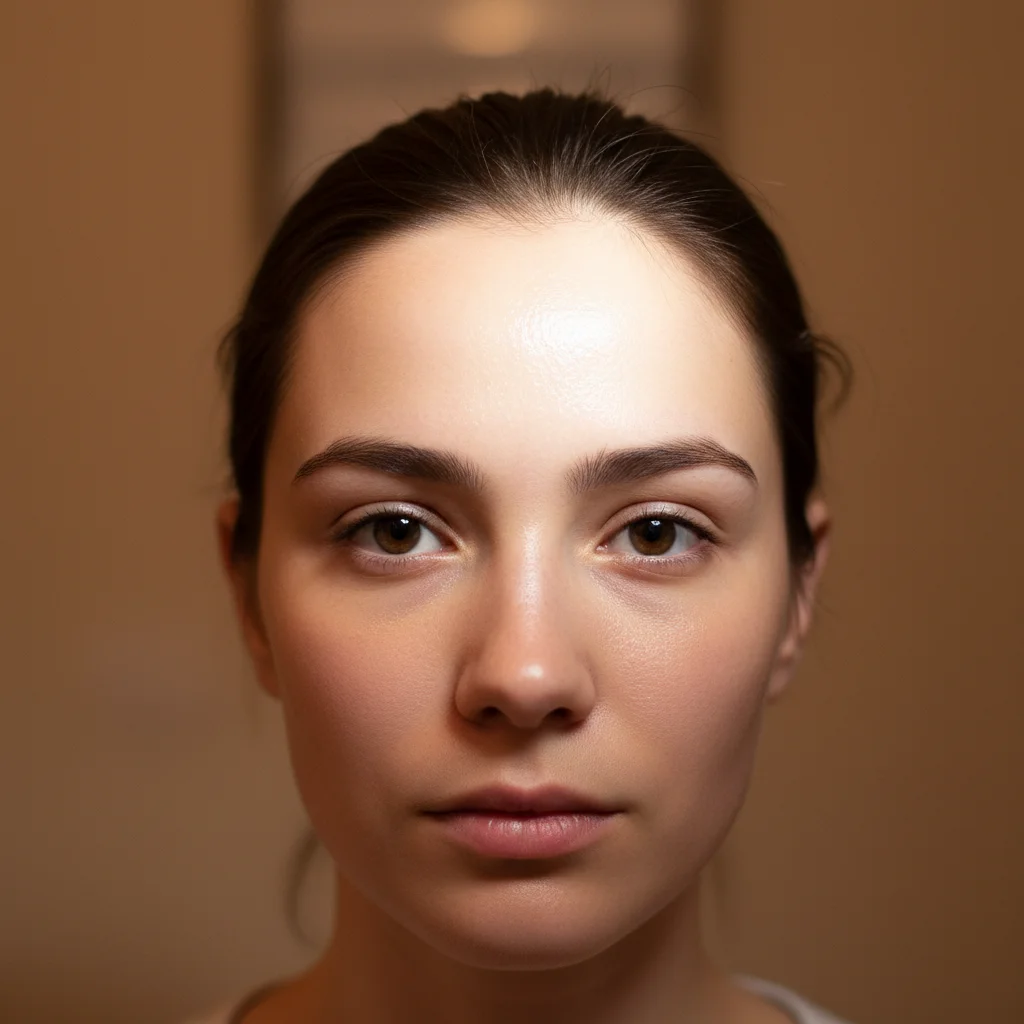
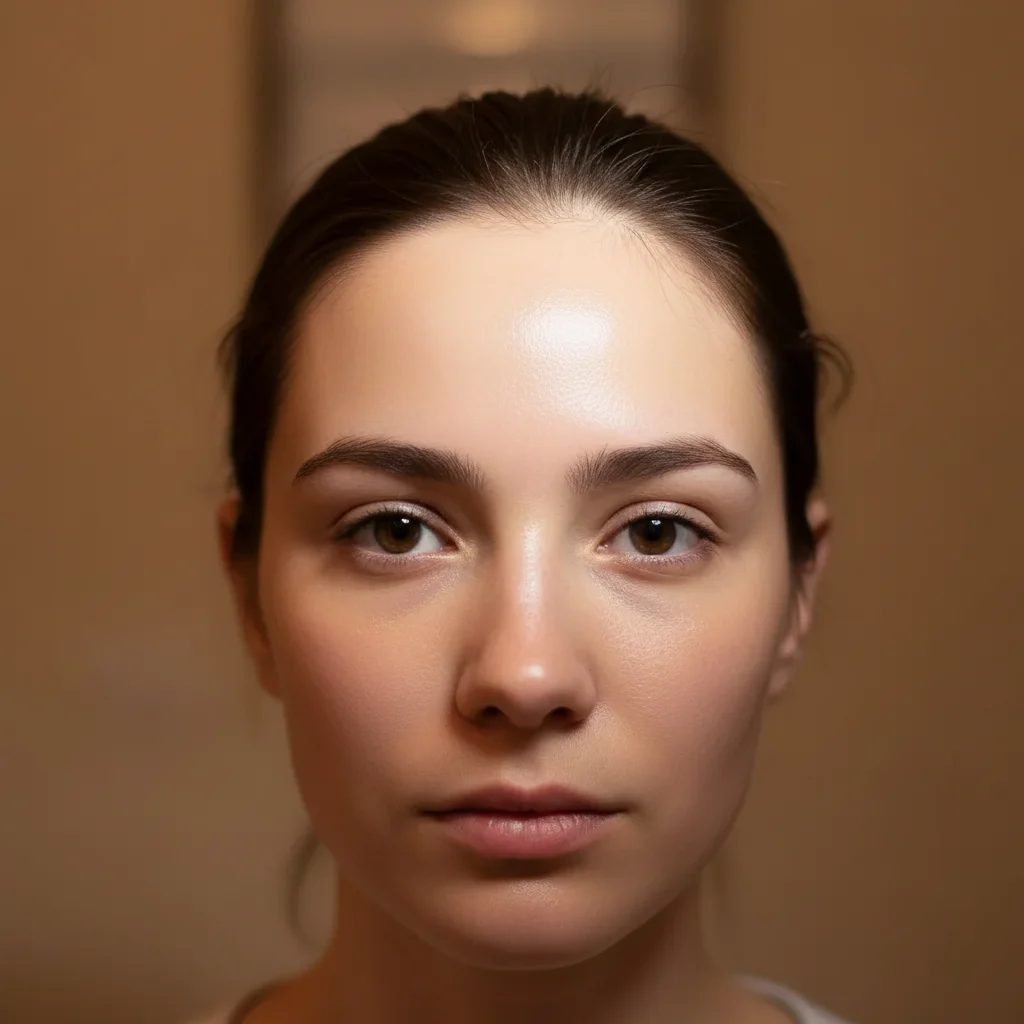
Remove Glasses Glare from Photo
Reveal the eyes behind the reflection. No marking needed.
Type 'remove the glare reflection from the glasses and show the eyes clearly' and EditThisPic's AI reconstructs what's hidden behind the white reflection in 15-30 seconds. No selection tools, no marking required. The AI understands where glasses glare appears. Works on portraits, headshots, and group photos. Free to try, no account needed.
How it works
Upload your photo
Drop your image into EditThisPic. JPG, PNG, WebP up to 7MB. Works best with clear, high-resolution photos where the glasses frames are visible even if the glare is intense.
Describe what you want
Type your instruction: 'remove the glare from the glasses and show the eyes clearly' or 'eliminate the white reflection on the eyeglasses and reveal natural eyes.' Be specific about what you want to see. No marking needed - the AI understands what 'glasses glare' means and where reflections typically appear.
Copy one of these to get started:
remove the glare reflection from the glasses and show the eyes clearly
eliminate the bright white glare covering the eyeglasses and reveal natural-looking eyes behind clear lenses
remove the glare reflection from the right lens of the glasses while keeping the left lens unchanged
remove the window reflection visible in the glasses and show clear eyes with natural color
3 more prompts
remove all glare and reflections from the eyeglasses, reveal both eyes naturally, and maintain professional portrait quality
reduce the glare on the sunglasses to show the eyes more clearly while keeping the tinted lens appearance
remove the glasses glare from the person on the left and show their eyes clearly, keep everyone else unchanged
Generate and review
Check the result at full zoom. Verify that both eyes look natural and match in color and direction. Examine the edges where the glare was removed to ensure smooth blending with the rest of the lens area.
Refine with markers if needed
If one lens still has residual glare or the AI missed a reflection spot, tap a marker directly on that area and regenerate. This is optional - most single-flash glare photos work without markers.
"Finally got a usable headshot from that conference photo where the flash destroyed my glasses!" @marcus_dev
See it in action
Professional headshot with flash glare
Studio headshot where the flash created a bright white reflection across both lenses, completely hiding the eyes. One prompt revealed natural eyes.
remove the white glare from the glasses and show clear eyes
Outdoor portrait with sky reflection
Casual outdoor photo where the bright sky created a blue-white reflection on the glasses. The AI removed the reflection while preserving the natural outdoor lighting.
remove the sky reflection from the glasses and reveal natural eyes
LinkedIn photo with computer screen glare
Home office headshot where a computer screen created rectangular glare patches on the glasses. Professional result ready for LinkedIn.
remove the screen reflection from the glasses and show both eyes clearly
If something looks off
Eyes look unnatural or don't match
Why: When glare covers too much of the eye area, the AI has to invent eye details. If it doesn't have enough reference from the visible parts, results can look off.
remove the glasses glare and reconstruct natural brown eyes (or your actual eye color) looking forward with realistic detail
💡 Specifying your actual eye color helps the AI generate more accurate results.
Glare was reduced but not fully removed
Why: Subtle or multi-layered reflections sometimes need more explicit instructions to fully eliminate.
completely remove all white reflections and glare from the glasses lenses, show perfectly clear glass with visible eyes
💡 Words like 'completely' and 'all' signal that even faint reflections should go.
AI changed the wrong area or something I didn't want changed
Why: The AI couldn't determine exactly which area you meant from description alone. This happens with ambiguous requests.
Tap a marker on the specific glare area you want to remove, then regenerate with the same prompt
💡 Markers tell the AI 'I mean THIS one specifically.' Use them when description alone is ambiguous.
Glasses frames look distorted after edit
Why: When glare extends to the frame edge, the AI sometimes modifies the frame shape during reconstruction.
remove only the glare reflection from inside the lenses, preserve the original glasses frame shape exactly
💡 Explicitly protecting the frames prevents accidental changes to their shape.
One lens fixed but the other still has glare
Why: Different reflections may require separate handling, especially if they're at different intensities.
remove the remaining glare from the left lens (or right lens) and match the eye appearance to the other side
💡 Reference the good lens so the AI matches the result consistently.
Quick answers
Do I need to mark the glare on the glasses?
No! Just describe what you want: 'remove the glare from the glasses and show the eyes clearly.' The AI understands where glasses glare typically appears. Only use markers if you need precision - like when there's a small reflection spot the AI missed on a second pass.
Can it really show my eyes if the glare completely hides them?
Yes. The AI reconstructs realistic eyes based on the surrounding context - your face shape, skin tone, and the visible parts of your eyes at the edges. For best results, mention your actual eye color in the prompt: 'reveal natural blue eyes' helps the AI generate accurate results.
Will this work on sunglasses?
Partially. For tinted sunglasses, use 'reduce the glare' rather than 'remove' to maintain the tinted appearance. The AI can reveal more of the eyes while keeping the sunglasses look. Fully opaque sunglasses won't work since there's no eye information to reveal.
What causes glasses glare in photos?
Glasses glare typically comes from flash photography, bright windows, overhead lights, or computer screens reflecting off the lens surface. Anti-reflective coating helps prevent it, but even coated glasses can glare under direct flash. This tool fixes existing glare regardless of the source.
Can I fix glasses glare in a group photo?
Yes. Specify which person: 'remove the glasses glare from the person on the left' or 'remove glare from the woman in the red dress's glasses.' This prevents the AI from modifying other people's glasses unnecessarily.
Ready to reveal the eyes behind the glare?
Free to try. No signup required.