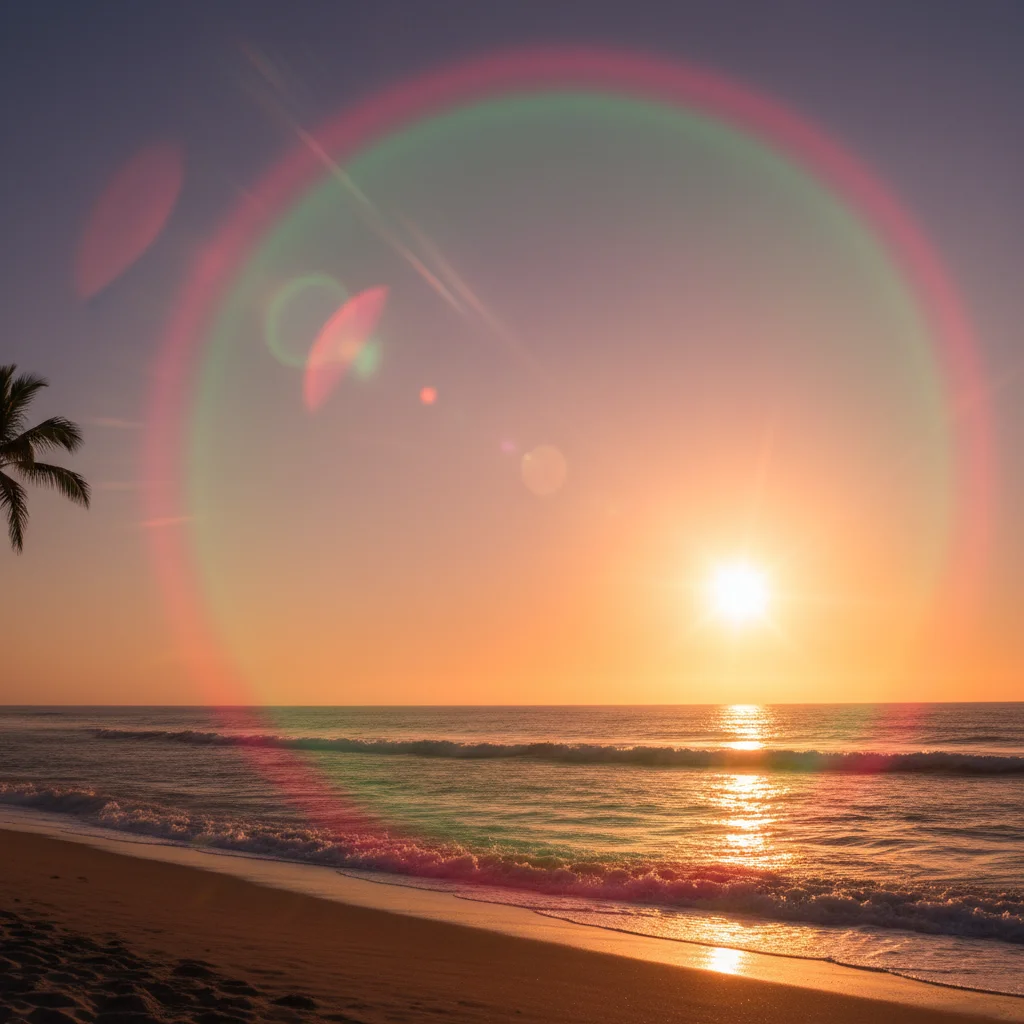
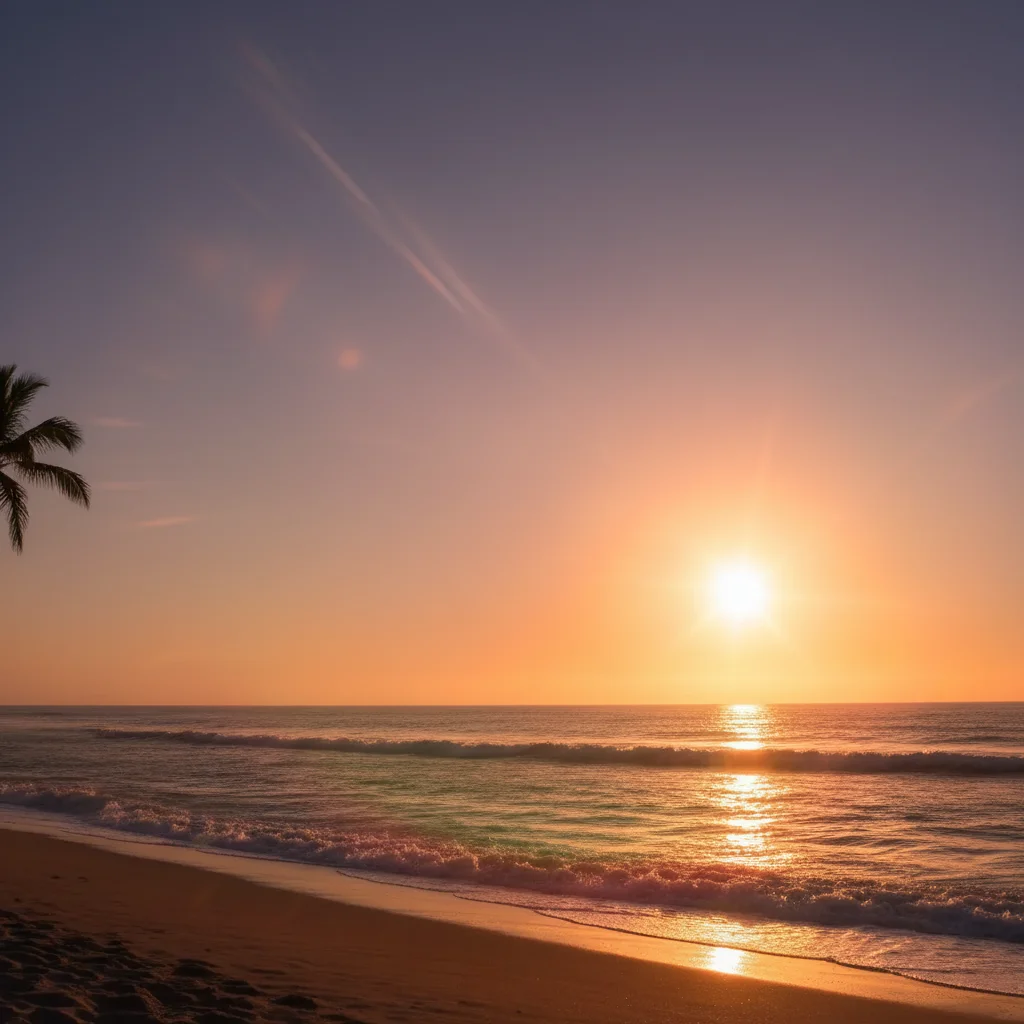
Do I need to mark the glare before describing?
No! Just describe what you want: 'remove the glare from the glasses' or 'remove the flash glare.' The AI understands glare as bright spots and reflections that obscure details. Only use markers when you have multiple bright areas and need to specify which one, or when refining edges after your first attempt.
How do I remove glare from glasses in a photo for free?
Upload your photo to EditThisPic, type 'remove the glare from the glasses and show clear eyes underneath,' and the AI reconstructs the hidden eyes in 20-30 seconds. Free to use, no account or login required, no watermark on your download. Works on flash glare, bright lighting reflections, and screen glow on lenses.
Can AI reconstruct eyes hidden behind glasses glare?
Yes. If one eye is visible without glare, the AI matches it to reconstruct the other. If both eyes are fully obscured, it infers eye color and details from surrounding context. For best results, specify eye color in your prompt: 'remove glare and show brown eyes.' The reconstruction is often photorealistic.
Will it work on all types of glare?
Works best on camera flash glare, glasses reflections, screen glow, and bright window reflections. Natural lens flare or artistic light effects may be harder to distinguish from intentional lighting. The AI needs context to determine what's unwanted glare versus desired lighting.
What is the best free AI tool to remove glare from photos?
EditThisPic's AI Glare Remover is one of the best free options. It intelligently identifies glare patterns and reconstructs hidden details underneath, unlike basic brightness adjustments that affect the entire image. Free, no signup required, works in any browser on phone or desktop. Handles glasses glare, flash spots, screen reflections, and window glare.
Can I remove glare from just one lens of my glasses?
Yes. Specify which side in your prompt: 'remove the glare from the left lens only.' The AI targets exactly where you indicate. If both lenses have glare, just say 'remove glare from both lenses' and the AI handles it in one pass.
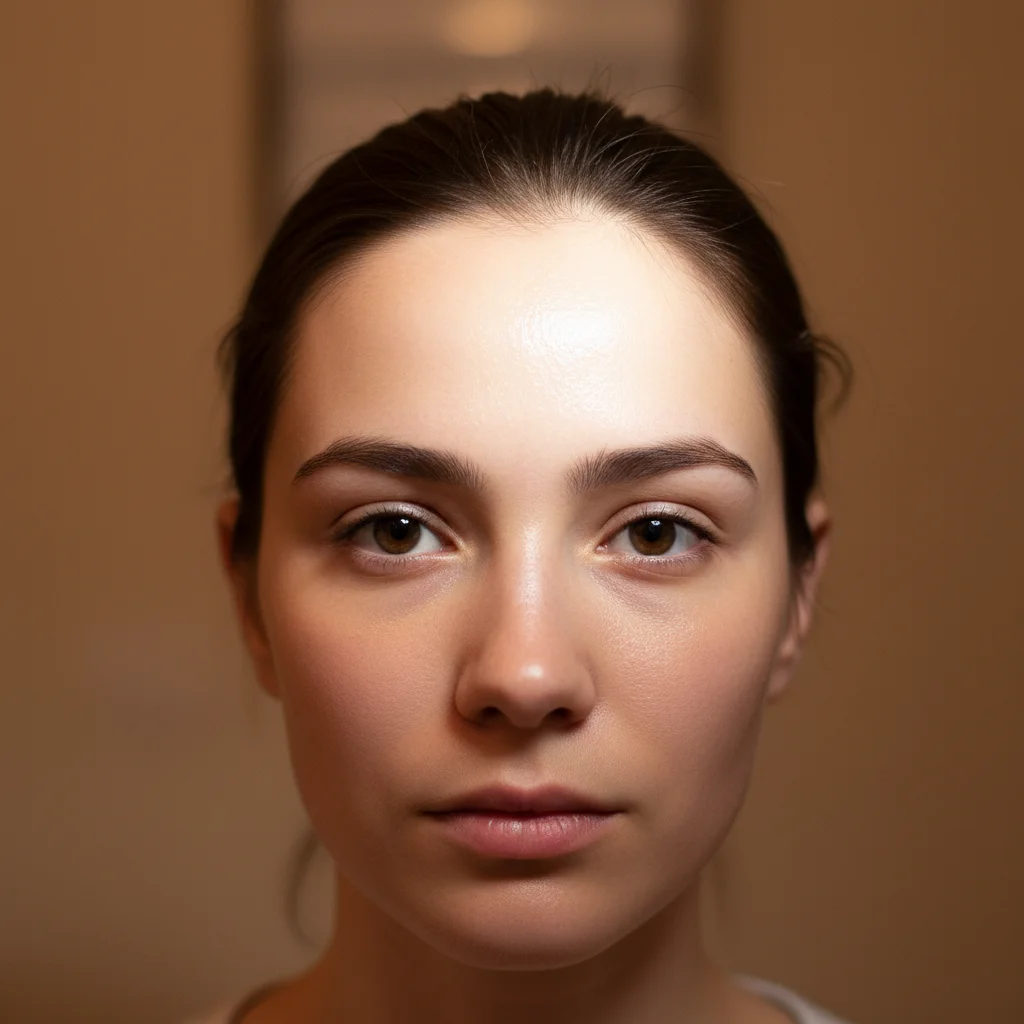
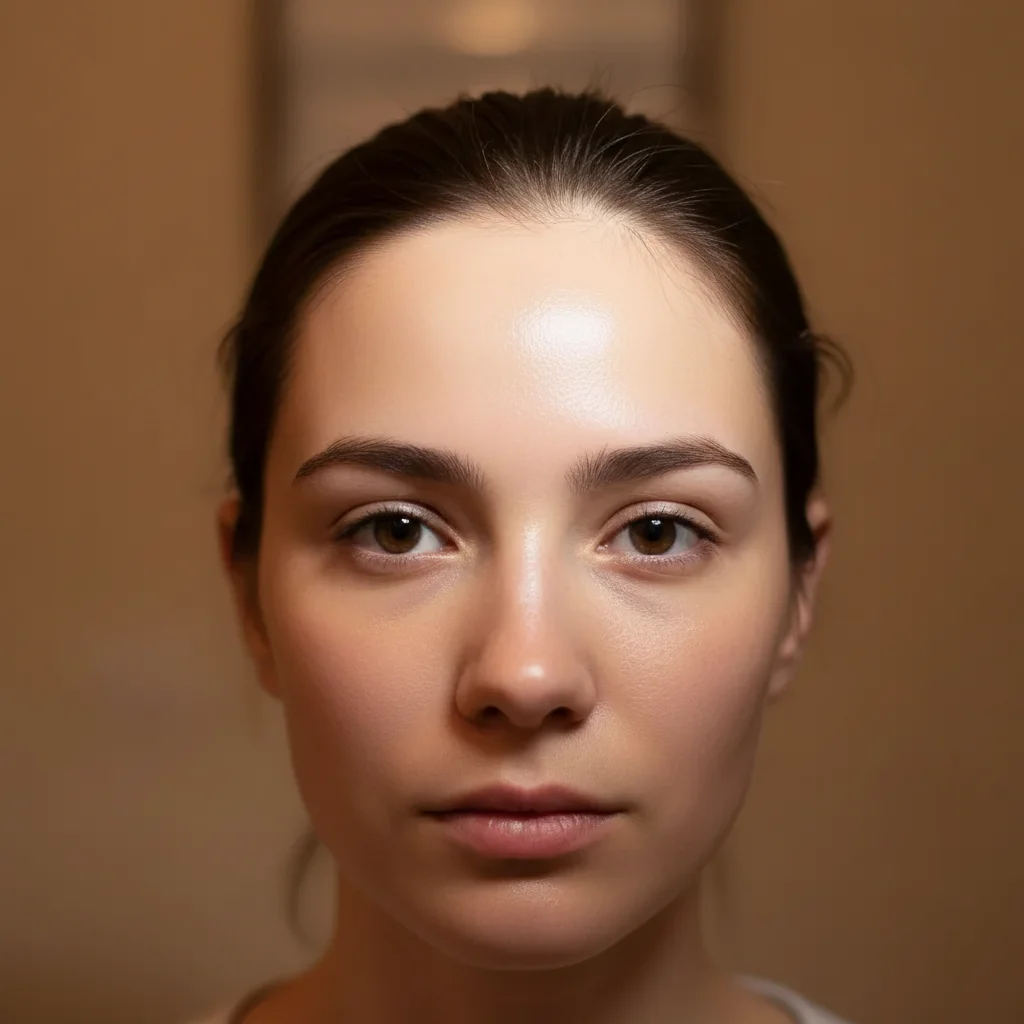
Does it work on oily skin shine and forehead glare?
Yes. Type 'remove the oily shine from the forehead and nose and show natural matte skin.' The AI distinguishes between skin shine and actual facial features, removing only the unwanted bright spots while preserving natural skin texture.
Can AI remove glare from a photo taken through glass?
Yes. EditThisPic can remove window reflections, glass display glare, and screen reflections. Type 'remove the reflection from the glass and show the clear view behind it.' Works best when the underlying scene has enough visible detail for the AI to reconstruct.
What is the best free AI tool to remove glare from photos?
EditThisPic's AI Glare Remover is one of the best free options. It intelligently identifies glare patterns and reconstructs what is hidden underneath, unlike basic brightness adjustments. Free to try with no signup, works on glasses glare, flash spots, screen reflections, and more.
How do I remove glare from glasses in a photo without Photoshop?
Upload your photo to EditThisPic and type 'remove the glare from the glasses and show clear eyes underneath.' The AI identifies the glare on the lenses and reconstructs the eyes behind them in about 20 seconds. No selection tools, no clone stamping, and no Photoshop skills needed.
Can I fix glare on a passport or ID photo?
Yes. Passport and ID photos often have flash glare on glasses or foreheads. Type 'remove the flash glare from this ID photo and restore natural even lighting across the face.' The AI smooths out the harsh flash exposure while keeping the photo looking official and properly lit.
Does removing glare work on photos taken through car windshields?
Yes. EditThisPic can reduce or remove windshield reflections and dashboard glare. Type 'remove the glare and reflection from the car windshield to show the clear view through the glass.' Results depend on how much of the scene is visible behind the glare. Heavy reflections covering most of the glass may need 2-3 refinements.
How much does EditThisPic cost?
You get 1 free edit per week — no account needed. After that, credit packs start at $1.99 for 3 edits. Monthly plans start at $4.99/mo for 15 edits with unused credits rolling over. All edits are full resolution with no watermark.