Free • No signup Match Style · Free

Match Photo Style to Reference Image

Upload your photo and reference image—AI matches the style automatically.

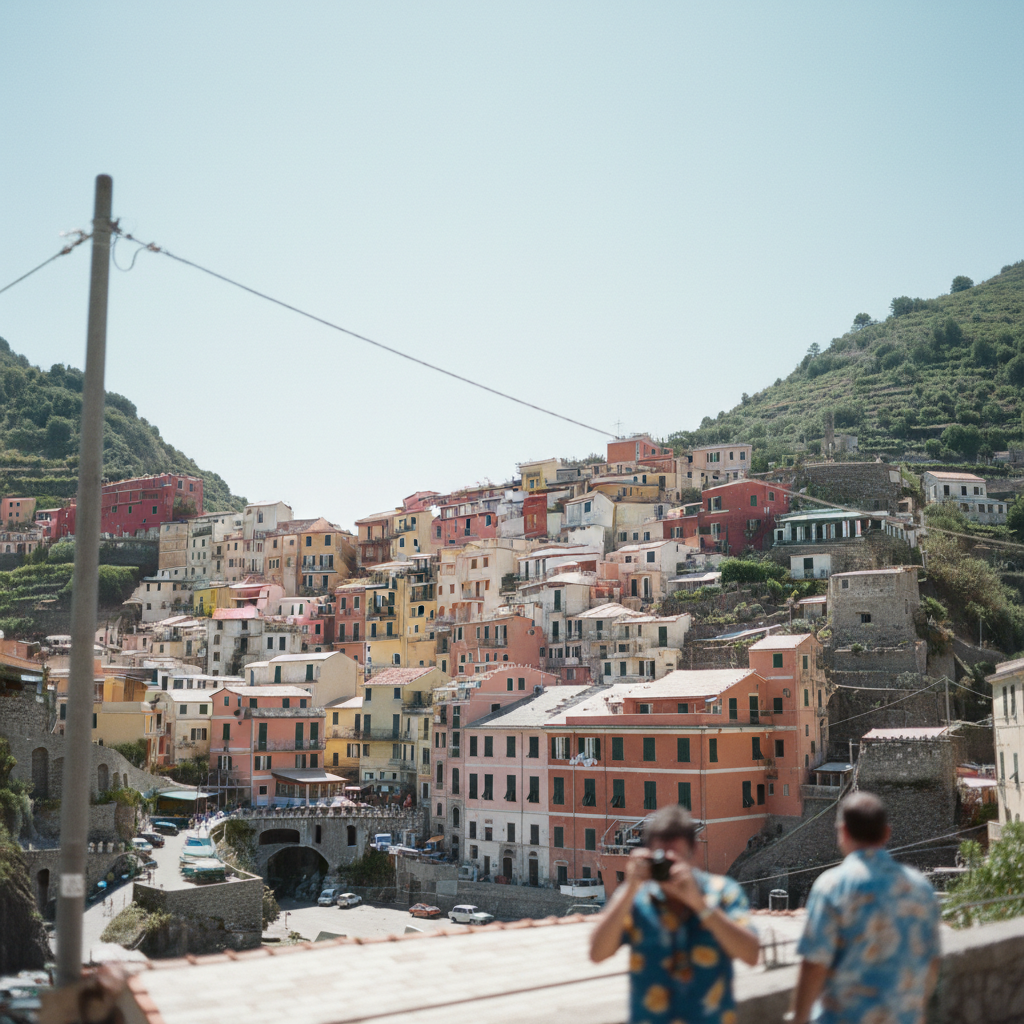
Italian village photo with flat washed-out colors in harsh midday light
Photo 1
+
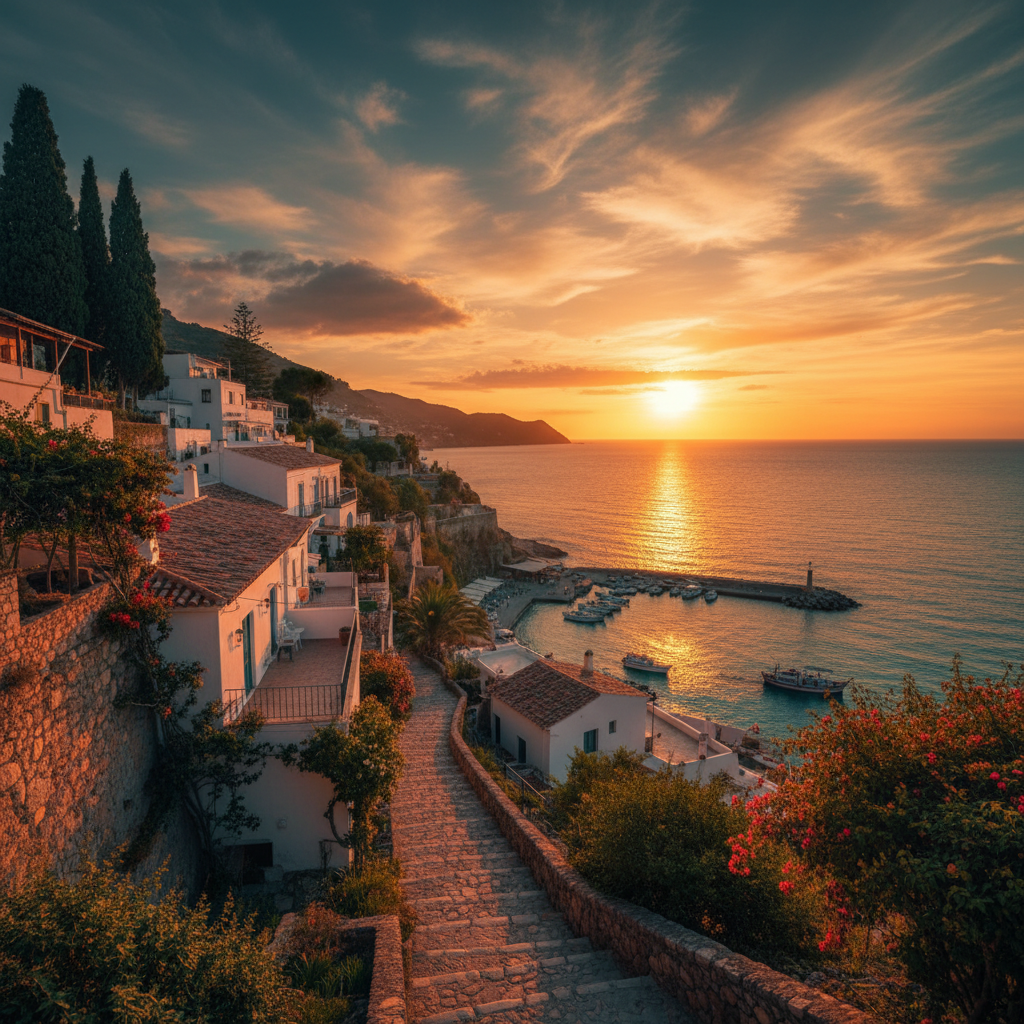
Mediterranean town at golden hour showing the target color style
Photo 2
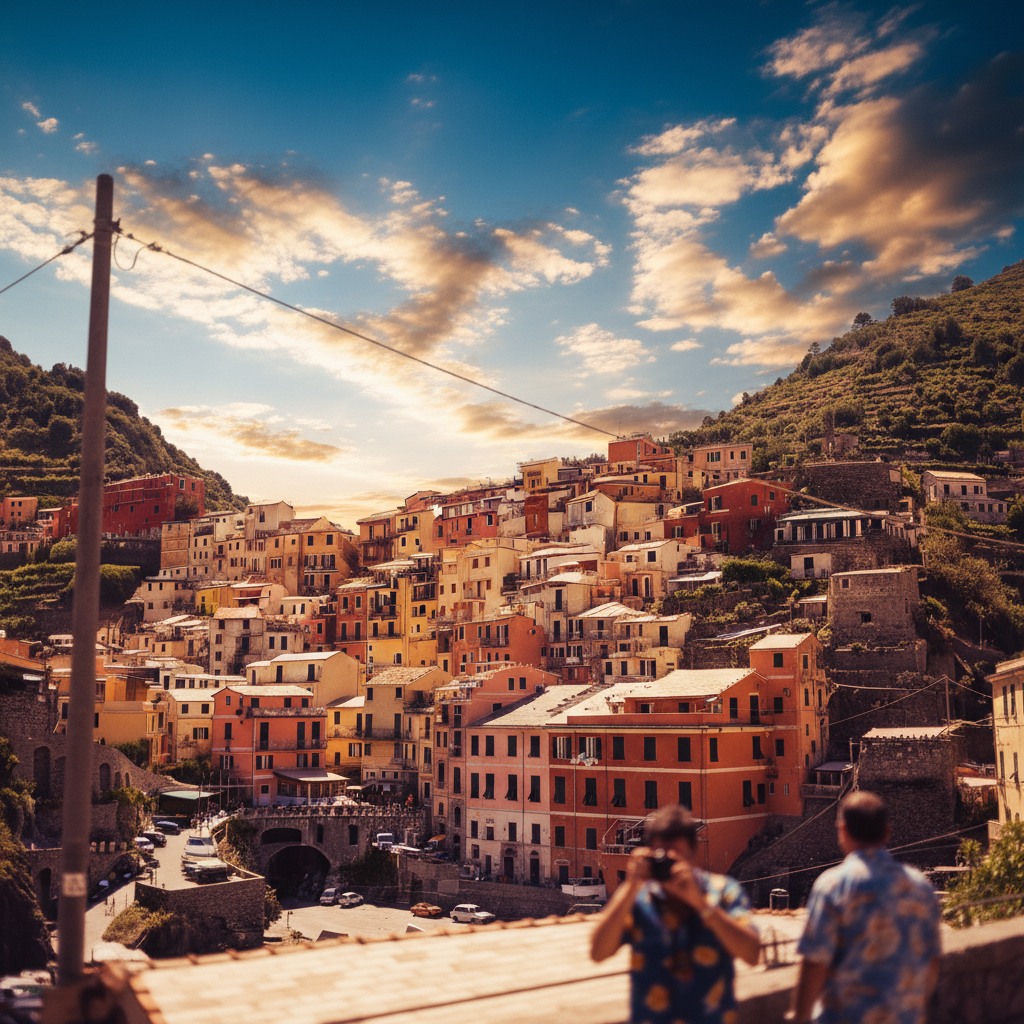
Same village with dramatic golden hour cinematic color grading
Result

Match Photo Style to Reference Image

Drop your photo here

or click to browse

Release to upload

Free • No signup

Advertisement
Popular use cases:
  • Instagram aesthetic consistency
  • wedding photo color grading
  • professional photography style
  • travel photography editing
  • influencer photo presets
  • cohesive social media feed
  • photo series consistency
  • professional headshot styling

Cost
Free No signup required
Time
Instant results in 15-30 seconds
Works on
Any device - browser, phone, tablet, desktop
Powered by
AI-powered photo editing
Scenario Prompt Time
General style match match the color grading and mood of the reference photo 35s
Instagram aesthetic apply the warm vintage tones from the reference to my photo 35s
Professional style match the lighting style and contrast of the reference 40s
Wedding consistency match the reference's warmth and tone for consistent album 35s

How it works

  1. Upload your photo to style

    Drop the photo you want to transform into EditThisPic. This is the image that will receive the new style—like a selfie you want to match to a professional photographer's aesthetic, or a wedding photo that needs consistent grading.

    Expect: Simple style matching: 30-45 seconds. Complex scenes with mixed lighting: may need 2-3 refinements for perfect match.
  2. Upload your reference image

    Tap the reference image button and upload the photo with the style you want to match. This could be an Instagram post you love, a professionally edited photo from your photographer, or any image with the color grading, mood, and tone you're targeting. The AI will analyze the reference's color palette, contrast, warmth, and lighting characteristics.

    Tip: Choose a reference image with similar lighting conditions to your original photo for the most natural results.

    Copy one of these to get started:

    Matching overall aesthetic to reference match the color grading and mood of the reference photo, apply the same tones and atmosphere
    Instagram aesthetic consistency apply the warm vintage tones from the reference to my photo, match the faded film look
    Professional photography style transfer match the lighting style and contrast of the reference photo, apply the same professional color grading
    Wedding photo series consistency make this photo match the reference's color palette, warmth, and tone so they look like the same shoot
    3 more prompts
    Golden hour warmth transfer match the golden hour glow and warm highlights from the reference, apply the same sunset lighting feel
    Moody dark aesthetic apply the moody dark tones from the reference, match the deep shadows and muted colors
    Bright and airy style match the bright airy feel of the reference photo, apply the same soft light and pastel tones
  3. Describe what aspects to match

    Type what you want to transfer: 'match the color grading and mood of the reference photo' or 'apply the warm vintage tones from the reference to my photo.' Be specific about which elements to copy—color grading, lighting style, contrast, or overall mood. No marking needed.

    Tip: Mention specific aspects like 'warm tones' or 'moody contrast' to guide which style elements the AI should prioritize.
  4. Generate and review

    Tap generate and examine how well the style transferred. Compare your result to the reference image at full zoom. Check that colors, tones, and mood match while your original subject and composition remain intact. The style should look like it came from the same photoshoot.

    Tip: If certain areas didn't match well, regenerate with a more specific prompt focusing on those aspects: 'match the golden hour warmth in the highlights.'
Advertisement
Try it free

Match Photo Style to Reference Image

Drop your photo here

or click to browse

Release to upload

Free • No signup

"I had one professionally edited wedding photo. Uploaded it as reference and matched my whole album to that exact style. Game changer." @BrideOnBudget

See it in action

Italian village photo with flat washed-out colors in harsh midday light
Main Photo
Mediterranean town at golden hour showing the target color style
Reference
Same village with dramatic golden hour cinematic color grading
Result

Italian village matched to cinematic golden hour style

A flat, washed-out tourist snapshot of an Italian village. Uploaded a cinematic golden hour reference photo and the AI matched the warm dramatic color grading perfectly.

Prompt: match the warm cinematic color grading from the reference photo: golden hour warmth, rich saturated tones, dramatic sunset mood
Wedding reception photo with cool tones and mixed lighting
Main Photo
Reference
Reference
Same photo with warm romantic golden hour color grading
Result

Wedding photo matched to photographer's sample

Reception photo that needed to match the couple's favorite professionally edited ceremony shot. Reference upload made the entire album consistent.

Prompt: match the warm romantic tones of photo 2 (the reference), apply the same golden hour color grading and soft contrast to photo 1

Detailed Guides by Scenario

📷

Professional Use

Apply 'Match Photo Style to Reference Image' to images for professional projects — websites, marketing materials, client deliverables, and presentations.

Common Scenarios

  • Using 'Match Photo Style to Reference Image' for client work or commercial photography
  • Applying 'Match Photo Style to Reference Image' to product or marketing images for a business
  • Batch-processing multiple images with 'Match Photo Style to Reference Image' for a project deadline

Best Practices

  • Use the highest resolution source image available for professional-quality results
  • Be specific in your prompt about the exact 'Match Photo Style to Reference Image' effect you need
  • For consistency across multiple images, reuse the same prompt template
📷

Creative & Social Media

Use 'Match Photo Style to Reference Image' creatively for social media content, personal projects, and artistic expression.

Common Scenarios

  • Applying 'Match Photo Style to Reference Image' to a photo for a unique social media post
  • Using 'Match Photo Style to Reference Image' to create artistic variations of a favorite image
  • Experimenting with 'Match Photo Style to Reference Image' for a creative project or portfolio piece

Best Practices

  • Experiment freely — AI editing lets you try bold ideas with no risk to the original
  • For social content, pair the visual effect with a caption that references the transformation
  • Try the effect on different types of photos to find what looks most striking
📷

Personal Photos & Memories

Apply 'Match Photo Style to Reference Image' to personal photos to fix issues, enhance quality, or create something special from everyday images.

Common Scenarios

  • Using 'Match Photo Style to Reference Image' on family photos to improve or personalize them
  • Applying 'Match Photo Style to Reference Image' to vacation or event photos before printing or sharing
  • Trying 'Match Photo Style to Reference Image' on a selfie or portrait for profile or personal use

Best Practices

  • Always work on a copy — keep the original safe in case you want to try a different approach
  • Natural-looking results are almost always better than dramatic over-processing
  • If it doesn't look right the first time, rephrase your prompt with more specific details

If something looks off

AI changed the wrong area or something I didn't want changed

Why: The AI applied the style globally when certain elements should have been preserved. This happens when your subject differs significantly from the reference.

Try: Tap a marker on areas that should stay unchanged, then regenerate with 'match the reference style but preserve the marked areas'

Tip: Markers tell the AI 'don't change THIS.' Use them to protect faces, logos, or specific colors that must stay original.

Style looks too extreme or doesn't match the reference

Why: The AI over-applied the reference's characteristics. This happens when the reference has very distinctive styling that doesn't translate well to your photo's lighting conditions.

Try: subtly match the reference's color grading while keeping my photo looking natural

Tip: Words like 'subtly' and 'natural' prevent the AI from forcing dramatic style transfers that don't fit your image.

Colors transferred but lighting mood didn't

Why: You asked for color matching but the reference's appeal comes from contrast and tonal range, not just hues.

Try: match the lighting style, contrast, and tonal range of the reference, not just the colors

Tip: Lighting and contrast define mood as much as color. Mention both for complete style transfer.

Reference had different lighting and results look off

Why: The reference was shot in golden hour while your photo is midday sun, or vice versa. Style transfer can't overcome fundamental lighting differences completely.

Try: match the color tones of the reference while adapting to my photo's lighting conditions

Tip: Choose reference images with similar lighting scenarios to your original for the most believable results.

Skin tones became unnatural after matching reference

Why: The reference's color grading affected skin along with everything else. Portrait references with specific skin tone editing transferred those characteristics.

Try: match the reference's color grading while preserving natural skin tones

Tip: Always mention skin tone preservation when style-matching photos with people.

Quick answers

Do I need to mark areas before matching to a reference image?

No! Just upload both images and describe what to match: 'match the color grading and mood of the reference photo.' The AI analyzes both images and transfers the style automatically. Only use markers if you want to protect specific areas from being changed—like preserving original skin tones while matching the reference's overall color palette.

What makes a good reference image for style matching?

The best reference images have similar lighting conditions to your photo (both outdoor, both golden hour, both studio, etc.), clear distinctive style you want to replicate, and similar subject matter. An outdoor golden hour portrait reference works better on outdoor photos than indoor ones. The more similar the shooting conditions, the more natural the style transfer will look.

Can I match style from professional photographer edits to my iPhone photos?

Yes! This is one of the most popular uses. Upload your iPhone photo and a professionally edited image as reference, then describe what to match. The AI transfers the color grading, contrast, and mood from the professional edit to your snapshot. It won't change your composition or add details that weren't there, but it will apply the same stylistic treatment.

How is this different from just describing the style I want without a reference?

Describing style ('warm vintage tones') works well, but a reference image gives the AI an exact template to match. Instead of interpreting what 'warm vintage' means, it analyzes the specific color values, contrast curves, and tonal characteristics of your reference. This produces more consistent results, especially when matching an entire photo series to one aesthetic.

Will this work for making my Instagram feed look consistent?

Absolutely. Find one post with your ideal aesthetic, use it as a reference for all future photos. Upload each new photo with the same reference and prompt, and your entire feed will have cohesive color grading. This is how influencers achieve that 'curated feed' look without manual editing in Lightroom.

Is EditThisPic's AI style matcher really free?

Yes — you get 1 free edit per week, no account needed. For unlimited edits, plans start at $3.99/month.

What photo formats does the AI style matcher support?

JPG, PNG, WebP, and HEIC. Upload any common photo format and EditThisPic handles the rest.

How long does it take to match style?

Usually 15-30 seconds. Upload your photo, describe what you want, and the AI delivers the result.
Ready to match your photo style?

Free to try. No signup required.

Try it free