Free โ€ข No signup Combine Photos ยท Free

Put Two Photos Together

Upload two photos and describe how to combine them. No collage templates needed.
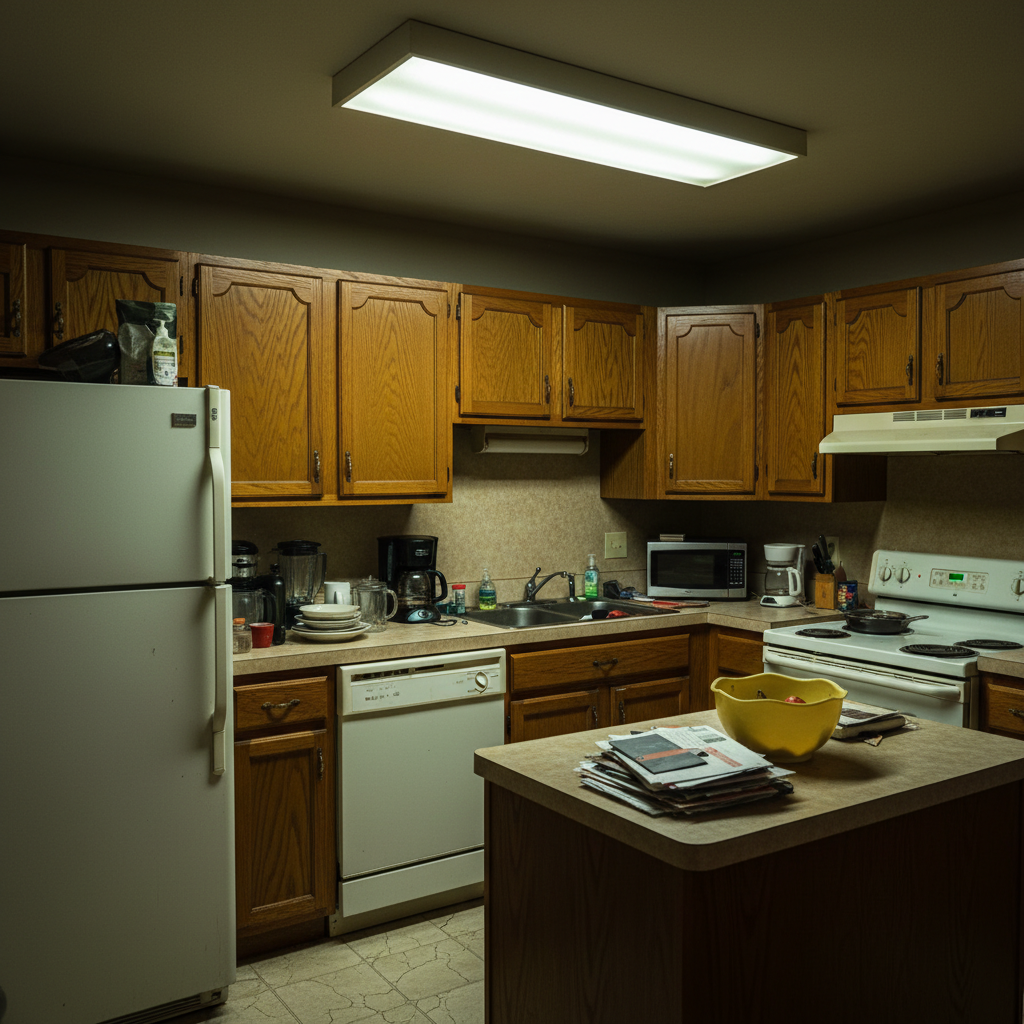
Old kitchen and renovated kitchen as separate photos
Before
โ†’
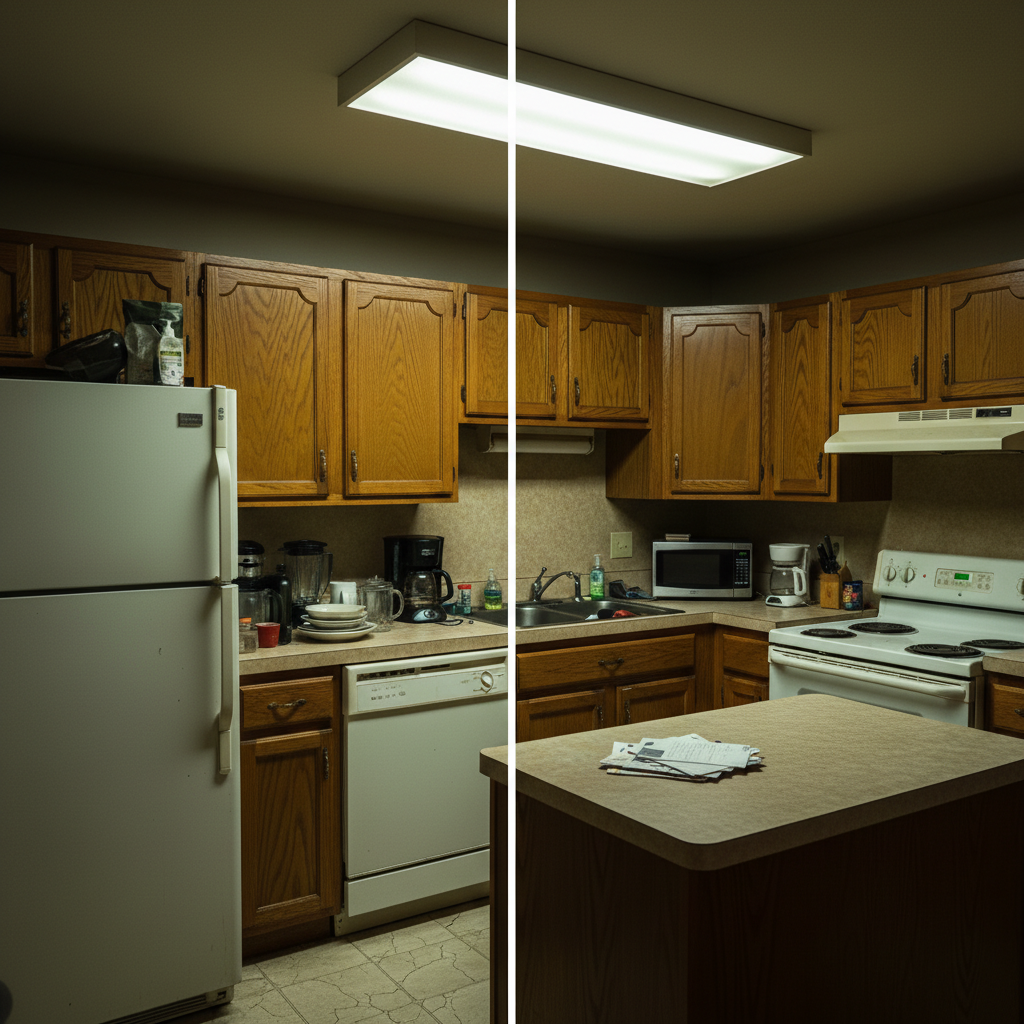
Both kitchens combined side by side for comparison
After

Put Two Photos Together

Drop your photo here

or click to browse

Release to upload

Free โ€ข No signup

Advertisement
Popular use cases:
  • Before after comparisons
  • Side by side photos
  • Family photo combines
  • Product photo collages
  • Panorama stitching
  • Photo comparisons
  • Image merging

Cost
Free No signup required
Time
Instant results in 15-30 seconds
Works on
Any device - browser, phone, tablet, desktop
Powered by
AI-powered photo editing
Scenario Prompt Time
Side by side put these photos side by side with a white line between them 20s
Seamless merge combine into one continuous scene, blend the transition 30s
Vertical stack stack vertically with photo one on top, matching widths 20s
Person merge put the person from photo two into the scene from photo one 30s

How it works

  1. Upload your first photo

    Drop your primary image into EditThisPic. This sets the starting point for your combination. For side-by-side layouts, this will be the left image. JPG, PNG, and WebP up to 7MB all work.

    Expect: Simple combinations: 20-30 seconds. Complex merges with blending: may need 2-3 refinements.
  2. Add your second photo

    Click the reference image button and upload the second photo you want to combine. This could be for a side-by-side comparison, a collage, or merging elements from one image into the other.

    Tip: For side-by-side layouts, photos with similar heights work best. The AI can resize but matching dimensions give cleaner results.
  3. Describe how to combine them

    Type your instruction: 'put these photos side by side' or 'combine the landscape into one panoramic image' or 'merge the person from photo two into photo one.' Be specific about layout and how the images should connect.

    Tip: Specify orientation: 'side by side horizontally,' 'stacked vertically,' or 'diagonal split' for exact layouts.

    Copy one of these to get started:

    Side by side comparison put these two photos side by side with a thin white line between them, both sized equally
    Merge into one scene combine these photos into one continuous scene, blending the transition so it looks like one photo
    Vertical stack put photo one on top and photo two on the bottom, stacked vertically with matching widths
    Person into scene put the person from photo two into the scene from photo one, positioned naturally on the left side
    3 more prompts
    Diagonal split combine these photos with a diagonal split from top left to bottom right, showing both images equally
    Panorama merge combine these two landscape photos into one wide panoramic image, blending the overlapping area naturally
    Photo in photo put photo two as a smaller inset in the bottom right corner of photo one, like a picture-in-picture view
  4. Generate and adjust

    Tap generate and review the combined image. Check that both photos are properly positioned and any transitions look smooth. If the layout needs adjustment, describe the change: 'make the right photo larger' or 'add a white border between them.'

    Tip: If one photo looks cropped wrong, specify: 'show more of the top of photo two' for better framing.
Try it free โ†“

Put Two Photos Together

Drop your photo here

or click to browse

Release to upload

Free โ€ข No signup

"Combined my before/after renovation photos into one image. The seam is invisible - looks like a professional split-screen shot." @HomeReno_Dan

See it in action

Old kitchen and renovated kitchen as separate photos
Before
->
Both kitchens combined side by side for comparison
After

Before and after side by side

Home renovation photos combined into one comparison image. Clean side-by-side layout with visible divider makes the transformation easy to see.

Prompt: put these two photos side by side with a thin white line between them, both photos sized equally to show the before and after
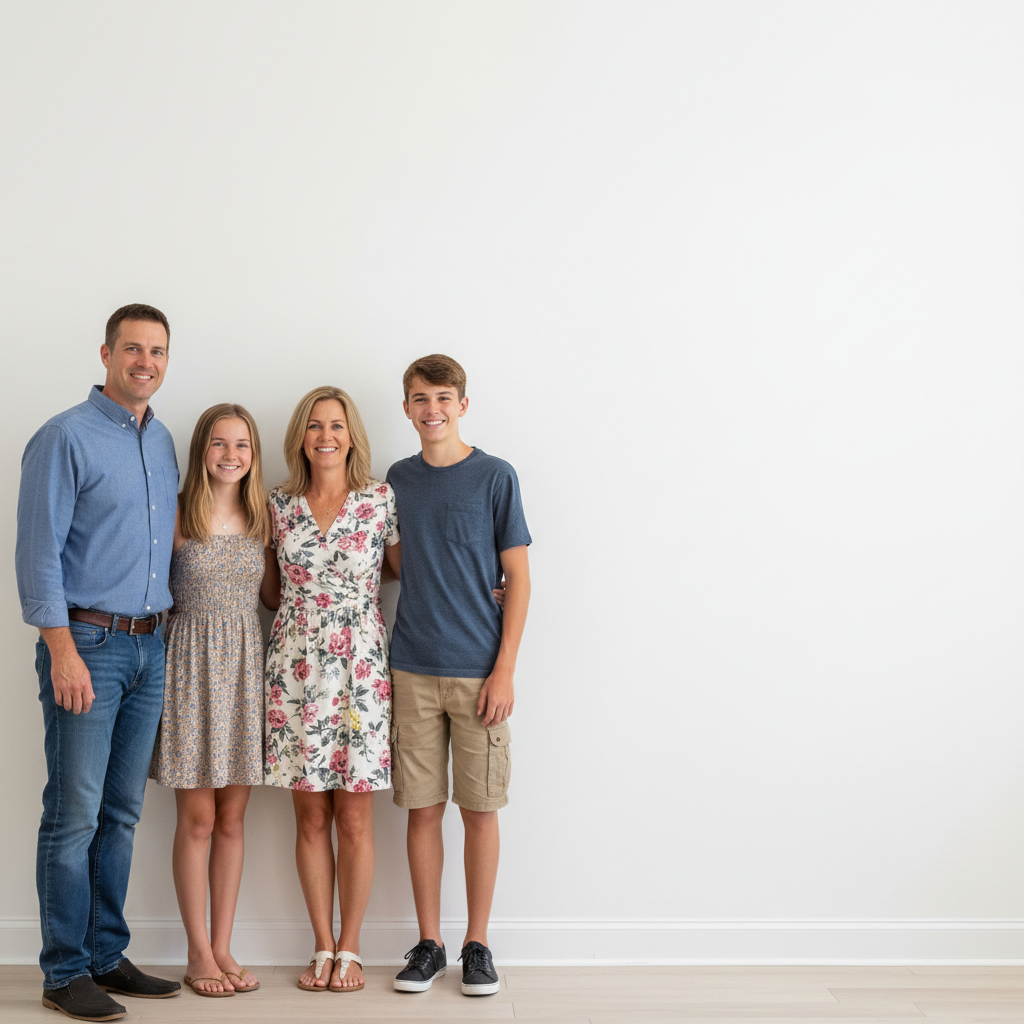
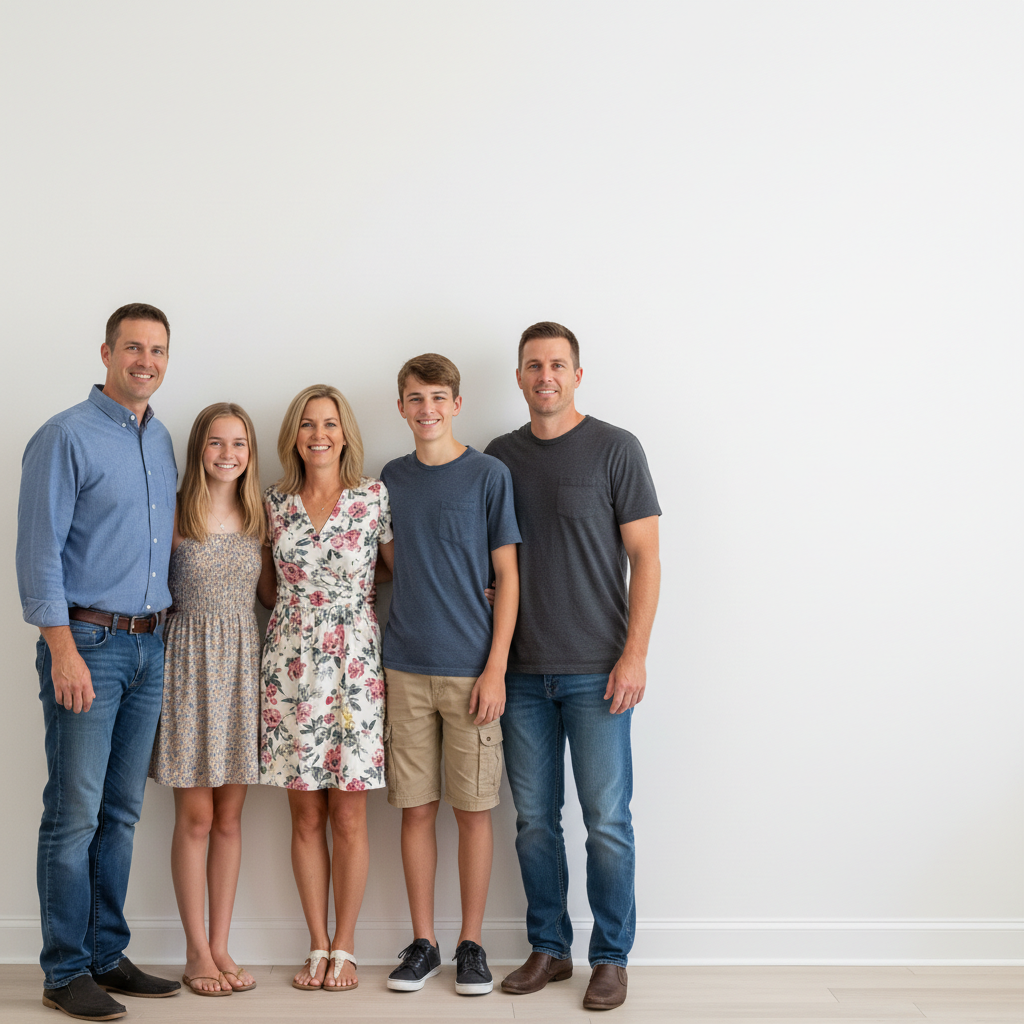
Family group photo and individual portrait as separate images
Before
->
Person seamlessly added to the family group photo
After

Family member added to group photo

Person from a separate photo combined into a family group shot. Positioned naturally to look like they were there when the photo was taken.

Prompt: put the person from photo two into the family group from photo one, positioned on the right side of the group at the same scale
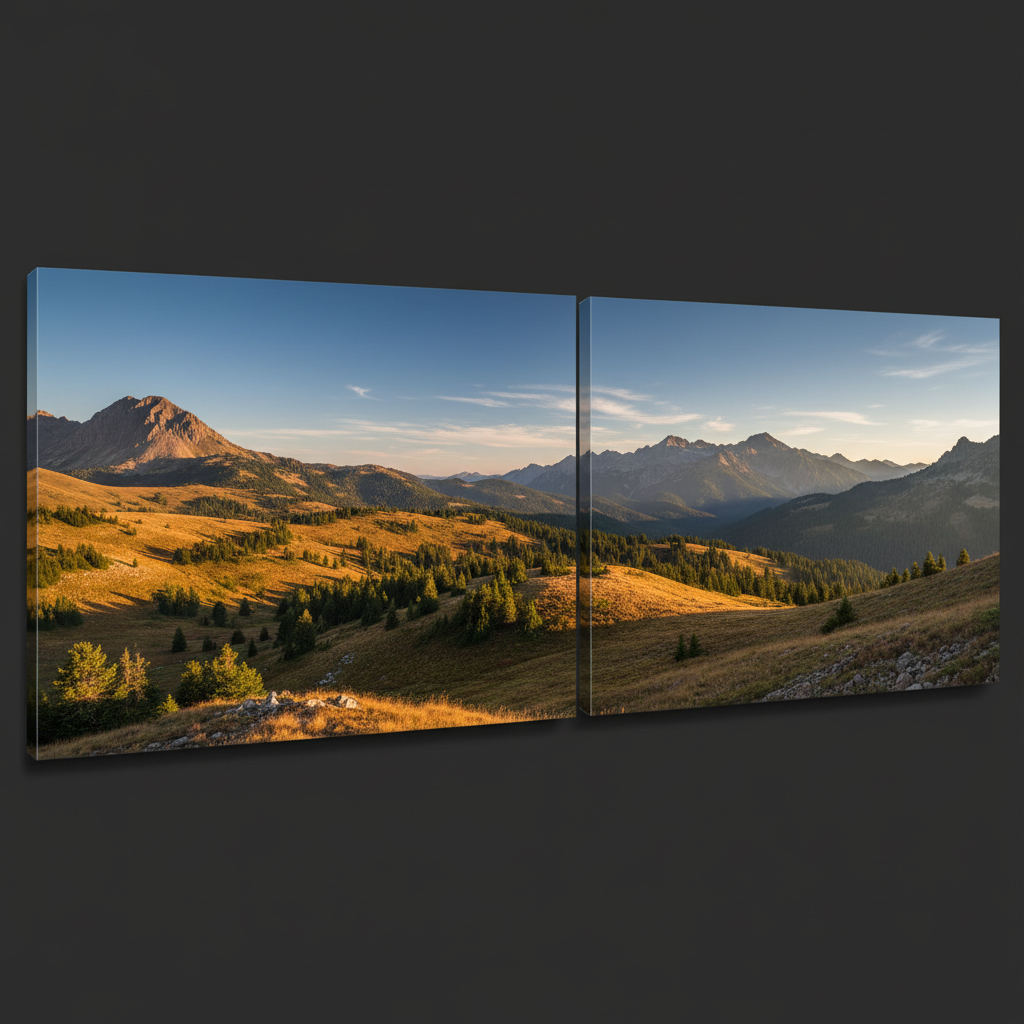
Two overlapping landscape photos side by side
Before
->
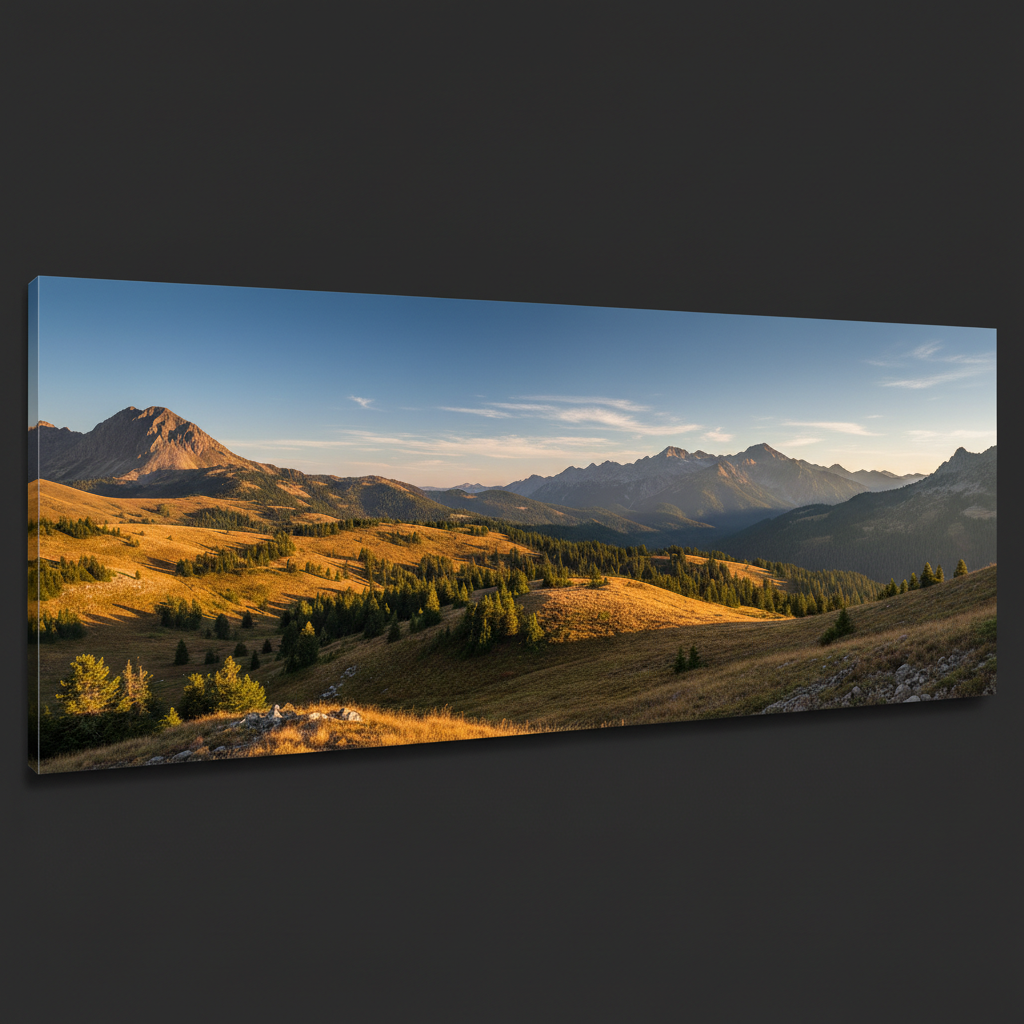
Seamless panoramic image combining both landscapes
After

Landscape panorama merge

Two overlapping landscape photos merged into one wide panoramic view. The transition is seamless where the photos meet.

Prompt: combine these landscape photos into one continuous panoramic image, blending the middle section where they overlap
Advertisement

If something looks off

AI changed the wrong area or something I didn't want changed

Why: The AI couldn't determine exactly how you wanted the photos combined. This happens when combination instructions could be interpreted multiple ways.

Try: Tap a marker where you want the second photo placed, then regenerate with the same prompt

Tip: Markers tell the AI 'I mean THIS exact position.' Use them when you need precise placement for merging.

Photos are different sizes in the combination

Why: The source photos had different dimensions and the AI made sizing decisions that don't match your intent.

Try: put these photos side by side with both scaled to the same height, cropping width if needed

Tip: Specify what should match: 'same height,' 'same width,' or '50/50 split' for consistent sizing.

Visible seam or hard edge where photos meet

Why: The photos had different lighting, colors, or the transition wasn't blended. Side-by-side layouts typically have clear divisions.

Try: combine these photos with a smooth gradient blend where they meet, no hard line visible

Tip: For seamless merges, add 'blend the transition' or 'feather the edges' to your prompt.

Important parts of photo got cropped off

Why: When combining images, the AI had to make cropping decisions to fit them together, and it chose wrong.

Try: combine these photos keeping all of the main subject visible in photo one, crop photo two if needed

Tip: Tell the AI what's important: 'keep all faces visible' or 'don't crop the left side of photo one.'

Colors don't match between the two photos

Why: The photos were taken in different lighting conditions, creating an obvious mismatch when combined.

Try: combine these photos and match the color temperature so both look like they were taken together

Tip: Adding 'match colors' or 'unify the lighting' helps create a cohesive final image.

Quick answers

Do I need to manually align or position the photos?

No. Just describe how you want them combined: 'put side by side' or 'merge into one scene.' The AI handles alignment, sizing, and positioning automatically. Markers are only needed if you want to specify an exact position for merging elements.

How do I put two photos together for free?

Upload your first photo to EditThisPic, click the reference image button to add the second photo, then describe the combination: 'put these side by side' or 'merge the person into the scene.' The AI combines them in 20-40 seconds. No account, no login, no watermarks.

Is there a free tool to combine photos without signup?

Yes. EditThisPic combines photos without requiring an account. Upload both images, describe how you want them together, and download your result. No watermarks. Works directly in your browser for side-by-side, merges, or any combination style.

Can I create a before/after comparison image?

Yes. Upload both photos and describe: 'put these side by side with a white line between them for before/after comparison.' The AI positions them equally with a clean divider. Perfect for renovations, makeovers, or any transformation comparison.

What if my photos are different sizes?

The AI automatically handles different sizes. For side-by-side layouts, it can match heights and adjust widths. For merges, it scales appropriately. Specify preferences like 'match heights' or 'keep original aspect ratios' if you have specific sizing needs.

Ready to put your photos together?

Free to try. No signup required.

Try it free โ†’