AI Photo Editor for Whatnot Photos
Turn phone shots into scroll-stopping Whatnot thumbnails. Get viewers clicking into your shows.
Drop your photo here
or click to browse
Release to upload
Free • No signup
"My Whatnot thumbnails looked like everyone else's messy desk shots. Now my cards pop in the feed and viewer counts doubled. People actually click through." @CardFlipperMike
Built for Whatnot Sellers
Whatnot is all about the thumbnail. Viewers scroll fast through the feed deciding which shows to watch. Clean, professional photos stand out and get clicks. EditThisPic lets you create feed-stopping thumbnails from phone shots in seconds. Remove sleeve reflections, add white backgrounds, and enhance details so condition is crystal clear.
Tools Whatnot Sellers Use Most
White Background
Make cards and collectibles pop in the Whatnot feed with clean white backgrounds
Remove Reflection
Clean glare and reflections from card sleeves to show condition clearly
Enhance Details
Make card edges, centering, and surface details visible for condition checks
Remove Clutter
Clean up desk clutter and distractions behind collectibles
Create Professional Whatnot Photos
-
Upload your collectible photo
Drop your card or collectible image into EditThisPic. JPG, PNG, and WebP up to 7MB. Phone camera photos work great. Whatnot works best with clear, well-lit shots, but the AI can enhance and clean up most photos.
Simple cards on clean surfaces: 15-20 seconds. Complex items with heavy reflections or busy backgrounds: may need 2-3 refinements. -
Describe the professional look you want
Type 'white background for trading card' or 'remove glare from card sleeve and show card clearly.' The AI understands these instructions. Be specific about what you want: clean white background, remove reflections, enhance details to show condition. No marking needed for most edits.
For graded cards, add 'enhance edges and corners to show condition clearly' to help buyers see centering and wear. -
Review and download
Check that card details are sharp, reflections are gone, and background is clean. Zoom in to verify condition details are preserved and visible. Download your Whatnot-ready thumbnail.
View at thumbnail size to see how it will look in the Whatnot feed before going live. -
Refine specific areas if needed
If reflections remain or card edges look soft, tap markers on those problem spots and regenerate. Most card photos work perfectly on the first try, but markers help with stubborn glare.
For cards with heavy sleeve glare, tap markers on the brightest reflection spots for targeted removal.
Whatnot Photo Prompts
white background for trading card, clean and professional for Whatnot thumbnail, remove all distractions
The standard Whatnot upgrade. Makes cards pop in the feed against busy thumbnails.
remove glare from card sleeve, show card details and condition clearly underneath, eliminate all reflections
Essential for sleeved cards. Buyers need to see condition, not your ceiling lights.
enhance card details to show condition clearly, make edges corners and centering visible, show surface texture
For graded cards or high-value items where condition matters. Shows centering and wear.
white background for comic book, enhance cover details and colors, show spine and corner condition
Comics need color accuracy and corner/spine visibility. This handles both.
Show 3 more prompts
replace background with clean white, preserve toy details and paint condition, professional collectible photography
Works for action figures, statues, and boxed collectibles. Shows paint and packaging.
white background for all cards, remove desk clutter, keep cards arranged as shown, enhance details
For showing sets or lots. AI preserves the arrangement while cleaning everything else.
remove background clutter and distractions, keep the surface card is on, clean professional look
When you like the surface but the background behind it is messy.
| Edit Type | Prompt | Time | |
|---|---|---|---|
| White background | white background for trading card, clean and professional |
15s | Try This → |
| Remove sleeve glare | remove glare from card sleeve, show card clearly |
20s | Try This → |
| Enhance condition | enhance card details to show condition, edges and corners |
15s | Try This → |
| Comics/magazines | white background for comic, enhance cover and spine |
20s | Try This → |
Whatnot Photo Examples
Trading card with sleeve glare removed
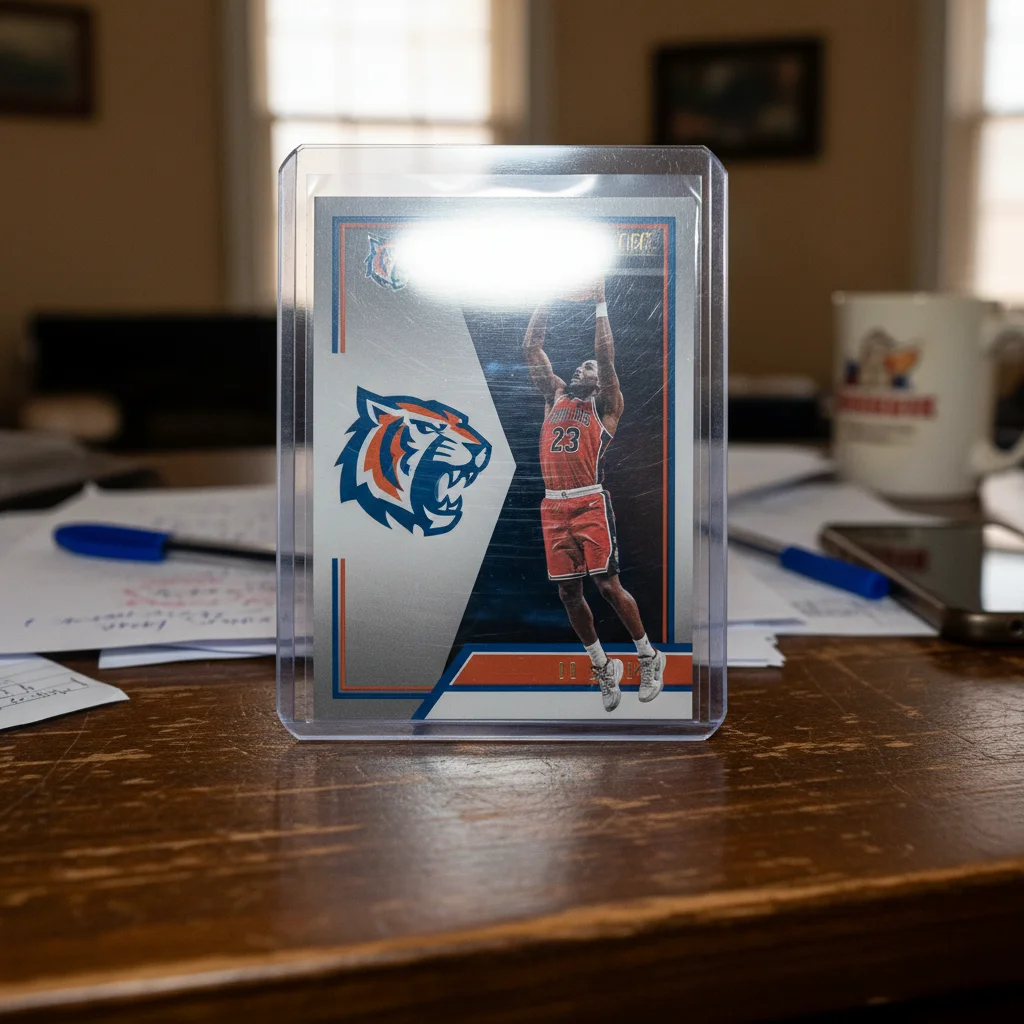
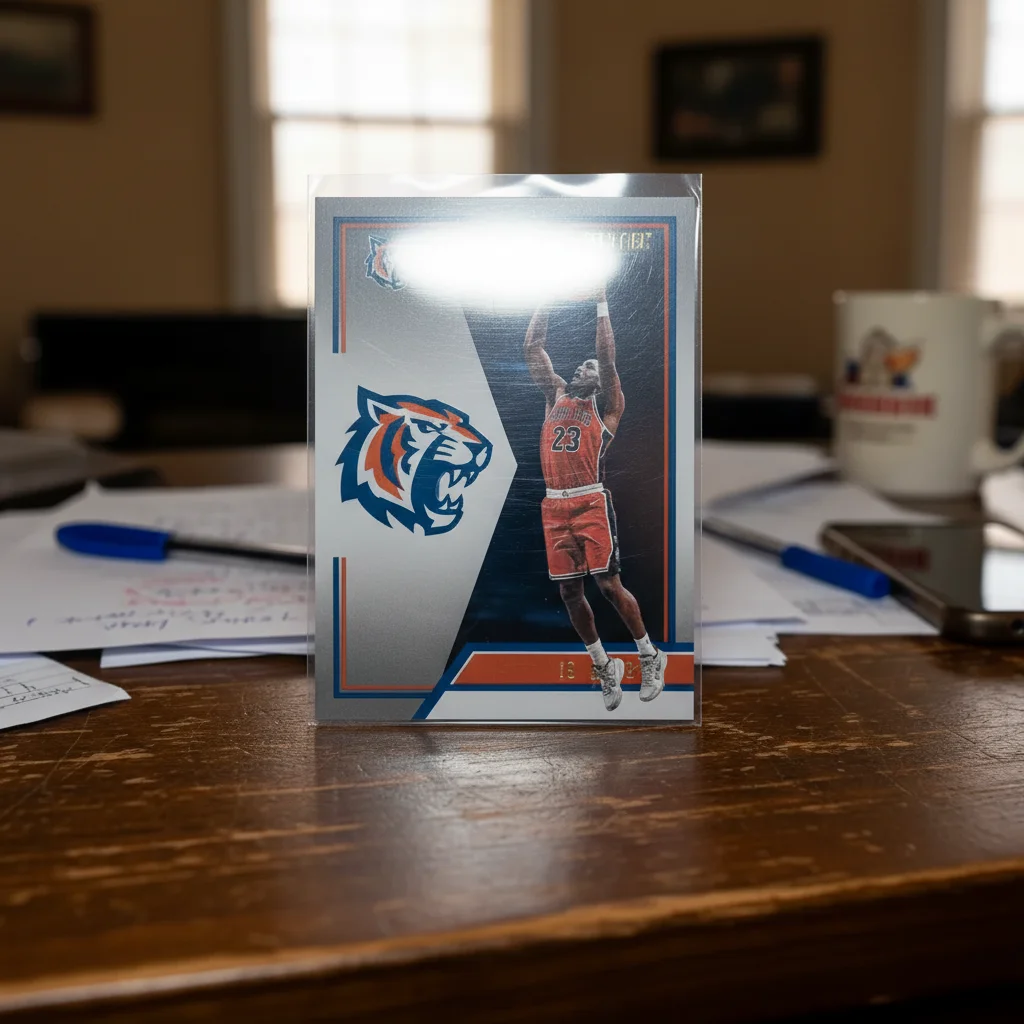
Sports card in top loader with ceiling light reflection. One prompt removed glare and added white background.


Comic book ready for feed thumbnail
Vintage comic photographed on bed with wrinkled sheets. Transformed to professional Whatnot listing.
white background for comic book, enhance cover colors and details, show spine and corners clearly


Collectible figure with clean presentation
Action figure photographed on cluttered shelf. Cleaned up to highlight details for buyers.
replace background with clean white, preserve figure details and paint condition, professional collectible photography
Common Whatnot Photo Issues
Sleeve reflections still visible after edit
Why: Heavy glare from direct overhead lighting or multiple light sources can be stubborn. The AI may have preserved some reflection thinking it's part of the card.
remove all glare and reflections from card sleeve completely, show card surface with zero shine
Tap markers on the brightest reflection spots before regenerating. This tells the AI exactly where to target.
Card edges look blurry or soft
Why: The AI smoothed edges during background removal, or the original photo had motion blur from phone shake.
white background with sharp card edges, preserve all edge details and corners clearly
Add 'enhance card sharpness' to your prompt if the original was slightly blurry.
Card colors look different after editing
Why: Removing the background changes color perception. What looked right on your desk may appear different on white.
white background, preserve original card colors exactly as photographed, accurate color representation
This is normal color perception shift. If colors seem off, add 'accurate card colors' to your prompt.
AI changed the wrong area or affected the card itself
Why: The AI couldn't distinguish card from background, especially if the card has colors similar to the desk or lighting.
Markers tell the AI 'preserve THIS exactly.' Essential for cards with backgrounds matching the desk color.
Background isn't pure white (shows shadows or gradients)
Why: The AI may have preserved natural shadows for depth, or tried to create studio lighting effects.
replace background with pure flat white, completely uniform with no shadows or gradients whatsoever
Adding 'completely uniform' tells the AI you want flat color for Whatnot thumbnails, not studio depth.
Small text on card is blurry or hard to read
Why: The AI may have over-smoothed during processing, or the original photo resolution was too low.
white background, preserve all card text with maximum sharpness, enhance fine details
Shoot cards in good lighting at the highest resolution your phone allows. AI can't add detail that wasn't captured.
Whatnot Seller Questions
Do I need to trace around my card or mark the sleeve reflection?
No. Just type 'remove glare from card sleeve' or 'white background for trading card' and the AI handles it. EditThisPic understands what 'background' and 'glare' mean without any selection. Only use markers if you need to refine specific spots afterward, but most card photos work perfectly on the first try.
Will this help my Whatnot thumbnails get more clicks?
Yes. Clean backgrounds and clear condition details make thumbnails stand out in the feed. Instead of seeing your desk clutter or ceiling reflections, buyers see the card clearly. Sellers with professional-looking thumbnails consistently report higher viewer counts and more engagement in their shows.
How do I photograph sleeved cards to avoid reflections?
Best practice: shoot at a slight angle to overhead lights, not directly under them. Natural window light works great. But even if you have reflections, EditThisPic can remove them. Try 'remove glare from card sleeve and show card details clearly.' The AI is specifically trained to handle sleeve glare.
Can I use phone camera photos or do I need professional equipment?
Phone photos work great. The key is decent lighting when you shoot. Natural daylight near a window is ideal. The AI can enhance and clean up phone shots, remove backgrounds, and eliminate reflections. You don't need a lightbox or studio setup.
Will this show card grades and condition clearly for buyers?
Yes, especially if you add 'enhance card details to show condition' to your prompt. The AI can sharpen edges, corners, and surface details so buyers can see centering, wear, and surface condition. This is crucial for graded cards or high-value items where condition determines price.
Ready to upgrade your Whatnot thumbnails?
Free to try. No signup required. Start getting more viewers.
Start Editing