Free • No signup Fix Person blinking in group photo · Free

Best photo but someone blinking?

Perfect group shot except one person blinked? AI fixes it in seconds—everyone looks great.
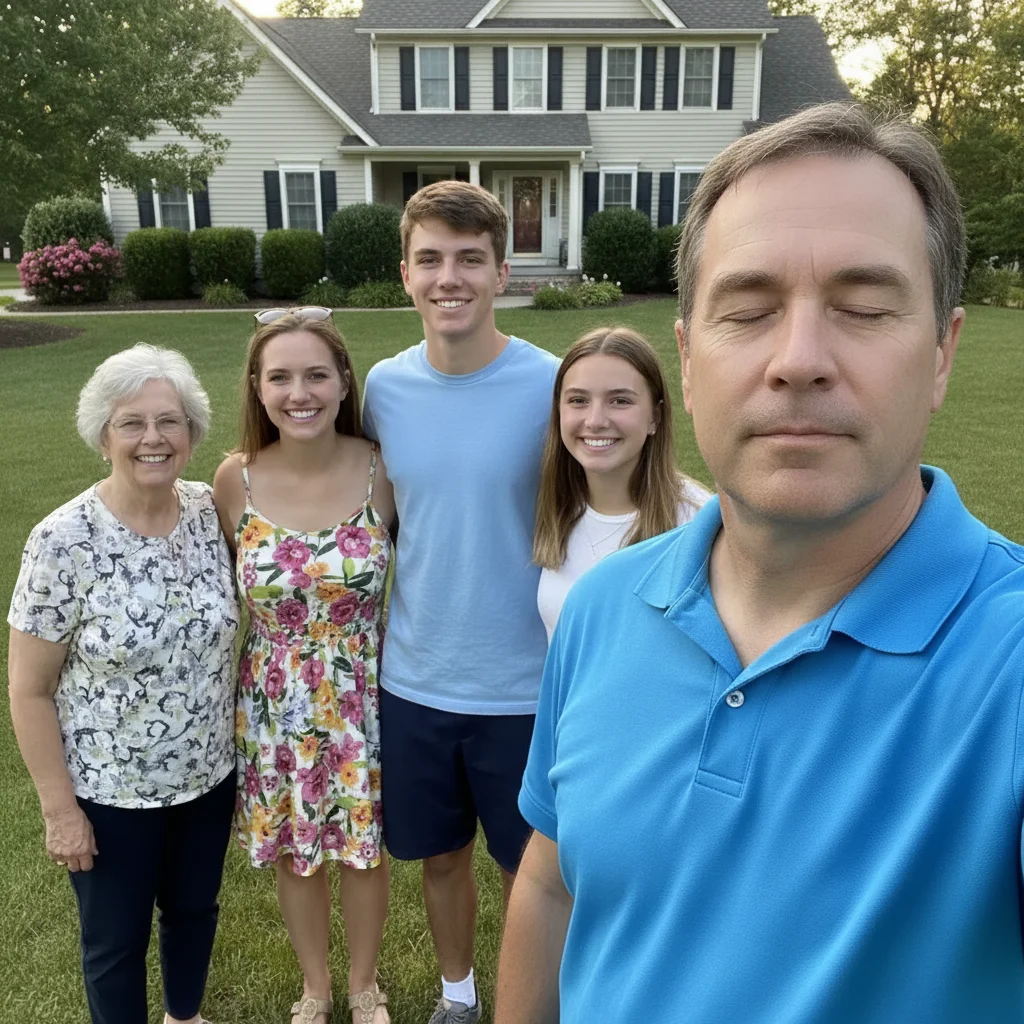
Family group photo with person on right blinking
Before
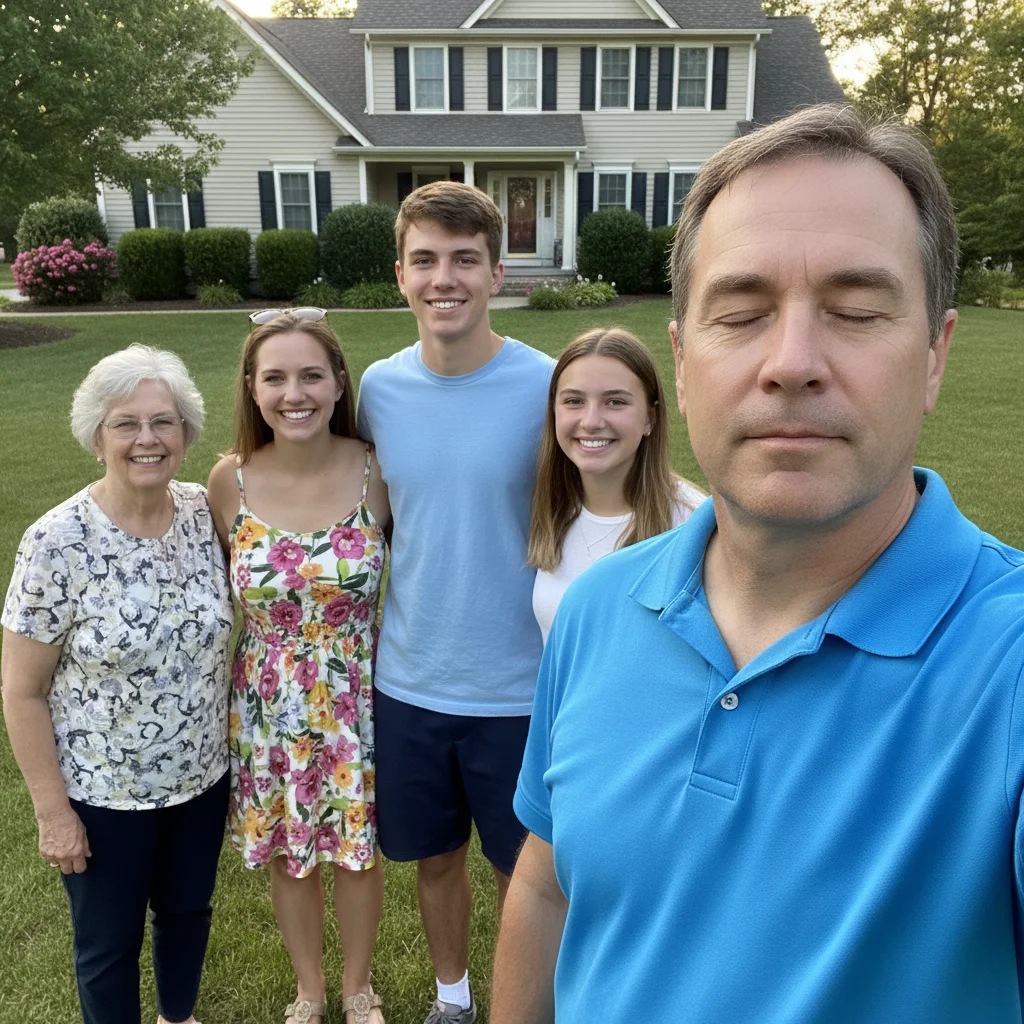
Same family photo with person's eyes naturally opened
After

Best Group Photo But Someone Blinking? Fix | EditThisPic

Drop your photo here

or click to browse

Release to upload

Free • No signup

Advertisement
Popular use cases:
  • Fix blink in group photo
  • Open eyes in family photo
  • Wedding photo blink fix
  • Team photo rescue
  • Event photography fix
  • Family portrait editing
  • Group photo repair

Cost
Free No signup required
Time
Instant results in 15-30 seconds
Works on
Any device - browser, phone, tablet, desktop
Powered by
AI-powered photo editing
Scenario Prompt Time
Small group (3-5 people) open eyes of person on left/right, keep everyone else same 25s
Large group (6+ people) fix person in [color] shirt blinking 35s
Multiple people blinking open eyes of person in blue (then repeat for next person) 30s each
Formal event (wedding/corporate) open eyes of person in back row center, keep formal look 30s

How it works

  1. Upload your group photo

    Drop your image into EditThisPic. JPG, PNG, WebP up to 7MB. Works on any group photo where one or more people are blinking—family portraits, wedding photos, team shots, event pictures.

    Expect: Simple group photos (3-5 people): 25-30 seconds. Large groups or multiple people blinking: 45-60 seconds.
  2. Describe who's blinking

    Type 'open the eyes of the person on the left' or 'fix the person blinking in the middle.' Be specific about position (left/right/center) or clothing ('person in red shirt'). The AI targets that person and opens their eyes while keeping everyone else untouched.

    Tip: For multiple people blinking, handle one at a time: 'open eyes of person in blue jacket' then regenerate for the next person.

    Copy one of these to get started:

    One person blinking in family photo open the eyes of the person on the left/right, keep everyone else the same
    Wedding photo with one guest blinking fix the person blinking in the [describe position like 'back row center' or 'front right']
    Team photo where one colleague blinked open eyes of the person wearing [color] shirt/jacket, make it look natural
    Multiple people blinking in same photo open the eyes of all people who are blinking, leave everyone else unchanged
    3 more prompts
    Child blinking in family portrait open the child's eyes on the right, keep their natural expression
    Person half-blinking or squinting fully open the eyes of person in [position], fix the squint
    Tight group where verbal description is hard tap marker on blinking person's face, then type: open this person's eyes naturally
  3. Review the result

    Check that the previously blinking person now has natural, open eyes that match the photo's lighting and mood. Verify everyone else looks exactly the same. Zoom in to confirm eye details look realistic.

  4. Refine if needed (optional)

    If the AI opened the wrong person's eyes or the result looks slightly off, tap a marker directly on the blinking person's face and try 'open this person's eyes naturally.' This ensures precision in crowded group shots.

    Tip: For large groups where verbal description is ambiguous, markers are the most reliable way to specify exactly who to fix.
Try it free

Best Group Photo But Someone Blinking? Fix | EditThisPic

Drop your photo here

or click to browse

Release to upload

Free • No signup

"Only good family photo from our reunion and my brother blinked. This fixed it perfectly—you can't tell it was edited. Saved the memory." @FamilyFirst

See it in action

Family group photo with person on right blinking
Before
->
Same family photo with person's eyes naturally opened
After

Family reunion photo with one blink

Perfect family group shot except uncle on the right blinked. One prompt opened his eyes naturally while keeping everyone else exactly as they were.
Prompt: open the eyes of the person on the right, keep everyone else the same
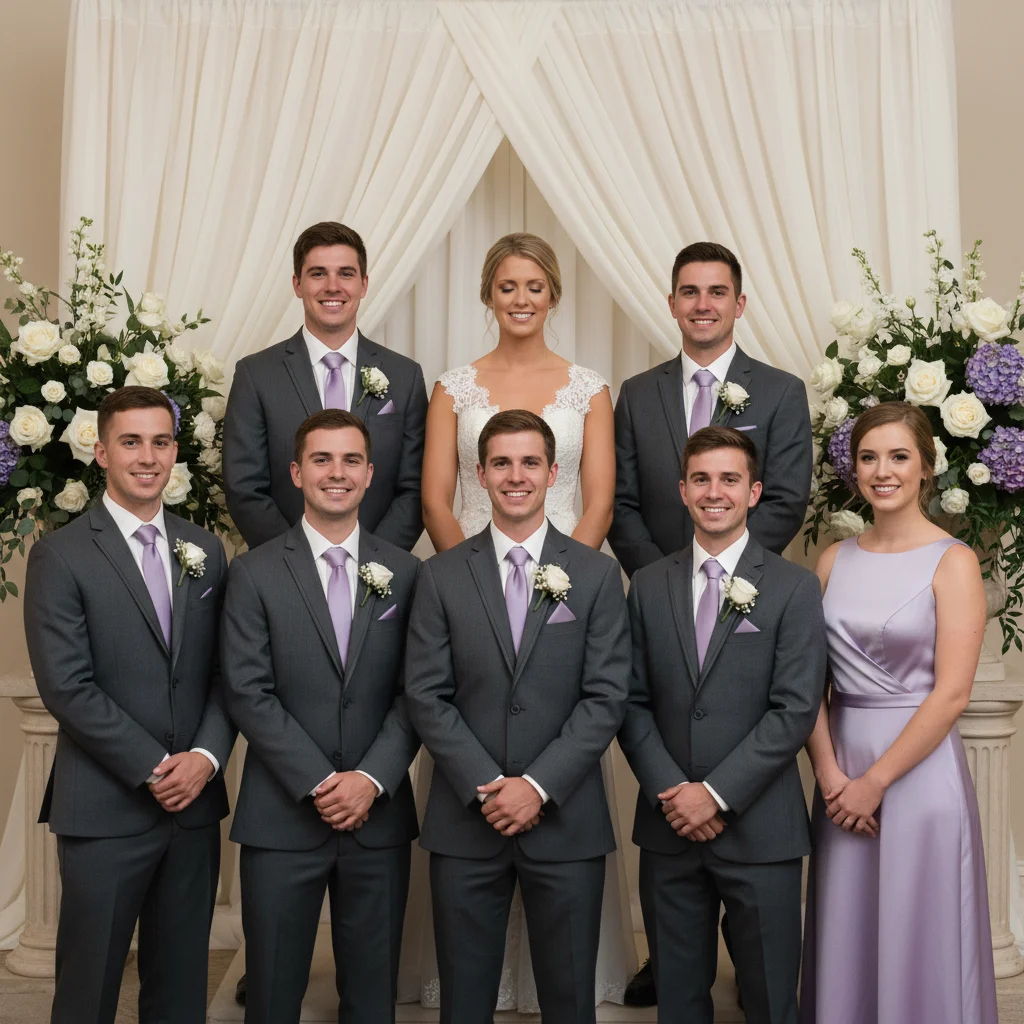
Wedding party photo with bridesmaid in center blinking
Before
->
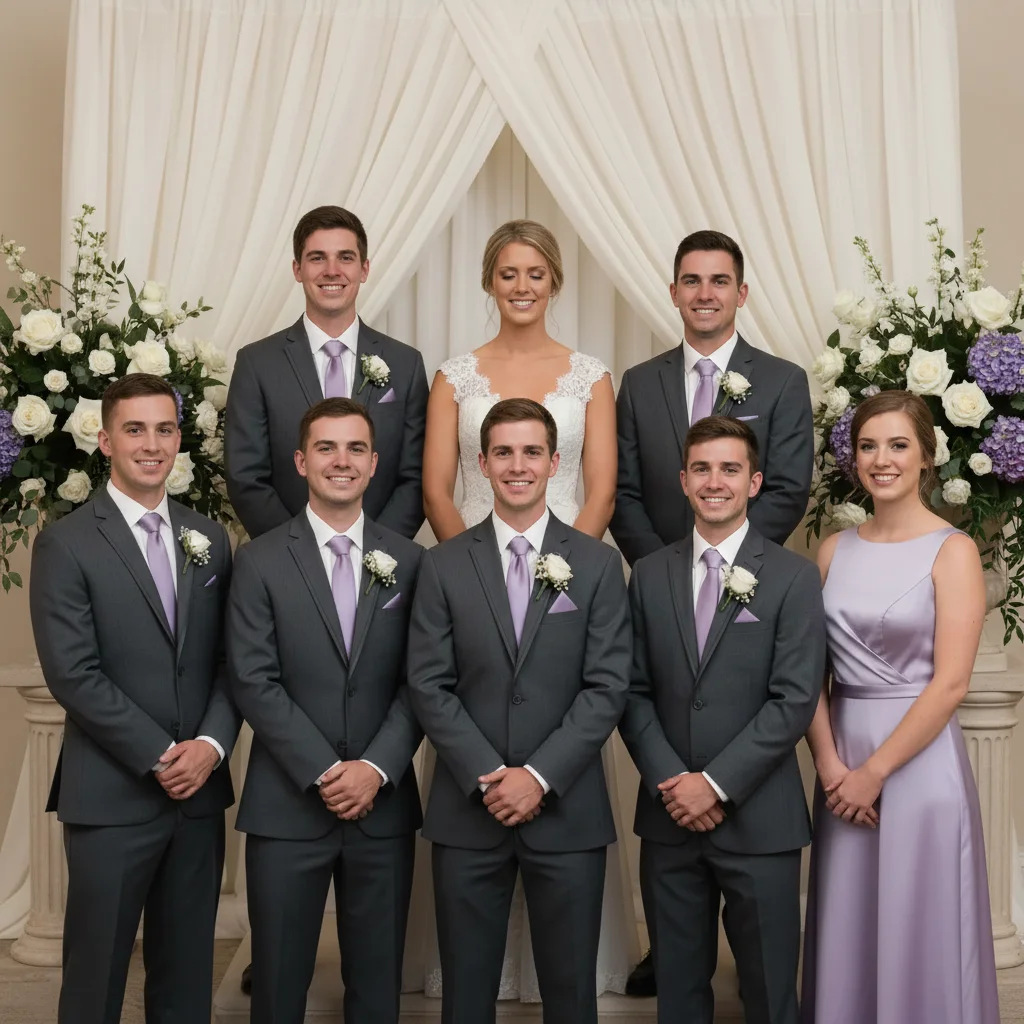
Same wedding photo with bridesmaid's eyes naturally opened
After

Wedding party photo with bridesmaid blinking

Professional wedding group shot with bridesmaids. One person in the middle row blinked. AI fixed her eyes while preserving the formal elegance of everyone else.

Prompt: fix the person blinking in the middle, keep formal expressions for everyone else
Advertisement

If something looks off

AI opened the wrong person's eyes or changed multiple people

Why: The description was ambiguous when multiple people are in similar positions or wearing similar clothing. The AI needs clearer direction about which specific person.

Try: tap a marker on the blinking person's face, then type 'open only this person's eyes, leave everyone else unchanged'

Tip: Markers eliminate ambiguity in crowded group shots. Tap the exact face you want to fix.

Opened eyes look unnatural or don't match the person's face

Why: The AI struggled to accurately reconstruct that person's eye shape, color, or expression from the limited visible information in the photo.

Try: adjust this person's eyes to look more natural, match their face shape and the photo's lighting

Tip: Try Smart mode (4 credits) for more realistic reconstruction, especially in challenging lighting or distant group shots.

Fixed person's eyes but their expression looks different now

Why: Opening eyes can subtly change facial expression. The AI may have made eyes too wide or changed the mood from the original.

Try: open eyes but keep the same warm/happy/relaxed expression as before

Tip: Adding 'keep the same expression' helps preserve the original mood and authenticity of the moment.

AI didn't change anything or said it couldn't find blinking person

Why: The verbal description may have been too vague or the AI couldn't confidently identify which person was blinking.

Try: tap marker on blinking person, then 'open this person's eyes'

Tip: For any ambiguous request in group photos, markers are more reliable than verbal descriptions.

Multiple people were blinking and only one got fixed

Why: When you ask to fix 'all blinking people,' the AI sometimes prioritizes one. Handling multiple fixes at once can be inconsistent.

Try: fix one person at a time: first 'open eyes of person in blue,' regenerate, then 'open eyes of person on left,' regenerate again

Tip: Sequential edits (one person per generation) give more consistent and controllable results than trying to fix everyone at once.

Quick answers

Do I need to mark the blinking person before describing them?

No. Just type 'open eyes of person on the left' or 'fix person in red shirt' and the AI finds and fixes them. Markers are helpful in large groups or when multiple people wear similar clothing, but they're optional for most photos.

Will this change anyone else in the photo besides the blinking person?

No. The AI targets only the person you specify and leaves everyone else untouched. Adding 'keep everyone else the same' in your prompt reinforces this, but it's the default behavior.

Can I fix multiple people blinking in the same group photo?

Yes. Either say 'open eyes of all people blinking' to try fixing everyone at once, or handle one person at a time for better control. Sequential edits (fix one, regenerate, fix next) usually give more consistent results.

What if the blinking person is far from the camera or small in the frame?

The AI can still work, but results may be less detailed due to lower resolution of that person's face. For best results, use Smart mode (4 credits) which applies more advanced reasoning to reconstruct distant or small faces.

Will this work for professional photos like weddings or corporate headshots?

Yes. The AI preserves the professional quality and formal tone of the photo while fixing the blink. Use phrases like 'keep formal expression' or 'maintain professional look' to ensure the fix matches the photo's context.

Ready to save your best group photo?

Free to try. No signup required.

Try it free