Free โ€ข No signup Blend Photos ยท Free

Blend Photos Together

Upload two photos and describe how to blend them. No complex layer tools needed.
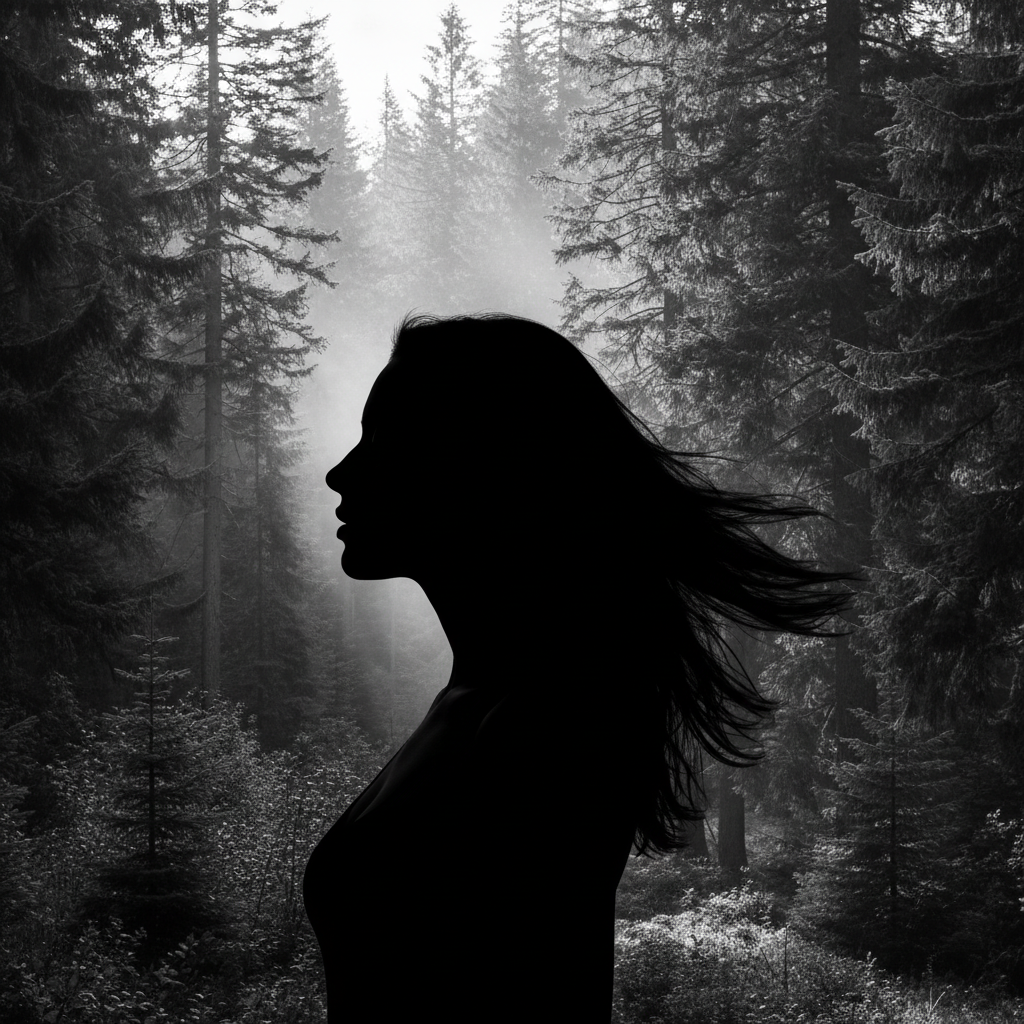
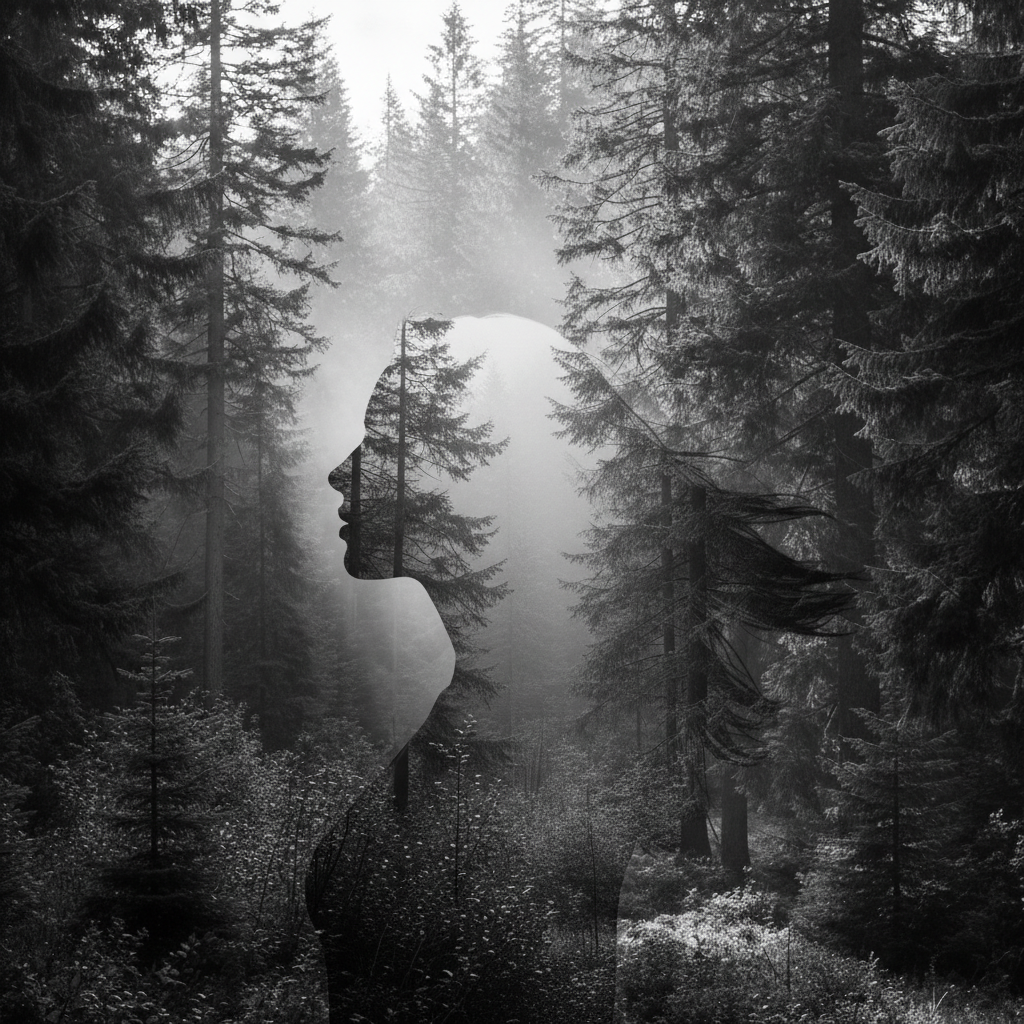
Profile portrait and forest scene as separate images
Before
โ†’
Double exposure blend with forest showing through portrait
After

Blend Photos Together

Drop your photo here

or click to browse

Release to upload

Free โ€ข No signup

Advertisement
Popular use cases:
  • Double exposure portraits
  • Artistic photo composites
  • Memorial photo blends
  • Wedding photo art
  • Instagram creative effects
  • Portrait photography art
  • Nature photography blends

Cost
Free No signup required
Time
Instant results in 15-30 seconds
Works on
Any device - browser, phone, tablet, desktop
Powered by
AI-powered photo editing
Scenario Prompt Time
Double exposure blend with double exposure effect, both images visible 25s
Gradient blend blend with soft gradient transition from left to right 20s
Texture overlay blend texture over portrait subtly without obscuring face 25s
Silhouette fill fill the silhouette with the landscape reference image 30s

How it works

  1. Upload your main photo

    Drop your primary image into EditThisPic. This is the base photo that the second image will blend into. JPG, PNG, and WebP up to 7MB all work.

    Expect: Simple blends: 20-30 seconds. Complex artistic compositions: may need 2-3 refinements.
  2. Add your reference photo

    Click the reference image button and upload the second photo you want to blend. This could be a texture, landscape, another person, or any image you want to merge with the main photo.

    Tip: High contrast images with distinct shapes work best for blending. Silhouettes create dramatic double exposure effects.
  3. Describe how to blend them

    Type your blending instruction: 'blend these photos with a double exposure effect' or 'merge the portrait into the landscape naturally.' Specify opacity, style, and which elements to emphasize. No layer tools needed - just describe the result you want.

    Tip: Mention which photo should be dominant: 'blend with the portrait as the main focus' or 'make the landscape more visible.'

    Copy one of these to get started:

    Classic double exposure blend these photos with a double exposure effect, making both images visible with artistic transparency
    Portrait in landscape blend the portrait into the landscape so the person appears to be part of the scenery with a dreamy effect
    Silhouette blend fill the silhouette with the reference image, creating a window effect where the landscape shows through the person
    Soft gradient blend blend these photos with a soft gradient transition from left to right, fading between both images smoothly
    3 more prompts
    Texture overlay blend blend the texture over the portrait subtly, adding visual interest without obscuring the face
    Artistic multi-exposure create an artistic blend with multiple ghost-like impressions of both images layered together
    Memory or dream effect blend these photos to look like a fading memory, with the reference image appearing dreamy and semi-transparent
  4. Generate and refine

    Tap generate and review the blend. Check that both images are visible as intended and the transition looks natural. If areas need adjustment, tap markers on those spots and regenerate with more specific instructions.

    Tip: If one image is too dominant, specify 'increase visibility of the [landscape/portrait]' in your next prompt.
Try it free โ†“

Blend Photos Together

Drop your photo here

or click to browse

Release to upload

Free โ€ข No signup

"Created a beautiful double exposure of my daughter with a forest background. Took 30 seconds and looks professionally edited." @PhotoMom_Sarah

See it in action

Profile portrait and forest scene as separate images
Before
->
Double exposure blend with forest showing through portrait
After

Double exposure portrait with forest

Portrait blended with forest scene to create a classic double exposure effect. The trees show through the face while maintaining recognizable features.

Prompt: blend these photos with a double exposure effect, making the forest visible through the portrait while keeping facial features clear
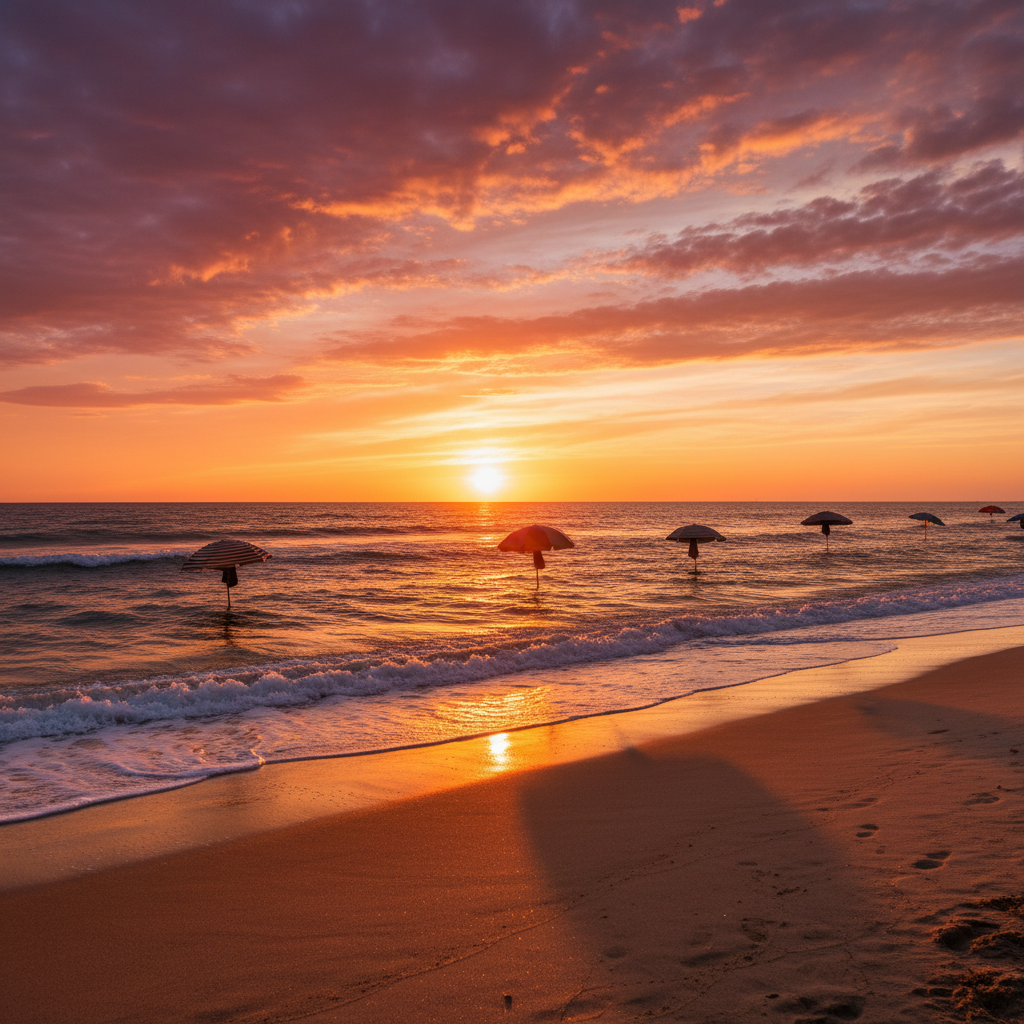
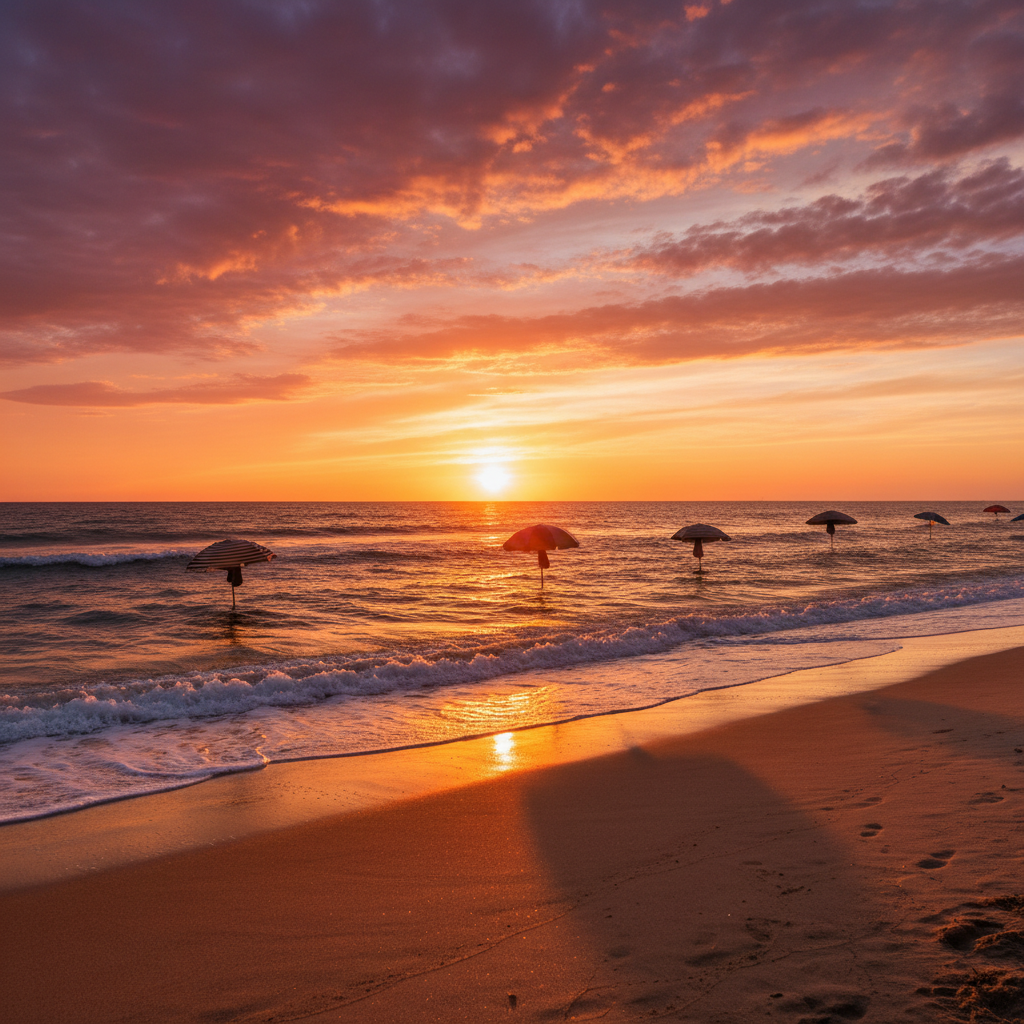
Daytime beach and sunset sky as separate images
Before
->
Beach scene with dramatic sunset sky blended in
After

Sunset gradient blend

Beach photo blended with sunset sky using a smooth gradient transition. Creates a more dramatic sky while keeping the beach scene intact.

Prompt: blend the sunset sky into the beach photo with a smooth gradient transition in the upper half
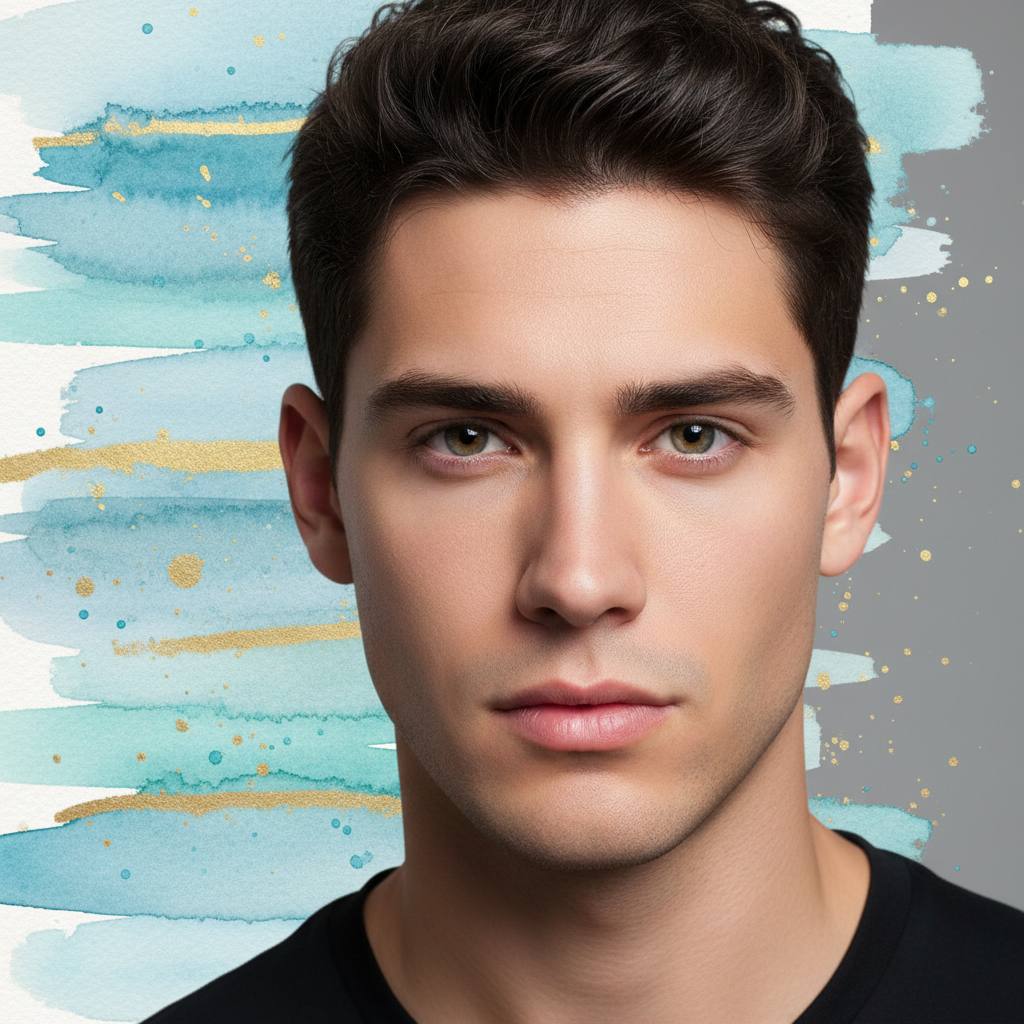
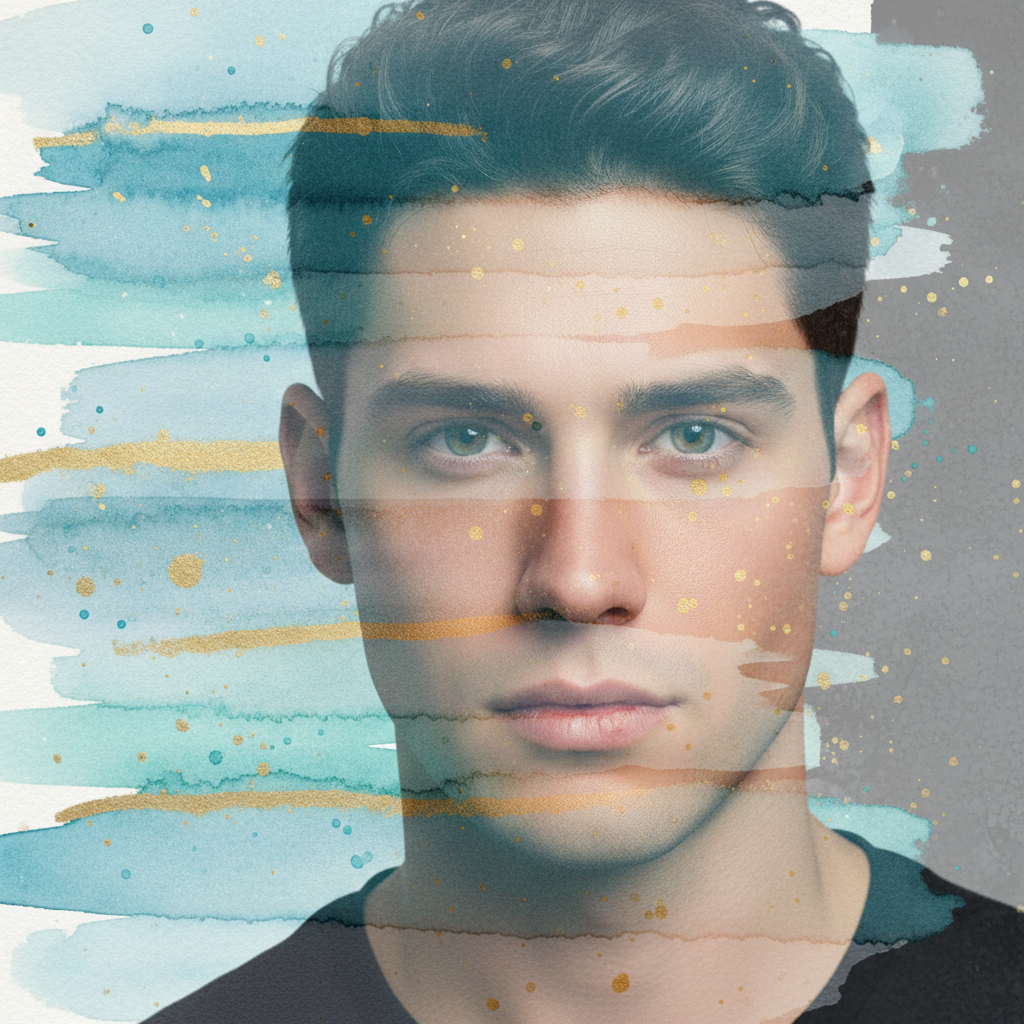
Portrait and watercolor texture as separate images
Before
->
Portrait with subtle watercolor texture blend applied
After

Artistic texture blend

Portrait enhanced with watercolor texture blend for an artistic painterly effect while keeping the subject recognizable.

Prompt: blend the watercolor texture over the portrait subtly, creating an artistic painterly effect without obscuring facial features
Advertisement

If something looks off

AI changed the wrong area or something I didn't want changed

Why: The AI couldn't determine exactly which parts of each photo to blend. This happens when both images have similar elements or the blend instruction is ambiguous.

Try: Tap a marker on the specific area you want to affect, then regenerate with the same prompt

Tip: Markers tell the AI 'I mean THIS area specifically.' Use them when you want to control exactly where the blend happens.

One photo is barely visible in the blend

Why: The AI defaulted to one image being dominant. Without specific opacity guidance, it makes assumptions about which should be primary.

Try: blend these photos with equal visibility, both images should be clearly seen at 50% each

Tip: Specify relative visibility: '70% portrait, 30% landscape' for precise control over the blend balance.

Blend looks harsh or unnatural

Why: The edges between images are too sharp, or the colors don't match well. Hard transitions create an obvious 'pasted' look.

Try: blend these photos with soft feathered edges and smooth color transitions between both images

Tip: Adding 'soft' or 'feathered' to your prompt creates more natural-looking blends.

Colors look wrong after blending

Why: The two photos had very different color temperatures or lighting conditions that clash when combined.

Try: blend these photos and match the color temperature, making both images look like they were shot in the same light

Tip: Ask for color matching if your source photos were taken in different lighting conditions.

Important details got lost in the blend

Why: The blending affected areas you wanted to keep clear, like facial features or text.

Try: blend these photos but keep the face/main subject sharp and unblended in the center

Tip: Specify what to protect: 'keep the face clear' or 'don't blend over the text.'

Quick answers

Do I need to manually mask or select areas before blending?

No. Just describe how you want the photos blended: 'create a double exposure effect' or 'blend the landscape into the portrait.' The AI automatically handles transparency, edges, and transitions. Markers are only needed if you want to control exactly which areas get blended.

How do I blend two photos together for free?

Upload your main photo to EditThisPic, click the reference image button to add your second photo, then describe the blend you want. The AI creates the composite in 20-40 seconds. No account, no login, no watermarks. Works for double exposures, gradient blends, and artistic compositions.

Is there a free photo blending tool that doesn't need an account?

Yes. EditThisPic blends photos without requiring signup or login. Upload both images, describe the blend effect, and download your result. No watermarks. Works directly in your browser with AI handling all the complex layer work.

What's the best way to create a double exposure effect?

Use a high-contrast portrait (silhouette works great) as your main photo and a texture or landscape as your reference. Describe: 'blend with double exposure effect, show the landscape through the portrait.' The AI handles transparency and edge blending automatically.

Can I control how visible each photo is in the blend?

Yes. Specify the balance in your prompt: 'blend with the portrait at 70% and landscape at 30%' or 'make the texture subtle in the background.' You can also say 'equal visibility' for a 50/50 blend.

Ready to blend your photos together?

Free to try. No signup required.

Try it free โ†’