Free โ€ข No signup Layer Photos ยท Free

Layer Photos Together

Upload two photos and describe the layering effect. No Photoshop skills needed.
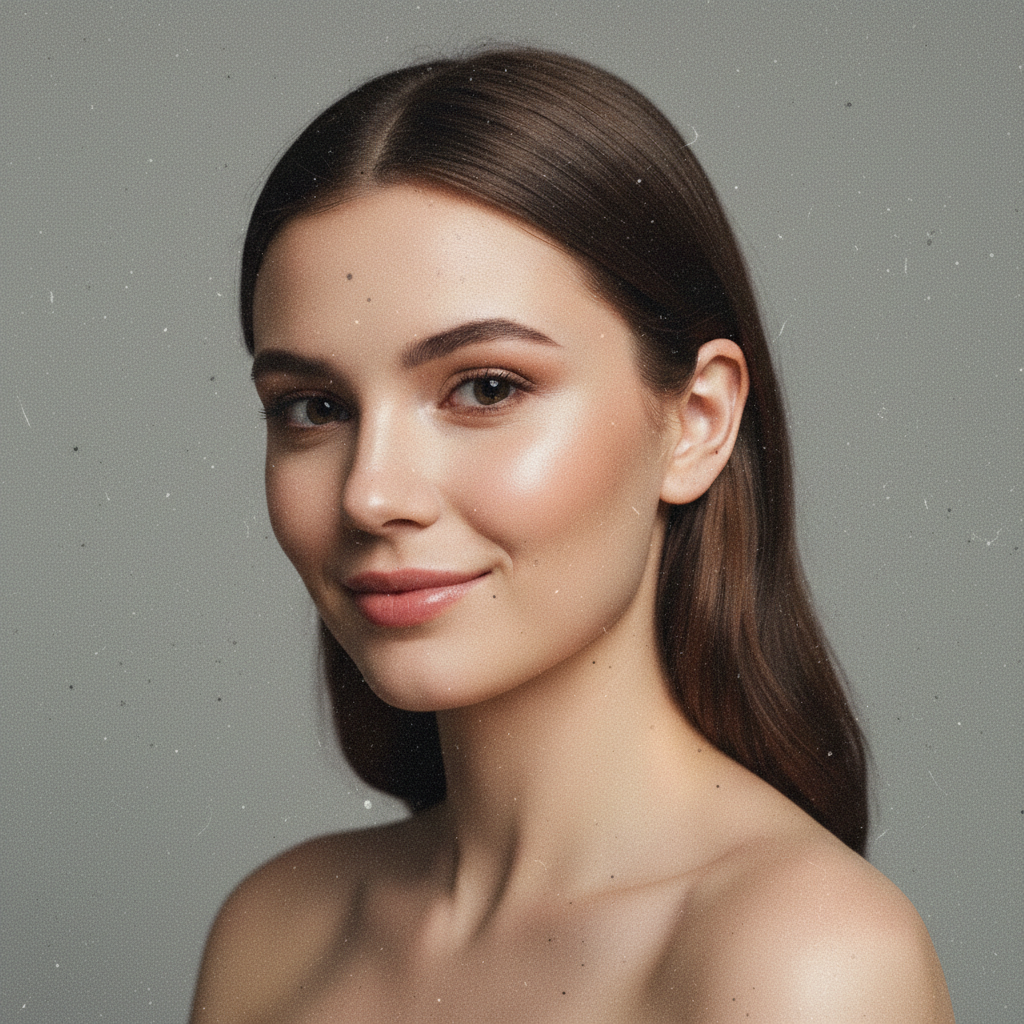
Clean digital portrait and film grain texture as separate images
Before
โ†’
Portrait with film grain texture layered for analog look
After

Layer Photos Together

Drop your photo here

or click to browse

Release to upload

Free โ€ข No signup

Advertisement
Popular use cases:
  • Film grain overlays
  • Light leak effects
  • Texture layering
  • Bokeh backgrounds
  • Vintage photo effects
  • Creative compositing
  • Photo filter layers

Cost
Free No signup required
Time
Instant results in 15-30 seconds
Works on
Any device - browser, phone, tablet, desktop
Powered by
AI-powered photo editing
Scenario Prompt Time
Texture overlay layer texture with soft light blend at 25% opacity 20s
Light leak layer light leak using screen blend in upper corner 20s
Bokeh behind layer bokeh behind the subject in dark areas 25s
Color tint layer color gradient at 20% for warm tone 20s

How it works

  1. Upload your base photo

    Drop your main image into EditThisPic. This is the foundation that other layers will be applied to. JPG, PNG, and WebP up to 7MB all work.

    Expect: Simple layering: 20-30 seconds. Complex multi-layer effects: may need 2-3 refinements.
  2. Add your layer image

    Click the reference image button and upload the photo, texture, or graphic you want to layer on top. This could be a texture, another photo, light leaks, bokeh effects, or any visual element.

    Tip: PNG images with transparency layer more cleanly. For textures, high-contrast images create stronger effects.
  3. Describe the layering effect

    Type your instruction: 'layer this texture over the photo with soft light blending at 50% opacity' or 'stack the sky layer behind the buildings.' Specify opacity, blending style, and which areas should be affected. The AI interprets natural language descriptions into layer effects.

    Tip: Use terms like 'soft overlay,' 'multiply blend,' or 'screen effect' - the AI understands these blending concepts.

    Copy one of these to get started:

    Texture overlay layer this film grain texture over the entire photo with a subtle soft light blend at 30% opacity
    Light leak effect layer the light leak over the photo using screen blend mode, positioned in the upper right corner
    Bokeh background layer layer the bokeh lights behind the subject, making them visible in the dark background areas only
    Color gradient layer layer this color gradient over the photo at 25% opacity, affecting the entire image for a warm color tone
    3 more prompts
    Vintage paper texture layer the paper texture over the photo using multiply blend to create an aged vintage look
    Partial layer coverage layer the smoke effect only on the bottom half of the image, fading to transparent at the middle
    Creative color split layer this cyan tint over the shadows and the red tint over the highlights for a cinematic split-tone look
  4. Generate and adjust

    Tap generate and review the layered result. Check that the effect intensity and positioning look right. If the layer is too strong or covers wrong areas, regenerate with adjusted opacity or specific area instructions.

    Tip: If the effect is too subtle or strong, simply say 'increase the layer effect' or 'make the texture more subtle.'
Try it free โ†“

Layer Photos Together

Drop your photo here

or click to browse

Release to upload

Free โ€ข No signup

"Layered a vintage film grain texture over my portrait. Looks like it was shot on actual film. No layer masks or blend modes to figure out." @FilmLook_Alex

See it in action

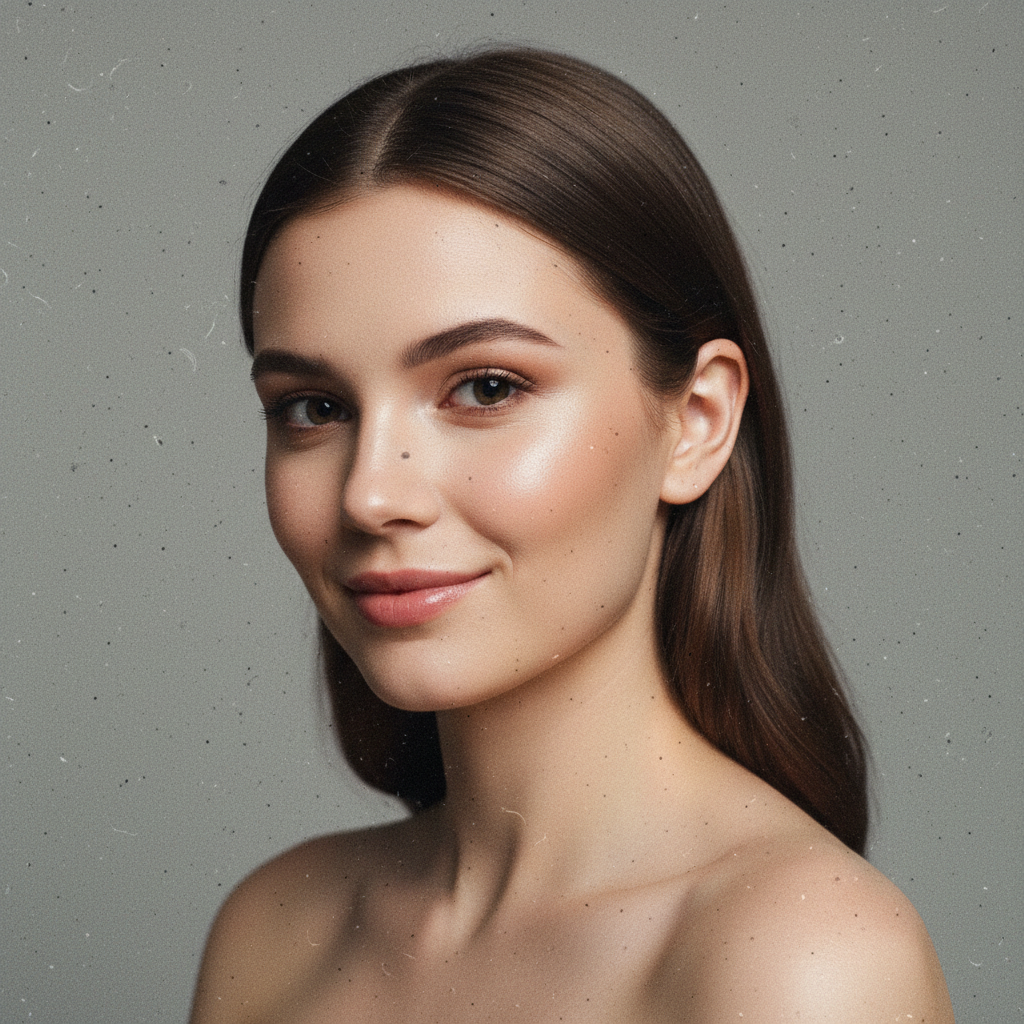
Clean digital portrait and film grain texture as separate images
Before
->
Portrait with film grain texture layered for analog look
After

Film grain texture layer

Clean digital portrait enhanced with analog film grain. The texture adds warmth and character while keeping the subject sharp.

Prompt: layer this film grain texture over the portrait with soft light blending at 25% opacity for a subtle analog film look
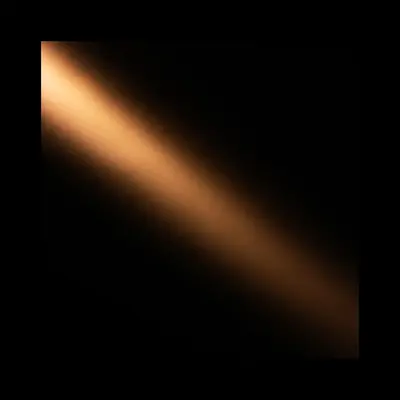
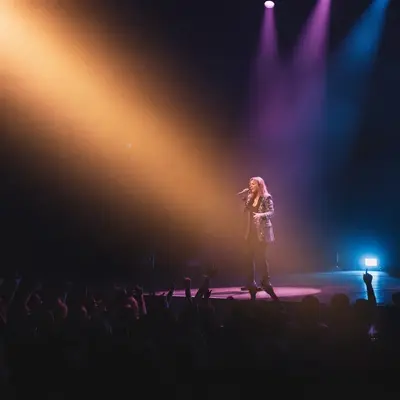
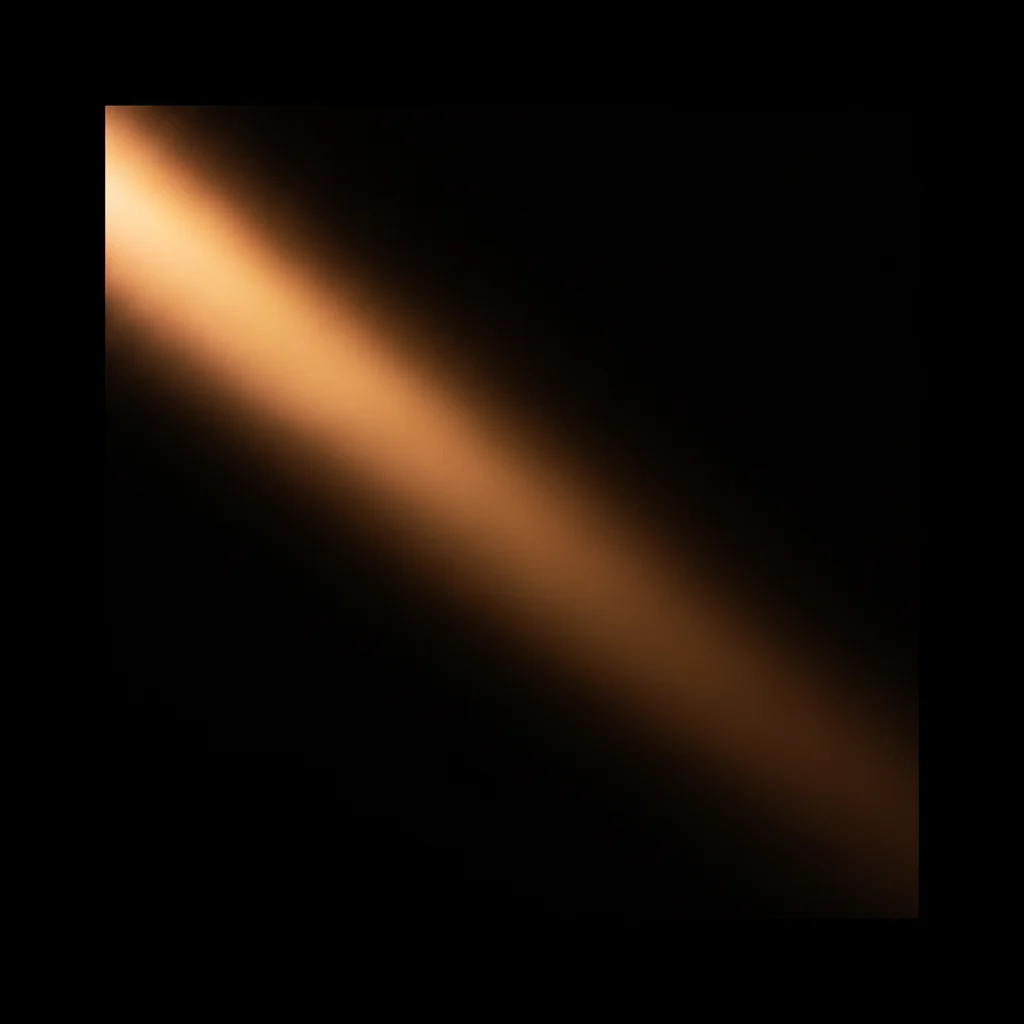
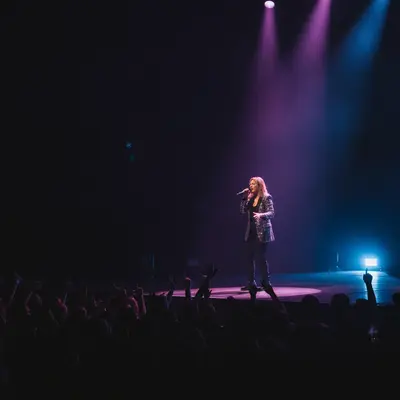
Concert photo and light leak effect as separate images
Before
->
Concert photo with warm light leak layered in corner
After

Light leak effect layer

Concert photo enhanced with light leak layer for dreamy, nostalgic feel. The warm light adds energy and vintage vibes.

Prompt: layer the light leak over the concert photo using screen blend mode, positioned coming from the upper left corner
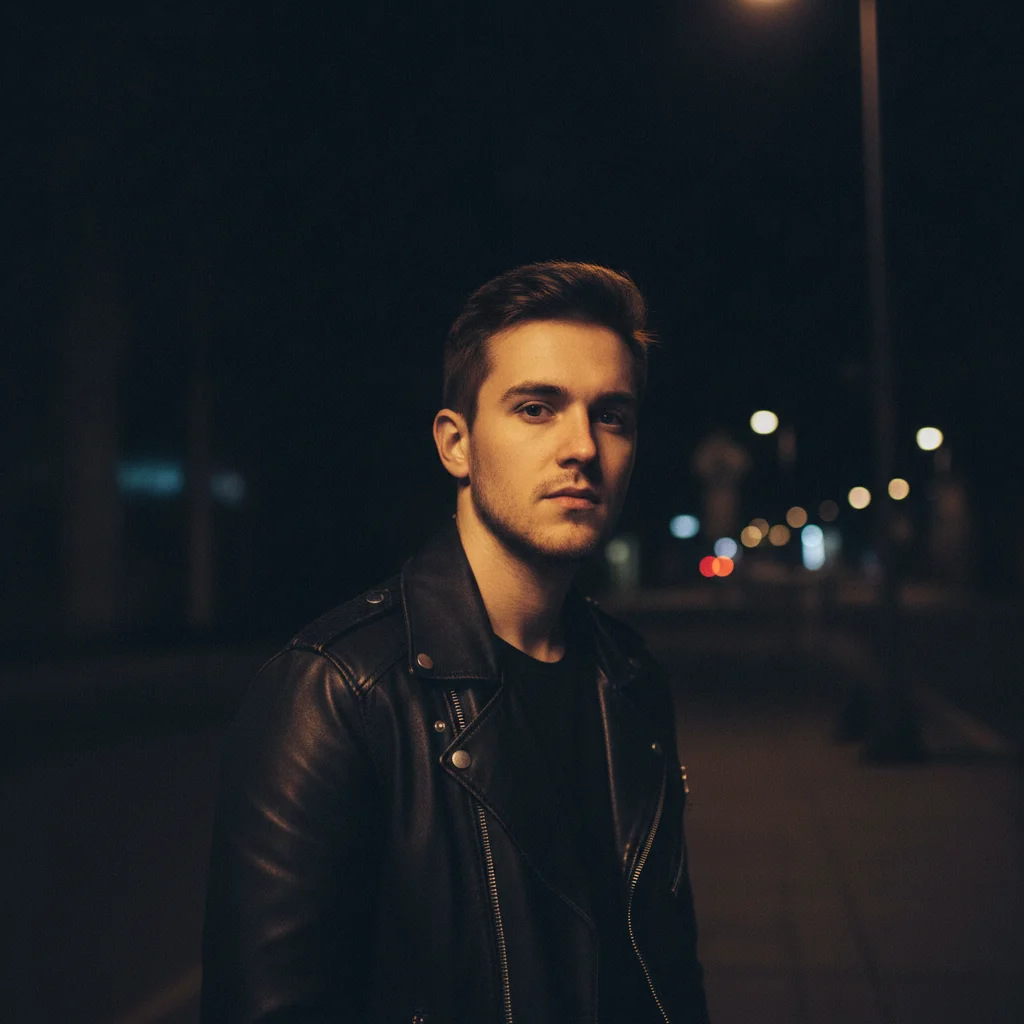
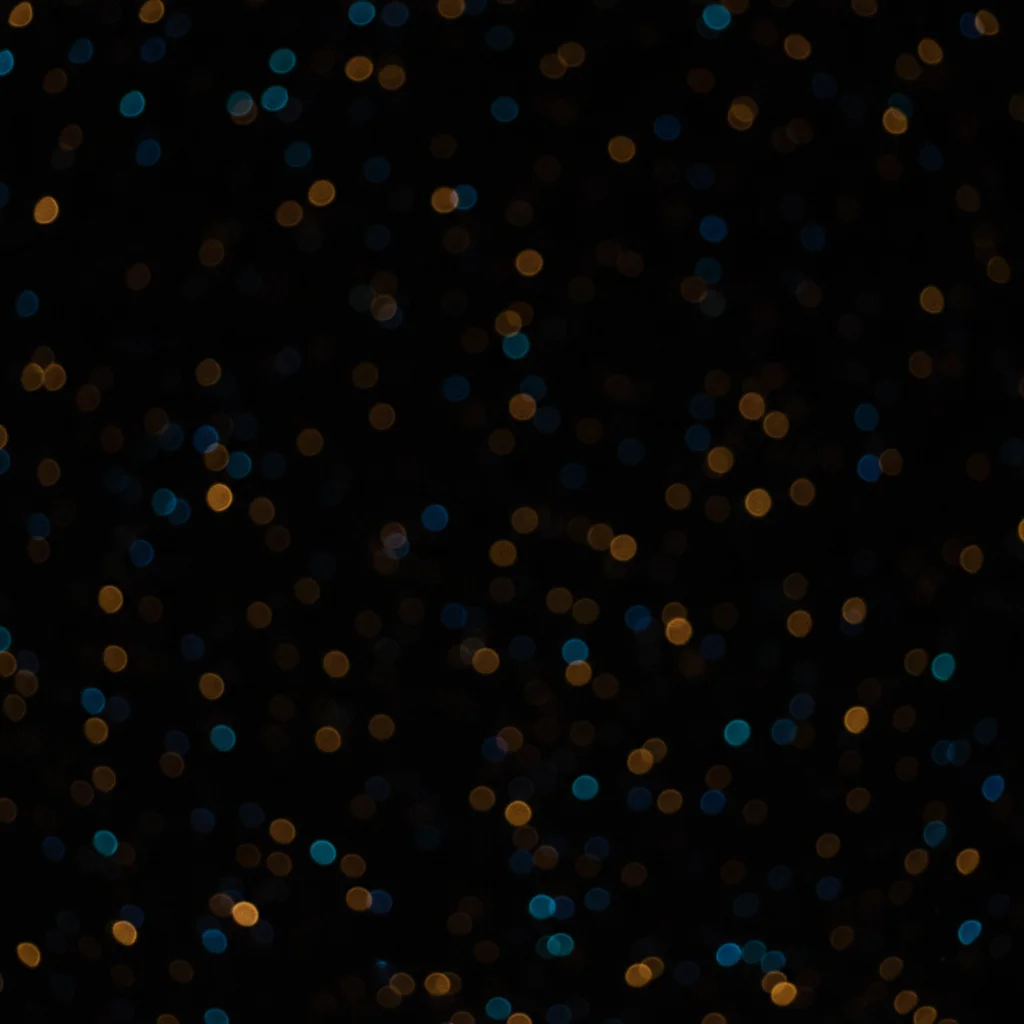
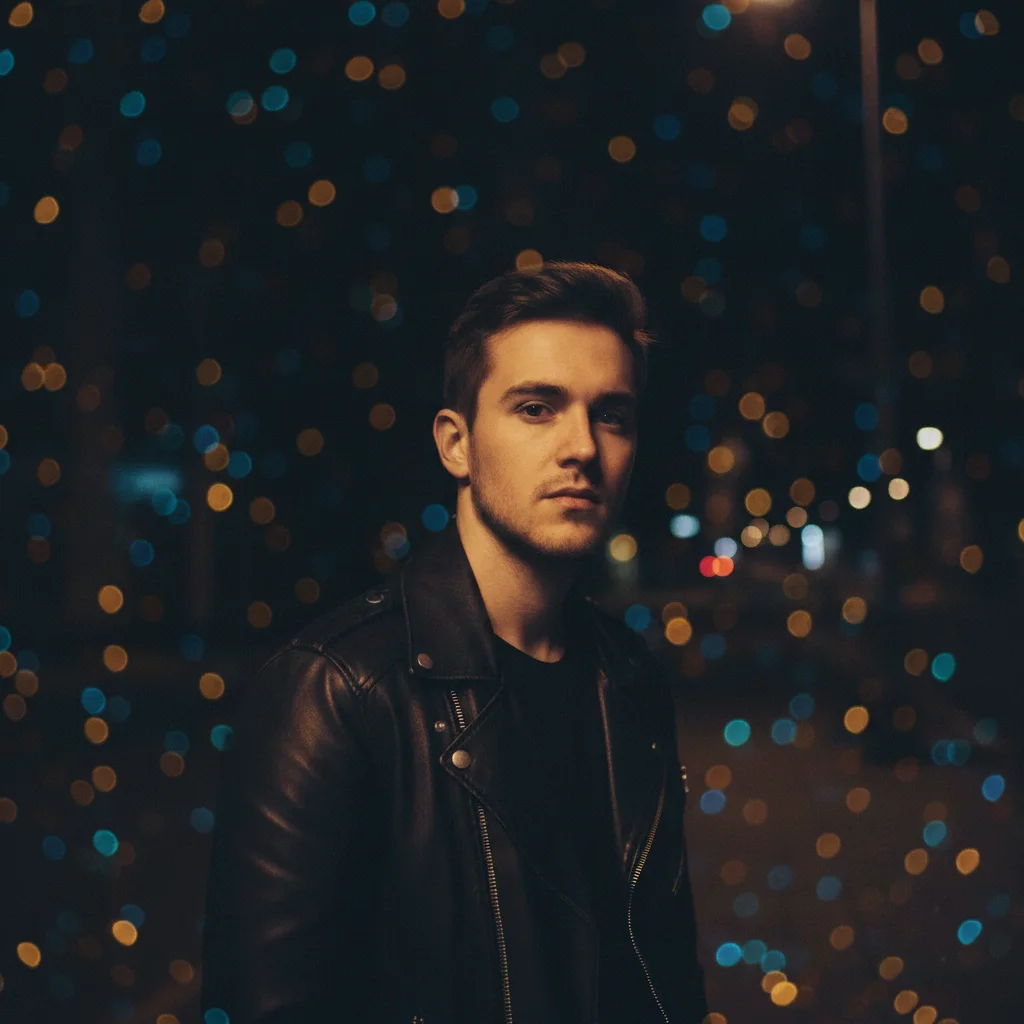
Night portrait and bokeh lights as separate images
Before
->
Portrait with bokeh lights layered in background
After

Bokeh background layer

Night portrait enhanced with bokeh lights layered behind the subject. Creates a dreamy city night atmosphere.

Prompt: layer the bokeh lights behind the subject in the dark background areas, using screen blend mode at 70% opacity
Advertisement

If something looks off

AI changed the wrong area or something I didn't want changed

Why: The AI couldn't determine exactly where you wanted the layer applied. This happens when layer placement is ambiguous or covers the whole image.

Try: Tap a marker on the area where you want the layer to appear, then regenerate with the same prompt

Tip: Markers tell the AI 'I mean THIS area.' Use them when you want the layer effect only in specific places.

Layer effect is too strong or overwhelming

Why: The default opacity or blend mode made the layer too prominent. Without specific opacity guidance, the AI may apply effects at full strength.

Try: layer the texture over the photo at 15% opacity, very subtle and barely visible

Tip: Start with low opacity (15-25%) for textures and increase if needed. It's easier to add than to tone down.

Layer covers the subject's face

Why: The AI applied the layer to the entire image without avoiding important areas. Full-coverage layers can obscure key elements.

Try: layer the texture over the background only, keep the face and skin areas clear

Tip: Specify what to protect: 'avoid the face,' 'keep the product clear,' or 'only affect the background.'

Colors look wrong or clashing

Why: The layer color interacted with the base photo colors in unexpected ways. Certain blend modes can create unwanted color shifts.

Try: layer as black and white texture only, don't add any color cast to the original photo

Tip: For textures, try 'overlay as luminosity only' or 'without affecting color' to keep original tones.

Layer effect doesn't match the mood

Why: The blending mode or positioning created a different feel than you wanted. Different blend modes create very different results.

Try: use a darker multiply blend instead of overlay, or: use lighter screen blend for a brighter effect

Tip: Screen lightens, Multiply darkens, Overlay increases contrast. Describe the mood if unsure: 'make it darker and moodier.'

Quick answers

Do I need to use layer masks or blend modes manually?

No. Just describe the effect you want: 'layer texture with soft light blend at 30%' or 'put bokeh lights behind the subject.' The AI interprets these instructions and handles the technical blending automatically. Markers are only needed if you want specific areas affected.

How do I layer photos together for free?

Upload your base photo to EditThisPic, click the reference image button to add your layer image, then describe the effect: 'layer with 50% opacity' or 'blend as soft overlay.' The AI combines them in 20-40 seconds. No account, no login, no watermarks.

Is there a free photo layering tool without Photoshop?

Yes. EditThisPic layers photos without requiring any software installation or account. Upload both images, describe the layering effect in plain English, and download your result. The AI understands blend modes, opacity, and positioning - no Photoshop knowledge needed.

What types of layers work best?

Textures (film grain, paper, dust), light effects (bokeh, flares, light leaks), color overlays, and graphics all work well. PNG files with transparency give cleanest results. For textures, high contrast images create stronger effects.

Can I control which areas get the layer effect?

Yes. Describe the area: 'layer only on the background,' 'apply to the sky area only,' or 'keep the face clear of the texture.' The AI understands spatial descriptions and can apply layers selectively without manual masking.

Ready to layer your photos?

Free to try. No signup required.

Try it free โ†’